The work agent that runs on both Gemini and Claude
Category: Gemini
-

How to use Gemini: A detailed beginner’s guide
We independently review and test every app we write about. When you click some of the links on this page, we may earn a commission. Learn more.
Gemini, Google’s AI chatbot, offers all the same features you’d expect from any AI chatbot: it can browse the web, conduct in-depth research, analyze and visualize data, generate AI images and videos—you name it, it can do it.
But, for my money, the best thing about Gemini is that it integrates deeply with other Google products. Want to search your Gmail file jungle with one prompt? Or summarize files inside your Google Drive? You can do it all without leaving your Gemini chat.
Here’s everything you need to know about how to use Gemini.
Note: Gemini is also the name of Google’s family of AI models, which powers Gemini the AI chatbot (it’s confusing, I know). Here, I’m only talking about the chatbot.
Table of contents:
What is Google Gemini?
Google Gemini is an AI chatbot built by Google that can understand and generate text while also natively understanding, operating on, and combining other kinds of information, such as images, audio, videos, and code.
In practice, this means it can do things like:
-
Hold a voice or text-based conversation with you about virtually any topic
-
Generate text for any occasion—for example, poetry, blog posts, and emails
-
Brainstorm ideas
-
Generate images and videos (and tweak them based on your requests)
-
Search the internet for current information
-
Analyze images and data
-
Create charts and graphs based on your inputs
-
Translate natural language or design mockups to code
-
Interact with your computer and take basic actions on your behalf
And practically anything else you’d imagine a multimodal chatbot trained on the entirety of the internet might be able to do.
Gemini pricing: How much is Gemini?
Gemini is free to use, but you’re limited on the number of messages you can send within a given window, and you won’t have access to the latest models. If you’re using Gemini casually, this is likely a non-issue. But if you use it regularly and find that you’re constantly butting up against those limits, you can always upgrade with a Google AI plan (from $4.99/month).
How to use Gemini (web, desktop, and mobile app)
Here’s the short version of how to use Google Gemini:
-
Go to gemini.google.com, and log in with your Google account or sign up (it’s free).
-
Choose the AI model you want to use.
-
Enter your text, image, or audio prompt in the message box on the Gemini home page.
-
Once Gemini spits out a response, you have a handful of options:
-
Edit your original prompt.
-
Enter (or say) a new prompt.
-
Fact-check Gemini’s response.
-
Like or dislike the response.
-
Ask Gemini to redo its response.
-
Branch a new chat.
-
Listen to the response.
-
Share the response.
-
Export the response to Docs or Gmail.
-
Review different versions of Gemini’s response.
-
Now let’s take a closer look at the finer details of using Gemini. Note: I’m using Gemini on the web, but the steps are pretty much the same on the desktop and mobile apps.
1. Log in to Gemini
To get started, go to gemini.google.com, and click Sign in. Follow the prompts to sign in with your Google account (or create an account if you don’t already have one).
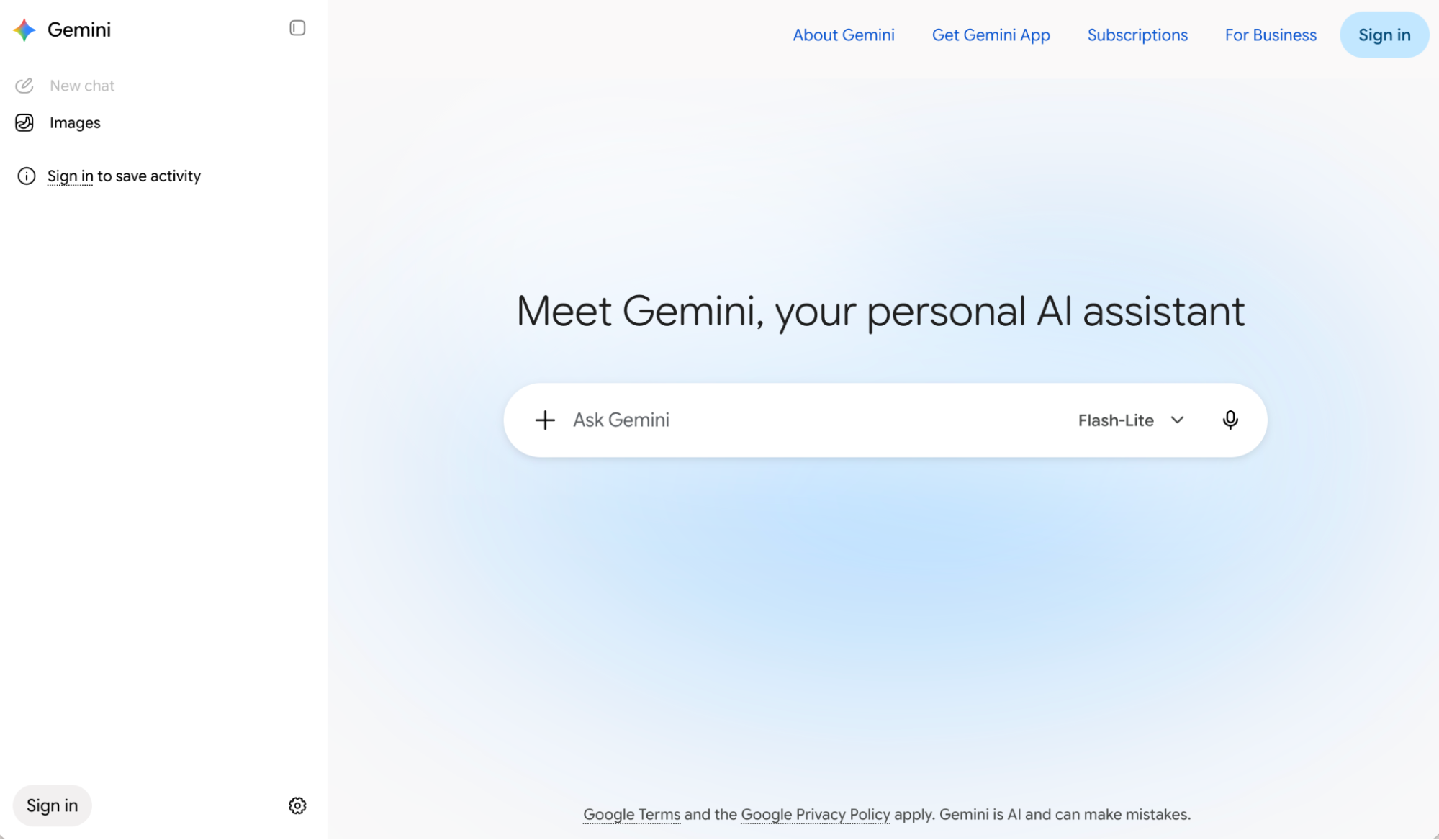
Note: If you’re using a work or school Google account, your workspace administrator may have disabled access to Gemini. So if you can’t access it, that’s probably why.
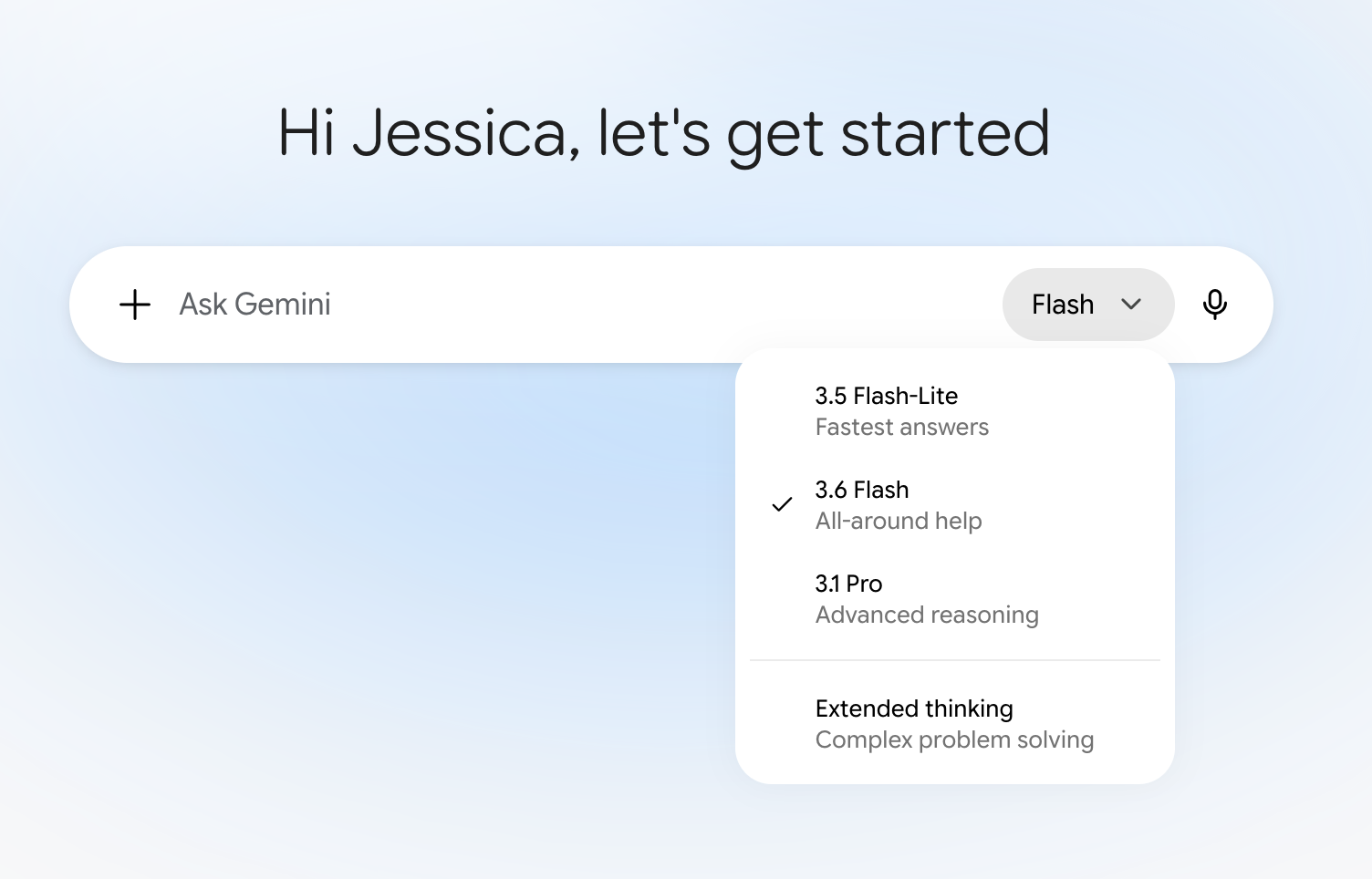
2. Choose your AI model
You can switch to a different AI model than Gemini’s default setting. To do this, click the model dropdown in your conversation window, and then select the model you want to use.
3. Chat with Gemini
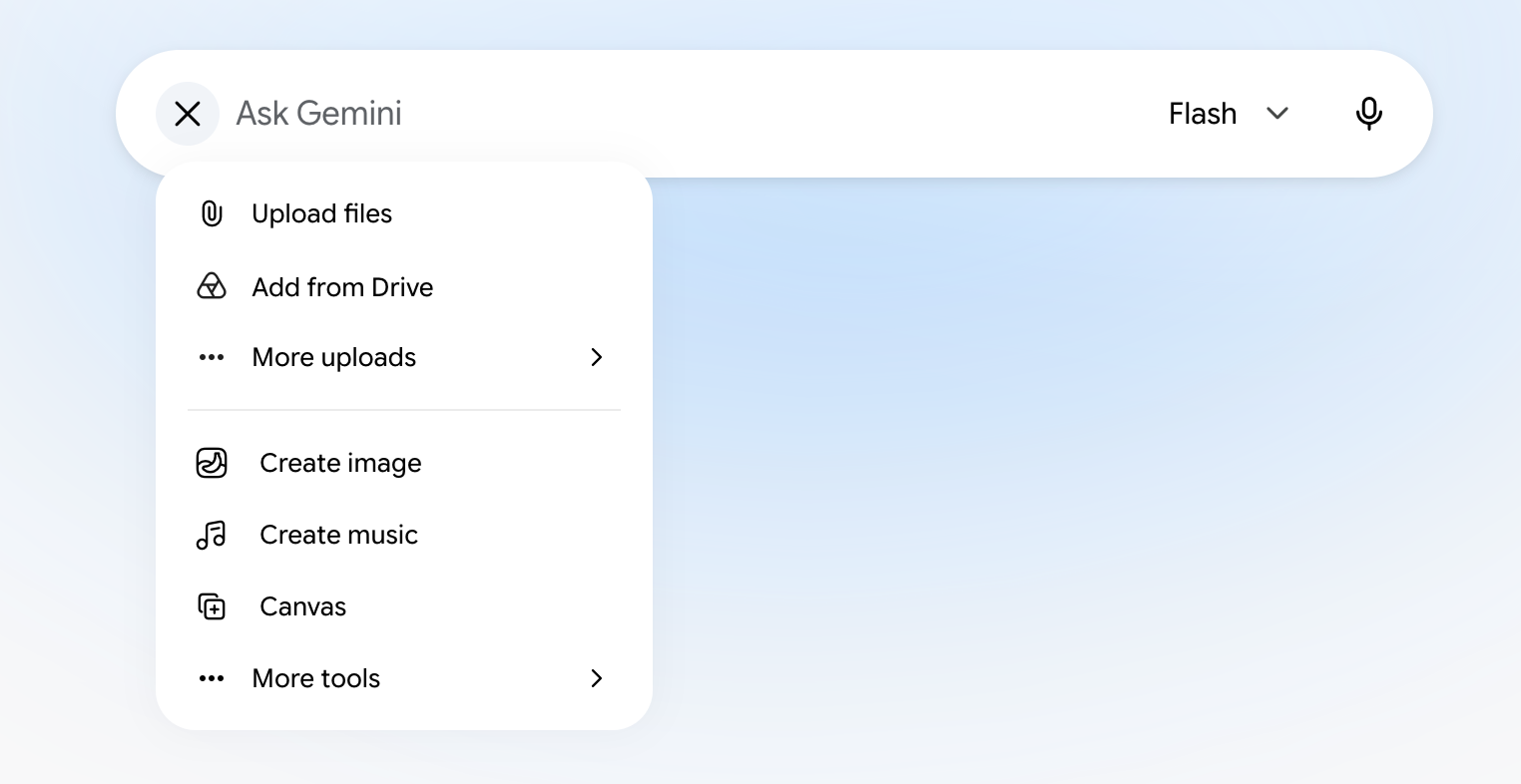
You can prompt Gemini in a few ways (some features may be limited to only the web, desktop app, or mobile app).
-
Type your AI prompt in the text box, and press Enter (or click the up-facing arrow).
-
Use Deep Research in Gemini to get it to comb through hundreds of online sources and files to give you a comprehensive response, complete with cited sources to verify its claims. To do this, click the plus icon (
+) > More tools > Deep Research, and then enter your prompt. -
Create a separate canvas. If you want Gemini to output its response into its own document of sorts, click
+, and then select Canvas. That will open up a new canvas, and you can work on the response in detail. -
Generate or edit an image. Click
+, select Create image, and enter your AI art prompt. -
Generate audio. Click
+, select Create music, and then describe the audio track you want Gemini to generate. -
Talk to Gemini by pressing the microphone icon to enter your prompt using speech-to-text. If you’re using the mobile app, you can also tap the Gemini Live icon, which looks like three vertical bars, to chat back and forth with Gemini.
-
Upload an image by clicking
+, and then selecting how you want to add your image: upload from computer, add from Drive, or import from Google Photos. You can also drag and drop the image from your computer into the message bar. Then enter your accompanying prompt. -
Discuss something on your screen. If you have the desktop app for macOS installed, you can show Gemini a specific window or a portion of your screen, and ask it to summarize or analyze the contents. You can even show a draft you’re working on, for example, and ask Gemini to help you refine it. To do this, open the window you want Gemini to “view,” press and hold
fn, and prompt Gemini. Toggle back to your chat to view Gemini’s response.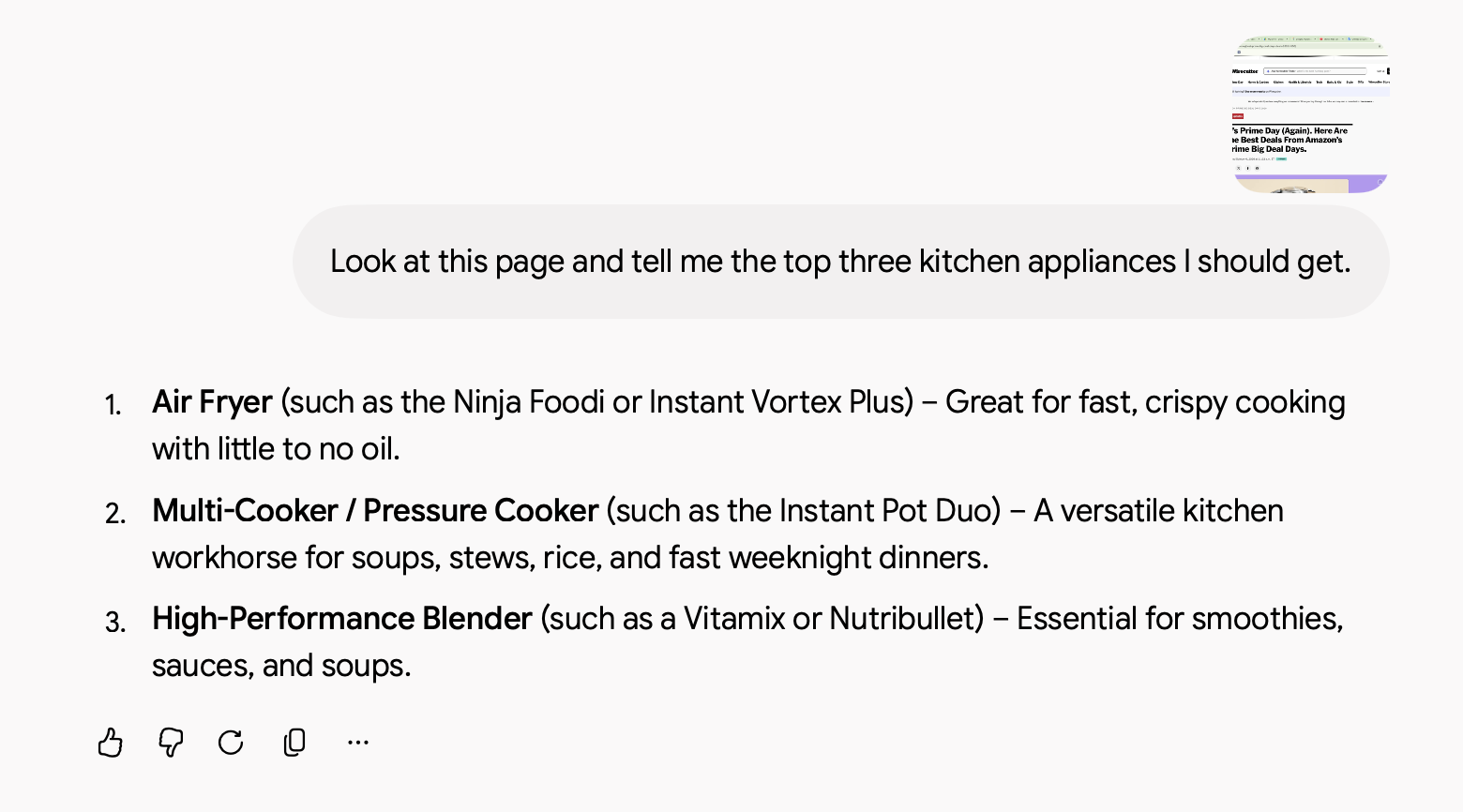
4. Interact with Gemini’s responses
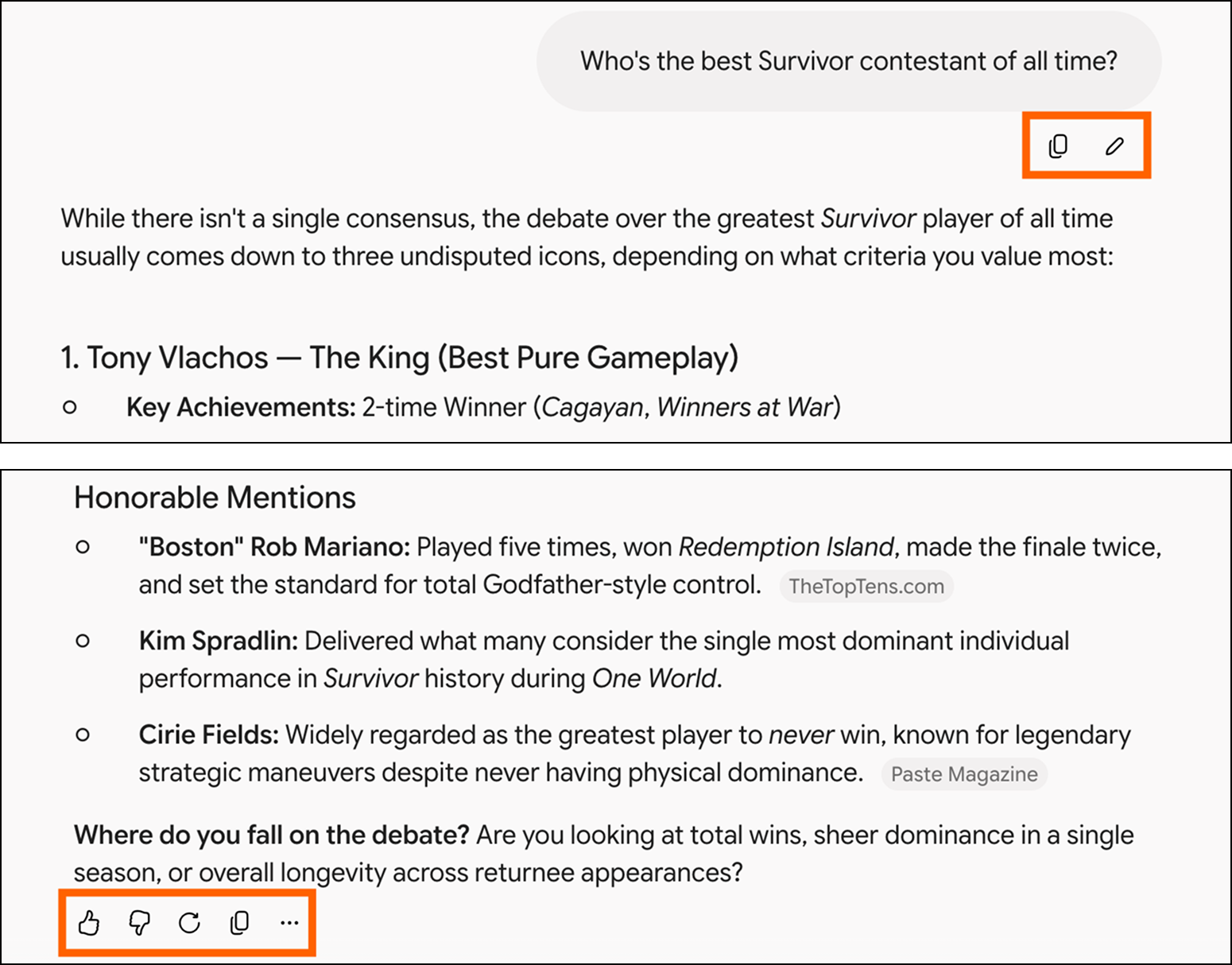
In a matter of seconds, Gemini will generate a reply in an easy-to-scan format. From here, you have a number of options.
-
Edit your original prompt. Hover over the prompt, and click the Edit message icon that appears (it looks like a pencil). Edit your prompt, and then click Submit.
-
Enter (or say) a new prompt. Ask Gemini to modify its response. Gemini will refer back to whatever you discussed before and then use that to inform its response so you don’t have to repeat yourself.
-
Review the sources. Hover over any source pill in the answer to learn more about the source used to inform Gemini’s response. Click it if you want to go directly to the source.
-
Like or dislike the response. Gemini relies on real-world feedback to improve the quality of its responses. If the response was helpful, click the Good response icon, which looks like a thumbs-up. If it was inaccurate or unhelpful, click the Bad response icon, which looks like a thumbs-down.
-
Get a new response. If the response isn’t quite what you’re looking for, and you want to use the same prompt, click the Redo icon below the most recent response.
-
Branch a new chat. If you want to take your conversation in a different direction without overwriting your original thread, click More (
...) beneath the response, and select Branch in new chat. This will open a new chat tab that picks up from that exact point. -
Listen to Gemini’s response. You can also listen to Gemini’s response. Click More (
...) beneath the response you want to hear, and select Listen. The same button will change to “Pause.” Click it to pause the audio. -
Share the response. Click the kebab menu (
⋮) at the top of your conversation , and then select Share conversation to generate a unique URL you can copy and send. That’ll allow others to see your entire chat. If you want to share only a specific response, click the Copy icon beneath the response you want to share, and paste it as you normally would. -
Export the response to Google Docs or Gmail. You can also export a given response to Google Docs or Gmail, and tweak it further (or use as is). To do this, click More below a response, and select Export to Docs or Draft in Gmail.
-
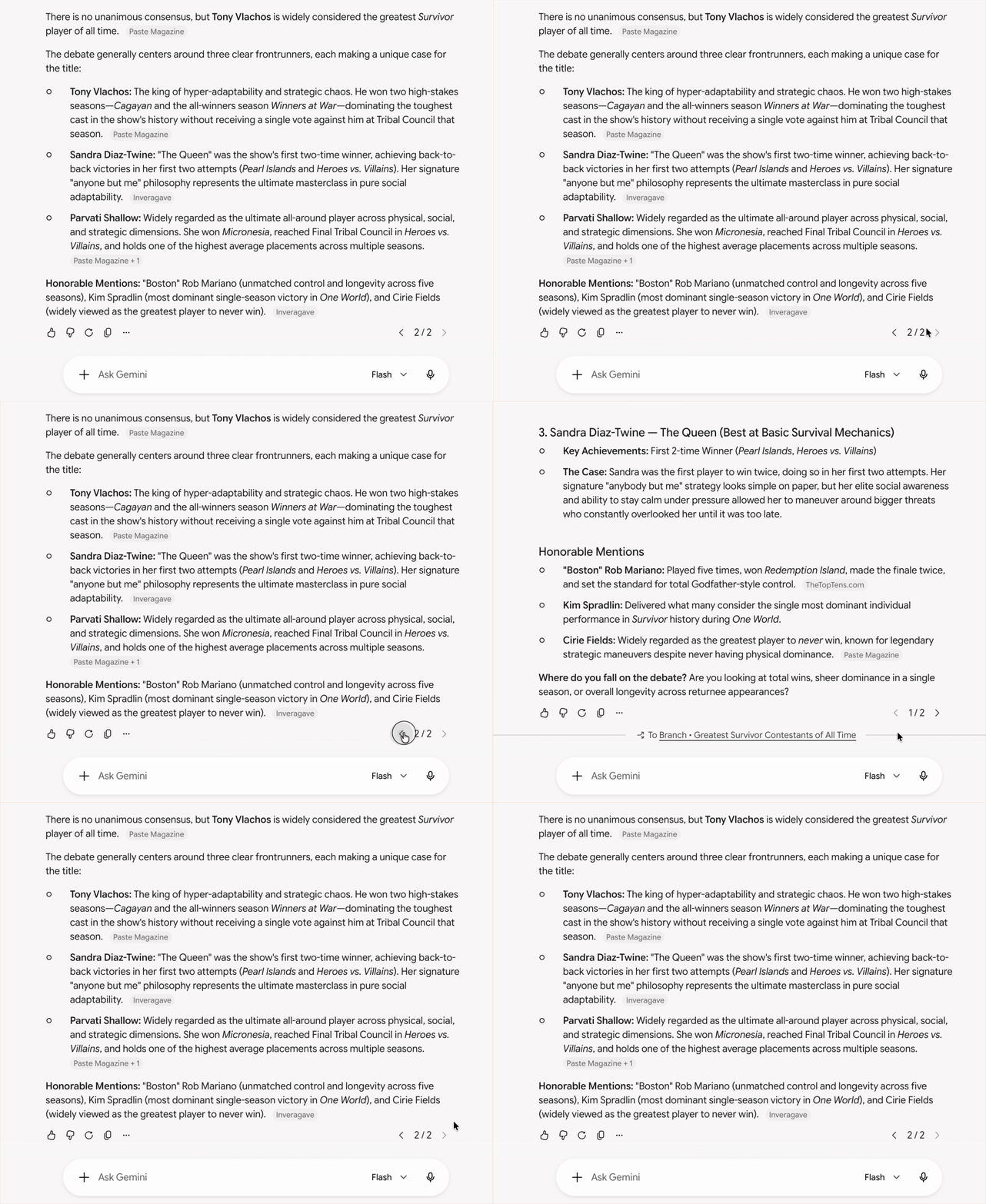
Review different versions of the response. If you asked Gemini to redo any of its responses, you can review every iteration. Click the arrow next to the version number to toggle back and forth.
How to use Gemini in Chrome
You can also initiate a chat with Gemini directly from the browser bar of any Chrome window.
-
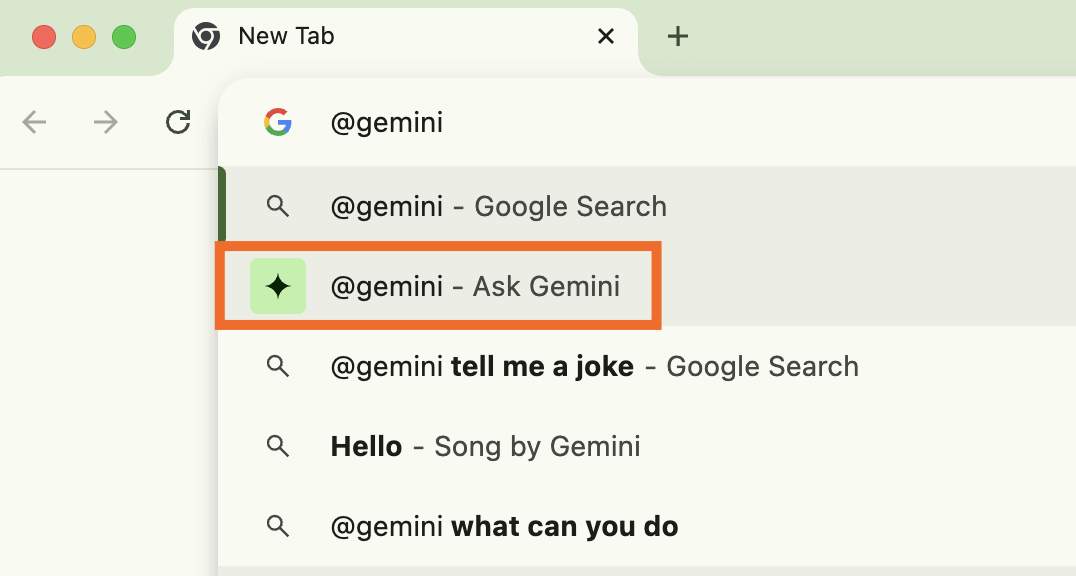
Enter
@geminiin the address bar of your Chrome window. -
Click @gemini – Ask Gemini.
-
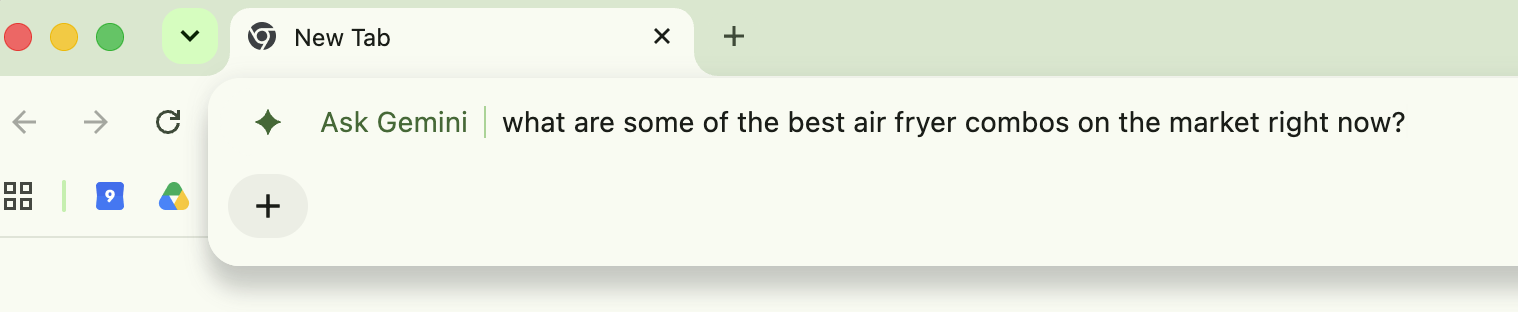
Enter your prompt in the address bar, and press Enter.
-
You’ll be redirected to the Gemini homepage. Click Chat with Gemini. (You may be prompted to first sign in.)
-
Your response will appear in the web app.
-
Continue to chat with Gemini as usual.
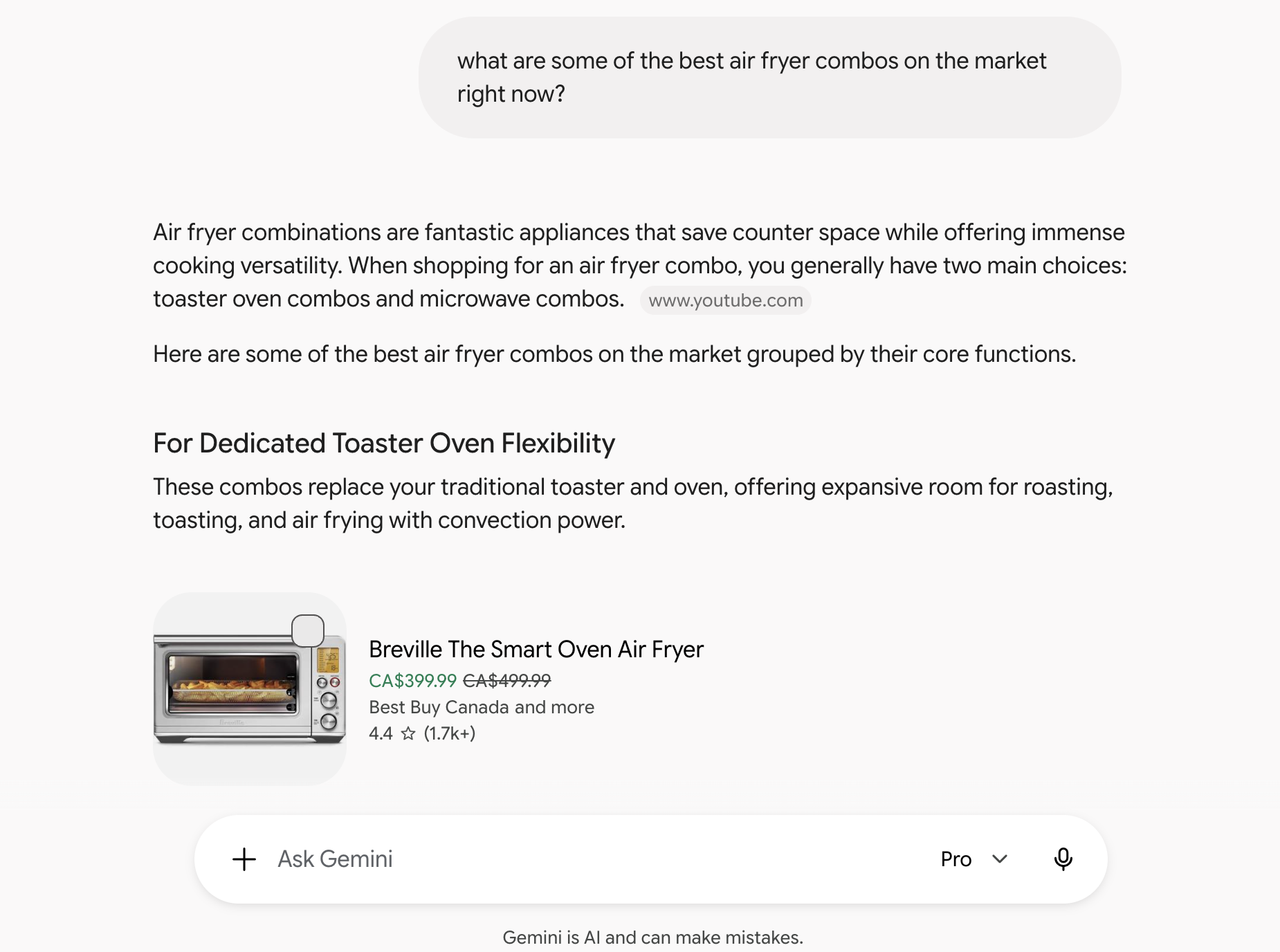
How to use Gemini Live
Instead of typing in your prompt, you can have a back-and-forth conversation with Gemini (Google refers to this as Gemini Live). Here’s how Gemini Live works.
-
Open the Google Gemini mobile app.
-
Tap the Gemini Live icon, which looks like a star floating above three vertical bars, in the prompt box.
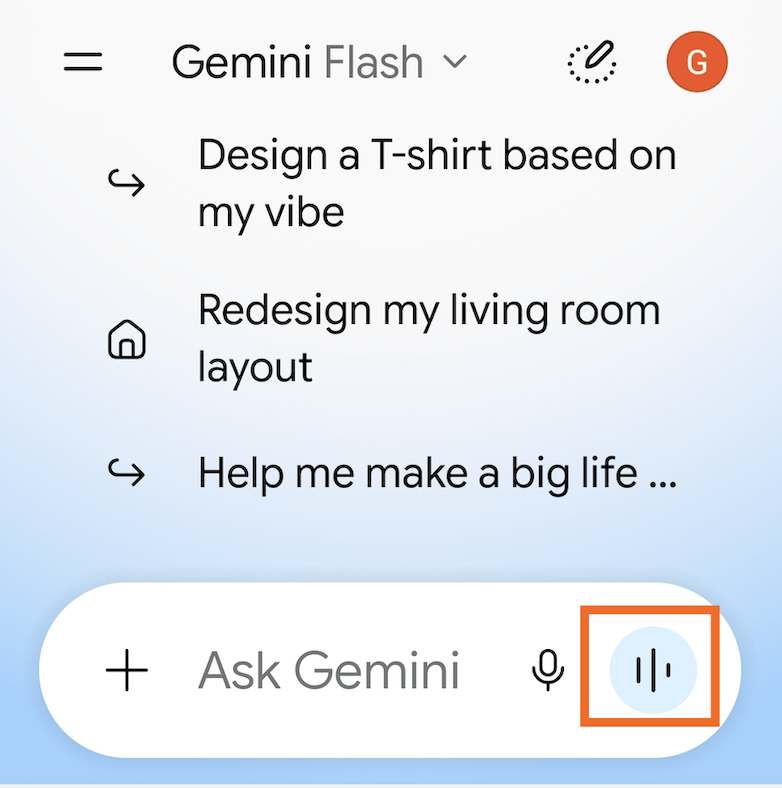
-
Say your prompt.
-
Once you’ve finished speaking, Gemini will process your request (no need to hit send) and voice its response to you. As long as you can see the blue chat bubble, you can keep chatting back and forth with Gemini.
-
Tap X at the bottom of your window to end your conversation.
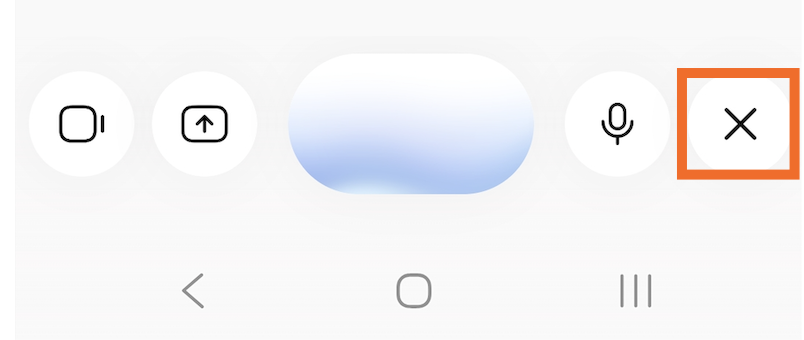
Note: This feature is currently available only in the Gemini mobile app. It’s not available on the web app or in the Gemini tab in the Google app.
How to use Gemini’s non-chat features
Not every feature in Gemini is directly related to actually chatting with the chatbot. Here’s how to use Gemini’s chat-adjacent features so you can do more than have a philosophical debate about whether The Bachelor is the greatest social experiment invented or just plain old trash.
How to generate an AI image with Gemini
Gemini isn’t limited to only sourcing existing images from the web. It also has the capability to generate AI images, powered by Nano Banana 2 (because, at this point, the more outrageous the model name, the more on brand). Enter your description, and watch as it brings even your silliest ideas—like, say, a dog taking itself out for a trick-or-treating jaunt—to life.

How to generate AI videos with Gemini
Gemini’s creative abilities go beyond text and images—it can also generate AI videos using the latest Google Veo model. Type in a text prompt describing the scene you want. You can also upload a static image to give Gemini a visual reference. Gemini will then turn it into a short video clip, complete with natural-sounding speech and background audio.
Note: You can access Veo 3 models in Gemini, but based on the Zapier team’s experience, it’s easier to use in Flow (Google’s AI filmmaking app).
How to transcribe audio to text with Gemini
This is a feature I didn’t know I wanted until I tried it: Gemini can transcribe your audio—automatically cutting out “ums” and “ahs”—in Google Docs, Gmail, or virtually anywhere you’d enter text.
Before you can use it, be sure to install the macOS desktop app (it’s not available for Windows), and update your permission settings (Gemini needs to access your screen and mic).
-
Open the screen you want to add text to, and click where you want your words to go.
-
Press and hold
fnwhile dictating what you want Gemini to transcribe. -
Release
fnonce you’re done transcribing, and watch as Gemini fills the screen with your words.
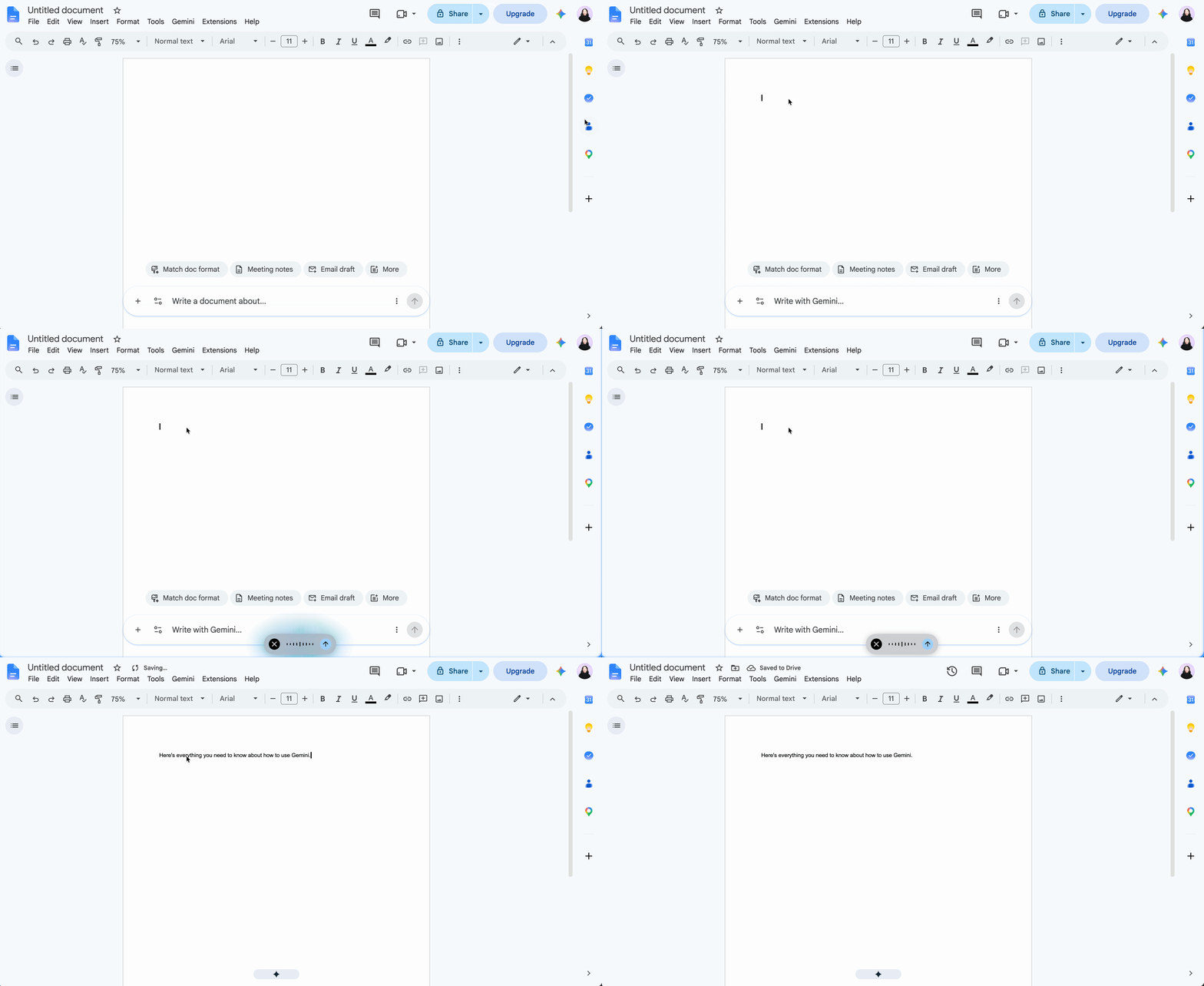
How to use scheduled actions in Gemini
Scheduled actions in Gemini is Google’s response to Scheduled Tasks in ChatGPT. The key difference is that ChatGPT’s scheduled tasks can actually take actions—like sending you daily summaries about industry-specific news or checking for cheap flights to a specific location.
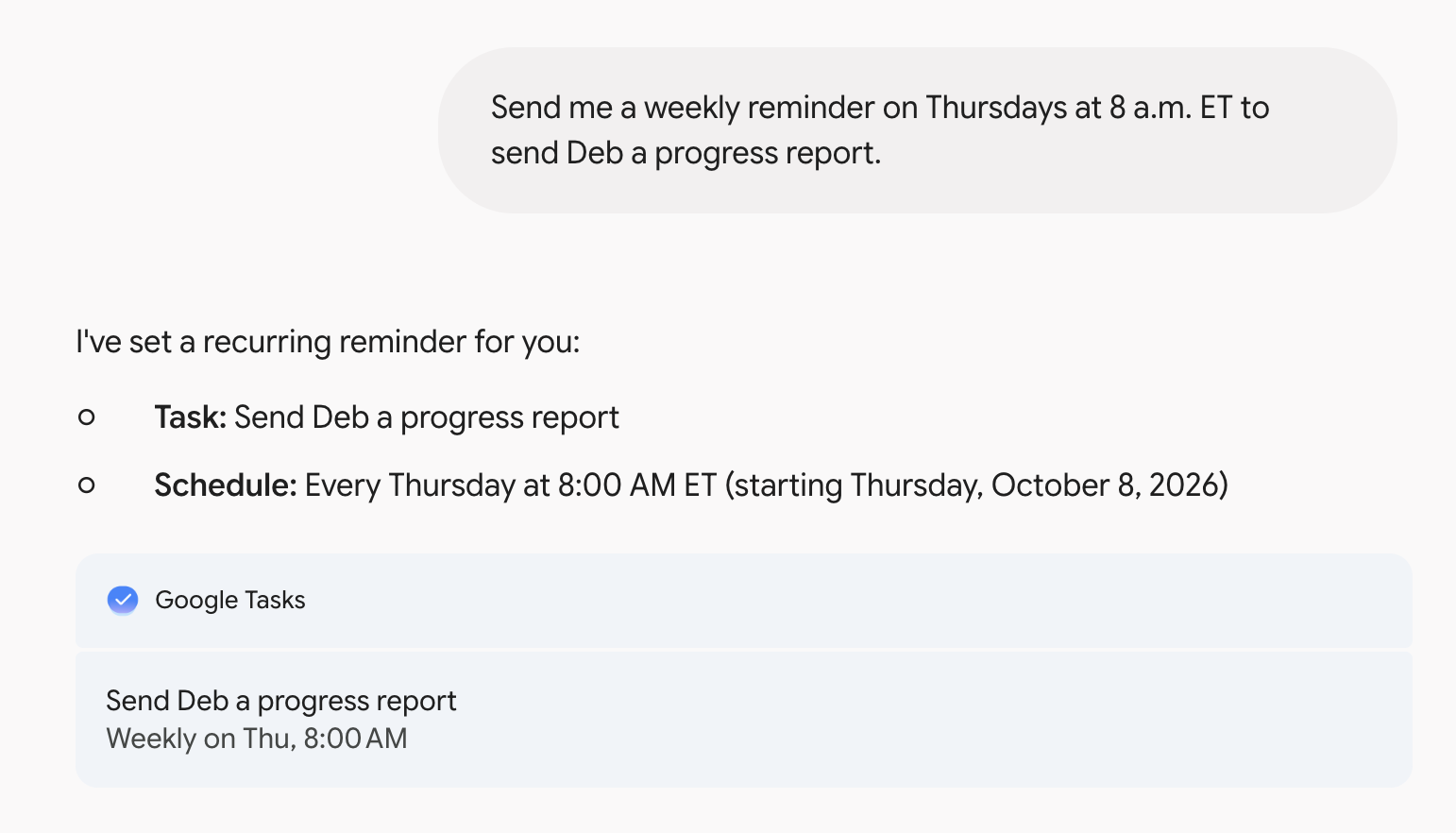
Gemini’s equivalent was pitched as having similar functionality, but in my experience, it’s limited to only adding tasks to your Google Tasks list and setting reminders in Google Calendar to do something. But if that’s what you’re looking for, here’s how to use scheduled actions in Gemini.
In the prompt bar, describe what you want Gemini to do, when, and the frequency (if it’s a repeat task). You can also tell Gemini to edit or delete a scheduled action, and it’ll take care of it for you.
How to retrieve information from other Google apps with Gemini
With Gemini connected apps, you can ask Gemini to retrieve real-time information from other connected external apps, like Wix and Canva, as well as Google apps like Gmail, Google Drive, and Google Calendar. Just type
@[name of the app you want to look in]and then enter your prompt.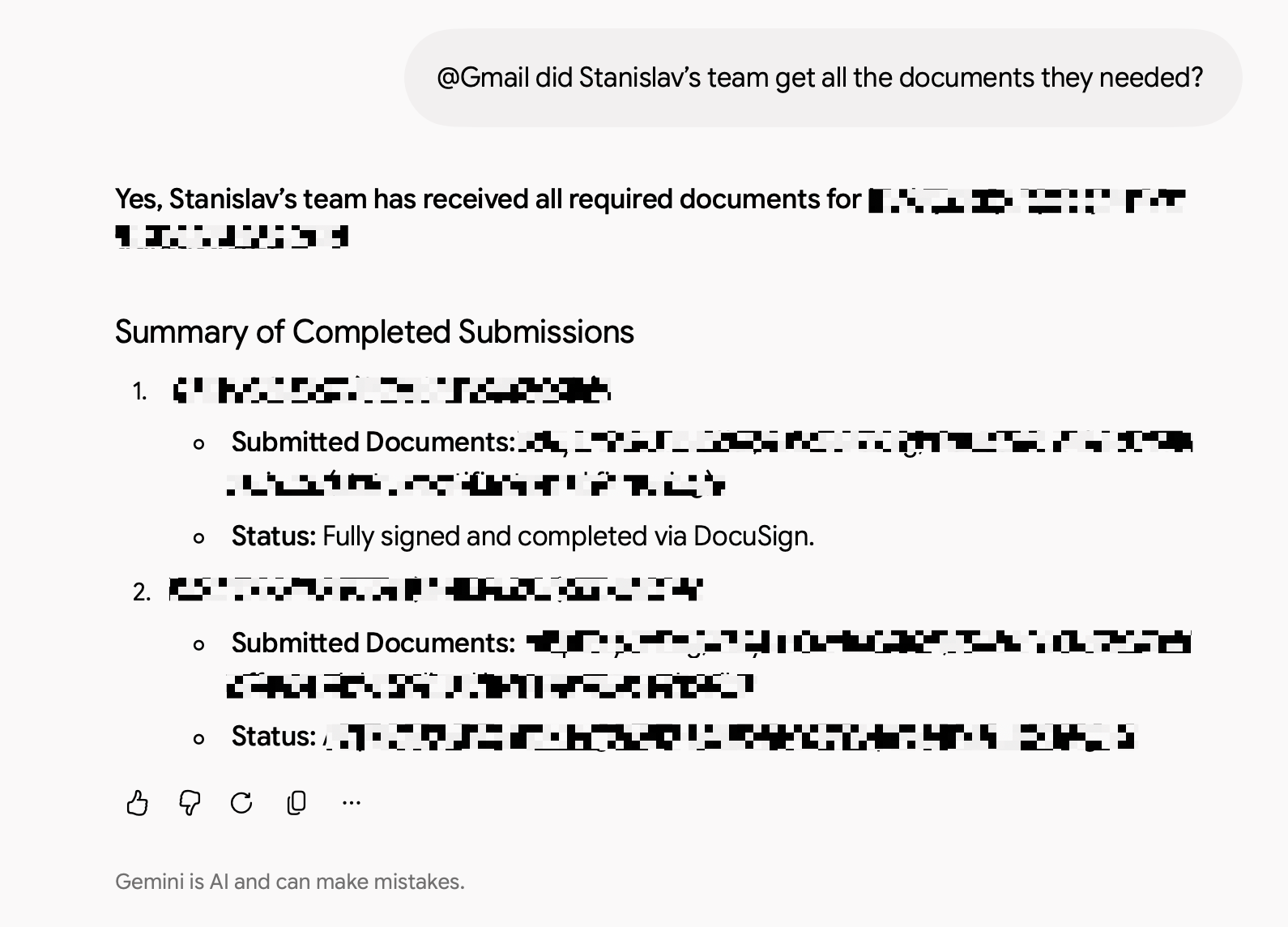
Note: Gemini won’t use apps to access your personal content in other services without your permission. But if you interact with another Google Service via Gemini, your activity might be saved by that other service.
For an additional fee (from $19.99/user/month), you can also use Google Gemini directly in your Google apps. Learn more about Gemini for Workspace.
Automate Gemini with Zapier
Gemini’s connected apps are a handy way to pull in context from tools like Gmail and Google Drive. But native connectors only go so far. I’m willing to bet many of the tools you rely on won’t be in the catalog, and even when an app’s supported, the connector may be limited in what it can actually do. The Zapier connector for Gemini Enterprise extends the options to 9,000+ apps, so you can access and act on your entire tech stack directly from your chat window.
Zapier also lets you securely bring Gemini’s capabilities directly into the workflows you already run, allowing you to build sophisticated end-to-end workflows across 9,000+ apps. Whenever a workflow calls for reasoning, content generation, or classification, AI by Zapier lets you drop a Gemini step right into the automation. This is how you blend AI with predictable, rule-based automation: Gemini handles only the parts that need intelligence, and everything else runs exactly the way you set it up. That gives you a level of reliability you can’t get from asking a chatbot to do it all.
Build automations from wherever you work. Describe the outcome you want, and Zapier connects your tools, runs the steps, and stays on the job after you close the chat. Combine AI with reliable, deterministic automation across 9,000+ apps. Get started for free.
How to use Gemini: FAQ
I’ve covered a lot of ground in this Gemini guide (maybe even too much ground?), but since Google is constantly evolving its chatbot, you might still have questions. Here are answers to some of the most commonly asked ones.
Can you use Google Gemini for free?
Gemini is free to use. But if you want to use the most powerful model with higher limits to advanced features, you’ll need to upgrade to a paid plan.
What’s the difference between Gemini and Google Assistant?
Both Gemini and Google Assistant are AI chatbots, but they have key differences based on their intended use, features, and underlying technology.
-
Gemini is an AI chatbot that’s designed to conduct human-like conversations and process more complex queries—for example, you can ask it to draft a summary of a 500-page research paper or describe an image.
-
Google Assistant is primarily a voice assistant that’s embedded into a wide range of Google services and products, including Google Home and Android devices. Its intended purpose is to do quick, task-based interactions—for example, answer questions about the weather, perform calculations, and control smart home devices.
How do I switch back to Google Assistant from Gemini?
If you used Gemini to replace Google Assistant as your primary assistant on your Android device, it’s easy to switch back.
-
Open your Gemini mobile app.
-
Tap your profile picture (top-right corner).
-
Tap Switch to Google Assistant.
-
Tap Google Assistant.
-
In the popup that appears, tap Switch to confirm you want to replace Gemini with Google Assistant.
Can you delete Gemini chats?
You can. Here’s how to delete individual Gemini chats from the web app.
-
In the side panel, hover over the name of the chat you want to delete.
-
Click the More icon, which looks like three dots stacked vertically (
⋮). -
Click Delete.
-
In the confirmation window that appears, click Delete.
Can Gemini do temporary chats?
Yes—and it’s a helpful feature to use if you want to have a chat with Gemini without the conversation influencing Gemini’s future responses.
To use it, click on the Temporary chat icon in the top-right corner of your chat (it looks like a dotted circle with a pencil). Then chat with Gemini as you normally would.
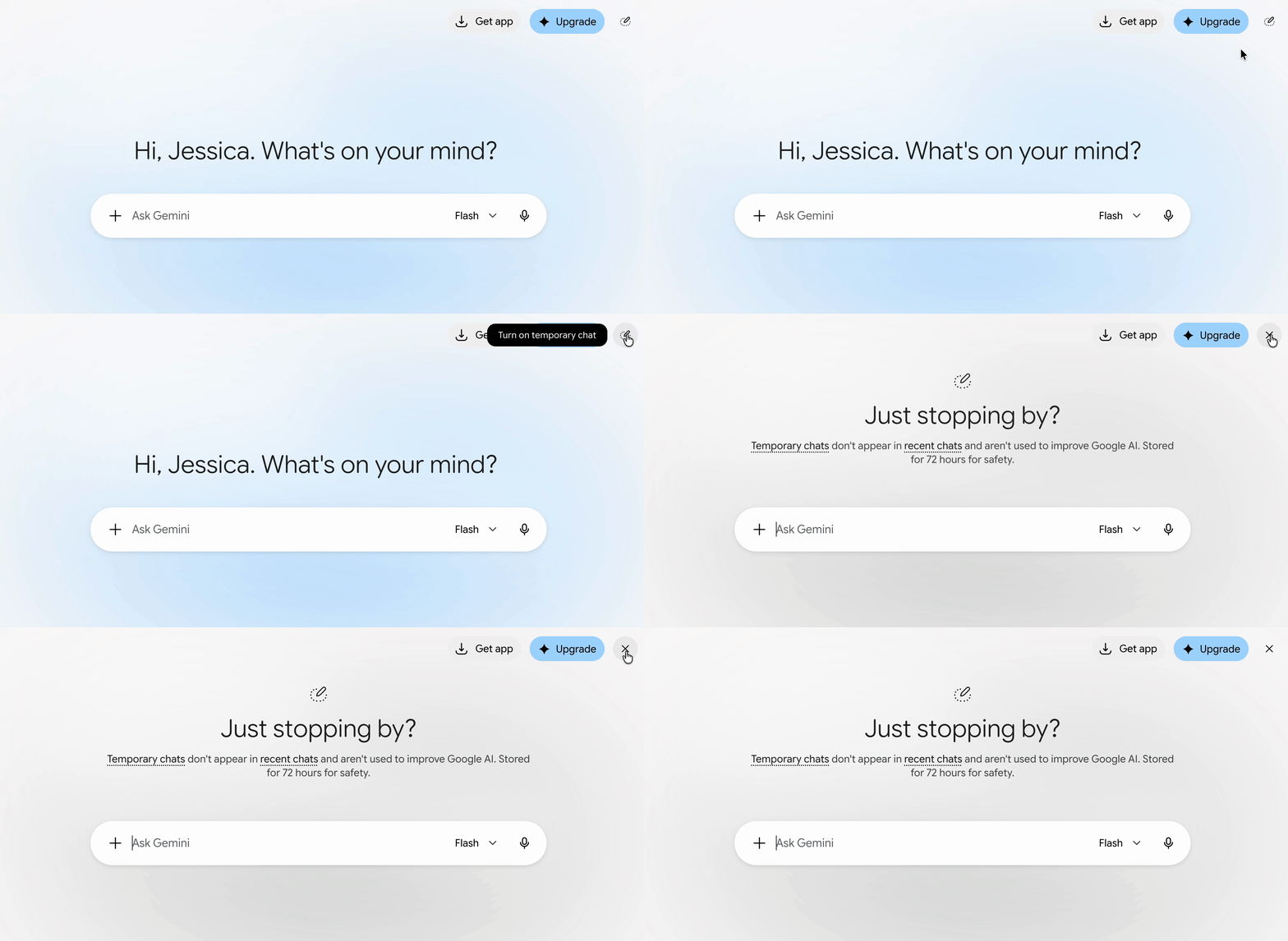
The temporary chat icon will automatically turn to an X. Click it to end temporary chats.
Related reading:
This article was originally published in April 2023 by Elena Alston. The most recent update was in October 2026.
-
Gemini 4 Argon: our next era of frontier intelligence
Gemini 4 Argon delivers frontier performance in complex workflows across real-world software engineering, enterprise knowledge work like legal and finance, and cybersecurity defense.

Today, we’re announcing our new frontier model, Gemini 4 Argon, which is rolling out to a set of trusted cyber defenders through our Fairwind Program. Built to sustain deep reasoning across complex, long-horizon workflows, Argon is fundamentally changing the way we work and build at Google. It delivers frontier performance in complex workflows across real-world software engineering, enterprise knowledge work like legal and finance, and cybersecurity defense.
Safely releasing frontier capabilities at this level requires a phased approach. We are actively engaged in the U.S. government’s voluntary process for pre-release model access while we gradually expand access. We’ll continue to gather feedback from early testers as we iterate on guardrails before making Argon available to developers, enterprises, and consumers as soon as possible.
Argon will launch at an introductory price 1 of $2 per million input tokens and $10 per million output tokens, with cached input tokens priced at 95% off input token price.
Changing how we work and build at Google
Gemini 4 Argon is already powering our internal workflows, with thousands of Googlers highlighting the model’s strengths in specialized coding tasks, conducting deeper research, and writing quality. It’s helping teams build faster and push the boundaries of engineering productivity and accelerating breakthroughs:
- Quantum algorithmic optimization: Argon is helping our quantum computing researchers optimize the spacetime resources (qubits × gates) of subroutines that bottleneck important applications. In one example, it beat the published baseline by 40% in a matter of minutes.
- Memory efficiency: A team of Argon agents analyzed fleet-wide profiling telemetry to autonomously identify and apply memory optimizations across Google’s data centers, freeing up over 300 TiB of memory once rolled out, with an estimated 500 TiB to 1 PiB in total savings.
- Large Scale Codebase Migrations and Optimizations: Argon agents are working on migrating C/C++ codebases to Rust across Google — scaling from tens of thousands of lines in core libraries like re2, libgav1 up to 800K+ lines for the Fuchsia Zircon kernel. Given the criticality of many of these systems, such large-scale rewrites are undergoing rigorous automated and manual auditing, emulation testing, and review before rolling out to production.
For libgav1, Google’s open source software for decoding video, Argon agents took an existing Rust port and replaced 32K lines of SIMD code by running many rounds of profile-guided experiments, studying the compiler’s output, producing safe Rust so the compiler would vectorize it automatically. The end result is a memory-safe video decoder that runs 2.7x faster than the Rust port, with identical video output, bringing it closer to the optimized C++.
Working harder on your most complex problems
To support Gemini 4 Argon’s capabilities across longer, more complex use cases, we are significantly expanding the model’s output token limit to an industry-leading 1M tokens, up from the previous 64K tokens. When the model has the headroom to think deeply and generate hundreds of thousands of tokens in a single trajectory, it adds a new level of depth in reasoning to solve tough problems in one go.

Enabling coding and enterprise workflows across domains
Gemini 4 Argon’s capabilities across coding, reasoning, and multimodality and its ability to sustain long, multi-step tasks enable it to excel across a range of enterprise workflows.
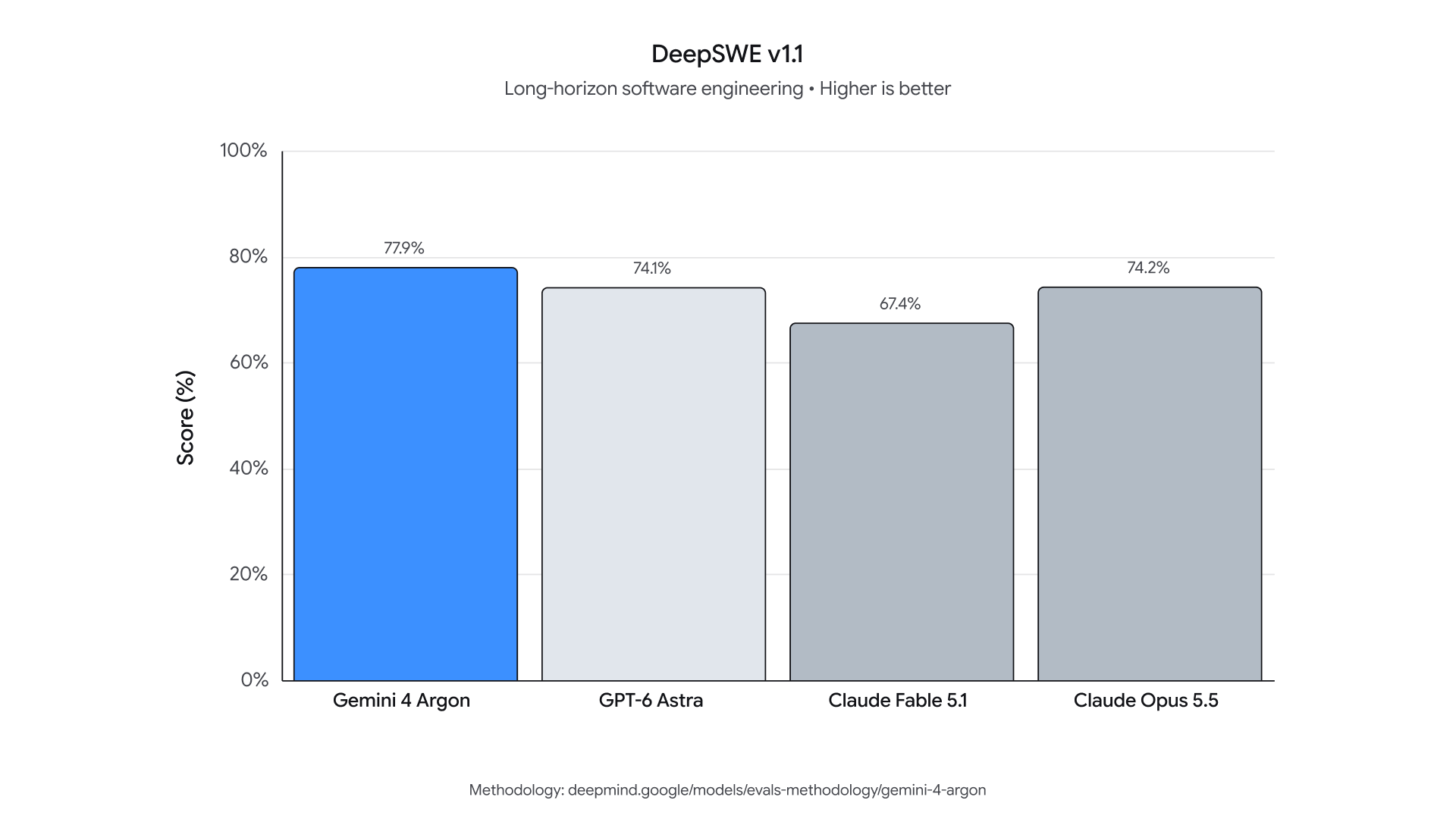
Google engineers have been using Argon for their daily tasks, from everyday debugging to large-scale codebase migrations and algorithm designs. It sets a new state of the art on DeepSWE v1.1 (77.9%), which measures a model’s performance in real-world long-horizon software engineering tasks.
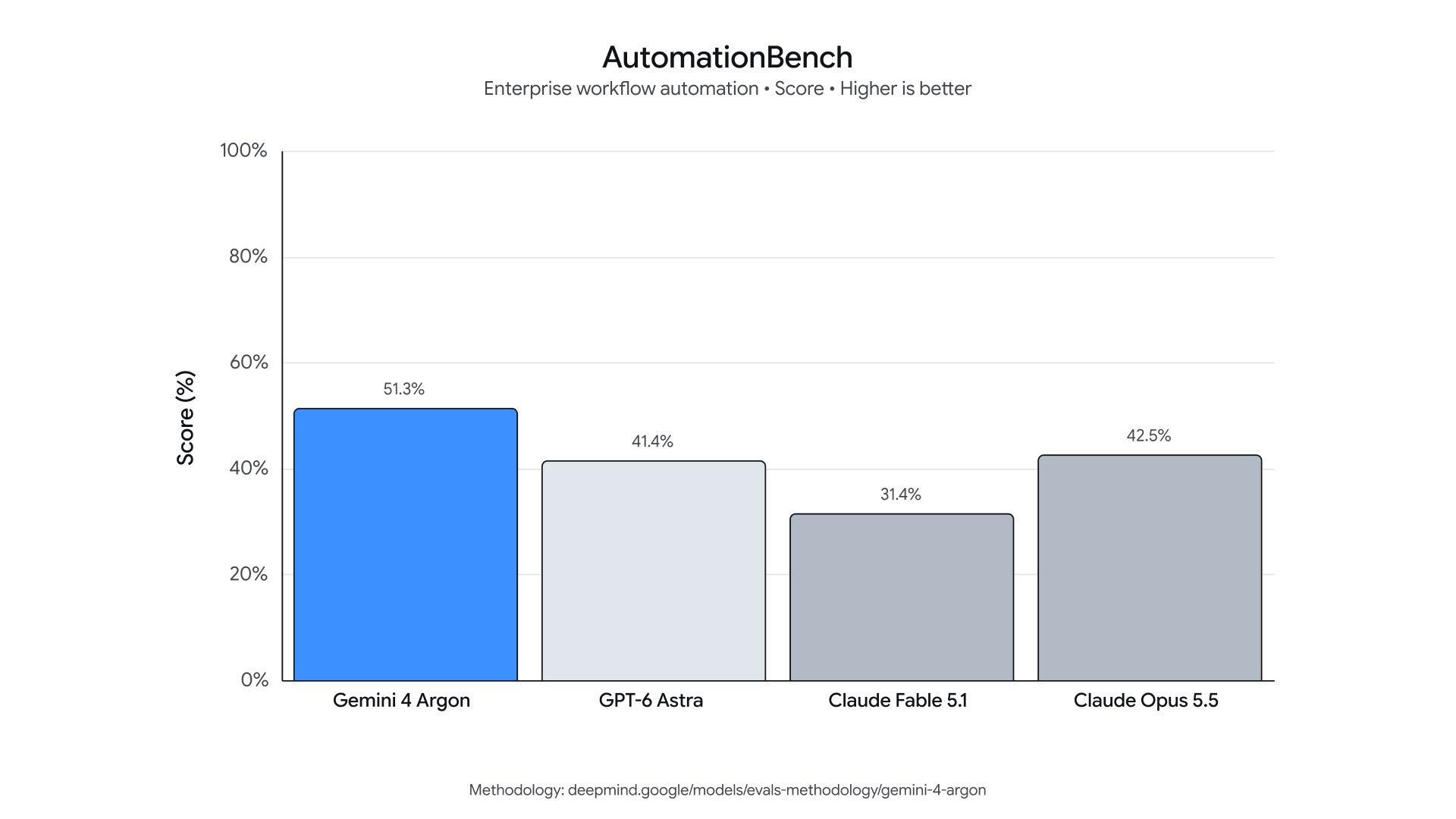
Beyond coding, Argon is the leading model on the Vals Index, which measures economic impact across finance, coding, legal, and tax work, with every sector weighted by its contribution to U.S. GDP. We see similarly leading performance across other domain specific evaluations, like Vals Finance Agent v2 (multi-step financial research) and Harvey’s Legal Agent Benchmark (legal research and drafting). On AutomationBench, Zapier’s benchmark measuring end-to-end execution across core business functions, Argon ranks #1 with a score of 51.3%.
Argon is also uniquely strong when knowledge work requires visual understanding. It’s able to drive professional chart analysis, identify details from long videos, and take action based on a series of documents. For example, on LVBench, which measures long video understanding, Argon is state of the art with a score of 91.7%.


Leading in defensive cybersecurity
To better equip cyber defenders for the new era of cyberattacks, we trained Gemini 4 Argon to be highly capable at cybersecurity defense. Argon can autonomously find, validate, and patch critical software vulnerabilities. For trusted defenders and our own internal teams at Google, we’ll be releasing Argon without cyber guardrails so they can leverage its full frontier-level cybersecurity defense capabilities.
Wiz is already using Argon for cybersecurity defense through its Scan for Good initiative – a program dedicated to protecting critical public infrastructure for free by finding and remediating high-risk exposures. In an early demonstration of its impact, the model uncovered a critical vulnerability exposing sensitive personal information across healthcare software used by hospitals worldwide, identifying a severe risk that previous frontier models had missed.
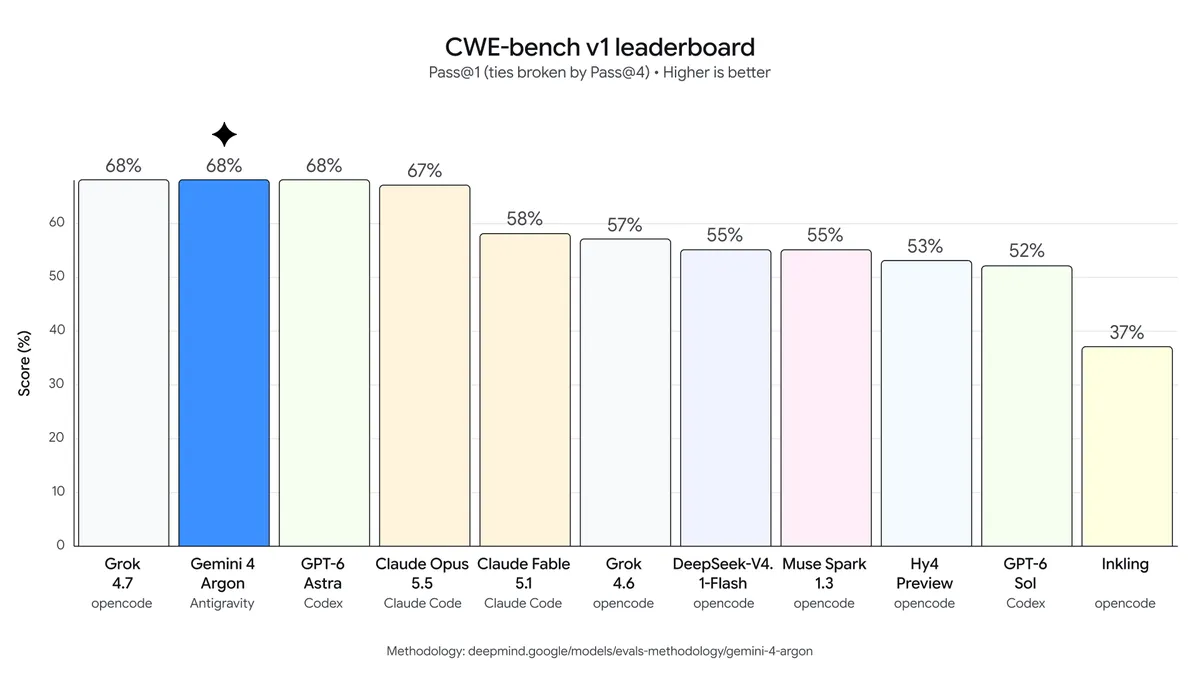
On CWE-bench v1, which evaluates the model’s ability to remediate security vulnerabilities, Argon ties for first place with a top score of 68%, building on 3.8 Flash Cyber’s frontier performance on CWE-bench v0.
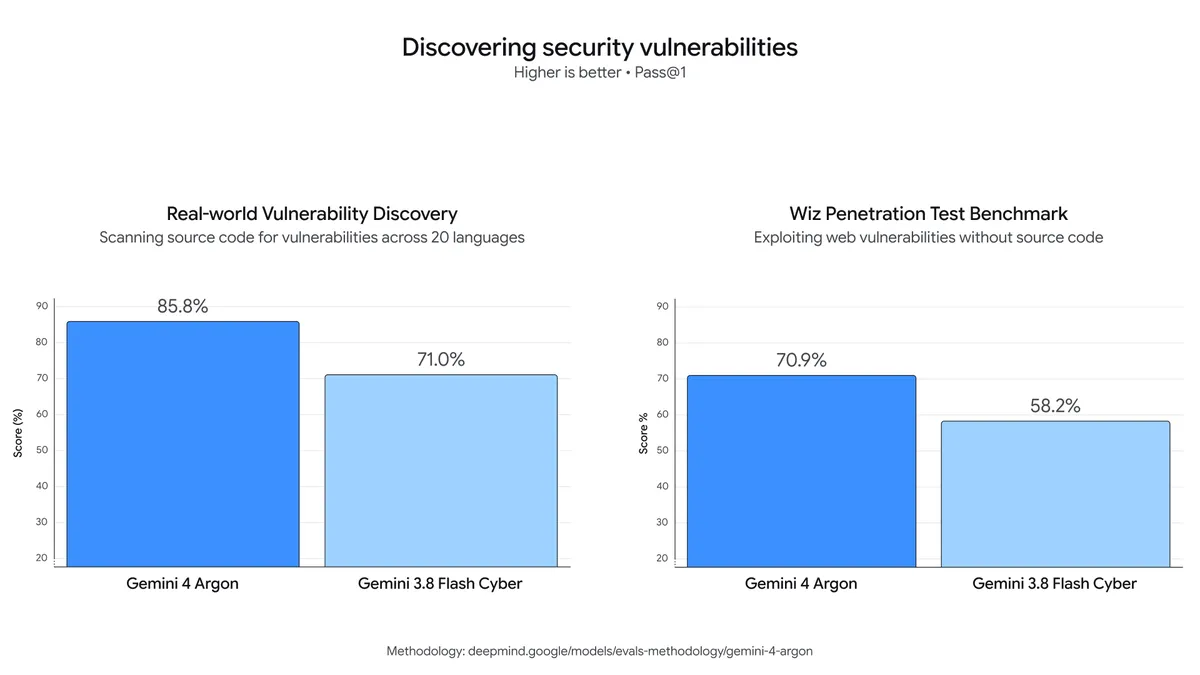
Gemini 4 Argon demonstrates impressive leaps in vulnerability discovery over 3.8 Flash Cyber. For example:
- On Google’s internal comprehensive vulnerability benchmark, Argon uncovered a wide range of exposures across complex codebases spanning 20 programming languages.
- On Wiz’s internal black-box penetration testing benchmark, which tests a model’s ability to analyze live web systems without source code, Argon outperforms 3.8 Flash Cyber in discovering the attack surface, identifying vulnerabilities, and producing proof-of-concept evidence to validate them.
Strengthening frontier safeguards before broad availability
Before rolling out Gemini 4 Argon broadly, we’re continuing to strengthen critical frontier safeguards across four main areas:
Defending against misuse: To prevent bad actors from using Argon for cyber or chemical, biological, radiological, and nuclear (CBRN) attacks, the model is designed to refuse harmful requests while preserving legitimate, dual-use scientific research, as per our Frontier Safety Framework. We are strengthening the robustness of our safeguards for this launch, including improving our techniques to monitor the model’s internal activations to spot misuse. These safeguards underwent robustness testing by internal and external red teams using a combination of manual and automated attack methods.
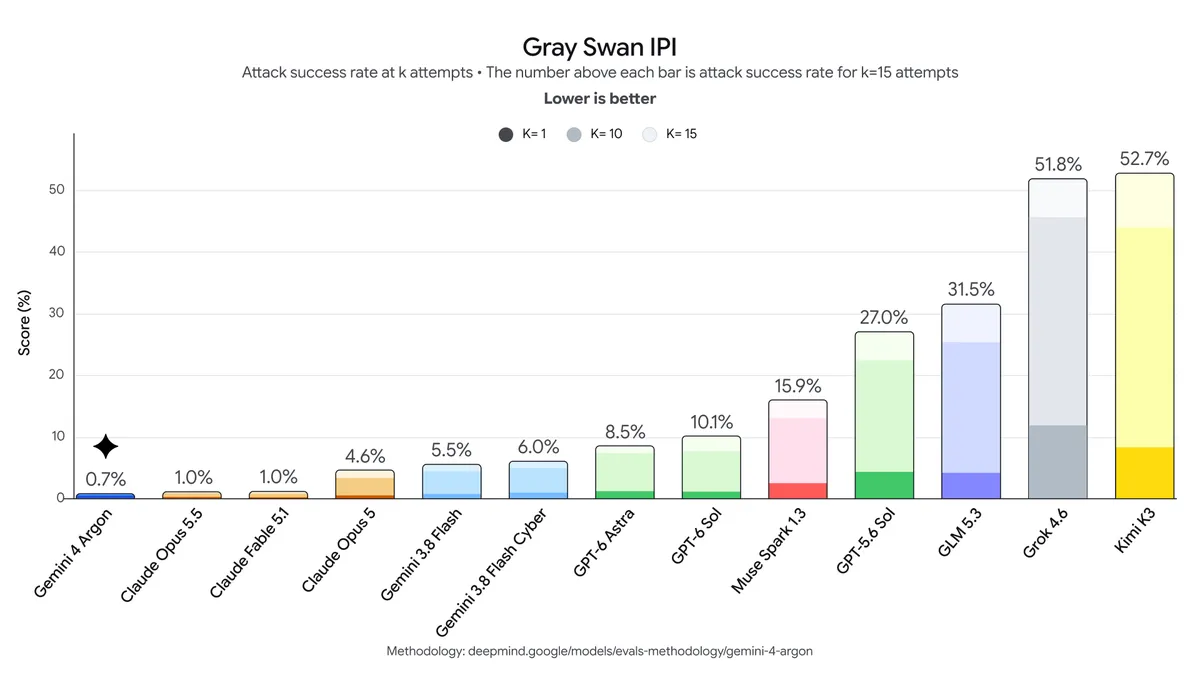
Defending against prompt injection attacks: Argon is also our most resilient model yet against indirect prompt injections, where malicious instructions or context are used to hijack a model’s behavior. These are complex attacks that require constant vigilance and multiple layers of defense. Through automated red teaming and adversarial training, Gemini 4 Argon is leading in prompt injection robustness on the Gray Swan’s Indirect Prompt Injection (IPI) benchmark.
Monitoring for misalignment: In order to prevent Argon from stepping out of bounds to try to accomplish a task in a way that goes beyond the user’s intentions, we are deploying misalignment mitigations that monitor Argon’s chain-of-thought and actions and stop execution when necessary.
We used a similar system to monitor our training runs and send alerts to a dedicated incident response team, taking careful precautions against feeding the findings back into training so as to not risk shaping Argon’s reasoning to evade our monitoring. We strongly encourage the rest of the industry to preserve reasoning transparency in these pivotal moments of increased capabilities while navigating alignment risks, so that model thoughts remain helpful in identifying and diagnosing misalignment.
Hardening systems: As frontier models grow increasingly capable, safely testing them requires secure environments that can keep up with the systems themselves. In line with our agent control roadmap, we are hardening our sandboxed environments by isolating and sealing them before high-risk training or evaluations begin. We’re committed to sharing these agent security best practices with our partners to improve security across the ecosystem.
Rolling out soon
We built Gemini 4 Argon with frontier-level capabilities on coding, knowledge work, cybersecurity defense, and creative writing to be a partner for developers, professionals, and enterprises while they tackle the most difficult problems. We’re grateful for the initial cohort of cyber defenders and trusted testers whose real-world evaluations and feedback will help us strengthen our systems before we release to developers, enterprises, and consumers, starting with paid API customers and Google AI Ultra subscribers.
-
Gemini 3.8 text-to-speech says hello
Gemini 3.8 Flash TTS and Gemini 3.8 Flash-Lite TTS are our most expressive audio generation models yet. Generate custom character voices and direct scene dialogue across Google AI Studio, Gemini API, Gemini Enterprise, Gemini Notebook, and Google Vids.
Leland Rechis
Group Product Manager
Alan Cowen
Director, Research Science, on Behalf of the Gemini Audio Team
Today, we’re introducing two new text-to-speech models to the Gemini family, transforming voice generation from static presets into a dynamic creative studio. These models enable creators, developers, and enterprises to create richer, more expressive audio experiences, while enabling improved user experiences in products like Gemini Notebook and Google Vids.
- Gemini 3.8 Flash TTS: Built for deep creative direction and character design. Create entirely new voices from scratch using natural language prompts to bring characters to life across gaming, immersive audiobooks, podcasts, and interactive media. Direct every performance line by line with granular control over acting cues, pacing, dialect shifts, and backchanneling.
- Gemini 3.8 Flash-Lite TTS: Built for high-volume, cost-efficient scale. Optimized for high-volume dubbing, audio content creation, and expressive voice agents with fine-grained control over tone, pacing, and expressive nuance.
These models complement our fast-growing Gemini Audio family, following 3.5 Live Translate, 3.5 Transcribe, 3.8 Live, and 3.8 Live Extended Thinking.
Create and customize your own voices
Scale up from 30 original voices to an infinite library. Whether you need an entirely original character voice or a consistent brand ambassador, our 3.8 Flash TTS model powers a full vocal studio. This enables you to create and use expressive, natural-sounding voices for every moment, while empowering developers and enterprises to easily build custom audio experiences.
- Generative voice design: With Gemini 3.8 Flash TTS, create bespoke voices from scratch by customizing role, accent and voice characteristics across more than 100 languages and dialects using natural language prompting — whether you’re bringing a dramatic, fire-breathing dragon to life or crafting a charismatic narrator with a distinct regional cadence.
- Expansive voice library: Access 2,000+ production-ready voices with broad language coverage — including regional varieties like Mexican Spanish, Quebec French, and Scots English.
- Voice replication: Recreate consistent vocal profiles from just a 30-second audio sample of your voice or a voice you have the rights to use, backed by built-in consent verification, SynthID watermarking, and C2PA credentials to protect both developers and their vocal talent.
- Save and scale: Save and manage the custom voices you designed to ensure consistent performance and minimal drift across ongoing projects.
- Voice remixing: Coming soon, pick a voice from our voice library and fine-tune timbre, pitch, pace, and accent. Use prompts to dial in characteristics (e.g. “add subtle Southern US accent” or “soften the delivery”).
Direct the performance, line by line
Once you’ve selected your voices, both TTS models give you precise control over how each line is delivered.
- Direct performance line by line: Write your own stage directions or let Gemini steer delivery with natural script cues — from a calm customer service agent to a whispered suspense scene.
- Long-form generation: Maintain high voice quality, natural pacing, and character timbre across hours of continuous audio with minimal speaker drift — ideal for podcasts and audiobooks.
- Native two-speaker scene staging: Direct multi-turn conversations seamlessly from a single script —whether for a podcast or dramatic storytelling—while keeping both voices distinctly separated with natural conversational turn-taking.
- Scripted vocal bursts & backchanneling: Add realistic conversational texture using non verbal cues (like
, , and active-listening interjections (like |mhm| or|yeah|) for precise comedic timing and reaction beats.
Get expressive high-quality speech generation built for global scale
Gemini 3.8 Flash TTS delivers leading voice customization capabilities, securing the #1 overall spot on Hume AI’s Voice Design Benchmark (71.4) and also leading in accent modeling (60.8).
Gemini 3.8 Flash TTS and Gemini 3.8 Flash-Lite TTS enable truly expressive performances without sacrificing reliability, also securing the #1 and #2 spots respectively on Hume AI’s Overall Quality Index. The model shows major improvements on a wide range of use cases such as long-form content and dual-speaker screenplay control compared to Gemini 3.1 Flash TTS.
In blind human preference evaluations on Voice Arena, Gemini 3.8 Flash and Flash-Lite TTS secure top positions amongst competitors in key global languages, including Japanese, Brazilian Portuguese, Vietnamese, Modern Standard Arabic (MSA), Mexican Spanish and Hindi. With support for over 100 languages, these models empower creators, developers, and enterprises to build high-quality, multilingual voice experiences worldwide.



Build with trust, consent, and transparency
We built our voice creation and replication capabilities with strict safeguards to help protect voice talent, respect identity, and ensure content transparency. For voice replication our system leverages consent verification: users must provide a verbal consent recording from the voice owner that matches the reference speaker before a voice can be created.
More broadly, every audio clip generated by our Gemini Audio models is watermarked with SynthID. This imperceptible watermark is woven directly into the audio output, ensuring AI-generated speech remains detectable to help prevent misinformation. For more details on our approach to safety and responsibility, review the model card.
Try our new Google AI Studio audio playground
Starting today, developers can experience these new speech generation capabilities in Google AI Studio. Built like a voice design workspace, you can prompt entirely new vocal identities from scratch or replicate your own voice 1 , then bring them directly into a dual-speaker screenplay editor to direct line-by-line delivery.
Try voice replication in Google AI Studio.
Deploy high-performance voice interfaces with ease
By using the Gemini API, developer platforms such as Agora, LiveKit, Pipecat, Vercel enable developers to build and deploy high-performance speech generation experiences with ease.
We’re partnering with companies like Figma, HeyGen, Linguana, Wondercraft, 99.co, and Ollang, who are integrating our latest TTS models to help accelerate global dubbing, localize media with nuanced regional accents, and power conversational voice agents at scale.











Start using our latest Gemini Audio models:
Gemini 3.8 Flash TTS is rolling out starting today:
- For developers: In the Gemini API and Google AI Studio
- For enterprises: Coming soon via API in Gemini Enterprise
- For everyone: In Gemini Notebook.
Gemini 3.8 Flash-Lite TTS is rolling out starting today:
- For developers: In the Gemini API and Google AI Studio
- For enterprises: Coming soon via API in Gemini Enterprise
- For everyone: In Google Vids
Get the latest news from Google in your inbox
Sign up for our newsletters with product updates, event information, special offers, and more.
Your information will be used in accordance with Google’s privacy policy. You may opt out at any time.