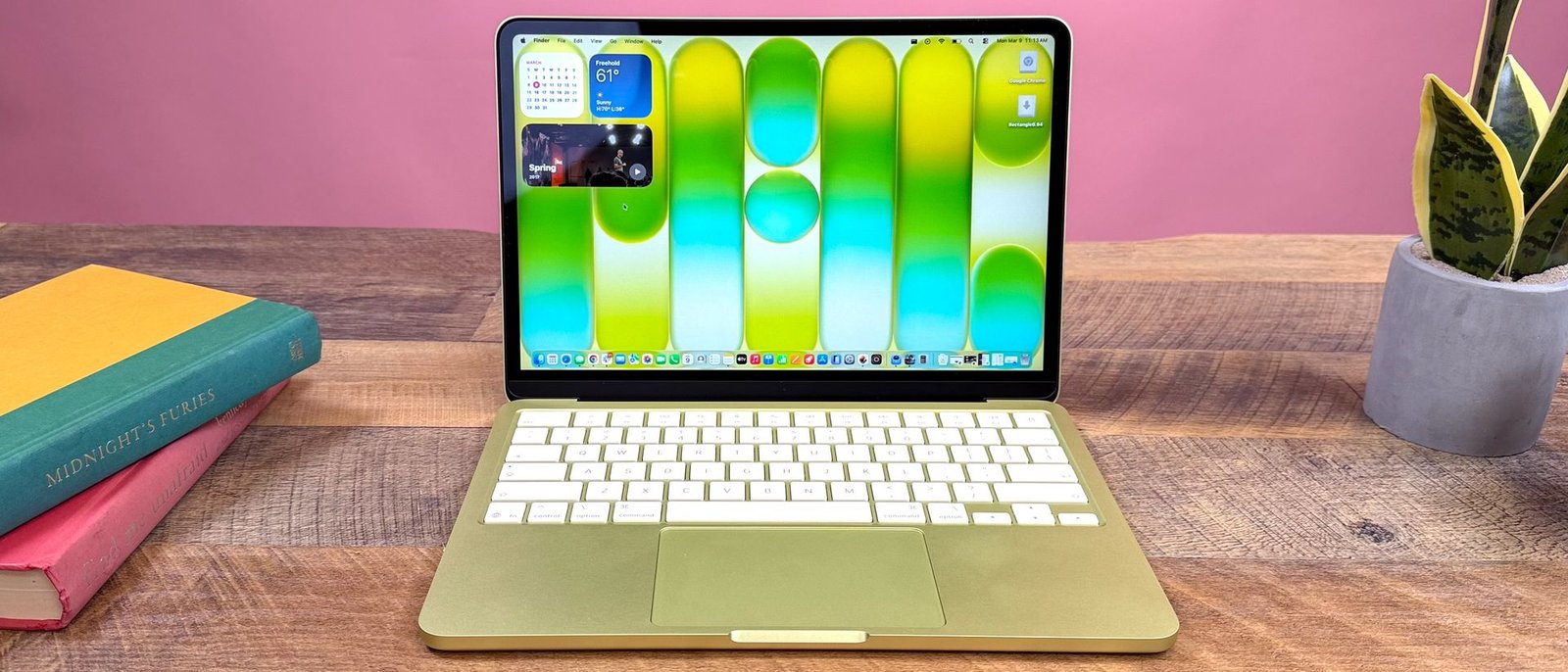
macOS is packed with helpful productivity tools, but because there are so many features buried inside the operating system, some of the most useful ones get completely overlooked.
When you’re sent a document that requires a quick signature, the default reaction is often to hunt for third-party software. The fastest, safest way to sign a document is using Preview — the built-in app you likely open every single day.
While most people only use Preview to view images or skim through PDFs, it packs a surprisingly robust set of tools hidden right under the hood.
The easy way to sign PDFs on your Mac
Signing any PDF on your Mac takes just a few clicks once you know where to look.
Click once on your PDF in Finder or on your desktop then press the spacebar to launch Quick Look. From here, click the small pen icon in the top toolbar, followed by the Signature icon (it looks like a small scribbled line).
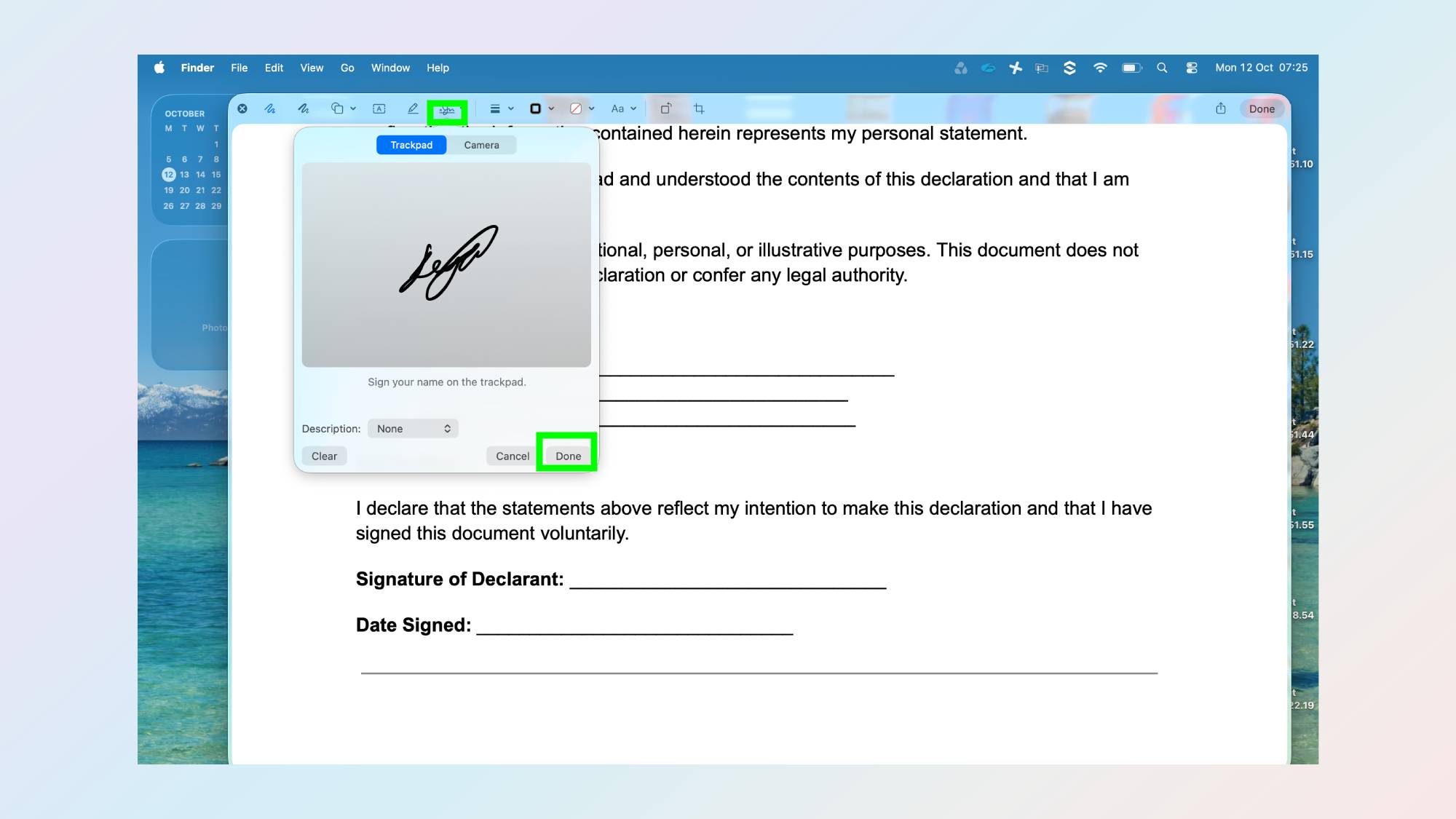
Now you can draw a new signature using your trackpad, an iPhone/iPad screen, or by holding a signed piece of paper up to your Mac’s camera.
Once your signature is captured, click Done to save it to your dropdown list. Simply click your saved signature to drop it onto the page, drag it into place, and resize it as needed. Save the document, and you’re done.
If you ever want to remove a saved signature later, open the signature menu again and click the small X next to it.

Follow Tom’s Guide on Google News and add us as a preferred source to get our up-to-date news, analysis, and reviews in your feeds. Make sure to click the Follow button!