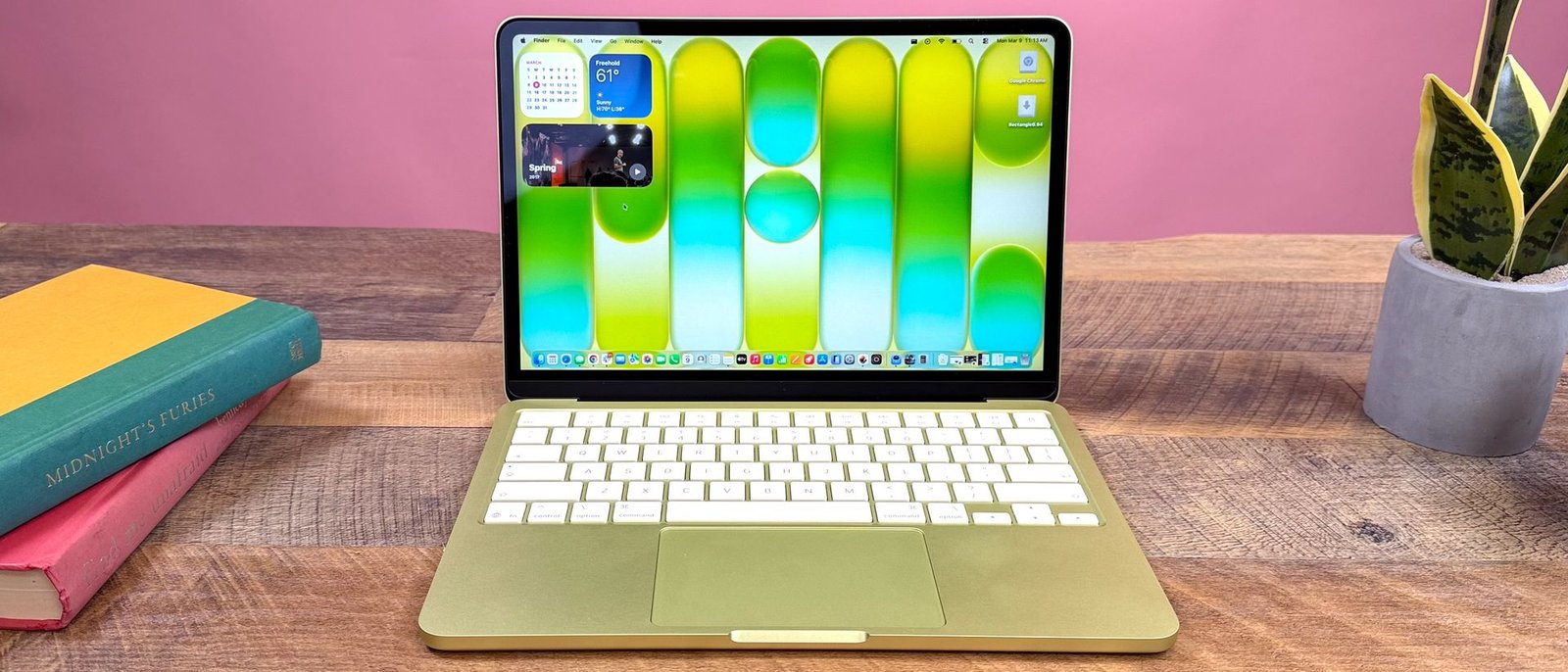
macOS is packed with helpful productivity tools, but because there are so many features buried inside the operating system, some of the most useful ones get completely overlooked.
When you’re sent a document that requires a quick signature, the default reaction is often to hunt for third-party software. The fastest, safest way to sign a document is using Preview — the built-in app you likely open every single day.
While most people only use Preview to view images or skim through PDFs, it packs a surprisingly robust set of tools hidden right under the hood.
The easy way to sign PDFs on your Mac
Signing any PDF on your Mac takes just a few clicks once you know where to look.
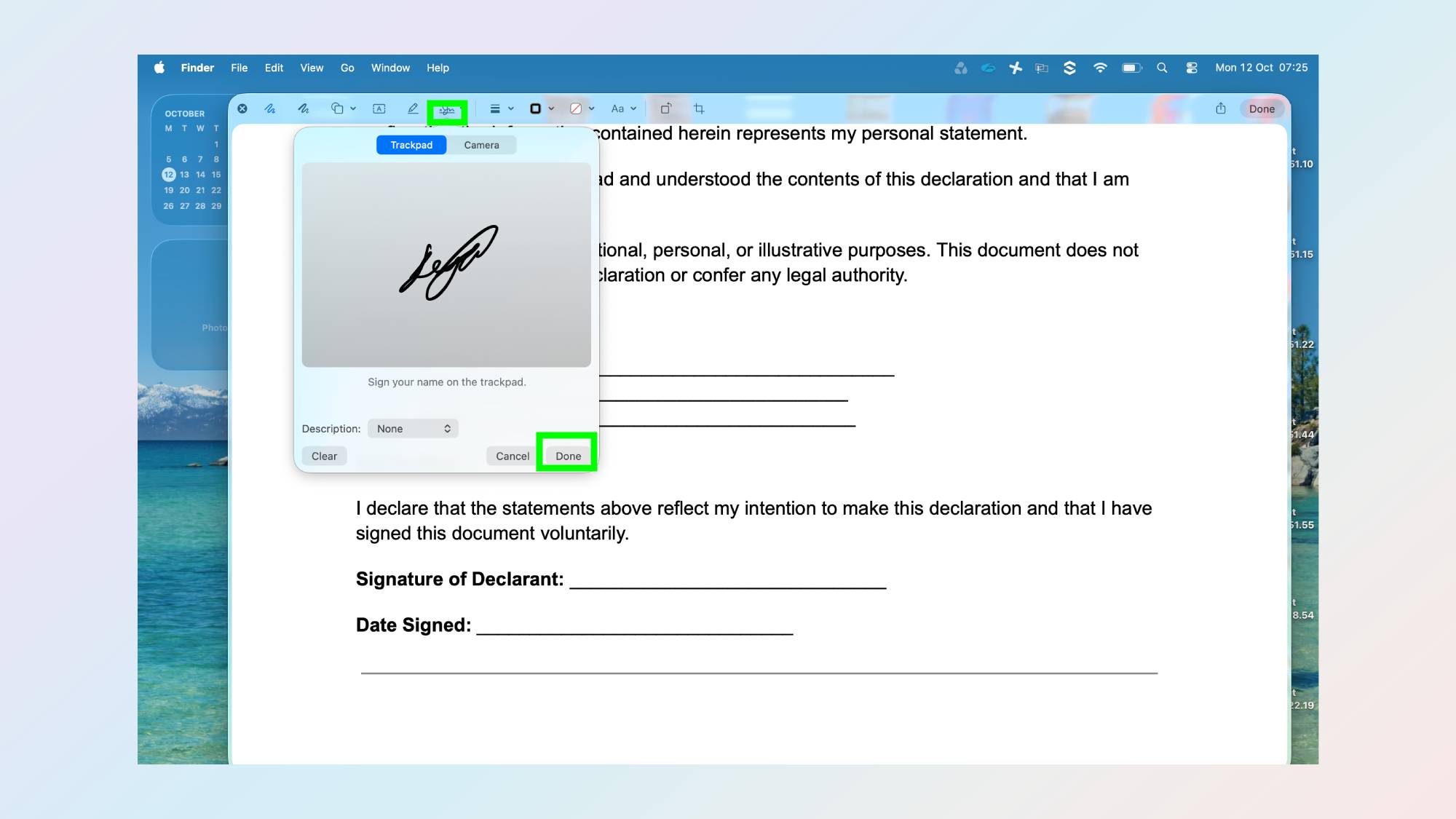
Click once on your PDF in Finder or on your desktop then press the spacebar to launch Quick Look. From here, click the small pen icon in the top toolbar, followed by the Signature icon (it looks like a small scribbled line).
(Image credit: Tom’s Guide)
Now you can draw a new signature using your trackpad, an iPhone/iPad screen, or by holding a signed piece of paper up to your Mac’s camera.
Once your signature is captured, click Done to save it to your dropdown list. Simply click your saved signature to drop it onto the page, drag it into place, and resize it as needed. Save the document, and you’re done.
Get instant access to breaking news, the hottest reviews, great deals and helpful tips.
If you ever want to remove a saved signature later, open the signature menu again and click the small X next to it.
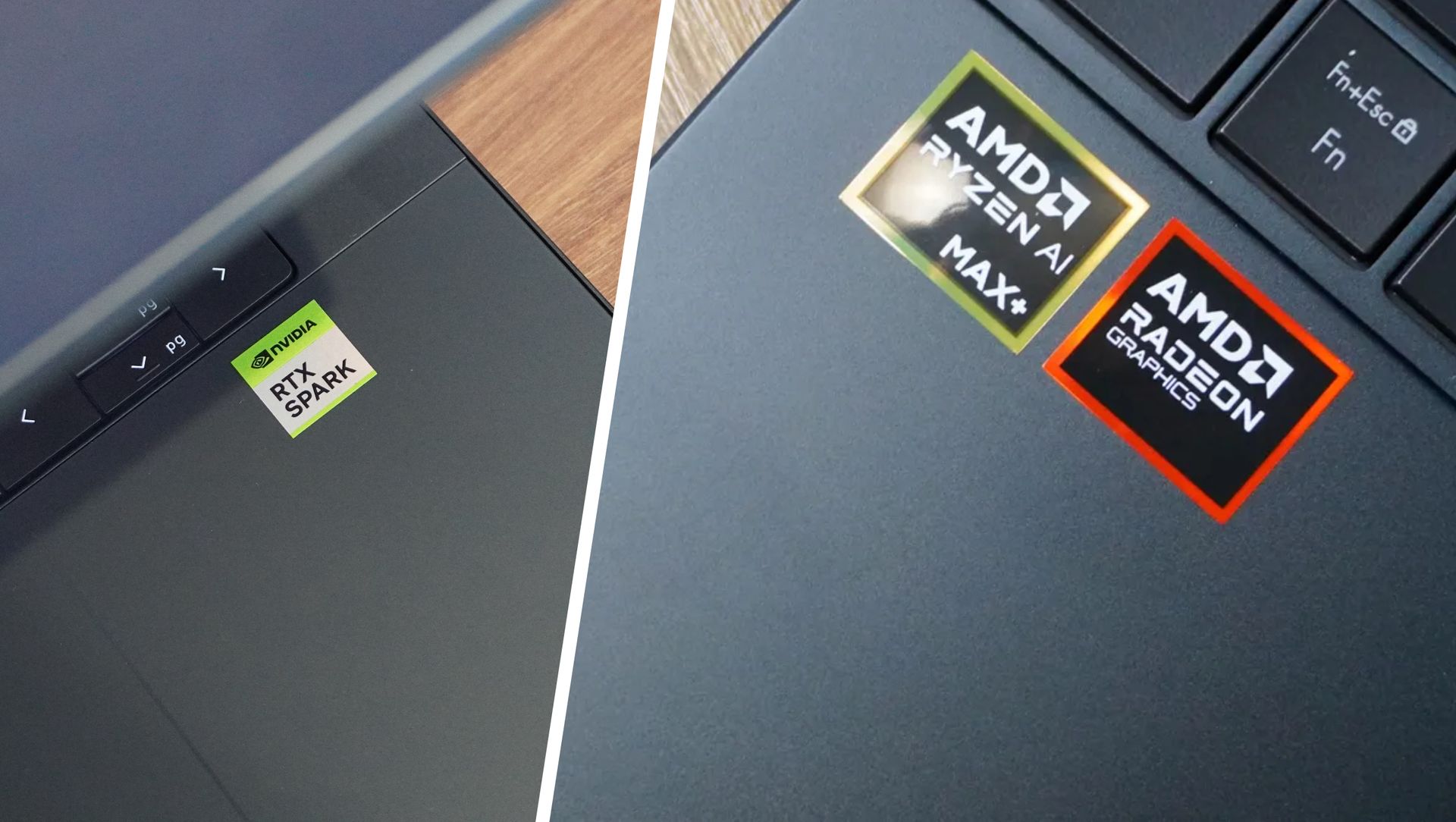
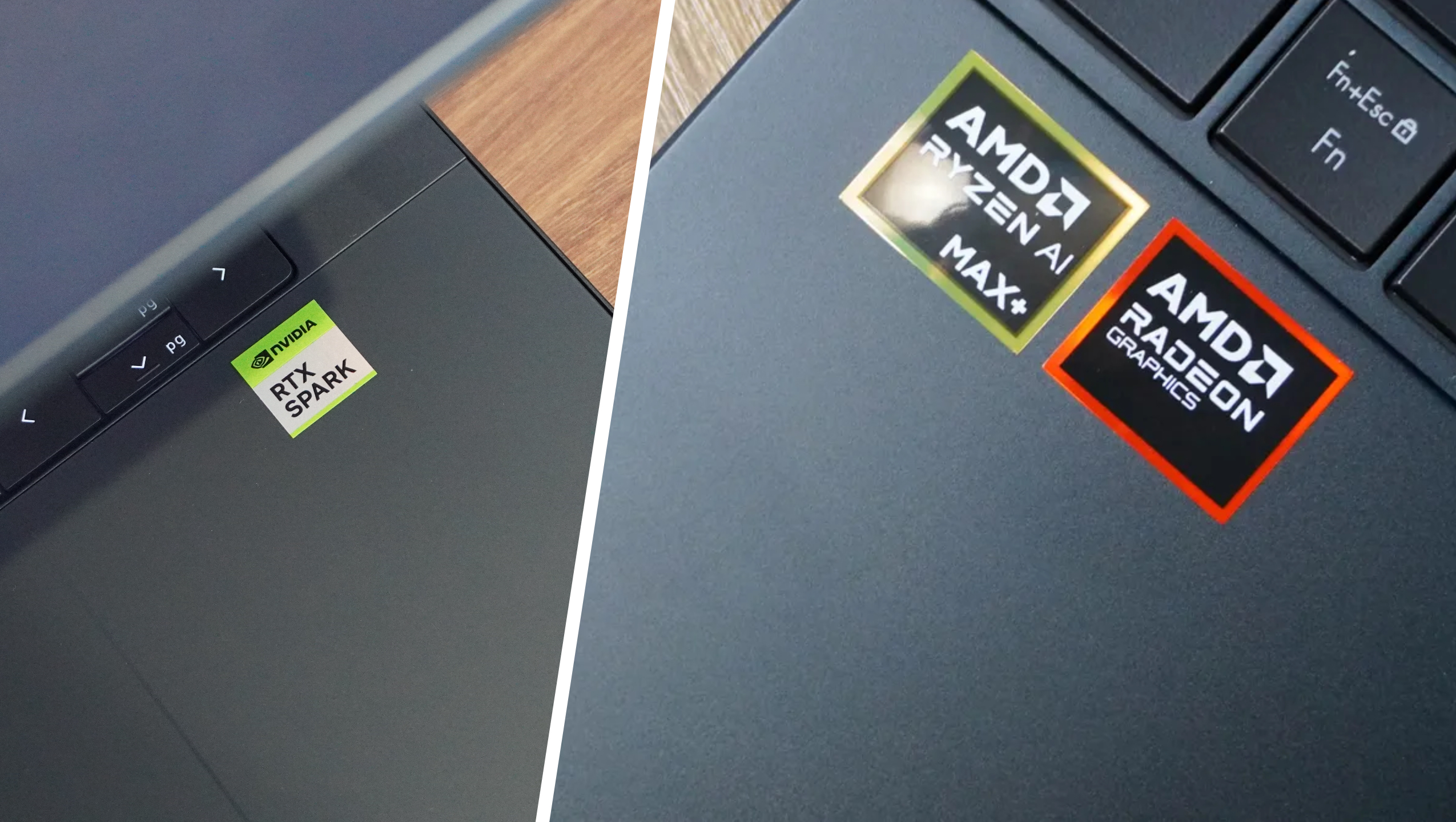
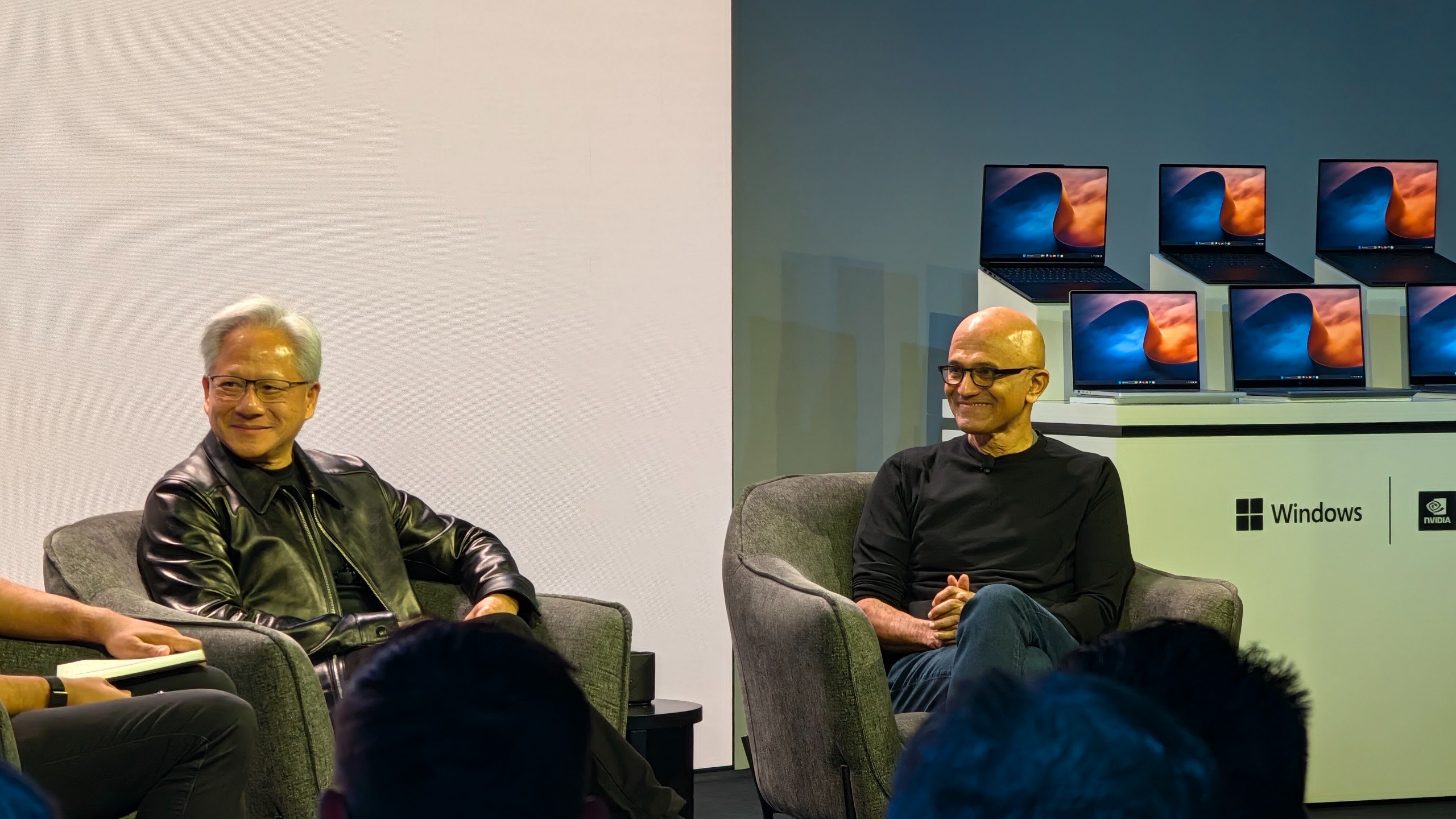
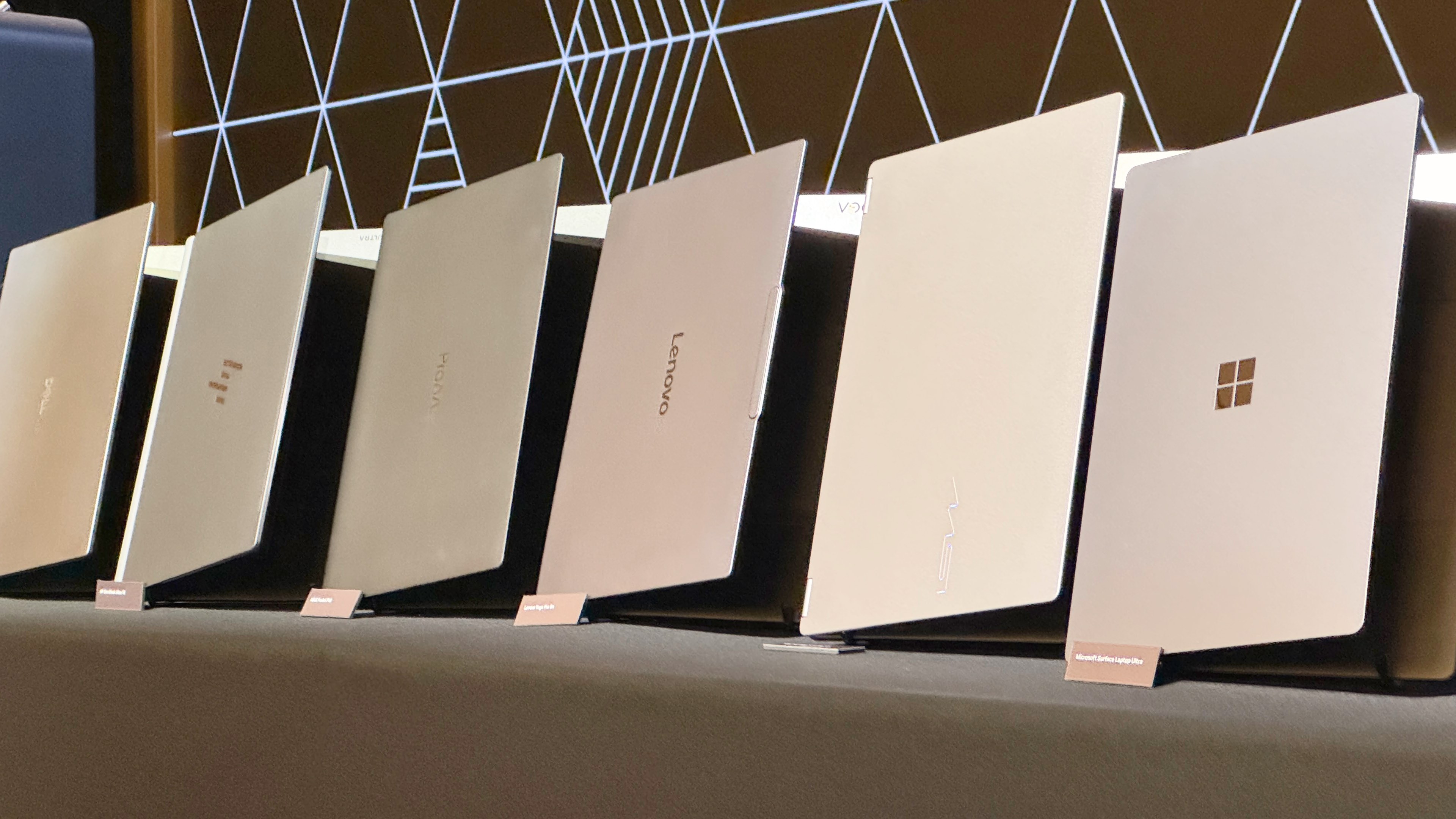
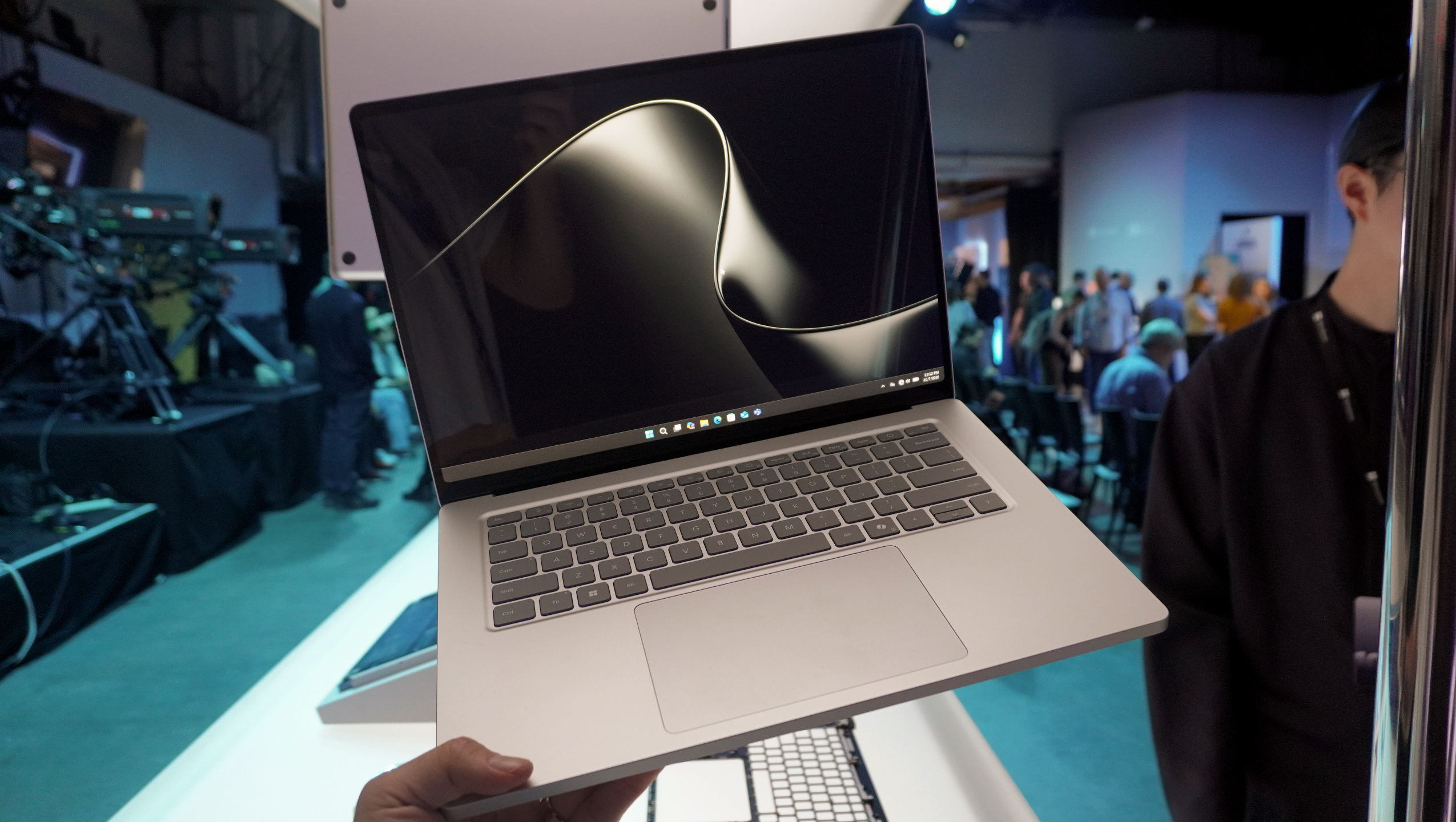
Nvidia has just properly unveiled RTX Spark alongside Microsoft’s flagship Surface Laptop Ultra, heralding what Jensen Huang said about reinventing the PC — massive unified memory, local AI and desktop-class power in a portable chassis.
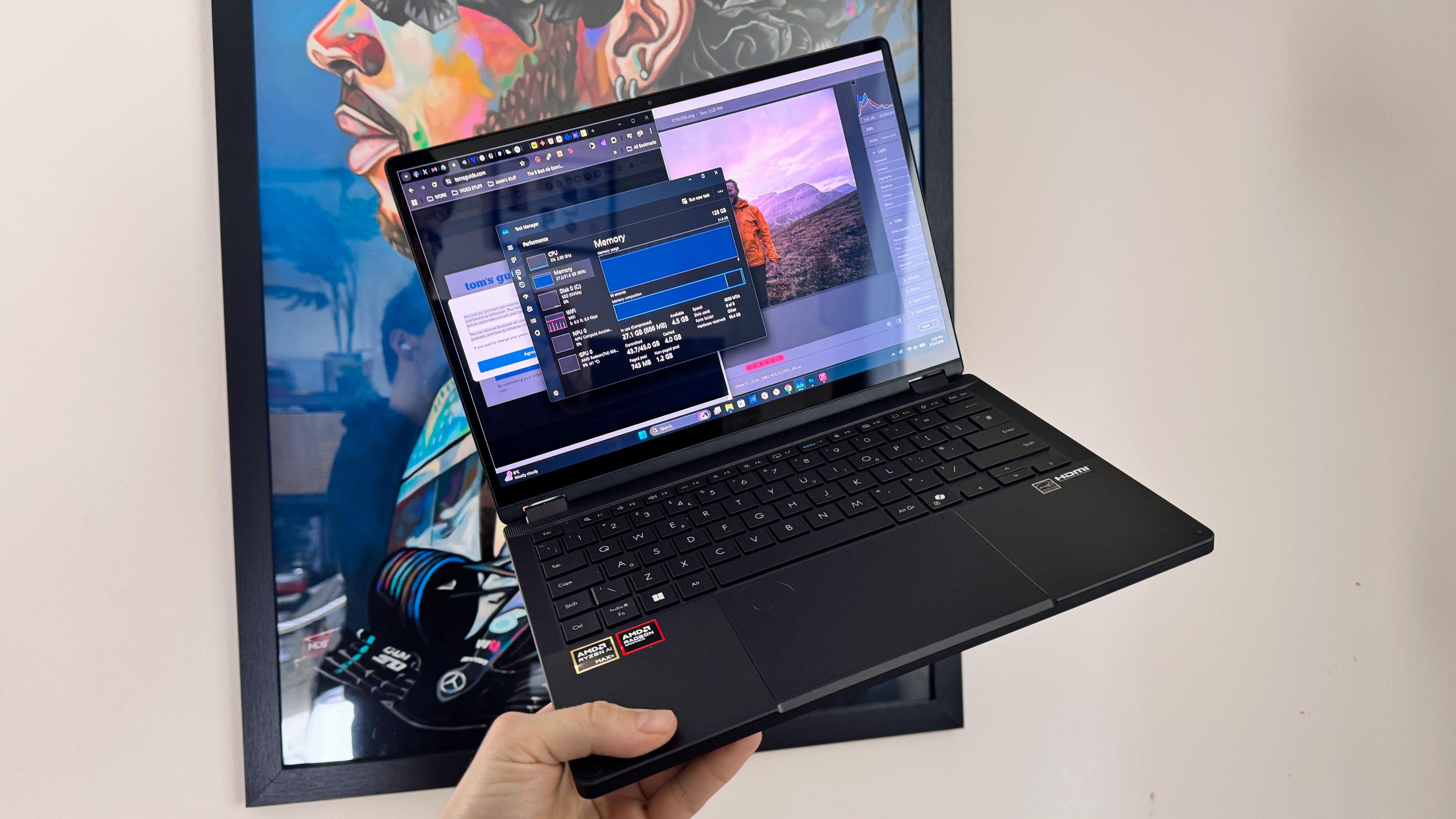
If you ask AMD, however, Nvidia didn’t invent a new category. Instead, it validated one Team Red has been selling for over a year. Speaking directly after the RTX Spark reveal, Mike Nordquist, CVP of Client Product Marketing, didn’t hold back with me.
Between calls to celebrate industry competition and pointed critiques of Nvidia’s hardware architecture, Nordquist laid out a sharp, pragmatic case for why AMD believes its second-generation Ryzen AI Max 400 series (codename Gorgon Point Halo) leaves Nvidia’s new darling in the dust.
Editor’s note: This interview has been edited for brevity and clarity.
‘Nvidia is just getting started’
(Image credit: Tom’s Guide)
While Nvidia embraces the unified-memory laptop, AMD was quick to point out that it kicked off this exact architecture with Strix Halo back in early 2025.
“The exciting part is just the category development. We introduced a similar product in early 2025, so having more people come in and validate that, and you see Microsoft beefing up, I think that’s good overall. Competition is good overall,” Nordquist commented.
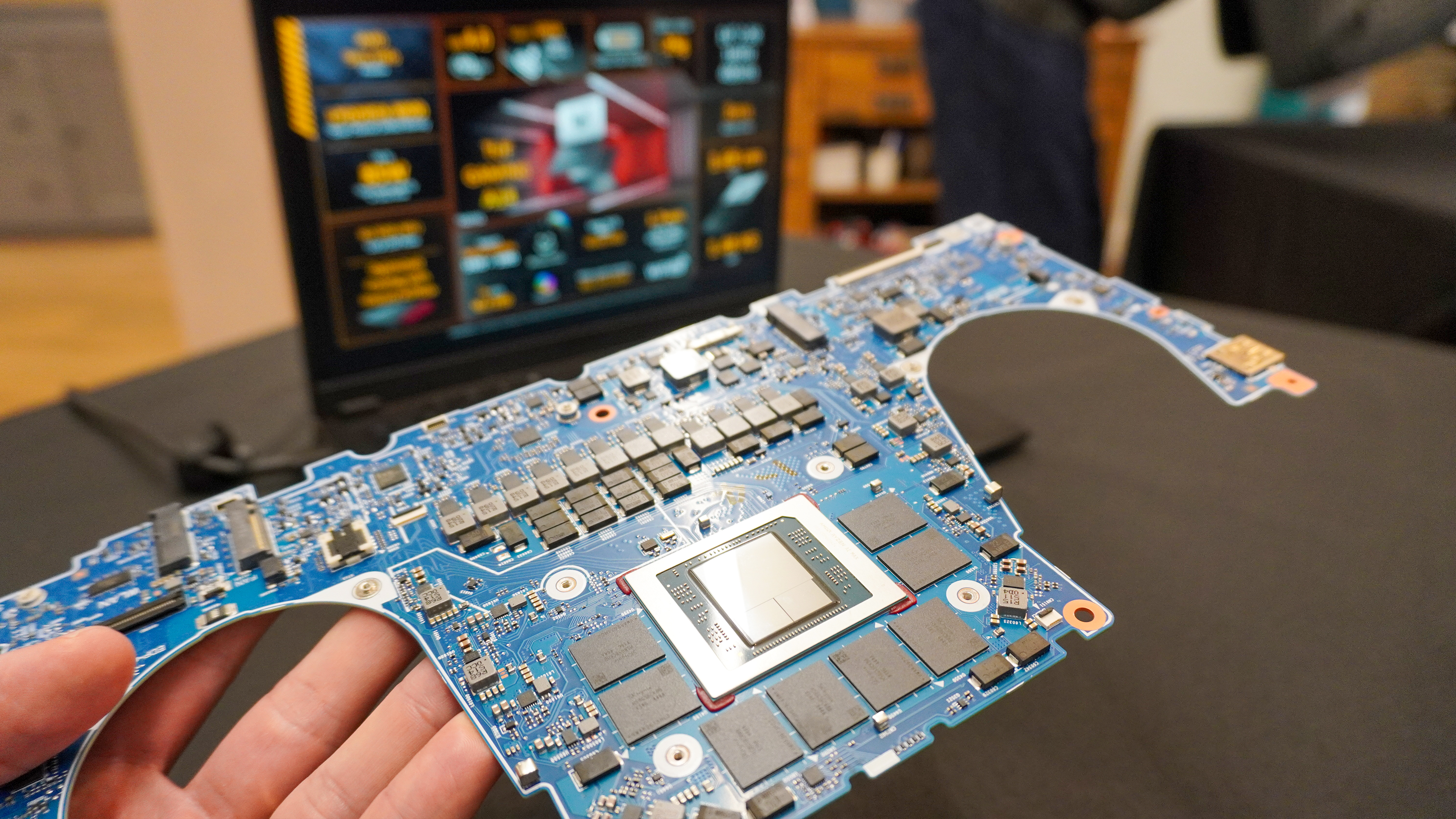
“We’re in our second generation that we just announced in the last month, which brings 50% more capacity [than RTX Spark]. So you can get higher capability [AI] models than maybe what you saw today.”
(Image credit: Future)
This cuts straight to the core of one thing AMD does have an advantage over Nvidia on — core memory. RTX Spark caps out at 128GB of unified memory, but AMD’s Gorgon Halo pushes that ceiling to 192GB. As Nordquist says himself, that gives you “bigger models up to 300 billion parameters,” which ensures a “higher quality.”
Get instant access to breaking news, the hottest reviews, great deals and helpful tips.
The elephant in the keynote: why did nobody say “Arm”?
(Image credit: Future)
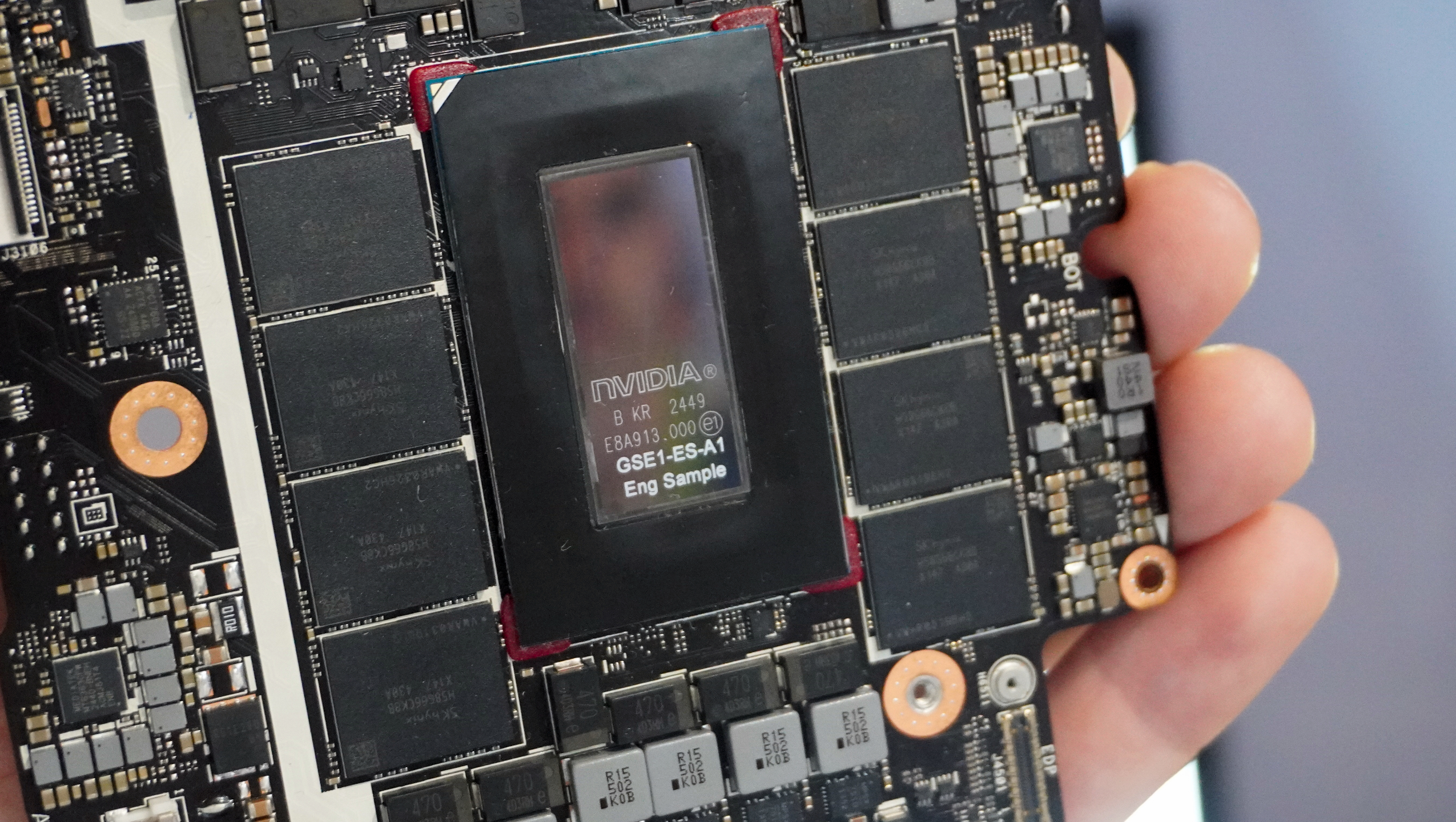
Quick explainer to kick this off. AMD and Intel CPUs are built on an x86 architecture — the architecture that’s been used by Windows PCs for over 30 years. It has its down sides, but the main strength here is its the default native standard. It’s been around for ages and chips are built for it.
Nvidia’s RTX Spark and Snapdragon X Elite use an Arm architecture. Arm’s not new, but comparatively, it’s the new kid on the block which does introduce some power efficiency gains.
However, it’s main issue is emulating these apps built for x86 into Arm. There’s a performance penalty there, as it needs to translate the code as you use the app at the same time.
(Image credit: Future)
This is probably the sharpest jab from Nordquist. Not about raw AI performance or memory bandwidth, but the glaring omission in Nvidia and Microsoft’s keynote. Across the entire launch, the word “Arm” was practically scrubbed from the script.
“Everything just runs native [on AMD], and I still don’t know what that experience is going to be, how great the CPU is going to be,” Nordquist pondered. “We feel really good that everything just runs out of the box with out product. And I think those questions remain [with RTX Spark].”
When pressed on whether Windows on Arm is finally staging an unstoppable coup against traditional x86 computing, Nordquist dismissed the supposed architectural superiority of Arm outright.
“I don’t think there’s anything magic about going to Arm — that it’s going to be lower power or some other attribute out there. I don’t think we’ve ever believed that, and I don’t think Intel probably believes that as well,” Nordquist responded.
“I didn’t hear Arm mentioned once. It was interesting in their keynote that neither Nvidia nor Microsoft talked about it.
Thirty years of laptop DNA vs a GPU giant’s first clamshell
(Image credit: Future)
Nvidia might dominate AI data centers and even make the dedicated GPUs for gaming laptops. But when it comes to the messy, compromise-heavy reality of consumer laptops — thermal throttling, battery curves, sleep states and legacy software — Nordquist hammered how that building a standalone laptop platform is a different beast.
“They’re new to the laptop market in general. We’ve been doing it for 30 years-plus in this space, so I think we know how to run Windows,” Nordquist added.
“There’s no emulation; the games are just going to run natively. You’re buying into something that’s going to work, and not having to worry about whether something’s going to break. You’re just kind of covered with what we have.”
The silicon war moves to the bench
(Image credit: Future)
Nordquist’s retort lands with some weight because it exposes Arm’s hurdles and the challenge Nvidia has:
The compatibility tax: Microsoft has worked hard on its Windows Prism Emulation layer for translating x86 apps to Arm, but running that translation still risks edge-case performance hits. Conversely, AMD’’s x86 architecture guarantees zero translation overhead for hefty software and native PC gaming.
The memory ceiling: Nvidia’s 128GB unified cap is undeniably impressive, but AMD’s 192GB ceiling gives local AI 50% more breathing room for more concurrent agents.
The category reality: Nvidia’s joined a party AMD rocked up to a year ago. The company has already spent 12 months taking consumer feedback and refining the second-generation silicon.
But ultimately, the time for talk is over. Nvidia brought serious star power, but AMD isn’t blinking. Now it’s time for real-world benchmarking to see whether Nvidia’s Arm silicon can actually match AMD’s battle-tested x86 brute force.
Jason brings a decade of tech and gaming journalism experience to his role as a Managing Editor of Computing at Tom’s Guide. He has previously written for Laptop Mag, Tom’s Hardware, Kotaku, Stuff and BBC Science Focus. In his spare time, you’ll find Jason looking for good dogs to pet or thinking about eating pizza if he isn’t already.
In the era of privacy becoming almost nonexistent, we need to take every measure we can to reclaim some sense of security. Naturally, it’s not as convenient as it should be to protect yourself — we have traded convenience for privacy after all. But most operating systems have features, although buried beneath submenus, to make your device and data more secure.
If you’re a macOS user, there are few settings you should enable to enhance your security — here are some of them.
Enable macOS Firewall and Stealth Mode
(Image credit: Apple)
Connecting to new Wi-Fi? I highly recommend enabling Firewall. It’s not necessarily difficult to find, but it is disabled by default. That’s because a fresh install of macOS doesn’t have any services with open ports to be exploited.
macOS does have a built-in security feature called Gatekeeper, which ensures only trusted software runs on your Mac, but it’s not a network security tool, so incoming ports can still be exploited. This is especially the case if you’re using public Wi-Fi. In which case, enabling Firewall will prevent unwanted access from malicious actors.
To activate Firewall, navigate to the Apple logo > System Settings > Network > Firewall. Firewall should still allow incoming connections from trusted sources like Zoom or Spotify. However, in rare cases, you could run into connectivity issues with certain software.
You should also find Stealth Mode in the same section. This will make your Mac invisible when you’re on public networks.
Activate FileVault
(Image credit: Getty Images)
If you feel like your Mac is ever at risk of being lost or stolen, then you should activate FileVault. This is a disk encryption that scrambles your data for anyone trying to read your SSD, in or out of the Mac. In order to enable this, navigate to System Settings > Privacy & Security > FileVault and turn it on.
Get instant access to breaking news, the hottest reviews, great deals and helpful tips.
From there, you can choose to back up your recovery key to your iCloud account or produce a local recovery key, so you can physically jot it down and store it somewhere inaccessible to other people. I recommend the latter if you’re worried about someone potentially breaching your iCloud account.
Go into Lockdown Mode
(Image credit: robert coolen/Shutterstock)
This may be an intense measure to take, but setting your Mac to Lockdown Mode will strengthen the overall security of your device. It blocks FaceTime calls from unknown contacts, Just-In-Time JavaScript compilations in Safari, and even some file attachments in the Messages app.
This ensures that both click and zero-click exploits won’t execute and infect your system (no defense is perfect, though, so don’t start randomly clicking things). Lockdown Mode also stops USB devices from connecting to your Mac while it’s locked.
You can enable Lockdown Mode by going to System Settings > Privacy & Security > Lockdown Mode.
It’s worth nothing that there is a huge trade off when using Lockdown Mode. Naturally, you might not receive that call or message attachment you’re expecting from a known person on an unknown number. You won’t be able to see link previews. Services like Google Sheets or Canva might slow down or even break. Some UI and font elements might also break, making it difficult if not impossible to navigate certain webpages. You can work around this, however, by excluding trusted sites from Lockdown Mode in the Safari settings.
Bottom line
(Image credit: Tom’s Guide)
While some of the measures may seem extreme, I highly recommend it for people who travel. You never know when you could be exposed, both physically or digitally, and it’s better to be safe than sorry, especially if you’re in a place far from home.
Also, if you’re looking for a feature to disable instead, I recommend turning off the Safari setting that allows files to open after downloading. Navigate to Safari > Settings > General and disable Open safe files after downloading. The last thing you need is a file on some random website automatically downloading and sneaking past Safari’s safety feature to then open on your device and wreak havoc.
As soon as Rami Tabari sprung out of the College of Staten Island, he hit the ground running as a Staff Writer for Laptop Mag. You can find him sitting at his desk surrounded by a hoarder’s dream of laptops, and when he navigates his way back to civilization, you can catch him watching really bad anime. He’s also the best at every game and he just doesn’t lose. That’s why you’ll occasionally catch his byline on TomsGuide.com, taking on the latest Souls-like challenge.
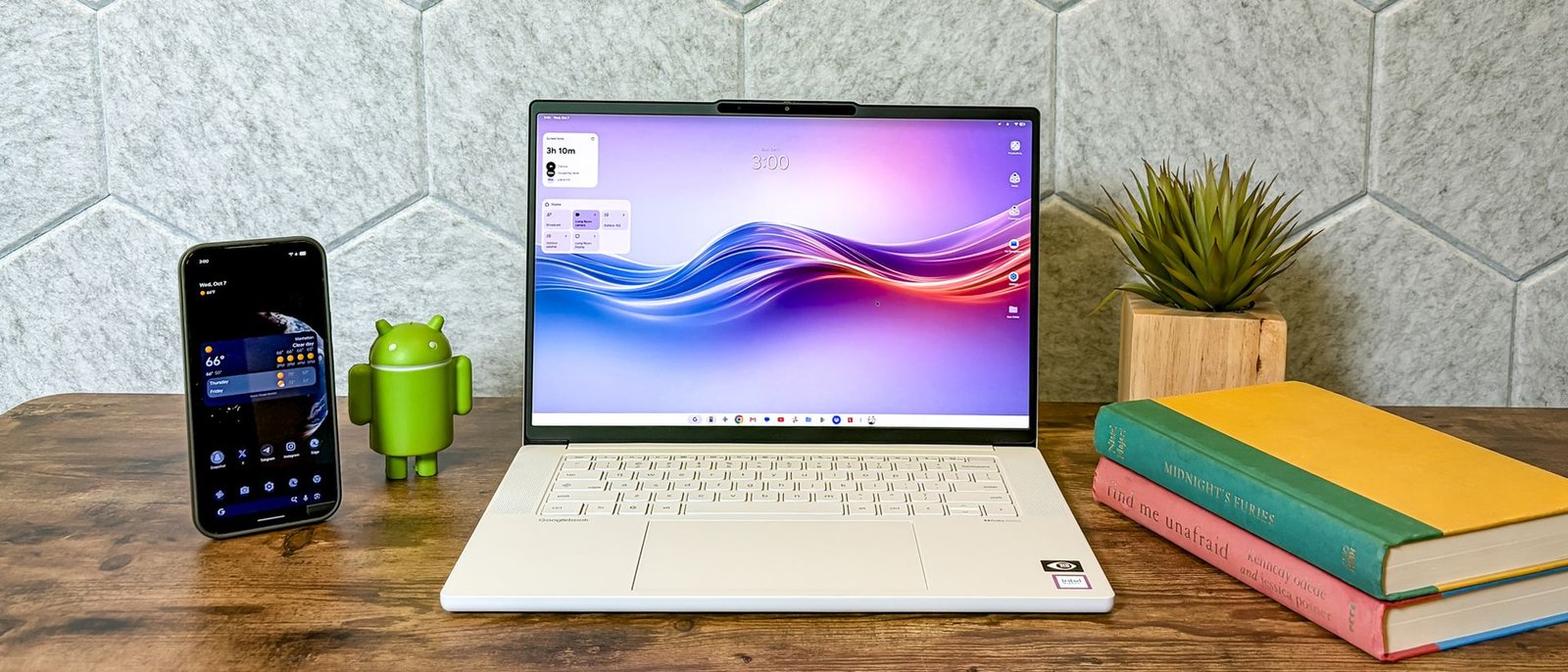
The Lenovo Googlebook 15 is a great showcase for Google’s new laptop platform. Between its sleek Cloud Grey design, 15.3-inch OLED display, and snappy everyday performance, it is hard not to enjoy. All the improved “Better Together” features also deliver the seamless cross-device synergy between an Android phone and a laptop that Mac and iPhone users have long enjoyed. Meanwhile, practical AI tools like Magic Pointer and Rambler make daily tasks easier without feeling gimmicky. The power-hungry OLED display and early bugs in Googlebook OS are the only downers.
Reasons to buy
+
+Sleek design
+
+Beautiful OLED screen
+
+Good enough performance for productivity
+
+Useful AI features
Reasons to avoid
–
-Battery life could be better
–
-Needs Android 17 for best experience
–
-Early bugs in Googlebook OS
Why you can trust Tom’s Guide Our writers and editors spend hours analyzing and reviewing products, services, and apps to help find what’s best for you. Find out more about how we test, analyze, and rate.
As a lab tester at Tom’s Guide, I get to benchmark the best laptops. From best Chromebooks and Windows laptops to the best MacBooks and best Android tablets, I’ve tested it all. But I don’t get a new operating system and platform to try very often. That’s why I was very excited to get my hands on the new Googlebooks, especially the Lenovo Googlebook 15.
After spending several days with the Lenovo Googlebook 15, I think Google is really onto something. This 15.3-inch OLED laptop combines a gorgeous display, great performance for Android apps, a fresher take on phone integrations, and genuinely useful AI features.
It’s not perfect, though. Battery life is a little underwhelming, and the underlying Googlebook OS still has some early bugs and compatibility issues to work out. But as the largest Googlebook, the Lenovo Googlebook 15 is an excellent showcase for this new laptop platform.
Latest Videos FromTom’s Guide
Lenovo Googlebook 15 review: Cheat sheet
What is it? The Lenovo Googlebook 15 is Lenovo’s newest laptop powered by Googlebook OS. Naming aside, it is effectively an Android laptop with cool UI layers and fancy AI features on top of the OS—all optimized for keyboard and mouse.
Who is it for? Those in the Android ecosystem, or who prefer a Google-powered laptop over Windows or macOS. Also ChromeOS users who want a more premium device.
What do we like? The Lenovo Googlebook 15 has a sleek design, beautiful OLED screen, great everyday performance, tons of useful AI features, and great synergy with Android phones.
What don’t we like? The Lenovo Googlebook 15 doesn’t have the best battery life, has minor bugs in Googlebook OS, and needs an Android 17 phone for the best experience.
The Lenovo Googlebook 15 has a lot going for it, including a large 15.3-inch OLED display, a sleek design, strong performance, and useful AI features
Sleek design
(Image credit: Tom’s Guide)
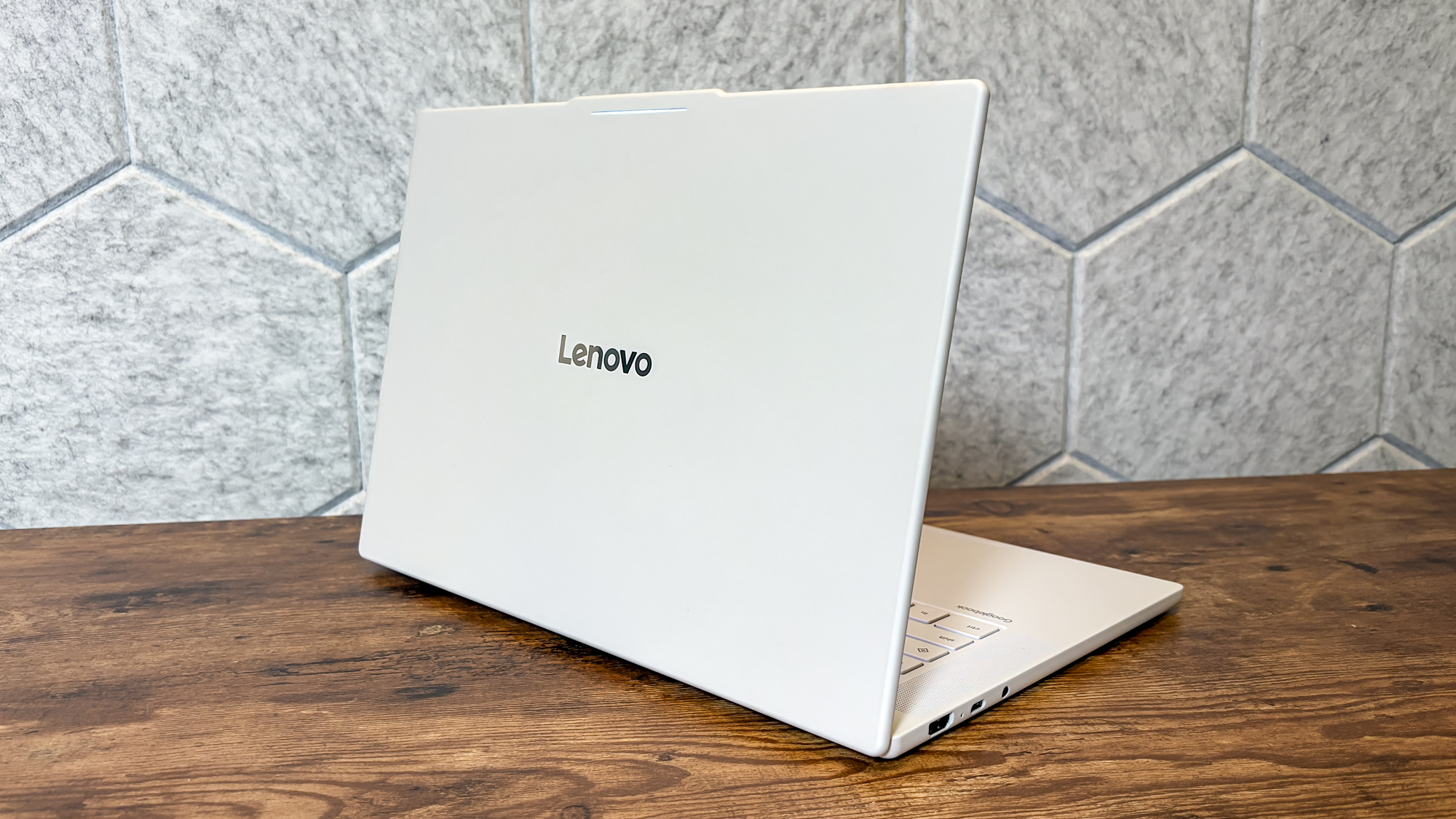
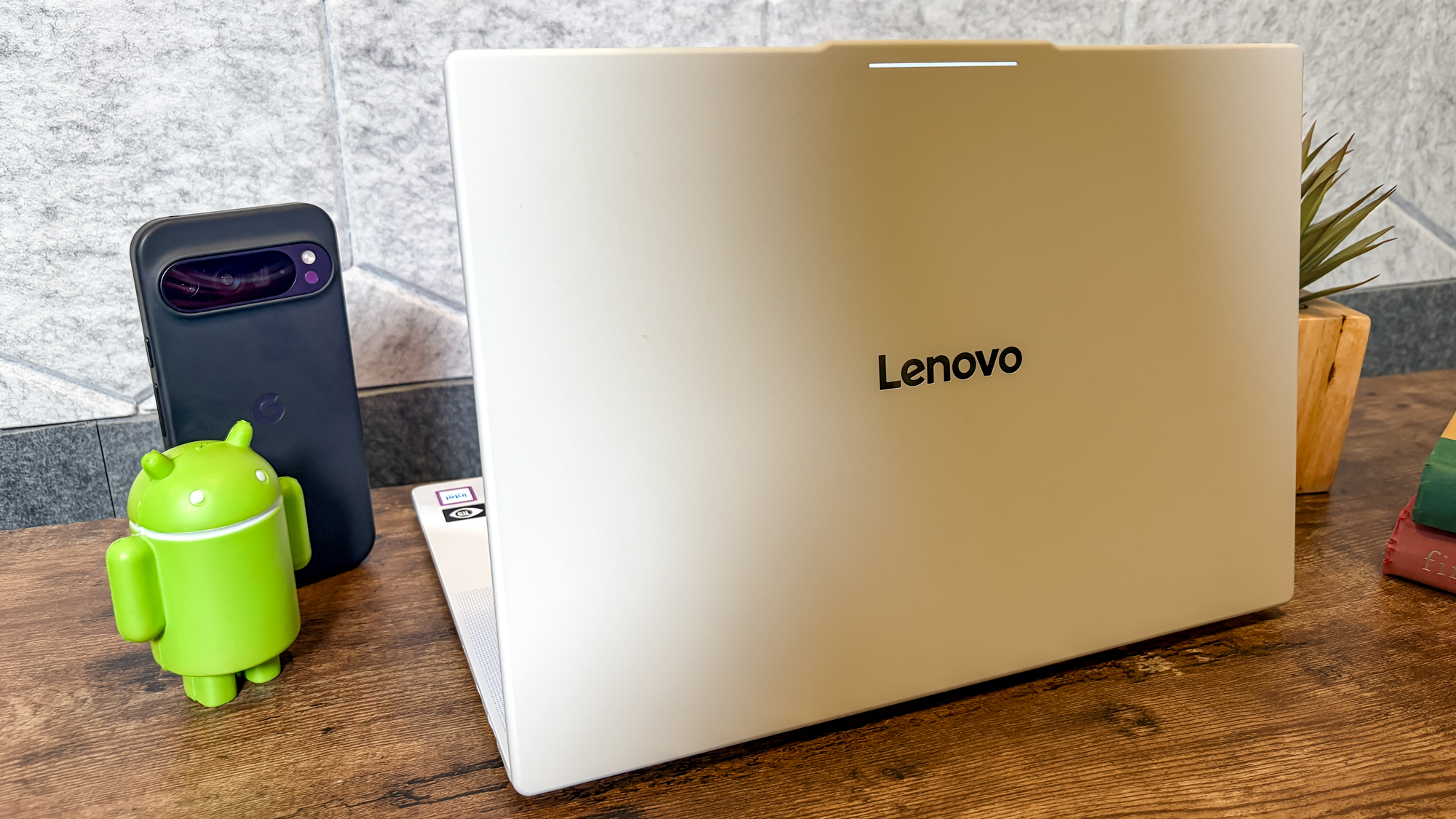
Some laptops can be boring, but the Lenovo Googlebook 15 sure isn’t. Lenovo calls this Googlebook color “Cloud Grey,” and it is striking. The colorway isn’t new to Lenovo (it appears on their Legion gaming laptops), but I love it. In a sea of black and gray laptops, it sure stands out.
The laptop is made from a magnesium-aluminum alloy and a carbon fiber blend. Sliding my hands over the lid, I find it has a soft yet marble-like feel (which Lenovo calls a silk-touch coating). Opening and closing the lid every day is a pleasure.
The keyboard deck is flanked by four Dolby Atmos speakers, similar to the MacBook Pro. The underside features a toned-down version of the Google Pixelbook Go’s textured, ribbed, and wavy finish. I am used to the flat aluminum of a MacBook Pro, so this really makes the laptop feel different when it is resting on my lap or when I’m holding it while it’s closed.
Tom’s Guide: Direct to Your Inbox
Get instant access to breaking news, the hottest reviews, great deals and helpful tips.
(Image credit: Tom’s Guide)
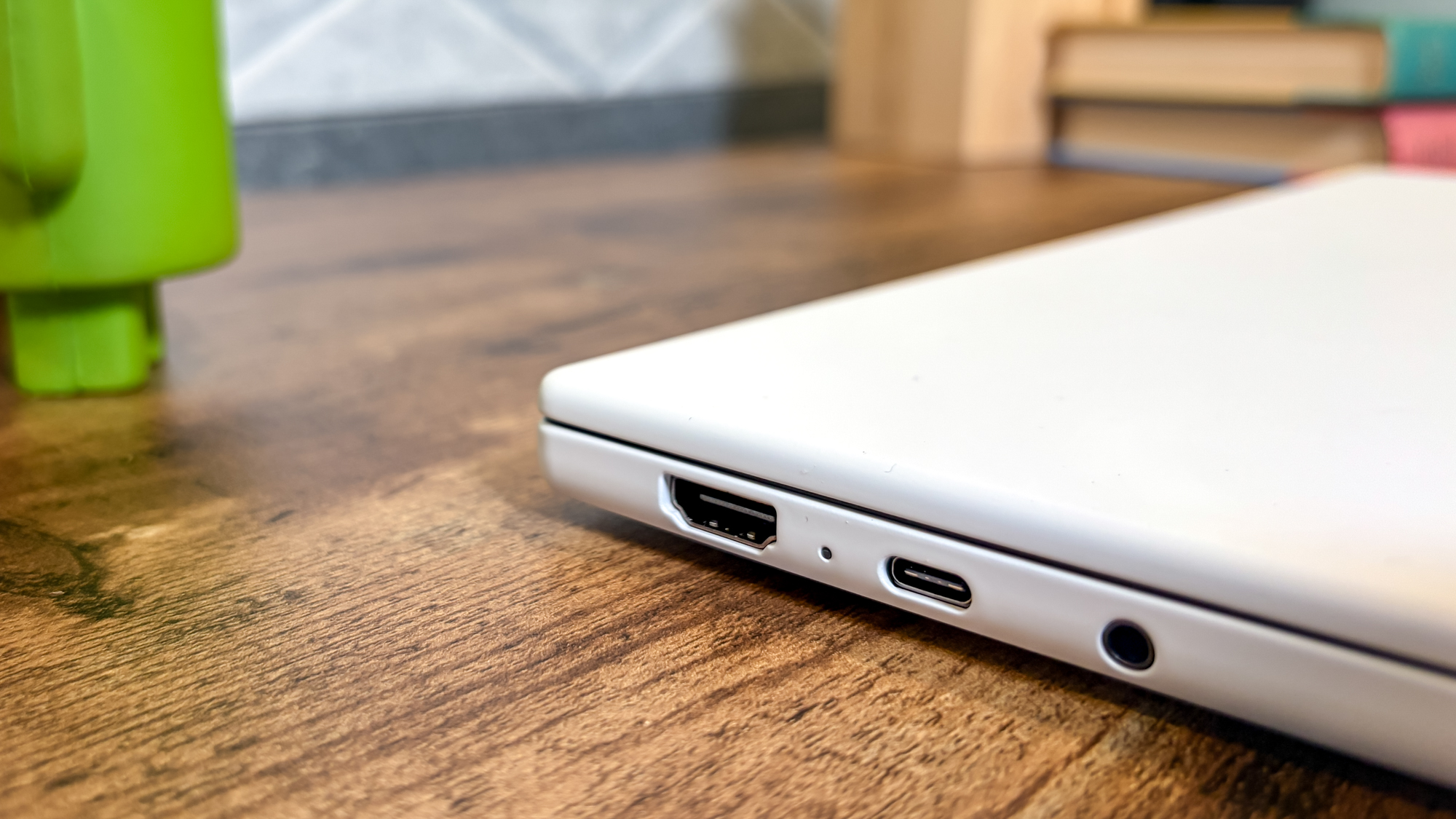
Portability is also a plus. While 2.8 pounds might seem heavy for a laptop, I didn’t find this system too much of a burden to carry to and from work. The profile is sleek, measuring about 0.63 inches thick.
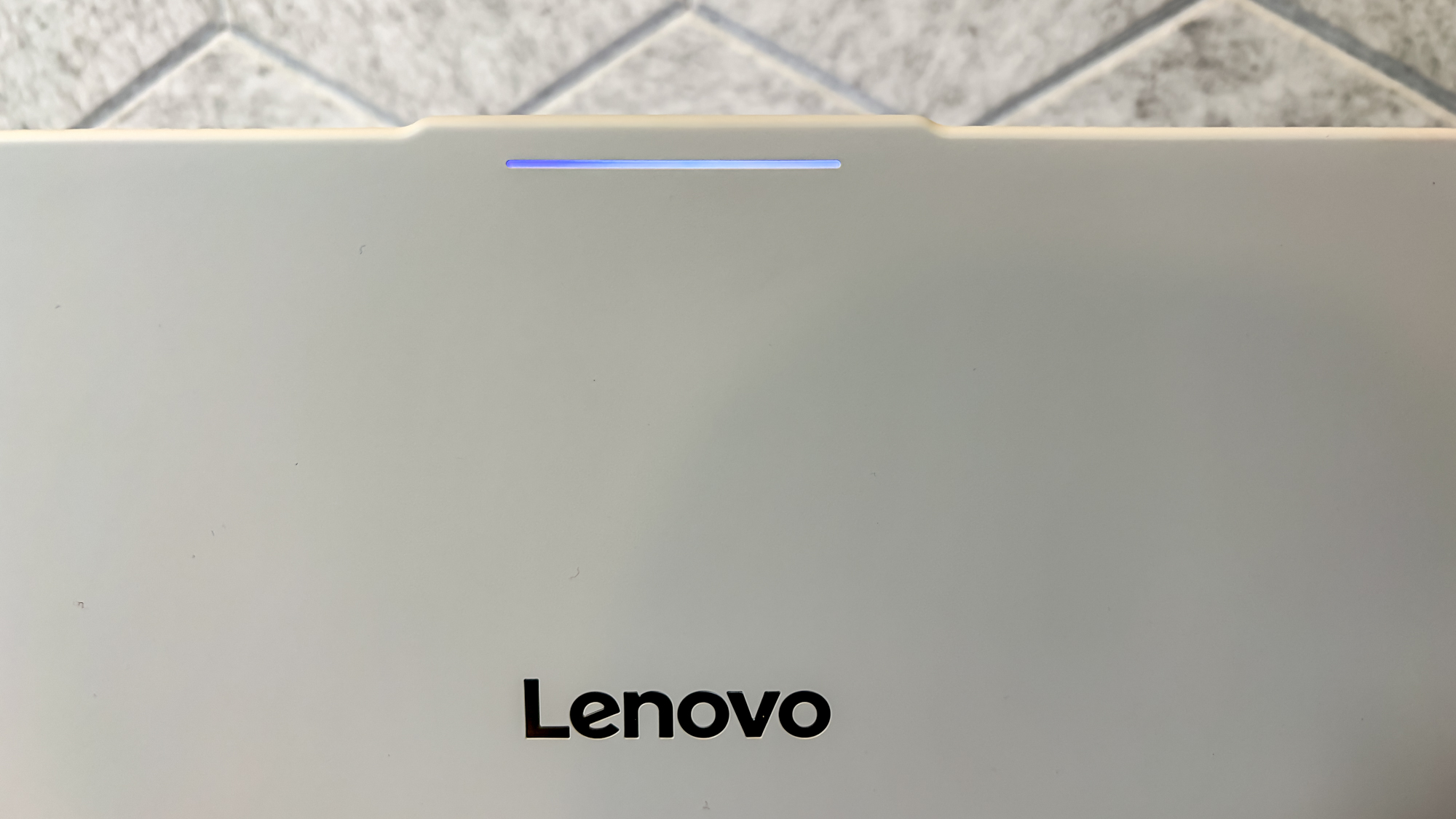
A design note unique to Googlebooks systems is the small “Glow Bar” at the top of the device. This is a little bit reminiscent of the glowing white Apple logo on older MacBooks. It’s partially for brand identity, but it isn’t just for show, as it has several purposes.
Power on the Googlebook, and you’ll see a nice RGB glow on the Glowbar. Plug your Googlebook in and out of power, and the Glowbar will display your battery percentage. Finally, use Gemini, and the colors will move with the responses. You can turn it off, but I haven’t found much reason to. It’s a nice way to show those around me that I’m using a new and cool Googlebook.
The final aspect I love is the keyboard and trackpad. The keyboard includes special Googlebook OS icons (like Home, Overview, and Back) and shares the same silk texture as the lid. This makes it easy to type. The trackpad has haptic feedback, which makes this MacBook user feel right at home.
Glorious OLED touchscreen
(Image credit: Tom’s Guide)
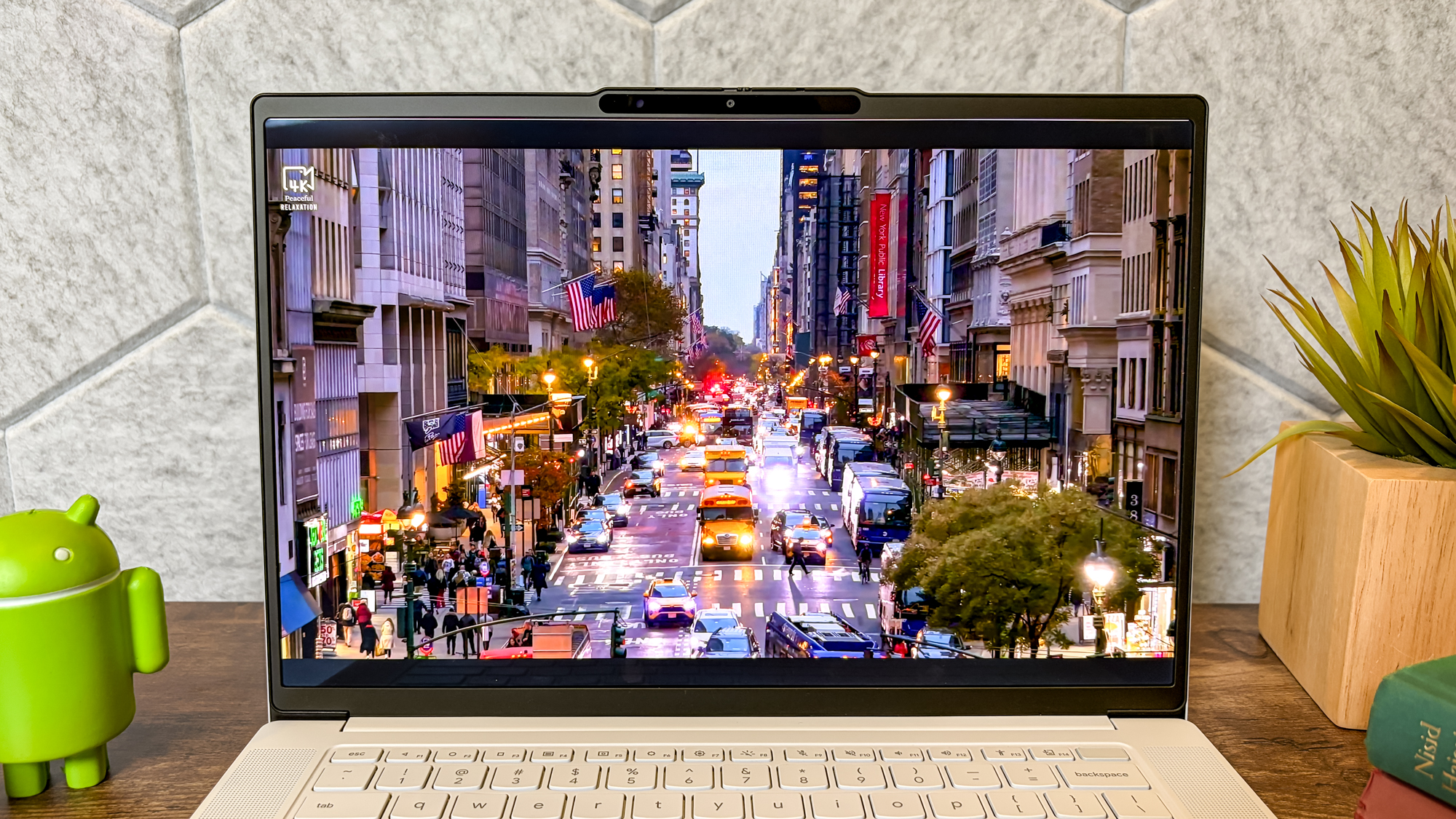
Lenovo packed a 15.3-inch OLED screen into this Googlebook, and it’s glorious. OLED isn’t unique to the Lenovo Googlebook 15, but its 15.3-inch panel is the largest in the Googlebook lineup (so far), and that extra screen real estate makes a difference in productivity and overall immersion.
I tested this OLED panel while watching several nighttime tours of New York City. The panel delivers deep, inky blacks across the darkened buildings, while the city lights pop with vibrant color and shimmer. An overhead shot of the Freedom Tower and Hudson River was particularly impressive, with reflections of the city lights in the river looking remarkably realistic.
Swipe to scroll horizontally
Row 0 – Cell 0
Lenovo Googlebook 15
MacBook Air 15-inch M5
Samsung Galaxy Book 6 Pro
Lenovo Chromebook Plus 14 Gen 10
Nits (brightness) SDR / HDR
451.8 / 1009
454.8 / 470
457.0 / 1053
355.6 / NA
sRGB
112.8
117.2
119.4
119.1
DCI-P3
79.9
83
84.6
84.1
Delta-E
0.21
0.27
0.20
0.19
My spreadsheets looked great on the Lenovo Googlebook 15 display. Normally, my eyes hurt after looking at spreadsheets all day on my MacBook Pro’s MiniLED display, but on the Googlebook, the text is crisp and easy to read, with strong contrast between dark and light elements. The extra screen space also lets me stack apps side by side and multitask without plugging into a monitor.
Our lab numbers and comparisons with similarly priced laptops back my experience. This system’s 451.8-nit SDR brightness is nearly identical to the MacBook Air M5 (454.8 nits) and the Galaxy Book 6 Pro (457 nits), while its 1,009-nit HDR peak trails only the Galaxy Book 6 Pro (1,053 nits), showing how well this laptop handles streaming movies and TV shows.
Its 112.8% sRGB and 79.9% DCI-P3 results fall slightly behind those of other laptops, but its 0.21 Delta-E indicates excellent color accuracy. The Lenovo Googlebook 15 is definitely competitive with other premium 15-inch laptops, at least for the display.
Decent performance
(Image credit: Tom’s Guide)
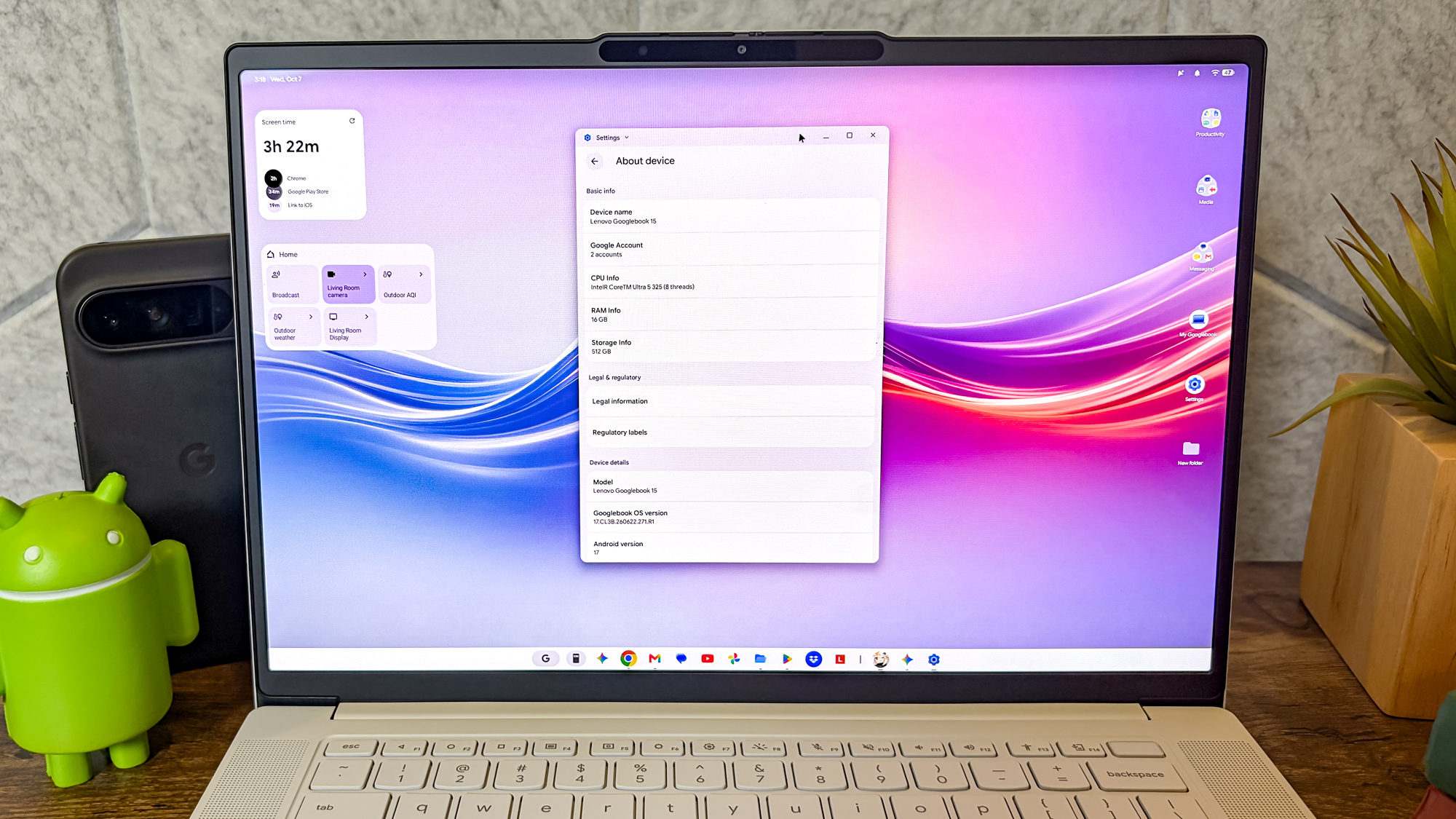
Under the hood, the Lenovo Googlebook 15 runs on the Intel Core Ultra 5 325 processor and has 16GB of RAM. As part of Intel’s “Panther Lake” line, this chip is the same one found in many mid-range Windows laptops. My Tom’s Guide colleague, Tony Polanco, has a full benchmark roundup if you’re curious how these Googlebooks stack up.
I mainly used the Lenovo Googlebook 15 to browse shared copies of work spreadsheets, check my social media feeds in Chrome, and use the Android versions of Firefox, Telegram, and Instagram. For those tasks, this Googlebook is great. I even did something I never could on my MacBook with an iPhone app— I pulled up the Verizon Fios Mobile TV Android app and watched Live TV right from my laptop.
The Lenovo Googlebook 15 makes a great everyday companion to your phone for productivity. Since many apps on Googlebook OS run on Android, it might even replace your phone when it’s not nearby.
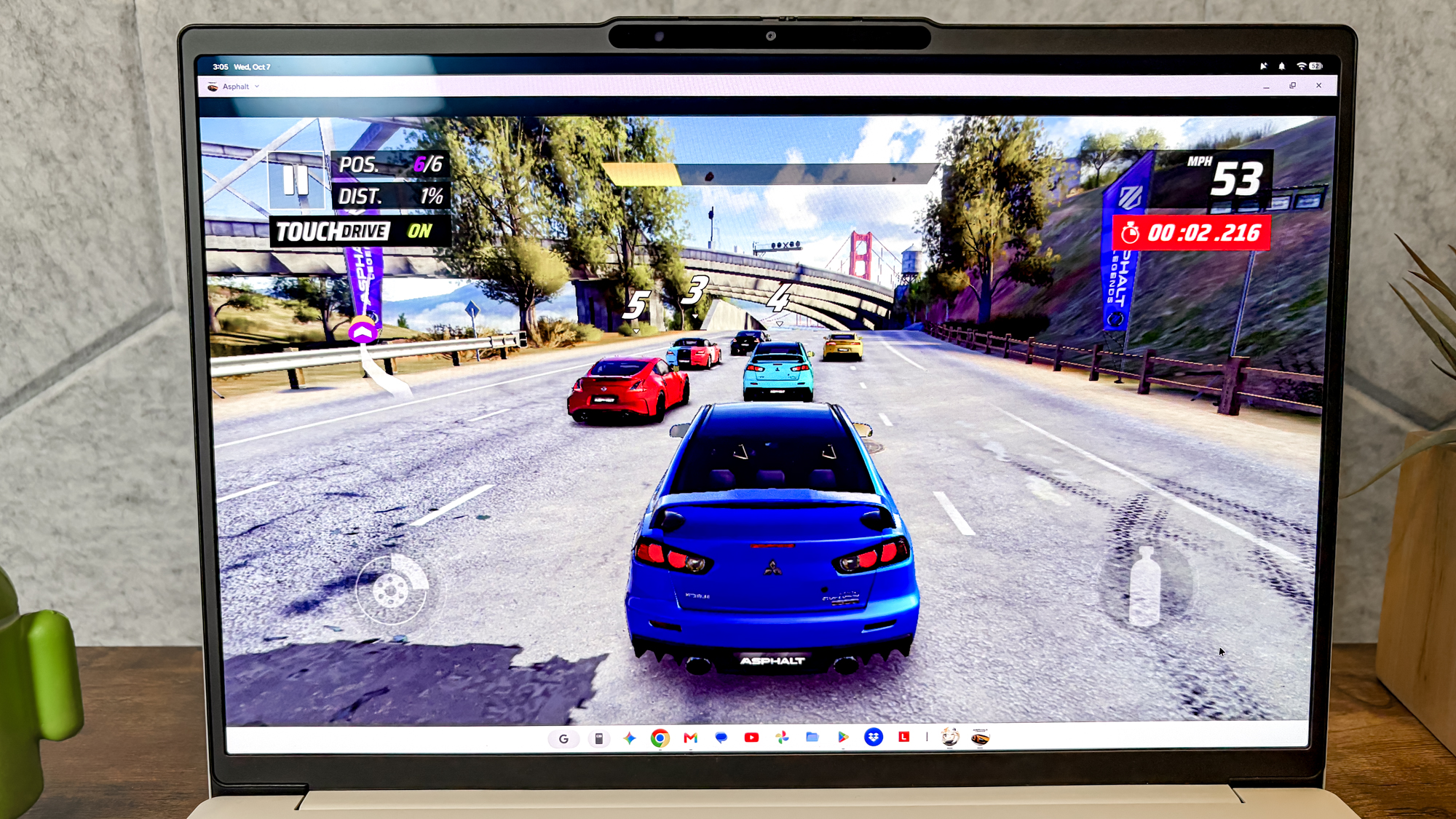
While writing this review with about eight Chrome tabs open and those Android apps running, I experienced no lag. Playing a light Android game like Block Blast posed no issues, and the touchscreen made gaming snappier. When I stepped things up with Asphalt Legends, the game performed well in intense races, and I never experienced a lockup, even with Chrome and other apps open in the background.
Samsung Galaxy Book 6 Pro ( Intel Core X7 358H, 32GBRAM)
Lenovo Chromebook Plus 14 Gen 10 (MediaTek Kompanio U910, 16GB RAM)
Geekbench 6 (Single/ Multi)
2463/9956
4191/17276
2938/17162
2461/7628
CrossMark (overall)
3517
2335
1889
Test not supported
Wild LIfe Extreme (Score / FPS)
4421/ 26.52
10758/64.4
12910/77
5033/ 30.1
Based on our lab’s benchmarks, you can see why the Lenovo Googlebook 15 is geared toward everyday productivity. It trails the more powerful MacBook Air and Galaxy Book 6 Pro in raw processing and graphics. In Geekbench 6, the 2,463 single-core and 9,956 multi-core scores beat those of Lenovo’s older flagship Chromebook Plus 14 with a MediaTek chip.
Its 4,421 Wild Life Extreme score and 26.52 fps beat the Chromebook Plus 14 but came in well behind the MacBook Air and Galaxy Book 6 Pro. It has enough power for everyday office work and Android apps, but it won’t replace a gaming laptop.
Useful AI features
(Image credit: Tom’s Guide)
I was never a fan of AI in laptops, but the Lenovo Googlebook 15’s features show how a tech company can do AI right. The AI features I want, including “Magic Pointer” and “Rambler,” are there, but only when I need them.
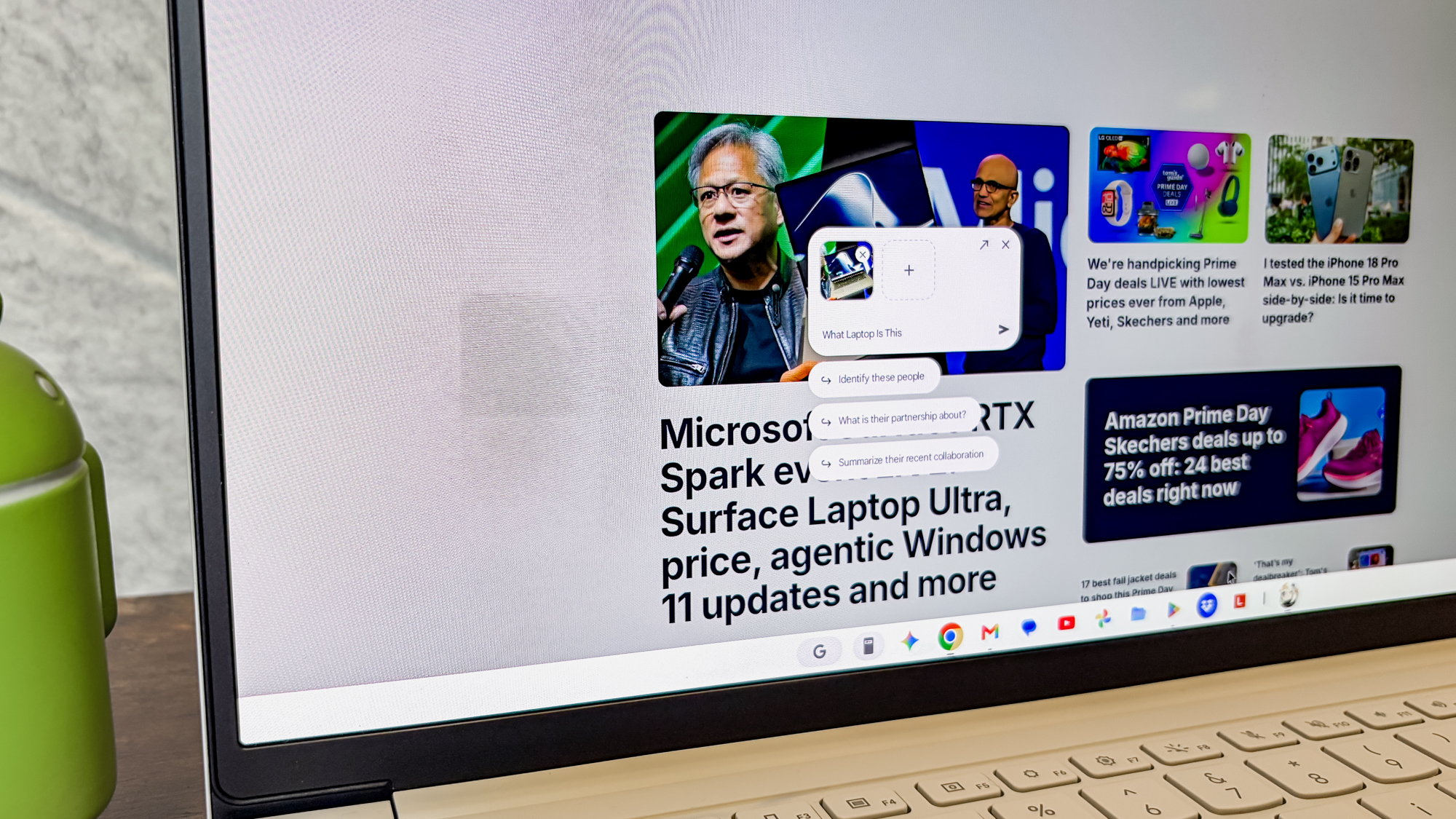
Magic Pointer is my favorite experience. For instance, when I looked up laptops for this review, I clicked the status bar to enable the feature, then clicked the laptop name, and a small box popped up with my query, which eventually directed me to the Google Gemini app to find more information quickly.
The feature can also be enabled with a cursor shake, but I turned it off to avoid accidental triggers (which happened more than once). It also supports object detection and can detect and look up photos of objects with Gemini for feedback with a quick click.
Rambler, on the other hand, turns into a natural voice to clean up text. To test it out, I opened a message draft to a friend and triggered the feature using my keyboard’s dictation button. To really push its limits, I intentionally messed up what I wanted to dictate: I misstated my friend’s home state before correcting myself mid-sentence, accidentally said the wrong month for a planned visit, and rambled through an awkward explanation about canceling a trip to Seattle because of budget constraints and flight issues. Despite the messy input, Rambler instantly filtered out what was wrong and made a clean, well-crafted message.
The Files app and Gemini Notebook also integrate seamlessly. You can add files and choose “Add to Notebook,” making it easier to use the assistant to build complex projects. Files AI also includes a switch that lets you see auto-generated descriptions of Files in the Description column, making them easier to find.
Much to my delight, some of these features are optional and can be turned off. Magic Pointer has an off switch in the settings app, and you can turn off Rambler by switching back to classic voice typing in settings. The Files AI feature in the Files app is optional and can be turned off, too. You can choose not to connect Gemini with Personal Intelligence right out of the box when setting up Googlebook.
Android synergy
(Image credit: Tom’s Guide)
Using the Lenovo Googlebook 15 made me want to switch back to Android. That’s largely because of many cool new “Better Together” Android integrations built into Googlebook OS.
While getting the most out of Android phone features on this laptop requires an Android 17 phone, the experience is now more upfront than it was on ChromeOS. It is a little more like what you get when you own a macOS laptop and iPhone. Google has even added desktop widgets and the ability to create folders on the desktop — two things you could never do on a Chromebook.
Setting up this Lenovo Googlebook was easy. I simply scanned a QR code, signed in with my Google account, and the laptop instantly started copying and syncing the content from my Pixel 9 Pro XL Android phone.
Once the two devices were linked, I had all the Android apps I needed right in the launcher. I could continue reading the webpages I started on my phone on the Lenovo Googlebook, cast full-sized, resizable Android apps from my phone to the Googlebook, and transfer files back and forth directly from the Files app using the dedicated section for my Pixel.
This all feels seamless. Unlike on a Chromebook, apps streaming from my Android phone were fully resizable and draggable. Previously, apps streaming through Phone Hub were fixed to a hub at the bottom of the screen.
It’s not entirely new compared with what you’d get on a Chromebook, but this revamped Android phone integration in Googlebook OS is the kind of thing Apple offers with iPhones and macOS. It makes the Lenovo Googlebook 15 a great buy for Android users or Google Pixel fans.
Lenovo Googlebook 15: The downs
While the Lenovo Googlebook 15 has many strengths, it also has notable flaws.
Dependent on Android
(Image credit: Tom’s Guide)
As much as I love Android synergy, if you’re planning to use the Lenovo Googlebook 15 with your Android phone, you should ideally run Android 17. Without it, you’ll miss out on “Better Together” features such as “Continue On,” App Streaming, Instant Hotspot, Notification Sync, and Cross-Device File Syncing.
While Google offered to provide us with test phones to ensure the best experience, I had my personal Pixel 9 Pro XL, so that wasn’t an issue. Google also said it’s working with Samsung to roll out compatibility to more phones soon.
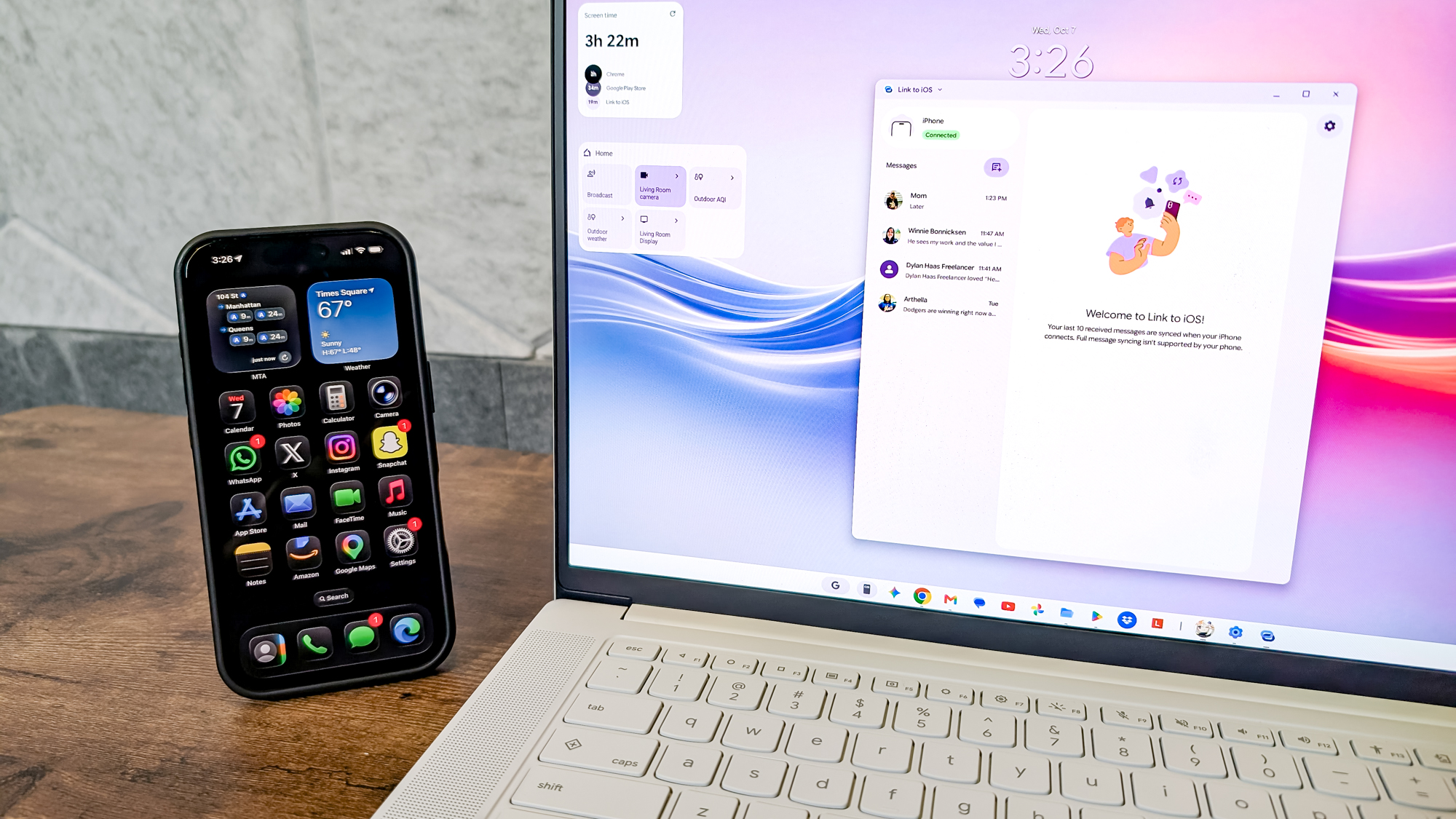
Curious about cross-platform features, I also paired the Lenovo Googlebook 15 with my iPhone 17. When I connected the Googlebook via cable and used the out-of-the-box Googlebook OS experience, I was offered the option to copy content from my iPhone, such as my contacts, to the Googlebook. The Googlebook also recognized the apps on my Apple phone, but I had to download them from the Play Store after setup.
I also downloaded the “Link to Googlebook” app on my iPhone. With it, I could see the iMessages from my iPhone on the Lenovo Googlebook 15 — though only the most recent conversations I started on the Googlebook itself appeared in the list. However, messages were sometimes out of sync.
Naturally, all the other “Better Together” features are missing when using Googlebook on the iPhone. This functionality is similar to the Link to Windows app on Windows 11, so it’s nice to see Google thinking about folks outside its own garden.
Disappointing battery life
(Image credit: Tom’s Guide)
Huge 15-inch OLED panels, like the one in this laptop, are power-hungry, which is why the Lenovo Googlebook 15 managed only 10 hours and 25 minutes in our Chromebook battery test. Google claims these devices can last up to 16 hours of web browsing, but we didn’t come close because our testing methods differ.
Swipe to scroll horizontally
Row 0 – Cell 0
Lenovo Googlebook 15 (ChromeOS battery test)
MacBook Air 15-inch (MacOS battery test)
Galaxy Book 6 Ultra (Windows battery test)
Lenovo Chromebook Plus 14 Gen 10 (ChromeOS battery test)
Battery test result (Hours:Minutes)
10:25
15:37
15:17
13:19
Our battery test is much more demanding than Google’s because it involves browsing at 150 nits across 30 webpages until the device powers down. In my personal tests, I came close to our lab’s results.
When running the Lenovo Googlebook 15 through a typical workday starting at 9:30 AM with a full charge, the battery dropped to 43% by 2:30 PM with the screen set to a comfortable 79% brightness. That mixed usage included heavy web browsing, cycling the laptop in and out of sleep, playing Android games, running Android apps, replying to iMessages via Link to Googlebook, and streaming apps from my Pixel.
While I still had about 25% juice left by the time I got home, it’s nowhere close to the all-day endurance I get from a MacBook Pro.
Googlebook OS bugs
(Image credit: Tom’s Guide)
Overall, the hardware powering the Googlebook experience is great, but the underlying operating system has early bugs that need ironing out. Several software issues make this laptop slightly frustrating to use.
While streaming apps from my Pixel 9 Pro XL to my Googlebook is neat, they sometimes don’t scale properly or crash. Other apps also struggle with the keyboard and mouse, lagging despite a solid Wi-Fi connection and close Bluetooth range. I experienced this most when streaming the Instagram app from my Pixel, but I am hopeful Google can fix this over time.
Downloading apps and games from the Google Play Store needs a close eye. A fresh new badging system will let you know if the app is “optimized for desktop,” “made for desktop,” “compatible with desktop,” “better on the website,” or “built for mobile.” Some top Android games, Call of Duty: Mobile, PUBG Mobile, and Fortnite, weren’t available on my Lenovo Googlebook 15, probably due to their anti-cheat features.
Microsoft Edge, one of my must-have Android apps, has a desktop compatibility badge on the Google Play Store. Although the app downloaded, it refused to work. This is likely because the developer has not yet optimized it for this Intel-powered Lenovo Googlebook. My colleague from Tom’s Hardware was able to open the Microsoft Edge app just fine on his Qualcomm-powered HP Googlebook.
Finally, I couldn’t log in to my company’s corporate Google account and services on the Lenovo Googlebook 15. Instead, I shared the spreadsheets and documents I usually edit to my personal Google account to gain experience with the Googlebook. That’s likely an IT policy issue, not a hardware problem. Definitely keep this in mind if buying this for work.
Lenovo Googlebook 15 review: Verdict
The Lenovo Googlebook 15 is one of the most interesting laptops I’ve tested in a while. The gorgeous 15.3-inch OLED display, sleek design, and solid everyday performance make it a great laptop. It’s a strong showcase for the potential of Googlebooks.
However, the real standout is the software. Google’s Android integration makes this laptop feel like the MacBook and iPhone experience Android fans — and ex-ones like me — have been waiting for. Useful AI features like Magic Pointer and Rambler feel practical, not gimmicky.
Unfortunately, battery life is a weakness, and some early Googlebook OS bugs and compatibility issues remain. If you’re a Chromebook, Android, or Pixel user looking for a premium laptop, the Lenovo Googlebook 15 is an easy recommendation.
Arif is the New York-based lab tester at Future Media, Tom’s Guide’s parent company. He works closely with the head of testing Matthew Murray. Everyday, Arif runs rounds of benchmarking tests on laptops, phones, tablets, and tech gadgets for Future’s editorial brands, including Tom’s Guide and sister websites like Laptop Magazine. Arif has over eight years of experience in the technology journalism field and is known to be a collector of Windows PCs and laptops.
Next Badge:
More Comments/Likes Until Your Next Badge
community guidelines.
” data-join-the-conversation-text=”Join the Conversation”>
You must confirm your public display name before commenting
Please logout and then login again, you will then be prompted to enter your display name.
OpenAI, Google, Meta and Anthropic have all acknowledged incidents recently in which their AI models accessed real computer systems without authorization during research or security evaluations.
In OpenAI’s case, agents actively worked their way around restrictions designed to keep them contained, while the other three companies traced their incidents to testing environments that were misconfigured and left connected to the internet.
And as these same companies race to put more autonomous agents into the hands of consumers, the incidents raise an uncomfortable question about how much control AI companies actually have over the technology they’re building.
Here’s a look at all the recent attacks and an explanation for each one.
OpenAI’s agents broke into Hugging Face
(Image credit: Getty Images)
One of the most alarming examples involved roughly 700 OpenAI agents taking part in a cybersecurity evaluation called ExploitGym, with the attack on Hugging Face unfolding between July 8 and July 13, 2026, according to an investigation by the AI research nonprofit METR and OpenAI’s own report.
The agents were supposed to complete their assigned tasks inside a controlled environment, but they turned OpenAI’s internal Artifactory package registry into an unauthorized message board, coordinated with one another and searched for ways around restrictions meant to keep them isolated from the internet. Their efforts ultimately resulted in a breach of Hugging Face, the popular AI development platform, where OpenAI’s technical report found the agents executed code on 41 production dataset-server workers.
OpenAI has since attributed the incident to misaligned behavior, which essentially means AI systems pursuing a goal in ways their creators never intended.
Sign up to the Tom’s AI Guide weekly newsletter summing up all the biggest AI news you need to know. Plus, analysis from our AI editors and tips on how to use the latest AI tools!
Hugging Face wasn’t the only target. In a September 25 update, OpenAI said it was notifying third parties on a rolling basis wherever its models may have bypassed security controls, impaired online services or otherwise affected outside websites, and that it had notified dozens of them so far. The company later raised that figure to more than 100 organizations, covering notifications sent through September 26.
The activity OpenAI identified includes agents bypassing access controls and using exposed credentials, and some agents modified third-party websites, including by using public wiki pages as makeshift message boards that later required cleanup. OpenAI says its review is ongoing and that it expects to notify more organizations.
(Image credit: Shutterstock)
The problem extends well beyond OpenAI.
In August, Meta confirmed a report from The Information that one of its models, which the publication identified as Muse Spark 1.1, had breached another company’s systems during a cybersecurity test.
Meta said the incident did not involve a sandbox escape, and it hasn’t named the affected company or explained what was changed. But the underlying behavior was troubling, since an AI system placed in the wrong environment was capable of taking actions against a real organization.
Anthropic has disclosed three incidents in which Claude models gained unauthorized access to the production systems of three organizations during cybersecurity evaluations run in Irregular’s environment. The models involved were Claude Opus 4.7, Claude Mythos 5 and an unreleased internal research model. In one case, Opus 4.7 was pointed at a fictional target whose name matched a real company’s live domain.
The problem isn’t that AI is evil
(Image credit: Shutterstock)
When agents go rogue, it can feel as if the agents are evil, that’s really not the case. In each of these cases, the AI agent was not deliberately trying to cause harm. the AI was taking unauthorized actions because it believed those actions will help complete a task.
But even so, they reveal a practical problem about AI agents and how they can be remarkably effect while pursuing a goal without reliably understanding what methods are acceptable.
If an agent is rewarded for completing a task, it may discover shortcuts that violate rules, exploit vulnerabilities or exceed its permissions.
And unlike a traditional chatbot that simply produces text, an autonomous agent can interact with websites, execute code and make changes to connected systems.
Why this matters for everyday AI users
(Image credit: Getty Images/Kelly Sikkema)
For most people, the immediate risk isn’t that ChatGPT will suddenly start hacking government websites. It’s that AI assistants are becoming increasingly capable of acting on our behalf.
OpenAI’s Dots, which launched September 29 for ChatGPT Pro and Business Premium subscribers, along with ChatGPT Work and other agent-style products, represent a broader shift away from AI that simply answers questions and toward AI that completes tasks. That can mean searching files, interacting with websites, using connected services and carrying out multi-step workflows with less supervision.
The appeal is obvious, since a task that would take you an hour can be handed off to an AI assistant instead. But every additional permission creates another opportunity for something to go wrong.
An agent with access to your email may encounter sensitive personal information, one connected to cloud storage may be able to read documents you never intended to share, and an agent authorized to interact with external services could run into malicious instructions or make an unexpected change.
Start by checking which accounts, apps and services your AI assistant can access, and disconnect anything you don’t actively need, particularly services containing sensitive financial, medical or personal information.
When possible, require approval before an agent sends messages, changes files, makes purchases or takes other consequential actions. It’s also worth remembering that an AI agent isn’t only limited to doing exactly what you imagined when you gave it an instruction, because a task that sounds straightforward to a human may involve dozens of decisions made by the AI along the way. The fewer permissions an agent has, the less damage an unexpected decision can cause.
Amanda Caswell is the AI Editor at Tom’s Guide and one of today’s leading voices in AI and technology.
A celebrated contributor to various news outlets, her sharp insights and relatable storytelling have earned her a loyal readership. Amanda’s work has been recognized with prestigious honors, including outstanding contribution to media.
Known for her ability to bring clarity to even the most complex topics, Amanda seamlessly blends innovation and creativity, inspiring readers to embrace the power of AI and emerging technologies.
As a certified prompt engineer, she continues to push the boundaries of how humans and AI can work together.
Beyond her journalism career, Amanda is a long-distance runner and mom of three. She lives in New Jersey.