
We independently review and test every app we write about. When you click some of the links on this page, we may earn a commission. Learn more.
I live in a bubble of sorts where most of my coworkers and other professionals in my network default to Zoom meetings. It’s glorious—and, honestly, the right way to do meetings.
But every now and then, that precious bubble is burst when someone sends me a Google Meet meeting—or specifically requests a Google Meet meeting. Never mind that I use Google for literally every other work task, so I really have only myself to blame.
With that said, here’s how to schedule a Google Meet meeting.
Table of contents:
How to make a Google Meet meeting
Here’s how to schedule a meeting in Google Meet. I’m showing how to do it on the web, but the steps are virtually the same in the desktop and mobile apps.
-
Go to meet.google.com (or open your desktop or mobile app).
-
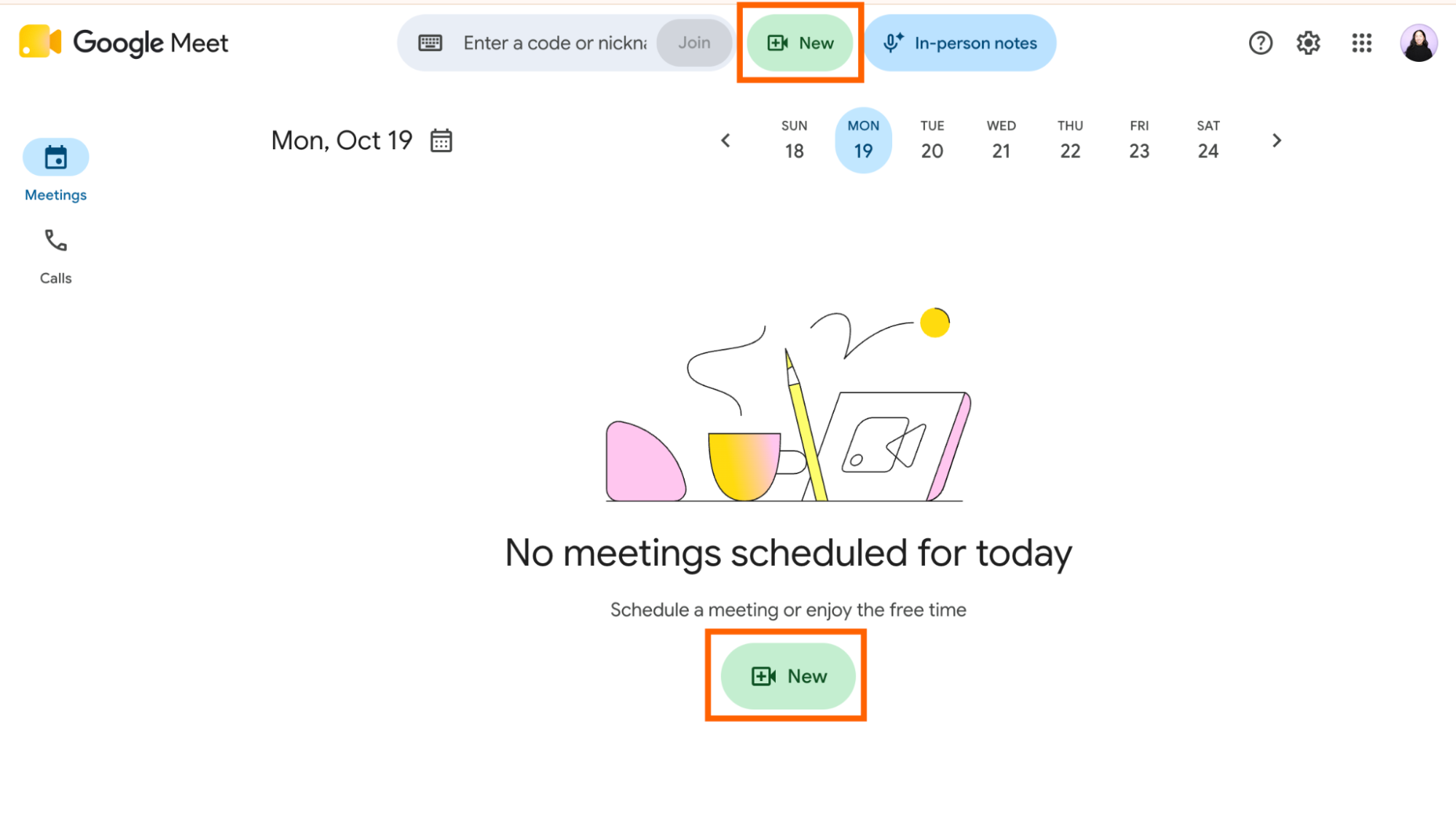
Click New (next to the search bar or in the main area).
-
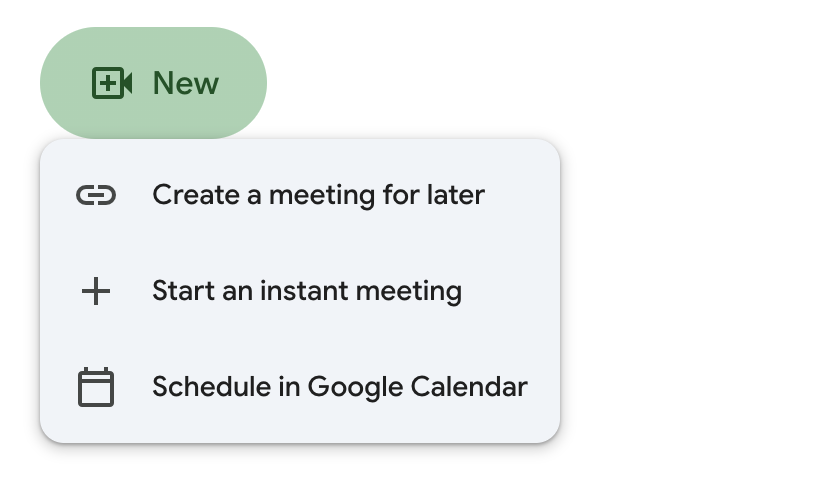
From there, you have three options for creating a Google Meet meeting:
-
Create a meeting for later. This gives you a meeting link, along with dial-in options, that you can copy and share with participants. Whenever it’s time to get started, just click on the meeting link. Note: If you’re sharing those meeting details in a Google Calendar event, use the third option instead—it saves you a few clicks.
-
Start an instant meeting. This will open a new Google Meet meeting instantly. When it does, you’ll get a meeting link that you can share with other participants. Or you can click Add others, and add them by name or their email address. You can also start instant meetings by entering
meet.newin your Chrome address bar.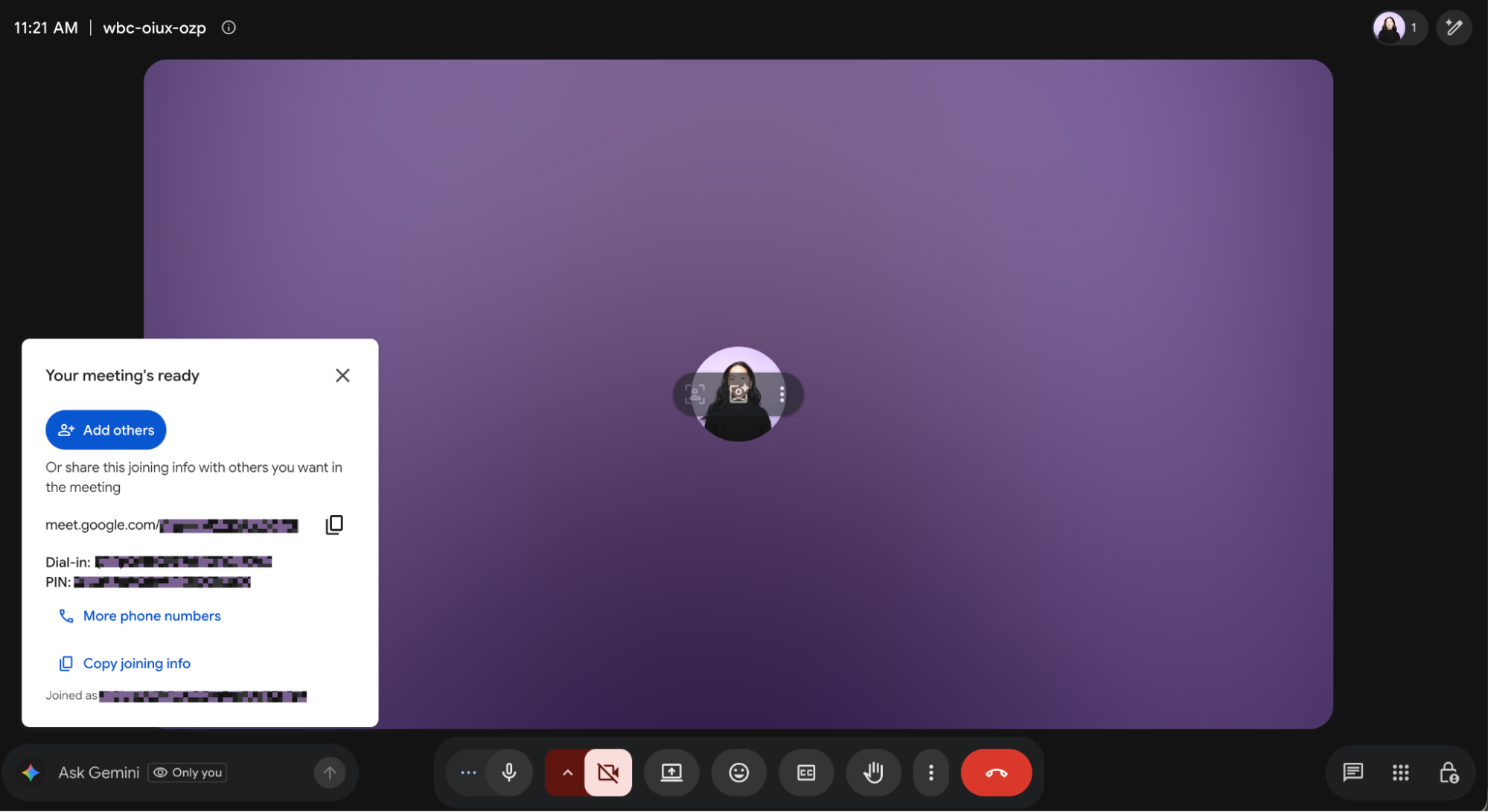
-
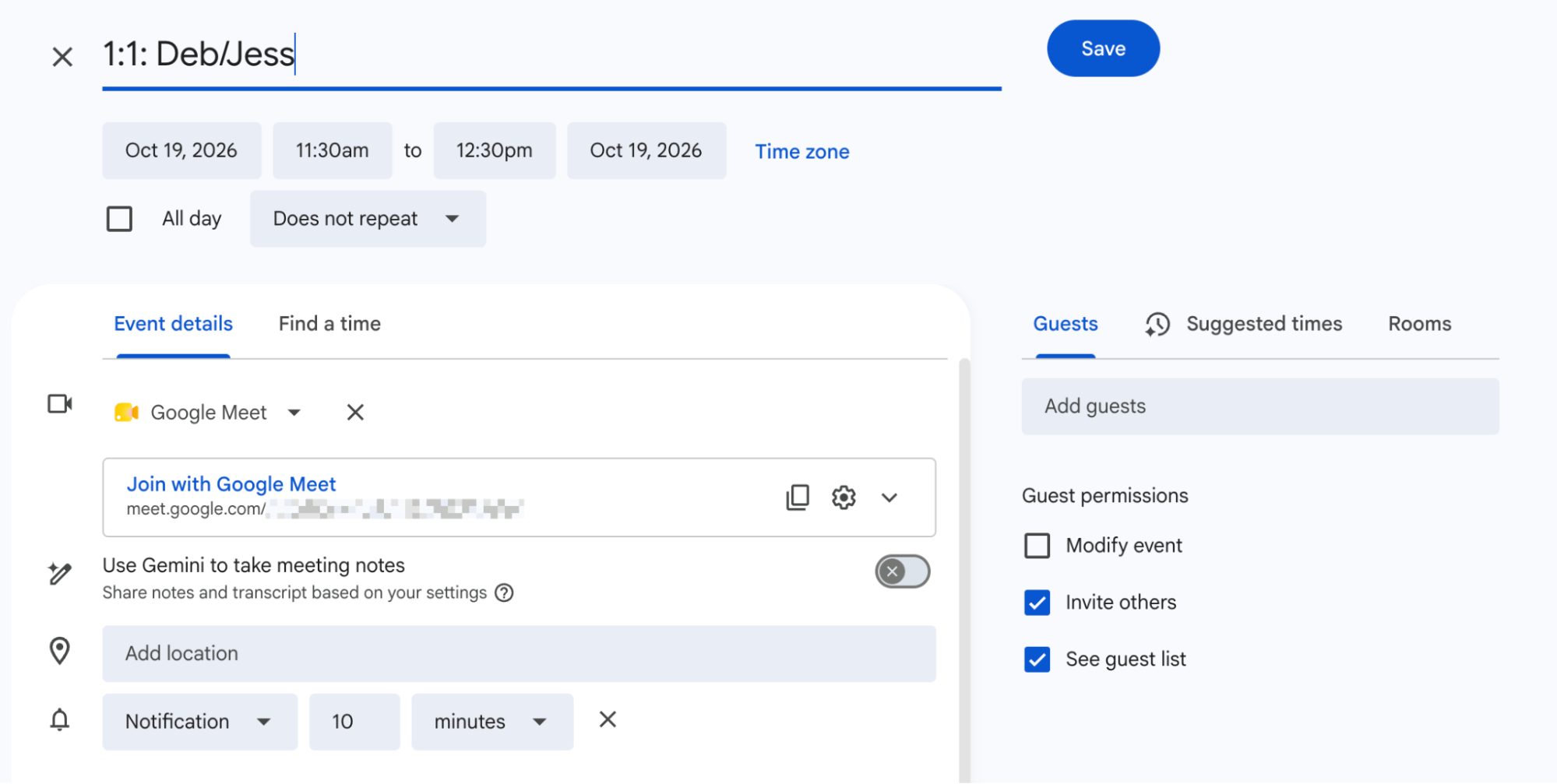
Schedule in Google Calendar. This will generate a new blank event in Google Calendar, along with a Google Meet link. Fill in the rest of the meeting details, and click Save.
-
There’s one more way to schedule a Google Meet meeting that’s not listed on the Google Meet homepage: automatically with Zapier.
When you use Zapier to connect Google Meet with the rest of your tech stack, you can automatically schedule a Google Meet meeting from anywhere. For example, you can automatically schedule Google Calendar meetings, complete with a Google Meet link, when new form submissions come through or when a new appointment is booked in your booking app. You can even create Google Meet meetings directly from your AI assistant, without leaving the chat window. Learn more about how to automate Google Meet.
Build automations from wherever you work. Describe the outcome you want, and Zapier connects your tools, runs the steps, and stays on the job after you close the chat. Combine AI with reliable, deterministic automation across 9,000+ apps. Get started for free.
How to make a Google Meet meeting from Gmail
You can also easily schedule a Google Meet meeting directly from your Gmail inbox on the web. (You are in the Google-o-sphere, after all.)
-
Go to gmail.com.
-
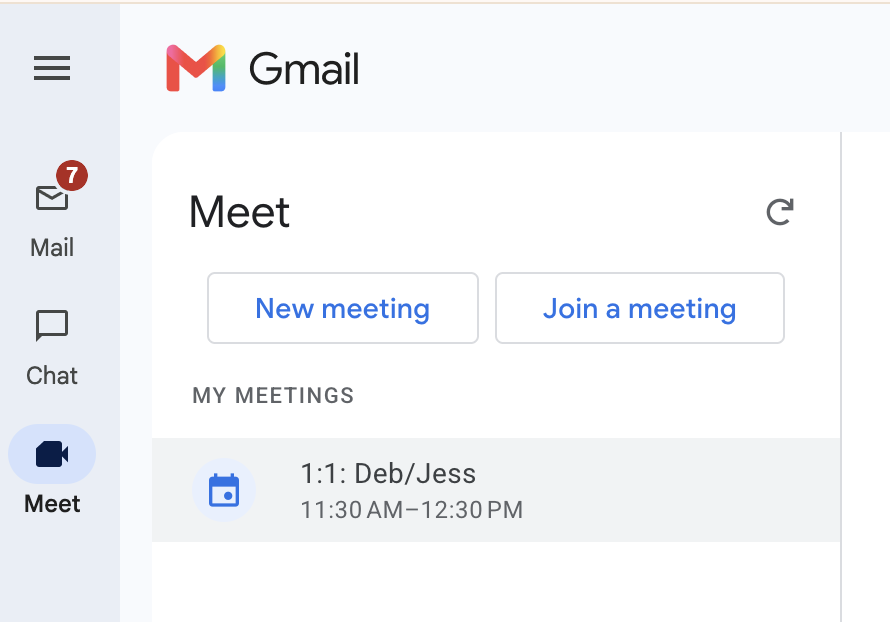
Click Meet in the left-hand sidebar.
-
Click New meeting.
-
From there, you can copy and paste the meeting details as you normally would.
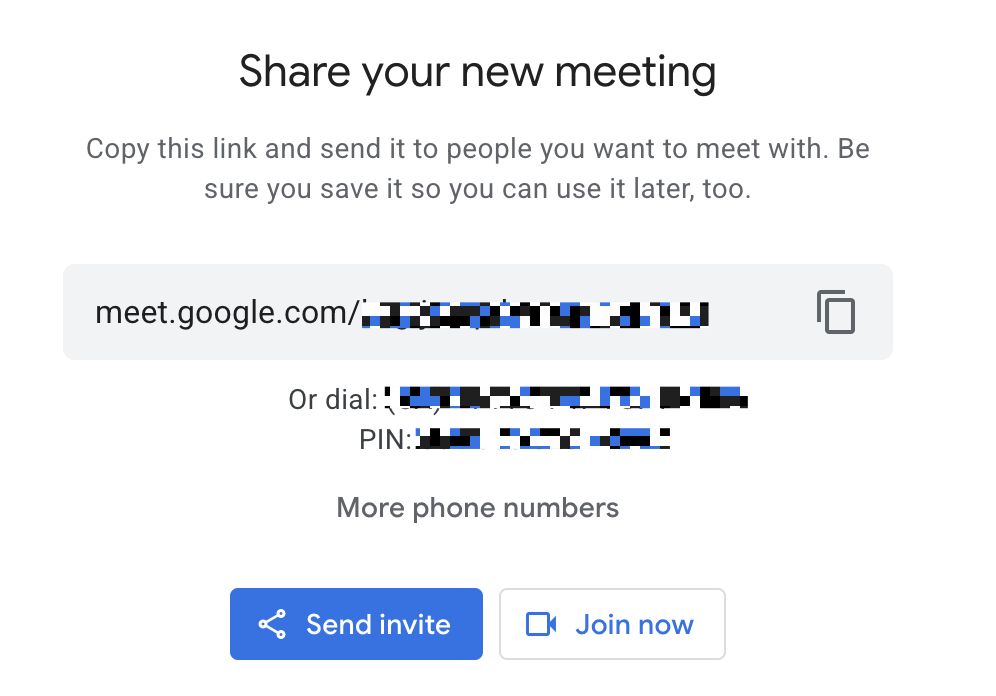
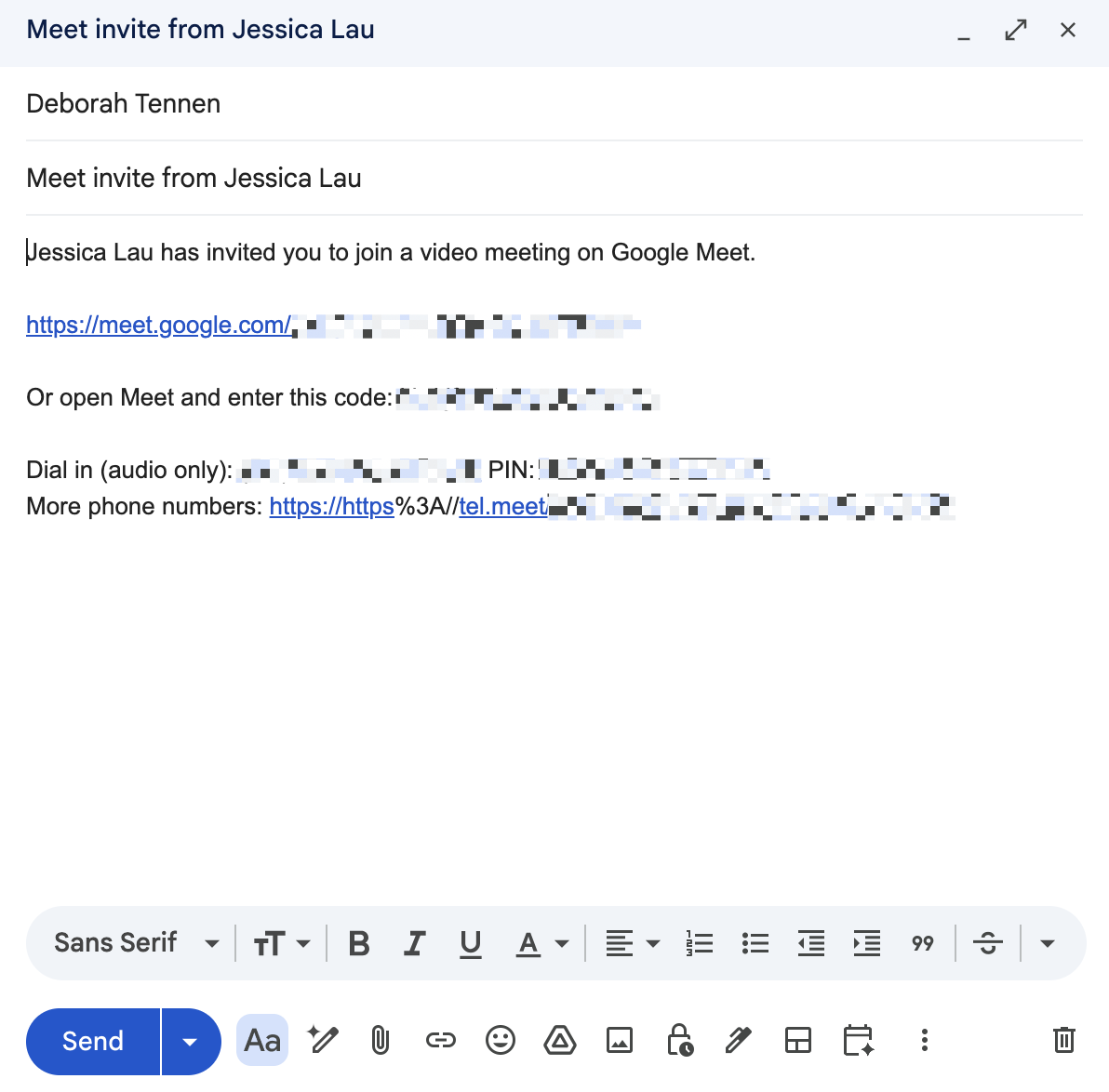
Or, if you want to share it via email, click Send invite, and select Share via email. A Gmail draft will appear in a new window with your meeting details that you can honestly send as is (your guest will probably appreciate the to-the-point message).
Automate your Google apps with Zapier
If you’re meeting in Google Meet, chances are you’re doing the rest of your work in Google, too. Zapier connects Google apps—and everything else in your stack—so those pieces stop living in separate tabs and start working together.
Build the connection however you already work: in Zapier’s visual editor, in code, or by describing what you want to the AI assistant you already use. However you start, it becomes a workflow that runs on Zapier across 9,000+ apps.
Google Meet meetings: FAQ
Even with the simplest tasks, there’s always some nuance. Here are answers to some common questions folks tend to have about scheduling meetings in Google Meet.
Do Google Meet meeting links expire?
Yes. And in a move I can only describe as unnecessarily out of character, Google has made the expiration dates for those links vary wildly based on where the links were created from—anywhere between 30 and 365 days from the last time a link was used.
If you’re not sure if your Google Meet link has expired, you could review all the expiration date variations. Or you could—and I would highly recommend you do—simply create a new meeting link.
How do I join a Google Meet meeting?
Whether you’re the meeting host or you’re joining a Google Meet meeting that someone else created, you have a few options:
-
If the meeting link was shared directly, click the link.
-
If the meeting link was shared in a Google Calendar event, click Join with Google Meet.
You can also go to meet.google.com or open your desktop/mobile app, and click any of the available meetings on your homepage.
Can I set up a recurring meeting in Google Meet?
You can. But you have to do it from Google Calendar. Follow the steps from above to create a new meeting. When you’re editing the meeting details, click the frequency dropdown (it says Do not repeat by default), and choose how often you want to repeat the meeting.
Can uninvited guests join a Google Meet meeting?
Theoretically, yes—anyone can join your Google Meet meeting if they have the link. But as the host, you’ll be notified if an uninvited guest tries to join, and you can decide whether or not to let them in.
Can anyone make a Google Meet meeting?
As long as you have a Google account, you can set up a Google Meet meeting. If you don’t have a Google Meet subscription (bundled in Google Workspace plans), you’re limited to one-on-one meetings up to 24 hours and up to 3 participants for meetings under 60 minutes. If you have a Google Workspace plan, you can host meetings with any number of participants for up to 24 hours.
Related reading:
This article was originally published in September 2024 by Deya Bhattacharya. The most recent update was in October 2026.