Tag: Android Phones

  • I turned my Android phone into a Steam Deck with one app — mobile gaming will never be the same again thanks to DroidDeck

    I turned my Android phone into a Steam Deck with one app — mobile gaming will never be the same again thanks to DroidDeck

    DroidDeck
    (Image credit: Future)

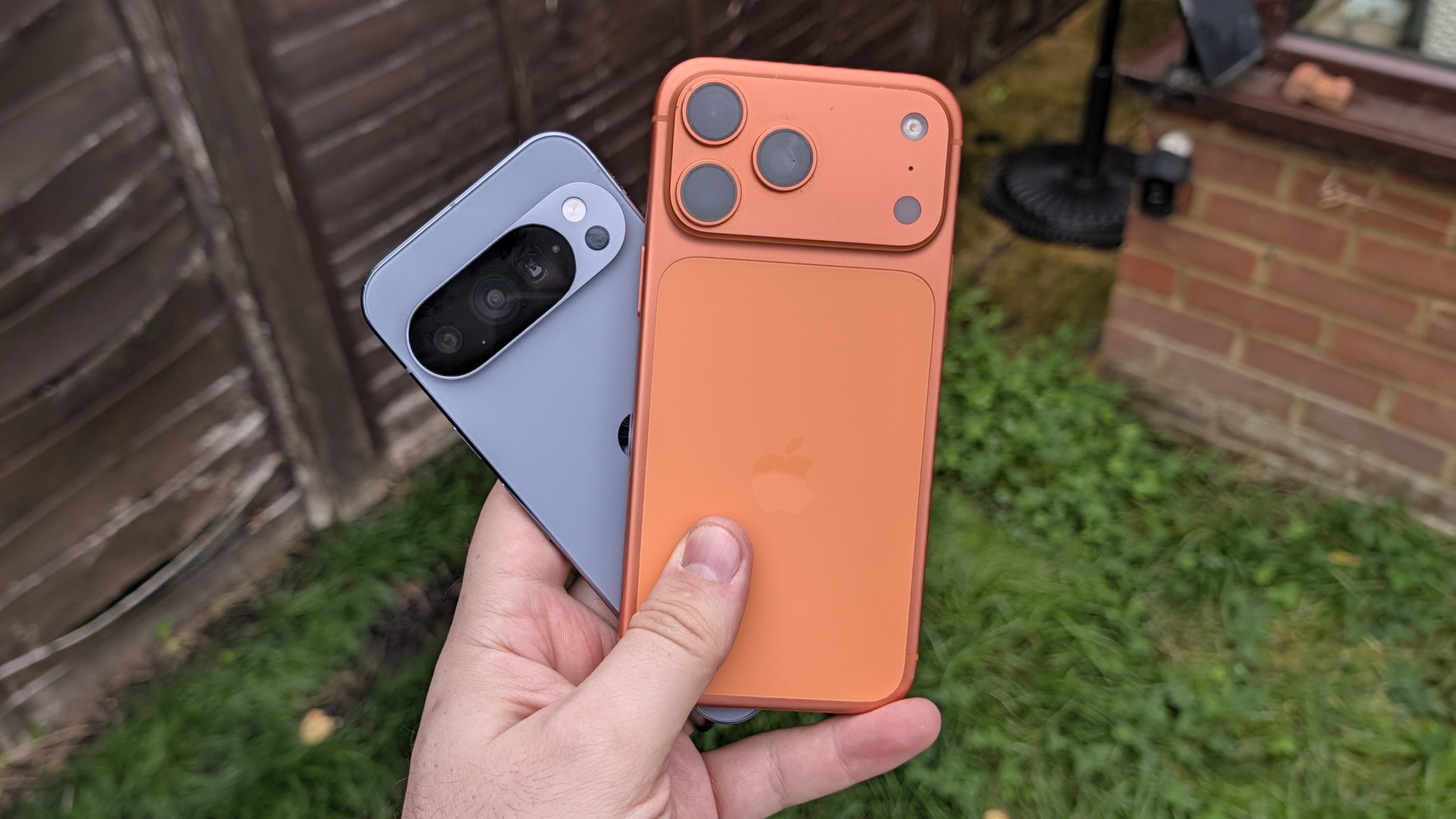
    For years, Apple has tried to convince us that the pro iPhone is a legitimate AAA gaming beast. It has the GPU to do so for sure, but every year comes a victory lap over a hand-picked, $50 App Store port of an older game.

    And let’s be real — nobody wants to re-purchase a game they already own on Steam just to play it on a phone.

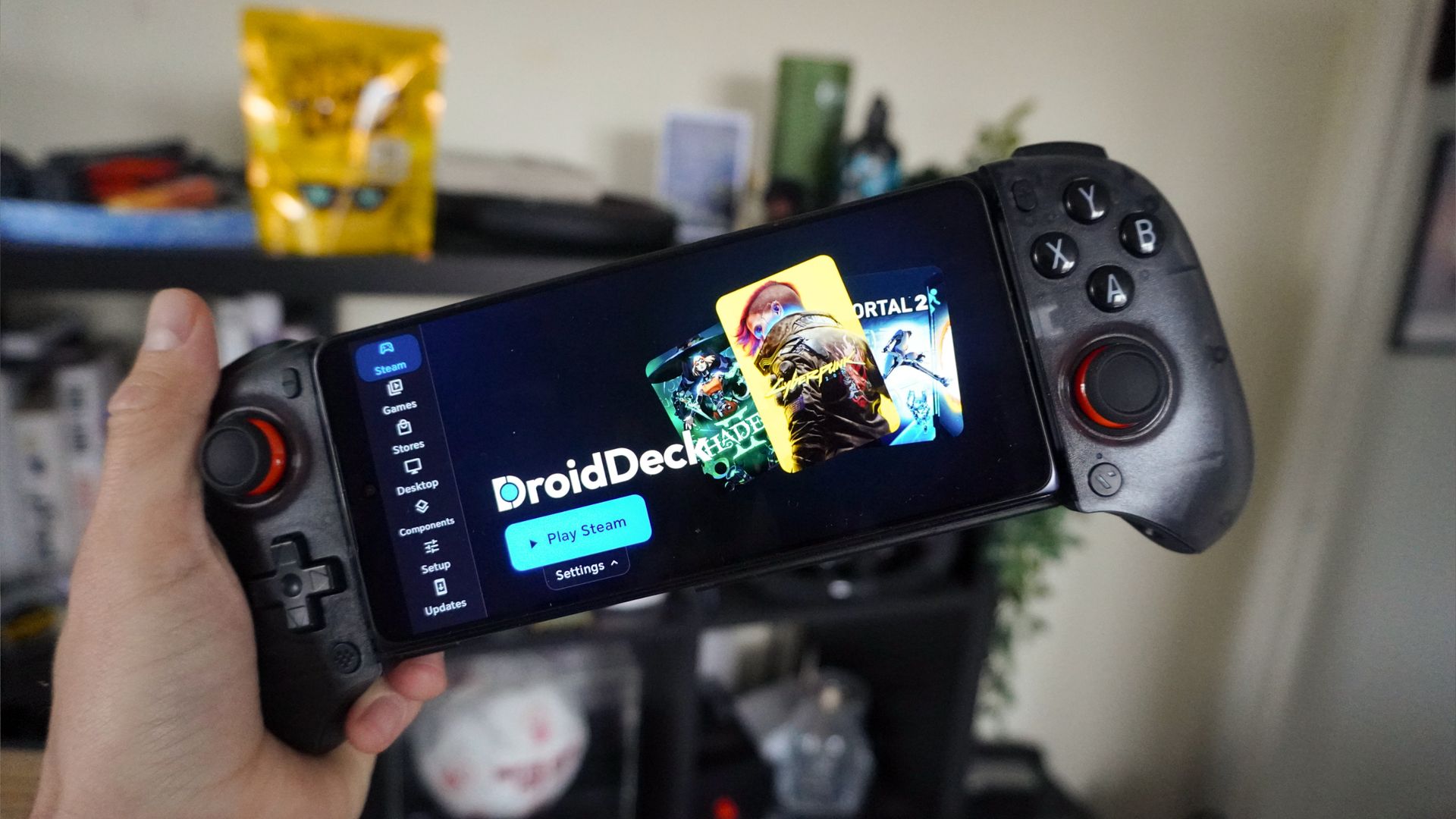
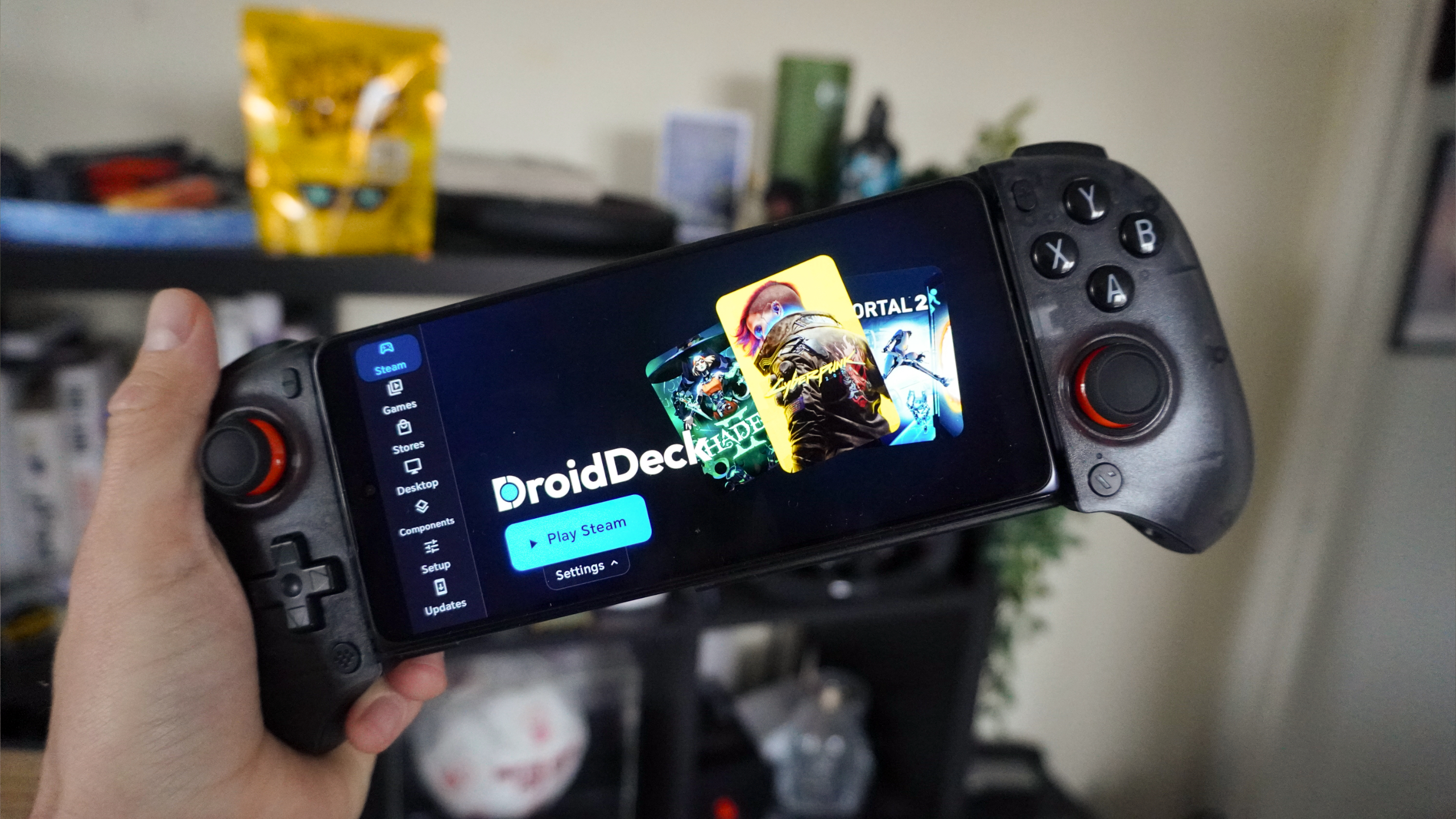
    Enter DroidDeck: a free, open-source app that doesn’t stream games from the cloud or rely on clunky virtual machines to get the job done. Instead, it boots Valve’s Arm-native Steam client directly on your Android phone. You can thank the Steam Frame and the work Valve did to get games working on that for this.

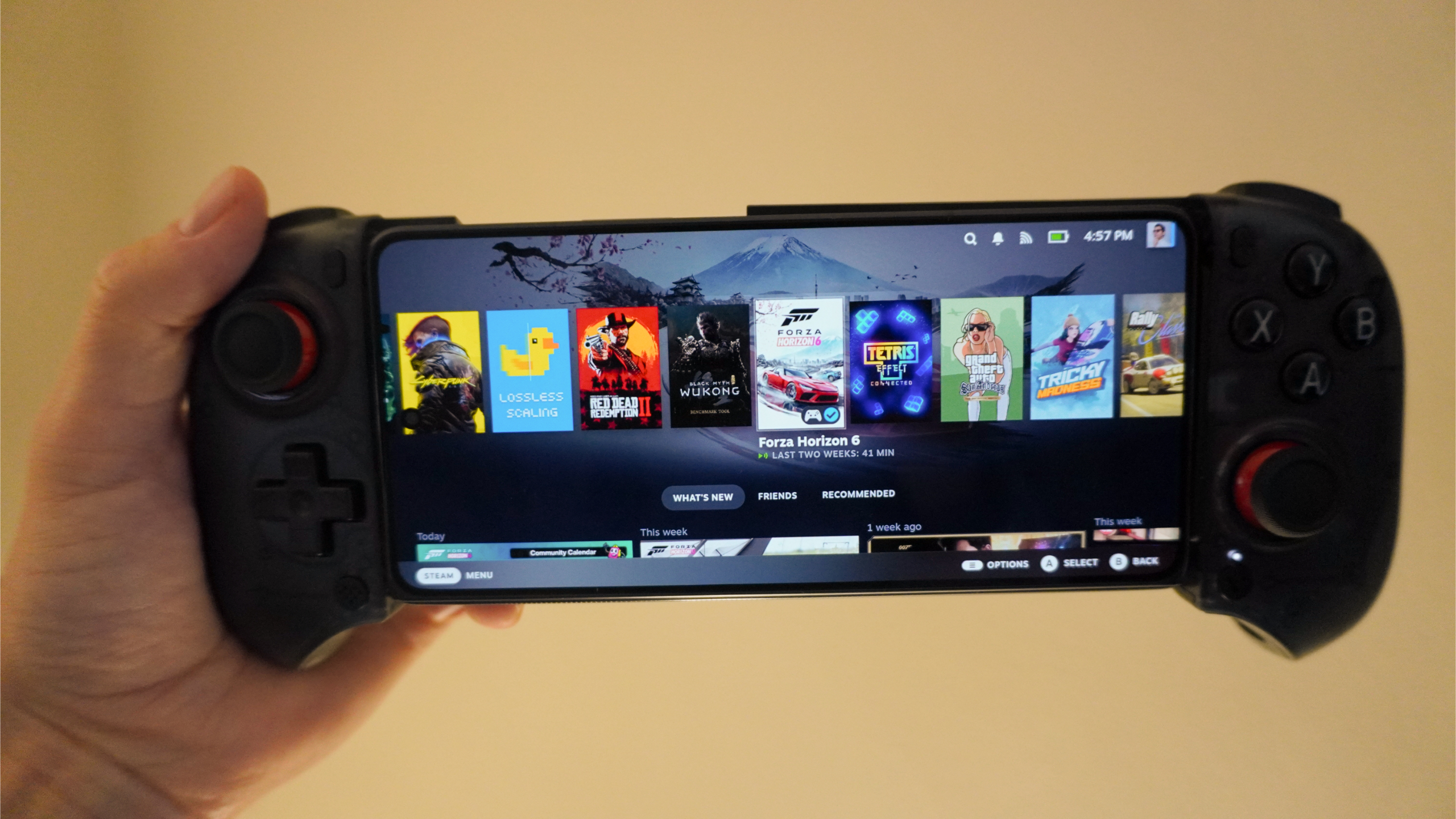
    Yes, you read that right. Your entire existing PC Steam library runs locally on Snapdragon silicon. So I’ve been testing it for myself on the Honor Magic V6, and the numbers prove this isn’t just a party trick — it’s the legitimate future of mobile gaming.

    Under the hood
    DroidDeck

    (Image credit: Future)

    This isn’t the first time that somebody’s tried to run PC games locally on an Android phone, but here’s the big difference. Unlike those that have to rely on emulating Windows (and chewing up all your precious RAM and CPU resources), DroidDeck runs Steam natively on your phone’s Arm silicon.

    The secret sauce here is we have Valve’s newly launched Steam Frame VR headset to thank for this. The company built this around an Arm-based Qualcomm Snapdragon 8 Gen 3 chip rather than an x86 AMD processor. And because of that heavy lifting, DroidDeck essentially builds on its homework and unleashes it on your Android phone.

    • Because the Steam client itself is running natively on Arm, zero resources are wasted on making SteamOS run in the background. On top of that, the open-source Turnip Vulkan drivers talk directly to the GPU on your Snapdragon chip.
    • The end result is SteamOS-level optimizations right out of the gate, including cloud saves, all the performance overlays, and native support for AMD’s FSR, Snapdragon GSR and Lossless Scaling frame generation.

    How to install DroidDeck
    DroidDeck

    (Image credit: Future)

    The awkward bit is that it does take some tinkering to get just right. The first bit is easy enough to do — go to the project’s Github releases page and download the latest version. After this, there’s a couple additional steps. You may need to turn off app security to install.

    Get instant access to breaking news, the hottest reviews, great deals and helpful tips.

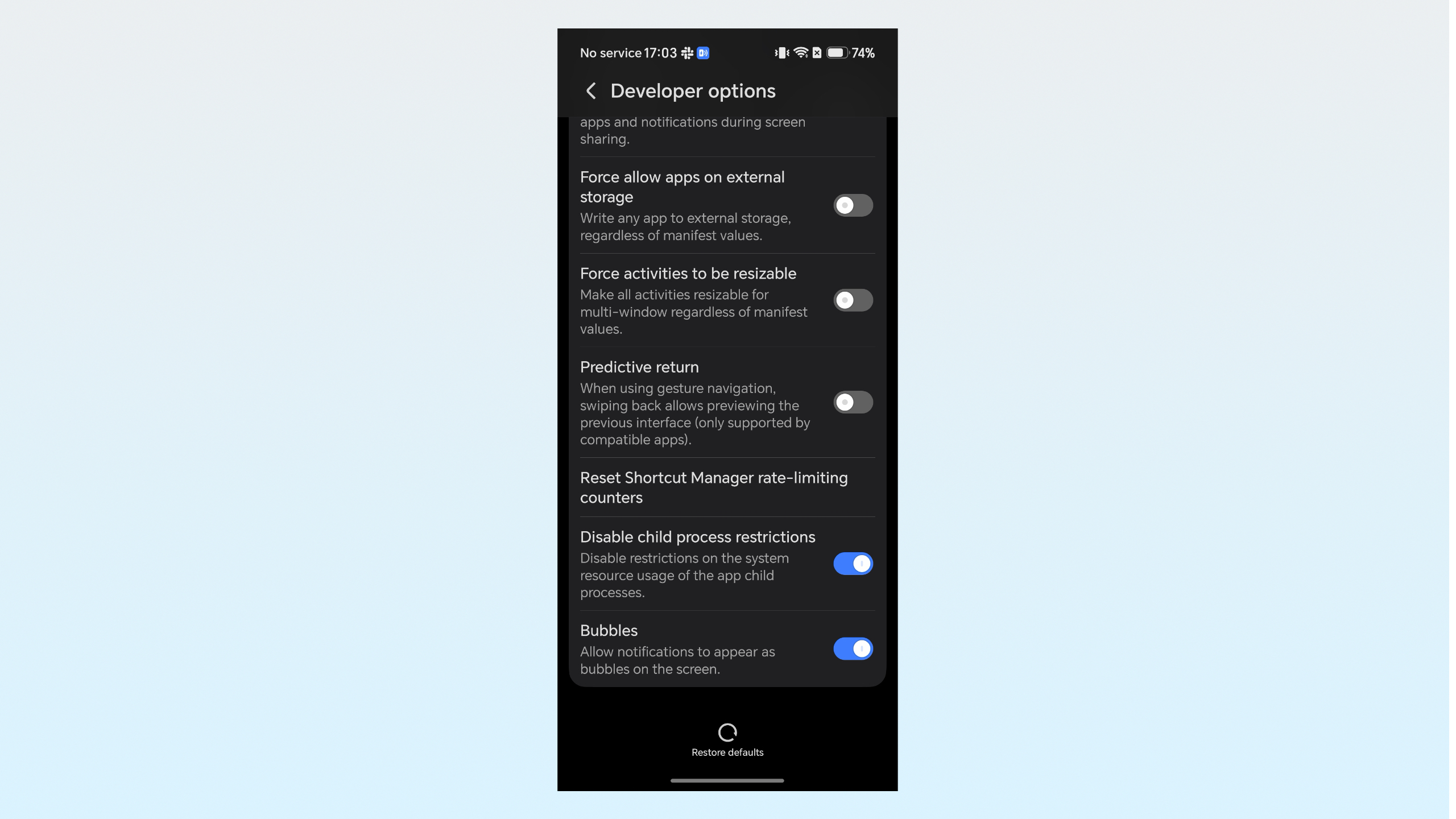
    Disable Android’s child-process restrictions
    DroidDeck

    Android phones disable processes within processes by default (such as running SteamOS within Android), but tap on the build number in your about phone screen 7 times to activate developer mode, go into Developer options and turn on “Disable child-process restrictions.”

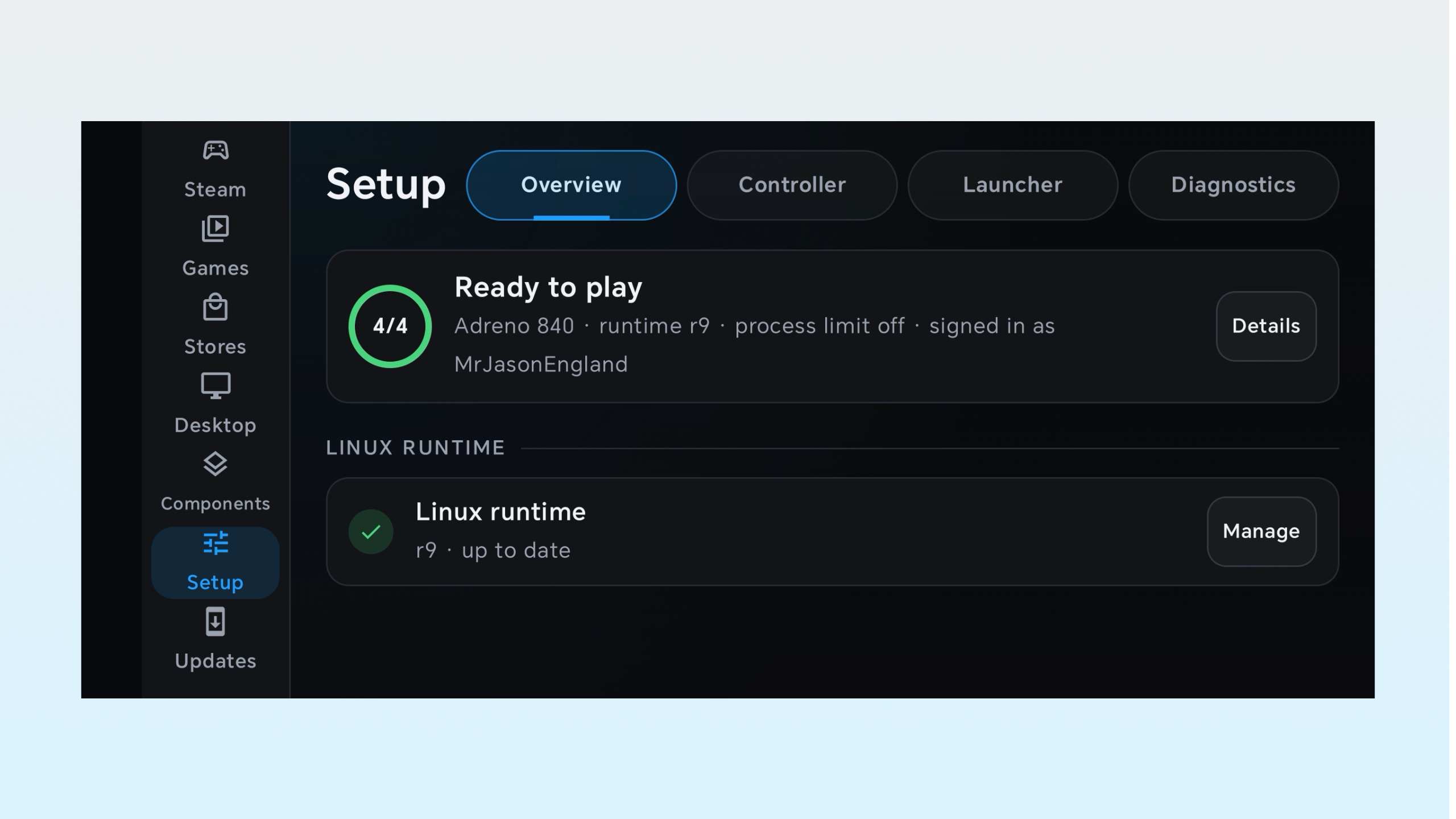
    Check you have the latest software
    DroidDeck

    Go into Setup and Overview in the DroidDeck app, and if there’s anything missing from that Ready to Play circle, tap Details and install what’s needed.

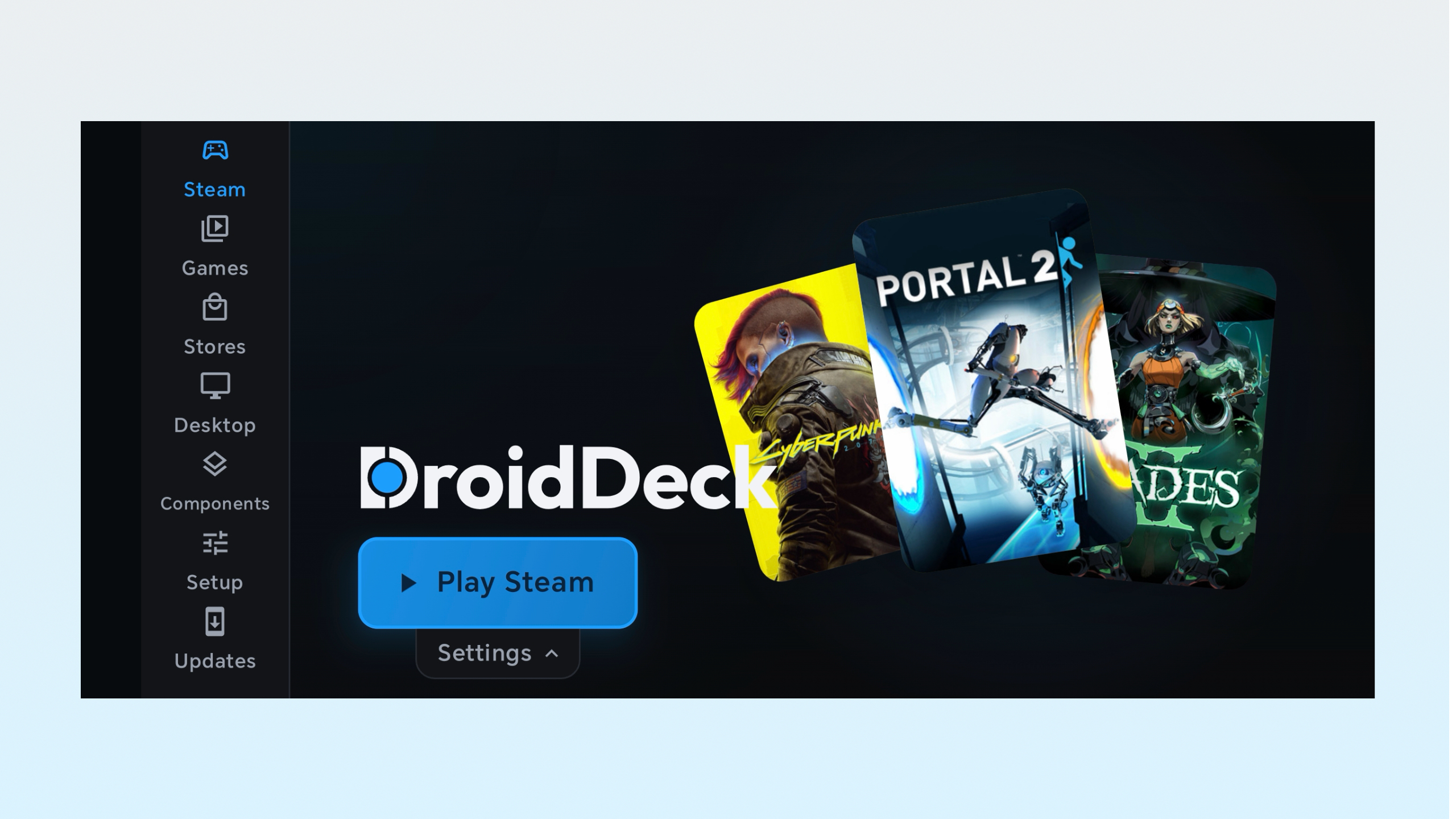
    Open SteamOS
    DroidDeck

    Tap Play Steam to open up SteamOS. It will take a little time on the first startup while it installs other things to make it work. But once done, you’re in and ready to install some games.

    Optimal settings

    Image 1 of 2
    DroidDeck
    (Image credit: Future)

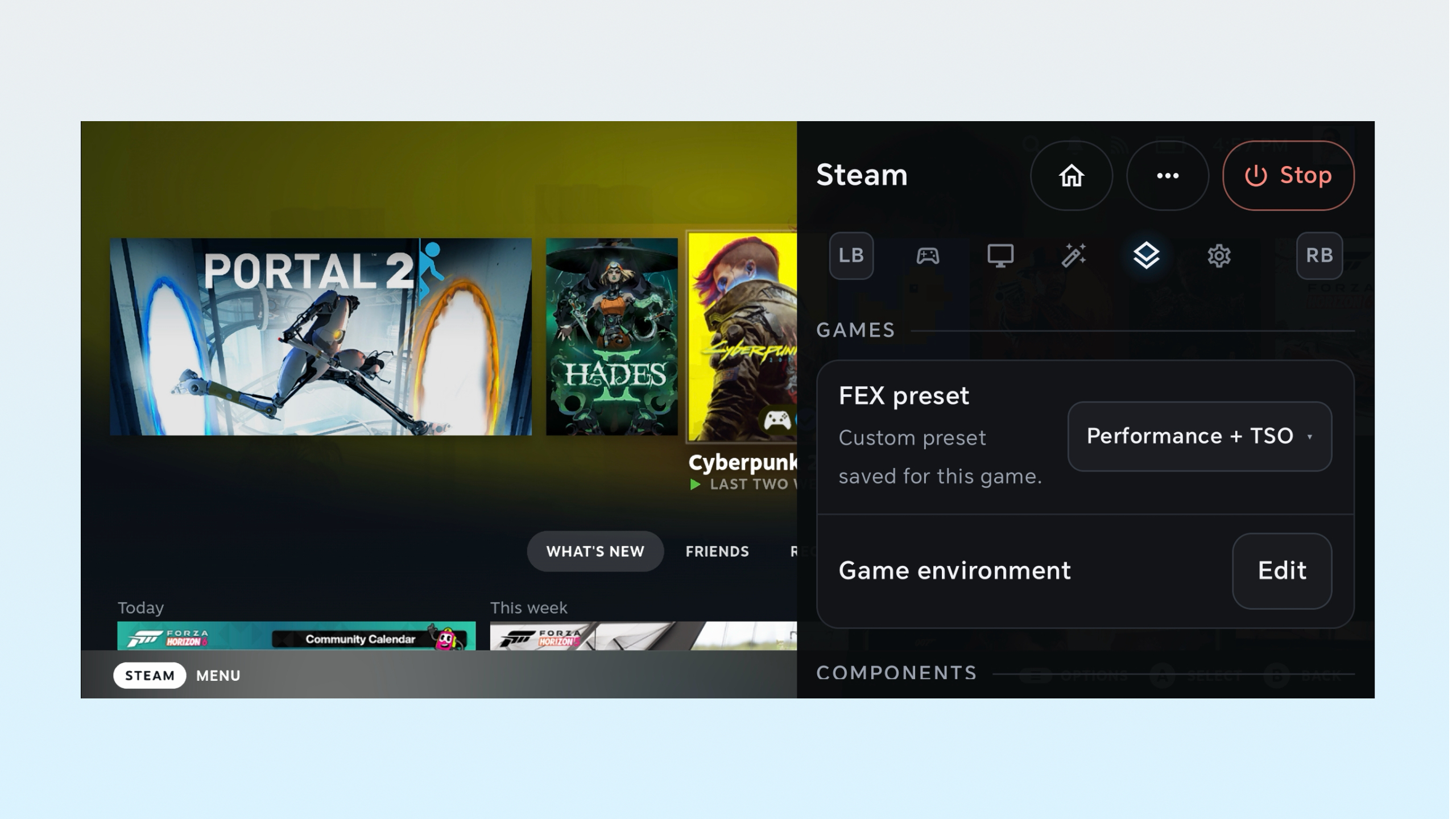
    Now, there’s an extra wrinkle here I need to go through. DroidDeck makes settings tweaks easy to do — just swipe over from the right of the screen (like you’re going back) and the right side menu will open up.

    There’s a lot here, but to help, from my early testing, here’s the best options I’ve used for a Snapdragon 8 Gen 5 phone.

    • Frame generation: LSFG 3x. You will need to download Lossless Scaling from Steam to activate this ($6.99)
    • Scaling filter: Snapdragon GSR (Quality)
    • FEX preset: FEX is the translation layer converting game code to work on your phone. “Use Default” if you’re playing an indie game or old title, and “Performance + TSO” if you’re on a AAA title

    That “+ TSO” on the end (Total Store Order) makes the CPU read and write memory in a strict sequence. There are Extreme options, which is what ETA Prime uses in his video, but for me it crashed Cyberpunk 2077.

    By the numbers
    DroidDeck

    (Image credit: Future)

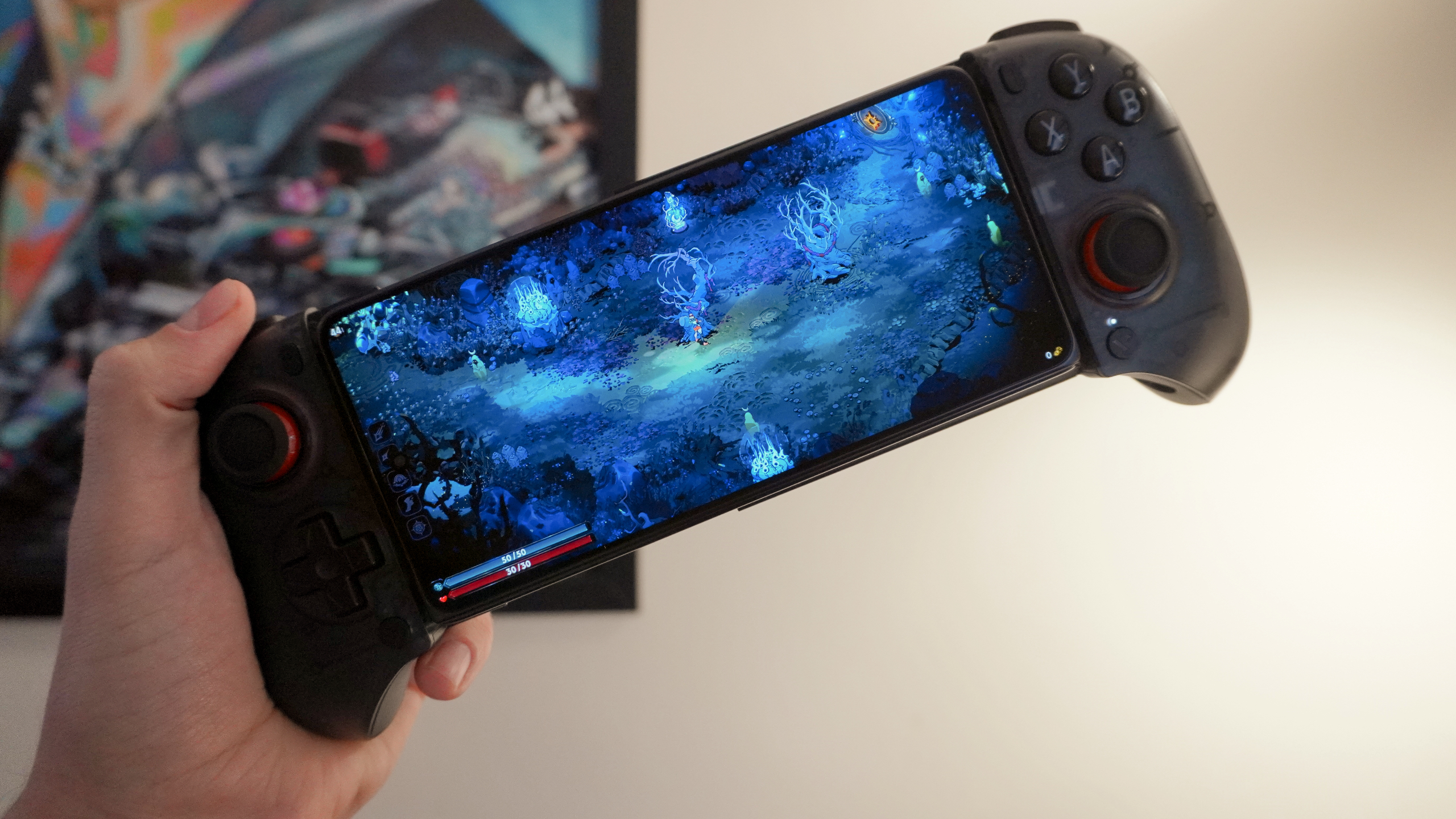
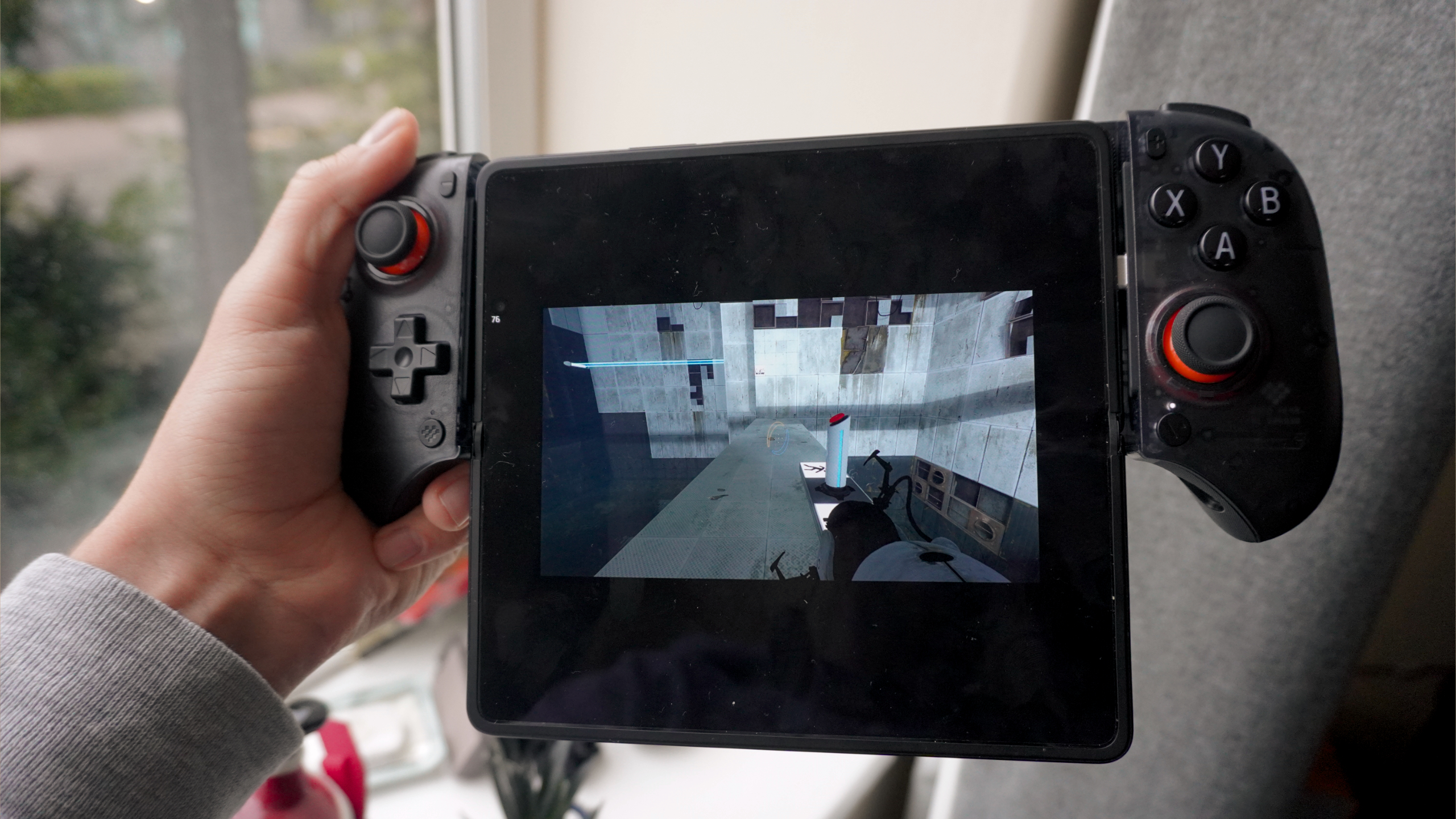
    Now I’ve only had time to tinker and play three games here at the moment, and while it’s definitely still a work in progress, it’s definitely playable.

    Swipe to scroll horizontally

    Game

    Resolution / Settings

    Translation Preset

    Upscaling / Frame Gen

    Avg FPS

    Thermal / Playability Note

    Hades II

    720p Native / High

    Default

    None Needed

    48 FPS

    Smooth, minimal heat; console-grade.

    Portal 2

    720p / Max Settings

    Default

    None Needed

    65 FPS

    Perfect controller mapping; some rubberbanging

    Cyberpunk 2077

    720p / Low

    Perf + TSO

    Snapdragon GSR (Quality) + LSFG

    35.43 FPS

    Playable with tweaks; high heat avoid

    This is definitely a workaround that indie players are going to love. Hades II performs well and looks incredible on the Magic V6’s OLED display, and Portal II is a fun, fast blast from the past (been playing it loads with my nephew).

    Meanwhile, AAA gaming can be tuned to run at over 30 FPS. Not 100% sure how ETA Prime managed to get it running at 60 FPS (kudos nonetheless), but this will take some time to tweak and get right on my end!

    The iPhone is officially cooked on gaming
    DroidDeck

    (Image credit: Future)

    Even with the early-adopter friction, DroidDeck exposes the fatal flaw in Apple’s gaming strategy: library lock-in.

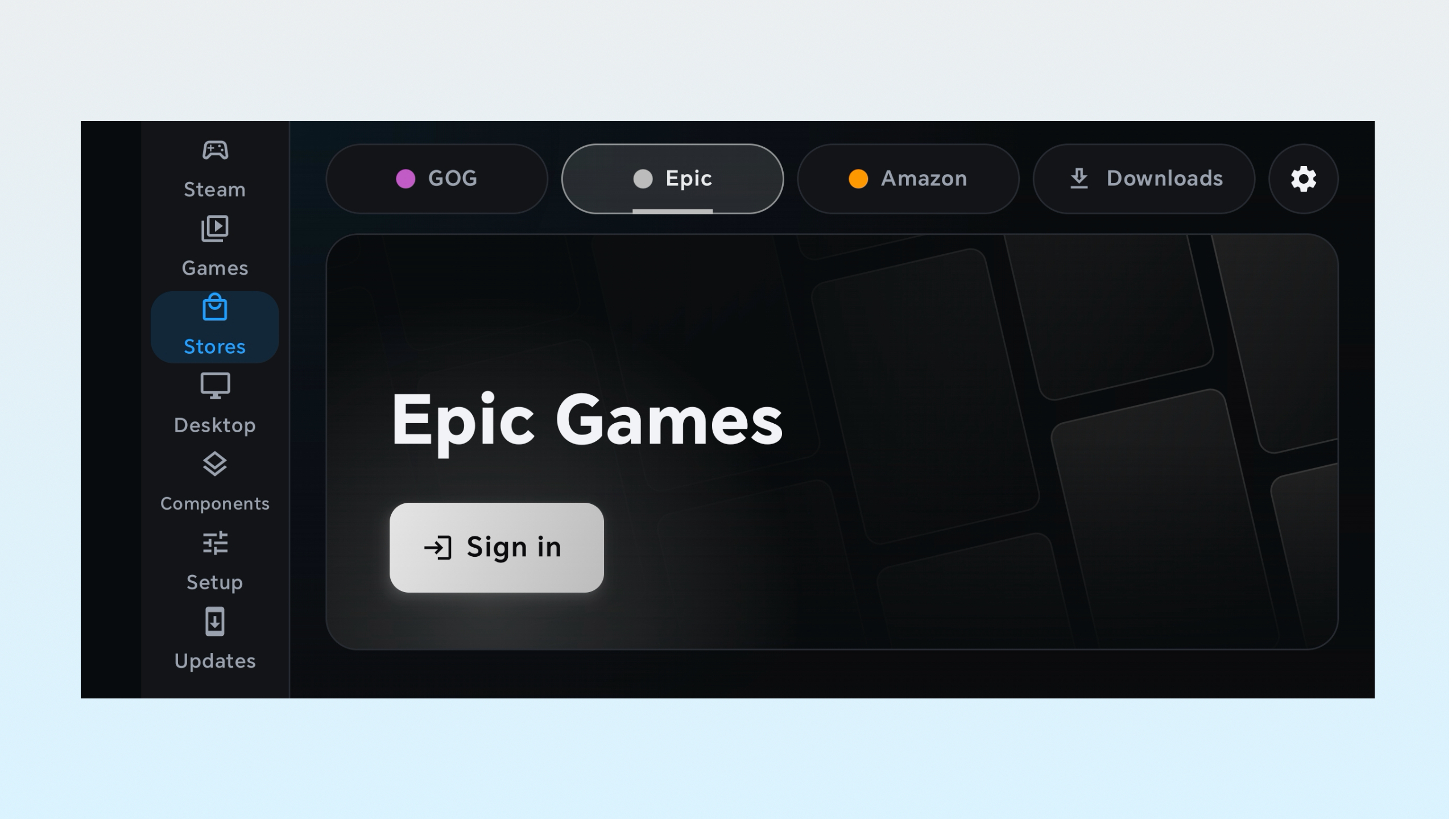
    PC gamers have spent a decade or more building massive Steam, GOG and Epic Games libraries (all of which DroidDeck supports). When you buy a game on Steam, it works on your desktop, your Steam Deck, and now — thanks to this — your Android phone or foldable.

    Apple’s walled garden, meanwhile, imposes iOS restrictions on custom drivers and background processes. An app like DroidDeck is technically (and legally) impossible on an un-jailbroken iPhone, which is a shame given the raw power that GPU holds.

    Anyway, testing has just begun, but I can only imagine pairing this with a pair of AR glasses for a long haul flight would be a killer setup. No more will I be stuck playing watered-down mobile gacha games — I have my actual PC backlog.

    Google News

    Follow Tom’s Guide on Google News and add us as a preferred source to get our up-to-date news, analysis, and reviews in your feeds.


    More from Tom’s Guide

    Jason brings a decade of tech and gaming journalism experience to his role as a Managing Editor of Computing at Tom’s Guide. He has previously written for Laptop Mag, Tom’s Hardware, Kotaku, Stuff and BBC Science Focus. In his spare time, you’ll find Jason looking for good dogs to pet or thinking about eating pizza if he isn’t already.

  • Android 17 vs iOS 27 — which platform does lock screen widgets the best?

    Android 17 vs iOS 27 — which platform does lock screen widgets the best?

    ios 27 vs aandroid 17, picel 10 pro and iphone 17 pro max
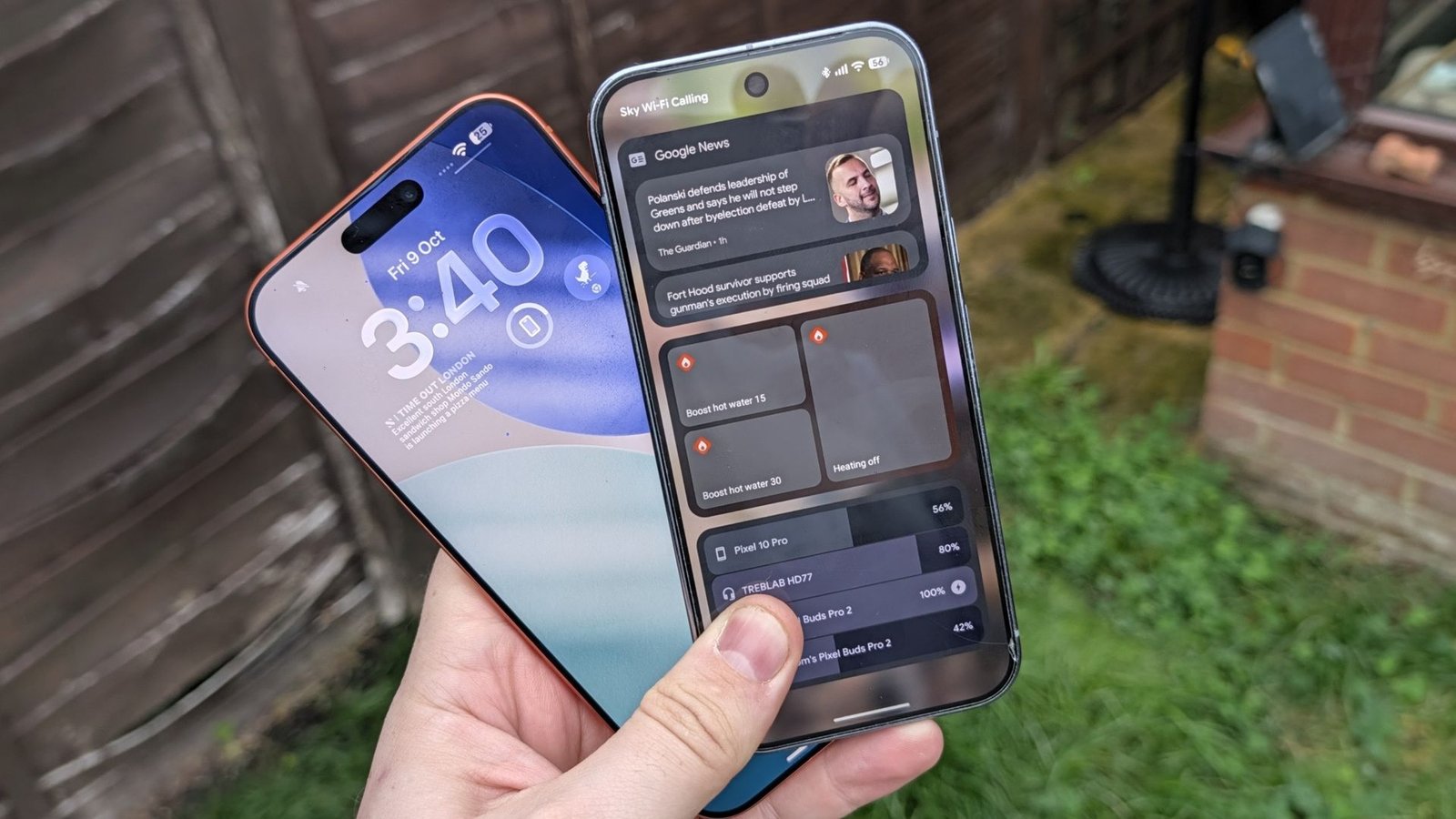
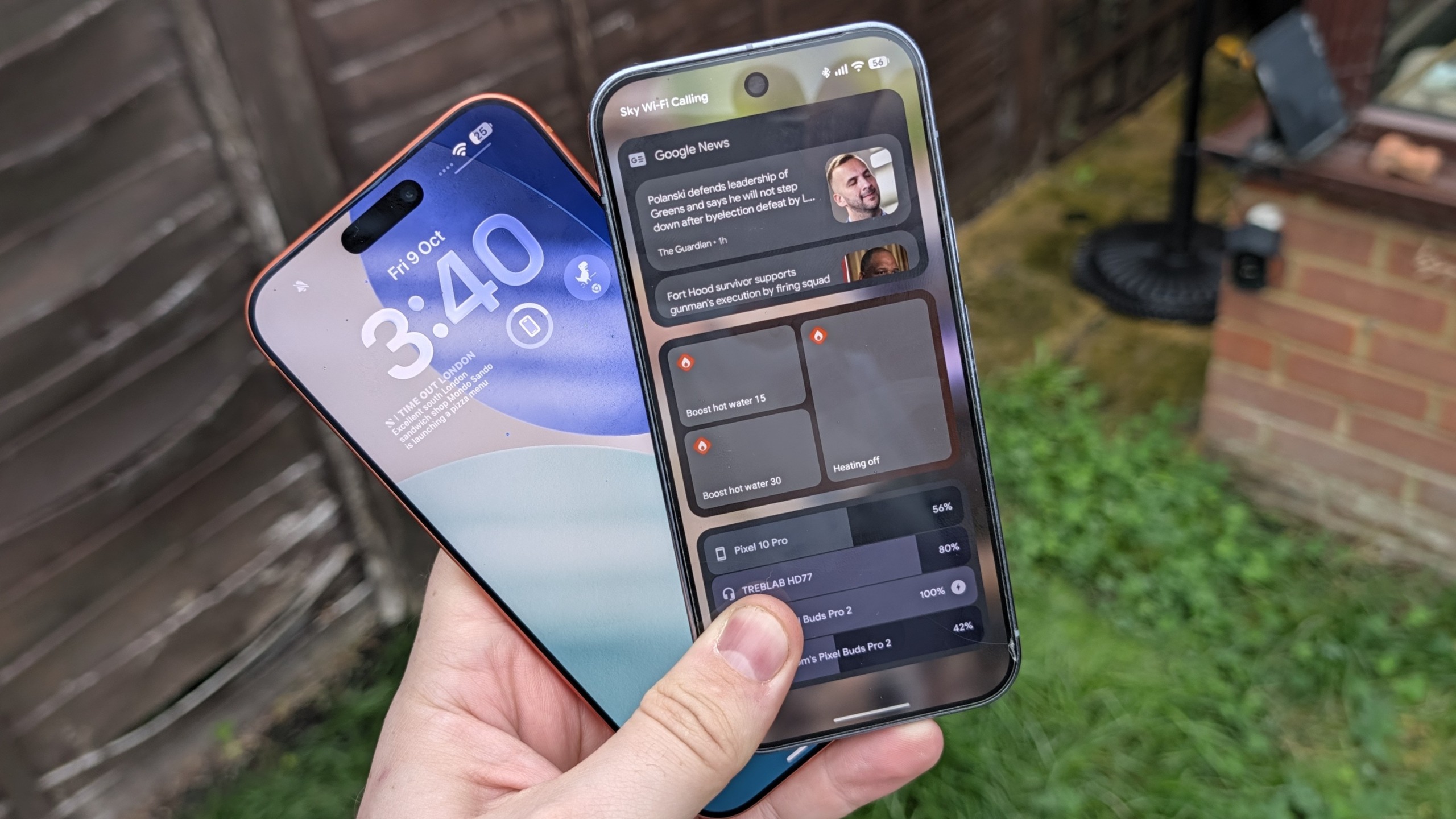
    (Image credit: Future)

    Android may have been the king of widgets for a very long time, beating Apple to the punch by several years, but the same can’t be said about offering them on the lock screen. Lock screen widgets were available until Android 5, at which point they were unceremoniously removed with no word on when they would come back.

    iOS, meanwhile, added the feature back in 2022 with iOS 16, prompting many an Android user to ask when the feature would make a comeback on Google-powered phones — myself included. Google eventually restored lock screen widgets on Android 16 last year, a move that I’d completely forgotten about by the time it reached my Pixel 10 Pro.

    I have since fixed that glaring oversight and have been getting to grips with lock screen widgets on Android, and my mind naturally started drawing comparisons to iOS.

    While similar, both platforms treat lock screen widgets very differently. So which of them actually does a better job?

    ios 27 vs android 17 lock screen widgets

    (Image credit: Future)

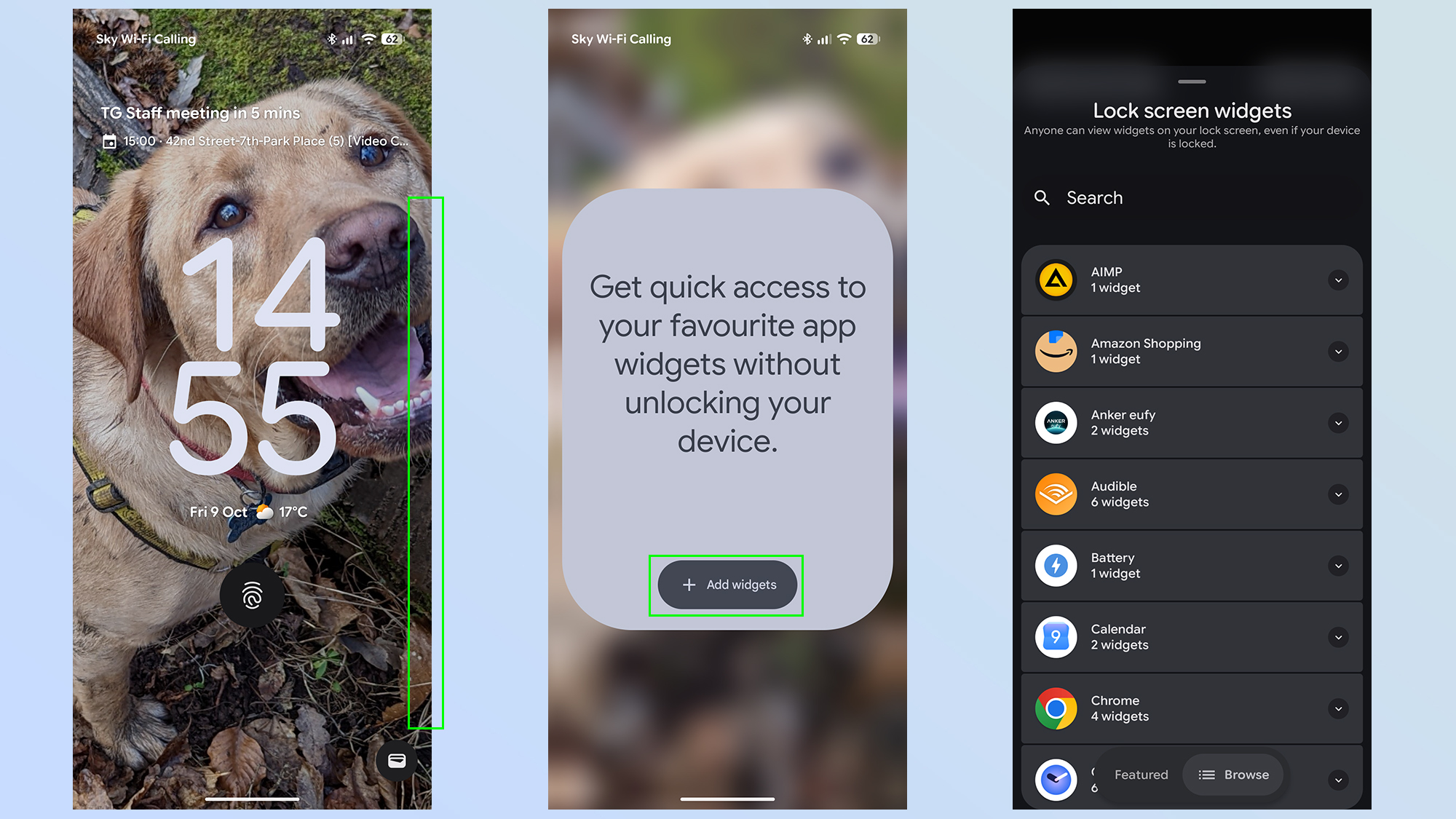
    On Android, the easiest way to set up lockscreen widgets is to lock your phone, then swipe from the right side of the screen. You’ll see a large box informing you that lock screen widgets are available, and you need to tap the Add widgets button to continue.

    From there the setup is almost identical to that of adding home screen widgets. Select the app of your choice and choose one of the widget designs on offer.

    ios 27 vs android 17 lock screen widgets

    (Image credit: Future)

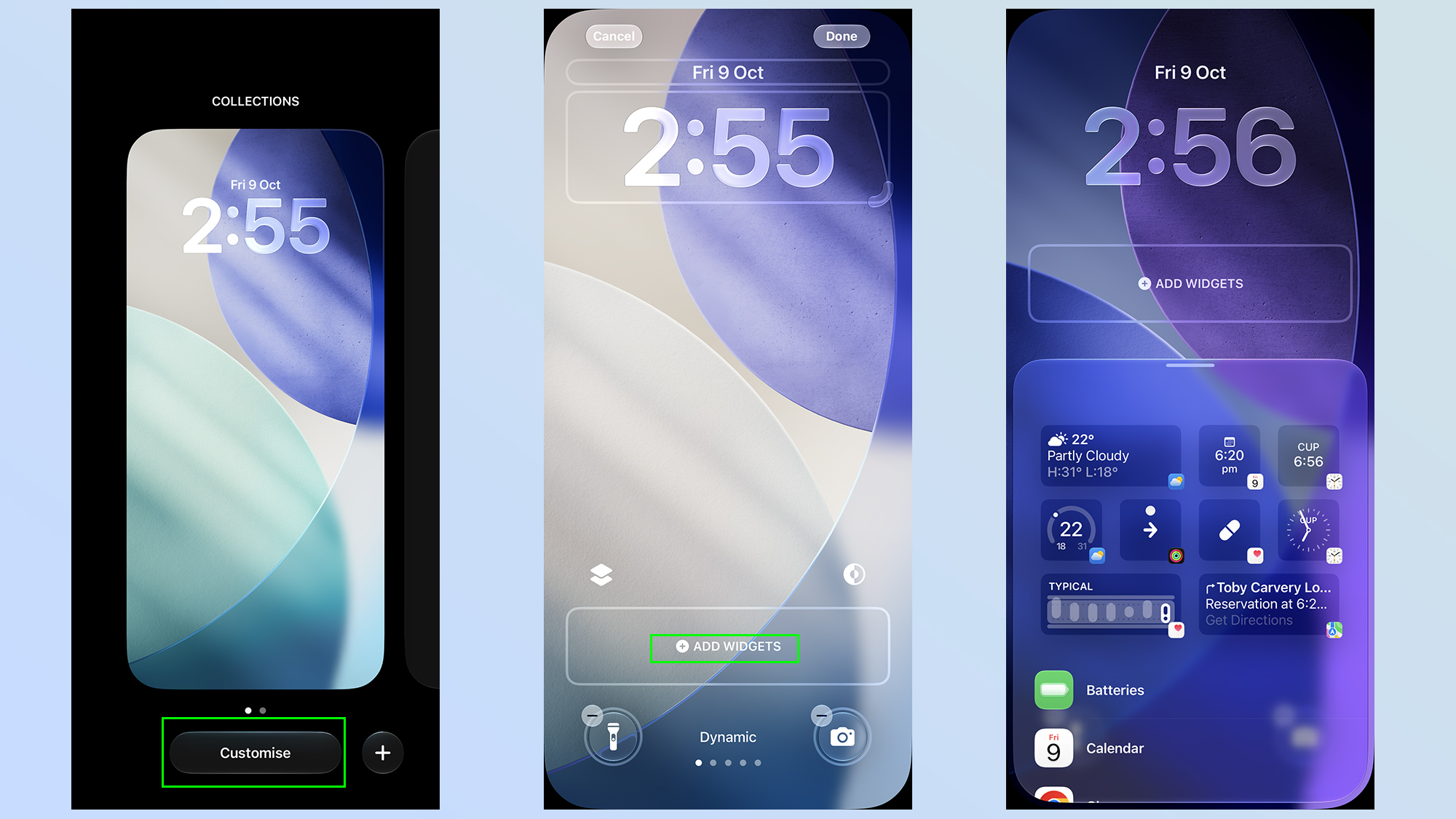
    On iOS, you will need to press and hold on your lock screen, then tap the Customize option when the lock screen editor shows up.

    Sign up to the Tom’s iGuide weekly newsletter with coverage on everything from product launches to software updates, this is your go-to source for the latest updates on all the best Apple content.

    Once that’s done press Add widgets in the bar at the bottom of your screen, and choose the app and widget style you want to add to your widget bar.

    ios 27 vs android 17 lock screen widgets

    (Image credit: Future)

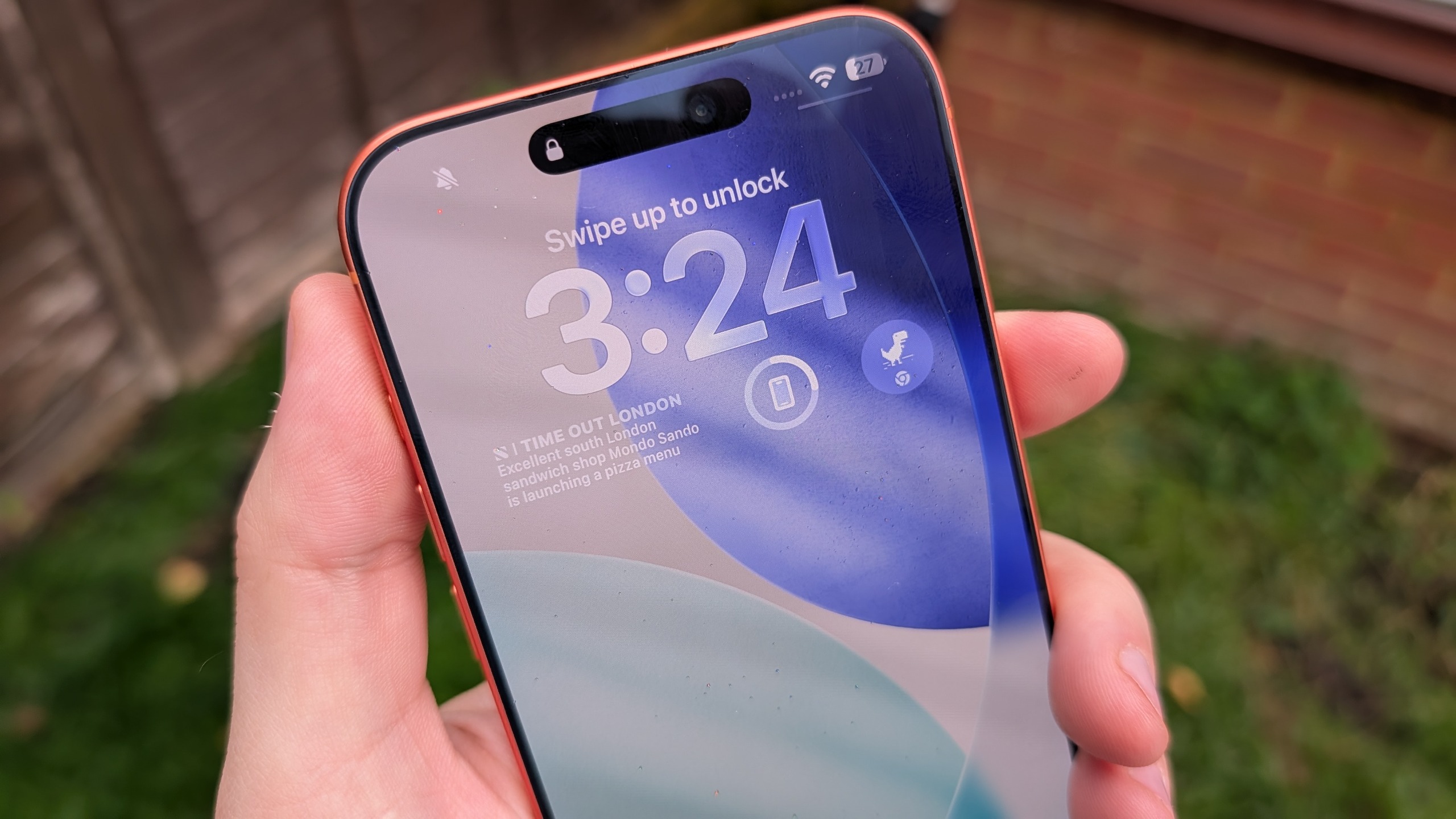
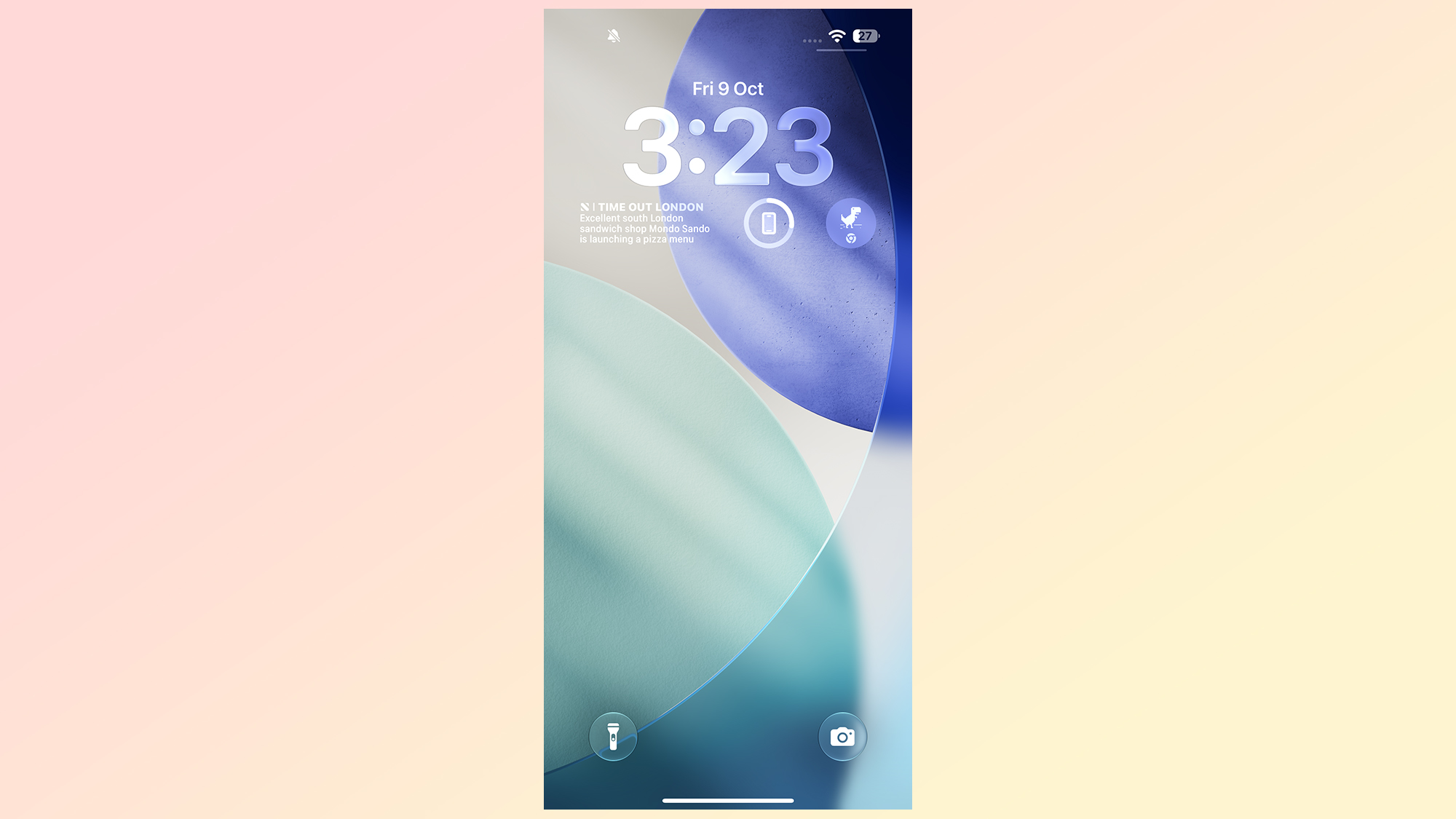
    Apple’s lock screen widgets are right in your face, sitting on your locks creen where you can see them. However they are fairly limited, in that Apple only gives you a single line of the screen to work with. This means you can’t just overload your lock screen with whatever widgets you like, forcing you to be more selective about what you use.

    Apple does let you make full use of that line, with equivalent space for four different tiles — or less if you select the larger widgets that take up the equivalent of two tiles. But once that line is full, you don’t get any extra space to work with.

    Most of the widgets seem to be for displaying information at a glance, whether that’s time, calendar events, health metrics and other such features. There are a few other options that act as shortcuts to certain app features, including Chrome’s dinosaur minigame for some reason, but I couldn’t find anything that let me perform actions on my home screen.

    ios 27 vs android 17 lock screen widgets

    (Image credit: Future)

    It’s unclear whether it is dependent on the apps you have installed, so maybe I missed something out. What I do know is that everything I have was limited to visible information or the aforementioned shortcuts. Apple also seems to limit which third party apps are allowed to offer lock screen widgets, and it seems as though my smart home apps didn’t make the cut.

    That means I don’t get to turn on my water heater without unlocking my phone first.

    One more thing to note is that iOS lets you choose whether your lock screen’s widget bar sits at the top of the screen (under the clock) or at the bottom. There’s no in-between option, so make sure to pick the one that works best for you.

    ios 27 vs android 17 lock screen widgets

    (Image credit: Future)

    The funny thing about Android lock screen widgets is that it reminds of how Apple used to do widgets before iOS 14. If you think back to those days, you’ll remember that iPhones had a separate page that stored all your widgets, accessible by swiping from the left side of the home screen.

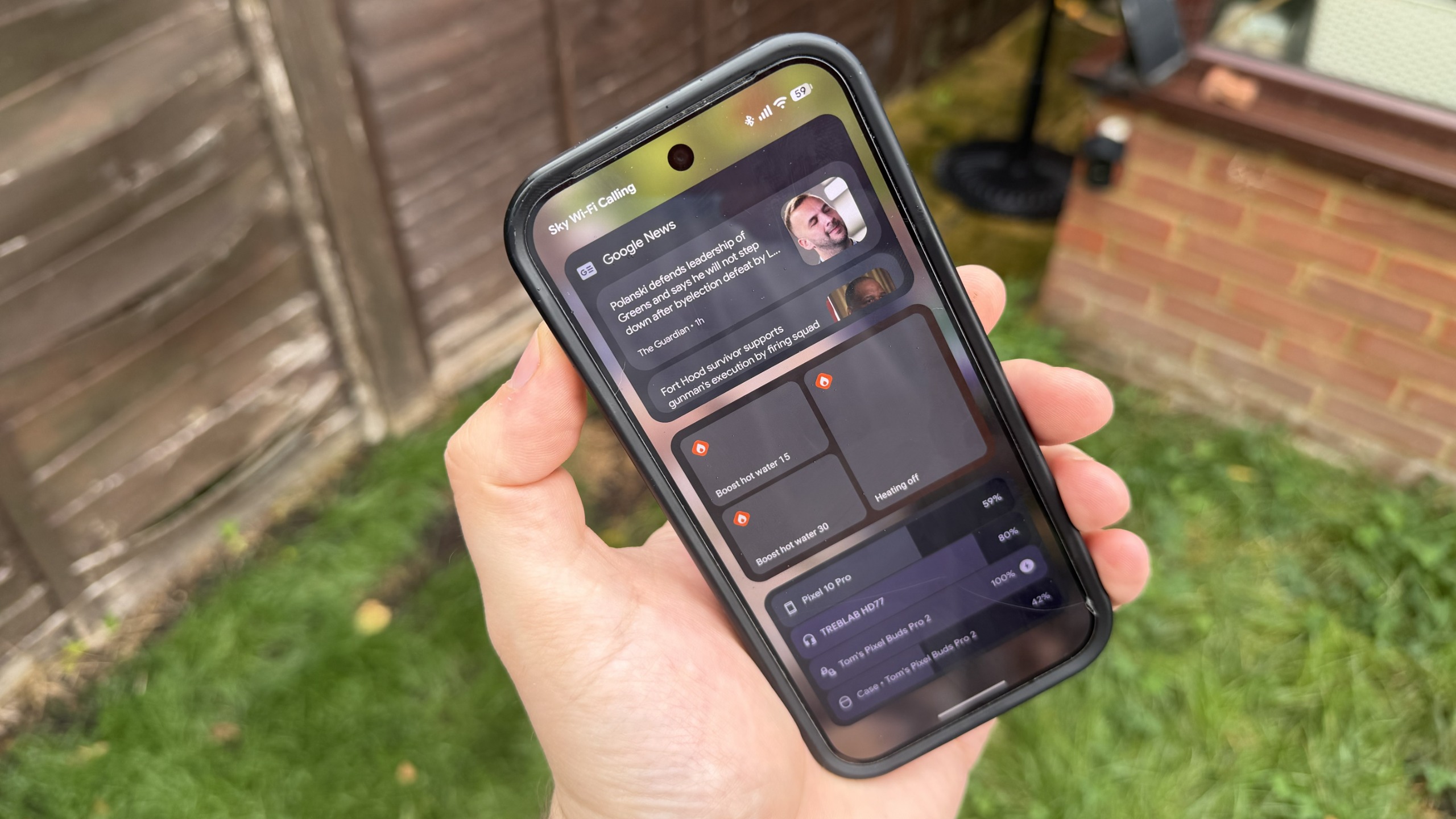
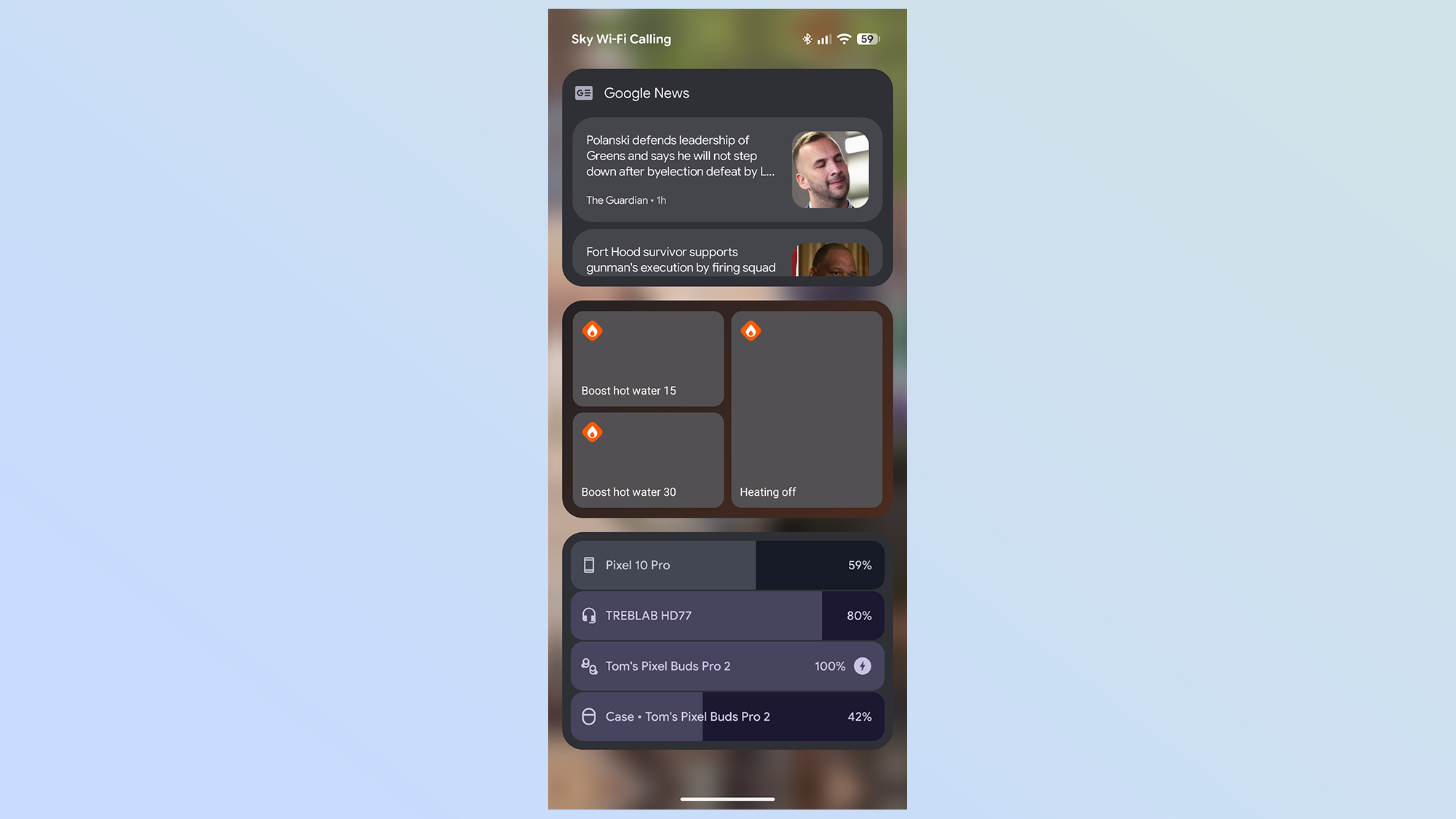
    That is essentially how Android’s lock screen widgets work. You swipe from the right side of your lock screen, and all your widgets will be accessible without unlocking your phone. But rather than being a continuously scrolling feed of widgets, Android limits you to three lock screen widgets per page.

    You can have multiple pages, of course, and if there’s a limit to that I haven’t managed to find it yet. So far I’ve added five pages worth of lock screen widgets, which is already more than I know what to do with.

    You are limited to three widgets per page, however, and it doesn’t actually matter how big the widgets actually are. The smallest widget takes up the exact same amount of space as the largest, and you need to use up all the space before moving on.

    ios 27 vs android 17 lock screen widgets

    (Image credit: Future)

    Much like Android’s home screen widgets, there’s a surprising amount of variety when it comes to widget design. You get multiple choices for each widget, and the designs are similar to those you’d expect to see on your phone itself. To the point where it feels a lot like the usual Android widget experience, but accessible when your phone is still locked.

    You can only see things at a glance, though. Some widgets let you access and control certain phone features, including smart home devices, accessing anything more sensitive prompts you to unlock the phone. If I want to access my calendar, emails or even something as simple as Shazam, I’ll need to unlock my phone first. While that does limit the usefulness of some widgets, I can understand why this is the case for a lot of things.

    Except Shazam, not sure what that’s about — perhaps it’s something to do with microphone access?

    Who does it best?

    ios 27 vs aandroid 17, picel 10 pro and iphone 17 pro max

    (Image credit: Future)

    Both Android and iOS do lock screen widgets rather differently. Android gives you the option to have as many widgets as you like, with the added ability to perform certain actions without needing to unlock your phone.

    Meanwhile iOS is a lot more limited, but seems focused on offering shortcuts to key apps, or offering important information in a way that doesn’t require you to unlock your phone to see it — potentially saving you time and battery life in the process.

    With that in mind, it seems Android definitely offers more freedom and productive use of its lock screen widgets. Sadly it’s let down by the fact that it’s so easy to forget about the widgets, and end up unlocking your phone anyway. While limited in scale, iOS’s lock screen widgets are positioned front and center — making them very difficult to miss.

    As feature-rich as Android lock screen widgets are, they’re a bit pointless if you keep forgetting that they’re there — and so far they haven’t been around long enough to properly integrate themselves into my day-to-day phone use. Then again, it’s not worth having in-your-face widgets if you can’t do much with them.

    Honestly, it would be much better if both platforms offered a hybrid approach. More feature-rich widgets on and around the lock screen, and displayed in a way that you can’t really miss them. Keep Android’s extra pages around too, so you have plenty of space to access the widgets you need when you need them.


    Google News

    Follow Tom’s Guide on Google News and add us as a preferred source to get our up-to-date news, analysis, and reviews in your feeds.


    More from Tom’s Guide

    Tom is the Tom’s Guide’s UK Phones Editor, tackling the latest smartphone news and vocally expressing his opinions about upcoming features or changes. It’s long way from his days as editor of Gizmodo UK, when pretty much everything was on the table. He’s usually found trying to squeeze another giant Lego set onto the shelf, draining very large cups of coffee, or complaining about how terrible his Smart TV is.