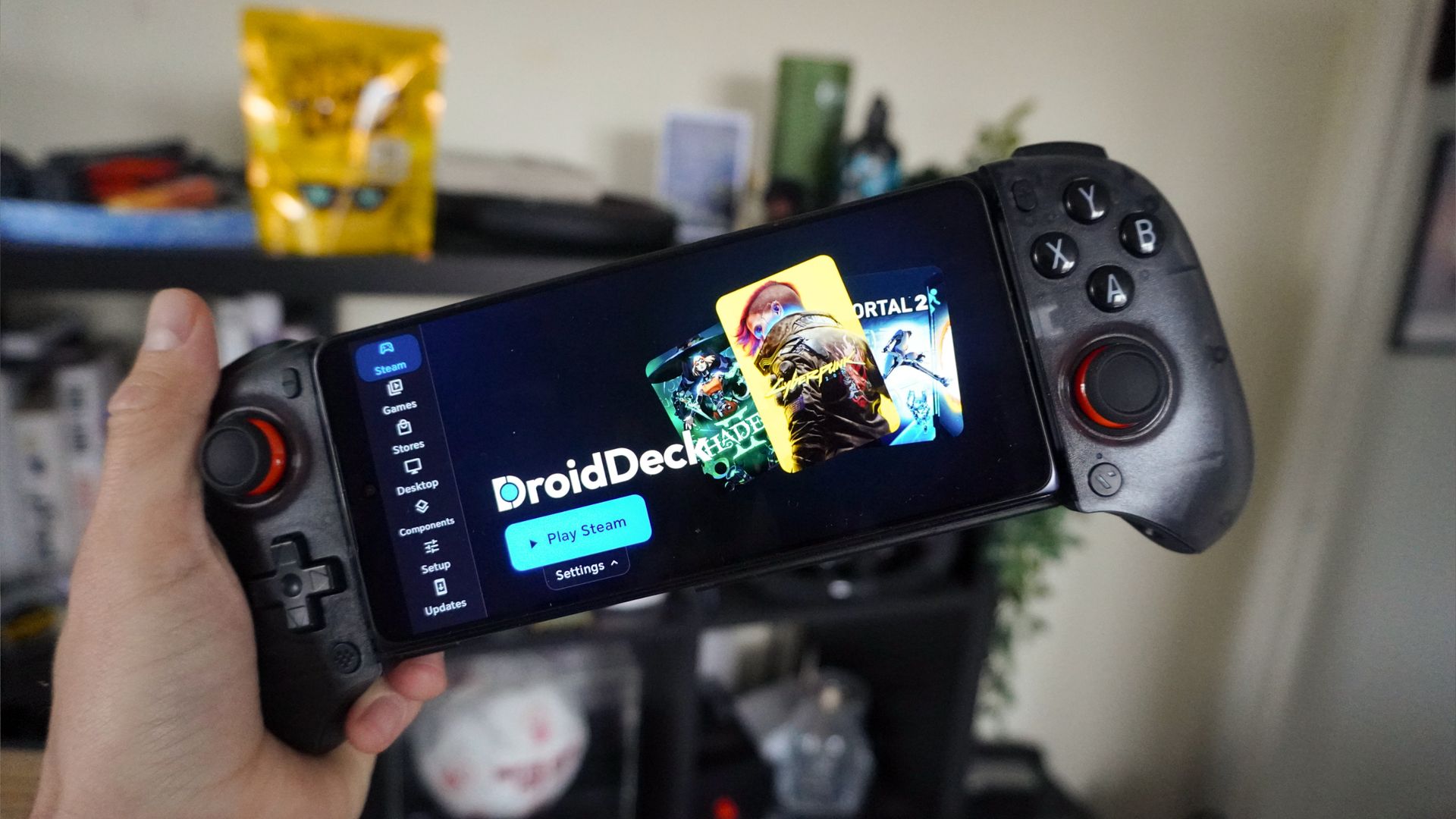
For years, Apple has tried to convince us that the pro iPhone is a legitimate AAA gaming beast. It has the GPU to do so for sure, but every year comes a victory lap over a hand-picked, $50 App Store port of an older game.
And let’s be real — nobody wants to re-purchase a game they already own on Steam just to play it on a phone.
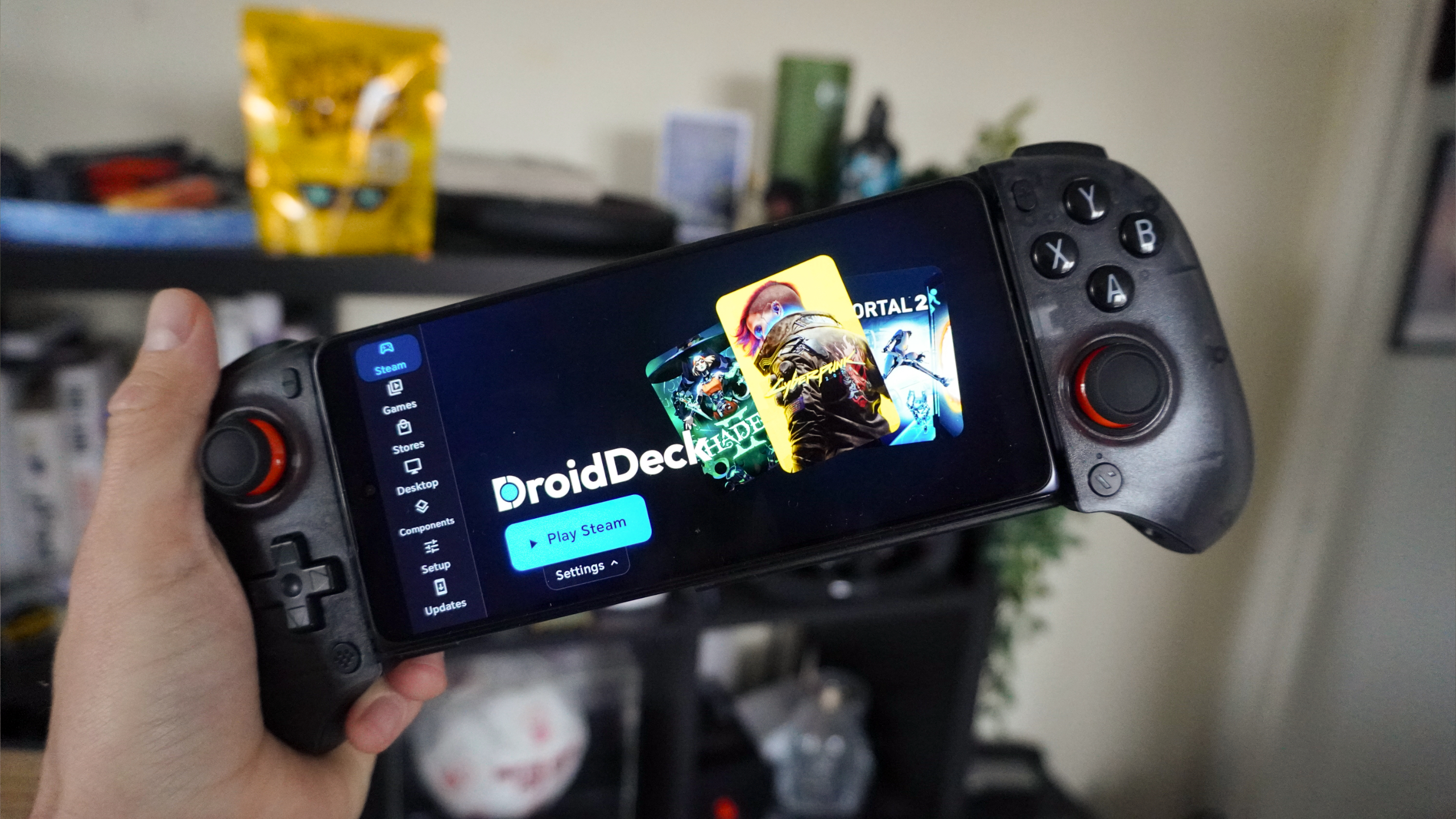
Enter DroidDeck: a free, open-source app that doesn’t stream games from the cloud or rely on clunky virtual machines to get the job done. Instead, it boots Valve’s Arm-native Steam client directly on your Android phone. You can thank the Steam Frame and the work Valve did to get games working on that for this.
Yes, you read that right. Your entire existing PC Steam library runs locally on Snapdragon silicon. So I’ve been testing it for myself on the Honor Magic V6, and the numbers prove this isn’t just a party trick — it’s the legitimate future of mobile gaming.
Under the hood
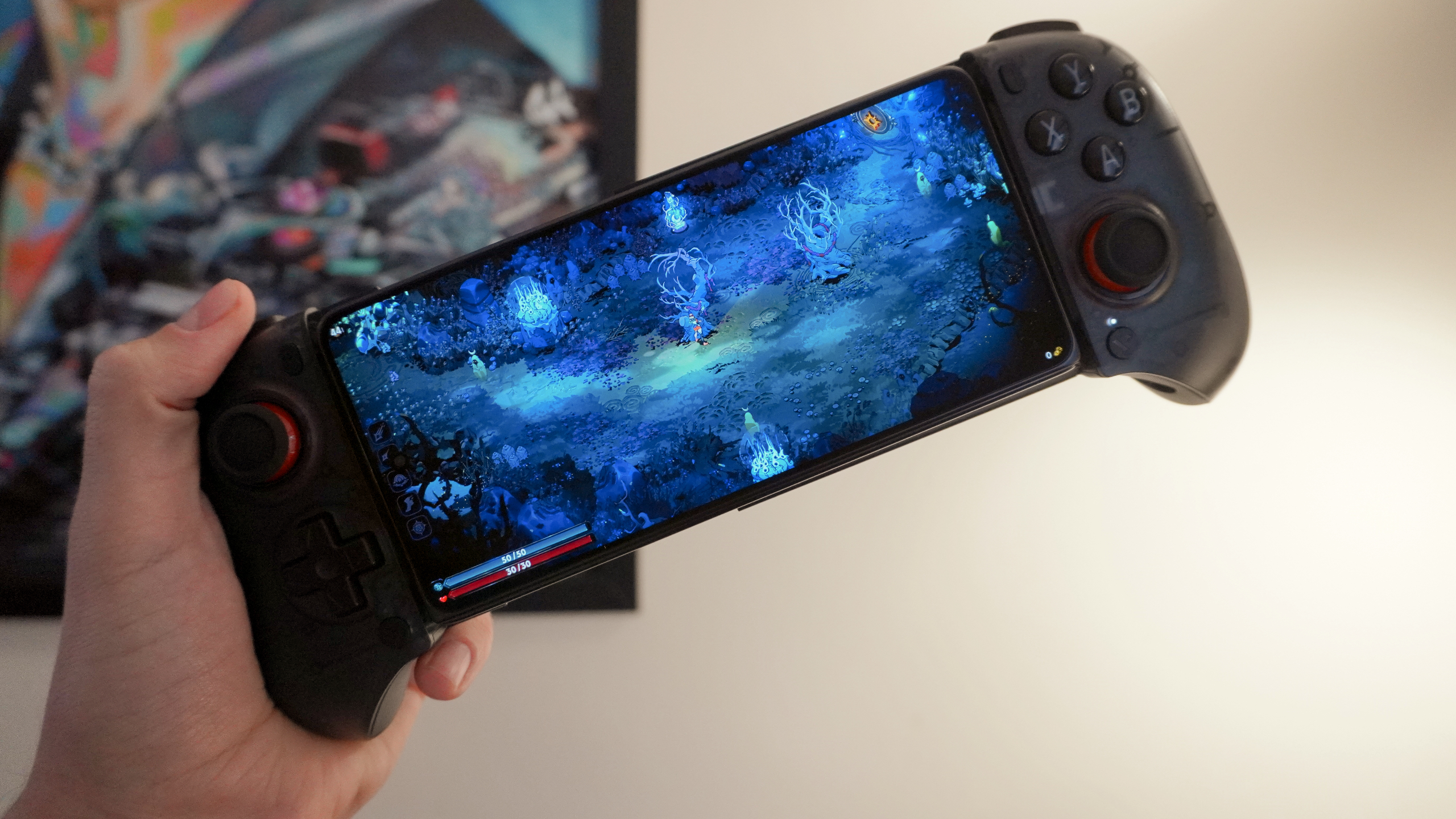
This isn’t the first time that somebody’s tried to run PC games locally on an Android phone, but here’s the big difference. Unlike those that have to rely on emulating Windows (and chewing up all your precious RAM and CPU resources), DroidDeck runs Steam natively on your phone’s Arm silicon.
The secret sauce here is we have Valve’s newly launched Steam Frame VR headset to thank for this. The company built this around an Arm-based Qualcomm Snapdragon 8 Gen 3 chip rather than an x86 AMD processor. And because of that heavy lifting, DroidDeck essentially builds on its homework and unleashes it on your Android phone.
- Because the Steam client itself is running natively on Arm, zero resources are wasted on making SteamOS run in the background. On top of that, the open-source Turnip Vulkan drivers talk directly to the GPU on your Snapdragon chip.
- The end result is SteamOS-level optimizations right out of the gate, including cloud saves, all the performance overlays, and native support for AMD’s FSR, Snapdragon GSR and Lossless Scaling frame generation.
How to install DroidDeck
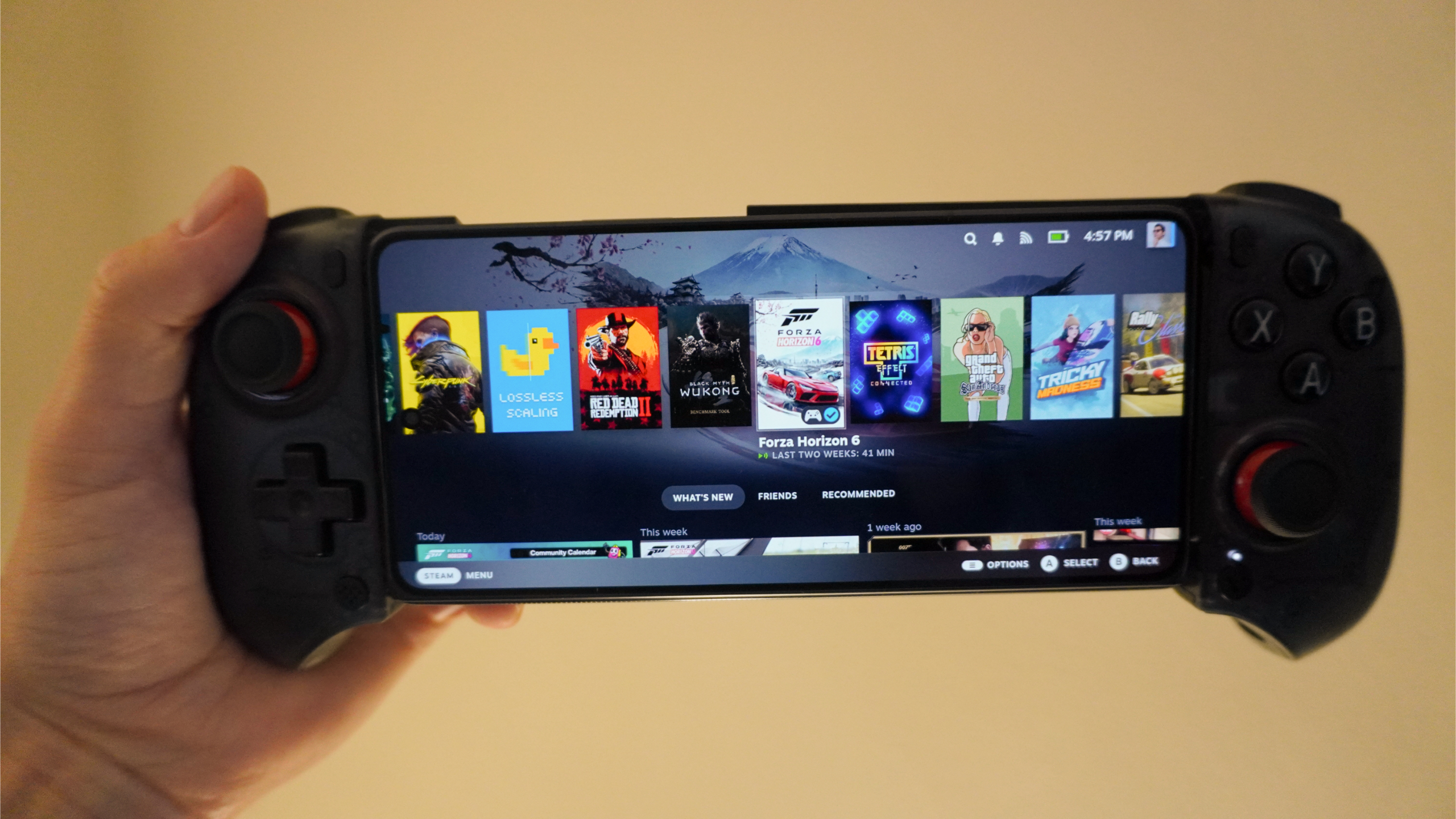
The awkward bit is that it does take some tinkering to get just right. The first bit is easy enough to do — go to the project’s Github releases page and download the latest version. After this, there’s a couple additional steps. You may need to turn off app security to install.
Disable Android’s child-process restrictions
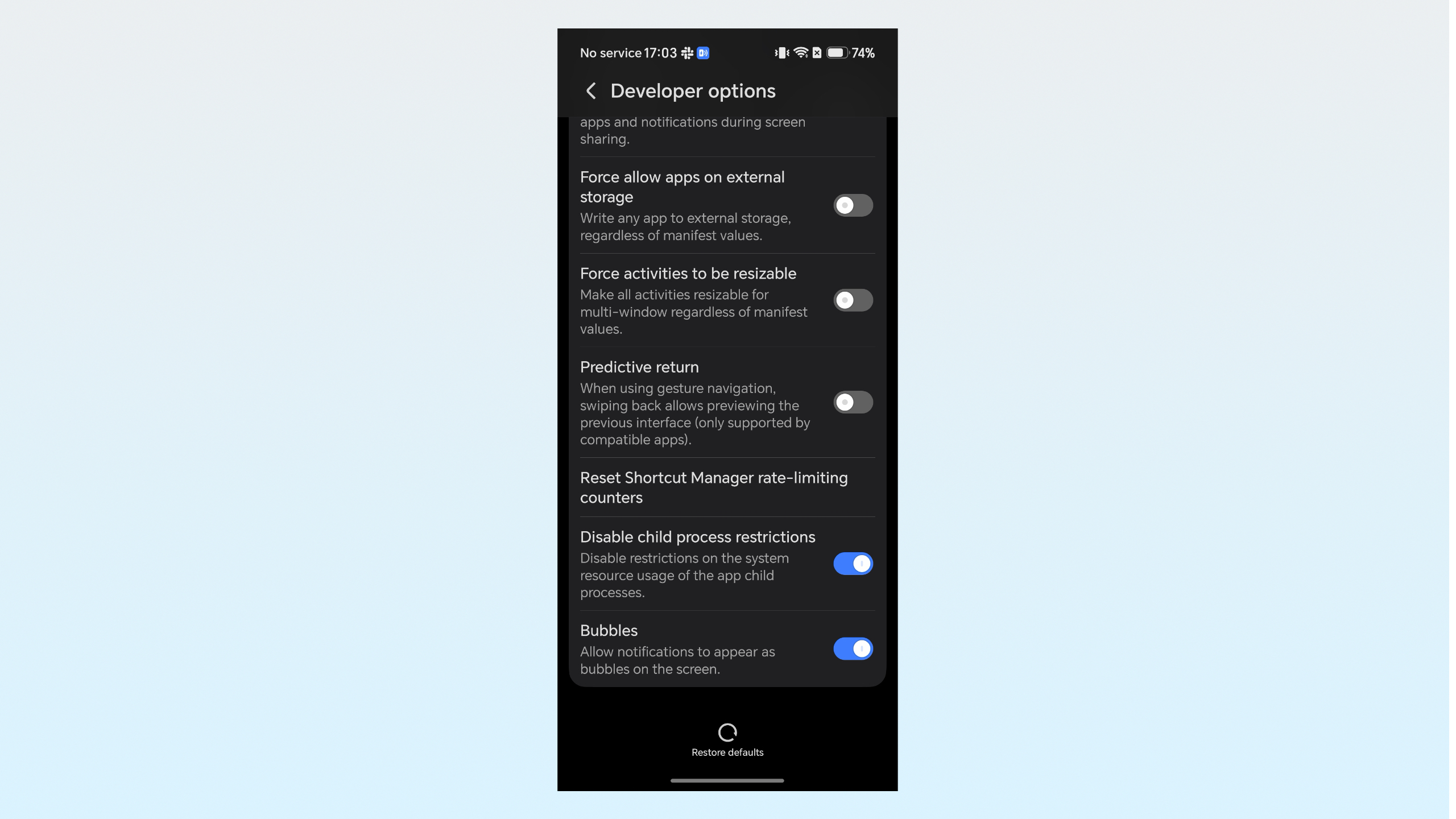
Android phones disable processes within processes by default (such as running SteamOS within Android), but tap on the build number in your about phone screen 7 times to activate developer mode, go into Developer options and turn on “Disable child-process restrictions.”
Check you have the latest software
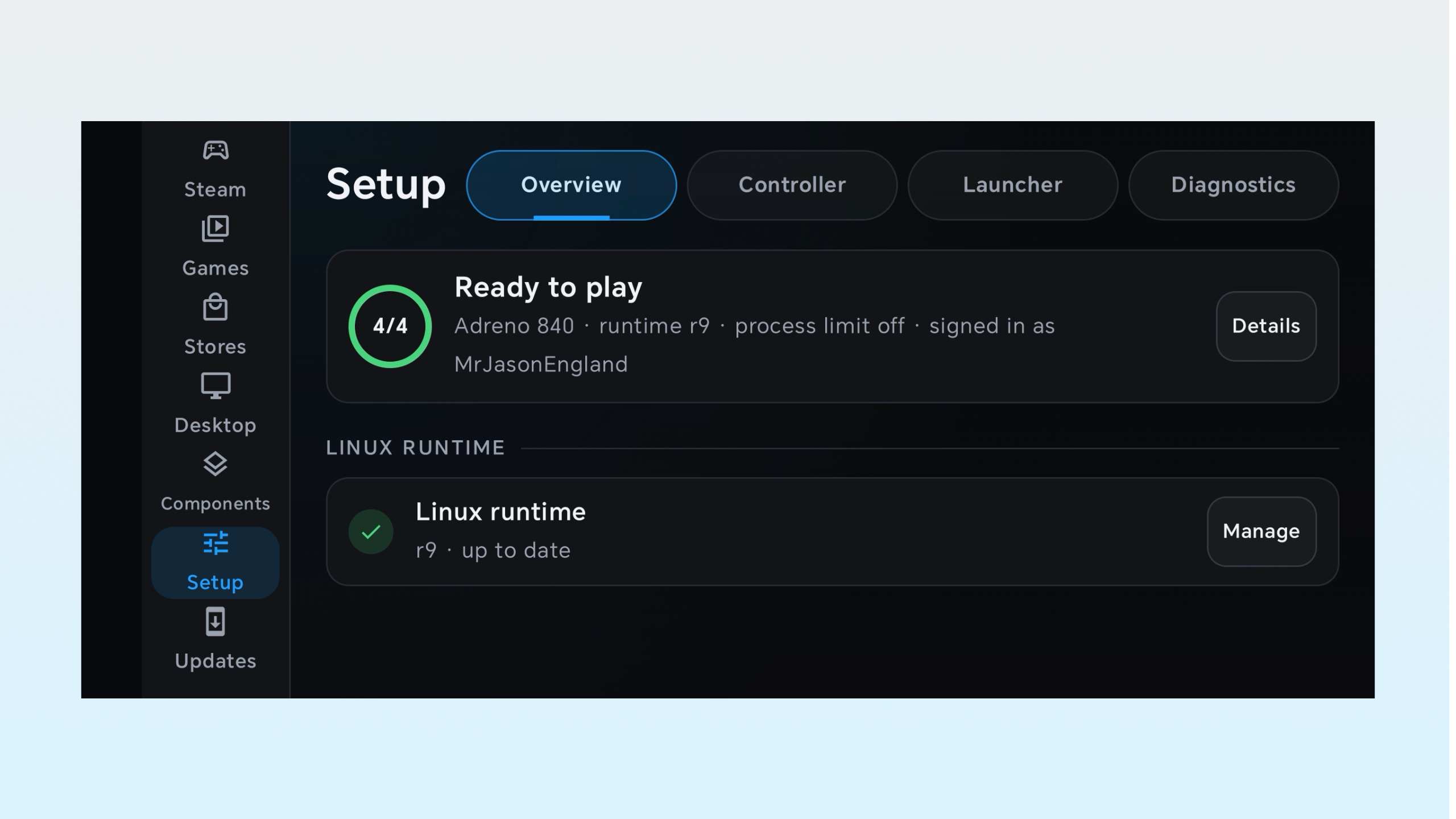
Go into Setup and Overview in the DroidDeck app, and if there’s anything missing from that Ready to Play circle, tap Details and install what’s needed.
Open SteamOS
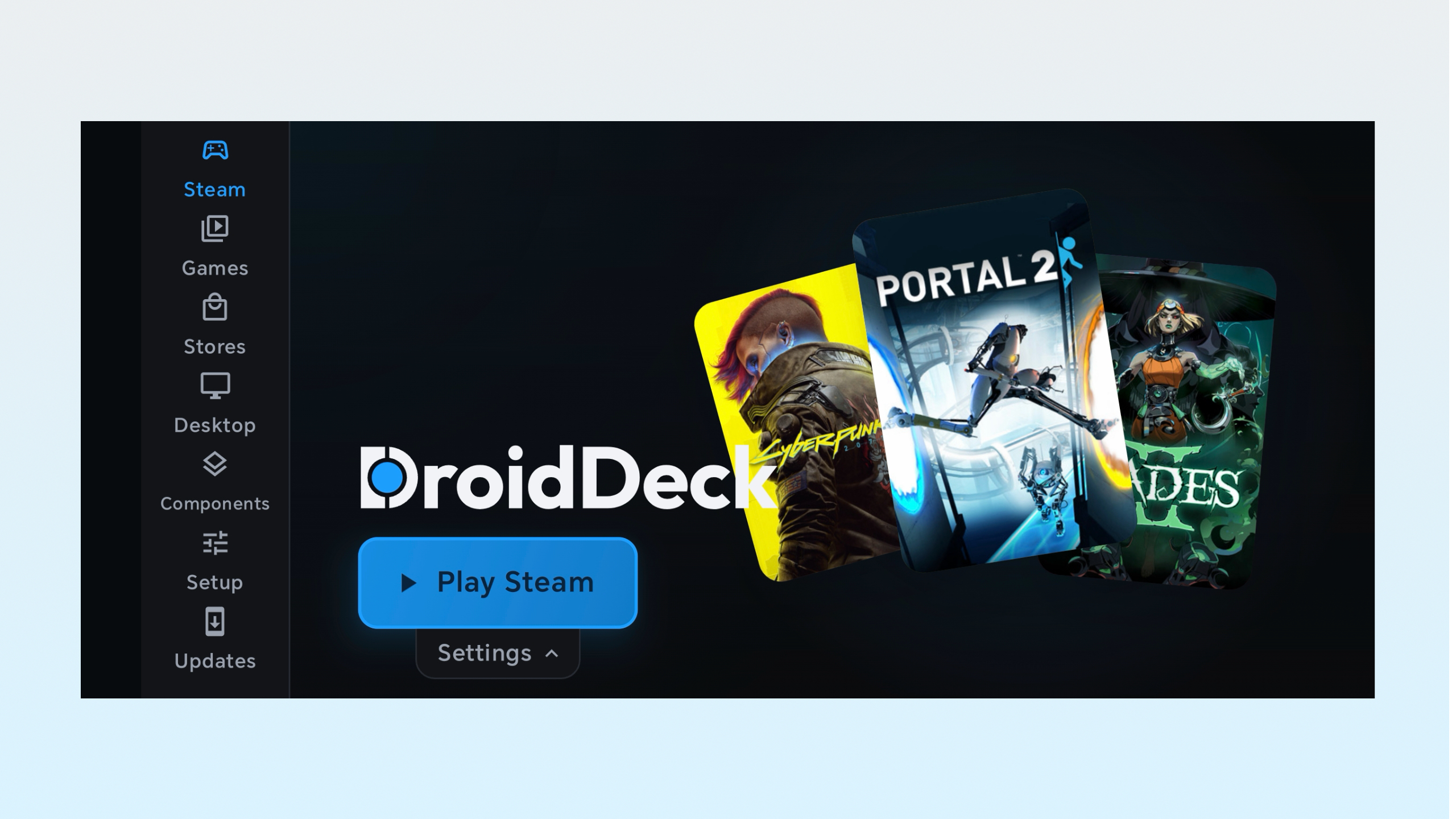
Tap Play Steam to open up SteamOS. It will take a little time on the first startup while it installs other things to make it work. But once done, you’re in and ready to install some games.
Optimal settings
Image 1 of 2
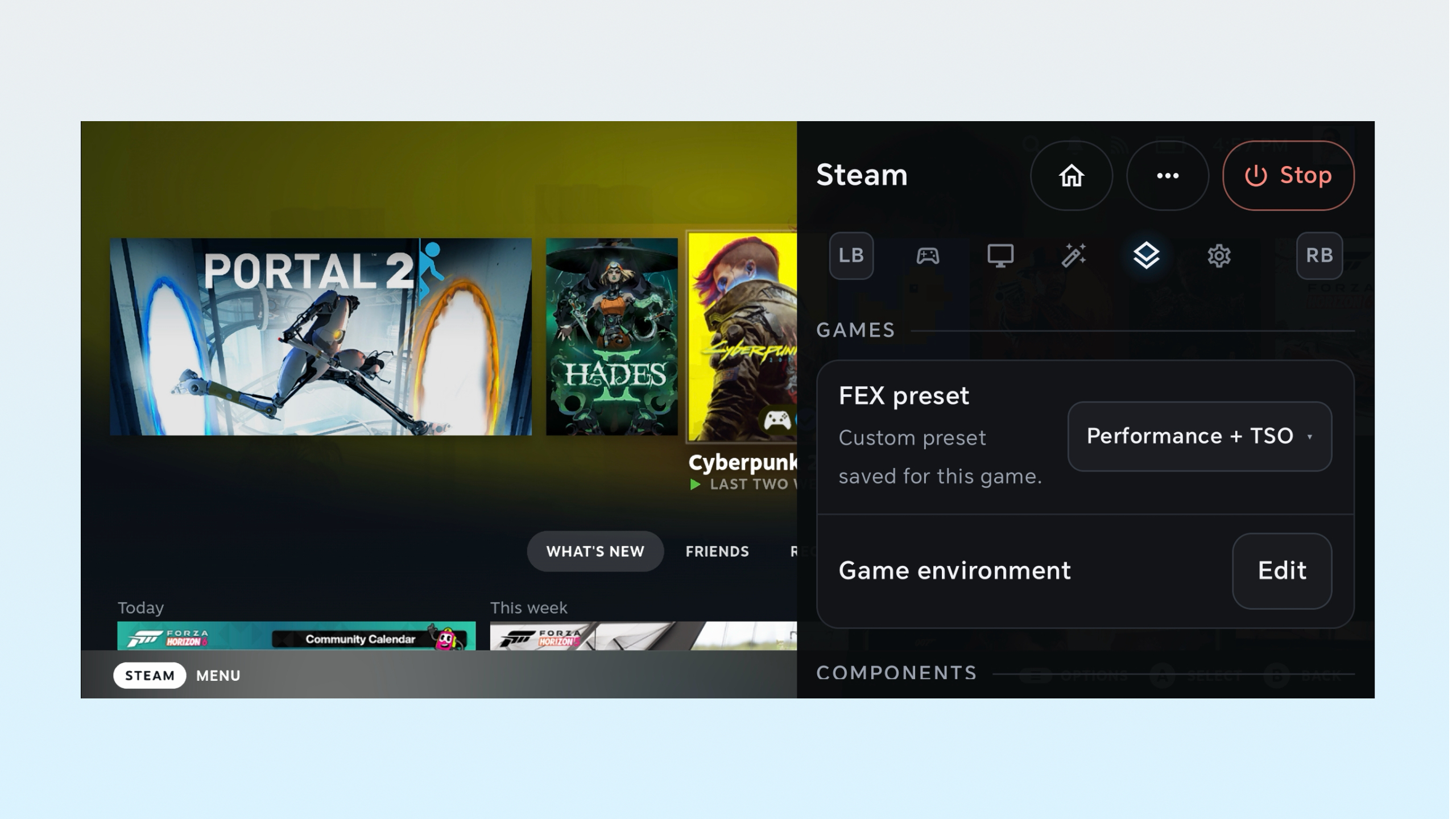
Now, there’s an extra wrinkle here I need to go through. DroidDeck makes settings tweaks easy to do — just swipe over from the right of the screen (like you’re going back) and the right side menu will open up.
There’s a lot here, but to help, from my early testing, here’s the best options I’ve used for a Snapdragon 8 Gen 5 phone.
- Frame generation: LSFG 3x. You will need to download Lossless Scaling from Steam to activate this ($6.99)
- Scaling filter: Snapdragon GSR (Quality)
- FEX preset: FEX is the translation layer converting game code to work on your phone. “Use Default” if you’re playing an indie game or old title, and “Performance + TSO” if you’re on a AAA title
That “+ TSO” on the end (Total Store Order) makes the CPU read and write memory in a strict sequence. There are Extreme options, which is what ETA Prime uses in his video, but for me it crashed Cyberpunk 2077.
By the numbers
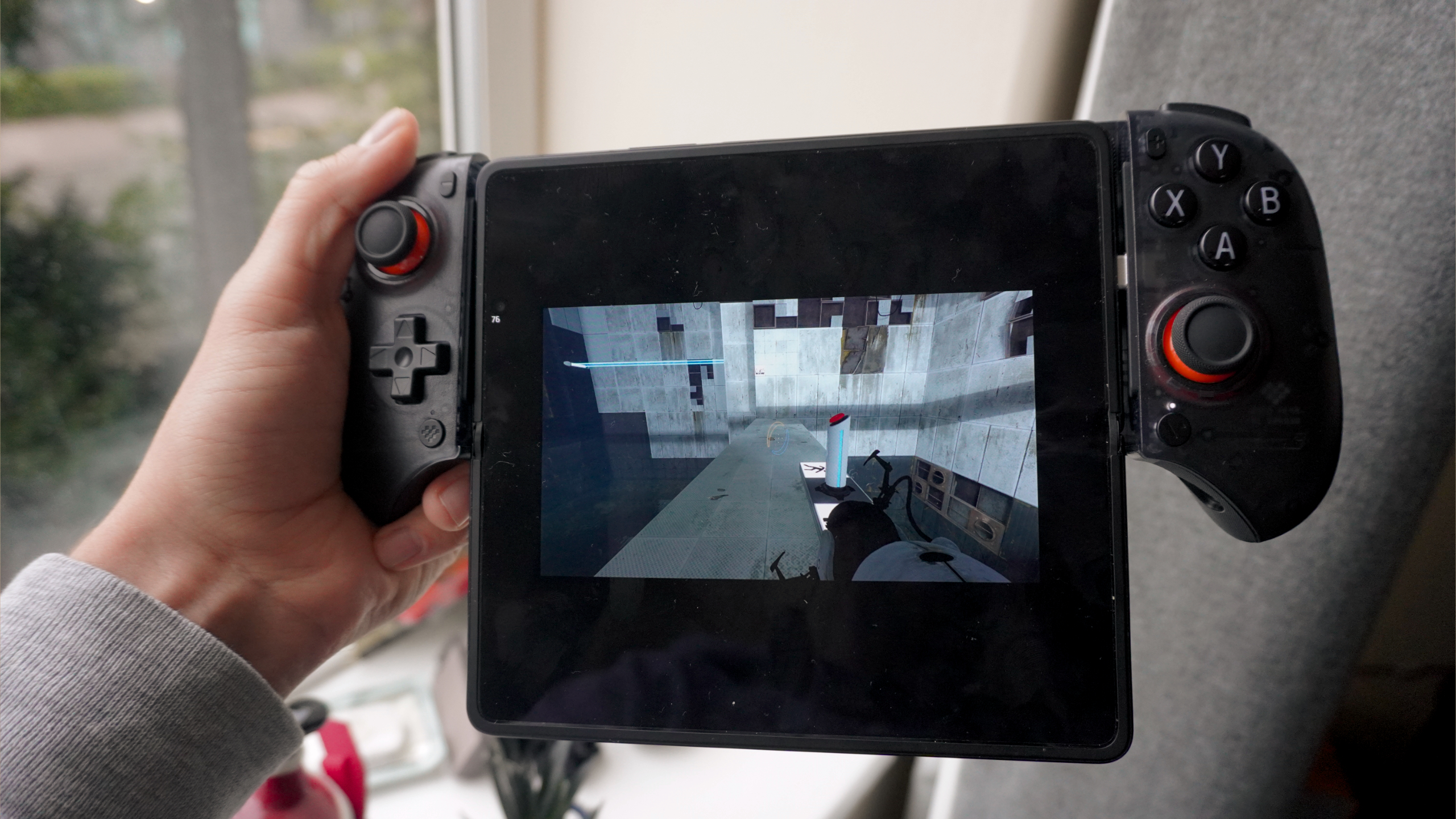
Now I’ve only had time to tinker and play three games here at the moment, and while it’s definitely still a work in progress, it’s definitely playable.
Swipe to scroll horizontally
|
Game |
Resolution / Settings |
Translation Preset |
Upscaling / Frame Gen |
Avg FPS |
Thermal / Playability Note |
|
Hades II |
720p Native / High |
Default |
None Needed |
48 FPS |
Smooth, minimal heat; console-grade. |
|
Portal 2 |
720p / Max Settings |
Default |
None Needed |
65 FPS |
Perfect controller mapping; some rubberbanging |
|
Cyberpunk 2077 |
720p / Low |
Perf + TSO |
Snapdragon GSR (Quality) + LSFG |
35.43 FPS |
Playable with tweaks; high heat avoid |
This is definitely a workaround that indie players are going to love. Hades II performs well and looks incredible on the Magic V6’s OLED display, and Portal II is a fun, fast blast from the past (been playing it loads with my nephew).
Meanwhile, AAA gaming can be tuned to run at over 30 FPS. Not 100% sure how ETA Prime managed to get it running at 60 FPS (kudos nonetheless), but this will take some time to tweak and get right on my end!
The iPhone is officially cooked on gaming
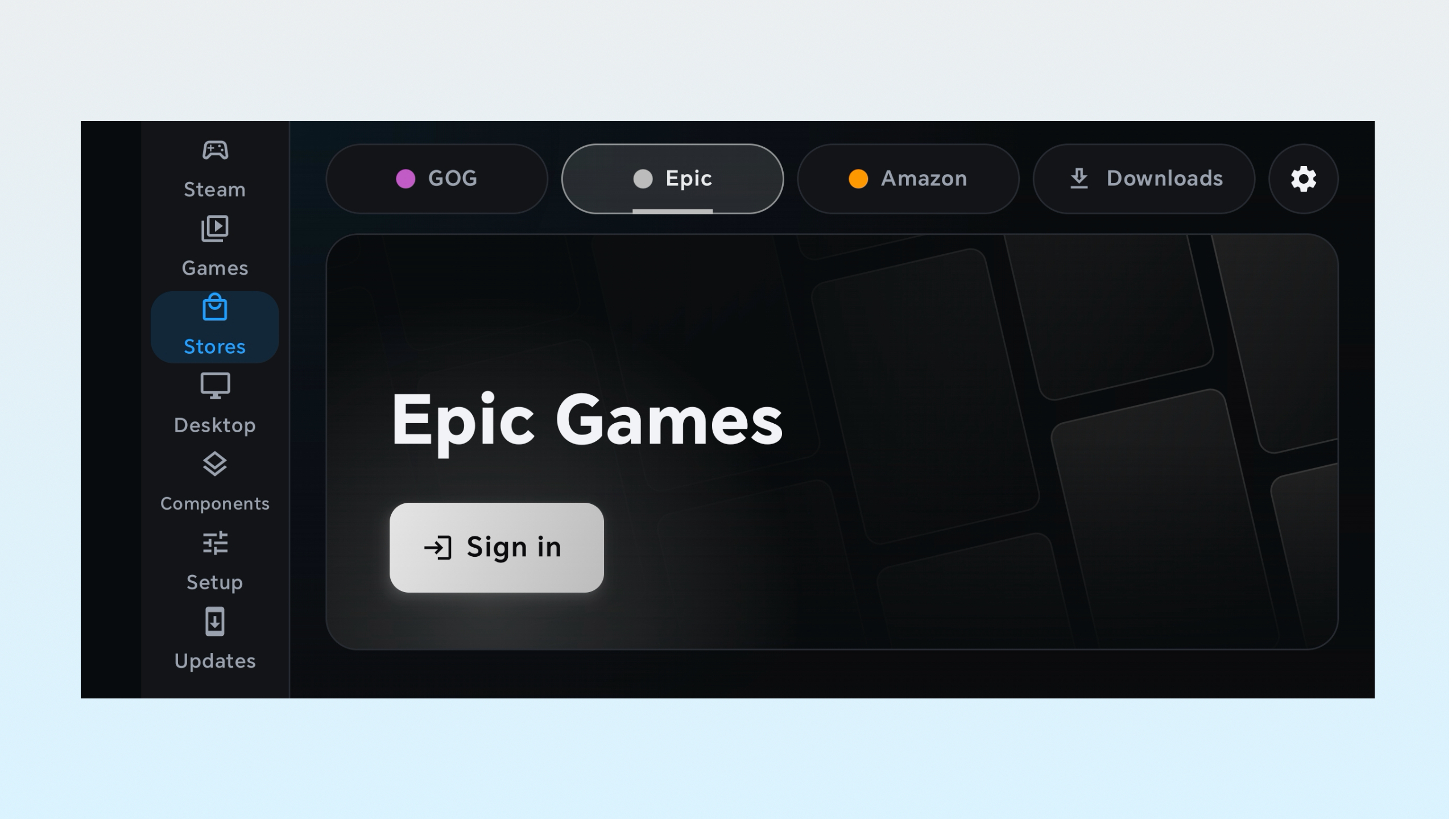
Even with the early-adopter friction, DroidDeck exposes the fatal flaw in Apple’s gaming strategy: library lock-in.
PC gamers have spent a decade or more building massive Steam, GOG and Epic Games libraries (all of which DroidDeck supports). When you buy a game on Steam, it works on your desktop, your Steam Deck, and now — thanks to this — your Android phone or foldable.
Apple’s walled garden, meanwhile, imposes iOS restrictions on custom drivers and background processes. An app like DroidDeck is technically (and legally) impossible on an un-jailbroken iPhone, which is a shame given the raw power that GPU holds.
Anyway, testing has just begun, but I can only imagine pairing this with a pair of AR glasses for a long haul flight would be a killer setup. No more will I be stuck playing watered-down mobile gacha games — I have my actual PC backlog.

Follow Tom’s Guide on Google News and add us as a preferred source to get our up-to-date news, analysis, and reviews in your feeds.
More from Tom’s Guide
Next Badge:
More Comments/Likes Until Your Next Badge