
![framer-vs.-webflow:-which-website-builder-should-you-use?-[2026]](https://artificialintelbulletin.com/wp-content/uploads/2026/10/4319-framer-vs-webflow-which-website-builder-should-you-use-2026.jpg)
We independently review and test every app in our app comparison articles. When you click some of the links on this page, we may earn a commission. Learn more.
As a web designer in the mid-2010s, I used what everyone recommended at the time: WordPress. While it’s a great tool, I found myself spending hours trying to fix spacing issues, reconcile bugs created by incompatible plugins, and troubleshoot server errors. (There’s nothing quite as terrifying as WordPress’s “White Screen of Death.”)
Because of this, I deeply understand the pain points that website building apps were created to solve. Most of those apps, though, are aimed at beginners and small businesses, not designers.
Framer and Webflow are exceptions: they’re aimed at professionals, not beginners. While that means they’re not quite as easy to get started with as alternatives like Squarespace, there’s almost no limit to what you can design—or how much you can scale—on either platform. And now that both apps have a full-fledged AI design companion, it’s easier than ever to create and edit websites without getting into the weeds of divs, padding, and responsiveness.
While you can’t go wrong with either app, each has different use cases. To compare them, I got hands-on with both Framer and Webflow by creating multiple websites and testing the latest features of each platform. In this article, I’ll explain the pros and cons of Framer and Webflow to help you decide which you should use.
Table of contents:
Framer vs. Webflow at a glance
Here’s my take on the key differences between these two website building apps:
-
Framer is best for designers and startups. It’s easy to use, and it’s a fast way to build polished landing pages, interactive prototypes, and minimum viable products. Its AI agent can edit your site right on the canvas, and its plans for small sites are affordable.
-
Webflow is best for developers, enterprise teams, and content-heavy sites. It has a steeper learning curve, but you get more design control, far more CMS capacity, a no-code eCommerce option, and more mature AEO tools. Webflow’s AI builder is exceptionally thorough, and its site editor offers endless options for customization.
|
Framer |
Webflow |
|
|---|---|---|
|
Ease of use |
⭐⭐⭐⭐⭐ Easier to learn and edit than Webflow |
⭐⭐⭐⭐ Steeper learning curve, but you can skip the hard part with Webflow AI |
|
Design and templates |
⭐⭐⭐⭐ Ideal for landing pages and prototypes; slick animations and pre-built components, along with 12,000+ templates—7,500 of which are free |
⭐⭐⭐⭐ Best for large sites and complex layouts; includes GSAP-powered interactions; 11,000+ templates, though only ~160 of them are free |
|
AI features |
⭐⭐⭐⭐⭐ Fast AI builder that can build large sites in one shot; agents edit your site, write code components, and learn your design style; Framer integrates directly with Claude Code, Codex, and more |
⭐⭐⭐⭐⭐ Exceptionally thorough AI site builder that considers your site’s structure and theme; AI assistant does an excellent job at diagnosing and fixing issues; MCP server for outside AI tools |
|
eCommerce and marketing |
⭐⭐ No eCommerce features, but plugins connect Shopify, and Gumroad or Lemon Squeezy work for digital products; includes built-in analytics, SEO tools, and AI agents, plus a paid add-on for A/B testing |
⭐⭐⭐⭐ A solid eCommerce alternative to Shopify for small shops looking for a custom design; built-in analytics, plus a paid add-on for A/B testing; AEO agents on higher-tier plans |
|
CMS and scalability |
⭐⭐⭐⭐ Better CMS usability than Webflow, but more limited CMS collections; Pro plan only includes 10 collections and 2,500 items; can’t export code |
⭐⭐⭐⭐⭐ More CMS field types and far more capacity (40 collections, 20,000 items on Premium); you can export your code and host elsewhere |
|
Pricing |
⭐⭐⭐⭐ Free plan available; Basic is $10/month and Pro is $30/month, billed annually; extra editors cost $20/month, or $10/month for content editors |
⭐⭐⭐ Free plan available; Basic plan is $15/month (no CMS) and Premium is $25/month, billed annually; eCommerce ranges from $29-$212/month; full editors cost $39/month, or $15/month for content editors |
|
Integrations |
⭐⭐⭐⭐ Hundreds of plugins are available in the Framer marketplace |
⭐⭐⭐⭐⭐ 300+ apps in the Webflow Marketplace plus an MCP server; integrates with thousands more apps via Zapier |
Webflow’s AI builder is more thorough; Framer’s is faster
Framer and Webflow both offer excellent AI website builders. Unlike earlier iterations, the latest AI builders are not only preferable to starting your site from scratch—oftentimes, they’re better (and quicker) than using templates.
To put each app’s AI design capabilities to the test, I gave them the same prompt: “Make a modern, clean, bright multipage website for an accounting firm that does taxes for startups.”
Let’s start with Webflow, which has a noticeably more methodical process than Framer. Rather than getting straight to work after receiving your prompt, Webflow takes you through a multi-step process that gives you a chance to weigh in on your site’s structure, sections, theme, fonts, and more.
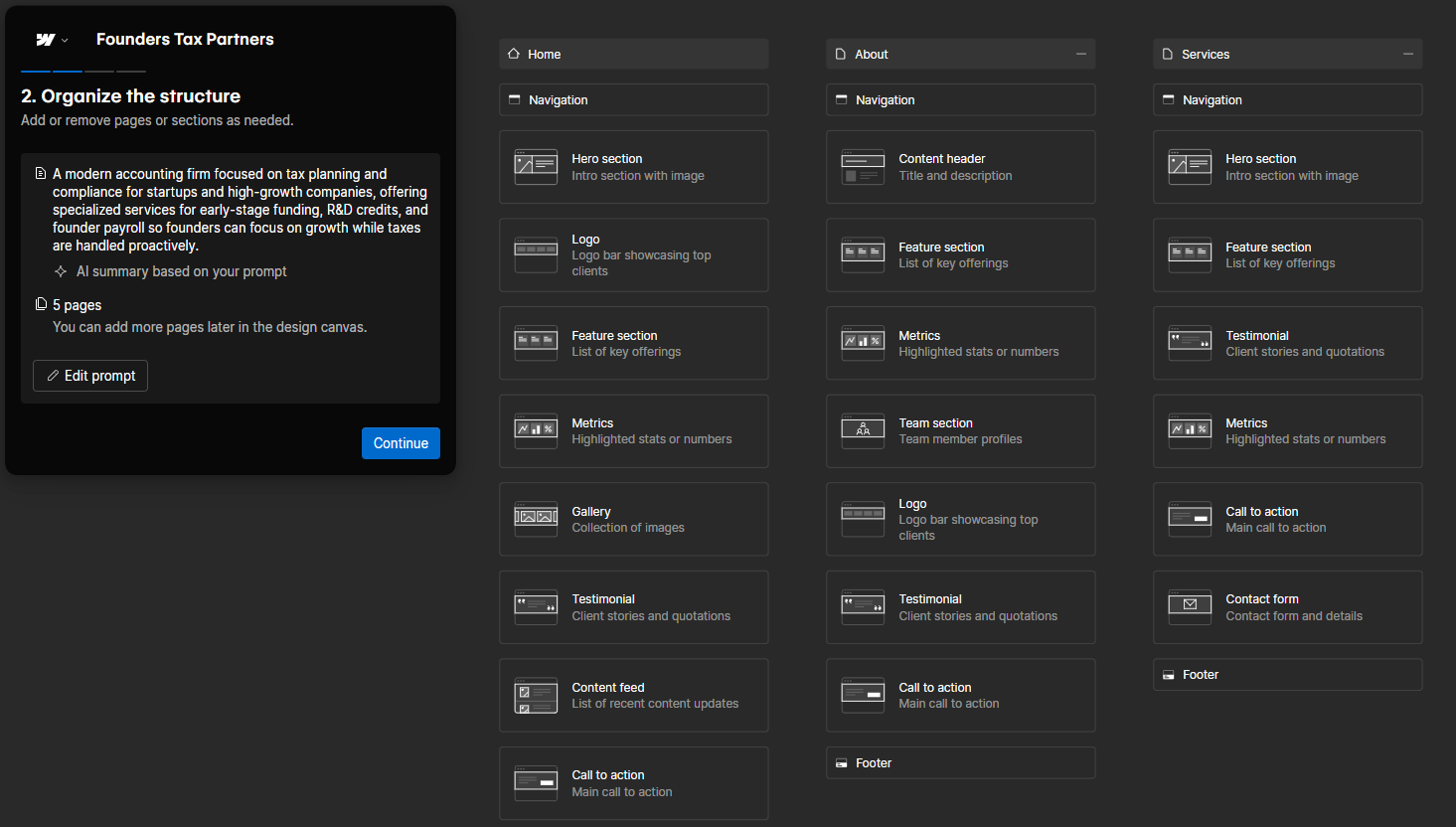
This is mostly a net positive. It does make the experience a bit more involved, and it isn’t quite as satisfying as putting in a one-sentence prompt, sitting back, and watching an agent build you a site. On the other hand, because Webflow’s process forced me to spend more time considering the design up front, I was more likely to get an outcome I liked on the first try.
What’s most helpful, in my view, is Webflow’s theme section, which lets you jump between different customization options or switch themes entirely.
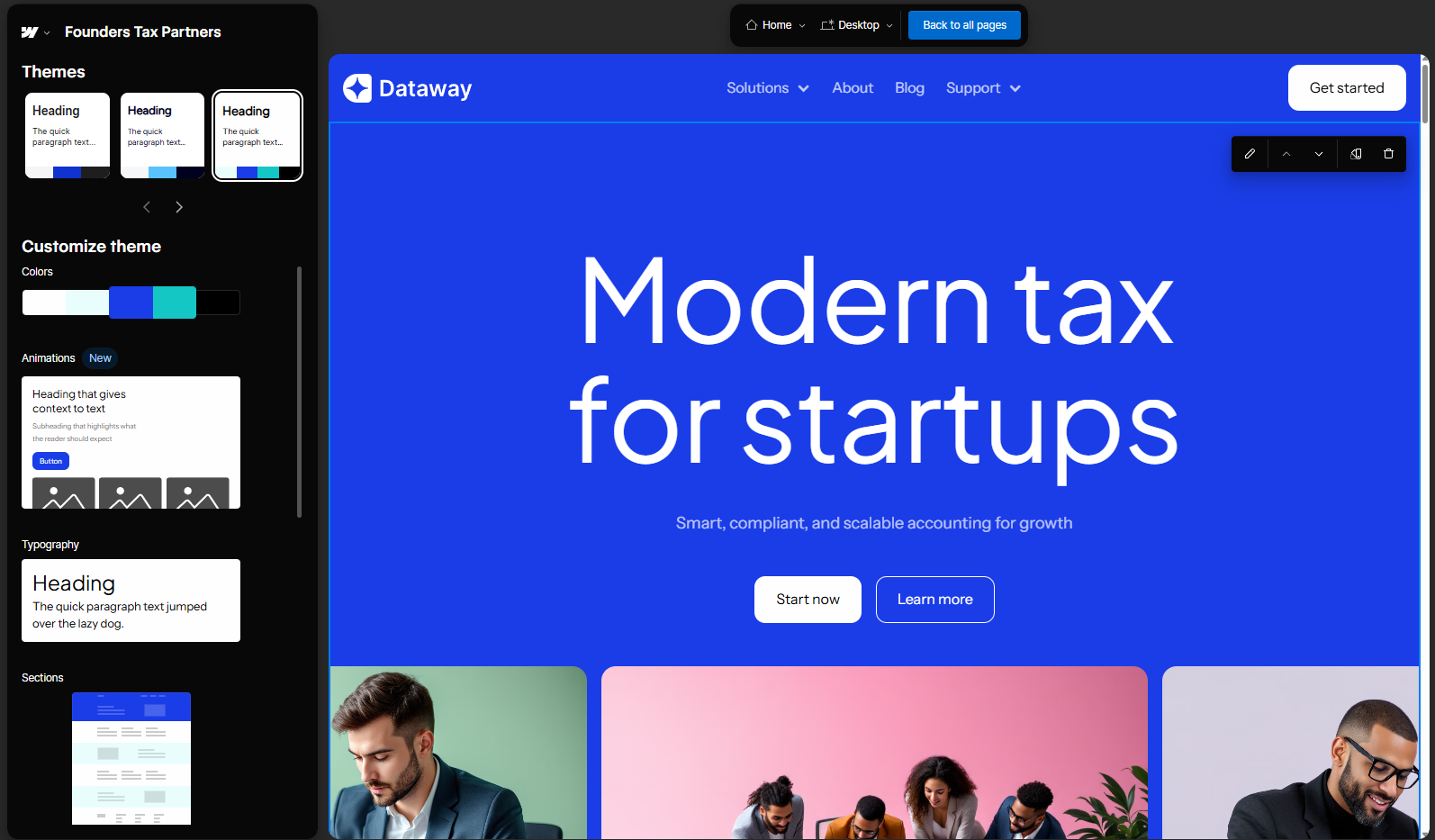
Once you’re happy with your design, Webflow takes you to the editor, where you can continue modifying it with the Webflow AI assistant.
I tested it by making a couple of AI-powered fixes:
-
Webflow forgot to put a placeholder name on one of the testimonials. That’s an incredibly easy fix manually, but I did it with AI because I was curious what would happen, and because I also wanted AI to check elsewhere on the site for missing testimonial details. It passed with flying colors.
-
A lot of the headings in my design were overflowing onto the next line, making them hard to read. I told the Webflow AI assistant what I was seeing, and also added a couple of screenshots for good measure. It then searched the site’s files, styles, and variables to diagnose the issue, and implemented the solution on its own. All I had to do was check to make sure the result worked the way I wanted it to.
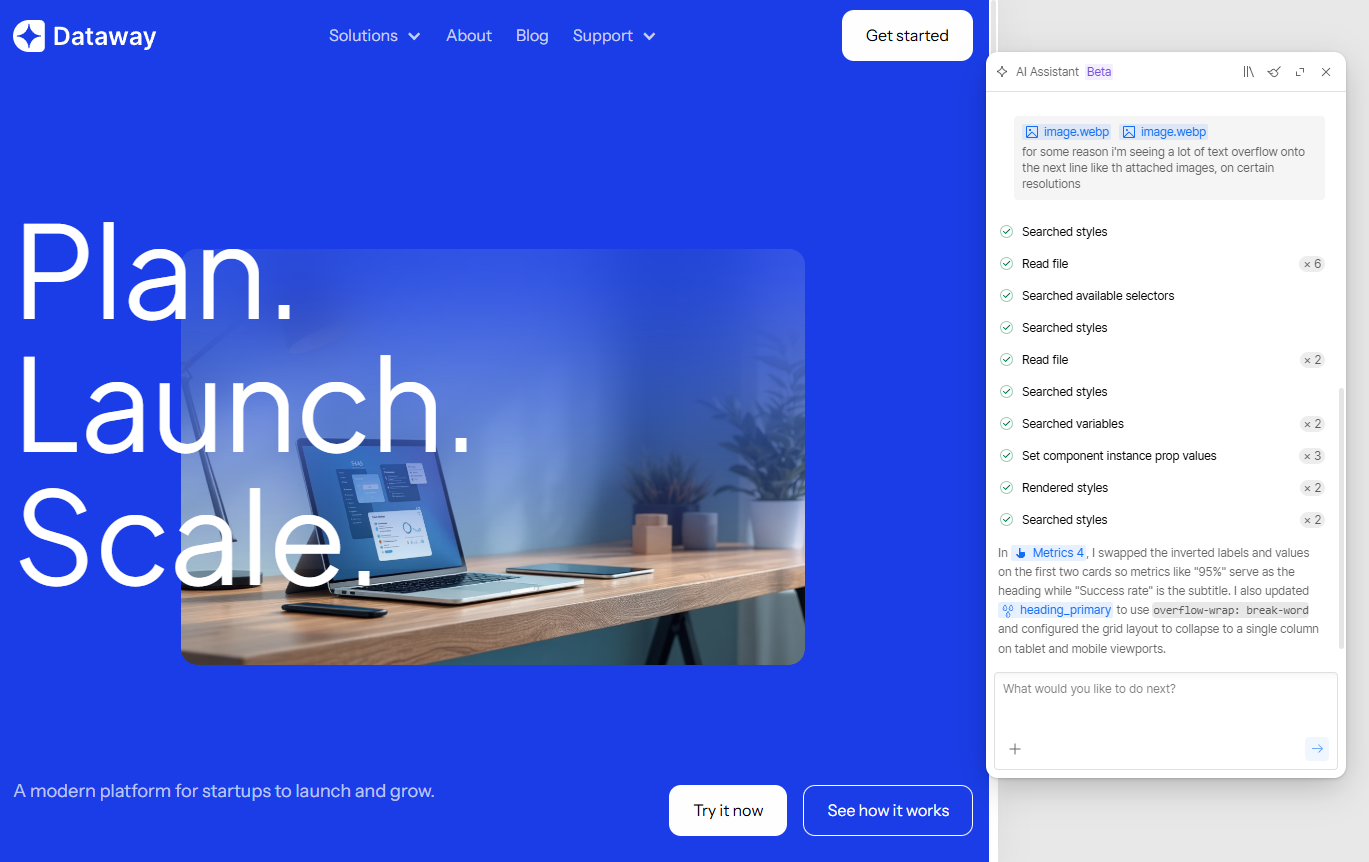
You can use the Webflow AI assistant more or less like an on-call developer. It can’t match the intangibles that human designers bring to the table, like taste, strategy, or an understanding of how audiences will respond to your brand. But in terms of solving technical design issues and playing around with themes, it’s fantastic.
Framer AI makes it even faster to launch a site. After answering a couple questions about the style and content of your site, it gets straight to work and keeps going until the design is ready. And unlike Webflow, which caps initial AI builds at five pages (though you can add more pages later), Framer lets you generate bigger websites off the bat with no restrictions on page count.
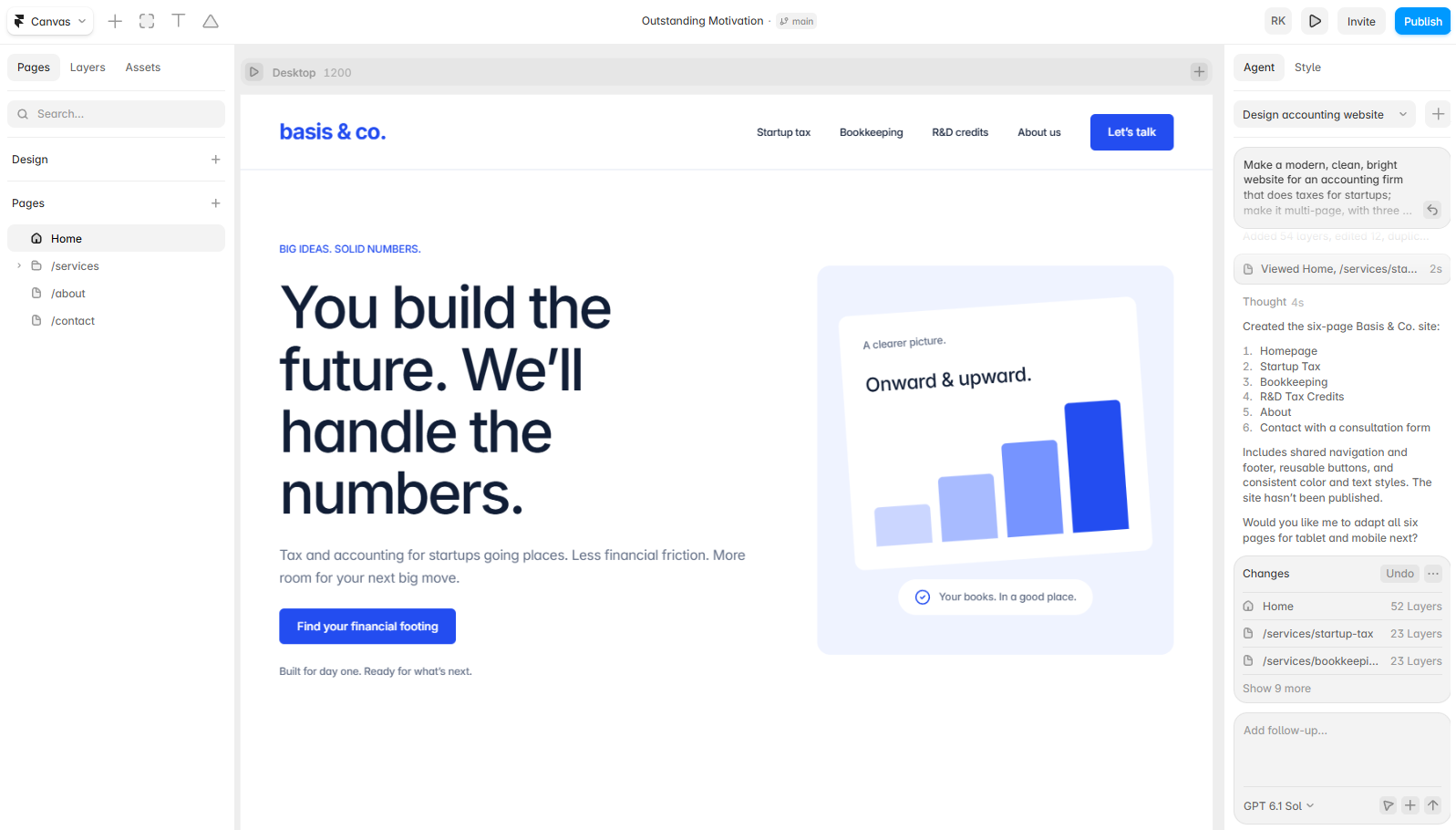
While Framer’s initial AI build was quick, it took me a surprising amount of time to finesse my site into something I was happy with. Framer’s initial design followed my instructions but felt a little soulless, and unfortunately there’s no preset “try different themes” button during the site building process, like there is with Webflow. As a result, I ended up burning through my credits quickly as I tried different site designs, backtracked, and tried something else. The good news is that Framer uses branching (starting on the Pro plan), so it’s easy to try different looks without affecting your main design.
Beyond the initial design experience, Framer’s AI agent makes it just as easy as Webflow’s to make edits to your site. For example, my initial build didn’t include photos; when I mentioned that to my Framer agent, it quickly sourced images and added them in the same way I would’ve done it myself. You can also use Framer agents to write interactive code components, and you can teach them your design style, brand voice, and SEO checklist with Skills so each new page you create is easier than the last.
If you prefer to manage your website from other AI platforms, both Framer and Webflow support that. Webflow has its own MCP server, and Framer works directly with Codex, Claude Code, Cursor, Antigravity, and Windsurf.
Framer and Webflow do lots more with AI, including CMS work, SEO, and AEO—I’ll dig into those in a bit.
Framer is easier to use when you’re making changes by hand
As fun as it is to give orders to AI agents and watch them edit your site, it gets expensive fast. (For example, Framer estimates that the 1,000 AI credits that come with its Basic plan will run out after creating five landing pages per month; I got slightly more than that in my tests but found it basically accurate.) When you run out of credits, you can upgrade your plan or buy add-on credit packs for both Framer and Webflow. But unless you’re working with an unlimited budget, you’ll probably need to be strategic about when to ask AI for help.
For manual editing and design work, it’s tough to beat Framer. It’s more intuitive than Webflow and has fewer settings crowding the interface. Onboarding is simple: there’s a checklist, interactive tooltips, and an option that sends you straight to a massive selection of templates—7,500+ of which are free, compared with around 160 free templates on Webflow.
Framer’s infinite canvas makes it easy to zoom out and get a bird’s-eye view of your designs, including versions for desktop, tablet, and mobile. A section called Assets makes it simple to edit site-wide elements like buttons, calls to action, menu items, and lists. (You can also adjust site-wide color schemes and fonts here.)
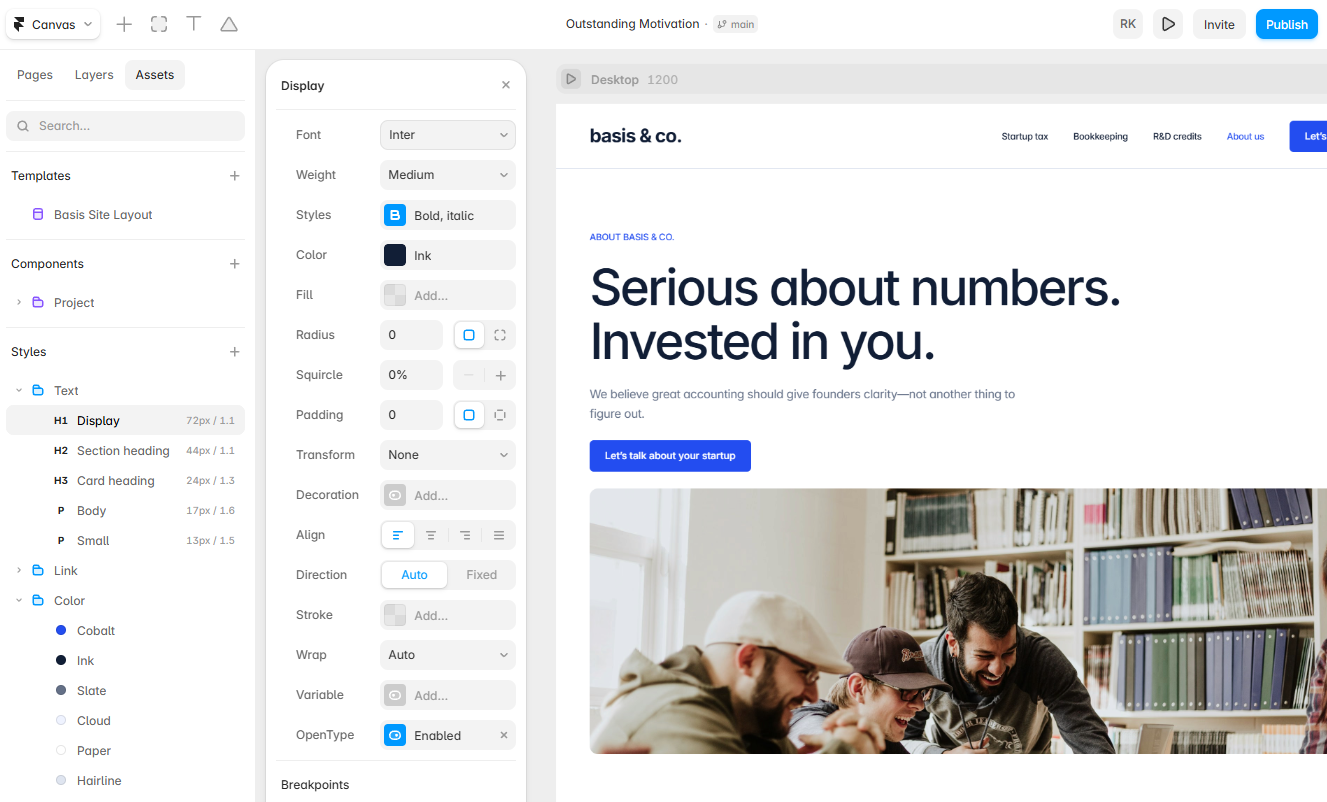
By contrast, in Webflow, it takes some digging around to make straightforward changes like this manually, and the user interface is more crowded. But if you do have the budget to do everything via the AI agent or via MCP, both platforms are basically at parity, and you can leapfrog the learning curve entirely.
Webflow gives you more design control; Framer creates polished, interactive designs quickly
In both Framer and Webflow, you’ll find everything you’d expect from a sophisticated website building app. Both platforms offer drag-and-drop interfaces for design, along with pre-built templates and reusable design elements.
Webflow provides more extensive customization options, along with complex layouts. Clicking on any given item opens up an impressive array of settings: for example, selecting a heading gives you the option to tweak spacing (down to the pixel), adjust positioning (static, fixed, or sticky), adjust backgrounds and borders, and add effects like blending, box shadows, and cursor changes.
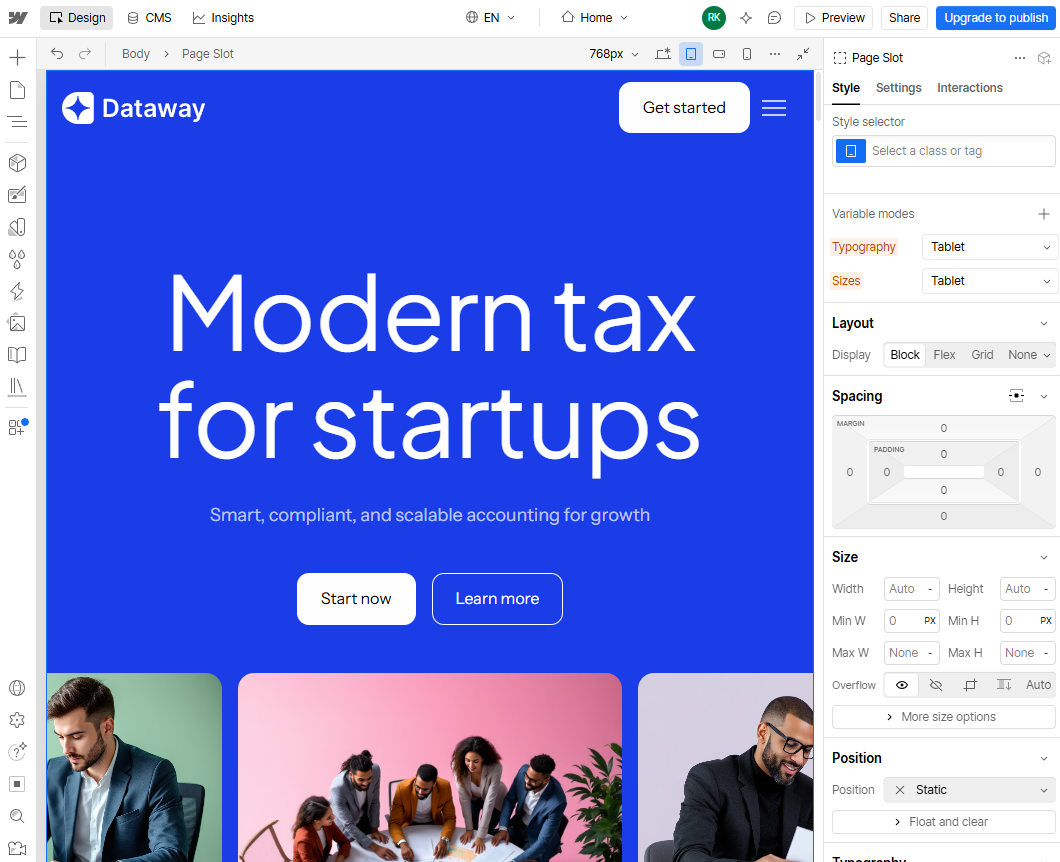
Framer is built for speed. It’s a good choice for interactive prototypes, MVPs, and landing pages with a lot of motion design elements. Its Components marketplace has interactive elements you can drag onto any page, and Framer’s AI agent can also build custom interactive components from a prompt. If you’re creating a unique showpiece design for a brand, a SaaS product, or an agency, Framer can often get you more quickly to the finished look you’re after.
That said, Webflow can now do some of the same things. Its interactions run on GSAP, the animation library Webflow acquired in 2024, which gives you granular control over the timing and sequencing of your website effects. Webflow’s AI Assistant can also build reusable code components, like calculators and filters.
Webflow offers better built-in tools for eCommerce and AEO
If you’re looking for an all-in-one website builder with eCommerce and marketing built in, let me point you in the direction of some purpose-built eCommerce website builders. With Framer and Webflow, you get a sophisticated array of collaborative design features—but neither app attempts to be a Swiss Army Knife solution to all your needs.
There is an exception, however: Webflow offers a highly-customizable eCommerce solution that might be right for you if you’re looking for a unique, non-templated look. Webflow is an easier way to bring custom eCommerce designs to life than WooCommerce, which can be clunky and imprecise, or Shopify, which requires a developer familiar with JavaScript, JSON, and Liquid (Shopify’s templating language). Using Webflow for eCommerce lets you build creative storefront concepts that can feel more premium, and more full of personality, than standard-issue Shopify themes.
But—fair warning—Webflow’s approach to eCommerce requires some patience. Unlike Squarespace or Wix, it’s complex enough that you won’t get your shop up and running in a day, and it’s a less comprehensive option than Shopify. For example, you’ll run into trouble in Webflow when trying to set volume discounts, offer in-store pickup options, or accept payments in more than one currency.
Framer isn’t designed for eCommerce at all, but there are workarounds. If you already use Framer to host your brand’s primary website and you want to integrate a Shopify store, you can use third-party plugins like Framer Commerce to sync with Shopify (though you’ll then be committing to three subscriptions: Shopify, Framer, and Framer Commerce). You can also integrate your website with Gumroad or Lemon Squeezy, both of which are aimed at helping creators sell digital products. Just keep in mind that payment processing happens off-site, so customers will be sent away from your site for a brief moment after clicking the “Buy” button before being redirected back.
Neither Framer nor Webflow is an all-in-one marketing platform, but each has built-in analytics and SEO tools, plus paid add-ons for A/B testing. On the SEO side, Webflow’s AI tools can audit pages for SEO, and metadata automatically gets pulled from your CMS collections (or generated with Webflow AI). Framer’s SEO options aren’t quite as robust, but you can still tweak your sitemap settings, add and edit schema markup, and manage 301 redirects.
Both platforms have AI agents that can support your SEO and AEO efforts, but so far, Webflow’s are a bit more mature. Webflow AEO, currently available on Team and Enterprise plans, helps you understand how your brand is showing up in search, recommends improvements, and deploys agents to handle things like broken links and outdated metadata. It’s a “closed loop” system, meaning that it does everything from detecting problems to resolving them (as long as there’s a human in the loop to confirm). Framer offers AI agents that tackle many of the same tasks, and unlike Webflow’s AEO agents, they’re available on every plan. But Framer’s system isn’t quite as cohesive and it does require some initiative on your end.
Both apps make it easy to scale your website
Framer and Webflow both position their platforms as ideal for scaling your website, and each offers a robust content management system (CMS). Managing hundreds (or thousands) of pages manually quickly becomes unwieldy; with a CMS, each page starts out as a data entry that’s later dynamically displayed using a template.
While both apps have similar content management systems, Webflow has an edge: it offers more CMS field types, meaning you can add a more diverse set of information to each entry, and it also supports nested lists up to three layers deep. If you’re creating a site with complex architecture, Webflow gives you more options.
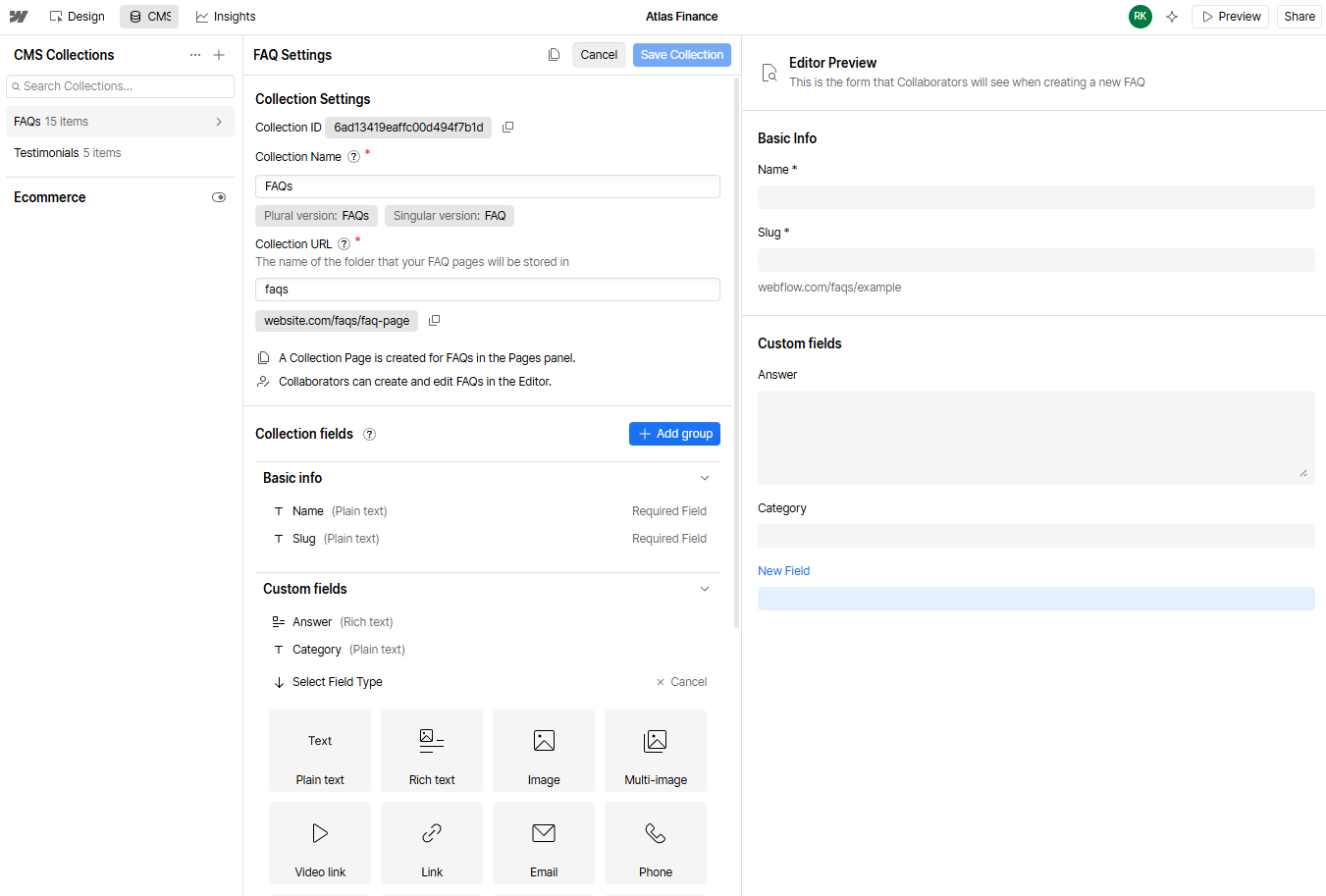
Webflow’s $25/month Premium plan includes up to 40 CMS collections (which are unique content categories like blog posts, projects, or case studies) and 20,000 CMS items. Framer’s $30/month Pro plan includes 10 collections and 2,500 items. You can buy more CMS capacity with Framer if you need it, but matching what Webflow offers would cost around $190/month.
Apart from those differences, Framer’s user interface makes the CMS experience a bit cleaner to navigate—perhaps because there are fewer fields to sort through.
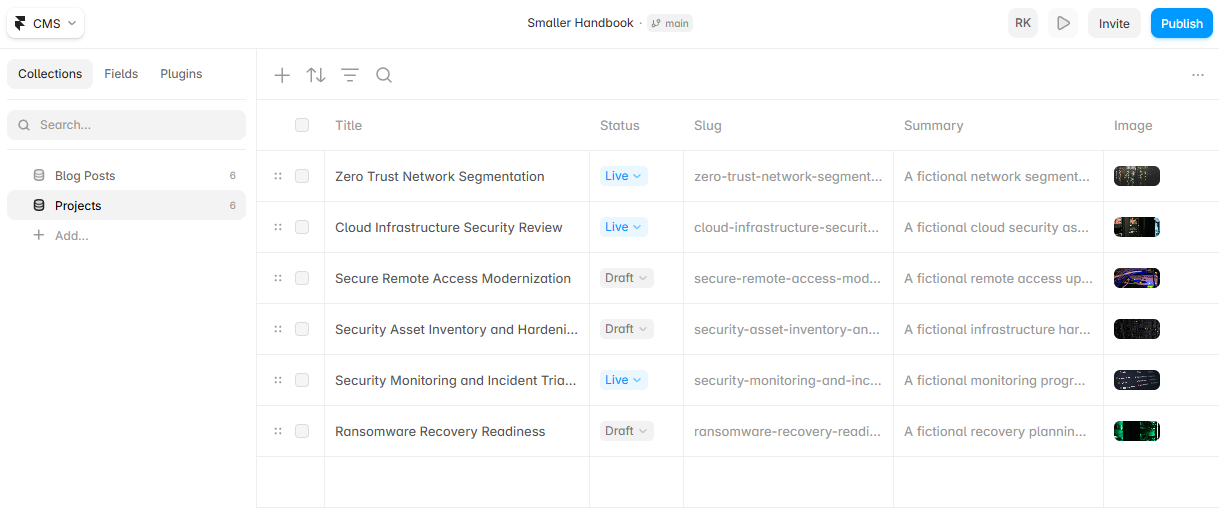
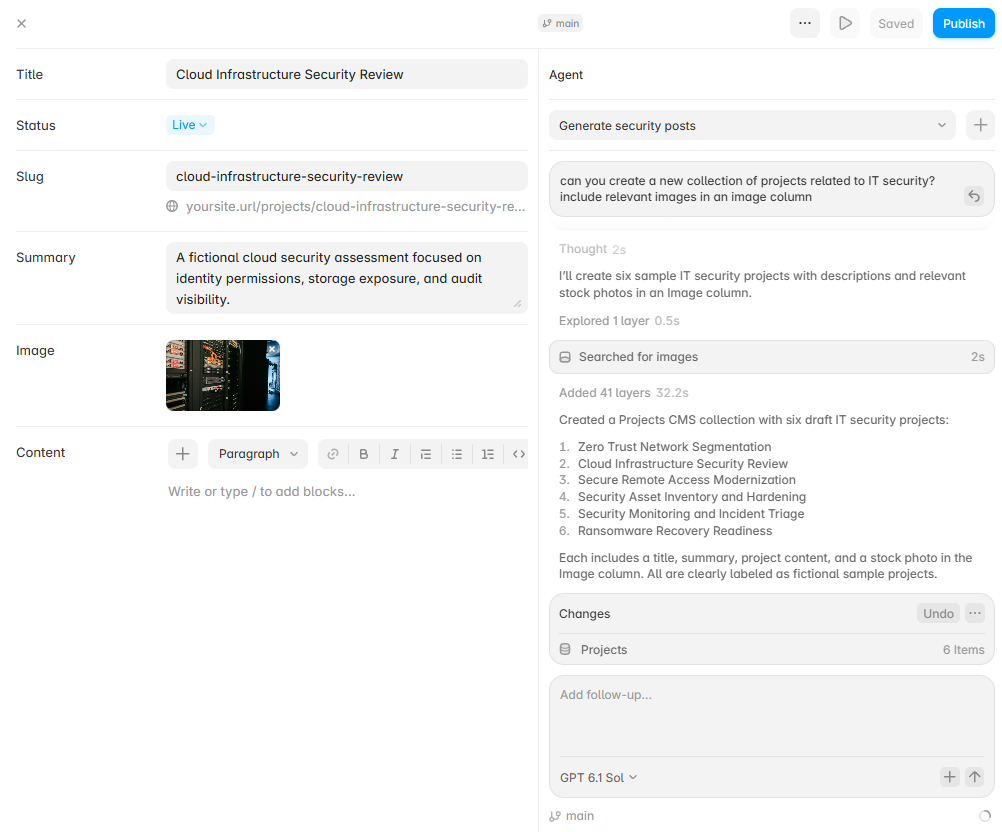
Ease of navigation isn’t quite as important as it used to be, however, since you’re more likely to set up your CMS in an agent chat window these days rather than clicking around manually. Framer’s Agent and Webflow’s AI Assistant let you quickly spin up new collections and items by chatting. Here’s what that looks like with Framer, which will even source relevant stock photos for you for each CMS item.
Both Framer and Webflow make it simple to scale your web presence internationally via localization tools. What’s most impressive about this feature is that translating your content (which happens quickly via AI) is only the start. Images, calls to action, and menu items can also be localized—and you can route users automatically based on their location. For example, a user in Paris might see a website in French with images of the Champs-Elysées and a prominently-displayed Parisian office address; meanwhile, a New York audience would see an American-ified version of that content.
Something else to keep in mind, especially as your website grows, is how locked in you are to the platform you’ve selected. With Webflow, you can export your website’s code and self-host it elsewhere; with Framer, you can’t. While this won’t be a priority for most users—since it’s much easier to simply host on the platform—it’s good to keep in mind from a redundancy standpoint. (For example, what options do you have if either app shuts down or dramatically increases its pricing?)
Framer is slightly cheaper
Framer is more affordable than Webflow. If you just need a simple website, you’ll pay $10/month (billed annually) for the entry-level Basic plan, which gives you up to 30 pages and 1,000 CMS items (which means that unlike Webflow’s entry-level plan, it supports blogs). For more capabilities, you can upgrade to Framer’s $30/month (billed annually) Pro plan, which includes 150 pages, 2,500 CMS items, site redirects, a staging environment, and user permissions.
Webflow’s entry-level Basic plan starts at $15/month (billed annually) and supports 300 pages, but doesn’t offer CMS access. The $25/month (billed annually) Premium plan unlocks CMS functionality, including a generous 20,000 CMS items. Webflow offers a separate pricing scheme for eCommerce sites, ranging from $29/month to $212/month (billed annually) depending on the size of the site.
With both Framer and Webflow, adding extra collaborators can get pricey. Expect some sticker shock if you’re migrating from a platform like Squarespace or Wix, which offer a handful of free collaborators, or WordPress, which has no limit on the number of site editors you can add for free. Webflow charges $15/month for extra content editors and $39/month for additional admins, while Framer charges $10/month per extra content editor and $20/month for admins. (Note that all of these rates assume annual billing.)
One pricing quirk to keep in mind is 301 redirects, which are unlimited on Webflow paid plans but aren’t available on Framer unless you upgrade to the $30/month Pro plan. This shouldn’t affect you if you just need a simple landing page, but if you’re migrating from another platform or managing a site with lots of content, you’ll definitely need to upgrade.
Both apps have similarly generous free plans that let you test out most features, but you’ll need to upgrade to a paid plan to remove branding and to publish to a custom domain.
Webflow has more integrations, including with Zapier
Through the Framer Marketplace, you can access hundreds of plugins for apps like Notion and HubSpot. You’ll also find other handy apps like Human Reply, which lets you answer website chats from your smartphone.
Webflow’s ecosystem is more expansive, with 300+ apps in the Webflow Marketplace, including tools like LiveChat, Outseta, and Typeform. Webflow also offers an MCP server, so AI tools like Claude and Cursor can edit and manage your site directly.
And using Zapier, you can connect Webflow to thousands of other apps. Zapier acts as an AI orchestration layer that turns Webflow into the front door for intelligent workflows. For example, when someone submits a form on your Webflow site, Zapier can use AI to summarize the response, qualify the lead, add them to your CRM, notify your team in Slack, and even trigger a personalized email sequence—automating the entire journey from website visit to customer follow-up.
Learn more about how to automate Webflow.
Build automations from wherever you work. Describe the outcome you want, and Zapier connects your tools, runs the steps, and stays on the job after you close the chat. Combine AI with reliable, deterministic automation across 9,000+ apps. Get started for free.
I’ve focused on the differences between these two apps, but they overlap a lot, and both are strong choices. If you’re still not sure which is right for you, here’s how I’d decide.
Choose Framer if you’re looking for an easy-to-use platform with stunning design outputs. With Framer’s impressive components, effects, templates, and AI agents, you can create designs that are almost indistinguishable from high-end tech and SaaS websites. It’s also cheaper for small sites.
Choose Webflow if you need more design control or if you’re building a larger, content-heavy site. You get pixel-perfect design control, more CMS capacity, and a reliably excellent AI site builder and AI assistant. If you want a highly custom eCommerce design, Webflow is also a solid Shopify alternative, and you can export your website code and self-host if you want to.
Related reading:
This article was originally published in September 2024. The most recent update was in October 2026.