For the longest time, I relied on a photo to take my documents from paper to the digital world. But now that I’ve discovered the power of OCR scanning software, I have no intention of going back to the Paper Ages.
I most often use scanning apps for business-related documents and forms of ID, but as you’ll see below, you can use these apps for almost any kind of document: books, receipts, certificates, or even a page of your own handwriting.
I’ve been updating this article for a few years, and after testing dozens of mobile scanning and OCR tools again this year, I’ve handpicked nine that will change the way you manage your documents.
The best mobile scanning and OCR software
-
Adobe Scan for the best free OCR software
-
Apple Notes for iPhone users
-
CamScanner for feature variety
-
Genius Scan for quick auto-scanning
-
iScanner for OCR plus unique features
-
Tiny Scanner for accuracy
-
Pen to Print for handwriting OCR
-
ABBYY FineReader for searchable PDFs
-
Google Lens for all the Google bells and whistles
What makes the best OCR cell phone app?
If you don’t own a scanner, you can still digitize documents quickly with a mobile scanning app—all of the apps on this list will do the trick. But if you need to turn your pages into a file you can edit, you’ll want optical character recognition (OCR) as part of your mobile scan app. That’s what will turn your mobile scans into editable digital documents.
With that in mind, the best OCR software with mobile scanning should excel in a few key areas. Not every app on this list meets all of these criteria, but if you’re going to scan with your phone, these are the features you’ll want to look for—and it’s what I was looking for as I tested.
-
Auto-scanning. Every app on this list includes some kind of scanning feature, but I paid attention to which apps made the process as painless as possible. This included testing how well each app focused on the document, how accurately the sensor detected borders, and how long it took to capture a scan.
-
Accuracy. An OCR app needs to be accurate—no one wants to spend ages editing gibberish text, so I paid attention to how accurately each app produced digitized text from my scans.
-
File management. A phone scan app doesn’t need to have lots of bells and whistles, but I did take into account how effective each app was at organizing, saving, sharing, printing, and exporting digitized files.
-
Customization. Scanning and digitizing a document may just be the beginning for you. If your goal is to add more text, a signature, or watermarks, or to password-protect your documents, having customization options is also important.
-
Scanning modes. You’re likely going to be scanning a variety of documents—from IDs and passports to books and receipts. Having different scanning mode options can help with this kind of variety.
-
Export options. Most of these apps will at least let you export your scans as JPGs (for free) or PDFs (for a fee), but some go the extra mile of converting scans to Word docs or syncing with other popular platforms, such as Google Drive.
-
Bonus: AI features. Some apps are starting to incorporate capabilities like text translation, math problem-solving, or even counting to spice up the user experience.
One other thing: I didn’t want bloated apps—if you just want to scan, you don’t need a CRM to do it. Having said that, it’s worth taking a look through your existing tech stack to see if any of your current apps already have this technology (many do).
I looked through the top-rated apps to come up with a giant list of tools to consider. After narrowing it down based on the criteria above, I did in-depth testing on all the top contenders.
How I tested the mobile OCR apps
How we evaluate and test apps
Our best apps roundups are written by humans who’ve spent much of their careers using, testing, and writing about software. Unless explicitly stated, we spend dozens of hours researching and testing apps, using each app as it’s intended to be used and evaluating it against the criteria we set for the category. We’re never paid for placement in our articles from any app or for links to any site—we value the trust readers put in us to offer authentic evaluations of the categories and apps we review. For more details on our process, read the full rundown of how we select apps to feature on the Zapier blog.
To test the performance of each app, I used three very different documents:
-
A certificate with various fonts
-
A busy receipt with varying degrees of visible text
-
A wordy magazine with thick paragraphs
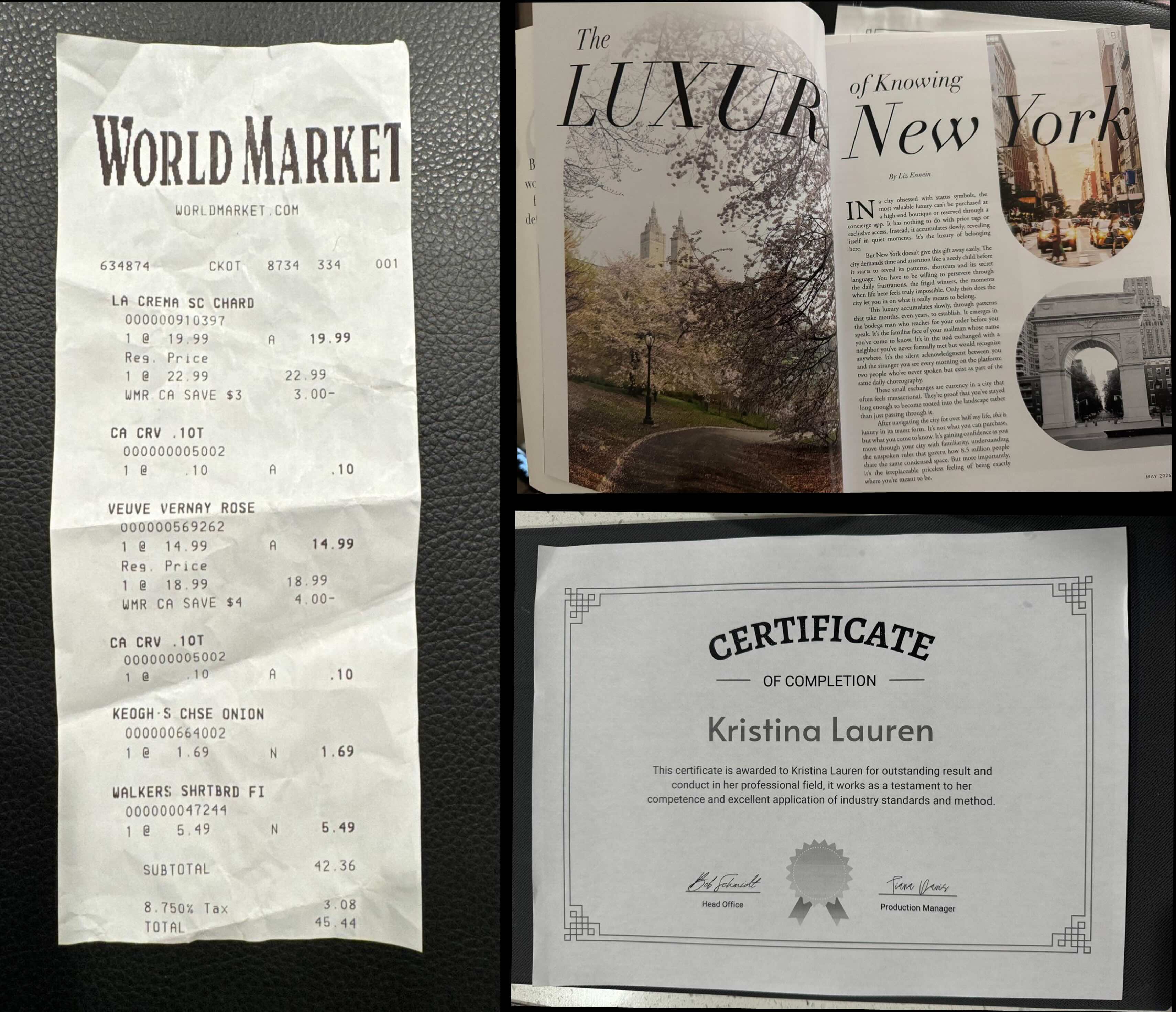
Note that I didn’t pick documents that would be easy. With any scanning app, you’ll get the best results when working with flat, single-sided, standard size pages of crisp black text in a single typeface (sans serif, ideally) arranged in paragraphs on white paper. Fading, folding, tearing, book bindings, variations in ink saturation, and other factors can trip up OCR. Life, however, rarely gives us pristine documents.
With one exception, the apps on this list all work on iOS or Android, but I tested each app on an iPhone 15 Pro running on iOS 18.6.2. I used each app in the same natural light conditions against the same background, a black placemat. When available, I used any auto-scanning features in the app that were relevant to that particular text. For example, CamScanner has a special mode for scanning book pages, so I used that on the textbook, while other apps don’t come with these settings and force you to do cold-turkey scans.
I went into this experiment thinking I might see subtle differences in terms of how well each app processed color or how many errors I could count among the OCR texts. And I assumed I’d end up with at least a dozen apps that I could easily recommend. That wasn’t the case. When the wheat separated from the chaff, there wasn’t a lot of wheat left.
While narrowing down the list, some apps didn’t meet basic requirements, and others performed poorly. One app failed to scan and properly crop the standard receipt (the easy test, which most other apps passed with flying colors). Another was able to scan perfectly only to produce indiscernible, gibberish text.
In the end, only a handful of apps successfully emerged as respectable, dependable options. Here are the nine best mobile apps for scanning and OCR.
The best mobile scanning apps at a glance
|
Best for |
Stand-out feature |
Pricing |
|
|---|---|---|---|
|
A free option |
Document digitization |
Free plan available; $9.99/month or $49.99-$69.99/year for premium features |
|
|
iPhone users |
Built into your device |
Free |
|
|
Feature variety |
Detailed scans with multiple export options |
$9.99/month, $59.99/year |
|
|
Quick auto-scanning |
Simple and straightforward scanning process |
Free; $4.99/month or $39.99/yr |
|
|
Extra features |
Matching blur and AI polish |
$9.99/month or $19.99/year |
|
|
Accuracy |
Highly accurate OCR scanning |
Free plan available; premium plans at $4.99/month or $49.99/year |
|
|
Handwriting OCR |
Accurate recognition of messy handwritten text |
$4.99/month, $24.99/year, or $74.99 one-time |
|
|
Google bells and whistles |
Built-in web search and translation features |
Free |
|
|
Searchable PDFs |
Live text scanning |
$5.99/month; $20.99/yr |
Best free OCR software
Adobe Scan
Adobe Scan pros:
-
It automatically detects phone numbers and URLs
-
Integrates with the Adobe ecosystem
-
Document digitization
Adobe Scan cons:
-
Some accuracy hiccups
Adobe Scan offers several modes for scanning, including books, documents, business cards, ID cards, and even whiteboards. I started by scanning the receipt and was pleasantly surprised to discover that the app not only can detect phone numbers and URLs but also makes the number or URL clickable. This should be useful, especially if you’re on the go and don’t have time to jot down a number or website—you can just take a pic and easily access that information later. You can also set passwords on your documents, extract pages, compress PDFs, and save files as Word docs.
As far as digitizing, it had some hiccups with accuracy, but not too shabby overall. The prices on the receipt—which other apps had pulled just fine—were incorrect here. On the other hand, the certificate fared a lot better, with Adobe catching most of the text except for the “Certificate” title at the top. What’s interesting is that the magazine wound up being the most accurate: there were a handful of errors with some of the words, but for the most part, the text was correct enough to decipher.
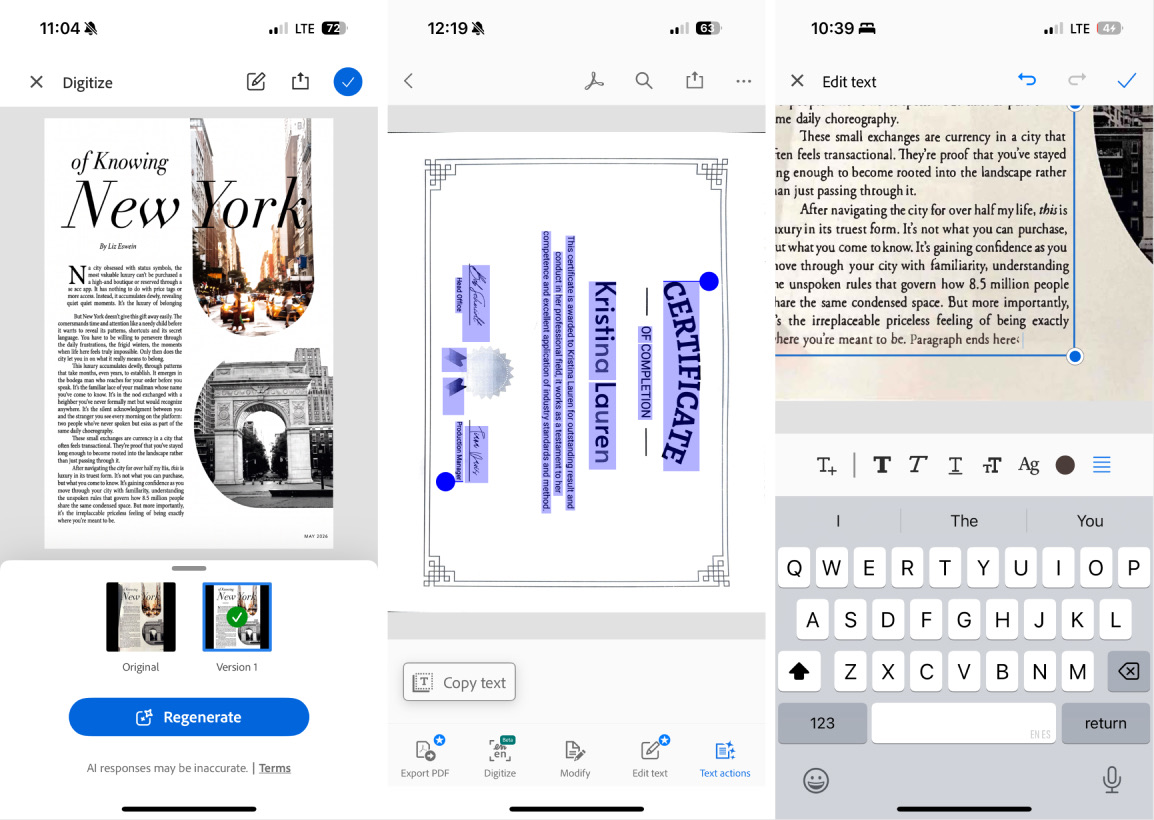
The app also has a Digitize feature, specifically for handwritten notes or whiteboard text. It not only retains the formatting, but it makes the text editable and searchable. I found it accurate for both handwritten notes and existing paper scans. It basically gives the scans a completely digital look. But even without digitizing the entire document, you can still edit or add to the text in a scan to match the original text style.
Overall, Adobe Scan is a solid option for anyone looking for a free OCR app. It comes with basic file management and editing capabilities, which makes it edge out Microsoft Lens for a free option. And for those looking for a few more features, like the ability to export to Word, compress and combine PDFs, protect PDFs with a password, or digitize up to 100 pages, there’s a premium plan available.
Adobe Scan price: Free; $9.99/month or $49.99-$69.99/year for premium features.
Best free OCR scanner app for iPhone users
Apple Notes
Apple Notes pros:
-
Very accurate
-
Comes free and installed with your iPhone
-
There’s an option to scan text alone
Apple Notes cons:
-
Scanning and digitizing a large section of text is difficult
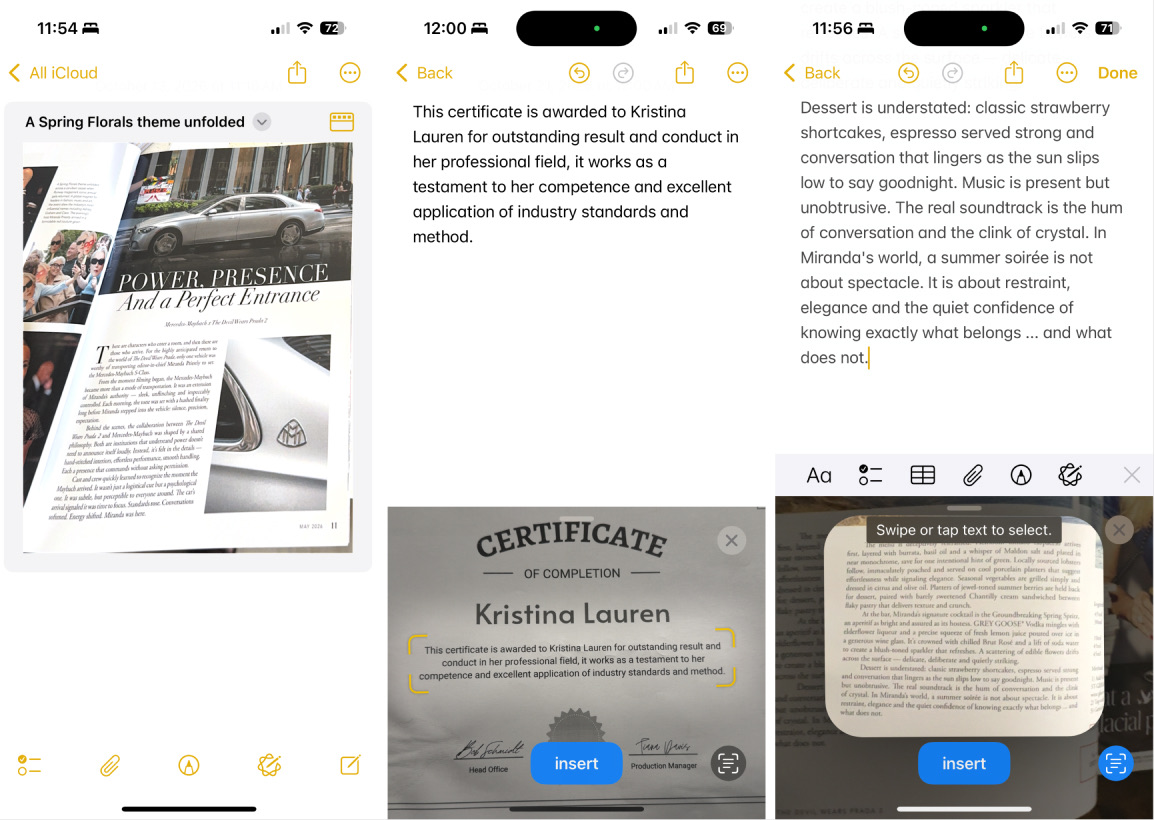
Apple Notes is intended to be a note-taking app, but Apple has added OCR features that are good enough to get it a place on this list.
To scan and digitize text, click on the paper clip icon, and you’ll see options to Scan Documents and Scan Text. The first option just scans the document and places it in a note, while the Scan Text option allows you to select a section of text and insert the text directly into a note.
Just be aware that scanning a document doesn’t allow you to extract words (that’s what the Scan Text feature is for). Scanning saves the document to the note, but you can also save the document to your Files, print it, or share it. It struggled a bit to scan a page from the magazine, but it does quite well with a lone page or a receipt.
I found the OCR to be accurate, but I’d argue it’s best used for digitizing smaller chunks of text. For example, when I tried to scan any of the documents, it had some trouble finding and fitting all the text on the page within the scanning borders so I had to approach scanning each document one section of text at a time. But I really appreciate how accurate the digitized text was. Editing was very minimal—only a few punctuation marks here and there.
Since this app is completely free to use for iPhone users and incredibly convenient for people who use the Notes app religiously (like me), I think it’s a good one to consider if you ever need some quick OCR.
Apple Notes price: Free
Did you know you can simply take a picture of some text, go to the Photos app, and copy that text straight from the photo? If you have no need for a scan and just want the text, this is a great, very accurate option for native OCR on the iPhone.
Best OCR scanner app for a variety of features
CamScanner
CamScanner pros:
-
You can edit the text directly within documents
-
Multiple formatting options for digitized documents
-
Various export options, including Word, Excel, PowerPoint, or image
-
Additional AI-based features, like solving math and translating text
CamScanner cons:
-
OCR may miss spaces or punctuation
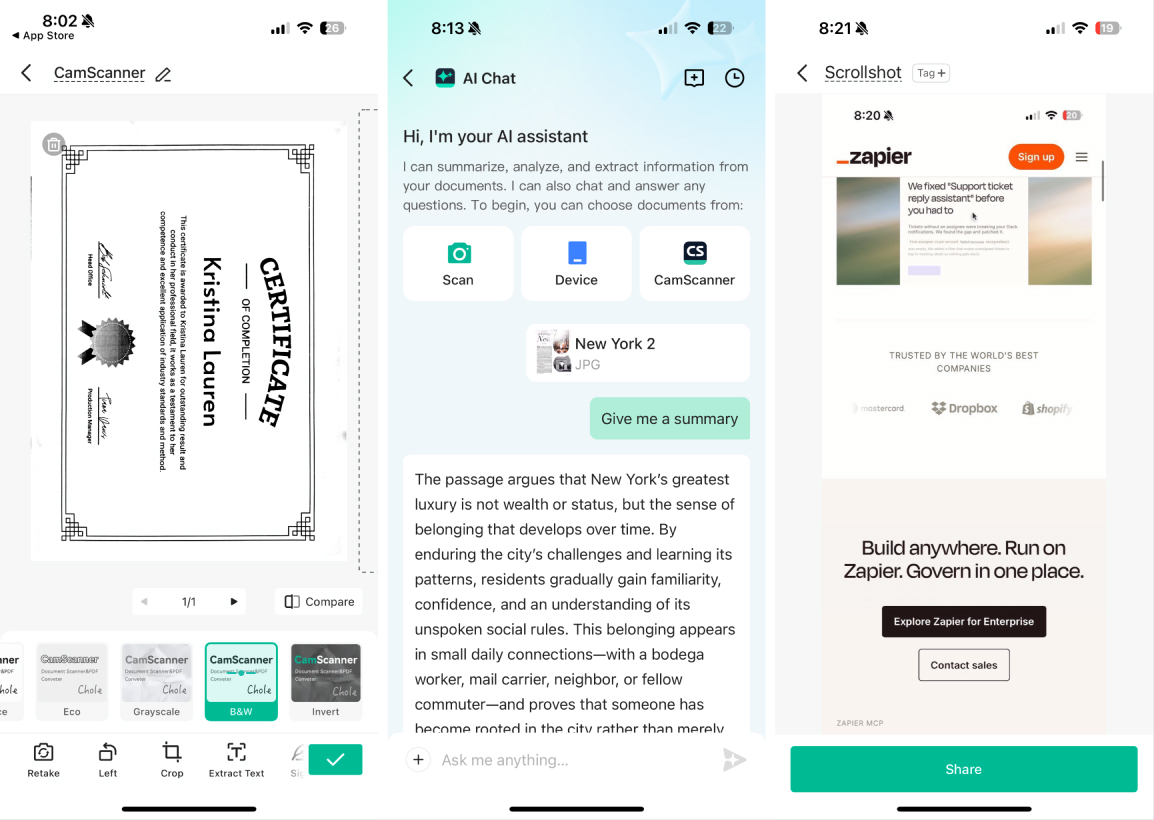
As I went through the testing process, CamScanner was the first breath of fresh air. I didn’t once have to adjust the borders on any of my documents, and the level of detail was on another level. It recognized almost all the text on the certificate, including that tricky “Certificate” title that had been tripping up all the other apps. It also broke up each portion of text as separate lines, which was a nice touch.
Another pleasant surprise was how CamScanner performed with the magazine. When I exported a page as a Word document, it looked like an actual picture instead of just a digitized scan. The text was organized almost exactly as it was in the magazine, including the positioning of the paragraphs—and it was all completely highlightable.
One feature I especially liked was Scrollshot, which lets you capture webpages and other content that extends beyond your screen. After enabling it through my phone’s Control Center, I tested it on Zapier’s homepage, and the capture came out well. Just make sure to wait a couple of seconds before scrolling, or you might accidentally cut off the top of the page.
When customizing documents, you can draw, scan, or import a signature, add watermarks, erase unwanted text or marks, and merge, compress, extract, or rearrange PDF pages. You can add watermarks and set a passcode to protect documents, though, and the naming suggestions when saving and managing files was a nice touch. Another decent feature is the ability to edit digitized text. However, the words I changed became bolded and distorted, and some of the original text got a little cut off.
Beyond this, CamScanner still has a ton of other customization and scanning features. You can add signatures and watermarks, erase unwanted text or marks, merge and compress PDFs, and extract or rearrange pages. It also lets you import files in formats like PDF, Word, Excel, PowerPoint, and Markdown. Plus, you can convert PDFs into Word, Excel, PowerPoint, and image files. For exporting, documents are shared as PDFs, Word files, images, extracted text, or links.
Its AI features are another highlight. Solver AI can do math problems and translate written text, both of which are impressive, even with my decidedly messy handwriting. You can also use AI to summarize, analyze, and extract information from scanned documents or files you’ve imported into the app.
CamScanner price: $9.99/month, $59.99/year
Best OCR app for quick auto-scanning
Genius Scan
Genius Scan pros:
-
Quick and accurate auto-scans
-
Consistent accuracy
-
Clean-up features
-
Text search
Genius Scan cons:
-
No signing features within the app
-
Some filters don’t improve scan quality
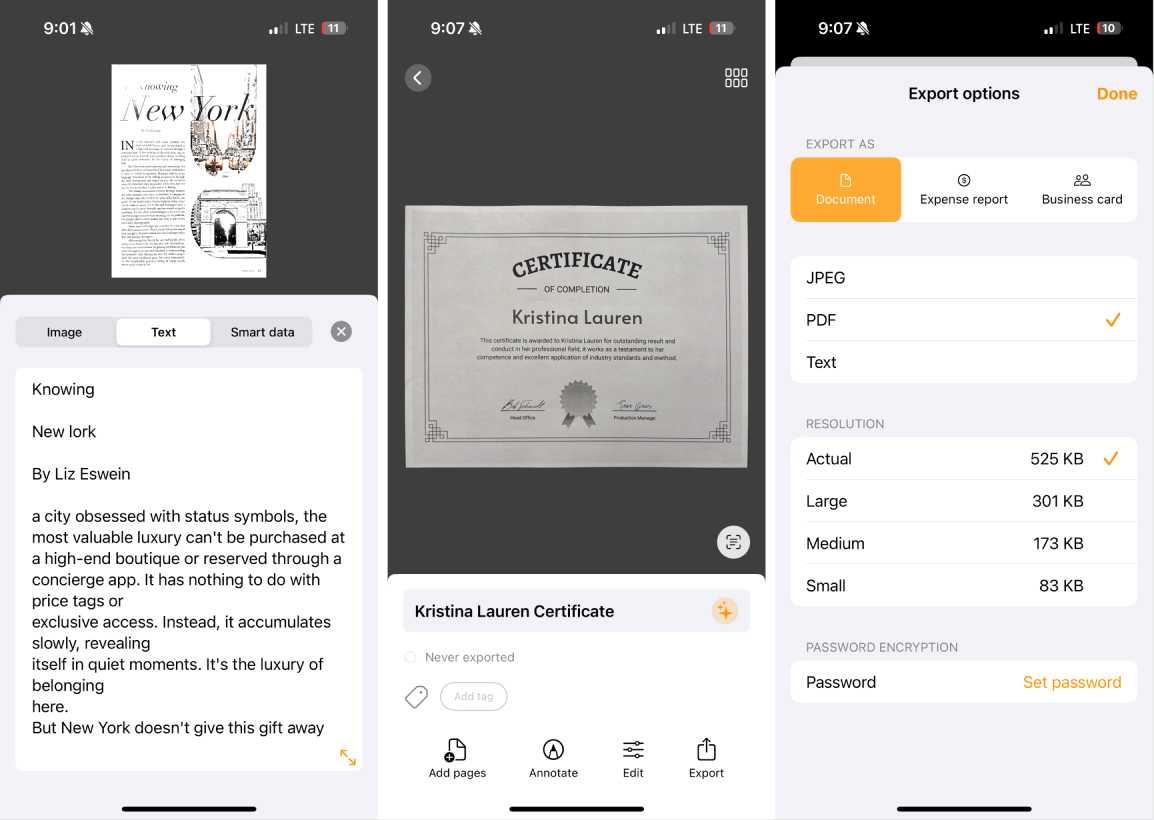
I was most impressed with how Genius Scan managed to be the only app to quickly and accurately auto-scan full pages of the magazine, unlike most apps I tested that would only grab sections of text or require me to manually adjust the borders. Auto-scanning the receipt and the certificate was also a breeze. I had accidentally gotten a drop of water on the certificate, but the app automatically removed the blemish, along with the wrinkles in the paper.
The OCR accuracy across all three documents was also pretty decent. It pulls the text up in a separate window where you can copy it. Formatting isn’t perfect, but it gets the job done. You can type not-so-easy-to-read text into the app’s search bar and find not only the doc you’re looking for but also the exact place the text is in the doc.
Genius Scan also offers curvature correction, which is designed to straighten curved or warped text in scanned documents. I found the improvements fairly minor, and it even attempted to straighten lettering that was intentionally curved on my certificate. There are also several filters to choose from.
One slight downside is the lack of an in-app signing feature. You have to export to Genius Sign if you need to add a signature, which feels a bit clunky, especially when other apps make this process easier. But if you don’t plan on using this app for a ton of signing, this isn’t too much of a hassle. Plus, the biggest upside to using this app is that you get some of the best features for free, including unlimited scans and PDF exports. For $4.99/month or $39.99/year, the paid plan is also a decent deal for unlimited scans and above-average digitizing accuracy.
Genius Scan price: For OCR features: $4.99/month or $39.99/year
Best OCR app for extra features
iScanner
iScanner pros:
-
Intuitive interface with helpful tutorials
-
An abundance of extra AI features, such as the ability to do math, create study plans, or summarize
iScanner cons:
-
Formatting can be a little awkward for digitized text
-
Scanning results may come out a little crooked or wonky
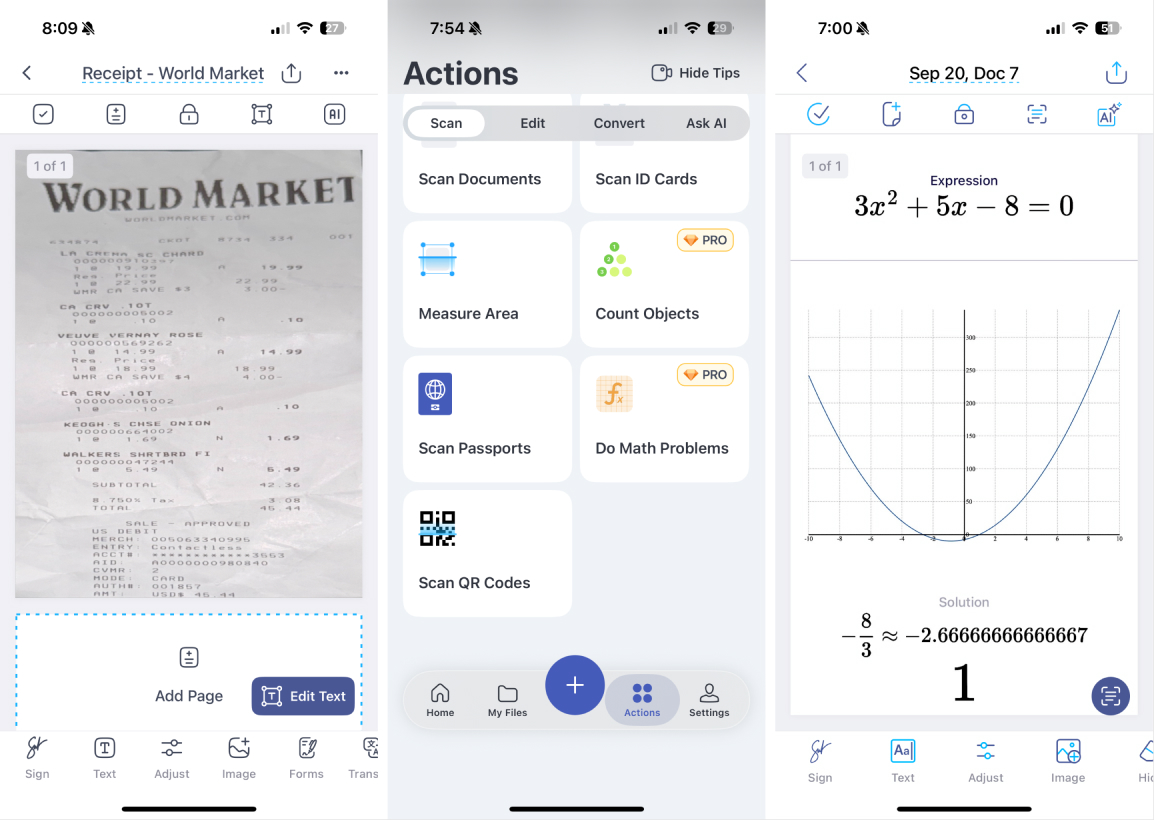
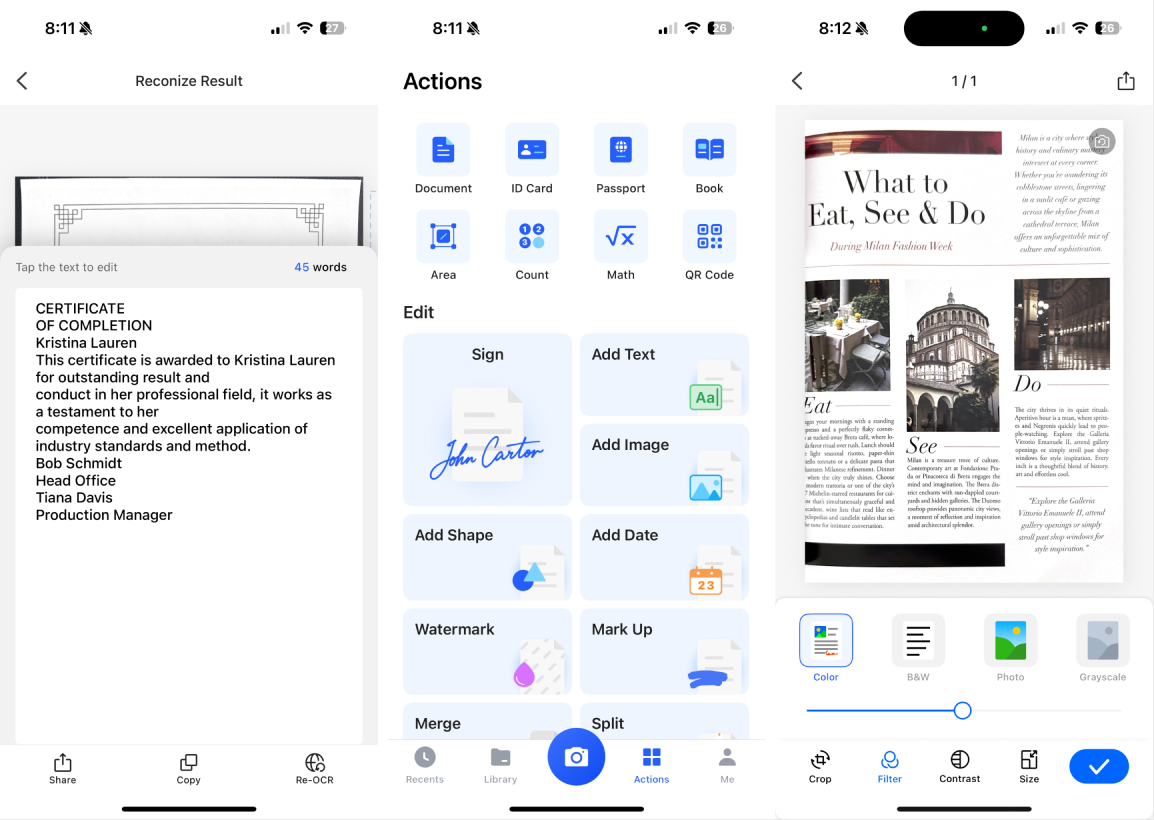
iScanner had my favorite interface out of all of the OCR apps. It offers a lot of features, which could have been overwhelming, but it does a great job of organizing everything. Whether you’re looking to scan an ID card, sign a document, or recognize text, the app makes the features readily apparent by splitting actions into the following categories: Scan, Edit, and Share. And if you’re feeling lost or curious, just click on the circular icons at the top of the screen, and you’ll find video tutorials for most of the features.
As far as my standard testing documents, iScanner performed decently. It struggled to cleanly capture the borders of the documents, and the scan for receipt in particular ended up looking a bit smushed, but all the information was included, and the text recognition was accurate.
But similar to CamScanner, what makes this app stand out is that it can complete other AI actions with the information it detects. For example, I handwrote a fun quadratic equation—3x2+5x−8=0—and the app solved it in seconds. If you really want to see what the app is capable of, throw some more advanced algebra at it, and you should get similar results.
It can also count. I scribbled nine dots on a piece of paper. After analyzing and identifying the shape of each dot, the app was able to count all nine. If you need to quickly count or confirm an amount, this app will be a lifesaver.
The app also offers some useful AI-generated features. When I scanned my certificate, for example, it suggested tasks like extracting the recipient’s name, identifying the issuing authority, and analyzing the completion criteria. You can also type or dictate your own requests, ask questions about documents, and use AI to generate written content.
Another feature I particularly liked was AI Magic, which can automatically polish scans to make them flatter, clearer, and more readable. You can also use individual tools to straighten documents, remove fingers from scans, and reduce blur. And if you need to hide information, the blur tool does a great job of matching the document’s background color, making the covered text look almost as though it was never there.
Overall, iScanner is definitely one of the strongest choices on this list.
iScanner price: $9.99/month or $19.99/year
Best mobile scanning app for accuracy
Tiny Scanner
TinyScanner pros:
-
Great OCR accuracy
-
You can add watermarks to scans
-
Share scans directly to Google Drive, OneDrive, Box, Evernote, and Dropbox
-
Advanced AI capabilities
TinyScanner cons:
-
You can only access OCR with a paid plan
I can confidently say that Tiny Scanner was the most accurate of any on the list. CamScanner was a close second, but it struggled a bit with misspellings and omitted words, while Tiny Scanner was correct to the T.
The scanning experience was equally impressive. Tiny Scanner was quick to detect document borders and captured my pages accurately without requiring manual adjustments. It struggled a little with glare on the glossy magazine page, but that was an issue I had with several other apps, too.
Beyond scanning, Tiny Scanner offers a surprisingly extensive collection of editing and customization tools. You can apply filters, adjust contrast, add watermarks, insert shapes and images, annotate documents, and draw or scan signatures. It also lets you password-protect PDFs, change page sizes, add page numbers and footers, and split or merge scans.
Tiny Scanner can also count objects in an image and solve math equations, similar to CamScanner and iScanner. And when you’re ready to export, you can convert scans into Word, Excel, text, image, or PDF files, share them through a link, or send them by fax.
If you use OCR often and you’re looking for an app that’s going to provide consistent accuracy, the $4.99/month price tag is worth it.
Tiny Scanner price: Free plan available; premium plans are $4.99/month or $49.99/year
SwiftScan is another scanning app that packs some useful AI features, including summarizing docs and in-depth reports. I especially appreciate the redacted text customizations and the ability to translate text. You can also auto-upload your scans to a ton of other platforms, including Google Drive, Box, and Dropbox. It’s a little pricier than Tiny Scanner at $5.99/month, but it’s an option worth exploring.
Best handwriting OCR app
Pen to Print
Pen to Print pros:
-
Ability to scan and digitize handwritten text
-
Accurate even with slightly messy handwriting
Pen to Print cons:
-
No folder creation
Even in the age of all-things-digital, handwriting will never fully go out of style. For those of us who enjoy the feel of putting pen to paper but also occasionally need to put those writings onto a screen, Pen to Print is a great solution for OCR handwriting recognition. Of course, nowadays, apps like ChatGPT can digitize written text for free, so it may not be worth it to subscribe, but it’s still a good option if you want a central location for your handwritten scans.
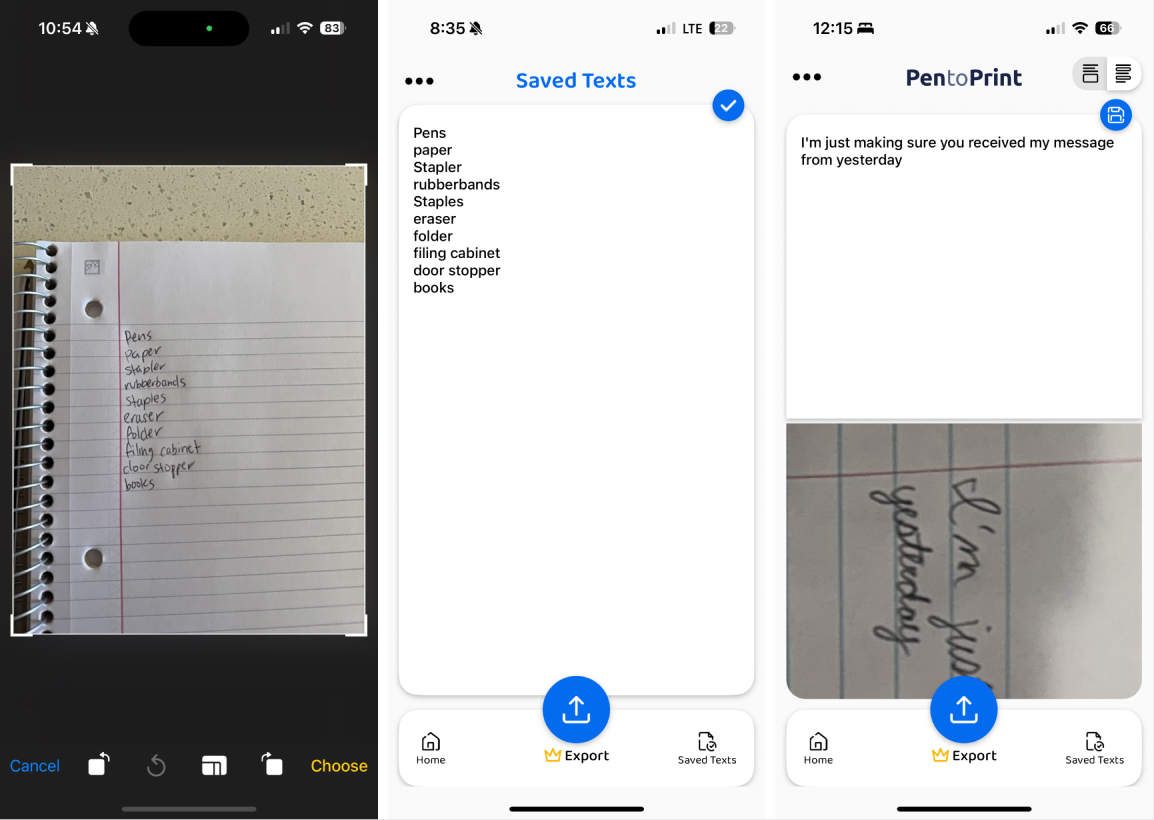
I had to go off-book to test this one, so I created a list of office supplies. I began with my normal handwriting: the app had some difficulty detecting my list at first, but almost all of the items came out correct once it was digitized. In the second round, I decided to instead write a sentence in my less-than-perfect cursive. And the result was even more impressive: it got everything right.
You can save your digitized texts to the app, but if you want to export to other platforms—or copy, paste, and edit the text—you’ll need to subscribe to the premium plan. The payment options are more than reasonable, though, starting at $4.99/month.
Pen to Print price: For OCR features: $4.99/month, $24.99/yr, or $74.99 one-time
Best OCR app for Google bells and whistles
Google Lens
Google Lens pros:
-
Built-in web search access using a scanned photo or digitized text
-
Built-in access to Google Translate
-
Text-to-speech feature
Google Lens cons:
-
No way to store digitized files or text
Google Lens is essentially a feature within the Google Photos app. Just choose a photo from your Google Photos library, and click the lens icon at the bottom of the screen. You’ll see some white dots flash across the screen as Google Lens analyzes the image, and within a few seconds, it will highlight all your text. Or you could scan something with Google Lens and then copy it to Google Docs—Google’s video of this process is pretty snazzy. (Side note: you can also turn images into text with Google Drive and Google Docs.)
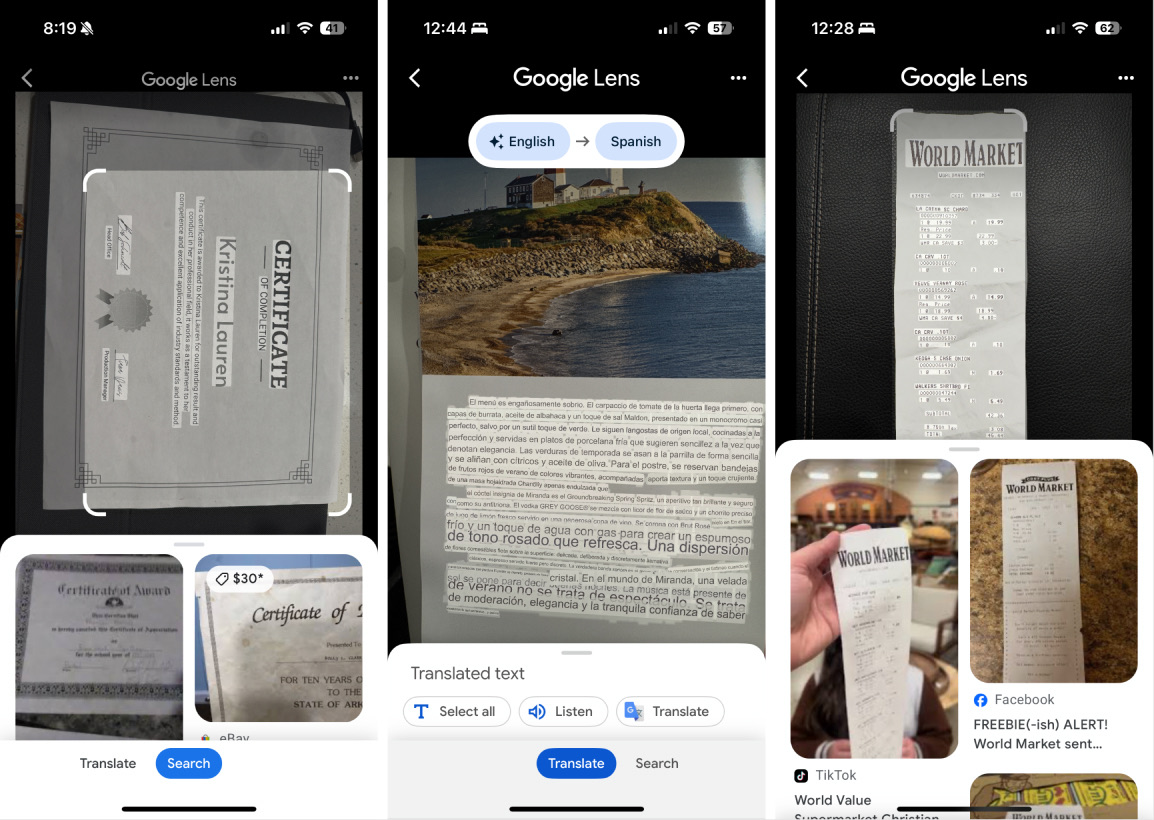
From there, there are a wealth of options available, thanks to Google being Google. For example, when I clicked translate, the app immediately identified that my text was English and prompted me to open Google Translate. I chose to translate the text on one of my magazine pages to Spanish and was pleasantly surprised to see the English had been swapped with Spanish. Now, the formatting was all over the place, but the translation was pretty instant and the text can be copied and pasted. And with the text-to-speech feature, I had a paragraph from my book read aloud to me with surprisingly strong accuracy. I even took that travel list with the messy handwriting that I used to test Pen to Print, and Google Lens had no issues identifying the words.
But Google Lens’s abilities go even further: it offers “visual matches,” which means that it can analyze an image or document and find similar results across the web (like Google image search). When I tested it with the certificate and travel list, results upon results of certificates and travel lists popped up. Thanks, Google!
While Google Lens doesn’t technically have a scanning component (i.e., it doesn’t store your scans), you’ll find that it’s not actually necessary if your goal is to extract text. You can simply take a picture of your document, let Google Lens do its thing, copy the text, and paste it elsewhere. It may not work for storing digitized versions of documents, especially for professional purposes, but it’s a very convenient option to have on hand.
Google Lens price: Free
Text Fairy is a solid Google Lens alternative for Android for anyone who wants to digitize text in various languages (it has over 110 languages in its database). Like Google Lens, it also has a text-to-speech feature.
Best OCR app for searchable PDFs
ABBYY FineReader
ABBYY FineReader pros:
-
Convenient Live Text feature for quickly copying text
-
Multiple text extraction and conversion formats
-
Text-to-speech feature
ABBYY FineReader cons:
-
Inconsistent OCR accuracy, especially with book text
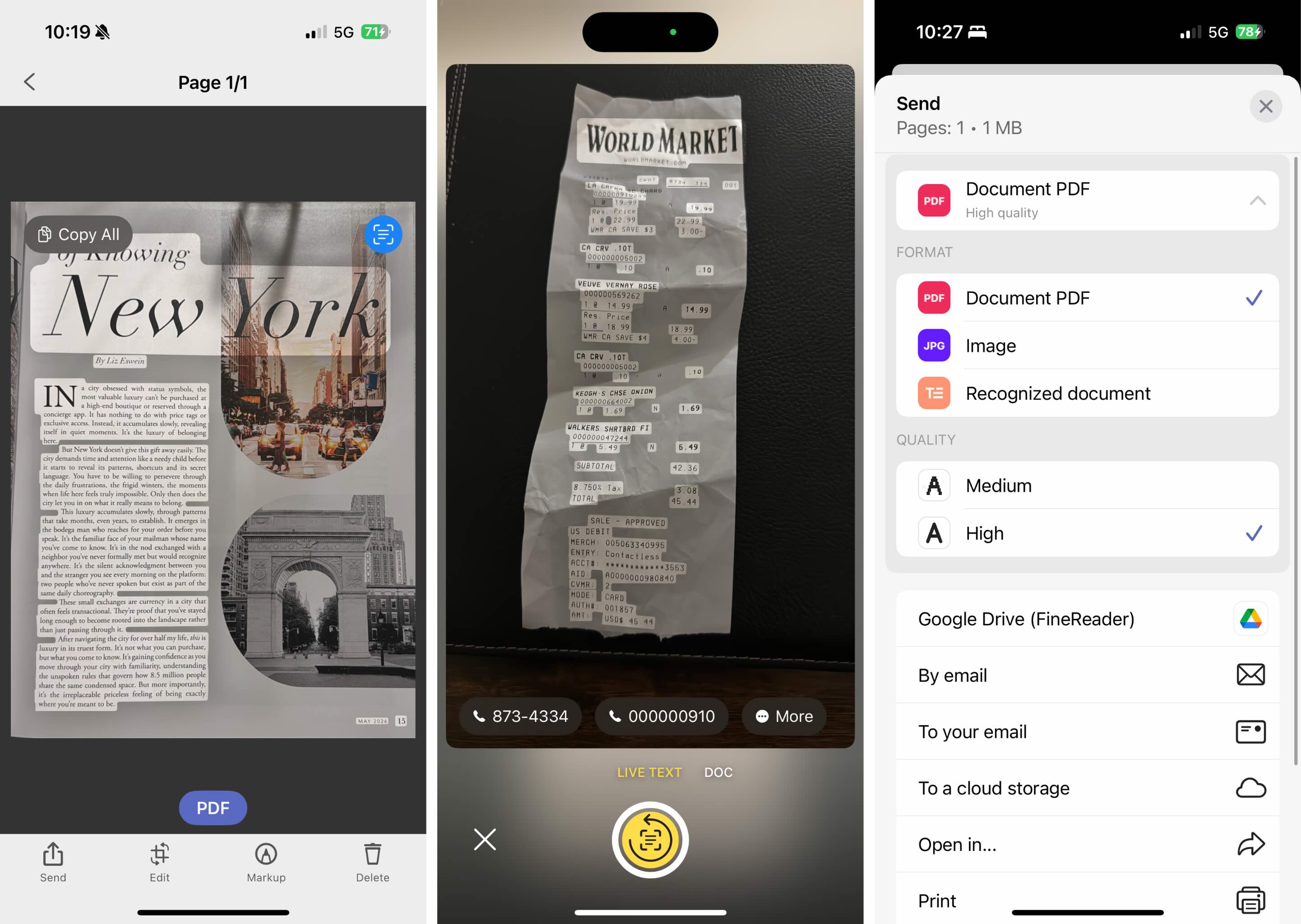
ABBYY FineReader got off to a decent start in my testing. Automatic scanning was generally reliable, although it initially struggled to detect the borders of one of my documents. There’s also a handy Live Text feature that lets you scan and copy text directly without having to save an entire document first, similar to Apple’s Notes app.
When it comes to OCR, ABBYY gives you two options when you initially scan a document: extracting plain text or preserving the document’s formatting. The plain-text option is quicker, while the formatting-preservation option supports several output formats, including Word, Excel, and searchable PDFs. I particularly liked the second, which retained the original appearance of my documents while allowing me to select, copy, and search the text.
The accuracy was a bit of a mixed bag. The receipt was mostly readable, although the app bunched some of the text together. It struggled more with the magazine, missing letters and introducing an entirely new language at the end of the magazine page text.
As for customization, ABBYY covers the basics. You can apply filters, crop and rotate scans, add signatures and text, and use colored patches to cover up information. Exporting is also straightforward, with options to share PDFs and images through email or cloud storage, along with the ability to choose between medium or high export quality.
Overall, ABBYY FineReader has some useful features, specifically its searchable PDF conversion and quick text extraction.
ABBYY FineReader price: $5.99/month; $20.99/yr
How do I scan with my phone?
All the apps here will scan text and—either natively or by copying it elsewhere—let you edit that text however you want. It’s honestly kind of incredible. Even more impressive is that your phone has some of these features built in.
If you have an iPhone or iPad, just take a picture or screenshot with some text, and you’ll see a little button pop up that lets you highlight, copy, and paste it. I used this feature regularly, and I’ve found it to be extremely accurate and adept at capturing even the vaguest text. You may have to do some maneuvering with the formatting—there will be some awkward line breaks if you’re copying paragraphs, for example—but it’s ridiculously convenient.
Related reading:
This article was originally published in September 2018 by Jill Duffy. The most recent update was in October 2026.