Category: Business and Making Money

  • AI adoption: A practical guide from Zapier

    AI adoption: A practical guide from Zapier

    AI adoption is the thoughtful integration of artificial intelligence into your organization’s daily workflows. It helps teams save time on repetitive work, make smarter decisions faster, and scale output without the burnout.

    I have two voices in my head when it comes to new tech. One is the wide-eyed optimist who wants to try every tool and click every AI button. The other wants to delete every app on my phone, move to a cabin in the woods, and write by candlelight.

    There’s no doubt AI is exciting. It’s already helping teams save time, be more creative, and get through the workday with fewer repetitive headaches. But it’s also introducing new challenges: messy rollouts, tool overload, unclear guidelines, and real questions about what work even is now. And using AI just to use it doesn’t guarantee results. According to one survey, 75% of execs admit their AI strategy is “more for show” than real guidance—and not surprisingly, only 29% are seeing significant ROI from AI adoption.

    That’s the paradox. AI is both helpful and hard, useful and overwhelming. So this guide is here to help you walk that line: how to adopt AI in a way that’s thoughtful, strategic, and maybe even fun—without losing your mind (or your team’s trust) along the way.

    Table of contents:

    What is AI adoption?

    AI adoption isn’t just about slapping ChatGPT onto your workflows and calling it a day. It’s the process of thoughtfully integrating artificial intelligence into the way your business runs.

    At its core, AI adoption means making AI part of your organization’s everyday toolkit—just like email, spreadsheets, or your project management app of choice. That means choosing the right tools and orchestrating how they work together. Think: connecting AI across apps, automating decisions at scale, and ensuring teams don’t have to reinvent the wheel every time they try something new. You need to figure out where AI can actually make a difference, test and tweak workflows, and eventually trust it enough to take on real responsibility.

    For example, here’s how a few real Zapier customers are integrating AI into different departmental workflows:

    • Ops teams like Muck Rack’s have built 170+ workflows that run across GTM, product, People Ops, and enablement.

    • Marketing teams can get weekly reporting without the manual pulls. Gourmet Ads uses Zapier to connect Salesforce, Google Analytics, and email into a growth report that publishes to Confluence every week.

    • Support teams can speed up triage. One support engineer at ClickUp built an AI-powered Zendesk triage system that cut ticket research from 15 minutes to 4, saving 917+ hours a month.

    • HR teams can replace the shared inbox. Alma built a help desk on 180+ automations that routes every employee request.

    • Sales teams can respond faster. Vendavo cut lead response time by 90% with AI and automation.

    • Engineering teams can skip the one-off integrations. Mach 1, a four-person team, connects 25 customers’ tools to its AI agents through Zapier instead of building a custom integration for each.

    The best AI adoption stories start with an actual problem, and AI happened to be the best way to get there. 

    Generative AI adoption

    Generative AI adoption refers to the process of integrating tools that create new content—like text, images, summaries, or code—into everyday workflows. Unlike broader AI adoption, which can include automation, data analysis, or decision support, generative AI focuses specifically on systems that create new outputs based on natural language prompts.

    The magic of generative AI adoption is in how low-lift it can be to get started and how quickly it becomes second nature. Start by asking: “What’s a repetitive or annoying thing we do every week that involves writing, summarizing, or brainstorming?”

    From there, you can use Zapier to build generative AI helpers right into your existing processes, adding content creation steps directly into your workflows. You can even build in checks with human-in-the-loop review, so you don’t end up with AI workslop.

    What are the benefits of AI adoption?

    Is it really worth it to rethink your workflows, nudge your team toward new tools, and even trust an AI to write something that goes in front of a customer?

    Short answer: yes.

    Long answer: Here are some of the very real benefits teams—including ours at Zapier—are seeing when they adopt AI in a thoughtful, strategic way. These aren’t pie-in-the-sky possibilities; these are benefits I’ve seen firsthand.
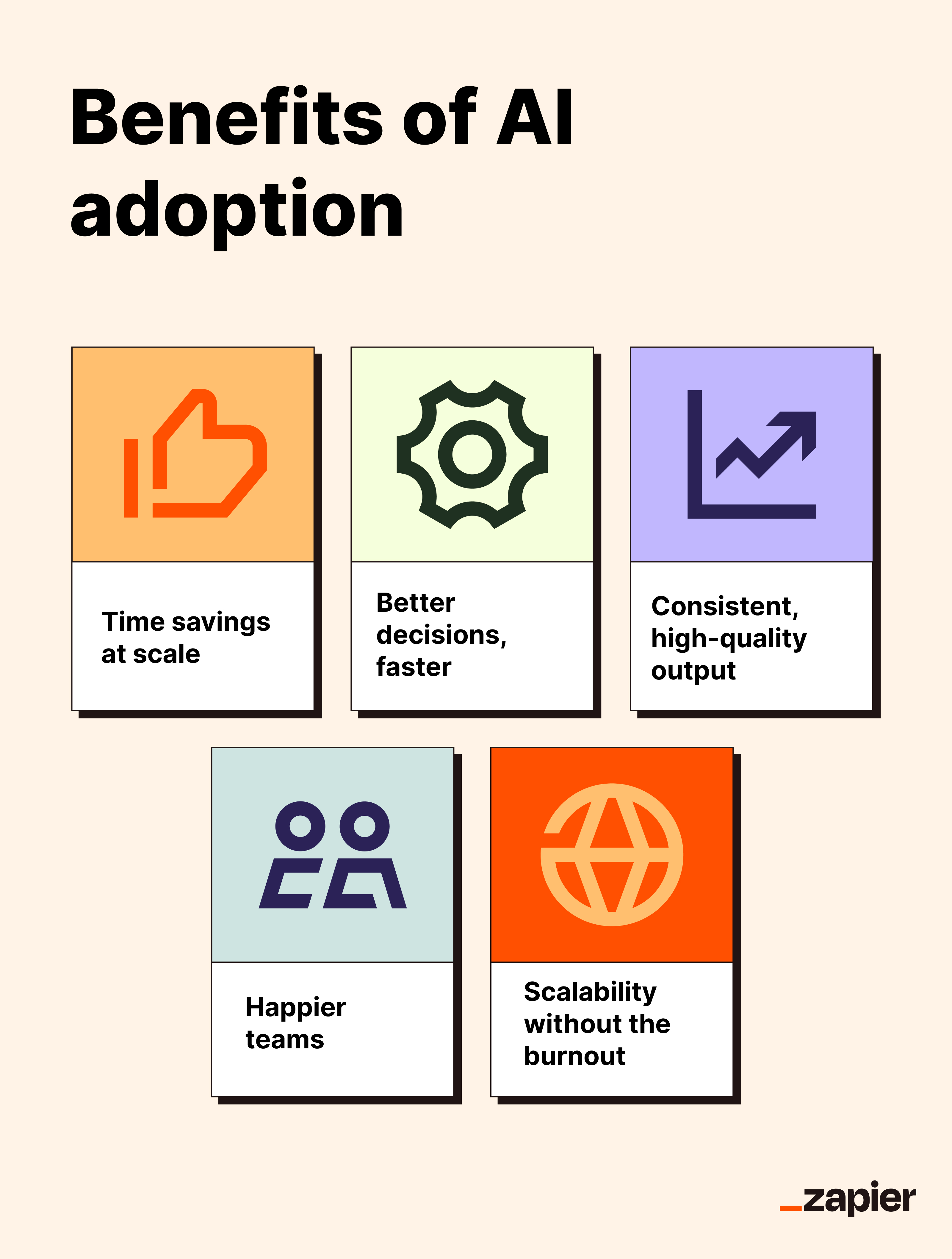
    An infographic summarizing the benefits of AI adoption

    Time savings 

    When AI takes over repetitive and time-consuming tasks like summarizing meeting notes, triaging support tickets, or writing first drafts, you get hours back. That’s time your team can spend on the work only they can do: building, creating, problem-solving, and strategizing.

    Better decisions, faster

    AI can sift through data in seconds, identify patterns, and surface insights you might’ve missed while trying to make sense of yet another spreadsheet. It can do things like forecast trends, prioritize leads, and identify customer churn signals with reliability and efficiency.

    Consistent, high-quality output

    People get tired. AI doesn’t. It can help teams deliver more consistent work and reduce human error. You can train AI on your style guide, process documentation, and knowledge base so that the output matches your brand guidelines, every time.

    Happier teams

    Nobody takes a job to spend a quarter of their time copy-pasting text between tools or rewriting the same status update five different ways. When you adopt AI to reduce busywork, you free up your team to focus on work that feels meaningful—and that’s a win for both morale and retention.

    Scalability without the burnout

    Need to onboard 200 new users a week, launch a campaign in five markets at once, or handle double the support volume without doubling the team? AI helps you grow without stretching your people too thin. Think of it as a bandwidth boost, not a team replacement.

    Common barriers to AI adoption

    AI might feel like the promised land of productivity—but getting there is a different story. Even at Zapier, where our team is all-in on being AI-first, we’ve run into blockers that stalled progress or killed momentum. The good news is that most of these barriers are solvable with the right mindset.

    Let’s break down what typically gets in the way.

    Not having the right tools

    You can’t adopt AI if you don’t have tools that support it—or if your current stack makes it a nightmare to integrate anything new.

    Some platforms are just starting to layer in AI features. Others expect you to bring your own model or write code to get started. And then there’s Zapier, which lets you plug AI into your workflows without needing an engineer on standby.

    Before you go big, ask yourself: can your current tools support lightweight experimentation with AI?

    Cost and resourcing

    AI isn’t free. Whether you’re paying for premium AI tools, hiring consultants, or investing in new infrastructure, the costs can stack up quickly. Even the time cost of learning new systems can be a barrier.

    The trick is to start small. Automate one high-impact task, prove the value, then scale. You don’t need a million-dollar budget to get meaningful ROI from AI. You just need to be strategic.

    Technical complexity or infrastructure

    Not every org has the backend setup (or IT capacity) to roll out complex AI systems. And unless you’ve got a team of machine learning engineers sitting around, you probably don’t want to build something from scratch.

    Luckily, AI has become a lot more accessible. Zapier, for example, makes it easy to add AI to your existing workflows and apps, even if your tech stack doesn’t have AI features built in. You don’t even need a separate AI account to make it happen.

    Employee resistance or change management

    Even the best AI tool is useless if no one wants to use it. Some employees worry AI will replace them, while others just don’t want to change how they work.

    When tapping into AI means opening a separate app, learning a new workflow, or figuring out how to write the perfect prompt, most employees will default to what already works. Even if AI could save them time, the mental tax of switching contexts, rethinking their process, or navigating a new interface is often too high—especially if they could otherwise be re-watching Season 10 of Married at First Sight: Australia.

    Successful AI adoption involves overcoming doubts and inertia to bring your team along for the ride. AI needs to feel less like a new initiative and more like a natural extension of existing workflows. Focus on transparency, and emphasize that AI is here to augment, not replace. And don’t just drop a tool in someone’s lap—show them how it makes their life easier.

    Data governance and privacy concerns

    Teams worry (rightfully) about where their data is going, how it’s being used, and whether it’s safe to feed customer info into third-party AI tools.

    The best solution is to use platforms like Zapier that offer transparency, control, and secure AI integrations. With Zapier, your app credentials stay out of the AI model’s hands, and each connection only gets the access you grant it.

    But tech alone isn’t enough—you also need clear, centralized guidelines. Define what’s ok and what’s not when it comes to prompts, data types, and tool access. Loop in legal and security teams early to create safe boundaries that still leave room to experiment. That way, teams can move fast without accidentally stepping on a landmine.

    The key is creating clear, centralized guidelines that still leave room to experiment. At Zapier, we worked closely with our legal, privacy, and security teams to define usage guardrails, route sensitive data through approved models, and ensure compliance without slowing teams down.

    AI hallucinations and missteps

    AI can “hallucinate” facts, misinterpret prompts, or make confident guesses that are completely off-base. And that’s scary if you’re using it for anything public-facing or business-critical.

    That’s why human review is key. Build in checkpoints, use narrow, well-scoped prompts, and educate your team on what AI can’t do yet—so no one ends up with a chatbot making promises your product can’t keep. For example, you might add a Slack “Request Approval” step to your Zapier workflow that lets a real person sign off on an action before it finishes running.  

    These barriers are real, but they’re not deal-breakers. With the right tools, education, and a healthy dose of patience, AI adoption doesn’t have to be a moonshot.

    How we adopted AI org-wide at Zapier

    Adopting AI at Zapier started with curiosity. A few of us were poking around with LLMs before ChatGPT was even a thing, but that casual experimentation turned into something more serious when GPT-4 dropped. 

    Our CEO called a company-wide “Code Red” because doing nothing felt riskier than jumping in. That executive signal created the urgency we needed to really shift gears. We didn’t over-engineer the rollout; we just said “This is big, it’s here, and we all need to engage with it.”

    From there, we went all in. We paused work, ran a full-company hackathon, and got every team—tech and non-tech—building with AI. We paired that with real scaffolding: clear usage guidelines, fast procurement paths, internal enablement hubs, and a few deeply curious folks who helped others get started. We built, shared, and learned in public. Throughout it all, leadership stayed deeply involved—sharing their own AI use cases, celebrating team wins, and reinforcing AI adoption as a company-wide priority in planning cycles and all-hands updates. 

    To keep ourselves honest (and measure progress), we also started tracking adoption over time. We asked folks in our twice-yearly engagement survey whether they use AI in their day-to-day work—and that’s how we know we’ve hit 97% org-wide adoption. Having clear metrics helps teams stay aligned and celebrate progress, whether it’s tracking active users, workflow usage, or department-level experiments.

    Over time, hackathons turned into habits, and AI is now helping us do things we couldn’t before. Workflows are being reimagined, headcount plans look different, and entire categories of “too tedious” work are now set to autopilot. It’s not always smooth or uniform, but the direction is clear: AI is part of how we think and operate.

    The key to success for our team was that we didn’t wait for a perfect plan. We gave people room to explore, made enablement easy, and repeated the message. And most importantly, we kept showing up—at hackathons, in Slack threads, and in demos. The momentum built from there. Now, our team has an 97% AI adoption rate—and we’ve made AI part of our hiring process to ensure all new team members are fluent in AI, too.

    Steal the playbook here

    Best practices for starting (or scaling) AI adoption

    So you’re ready to bring AI into your team—or take it beyond the early adopter crowd. Here’s what’s worked for us and what we’ve seen work for others.
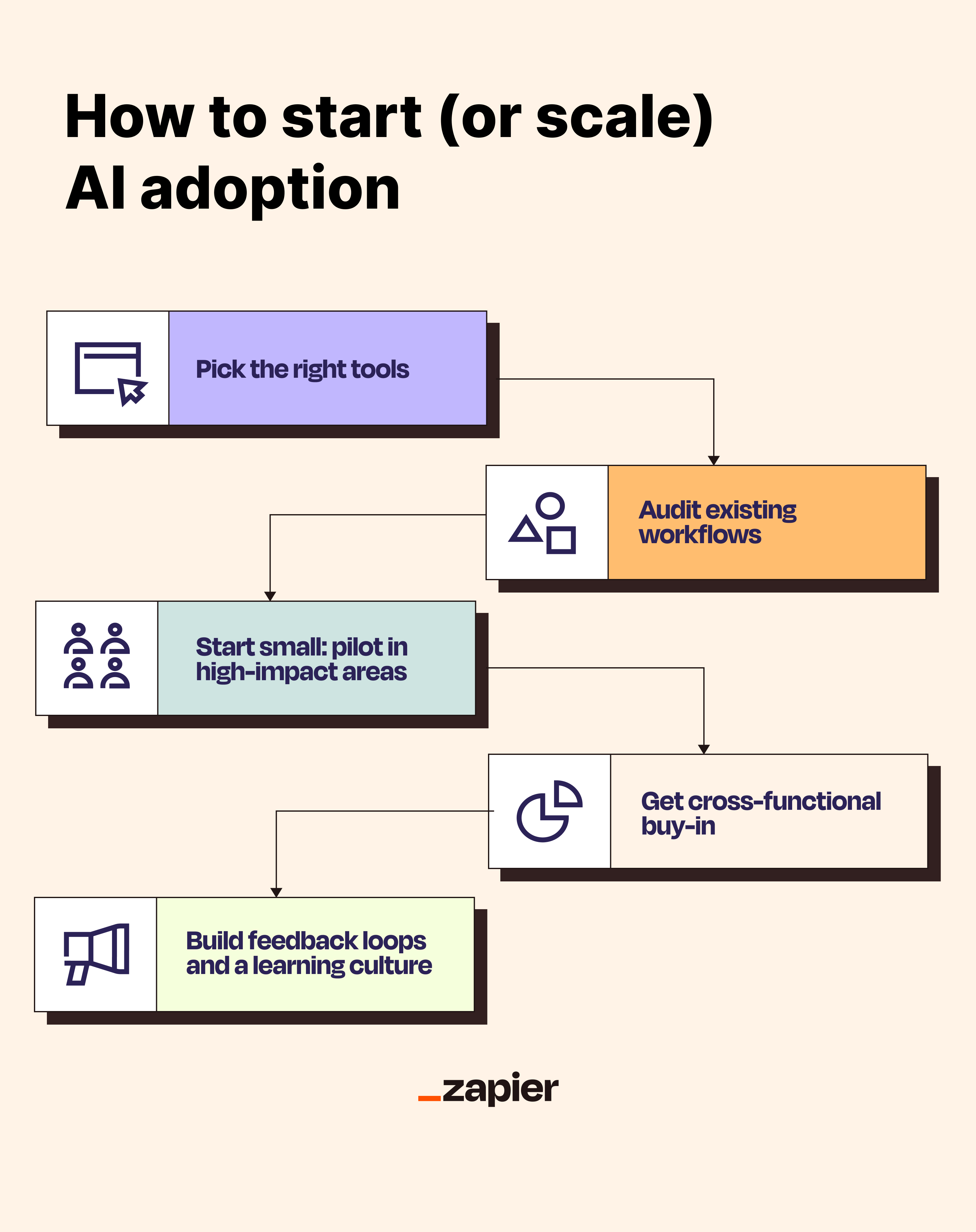
    An infographic summarizing how to start or scale AI adoption

    Pick the right tools

    For many teams, the quickest and most practical entry point is using an out-of-the-box tool like Zapier. It acts as an AI orchestration layer, connecting AI models from OpenAI, Anthropic, Google, and more directly to the apps you already use—no code required. That means you can start layering AI into your workflows without wrangling custom APIs or stitching together tools manually. Zapier even has AI built into the platform, so you won’t need to manage a separate AI account just to test things out. You can also go the other direction and install Zapier in your AI tool of choice, so AI assistants like Claude or ChatGPT can take action in the apps your team already uses.

    Of course, some use cases may require more advanced setups—like custom APIs, fine-tuned models, or access to internal data. If you’re working at that scale, you might need a deeper AIOps infrastructure with more control over how and where AI runs.

    As you evaluate your options, consider:

    • How is data stored, handled, and secured?

    • Are prompts or user inputs being used to train future models?

    • Can I monitor, audit, or version the AI logic I’m using?

    • Will this tool scale as the team—or the use case—grows?

    Look for tools that prioritize transparency, offer flexibility, and come with enough documentation to keep your team in control at every step.

    Audit existing workflows and opportunities

    When getting started with AI adoption, the best place to start is with tasks that are repetitive but still require a bit of thought or finesse. Think: triaging support tickets based on tone or topic, drafting initial versions of content, summarizing long blocks of customer feedback, or enriching lead records with contextual info. 

    These are the kinds of workflows that happen often enough to warrant automation, but involve just enough nuance that a simple if-then automated workflow probably won’t cut it. That’s where AI’s language skills and pattern recognition can really shine.

    There’s no need to rework your entire business overnight, either. Start by identifying a few areas where AI could step in to handle the mental heavy lifting behind routine tasks—reducing effort, speeding things up, or making outputs more consistent.

    Ask yourself:

    • Where are team members making the same judgment calls again and again?

    • What slows down progress because it involves reading, writing, or sorting information?

    • Where could faster decisions or insights make things better for customers—or less frustrating for your team?

    Start small: pilot projects in high-impact areas

    You don’t need to transform the entire org in one go (in fact, please don’t). Start with a few pilot projects in teams that are open to experimentation. Look for problems that are small enough to solve but big enough to matter.

    Then, run quick cycles. Build something, test it, and share the results widely. Those early wins will create momentum and give other teams permission to try their own experiments.

    Get cross-functional buy-in from IT, ops, leadership, and legal

    This part is easy to skip—and a mistake if you do. If your security or legal teams aren’t looped in early, you’ll hit blockers fast. The same goes for leadership: if execs aren’t bought in, it’s harder to get time, attention, or budget. And if IT or ops isn’t aligned, folks won’t get the tools they need.

    Build feedback loops and a learning culture

    AI is changing fast—and your org has to keep up. That means creating space to learn out loud. 

    At Zapier, Slack channels like #fun-ai became hubs for sharing use cases, failed experiments, and new tools. We’ve also held live demos, internal Q&As, and recurring hack weeks to keep the energy going. You need a place for people to ask questions, share wins, and learn from each other.

    Move from AI curiosity to AI adoption

    AI is going to be a part of your work. The challenge now is making it easier to use, easier to trust, and easier to fold into existing workflows. That’s where Zapier comes in. Install it in your AI assistant, and your team can send the email, update the record, or book the meeting from the chat window they already use, across 9,000+ apps. 

    You’ll want to start small, build visibly, and make room for a little mess as people learn. It’s all about reducing friction wherever possible, so AI becomes less of a Big New Thing and more of a teammate that’s just part of the process.

    So whether you’re leading AI adoption at scale or just trying to write fewer status updates by hand, remember: you don’t have to do it perfectly. You just have to get started, and the rest will follow.

    Try Zapier

    Related reading:

    This article was originally published in August 2025. The most recent update was in October 2026.
  • Which AI models can you automate on Zapier? (OpenAI, Anthropic, Google, Moonshot AI, Z.ai, and more)

    Which AI models can you automate on Zapier? (OpenAI, Anthropic, Google, Moonshot AI, Z.ai, and more)

    Staying up to date on the latest AI models is like trying to keep my house vacuumed in the height of my dog’s shedding season (a losing battle). New AI models drop practically every week, and it’s not exactly obvious which ones deserve a spot in your workflows. This guide is your cheat sheet, with every model you can automate on Zapier right now, sorted by provider.

    If you just want to cut to the chase and find out which model you should be using for which task, that’s what AutomationBench is for. It’s Zapier’s own benchmark for how these models handle real, messy business workflows, so you can pick based on performance instead of hype.

    Table of contents:

    There are two ways to bring AI models into your automated workflows: through Zapier’s built-in AI step (AI by Zapier) or by using direct integrations with the provider. 

    • AI by Zapier packages dozens of models from OpenAI, Anthropic, Google, and more into one step, with no separate account or token billing—you just pay in Zapier tasks. 

    • Direct integrations connect straight to a provider’s own account instead, trading that simplicity for a wider lineup. Think legacy GPT or DeepSeek models, billed by token through your own API key. 

    Or, if you want to kick off workflows directly from your AI assistant, Zapier MCP lets you install Zapier in any MCP-compatible tool and start taking actions across 9,000+ tools straight from your chat window.

    Build automations from wherever you work. Describe the outcome you want, and Zapier connects your tools, runs the steps, and stays on the job after you close the chat. Combine AI with reliable, deterministic automation across 9,000+ apps. Get started for free.

    Which AI models can you use with AI by Zapier?

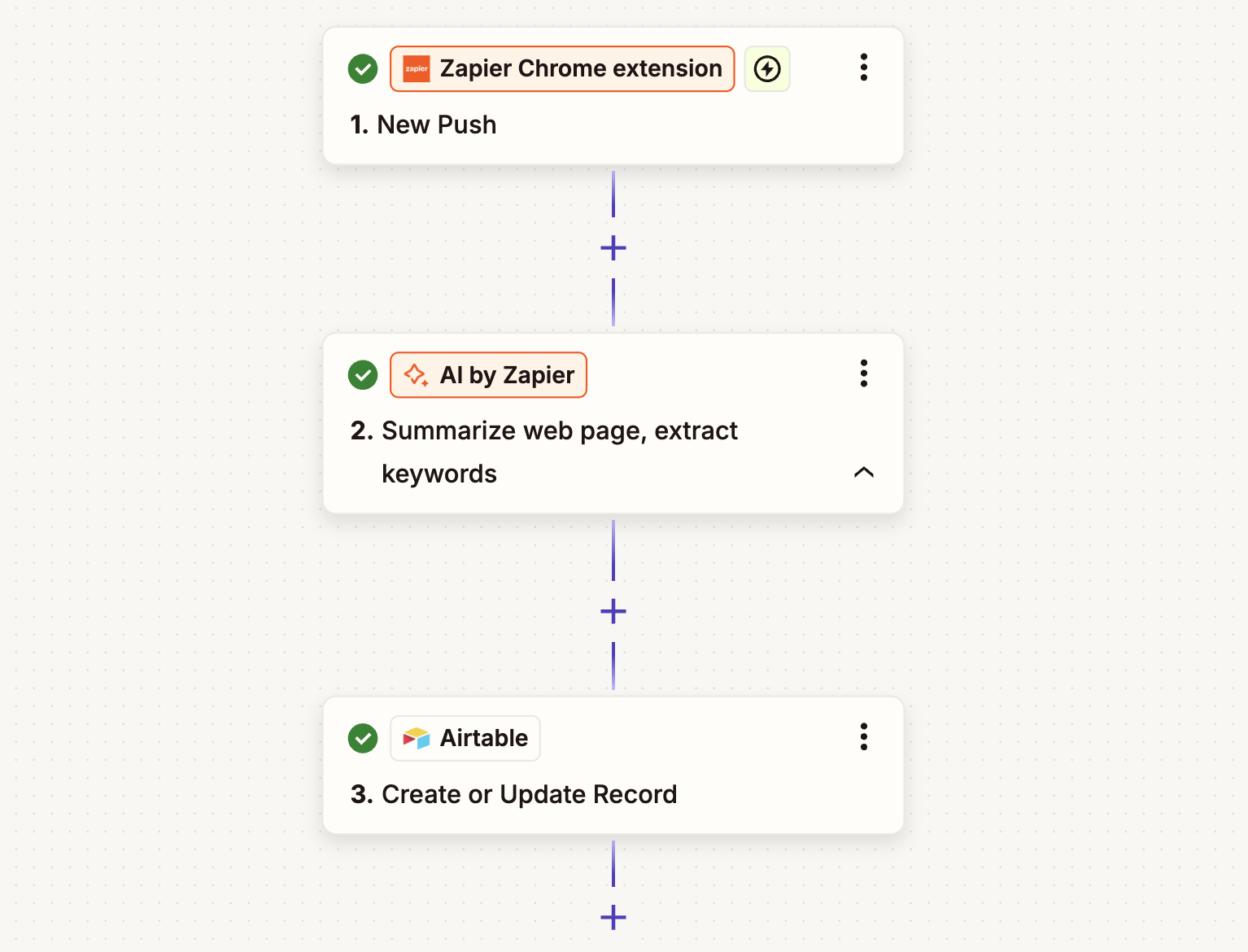
    A Zap with an AI by Zapier step

    An AI by Zapier step is your best option for adding AI into deterministic workflows. You get access to roughly 35 models from OpenAI, Anthropic, Google, Moonshot AI, and Z.ai with no separate account and no token billing. Whichever model you choose, you get structured output fields, knowledge sources, agentic tool calling, prompt templates, and one-click model swapping.

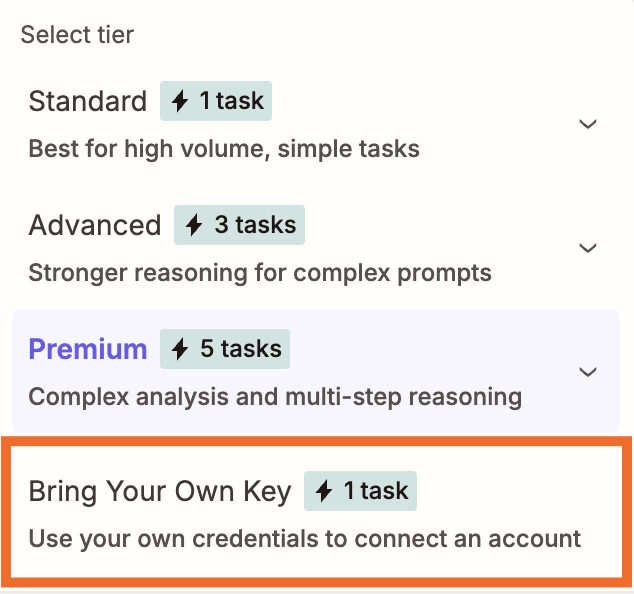
    You don’t even need a separate account to use these models—they’re built into Zapier, and you pay using Zapier tasks, not provider tokens. The models are sorted into task multiplier tiers based on the cost of the underlying model: Standard models use 1 task, Advanced models use 3 tasks, and Premium models use 5 tasks. 

    (If you prefer a model that isn’t included by default, you can also bring your own key [BYOK] for a wider set of options inside AI by Zapier—more on that below.)

    OpenAI

    Best for: General-purpose reasoning

    OpenAI models are the broadest lineup on Zapier, spanning everything from ultra-cheap classification models to frontier reasoning models. GPT-6 Astra is a strong benchmark performer across the board on Zapier’s official AutomationBench leaderboard, making OpenAI the safest default when you’re not sure which model a workflow needs.

    Model

    AI by Zapier

    GPT-4.1 nano

    1 task

    GPT-4.1 mini

    1 task

    GPT-4o mini

    1 task

    GPT-5 nano

    1 task

    GPT-5 mini

    1 task

    GPT-5.4 mini

    1 task

    GPT-5.4 nano

    1 task

    GPT-5.6 Luna

    1 task

    GPT-6 Luna

    1 task

    o3-mini

    3 tasks

    GPT-4.1

    3 tasks

    GPT-4o

    5 tasks

    GPT-5

    5 tasks

    GPT-5.2

    5 tasks

    GPT-5.4

    5 tasks

    GPT-5.6 Terra

    5 tasks

    GPT-5.6 Sol

    5 tasks

    GPT-6 Sol

    5 tasks

    o1

    BYOK only

    o3

    BYOK only

    o4-mini

    BYOK only

    GPT-5.5

    BYOK only

    GPT-6 Astra

    BYOK only

    GPT-6.1 Sol

    BYOK only

    Anthropic

    Best for: Coding and complex operations work 

    Claude is built to be careful and enterprise-safe, which is why companies like Slack, Notion, and Zoom have partnered with Anthropic directly. On Zapier’s official AutomationBench leaderboard, Claude Sonnet 5.5 ranks #3 overall, at $1.14 per task. I recommend reaching for Claude when a workflow needs careful multi-step judgment, not just speed.

    Model

    AI by Zapier

    Claude 4.5 Haiku

    3 tasks

    Claude 4.5 Sonnet

    5 tasks

    Claude 4.5 Opus

    5 tasks

    Claude 4.6 Sonnet

    5 tasks

    Claude 4.6 Opus

    5 tasks

    Claude 4.7 Opus

    5 tasks

    Claude 4.8 Opus

    5 tasks

    Claude 5 Opus

    5 tasks

    Claude 5.5 Opus

    5 tasks

    Claude 5 Sonnet

    5 tasks

    Claude 5.5 Sonnet

    5 tasks

    Claude Fable 5

    BYOK only

    Claude Fable 5.1

    BYOK only

    Claude 4.0 Sonnet

    BYOK only

    Claude 4.0 Opus

    BYOK only

    Claude 4.1 Opus

    BYOK only

    Claude 5.5 Haiku

    BYOK only

    Google

    Best for: High-volume workflows 

    Gemini models offer some of the lowest per-task costs on Zapier—while still competing with the other state-of-the-art models on power. That makes Gemini the default choice when you’re processing a lot of content and cost is the priority. Google’s newest model, Gemini 4 Argon, held the top two spots on Zapier’s official AutomationBench leaderboard when it launched, though at a higher cost per task.

    Model

    AI by Zapier

    Gemini 2.5 Flash

    1 task

    Gemini 2.5 Flash Lite

    1 task

    Gemini 3.5 Flash Lite

    1 task

    Gemini 3.5 Flash

    3 tasks

    Gemini 3.6 Flash

    3 tasks

    Gemini 3.7 Flash

    3 tasks

    Gemini 3.8 Flash

    3 tasks

    Gemini 2.5 Pro

    3 tasks

    Gemini 3.1 Pro

    5 tasks

    Moonshot AI

    Best for: Tool-heavy, agentic workflows

    Kimi (from MoonshotAI) is a mixture-of-experts model purpose-built for tool use and multi-step agent tasks, priced well below most proprietary frontier models. Kimi K3 currently ranks #33 overall on Zapier’s official AutomationBench leaderboard, at a fraction of the cost of most proprietary frontier models ($0.43 per task).

    Model

    AI by Zapier

    Kimi K3

    5 tasks

    Z.ai

    Best for: Cost-efficient agentic tasks 

    Z.ai’s GLM family is priced well below proprietary frontier models, which makes it a solid pick for straightforward, lower-stakes automation. GLM 5.2 lands at #87 on the official AutomationBench leaderboard—behind Kimi and the frontier proprietary models—so it’s a better fit for straightforward, lower-stakes automation than complex, multi-step work. At $0.22 per task, it’s one of the cheapest options on the board either way.

    Model

    AI by Zapier

    GLM 5.3 Fast

    1 task

    GLM 5.3

    3 tasks

    Meta

    Best for: Long-context tasks

    Meta’s Muse Spark models are the Facebook parent company’s response to OpenAI, Anthropic, and Google Gemini. Muse Spark 1.3 is designed to keep track of requirements as users change direction or go between projects. It also emphasizes efficient tool use and multimodal understanding, which helps it work through complex coding and real-world tasks with fewer unnecessary steps.

    Model

    AI by Zapier

    Muse Spark 1.3

    3 tasks

    DeepSeek

    DeepSeek is a cost-efficient open-weight model with strong coding and reasoning chops, popular for technical workflows on a budget.

    Model

    AI by Zapier

    DeepSeek V4.1 Flash

    1 task

    Amazon Bedrock

    Teams already running infrastructure in AWS often pick Bedrock so AI automation stays inside the security and compliance boundary their IT team has already vetted, with usage tracked under existing AWS access controls and spend commitments instead of a new vendor relationship.

    Bedrock uses the AI models your company has already set up in Amazon Bedrock. The exact models depend on what’s enabled in your AWS account and region. 

    Azure OpenAI

    Azure OpenAI is a common pick for regulated industries because it wraps the same underlying models in Microsoft’s enterprise-grade security and compliance certifications, so your data stays inside your company’s private Azure tenant instead of routing through a separate AI vendor.

    Azure uses the AI models you’ve already set up in your own Azure OpenAI account. The exact models depend on what your Azure admin has turned on.

    When should I use BYOK?

    If you want to use a model that isn’t built into AI by Zapier, you can also bring your own key (BYOK) for your preferred model. All of the models listed above can be used with BYOK—and some require it.

    Choosing Bring Your Own Key in an AI by Zapier step

    With BYOK, you’ll use your own API key and pay the provider directly for tokens. If you don’t know what that means, just pick one of the built-in models and move on. But if you’re considering BYOK, these are the main benefits:

    • Cost control on tool-heavy workflows. BYOK runs at a 1x task multiplier even when a step makes multiple tool calls, compared to 3x on built-in Advanced models or 5x on built-in Premium models. A BYOK step with 4 tool calls would cost 5 Zapier tasks (1 for the BYOK, 1 for each tool call), while the same workflow on Premium would cost 25 (5 for the BYOK, 5 for each tool call).

    • Access to models that aren’t in the default lineup, including newer models like GPT-6 Astra, Claude Fable 5.1, and Gemini 3.1 Pro, and legacy models like o1, o3, and GPT-5.5. 

    • Control over content moderation. You can also turn off Zapier’s built-in content moderation with BYOK, since the provider’s own data-handling terms take over once you’re paying with your own key.

    Which AI models can you use on Zapier via direct integrations?

    Instead of using AI by Zapier, you can also connect directly to your AI provider through its Zapier integration.

    A Zap with an OpenAI step

    I recommend trying AI by Zapier first, since direct integrations give you less flexibility inside the Zap editor. Both a direct integration and a BYOK step require you to use your own API key, but BYOK steps within AI by Zapier benefit from advanced features like structured outputs and knowledge sources. And when you BYOK, you can swap out a provider without rebuilding the whole step from scratch. 

    Like with BYOK, you’ll pay the provider directly, based on token usage, so your costs can vary a lot more than AI by Zapier’s straightforward task-based billing. But these integrations do open the door to more niche providers and legacy models. For example, you can access older OpenAI models still available through the API or more open-weight providers like DeepSeek. 

    You can visit Zapier’s app directory to see all of your options, but here are the most popular:

    • OpenAI (ChatGPT)—access legacy models like GPT-4, GPT-4 Turbo, and GPT-5.4 Thinking

    • Anthropic (Claude)

    • Gemini (Google Vertex AI)

    • Amazon Bedrock

    • Azure OpenAI

    • DeepSeek

    • Grok by xAI—xAI’s conversational model, with real-time access to web and X data and a more irreverent tone than most assistants

    • Mistral AI—Models with strong instruction-following and multilingual performance, ranging from fast lightweight options to larger frontier models

    • OpenRouter—A single integration that gives you access to models from dozens of providers, so you can mix and match without managing multiple connections

    • Groq—Not a model, but a hardware-accelerated inference engine for when speed is the priority and you need a near-instant response

    • AssemblyAI—Specializes in speech-to-text and audio intelligence, including transcription, speaker detection, and sentiment analysis

    Or bring your AI agent to the automation instead

    Everything above is about picking a model inside a Zap. But if you’re already living inside an AI agent harness, like Claude, ChatGPT, or Cursor, you don’t need to leave it to get things done. Zapier MCP connects your agent directly to 9,000+ apps, so it can send a Slack message, update a CRM record, or kick off an entire workflow without you switching tabs.

    A dropdown menu in Claude showing the Zapier MCP option

    If your team already has a favorite AI agent, Zapier MCP is how you bring your whole tech stack to meet it. Learn more about Zapier MCP.

    Try Zapier MCP

    Pick the best AI model for the job

    Whether you’re just getting started with AI automation or you’re deep into building multi-step workflows, Zapier gives you the flexibility to use the AI tools and models that actually fit your needs. The landscape keeps evolving, and so will this guide. Bookmark it and check back whenever a new model drops.

    Still not sure which model to reach for? Check AutomationBench to see how real models perform on real business workflows, not just clean prompts.

    See the leaderboard

    This article was originally published in March 2026 by Steph Spector. The most recent update was in October 2026.
  • Claude models: Fable vs. Opus vs. Sonnet vs. Haiku

    Claude models: Fable vs. Opus vs. Sonnet vs. Haiku

    Anthropic’s Claude family has four primary models: Haiku, Sonnet, Opus, and Fable. (There’s also Mythos, but the general public doesn’t have access to that.) All four Claude models are incredibly capable. Even the smallest model, Haiku, is better than the best frontier models from two years ago. This makes teasing out the differences between them a challenge. 

    Benchmarks are one tool to help. Zapier’s AutomationBench, for example, tests AI agents on end-to-end workflow execution using real tools across different business functions. Each task drops an agent into an isolated environment (CRM records, inbox threads, calendars, and more), and it’s built on real patterns from 2B+ monthly tasks across 3.7M companies.

    So if you’re looking for a comparison of quality across these Claude models, here’s how each model’s most powerful version stacks up on AutomationBench.

    Model

    Cost per task

    Pass rate

    Claude Opus 5.5 (Max)

    $1.28

    40.0%

    Claude Fable 5.1 with Opus 5 Fallback (Max)

    $2.45

    31.4%

    Claude Fable 5.1 (Max)

    $2.45

    22.37%

    Claude Sonnet 5 (Max)

    $0.88

    10.65%

    Claude Haiku 5.5 (default fallbacks, Max)

    $0.10

    12.02%

    But I wanted to put all these models through my own tests. To do so, I used the same five prompts for each.

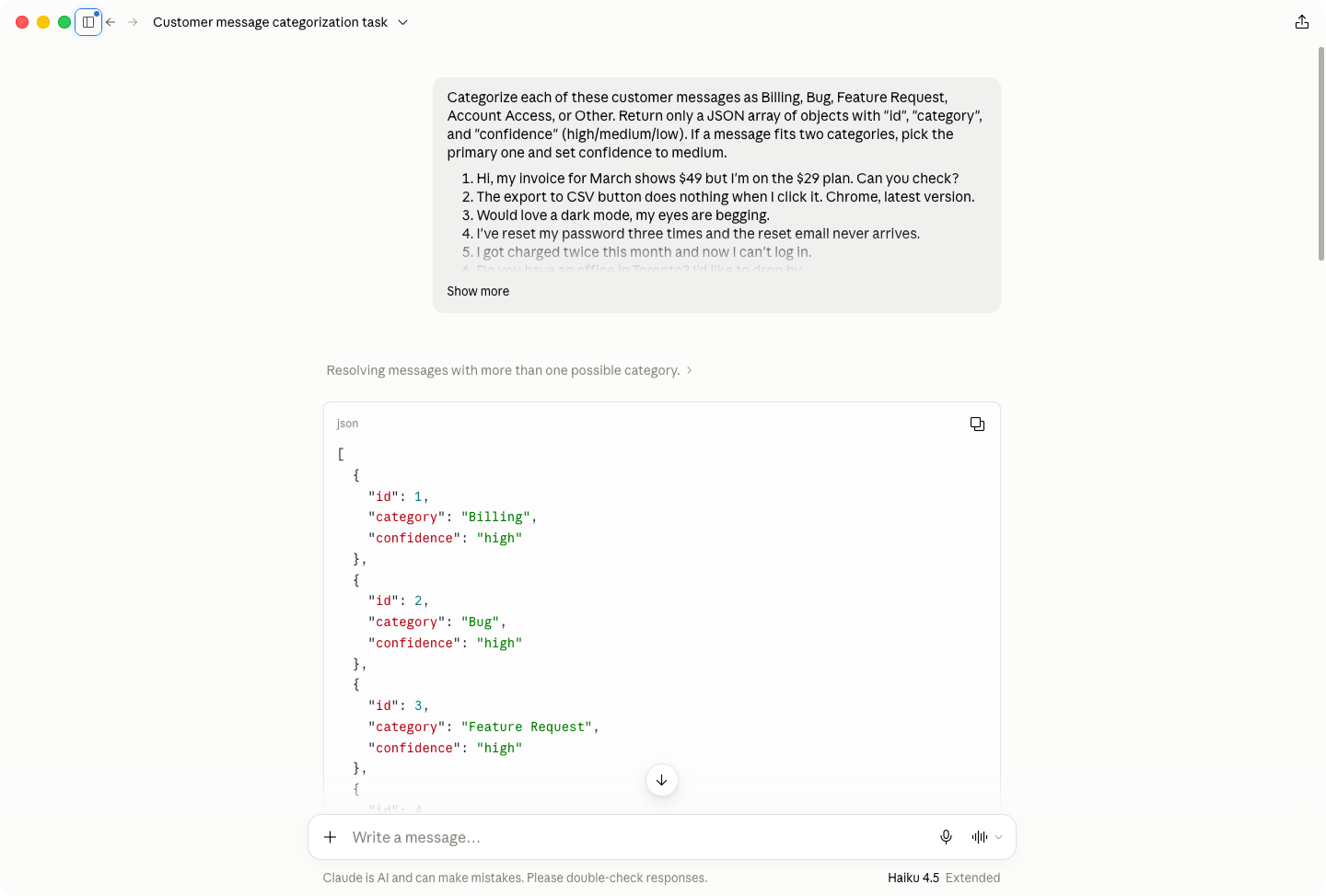
    • Categorize 25 customer support messages into Billing, Bug, Feature Request, Account Access, or Other with a confidence score. The model had to return a JSON array, and there were a few ambiguous messages. 

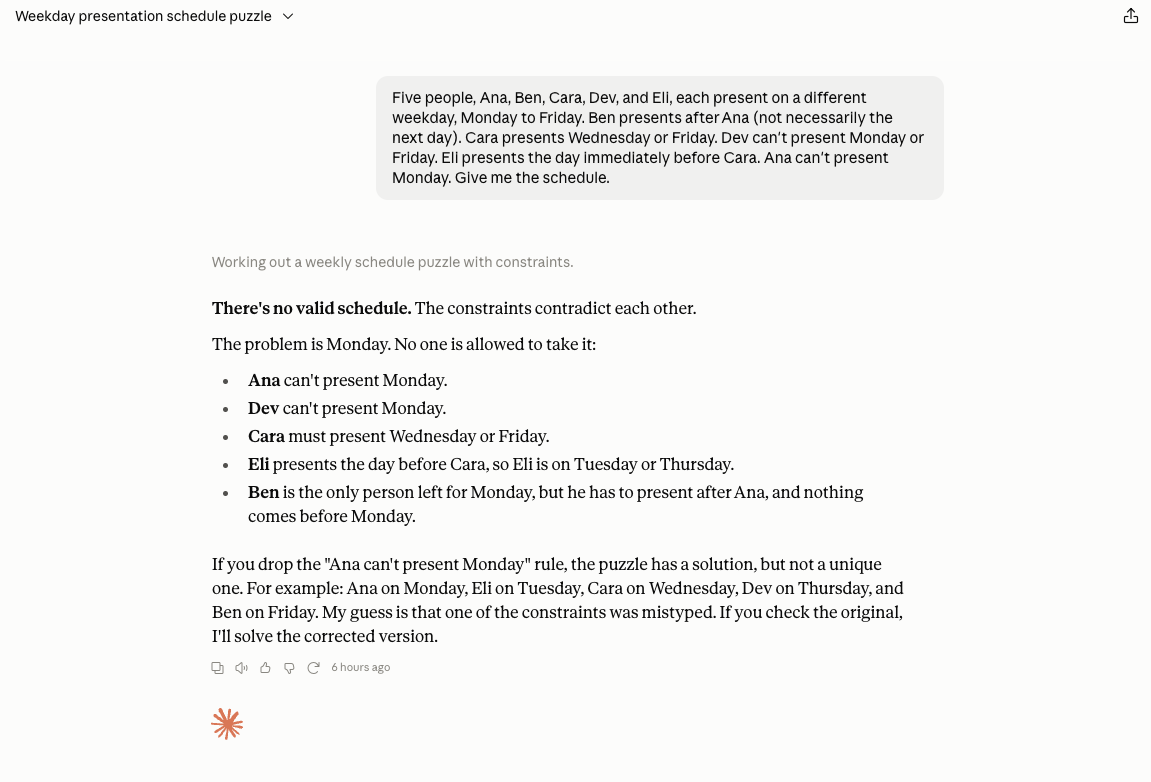
    • An impossible calendar scheduling puzzle. This wasn’t about getting the right answer, but seeing how each model handled an unsolvable problem. Earlier models would have just silently changed the constraints or claimed success when they clearly had failed. 

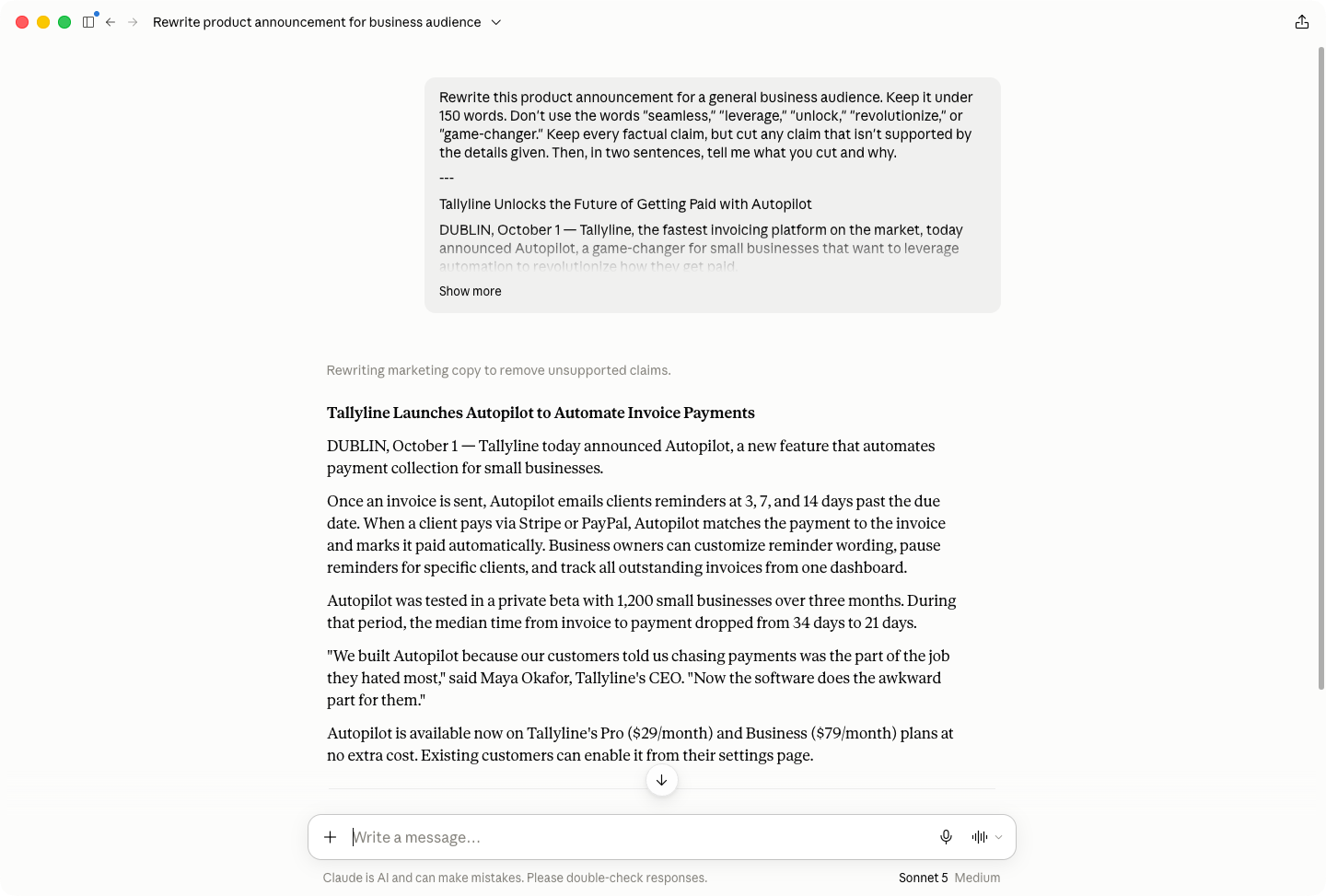
    • Rewrite a product announcement to less than 150 words while avoiding jargon and cutting any unsupported or overblown claims. It then had to explain what it had cut and why. 

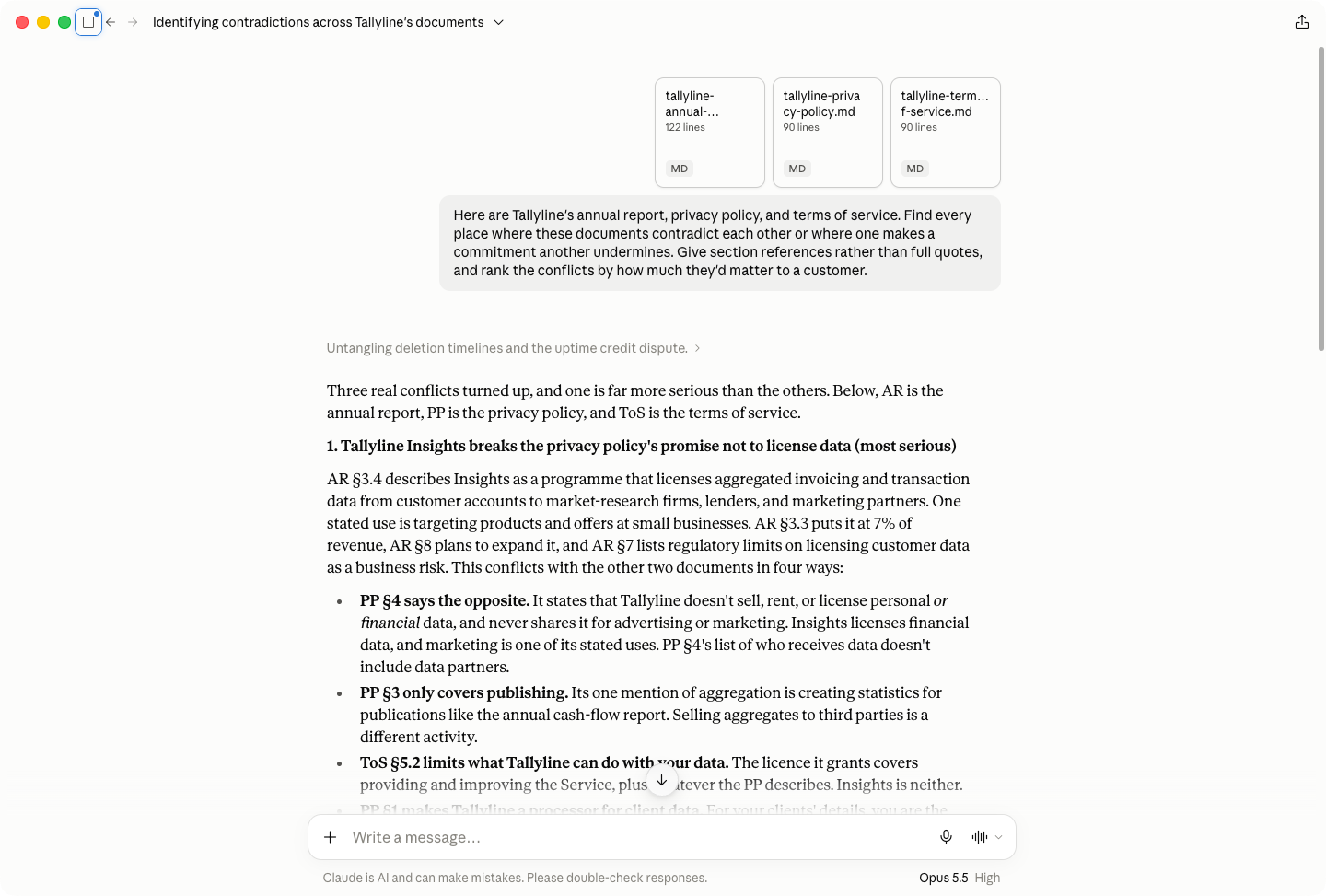
    • Analyze an annual report, terms of service, and privacy policy for contradictions and disagreements. 

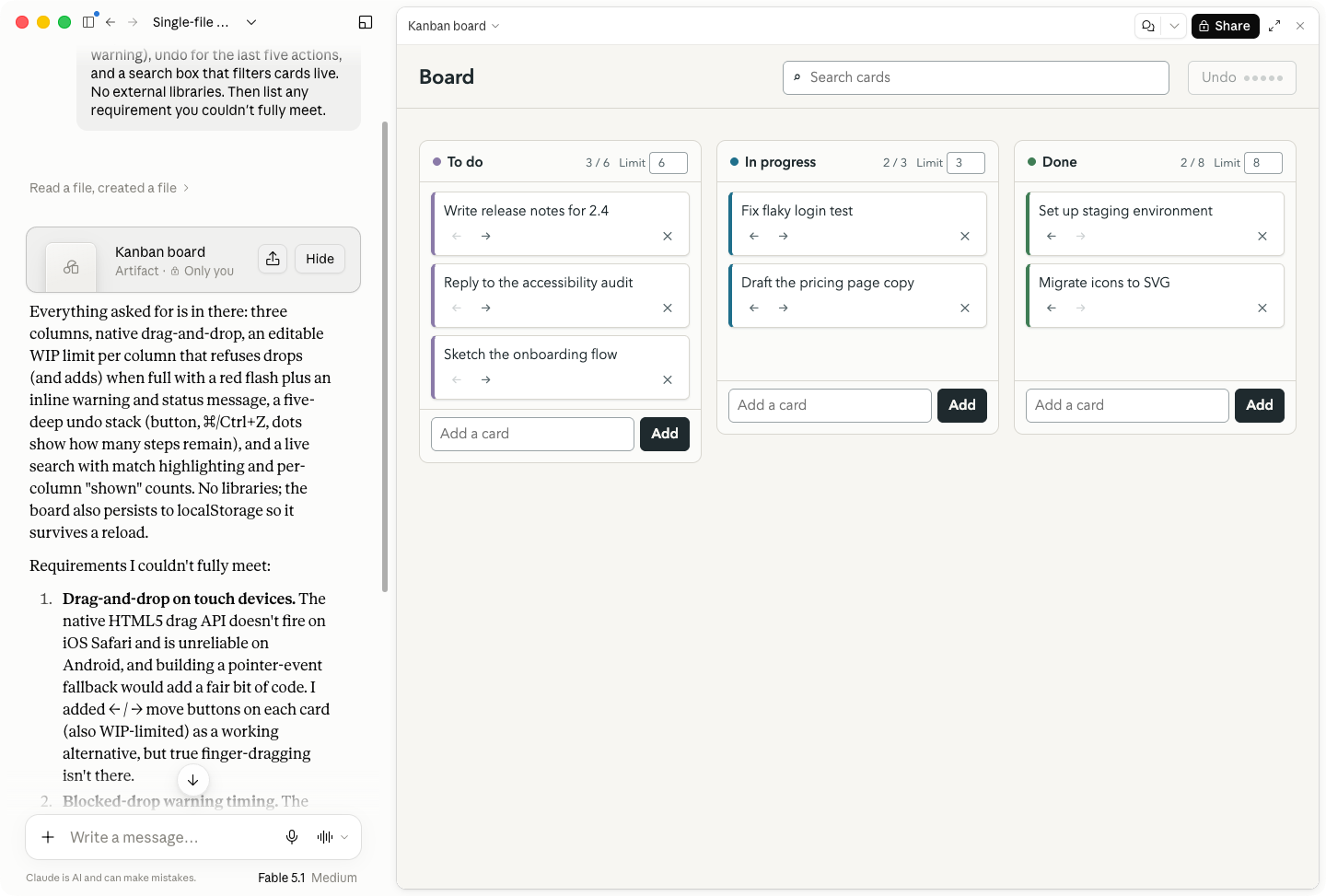
    • Build a Kanban board in a single HTML file with no external libraries. It had to list any requirements it couldn’t meet.

    Giving Claude an unsolvable problem

    Of course, these tests aren’t the only thing I’m basing this write-up on. I’ve been writing almost exclusively about AI for the past four years, I’ve spent hundreds of hours working with every Claude model, and my personal AI bill is at least $400/month. As well as some real-world results, I’ll try to give you a practical framework for thinking about each model. 

    To make things simple, I used the Claude app for the tests, but all the models are available through Claude Code and the API too. (For advanced uses, Claude Code is normally the most suitable tool.)

    Now, let’s get into it.

    Table of contents:

    Claude Haiku vs. Sonnet vs. Opus vs. Fable at a glance

    Model

    Best for

    Input price

    Output price

    Notes

    Claude Haiku 5.5

    High-volume, repeatable tasks: classification, routing, real-time chat

    $0.10 / M tokens

    $0.50 / M tokens

    1M context, 128K max output; prices apply to prompts up to 100K tokens ($0.50 / $2.50 above that); available on every plan, including Free

    Claude Sonnet 5.5

    The everyday default: chat, drafting, analysis

    $2 / M tokens

    $10 / M tokens

    1M context, 128K max output; the most advanced model on the Free plan

    Claude Opus 5.5

    Work and coding; the best balance of price and performance

    $4 / M tokens

    $20 / M tokens

    1M context, 128K max output; needs Pro or above

    Claude Fable 5.1

    Frontier coding and long-running agentic work

    $10 / M tokens

    $50 / M tokens

    1M context, 128K max output; usage credits on Pro; 50% of weekly limits on Max; falls back to Opus on flagged requests

    Claude Haiku: Fast and cheap

    Using Haiku in Claude
    • Input price: $0.10/million tokens

    • Output price: $0.50/million tokens

    • Context window: 1M context, 128K max output

    • Knowledge cutoff: June 2026

    Claude Haiku is Anthropic’s fastest and cheapest model, though that comes with a couple of caveats. Haiku 5.5 launched in October 2026 and replaces Haiku 4.5. It’s a big step up: it costs about 90% less than Haiku 4.5 for prompts up to 100K tokens, and it’s the first Haiku with adjustable effort. My tests below were run on Haiku 4.5.

    Haiku is best for simple and repeatable tasks, like categorizing messages, routing support tickets, and powering the real-time chat layer of a customer service app where speed matters more than depth. 

    It correctly categorized all 25 customer messages, though it missed a few ambiguous cases where a second category was also appropriate. (Sonnet also missed the same cases.)

    Haiku is a reasoning model. The catch is that it isn’t very good at it compared to the other Claude models; it only supports “extended thinking” and doesn’t allow you to set a reasoning effort. For the impossible puzzle, Haiku took almost two minutes to figure out that it was unsolvable—and even then, its reasoning was the weakest. Opus and Fable clocked the issues instantly, and Sonnet took less than 15 seconds. 

    Perhaps the biggest problem was in the rewriting test: Haiku silently reworded a direct quote. This is the kind of thing that gets you in big trouble, and it also missed the word count.

    Similarly, its document assessment and Kanban board were the weakest of the lot. It found the inconsistencies in the documents but didn’t really understand the context of them, and search didn’t work in its app. 

    For tasks that suit Haiku, it’s a strong model. But for tasks that are beyond its capabilities, it can fail without alerting you, and also take longer to get worse results than more advanced models. 

    In my opinion, Haiku is only worth using through the API (or for an automation). It’s not a model you want to work with on a daily basis; you want to assign it a very specific and limited task that it does automatically. 

    Claude Sonnet: The conversational default

    Using Sonnet in Claude
    • Input price: $2/million tokens

    • Output price: $10/million tokens

    • Context window: 1M context, 128K max output

    • Knowledge cutoff: June 2026

    Claude Sonnet is a big step up from Haiku and a solid all-rounder. If you’re on the free plan, it’s the most advanced model you have access to. If you’re on the $20/month Claude Pro plan or you want to conserve your token usage on a Max plan, it’s a very good default model, especially through chat. 

    I’ve also had good results getting Opus to delegate some coding tasks to Sonnet agents, but that’s getting deep into the technical weeds.

    Like Haiku, Sonnet correctly categorized all the customer support messages but missed two ambiguous cases. Its reasoning about the impossible puzzle was substantially quicker, and its rationale was much clearer. It also found the exact same proof that the puzzle was unsolvable as Opus.

    In the rewriting and document analysis tasks, Sonnet showed its strengths. While it missed the word count by 17 words, it cut all the hyperbolic statements and left the direct quote intact. It also found all the contradictions in the three documents—and even found one bonus issue around the number of employees that the more advanced models missed. Its assessment of the issue priority fell short, but it was closer to Opus than Haiku.

    It produced a working Kanban board and accurately assessed the limitations with its design, but it lacked the visual polish of Opus or Fable.

    All told, Sonnet is a useful and flexible model. If budget isn’t an issue, Opus and Fable generally outperform it—though by how much depends on the task. For API use, it’s capable of more advanced linguistic reasoning than Haiku. I use it to generate SEO briefs from search data, and it consistently gives solid results.

    Claude Opus: For work and coding

    Using Opus in Claude
    • Input price: $4/million tokens

    • Output Price: $20/million tokens

    • Context window: 1M context, 128K max output

    • Knowledge cutoff: June 2026

    Opus is only available to paid Claude subscribers (or through the API). For most people doing coding and development work, Opus at various different reasoning efforts will be the default model for essentially everything. 

    Just this week, I’ve used Opus through chat to analyze my blood work, find a paint color match available in Ireland for British Racing Green, fact-check articles I’m writing, and figure out if there’s an open-source alternative to Bird Buddy I can build. Could Sonnet have got good results for these? Maybe, but Opus aced them all first time and quickly enough that it fits with my workflow. 

    In the categorization test, Opus correctly identified all the ambiguous cases. It instantly saw that the puzzle was unsolvable and proved it cleanly. It hit the word count for the rewriting task, and kept the quote intact. It found all the inconsistencies in the document tasks and correctly classified them by severity. Its Kanban board was fully functional and nicely styled.

    Really, for most people, Opus will hit the balance between good enough at everything and not so expensive to run that it wipes out your usage instantly that it will be the model you want to use in most cases. Sometimes, you’ll be token constrained or need Fable’s power, but Opus is the Claude model I default to 95% of the time. (Opus 5.5 is also cheaper than Opus 5 and is more efficient at using tokens, further strengthening the argument to default to it.)

    One thing to note: Opus 5 was infamous for its awful and long-winded Claudish writing style, but 5.5 seems to have fixed it. I suspect the issue was to do with optimizing Opus for reasoning and coding tasks.

    Claude Fable: Frontier coding

    Using Fable in Claude
    • Input price: $10/million tokens

    • Output price: $50/million tokens

    • Context window: 1M context, 128K max output

    • Knowledge cutoff: June 2026

    Claude Fable is great at frontier coding and advanced long-running tasks, but it has some downsides too. For most tasks, Opus 5.5 matches it on benchmarks, and I’d say that’s pretty true in my testing. It also doesn’t take direction especially well. Like other experts, I’ve found it performs best when you give it a brief and let it do its own thing, rather than dictate every limitation or step it has to take. 

    Where I’ve found Fable especially useful is in planning code. I’ve used it to create implementation plans, or review implementation plans that I can then delegate to other models to actually run. I’ll also use it to do targeted code and feature audits. I feel it gives you a huge amount of Fable’s advantages without the astronomical usage costs.

    Part of the issue, I suspect, is that frontier models like Fable are trained to think hard about everything. Even simple tasks can turn into overwrought reasoning exercises, especially at higher reasoning levels. 

    So how did it do on my tasks? About as well as Opus. It correctly categorized all the messages, including the ambiguous ones, and identified why the scheduling problem was unsolvable. In the rewriting task, it came in under the word count but made some small cuts to the direct quote—the kind of thing an editor would do, but also a little dicier than Opus’s approach. In the document task, it found the same planted issues as Opus and prioritized them defensibly, though it made one unsubstantiated claim. Its Kanban board had the best design sensibilities, but both models still passed the test. 

    Really, Fable is a great model, but if you don’t know for sure you need it for a specific task or have unlimited budget, Opus is the better default. 

    One quirk worth noting: you might end up using Opus anyway. Fable falls back to Opus when it detects a request that trips its safety guardrails. This includes some things around computer security, biology, and science and can be triggered by your prompt, the files you upload, or other details. It tells you when it happened, so it isn’t hidden, but it’s still worth understanding. 

    Which Claude model is best?

    Claude Haiku, Sonnet, Opus, and Fable all have legitimate use cases, though there’s a huge amount of overlap in everyday capabilities. For lots of tasks, Fable and Opus don’t significantly outperform Sonnet and Haiku. Of course, for more advanced tasks (especially coding), Fable and Opus offer substantial advantages—though the gap between them can be very narrow. 

    Even in my testing, Haiku only failed the single most advanced task with a search bug (though it reported that it had succeeded)—the others passed everything. The difference wasn’t in whether or not they gave an answer, it was in how accurately they followed instructions, what compromises they made, how they handled ambiguity, and how well they reported on what they’d done. For the most part, more advanced models provided more clarity around what they’d done—though Fable does march to the beat of its own drum more often than is ideal.

    In most cases, it takes a bit of trial and error and some human judgment to work out which model is truly optimal. In general, though, Opus offers the most consistent balance between price and performance if you have a Claude subscription; if you don’t, want to conserve tokens, or aren’t worried about coding, Sonnet is a solid default. 

    Add Claude to your workflows with Zapier

    Whatever Claude model you use, you can use it in your automated workflows with Zapier. All four—Haiku, Sonnet, Opus, and Fable—work with AI by Zapier, which means you can bring Claude’s brain into all your workflows, across your entire tech stack. Because each model excels at specific tasks, you can use different models for different steps in the same workflow, and swap between them at any point without rebuilding your workflows. 

    Unless you bring your own key (BYOK), you’re also not paying per token. Zapier bills by task—1, 3, or 5 tasks, depending on the model—so costs stay predictable no matter how much the model is doing under the hood.

    Or, if you’d rather stay in the Claude app, Zapier MCP gives it secure access to 9,000+ apps, so you can take action straight from the chat window.

    Try Zapier

    Related reading:

  • The best AI newsletters in 2026

    The best AI newsletters in 2026

    By Sara J. Nguyen · October 8, 2026

    Hero image with an icon representing a newsletter

    As a writer covering technology and AI, I spend plenty of time separating useful information from the hype. A good AI newsletter can help cut through that noise.

    But the best newsletter depends on what you need. Someone making AI strategy decisions needs different coverage than someone looking for an AI workflow they can try this afternoon.

    To find the best AI newsletters, I started by researching my options and looking at what other folks were recommending. Then I signed up for anything that looked promising and worked my way through well over 100 emails over the course of two weeks. I checked how much each newsletter was actively publishing, compared their promised frequency with what arrived, and evaluated how useful the content was beyond the welcome gifts and promotional emails.

    These nine stood out for different reasons. Whether you want technical context, an enjoyable news briefing, or practical help using AI, there’s a starting point here for you.

    The best AI newsletters

    For decision-makers

    For staying current

    For practical application

    The best AI newsletter for AI strategy

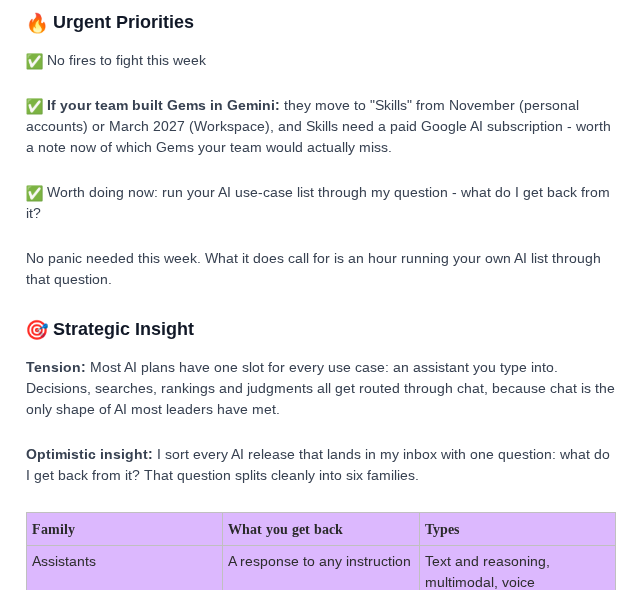
    The AI Optimist

    The AI Optimist, our pick for the best AI newsletter for AI strategy

    Hugo Pickford-Wardle and his team created the AI Optimist. Hugo is an AI implementation advisor, educator, and founder with a background in guiding organizations through digital and AI-driven change.

    The newsletter impressed me with its practical insights for business leaders. Each weekly issue sorts developments into three sections: Urgent Priorities, Strategic Opportunities, and Geek Out. The actionable framework helps leaders see what needs attention now, what belongs on the roadmap, and how AI developments could affect decisions such as which workflows to rethink or where to invest.

    The best AI newsletter for AI research and policy

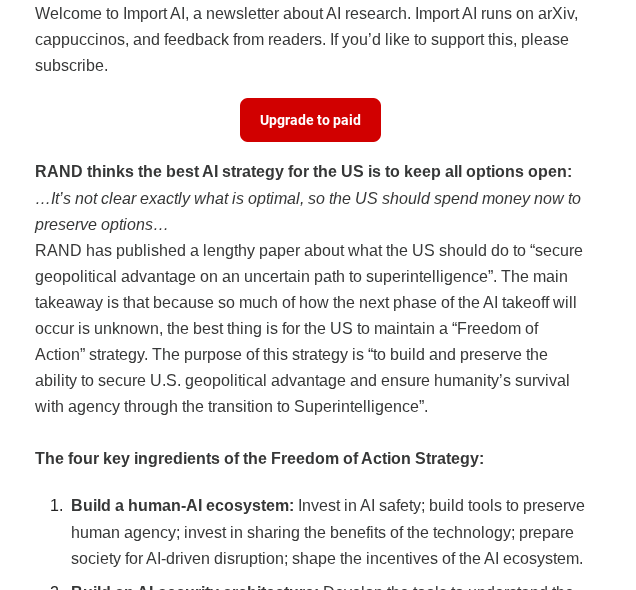
    Import AI

    Import AI, our pick for the best AI newsletter for AI research and policy

    Import AI is authored by Jack Clark, former Policy Director at OpenAI and co-founder of Anthropic. He has extensive journalism experience (Bloomberg and The Register) and is a recognized voice on AI governance, safety, and industry trends.

    The newsletter takes a close look at the research, policy debates, and industry shifts shaping AI. Clark has been publishing it since 2016, so the newsletter has the benefit of long-term perspective as well as proximity to the field. It helps readers anticipate emerging capabilities and how they’ll affect markets, explaining regulatory and ethical debates that influence AI adoption.

    The writing is a bit dry for me, but it’s filled with valuable nuggets about AI policy. Overall, it’s best suited for those who want signal over noise on both technical and policy fronts.

    The best AI newsletter for technical AI context

    The Batch

    The Batch, our pick for the best AI newsletter for technical AI context

    The Batch is for people who want to take a deeper look at the AI behind the news. Each newsletter spends more time with the story than a quick daily digest can. It digs into the models, builders, and systems behind major AI developments, then explains what they can do.

    It’s technical enough to help readers understand the substance behind major developments, but accessible enough for leaders and professionals who don’t work in machine learning every day.

    The Batch comes from DeepLearning.AI, founded by AI educator Andrew Ng, and includes a letter from him. But the real value is the newsletter itself: a clear, hype-resistant technical briefing that helps readers follow what is changing in AI and what those changes mean for your work.

    The best all-in-one daily AI newsletter

    Superhuman

    Superhuman, our pick for an all-in-one daily AI newsletter

    Superhuman delivers on a clear promise: “Get smarter about AI in 3 minutes a day.” It’s curated by Zain Kahn, known as an “AI tools guy” on social media.

    In a few minutes, you can catch up on AI news, discover trending tools, pick up a prompt or tutorial, and find a practical idea for using AI at work. It’s a useful choice for readers who want a reliable daily email that keeps them informed and gives them inspiration on how to use AI.

    Superhuman also has a wider library of tool collections, tutorials, and prompt resources when a quick daily tip turns into a deeper rabbit hole.

    Because the content is so broad, don’t expect a deep dive into any particular topic with Superhuman. But it’s a good option if you’re looking to stay in touch with new updates and ideas.

    The best AI newsletter for practical AI news

    The Rundown AI

    The Rundown AI, our pick for the best AI newsletter for practical AI news

    The Rundown AI was founded by Rowan Cheung, who built a reputation for no-nonsense daily AI updates. Thanks to its reliability and focus on practical applications instead of just news reporting, The Rundown AI rapidly grew to 2M+ subscribers and is trusted as a dependable daily business briefing that cuts through hype to deliver actionable intelligence.

    Every weekday, The Rundown AI takes the biggest AI developments and adds the missing context. 

    I liked how it was skimmable without losing important elements. It does this by breaking up the latest developments into multiple sections for a quick read on what happened, the smaller details behind the story, and why it matters. 

    You can also find a few tidbits on the practical side of AI. The newsletter shares workflows the community is working on and also some trending tools to check out. Overall, it’s a good fit for readers who want help connecting industry developments to ways they can use AI.

    The best AI newsletter for approachable AI news

    The Neuron

    The Neuron, our pick for the best AI newsletter for approachable AI news

    The Neuron takes AI seriously without taking itself too seriously. Its casual, playful personality makes it easier to read without feeling like you’re trying to understand an industry report.

    The newsletter packages AI news and useful tools into a five-minute read with a focus on developments that matter for your work. The lighter delivery makes it a good fit if you need to stay current but don’t find the topic endlessly fascinating.

    My signup experience even included an AI Cat Personality Quiz (I’m an Agile Housecat, thanks for asking). That whimsical streak makes the newsletter feel like something written for humans. And if daily emails are too much, you can switch to weekly. 

    The best AI newsletter for learning how to use AI at work

    Zapier blog newsletter

    Zapier, our pick for the best AI newsletter for learning to use AI at work

    Zapier‘s blog newsletter isn’t exclusively about AI, but given how deeply AI now runs through Zapier’s product and content, it’s one of the most useful practical AI resources in circulation. Each email highlights in-depth guides, tutorials, and case studies showing how AI and automation can safely streamline your daily work.

    Unlike news-heavy digests, the Zapier newsletter takes a show-don’t-tell approach. Articles often feature AI and automation workflows you can copy directly into your own setup, tool comparisons and reviews to help you decide where AI adds the most value, and hands-on tutorials for integrating AI into everyday apps like Slack, Google Docs, and Airtable. The blog also covers Zapier MCP, which lets you take action across 9,000+ apps straight from AI tools like Claude and ChatGPT—with tutorials on setting it up and putting it to work.

    With millions of users already building automations through Zapier, the newsletter’s angle is uniquely grounded in real-world AI productivity. The Zapier newsletter is an ideal choice for professionals seeking actionable guidance on securely integrating AI into their existing workflows, rather than abstract insights or speculative predictions.

    The best AI newsletter for builders and tinkerers

    Ben’s Bites

    Ben's Bites, our pick for the best AI newsletter for builders and tinkerers

    Founded by Ben Tossell, founder of Makerpad (acquired by Zapier in 2021), Ben’s Bites has attracted 170,000+ subscribers across tech, business, and startup circles. Ben’s background combines product development, tech community leadership, and hands-on experimentation, making for insightful commentary in the realm of AI technology.

    Ben’s Bites is like peeking over the shoulder of someone building cool things with AI. Ben shares what he’s trying and learning, alongside AI news and tool recommendations. Not every issue walks through one of his experiments, but his personal observations give the coverage a builder’s perspective.

    Alongside major headlines, you’ll find links to agent tools, coding resources, and projects other people are making. It’s a good fit if you want to follow AI developments with an eye toward what you could build—not just what companies are announcing.

    The newsletter has both free and paid options. A key perk of the paid subscription is access to the builder community, where you can connect with others experimenting with AI. Start with the free version if you want to explore what people are making before committing to a subscription.

    The best AI newsletter for learning by doing

    100 school

    100 school, our pick for the best AI newsletter for learning by doing

    You can use AI every day and still feel like you’re winging it. 100 School meets you there and shares small experiments that help you get better at your work.

    Instead of giving you another tool to bookmark, 100 School helps you find an approach worth trying and adapt it to your own tasks. The goal is to move beyond a good result in one chat toward something you’ll actually use again.

    I liked that it showed practical examples followed by guidance you can put to use. A workflow breakdown might come with a copyable prompt, while a hands-on experiment leads into related tutorials. That combination gives you enough context to understand the approach and somewhere to start testing it yourself.

    It’s a good fit if you’ve had useful moments with AI but haven’t quite figured out how to repeat them.

    Which AI newsletter should you subscribe to?

    You don’t want to sign up for newsletters that end up collecting dust in your inbox. Think about what you need from AI right now: getting advice on building workflows calls for a different newsletter than receiving timely updates on AI policy. My suggestion is to start with a few and unsubscribe from the ones you never get around to reading, adding in more as your specific tastes and needs develop.

    If you’re just getting started with AI, I’d recommend beginning with The Rundown AI for practical applications and Zapier for specific workflows you can implement.

    One newsletter might be enough. A few might work better. Either way, the goal is to get useful AI coverage you have time to read. If a newsletter keeps going unopened or repeats what you’re getting elsewhere, it’s fine to unsubscribe. You don’t need to replace it—just keep the ones that earn your attention.

    Related reading:

    This article was originally published in September 2025 by Maddy Osman. The most recent update was in October 2026.
    Get productivity tips delivered straight to your inbox

    We’ll email you 1-3 times per week—and never share your information.

    Related articles

    • Starburst icon representing AI against a checkered purple background.
    • Hero image with a stylized icon representing AI
    • A hero image of the Claude logo
    • A hero image of the Claude logo
    • Hero image with the Google Gemini logo
    • Screenshot of Google AI Studio logo on a dark background
    • Hero image with the Meta Muse logo
    • Hero image with an icon that represents AI systems

    Improve your productivity automatically. Use Zapier to get your apps working together.

    A Zap with the trigger 'When I get a new lead from Facebook,' and the action 'Notify my team in Slack'

  • Claude 5.5: What you need to know about Anthropic’s AI models and chatbot

    Claude 5.5: What you need to know about Anthropic’s AI models and chatbot

    Claude refers to two things:

    • A family of large language models built by Anthropic. It currently includes four model variants—Fable (Mythos), Opus, Sonnet, and Haiku—each with different tradeoffs between speed, intelligence, and cost.

    • The AI chatbot built on top of those models. It can handle tasks like writing, coding, and analysis.

    I’ve been using Claude long enough to remember when the main selling point was that it was a nicer chatbot to talk to than the alternatives. (That’s still true, for what it’s worth.) But Claude no longer just talks to you about your work; it also does your work for you. You can give Claude a project, head off to make a coffee, and check in occasionally when questions pop up.

    For enterprises looking to get real productivity gains from AI, Claude has become the default choice. And Claude is equally popular at smaller companies among developers, writers, and teams who just want an AI that can handle complex work.

    In this article, I’ll explore what Claude can do and why it’s become the default AI for enterprises and professionals.

    Table of contents:

    What is Claude?

    Claude is a family of large language models (LLMs) developed by Anthropic, a company founded in 2021 by former OpenAI researchers. Anthropic centers its development of Claude around a constitution that guides Claude during the training process to prioritize safe, ethical, and helpful AI interactions.

    Claude is also the name of the AI chatbot built on top of these models. It’s a general-purpose assistant that can handle tasks like writing, analysis, coding, and reasoning.

    Claude AI chatbot

    Claude’s model family: Fable, Opus, Sonnet, Haiku

    Anthropic offers four main model variants, each with different performance characteristics and price points.

    • Claude Fable 5.1 is Anthropic’s most capable publicly available model. It’s the most advanced model for long autonomous coding projects, deep research, and complex data analysis. It’s also the public version of Claude Mythos—a model Anthropic initially withheld from broader release over cybersecurity concerns, but which is now available to a limited set of organizations.

    • Claude Opus 5.5 is the best model for most complex tasks, and the right choice for any heavy work. It’s well-suited to research, agentic coding, and enterprise applications that require high levels of accuracy. It also costs 20% less than its predecessor Opus 5.

    • Claude Sonnet 5.5 is the best model for all-around performance. Opus still has an edge on the most complex tasks, but at $2 per million input tokens and $10 per million output tokens, Sonnet is the best default model for most users due to its balance of performance and cost.

    • Claude Haiku 5.5 is optimized for speed and affordability. At $0.10 per million input tokens and $0.50 per million output tokens (for prompts up to 100K tokens), it’s a good choice for time-sensitive use cases like customer service or for affordably processing lots of data.

    Claude API pricing

    Best for

    Input price (per million tokens)

    Output price (per million tokens)

    Fable 5.1

    Long, complex, autonomous tasks

    $10

    $50

    Opus 5.5

    Complex research, enterprise, and coding tasks

    $4

    $20

    Sonnet 5.5

    Best all-around model for most users

    $2

    $10

    Haiku 5.5

    Fastest and most affordable

    $0.10

    $0.50

    To learn which AI model your team should use, check out the AutomationBench leaderboard. AutomationBench is Zapier’s open evaluation tool for measuring how well models handle real, complex business workflows.

    How to access Claude

    If you’re using Claude’s free plan, you get limited usage of Sonnet and Haiku. Claude Pro, at $20/month, gives you access to Opus (and to Fable through usage credits) along with features like Claude Code and Research. If you’re a power user, Claude’s $100/month Max 5x plan increases your usage limit by another 5x (you can also pay $200/month to increase your limit by 20x).

    You can also access all of these state-of-the-art models on Zapier, bringing the power of Claude’s AI into all the apps you already use. And with Zapier MCP, you can give Claude safe, governed access to 9,000+ apps, directly from the chat window.

    Try Zapier MCP

    What can Claude do?

    Claude is best for use cases like coding, deep reasoning, nuanced content creation, and privacy-focused enterprise applications. Here are the features that help Claude stand out.

    Artifacts

    Claude Artifacts lets you build interactive apps, tools, and content. They’re generated automatically when Claude thinks you might want to edit, share, reuse, or reference the content later. Artifacts open up in a split screen, which makes it easy to continue iterating by conversing with Claude, and they can be used to create things like data visualizations, small web apps, games, interactive React components, code snippets, or documents.

    You might be surprised how useful this is for satisfying your everyday curiosity. Seriously: ask Claude to generate data visualizations for random questions and see what happens. It still blows my mind that from the comfort of my couch, I can ask Claude for “an interactive visualization showing which countries export the most bananas per capita” and get a masterpiece like the chart below, complete with one-click filters and expandable detail panels.

    Feature preview window in Claude with the analysis tool feature enabled.

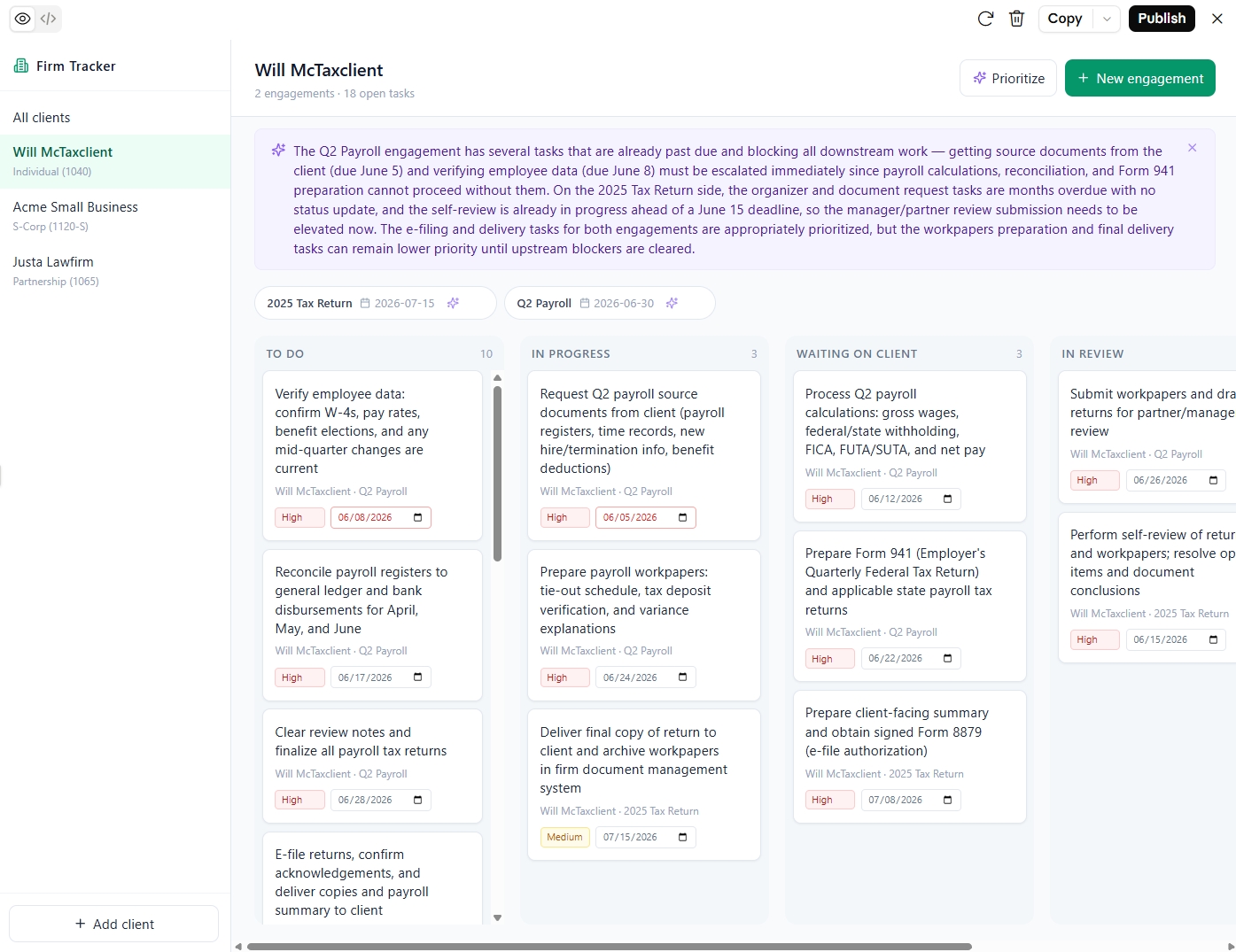
    Artifacts are a productivity tool too. You can spin up internal business apps in minutes, then share them with your team with one click. And since Anthropic now allows you to create AI-powered artifacts that consume each user’s tokens—rather than yours—it’s easier than ever to incorporate AI features into the apps, dashboards, and reports you build with Claude.

    In the example below, I used Fable to create a shareable project tracker that uses AI to generate tasks and prioritize next steps.

    A project tracker built in Claude

    Research

    All of the leading LLMs have some form of “deep thinking” mode. Claude offers two variations: research and extended thinking mode.

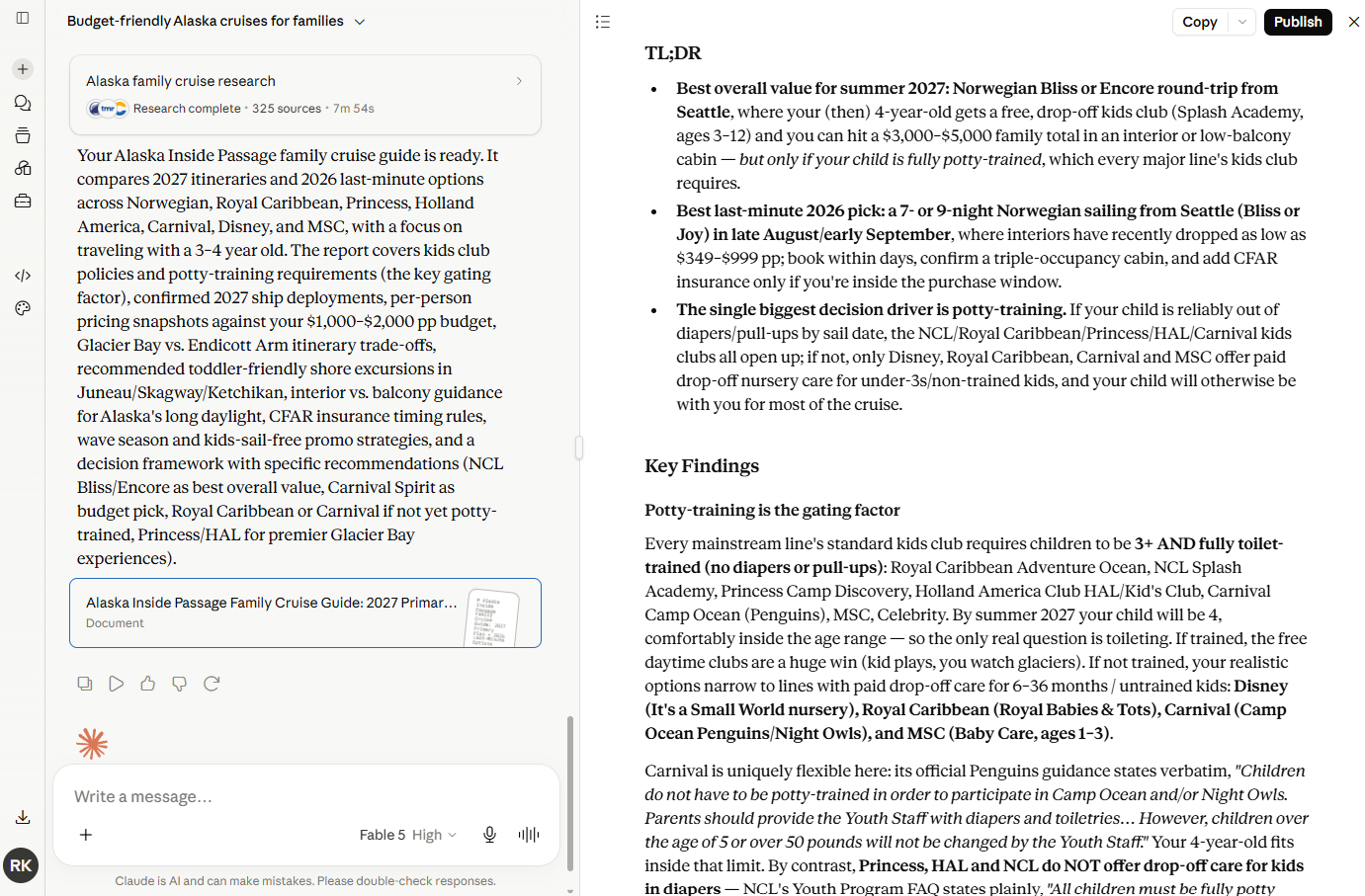
    Like ChatGPT’s Deep Research, Claude’s Research feature looks through dozens (and often hundreds) of sources to create comprehensive reports addressing nuanced requests. For example, I asked Claude to do a comprehensive review of Alaska Inner Passage cruise options, specified a few parameters, and got a thoroughly-researched recommendation in ten minutes.

    Claude's output while it's

    What’s especially neat is that Claude automatically takes a multi-agent research approach to speed things up. It starts by mapping out a research plan, then delegates each task to a different subagent so that Claude can investigate each thread of research simultaneously.

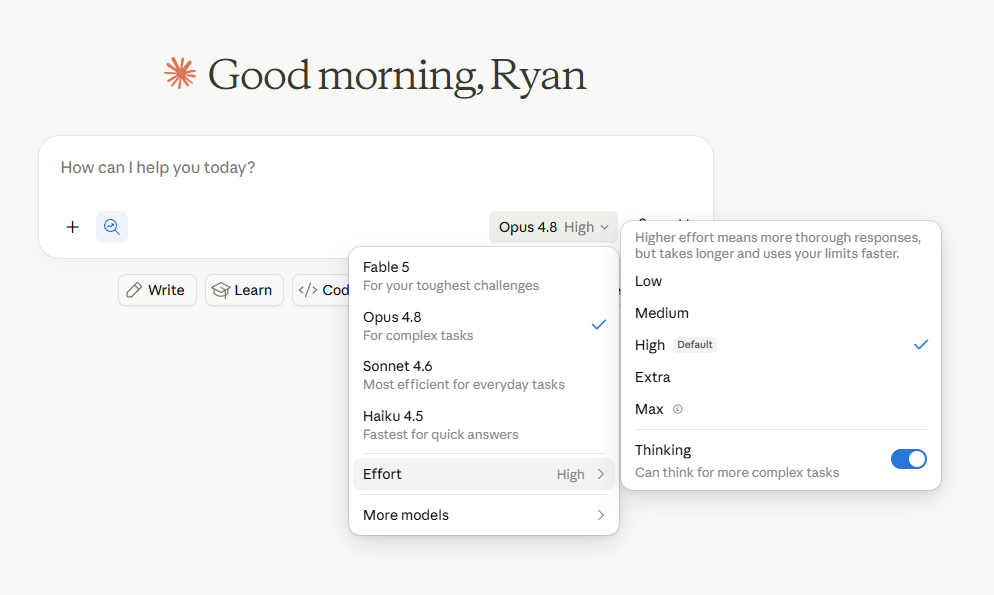
    Before running a research task, it’s worth knowing about Claude’s effort levels, which apply to all tasks but are particularly relevant to research. In addition to choosing your model, you can set the effort level to Low, Medium, High, or Max. Higher effort means more thorough responses, but it takes longer to complete tasks and you’ll burn through your usage limits faster. For serious research tasks, High or Max effort levels give you the best results. For quicker questions, Low effort is a better default.

    The thought process box in Claude

    If you just need Claude to reason its way through a problem and you don’t need to check web sources, extended thinking mode is a good option. It employs a “hybrid reasoning” approach that lets the AI either respond almost instantly or take time to reason step-by-step before answering. Either way, you’ll be able to see how Claude arrived at its conclusion, which builds confidence in the answers it gives you and prevents unnecessary back-and-forth.

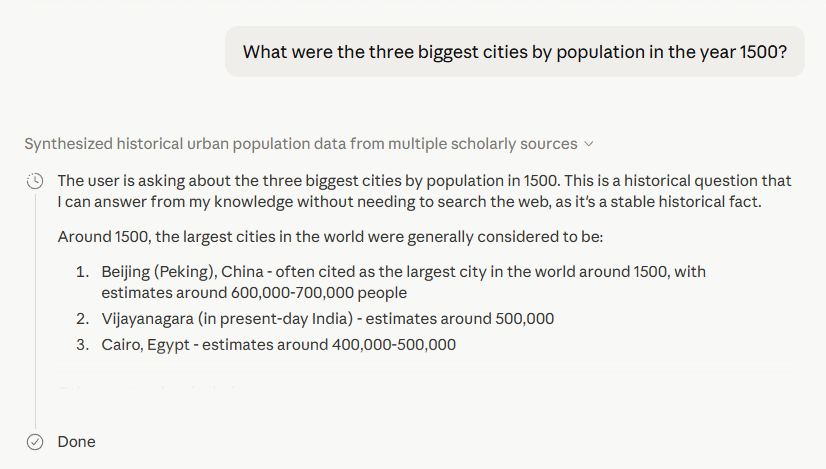
    When your question can be accurately handled by quickly pulling from its training data, Claude will tell you.

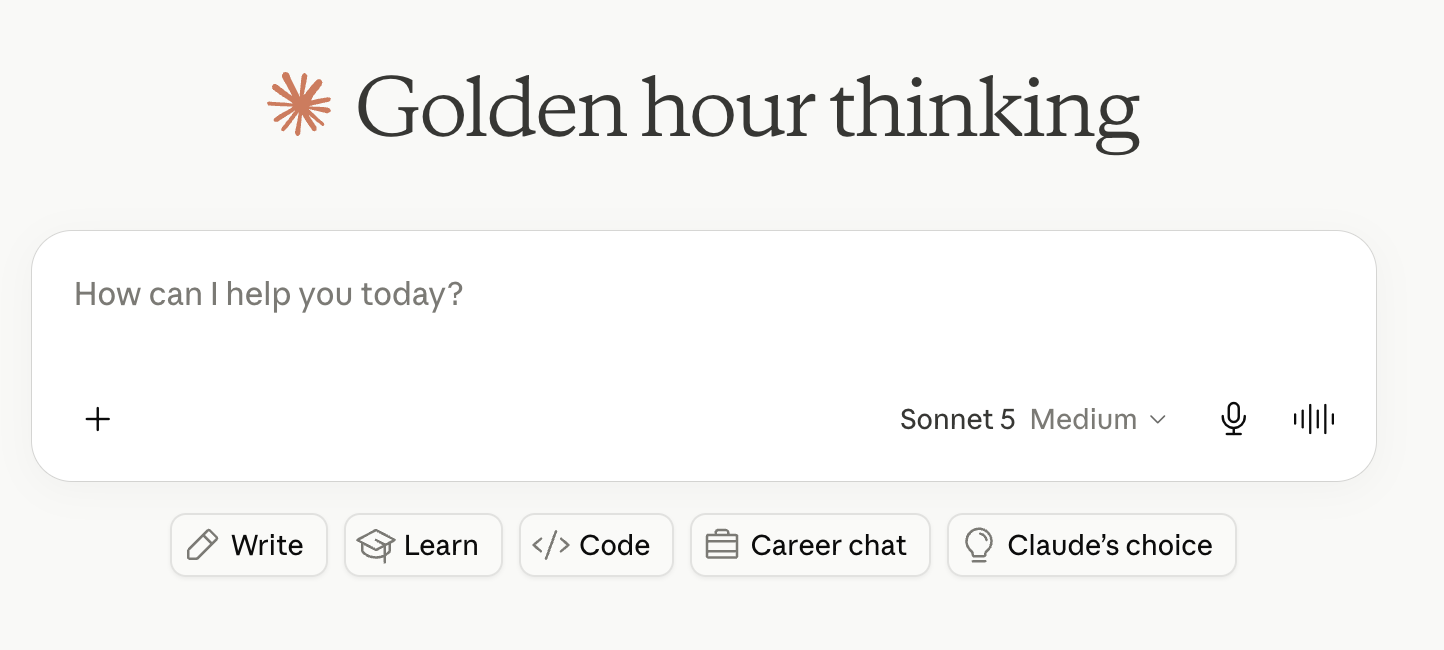
    Claude indicating that it can answer based on its knowledge

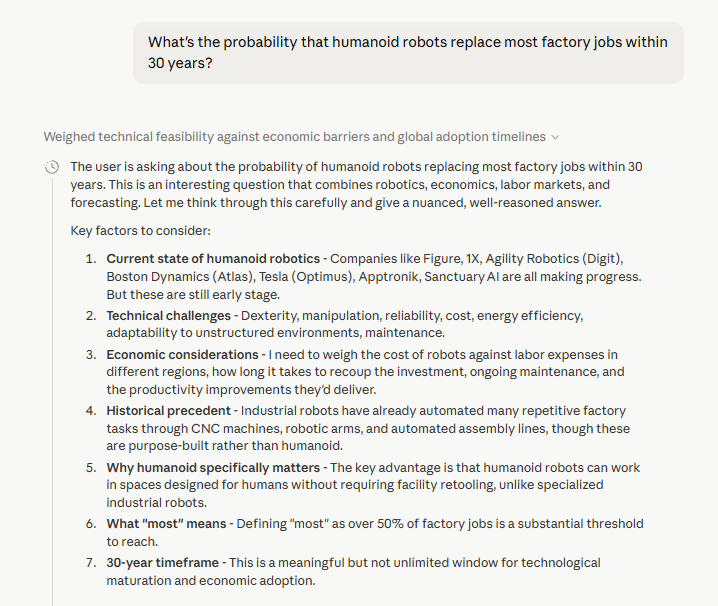
    And when you ask a question that requires analysis, probabilities, and complex ethical or societal considerations, Claude will ponder your question a bit longer and explain all the factors that are driving its thought process.

    Claude showing its reasoning

    Projects and Skills

    If you use Claude regularly for the same kind of work, Projects lets you create a persistent workspace with saved instructions, files, and context, so you don’t have to reexplain yourself every time you start a new task.

    For example, let’s say you’re a product manager who reviews customer feedback every day. Normally, you’d need to introduce your product, roadmap, and preferred response format during every single session. Projects lets you anchor all of your chat activity with the same instructions and long-term memory context, while also uploading materials to a persistent file archive so Claude always has the context it needs.

    A Project in Claude

    Projects is great for consistently referencing the same context and background knowledge. But if you’re looking to define a repeatable process, that’s when you’ll want to reach for Claude Skills.

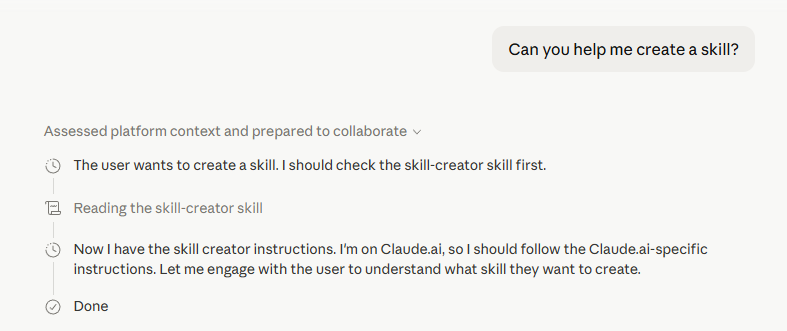
    A Skill is a reusable set of instructions that outlines the process and output format Claude should adhere to. Want Claude to always draft newsletters in the same way, or follow a specific editing checklist when you share a draft? That’s a Skill. You can build your own by simply asking Claude to help you build a Skill, which will trigger—you guessed it—a skill-creator Skill to walk you through the process.

    A Claude Skill

    Skills and Projects work best together. Use Projects as a container to hold the context of what you’re working on, and use Skills to help you take action in a predictable, repeatable way.

    Claude Code

    Claude Code, Anthropic’s agentic coding tool, is wildly popular for coding. Among enterprises, it owns 54% of the coding market. And among developers, a February 2026 survey found that 71% of those who use AI coding agents use Claude Code.

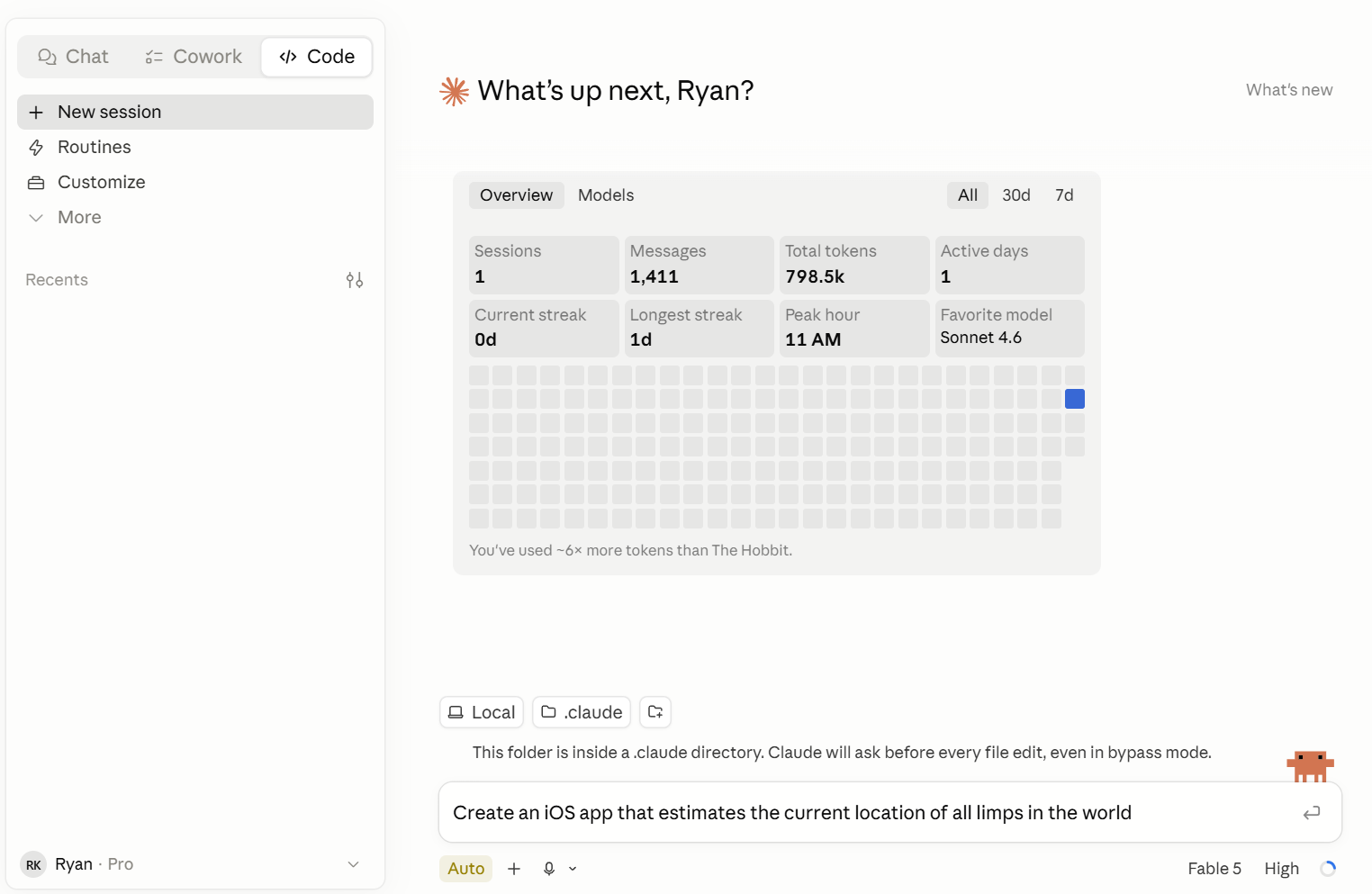
    Rather than simply generating code, Claude Code can execute entire projects from start to finish. Just give Claude your vision (“build me an iOS app that tracks blimps”), and it’ll take all the necessary steps to plan and execute it, while checking in occasionally for questions along the way.

    Claude Code interface

    You get full control over how often you want Claude Code to check in while it runs commands and modifies files. By default, it asks for your approval at each checkpoint, but you can also select Auto mode if you only want to be in the loop if a possible safety issue arises. There’s also an ominously-named --dangerously-skip-permissions option, which bypasses all safety prompts so Claude Code can run uninterrupted. (Ideally, you’d only use this in sandboxed environments.)

    Claude Code’s hours-long autonomous projects are made possible through a couple of innovations. Compaction allows Claude to summarize its own progress so it doesn’t hit a context wall, and agent teams coordinate multiple Claude instances that work in parallel on parts of a larger task. And since Claude now has a 1M token context window, it can hold entire codebases, meaning it can understand the entire context of your project without issue.

    Developers can use Claude Code in a terminal, but even non-technical users can try it out using Claude’s desktop app or web app.

    For a full guide on getting started, check out our Claude Code guide.

    Agentic AI

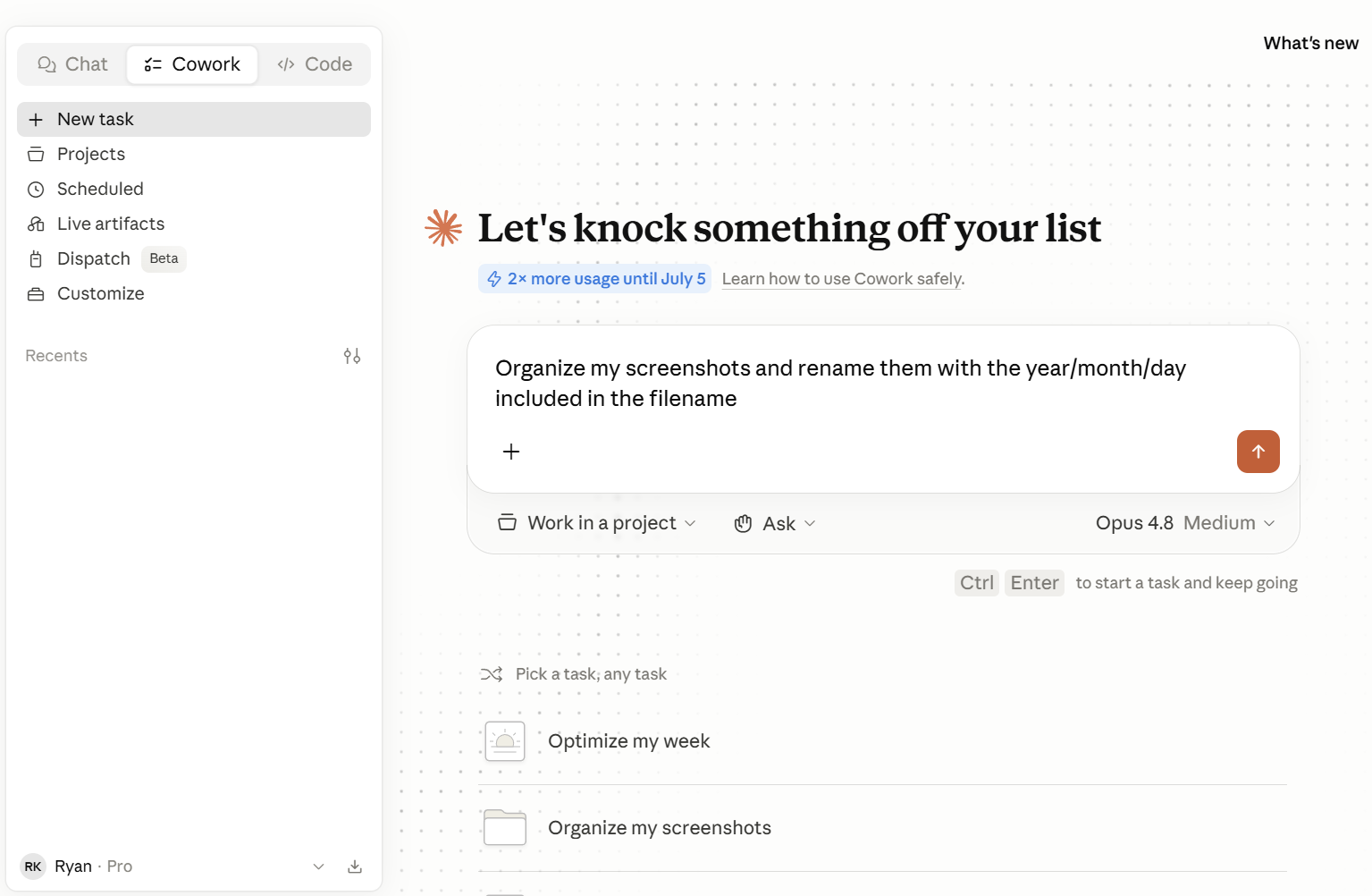
    Claude’s agentic AI layer used to be called Cowork, but now it’s all part of the chat window. Claude can do actual work on your computer. Just describe the outcome you want—like pulling data from a bunch of PDFs into a spreadsheet—and instruct Claude to handle it for you. Claude makes a plan, breaks it into steps, and does the work while you watch. It runs in a sandboxed environment, which means it can only take action within the folders you specify.

    It’s perfect for admin-heavy tasks like organizing files, reconciling transactions, and streamlining onboarding. If you’re used to procrastinating by organizing your desktop files and folders, you’ll have to find a new pastime: Claude can do it in 30 seconds.

    The Claude Cowork interface

    Claude also lets you schedule recurring tasks, like pulling sales data into a report each morning or reconciling expenses at the end of each week. And with Dispatch, another Claude feature, you can control sessions remotely from your phone (as long as your computer is turned on) so you can kick off a task from anywhere.

    Claude Design

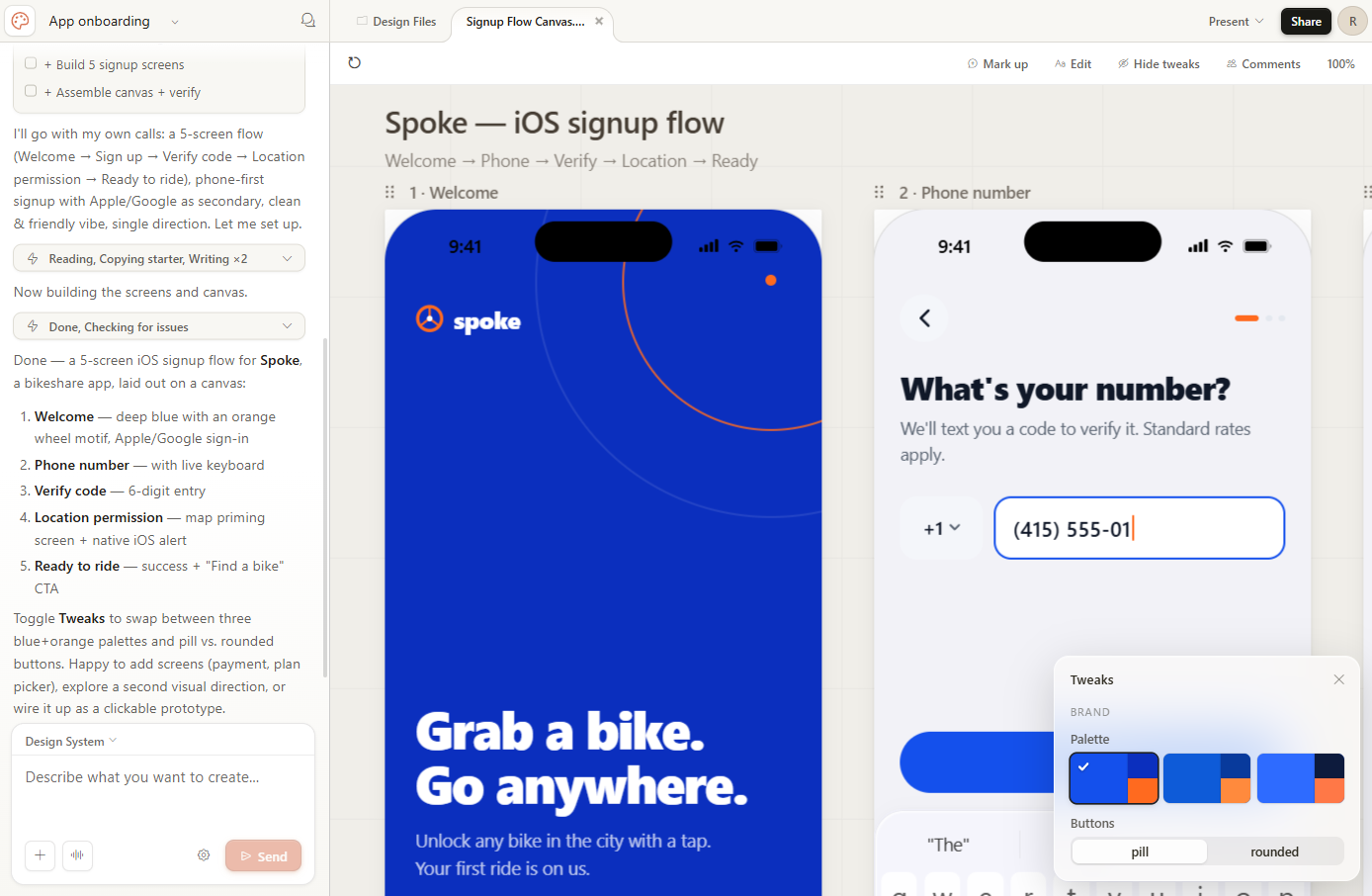
    Claude Design lets you create prototypes, wireframes, pitch decks, landing pages, and marketing collateral, and it tends to create more polished results than you’d get from other Claude tools. You can refine your design within the chat or with inline comments, direct edits, or custom sliders. 

    Working in Claude Design

    Claude Design can also automatically apply your team’s design system across everything you build, so the output is consistent whether you’re building a slide deck or an app prototype. Once you’re happy with your design, you can share it via a URL, save it as a PDF or PPTX file, or export it to Canva. And if you want to take your design and build something with it, Claude Design can create a bundle of design files and instructions so you can continue building in Claude Code.

    Claude Design is currently in research preview. You can access it with any paid Claude subscription.

    How to try Claude for yourself

    For access, sign up at Claude.ai. From there, you can start a conversation or use one of Claude’s default prompts to get started. As a free user, you’ll get limited access to Claude’s Sonnet and Haiku models. Upgrading to one of Claude’s paid plans (starting at $20/month) gives you access to additional models and priority access even during times of high traffic.

    You can also download Claude’s desktop app for macOS or Windows, which streamlines access to Claude.

    Automate Claude with Zapier

    If you decide to use Claude as your AI chatbot of choice, you can connect it to Zapier so you can safely kick off automated workflows across 9,000+ apps directly from your Claude chat. Zapier handles OAuth-managed authentication for every connected app, so Claude gets the access it needs to act without getting access to your credentials. Learn more about how to automate Claude with Zapier MCP.

    Zapier also offers access to the latest Claude models inside its own workflow engine—so whether you’re kicking off an action from Claude chat or running a scheduled workflow in the background, you’re working with state-of-the-art AI.

    Try Zapier

    Related reading:

    This article was originally published in September 2023. The most recent update was in September 2026.

  • The Politics of Sustainability Have Changed. The Business Case Hasn’t.

    The Politics of Sustainability Have Changed. The Business Case Hasn’t.

    Andriy Onufriyenko/Getty Images

    Summary.   

    Corporate sustainability may have fallen out of favor in some executive and political circles, but the business case remains strong: Companies continue to invest because sustainability

    Corporate sustainability appears to be in a bit of a slump. ESG has become a political liability, sustainability teams are shrinking, and many executives have shifted their attention to AI, economic uncertainty, and regulatory fragmentation.

    Read more on Environmental sustainability or related topic Climate change

  • The 6 Essential Skills Your Workforce Needs to Keep Pace with AI

    The 6 Essential Skills Your Workforce Needs to Keep Pace with AI

    CV Viverito

    is a senior director analyst in the Gartner HR practice. They support CHROs and HR leaders to understand and prepare for AI’s impact on the workforce and shape work for the human-AI era. CV engages with clients and speaks on topics including AI’s impact on headcount and roles, AI’s impact on skills, AI literacy, building AI-readiness across the workforce, and the intersection of inclusion and AI.

  • Your Executive Team Needs More Productive Conflict

    Your Executive Team Needs More Productive Conflict

    Harvard Business Review Logo

    Vladana Stanojevic-Ilic/Getty Images

    Many leadership teams struggle not with too much conflict, but too little: Executives avoid challenging one another, leaving important ideas and decisions insufficiently

    During my 25 years as an advisor to senior teams, I’ve seen a lot of coaching and advice focused on how to manage leadership team conflict. But in my experience, the bigger challenge can be getting executives to raise dissenting ideas and to then critique those rigorously. Too often I see executive teams rush along in a state of passive peace because they value respect, trust peers to manage their own silos, and fear that stepping out of their “lane” will make them seem unhelpful or slow things down.

  • The 8 best platforms to create and sell online courses in 2026

    The 8 best platforms to create and sell online courses in 2026

    We independently review every app we recommend in our best apps lists. When you click some of the links on this page, we may earn a commission. Learn more.

    Anyone can share knowledge as quickly and easily as you can upload a video to YouTube. But to explore a topic in depth, build a community, earn an income, or grow your business by selling online courses? That takes a more robust setup to help you design course pages, build out a curriculum, and promote your course.

    I’ve been updating this article for several years, and this year, after researching and nearly 80 apps for creating and selling online courses—and testing all the top contenders—these are my picks for the best.

    • Udemy for launching your first course

    • Skillshare for teaching creative skills

    • Teachable for creating an online school with advanced marketing

    • Podia for selling digital products and memberships

    • Kajabi for when courses are your business

    • Mighty Networks for building a paid community

    • Simplero for managing your business

    • LearnWorlds for granular customizability

    What makes the best online course platform?

    How we evaluate and test apps

    Our best apps roundups are written by humans who’ve spent much of their careers using, testing, and writing about software. Unless explicitly stated, we spend dozens of hours researching and testing apps, using each app as it’s intended to be used and evaluating it against the criteria we set for the category. We’re never paid for placement in our articles from any app or for links to any site—we value the trust readers put in us to offer authentic evaluations of the categories and apps we review. For more details on our process, read the full rundown of how we select apps to feature on the Zapier blog.

    For this piece, I only considered platforms for building and selling an online course, which means I didn’t consider learning management systems (LMS). While the terms are often used interchangeably, LMS software is generally used either in a school setting or to help companies train their customers and employees. The platforms to create online courses covered below, on the other hand, are designed for businesses and individual creators to earn money (or build an audience) by selling their courses.

    Online course creation platforms can be broadly divided into two categories:

    • Course marketplaces

    • Course creation software

    In a marketplace, your course is a part of a catalog, and you have the option to customize your course landing page but not much else aside from the course content. Most marketplaces let you publish a course for free but take a share of course sales. The major advantage: course marketplaces provide you with an existing student base, so if you don’t have much of an online presence yet, you might want to dabble with these first.

    Online course creation software, on the other hand, offers many more customization options. You can create branded landing pages, choose from multiple content formats when building your course, and get the necessary tools to market your course. These usually charge a fixed monthly fee, and some platforms also charge a transaction fee.

    Unsurprisingly, there’s no one-size-fits-all solution for creating a profitable course. Your ideal course creation platform is unique to your needs and goals. Are online courses your bread and butter? Then you need a platform that helps you reach the maximum number of students. Does teaching and engaging with students excite you? Then a course creator with interactive tools would work well. Are you creating a course to engage your existing audience? Then you’ll want a tool with robust marketing features.

    While every platform has its own unique selling point, I’ve judged the online course software below based on certain criteria:

    • Content formats supported, including video, audio, PDFs, slides, and images

    • Editing features and customization options

    • Whether or not they’re realistically affordable for small and medium businesses

    • Support for assessments: quizzes, exams, certifications, assignments, etc.

    • Marketing and payment features

    • Support for both AI-generated and manual course creation

    With those criteria in mind, I narrowed it down to 30 apps worth testing in full, then spent several days exploring them and running through an in-depth testing process. Here’s what it looked like:

    • Signing up for an account and completing any onboarding flows offered

    • Walking through the core workflow to create a new course, including browsing any course templates, building out the curriculum, and adding course content in varying formats; I also tested any AI course generation features, where available

    • Testing out other core features like building quizzes and tests, designing course certificates, scheduling live sessions, and setting up drip schedules

    • Customizing the overall design, colors, fonts, logos, landing pages, and more—to the extent possible with each app

    • Finally, looking at payment and marketing features like email broadcasts, pricing structures, community building, and SEO

    The eight course creation platforms below are the best I found.

    The best online course platforms at a glance

    Best for

    Standout feature

    Pricing

    Udemy

    Launching your first course

    Guided, prescriptive course creation flow

    Free; 3% to 63% revenue share on course sales

    Skillshare

    Teaching creative skills

    Quick, easy course setup

    Free; royalties for premium class minutes watched; 10% fee on digital product and 1:1 session sales

    Teachable

    Creating an online school with marketing

    Wide-ranging AI features in beta

    From $39/month plus 7.5% transaction fee

    Podia

    Selling digital products and memberships

    Simple course outline builder

    From $49/month with a 5% transaction fee

    Kajabi

    When courses are your business

    Loads of built-in marketing features

    From $179/month

    Mighty Networks

    Building a paid community

    Strong community-building focus

    From $95/month

    Simplero

    Managing your business

    All-in-one CRM, marketing automation, and online courses

    From $70/month

    LearnWorlds

    Granular customizability

    Extensive visual customization options

    From $29/month plus $5 per sale

    Best online course marketplace for launching your first course

    Udemy (Web, Android, iOS)

    Udemy, our pick for the best online course marketplace for launching your first course

    Udemy pros:

    • Guided, prescriptive course creation flow

    • Built-in Udemy audience

    • Extensive support for assessments and hands-on assignments

    Udemy cons:

    • Steep revenue share structure

    • Requires video

    • Must apply and be accepted to offer paid courses

    While the earliest massive open online courses (MOOCs) made learning accessible, Udemy took it a step further: it made teaching online possible. Today, the platform has well over 84 million students enrolled in its courses and an instructor base of over 90,000.

    To create a paid course on Udemy, you first have to apply to become a premium instructor. Once approved, you’ll see a series of easy-to-follow steps to help you create your first course. As you plan course content, keep in mind that all courses need at least 30 minutes of video and five lectures. (If you plan to offer your course for free, you’re limited to 2 hours worth of video.) You’re also welcome to add quizzes, coding exercises, practice tests, assignments, practice role play, and practice and graded labs.

    Why launch your first course on Udemy? Because the platform offers loads of support for creating and marketing a course. For example, if you’re not sure if your video lessons are up to snuff, you can submit a sample for review and get feedback on video and audio, along with suggestions for equipment. And for tutorials on planning a course, filming your first video, and related topics, Udemy offers the Teaching Center with tips and tricks.

    If you’re struggling to make your first few sales, Udemy’s tailor-made marketing programs will offer support. Get your course featured in their email blasts, be a part of site-wide discounts, or opt for Udemy’s affiliate marketing program. All of these programs are optional, and depending on the promotional channel you choose, Udemy takes a share of course sales.

    Finally, Udemy’s marketplace insights help you select the perfect course topic and see how it stacks up against other courses on the platform—which is important because of the size of the marketplace you’re competing with. Similar to Google Analytics, this feature tells you how popular a topic is on Udemy, its search volume, and related keywords. You can also see the number of existing courses for a topic, top-earning courses in the category, monthly revenue earned, and best promotion channels (Udemy discovery, Udemy search, external sources, and paid ads).

    To put it simply, with Udemy, you’re in good hands.

    Udemy price: Free to publish free courses with under 2 hours of video; Udemy charges 3% revenue share on course sales made by instructor coupons and 63% revenue share on all other course sales. (Note: Revenue share does not include processing fees charged by PayPal or Payoneer, or mobile platform fees for mobile course sales.)

    If you love Udemy’s extensive support for assessments but need a bit more flexibility to customize your course, Zenler is worth a look. It’s a great online course platform all around, with a particularly strong quiz feature. The platform offers several question formats—including multiple choice, multiple response, true/false, media, sequencing, matching, and fill-in-the-blanks—and even branching logic for quizzes.

    Best online course marketplace for teaching creative skills

    Skillshare (Web, Android, iOS)

    Skillshare, our pick for the best online course marketplace for teaching creative skills

    Skillshare pros:

    • Quick and easy course setup

    • Designed for creatives

    • Free

    Skillshare cons:

    • Requires video

    • No support for assessments

    • Minimally customizable

    If you’re an entrepreneur, designer, writer, photographer, or blogger looking to teach your craft online, Skillshare is great for teaching creative skills. You’ll find courses on all kinds of topics, both popular and niche: marketing, photography, cooking, hand painting, doodling, and even wall hanging.

    The platform offers a membership plan for students that gives them access to all of its 30,000+ premium courses. As for creators, it’s a free online course platform if you just want to sign up and publish a course, but if you want to get paid, it must be a part of Skillshare’s premium catalog.

    Free or premium, Skillshare classes have three major moving parts: video lessons, a project, and community discussion. A typical class includes 20-60 minutes of video, broken down into 2-8-minute lessons—or, you can offer a short-form class with just 2–15 minutes of video. The practical project then ensures hands-on experience. For instance, a social media class project might require students to promote their Instagram account, or a writing class might require students to draft a pitch. Finally, the community portion of a class allows students to post their work.

    Instead of favoring final outcomes, Skillshare encourages students to share their progress, gather feedback, and tweak their work accordingly—which is perfect for the creative topics you’ll be teaching.

    Skillshare also now offers creators the option to sell downloadable digital products and one-to-one coaching sessions alongside your courses. (Skillshare takes a 10% cut of these sales.)

    Skillshare price: Free for creating a premium class. Skillshare pays instructors $10 for premium membership referrals and royalties for engagement and minutes watched in a premium class each month. 10% transaction fee on sales of downloadable digital products and one-to-one coaching sessions.

    Pathwright is another option for hands-on subjects. The online course software offers a unique, action-oriented course and curriculum builder and is more customizable than a marketplace like Skillshare. While Pathwright used to be included in this list, the interface isn’t the most modern and pricing both starts high and scales quickly, so I didn’t give it a full write-up this year.

    Best online courses platform for building an online school with advanced marketing

    Teachable (Web, iOS)

    Teachable, our pick for the best online course creation software for building an online school with advanced marketing

    Teachable pros:

    • Tons of built-in marketing features

    • Custom-code course editor

    • Wide-ranging AI features

    Teachable cons:

    • Only 3 design templates

    • Pricing structure is less scalable than some

    Teachable helps savvy course creators grow and nurture an online audience. To begin with, the platform offers various options to customize the look and feel of your course. Build a website that reflects your brand, create sales pages for launching your course, and if you happen to know some code, use the Power Editor to tinker with it. If not, edit one of the three templates available. Teachable’s course builder accepts files from Dropbox, Google Drive, and OneDrive, among other content formats.

    Teachable’s generative AI generated a course outline, lesson content, quizzes, and section summaries that were good enough to serve as a solid starting point.

    There’s flexibility when pricing your course, too. You can offer courses on their own or in bundles, and choose between a one-time fee, a payment plan, or a subscription. When you’re ready to launch, create coupon codes to see a quick boost in course sales. To build a sales team for your course, use the platform’s built-in affiliate marketing option: simply add affiliates, and they’ll get a percentage of course sales. No third-party integration required.

    Teachable’s native email marketing tool lets you filter and message students when they enroll in a course, redeem a coupon, or complete a course. The platform also helps you collect student feedback and uncover insights about your course using Google Forms and surveys. If you’d like to keep in touch with students after they’ve completed your course, add them to your email list with Teachable’s integrations. As they say, the money is in the list.

    You can do more with Teachable when you connect it to your favorite apps through Zapier’s automated workflows. For example, you could dynamically segment students based on engagement, enrich their profiles with external data, and trigger personalized content across your CRM and email campaigns. Discover more ways to automate Teachable with Zapier.

    Automate Teachable

    Teachable price: The Starter plan starts at $39/month and includes 5 courses or products and unlimited students, with transaction fees of 7.5%.

    Best online course creation software for selling digital products and memberships

    Podia (Web)

    Podia, our pick for the best online course creation software for selling digital products and memberships

    Podia pros:

    • Simple, clean course outline builder

    • Support for multiple kinds of digital products

    • Affordable

    Podia cons:

    • Not the most visually customizable

    Podia lets you build an online store for your digital content. Create online courses, digital downloads, coaching sessions, and even membership sites, all as part of one digital storefront.

    All Podia storefronts have a similar template, which is helpful if you find too many options overwhelming. Each store’s landing page includes an overview, a “What’s included” section, a content section, FAQs, and creator bios. And all courses, memberships, and digital downloads have a separate landing page.

    Once you create an online course, you can publish it immediately or pre-launch it to collect emails. If you have additional resources to supplement your course—webinars, cheat sheets, eBooks, videos, audio, text, checklists—sell them as a digital download. You can also bundle and sell the two together.

    Online content creators often try to nurture an online community on platforms such as Facebook and LinkedIn. This can work, but you’re often at the mercy of algorithmic changes and the rules of the platform you choose. Podia allows you to create your own private membership site, with different membership plans, perks, and content for members. Share updates with your community, notify them about new products, and watch your business grow.

    When you integrate Podia with Zapier, you can build multi-step workflows that connect Podia to your entire tech stack. For example, you can automatically enroll new purchasers in your course, add students to relevant email marketing campaigns, and use AI to tailor follow-up content.

    Automate Podia

    Podia price: Starts at $49/month (billed annually) for the Mover plan with a 5% transaction fee. Includes your community, website, blog, and landing pages, as well as space for 50 products, storage for 500 videos, 25 community spaces, and email marketing for up to 100 subscribers.

    Best online course creation software for when courses are your business

    Kajabi (Web, iOS, Android)

    Kajabi, our pick for the best online course creation software for when courses are your business

    Kajabi pros:

    • Tons of built-in marketing features

    • Decent generative AI feature

    • Native email marketing

    Kajabi cons:

    • Expensive

    • Less customizable than some

    Kajabi gives marketing superpowers to busy course creators. Its marketing blueprints, called funnels, help you create an entire marketing funnel—from landing page and opt-ins to emails and course checkout—with just a few clicks.

    Here’s an example: The freebie funnel consists of three touchpoints. The first is a landing page where you collect emails in exchange for a free downloadable, such as an eBook or cheat sheet. When a visitor enters their email, they’re subscribed to your freebie email sequence, where you can thank them for signing up and upsell your course. If they choose to purchase, they’re taken to a thank-you page. And that’s it.

    You can also choose what to do with the emails you collect. Add them to an email sequence, remind them about your special offer, or send them a thank-you note after they purchase. Kajabi has templates for all kinds of pages. Select a funnel, add your content, and your marketing machine is all set.

    Templates can be handy, but if you want to create your own automations, Kajabi offers a number of if-then scenarios to choose from. When a student completes an assessment, fills a form, cancels a subscription, or has been inactive for a while, you can send them an email, register them for an event, or unsubscribe them from an email list. Given that email is at the core of all its features, Kajabi also has a native email provider that helps you track how many of your emails are opened.

    Here’s my big caveat, though: Kajabi pricing has jumped a ton in recent years, with even the entry-level plan starting at $179/month when billed monthly. That’s a lot higher than most of the tools on this list—a cost that probably only makes sense if online courses are your whole business and you’re looking to market and sell them at scale. If that’s the case, you’ll appreciate Kajabi features that allow you to build a fully branded app and create AI agents to act as your sales rep or teaching assistant.

    You can do more with Kajabi when you connect it to your favorite apps through Zapier’s Kajabi integration. For example, you can automatically log purchases in Google Sheets and add customers to an email sequence. Or access and act on your Kajabi data straight from your AI assistant. Discover other popular ways to automate Kajabi.

    Automate Kajabi

    Kajabi price: From $179/month for the Basic plan for 1 website, 5 products, and 2,500 contacts; upgrade for $249/month to the Growth plan for 1 site, 50 products, and 25,000 contacts.

    Deciding between Kajabi and another platform? Read our comparisons: Kajabi vs. Teachable and Kajabi vs. Thinkific. Or, for a (somewhat) more affordable alternative to Kajabi, give Ruzuku a look. It’s a capable all-around online course platform with an intuitive course building workflow, and the app’s entry level paid plan includes unlimited courses and students. You can also license 30+ “instant courses” to sell as your own.

    Best online course creation software for building a paid community

    Mighty Networks (Web, Android, iOS)

    Mighty Networks, our pick for the best online course creation software for building a paid community

    Mighty Networks pros:

    • Strong community-building focus

    • AI-generated course outlines

    • Modern, user-friendly interface

    Mighty Networks cons:

    • Higher than average starting price

    • Not a ton of native marketing features

    Mighty Networks helps you build a vibrant, active paid community around your online course. The app focuses broadly on community-building, which includes paid groups, events, and—you guessed it—online courses.

    Users can sell individual courses, community membership, or bundle a combination of the two. Memberships can be priced as a one-time payment or subscription, and pricing is 100% custom. Each course can be priced separately or offered for free to paying members.

    Every course comes with a built-in Activity Feed that works to foster engagement and conversation as members complete your course. Members can share all kinds of content, too—from quick text posts to images and links. As the instructor, you can set topics to drive the conversation and build live events (both online and IRL) into your courses. Add icebreaker questions to get the ball rolling, and create polls to engage your audience and gather feedback.

    Uniquely, the app offers a small but mighty feature (pun intended) that enables instructors to change the verbiage used in their community. For example, your table of contents can alternatively be called syllabus, course material, or any custom label you choose. Instructors can be professor, TA, teacher, or another custom name.

    When you connect Mighty Networks with Zapier, you can orchestrate multi-step workflows that turn community activity into coordinated action across your organization. For example, when a new member joins, you can use AI to automatically enrich their data, update email marketing and CRM systems, and invite the member into the right programs or follow-up flows. Learn more about automating Mighty Networks.

    Automate Mighty Networks

    Mighty Networks price: Plans start at $95/month (plus a 2% transaction fee) for unlimited courses and members.

    Best online course creator for managing your business

    Simplero (Web, iOS, Android)

    Simplero, our pick for the best online course creator for managing your business

    Simplero pros:

    • All-in-one CRM, marketing automation, and online course platform

    • Native payments

    • Customizable settings

    Simplero cons:

    • Not-so-scalable pricing structure

    If you’re looking for a capable, customizable online course builder, you can’t go wrong with Simplero. Creating and outlining your course curriculum is super quick: from the courses page, click the New course button, and a few screens later, you’re ready to build out your curriculum and add your learning content.

    But Simplero isn’t just a course creation app—it’s more like a CRM, marketing automation, and online course tool in one package. That’s reflected in the robust automation and list management features included in the app. You can build, publish, and market courses, track sales and financials, and maintain your customer list all in one app. Plus, it’s one of the only tools I tested that offers real-time collaboration when editing courses.

    Head over to Marketing > Done-For-You Campaigns, for example, to install the Course Launch Challenge, a 21-day automated sequence. All you need to do is customize the emails and choose when the automation flow should run. 

    With add-on features to handle support tickets, track sales pipeline, gather testimonials, and build an affiliate program, it’s a perfect all-in-one solution for when your online course is your business.

    And with Simplero’s Zapier integration, you can build intelligent, multi-step workflows that extend beyond the platform. For example, automatically add new purchasers to your CRM, or kick off personalized drip campaigns when a new tag is added to a contact.

    Automate Simplero

    Simplero pricing: The Starter plan starts at $70/month and includes 10 products, 10 courses, and 500 contacts; upgrade to the Scale plan at $179/month for 1,000 contacts, unlimited courses and products, affiliate marketing features, and more.

    Best online course creation software for granular customizability

    LearnWorlds (Web, Android, iOS)

    LearnWorlds, our pick for the best online course creation software for granular customizability

    LearnWorlds pros:

    • Granular customizability

    • User-friendly course builder

    • Actually helpful AI features

    LearnWorlds cons:

    • No text-only lesson content

    At a time when many online course platforms are moving away from visual customizability, LearnWorlds stands out. You can still choose from a number of pre-built templates, and you can also get super granular, customizing the layout, colors, typography, and buttons and inputs for your course page—it’s as close to a custom course website as you’re going to get.

    LearnWorlds also offers one of the most useful generative AI features I tested. The tool will build out your course outline for you, but instead of basing the outline on a three-word title, LearnWorlds offers a number of options to help guide and customize the generated content. You can check which types of media it should include, key topics to cover, tone of voice, instructional approach—it’ll even create course activities based on your chosen resource. Once generated, you can edit, add to, and further refine your course content via one of the most intuitive course builders on this list.

    Another neat feature is Question Banks, where you can save pre-created questions to pull from whenever you build quizzes, assessments, and exams.

    When you connect LearnWorlds with Zapier, you can orchestrate multi-step workflows that manage the entire learner journey across your tech stack. For example, when a learner completes a course, you can use AI to generate a personalized course summary or skills recap, issue a completion certificate, and update the learner’s record in your CRM.

    Automate LearnWorlds

    LearnWorlds pricing: From $29/month (plus $5 per course sale) for the Starter plan, including unlimited paid courses and 1,000 monthly active learners.

    Which online course platform is best for you?

    Whether you’re passionate about teaching, want to grow your audience, or are looking to earn an income from your courses, there’s an online course creation platform to help you achieve your goals.

    When picking a tool to launch your course, consider your budget, time constraints, current online following, and earning potential. If you’re simply testing the waters, start with a course marketplace. Once you’ve validated your course topic and content, only then proceed to launch your own course website. Don’t worry about migrating content from one platform to another. Most platforms support this, whether for free or for an added fee.

    In the end, software for online courses should allow you to focus your efforts on the course content, not the process of getting it out to your audience.

    Related reading:

    This article was originally published in September 2018 by Farheen Gani. The most recent update was in October 2026.
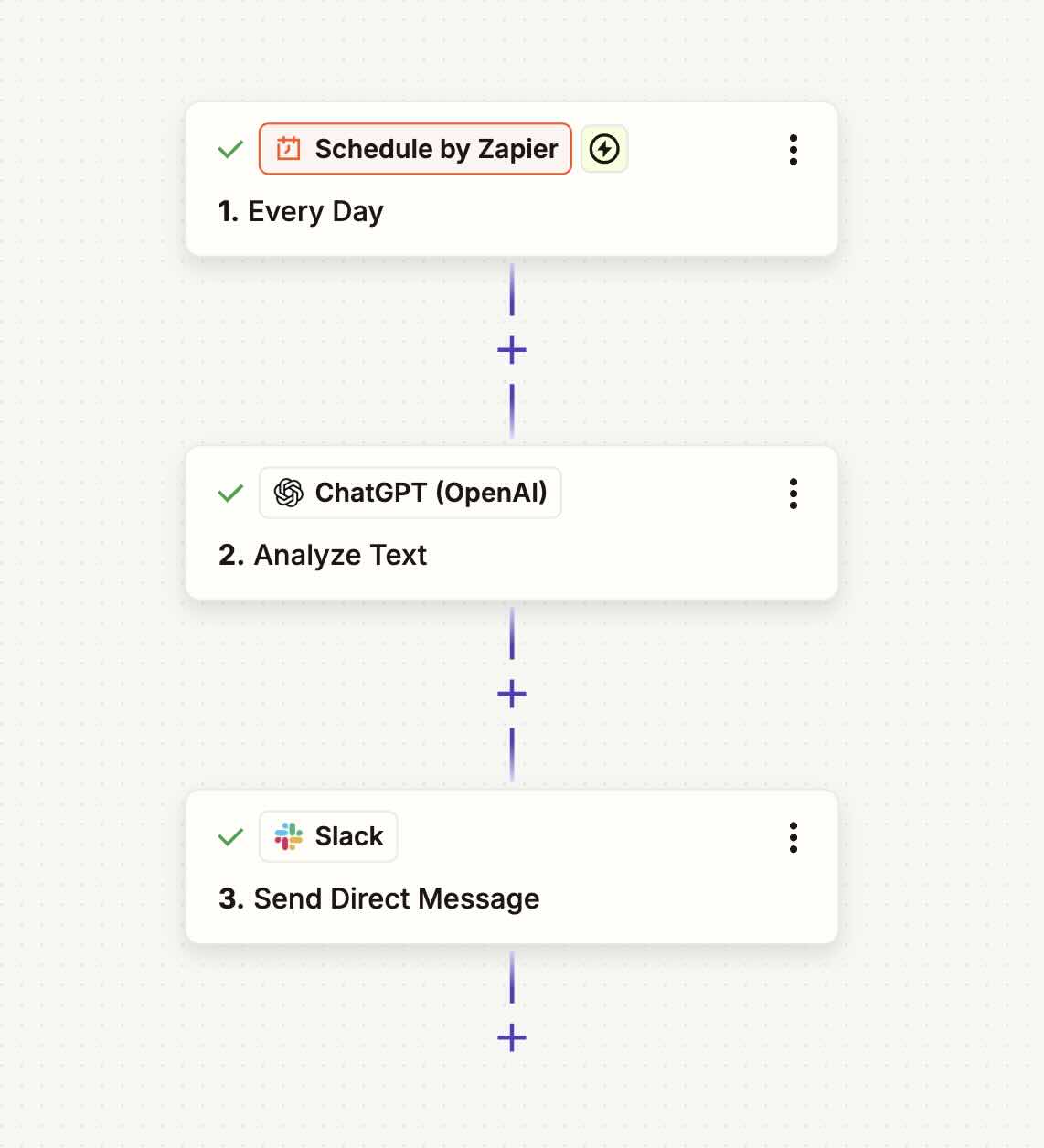
  • Yahoo Mail vs. Gmail: Which should you use? [2026]
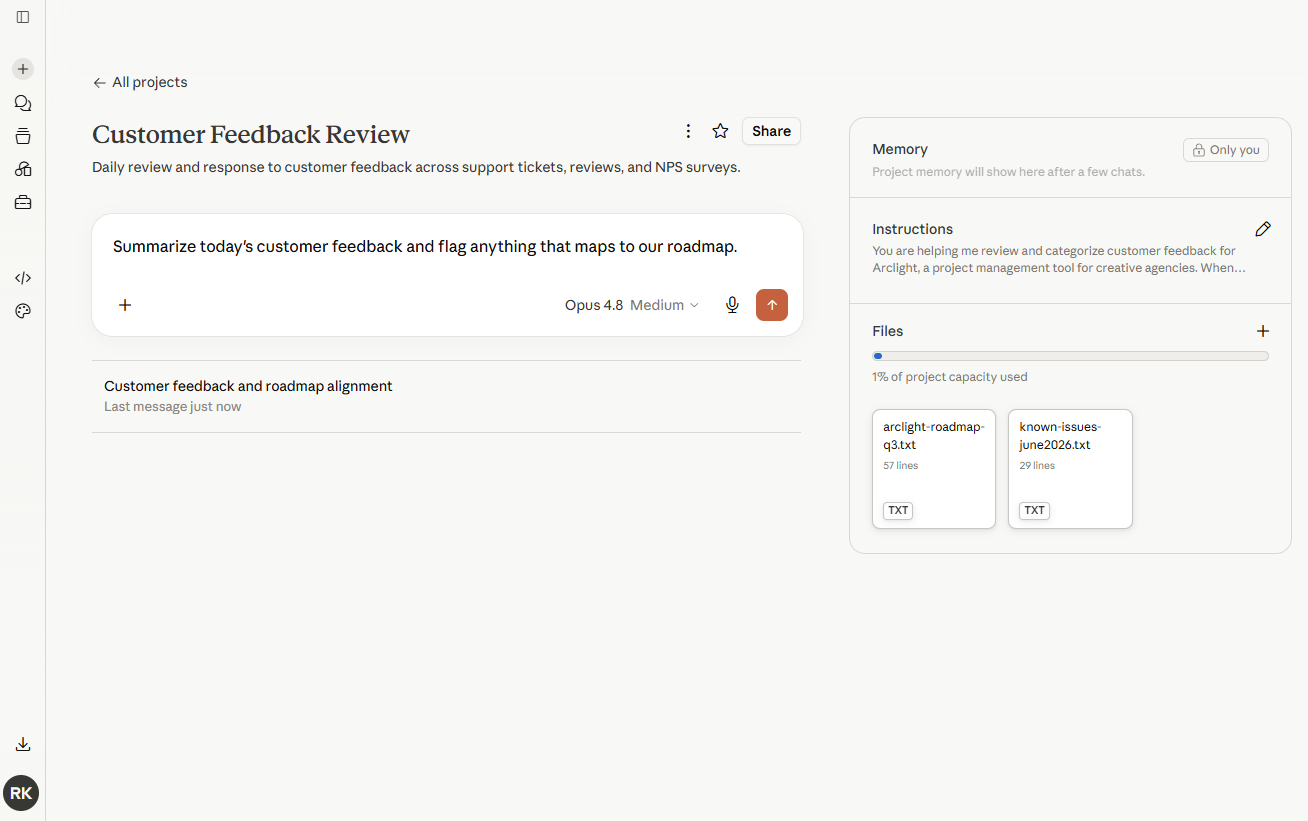
    Yahoo Mail vs. Gmail: Which should you use? [2026]

    Gmail and Yahoo Mail (a.k.a. Yahoo! Mail a.k.a. Ymail) are two of the biggest email providers. While the stats are hard to verify and seldom updated, Google’s Gmail is reportedly responsible for over a third of opened emails and has 3 billion active users, while the partially Verizon-owned Yahoo Mail—despite launching in 1997—apparently has around 225 million active users per month. Whatever way you slice it, they both serve huge numbers of people. But what about you? If you’re setting up a new email account, which one should you choose?

    I’ll admit to some nostalgia for Yahoo, which was my introduction to the entire concept of email back in the ’90s. But like a lot of people, I switched to Gmail a decade later and never looked back. So I was curious to see how Yahoo has evolved over the years, and as it turns out, they’ve been busy: they cut storage by 98%, gave the app a major facelift, and—in one of the more head-turning tech collabs of the year—hired Cardi B to promote a new AI feature.

    For this article, I set up fresh accounts with both Yahoo and Gmail to understand what the experience is like for new users. After spending time comparing the latest features of each app, here’s how the Yahoo versus Gmail showdown looks.

    Table of contents:

    Ymail vs. Yahoo Mail

    Before diving in, let’s clear one thing up: Yahoo Mail isn’t called Ymail. Some older email addresses used @ymail.com, and ymail.com still opens Yahoo Mail, but the company has moved away from the branding. Now, it’s all about Yahoo Mail, and if you set up a new email account with Yahoo, you’ll get an @yahoo.com email address. 

    To clear two things up: it really is just Gmail, not Google Mail.

    Gmail vs. Yahoo at a glance

    Whether you go for Gmail or Yahoo, you’ll get some pros and cons. Check out the table below for a quick comparison, or read on to get into the details.

    Gmail

    Yahoo Mail

    Overall email experience 

    ⭐⭐⭐⭐⭐ The gold standard since it launched in 2004

    ⭐⭐ A passable email service that—despite a recent facelift—is let down by intrusive ads and weak companion apps

    Free storage 

    ⭐⭐ 15 GB across Gmail, Google Docs, Google Drive, and Google Photos just isn’t a lot

    ⭐⭐⭐ Yahoo Mail now gives you 20 GB of storage—a massive downgrade from the 1 TB it offered until 2025

    App ecosystem

    ⭐⭐⭐⭐⭐ You get a lot of world-class apps with a Gmail account, including Google Docs, Google Calendar, and Google Drive

    ⭐⭐ Yahoo’s apps aren’t unusable; they just aren’t very good

    One last note before diving in: any conversation about email gets complicated because there are two sides of it:

    • Email services do the sending and receiving of email behind the scenes.

    • Email clients are the apps you use to send and read your email. 

    Both Gmail and Yahoo Mail are email services that also have email clients. But you can use any other email app you want—Outlook, Apple Mail, you name it—to check your Yahoo Mail or Gmail email.

    If you really want, you could even use the Gmail client to check your Yahoo Mail account or the Yahoo Mail client to check your Gmail account (don’t do that). For the purposes of this comparison, I’m assuming that you’ll use both the relevant email service and its client app (or at least a third-party app that you love). It’s the simplest way to get the best email experience where everything works smoothly, rather than battling your way through.

    Both Gmail and Yahoo handle the basics of sending emails

    For better or worse, most email apps are pretty similar. They allow you to send and receive emails, do their best to filter out spam, and generally fade into the background. When things are working well, you really shouldn’t notice whether you’re using Gmail or Yahoo Mail—you should just be sending and checking your email. 

    Both Gmail and Yahoo Mail nail the basics. Despite being decades old, they’ve kept with the times and still feel like modern email clients. The web apps are fast and easy to use, the mobile apps work well on both iOS and Android, and they each have some neat extra features—like automatically sorting your emails into categories or making it easy to unsubscribe from marketing emails.

    Gmail wins on the feature front with things like scheduled sending, confidential messages, and smart replies—though if you only want a basic email app, you can easily ignore them all. Certainly, if you’re one of the 200-odd million people who rely on Yahoo Mail every month, you aren’t going to get a radically different email experience by switching to Gmail, but you’ll probably find some of the extra features useful.

    Both apps have ads. Gmail’s ads are far less obtrusive, partly because they’re entirely text-based and partly because you won’t see them at all unless you head over to your Promotions or Social inboxes.

    Ads in Gmail under Promotions

    Yahoo Mail’s ads are far more aggressive. There’s a text-based ad and a full sidebar ad in the inbox, plus a banner ad that shows up after you click to read your email.

    Ads in Yahoo Mail in the sidebar while writing an email

    Does it affect the user experience? Definitely. The most egregious example is the full-width video ad you have to scroll past just to reach your email.

    A full-width video ad in Yahoo Mail

    Yahoo Mail is now majority-owned by a private equity group, so I can’t say I’m surprised by the instinct to put ads everywhere—particularly if the end goal is to nudge users to sign up for a $5/month Yahoo Mail Plus subscription.

    The Yahoo+ pricing

    Gmail offers more extras and integrations, including all the other Google apps

    Email services rarely stand on their own. They’re just one part of ecosystems that include calendars, contact management, notes and documents apps, storage, and lots more. And this is where Gmail really stands out. 

    Not only is Gmail an excellent email service, but Google Calendar, Google Docs, Google Photos, and Google Drive are all best in class as well. And while you can sign up for a Google account without signing up for Gmail, you miss out on some great features.

    When you need to attach a large file to an email, for example, it automatically gets uploaded to your Google Drive, and a link is added to your email. Or when someone emails you a Google Docs link, there’s a little button to click to open it directly from Gmail. You can also send an email to someone to schedule Google Meet calls and Google Calendar events based on your availability. Google Calendar, Google Keep (a notes app), and Google Tasks (a to-do list app) are available in the sidebar straight from Gmail, so you can keep your life nicely organized. With Gmail, there are dozens of these handy features that make your email app less something you have to go out of your way to manage, and more a part of your regular work and personal life.

    Google Calendar in the Gmail sidebar

    Gmail also integrates with Zapier, which means you can connect it to thousands of other apps outside of the Google ecosystem. For example, you can automatically save Gmail attachments to cloud storage, turn starred emails into tasks, or send a Slack notification whenever a VIP client emails you. You can even use Gmail from your AI assistant—asking it to draft a reply, summarize a long thread, triage your inbox by priority, or send a follow-up email on your behalf, all without opening Gmail directly. Learn more about how to automate Gmail.

    Automate Gmail

    Build automations from wherever you work. Describe the outcome you want, and Zapier connects your tools, runs the steps, and stays on the job after you close the chat. Combine AI with reliable, deterministic automation across 9,000+ apps. Get started for free.

    Yahoo has some similar ideas, but the execution is off. Yahoo Calendar, for example, is a poor purple imitation of Google Calendar. Yahoo’s notes app is barebones, basic, and in the process of being shut down. The contacts app is a bit better, but it hardly makes a strong case for Yahoo Mail overall. And most damningly of all, if you want to send a large file using Yahoo Mail, you can’t. You’ll need to sign up for a cloud storage service like Google Drive, upload the file you want to send, and then add the link to your email. This is pretty poor form, especially since Yahoo Mail used to allow you to send files with Dropbox or, yes, Google Drive.

    Attaching a file in Yahoo Mail gives an error message

    Gmail is ahead on AI

    Google is implementing loads of Gemini AI features that allow you to do things like summarize email threads, ask questions based on the data in your inbox, and have AI draft entire emails.

    Some of these features are available on free Gmail plans, including drafting emails and summarizing threads. On the fresh Gmail account that I created for testing, I clicked a button labeled “Help me write” and generated a gym membership cancellation email instantly. (A pretty good use case for AI, I might add.)

    Using Gemini in Gmail

    Other features are only available to users who pay for a Google AI plan, which makes sense given all the tokens these activities can burn. The most visible of these paid-only features is Ask Gemini, which shows up as a sidebar within Gmail and has the full context of your inbox at its disposal.

    I have access to Ask Gemini through Google AI Plus on my main Gmail account. I can’t say I use it regularly, but it’s handy for pulling together scattered info—like flights, hotels, and package delivery dates—that would otherwise take several searches to track down.

    Asking Gmail a question through the Gemini in the Gmail sidebar

    Yahoo Mail has added AI features as well, including the ability to generate, rewrite, and summarize messages. The most innovative is Planner—yes, the one with the Cardi B ad campaign—which automatically pulls appointments, deadlines, and other actionable items from your email and adds them to a calendar and to-do list.

    Still, Yahoo Mail is missing a Gemini-style AI assistant that has full inbox context. And in my experience, the other AI features it offers are generally less capable and buggier than Gmail’s. For example, during my testing, I spent minutes waiting for Yahoo’s AI email summary to load. (It never did.)

    Both apps charge for extra storage, but Google gives you more for your money

    Yahoo Mail once offered unlimited storage, before cutting it in 2013 to a still-generous 1 TB of space. In 2025, to the vocal frustration of long-time users, Yahoo dropped storage by a staggering 98% to 20 GB. (One user protested, “My mom made me my email as a child in the 90s. I have over 350,000 emails to sort through.”)

    Gmail offers slightly less storage, at 15 GB, and it has to be shared among Gmail, Google Drive, Google Docs, and Google Photos. If you hit Gmail’s limit, you’ll need to pay for Google One, the company’s storage subscription service. You can get 100 GB of space for $1.99/month, or 200 GB of space for $2.99/month. 

    If you need more than that, you can sign up for one of Google’s AI plans to get additional storage and embed Gemini AI features into Gmail. Google AI Plus includes 400 GB of storage for $4.99/month, or you can opt for 2 TB of storage for $9.99/month. Google AI Pro, at $19.99/month, gives you 5 TB of storage and even more AI features.

    Yahoo offers a premium email plan called Yahoo Mail Plus for $5/month. It gets you 200 GB of storage, an ad-free email experience, and a few extra email features. But if you’re going to pay $60/year for email, there are much better options. 

    You can also buy storage-only plans with Yahoo, including $1.99/month for 100 GB of storage or $9.99/month for 1 TB of storage. Unfortunately, these don’t include Yahoo Mail Plus’s ad-free benefit or extra features.

    Gmail has a better security record

    Yahoo has the unique dishonor of having the largest discovered data breach. In two separate attacks in 2013 and 2014 (though only disclosed in 2016), hackers accessed data from all three billion Yahoo accounts. This included names, email addresses, telephone numbers, security questions and answers, dates of birth, and more. The attackers were likely able to use faked web cookies to log in to any account. 

    While Google has also suffered data breaches—including one that exposed private data from more than 50 million Google+ users—its security record is generally better.

    Really, if you reuse a terrible password, someone can probably get into your account whatever email service you use. But for the most part, Google has historically done a better job than Yahoo at keeping user data secure—at least as far as we know. 

    Thankfully, passwords are on the way out. Google and Yahoo have already enabled passkey support, where account authentication is handled using public-key cryptography instead of a password.

    Gmail vs. Yahoo Mail: Which should you use?

    If you have a Yahoo Mail email address and are happy with it, then there’s no need to rush out and change to Gmail—though you will get a lot more features, some of which you might find incredibly useful. On the other hand, if you’re setting up a new email address right now, Gmail is an overwhelming winner.

    Yahoo has tinkered with its email product recently, and it now has a much-needed facelift and even a handful of AI features. But with its obtrusive ads and lack of support for large uploads, the only real reason to choose it was its massive 1 TB of storage—and that’s gone now.

    Of course, if you’re switching from Yahoo Mail and you really don’t want to use a Google product, there are other email options too. I’d suggest checking out Proton Mail as a solid Gmail alternative.

    Related reading:

    This article was originally published in October 2022 by Harry Guinness. The most recent update was in October 2026.