Category: Business and Making Money

  • How to use Gemini: A detailed beginner’s guide

    How to use Gemini: A detailed beginner’s guide

    We independently review and test every app we write about. When you click some of the links on this page, we may earn a commission. Learn more.

    Gemini, Google’s AI chatbot, offers all the same features you’d expect from any AI chatbot: it can browse the web, conduct in-depth research, analyze and visualize data, generate AI images and videos—you name it, it can do it. 

    But, for my money, the best thing about Gemini is that it integrates deeply with other Google products. Want to search your Gmail file jungle with one prompt? Or summarize files inside your Google Drive? You can do it all without leaving your Gemini chat. 

    Here’s everything you need to know about how to use Gemini. 

    Note: Gemini is also the name of Google’s family of AI models, which powers Gemini the AI chatbot (it’s confusing, I know). Here, I’m only talking about the chatbot.

    Table of contents: 

    What is Google Gemini?

    Google Gemini is an AI chatbot built by Google that can understand and generate text while also natively understanding, operating on, and combining other kinds of information, such as images, audio, videos, and code. 

    In practice, this means it can do things like:

    • Hold a voice or text-based conversation with you about virtually any topic

    • Generate text for any occasion—for example, poetry, blog posts, and emails 

    • Brainstorm ideas

    • Generate images and videos (and tweak them based on your requests)

    • Search the internet for current information

    • Analyze images and data 

    • Create charts and graphs based on your inputs

    • Translate natural language or design mockups to code

    • Interact with your computer and take basic actions on your behalf

    And practically anything else you’d imagine a multimodal chatbot trained on the entirety of the internet might be able to do.

    Gemini pricing: How much is Gemini? 

    Gemini is free to use, but you’re limited on the number of messages you can send within a given window, and you won’t have access to the latest models. If you’re using Gemini casually, this is likely a non-issue. But if you use it regularly and find that you’re constantly butting up against those limits, you can always upgrade with a Google AI plan (from $4.99/month). 

    How to use Gemini (web, desktop, and mobile app)

    Here’s the short version of how to use Google Gemini: 

    1. Go to gemini.google.com, and log in with your Google account or sign up (it’s free). 

    2. Choose the AI model you want to use.

    3. Enter your text, image, or audio prompt in the message box on the Gemini home page.

    4. Once Gemini spits out a response, you have a handful of options: 

      • Edit your original prompt.

      • Enter (or say) a new prompt.

      • Fact-check Gemini’s response.

      • Like or dislike the response. 

      • Ask Gemini to redo its response.

      • Branch a new chat. 

      • Listen to the response.

      • Share the response.

      • Export the response to Docs or Gmail.

      • Review different versions of Gemini’s response.

    Now let’s take a closer look at the finer details of using Gemini. Note: I’m using Gemini on the web, but the steps are pretty much the same on the desktop and mobile apps.

    1. Log in to Gemini

    To get started, go to gemini.google.com, and click Sign in. Follow the prompts to sign in with your Google account (or create an account if you don’t already have one). 
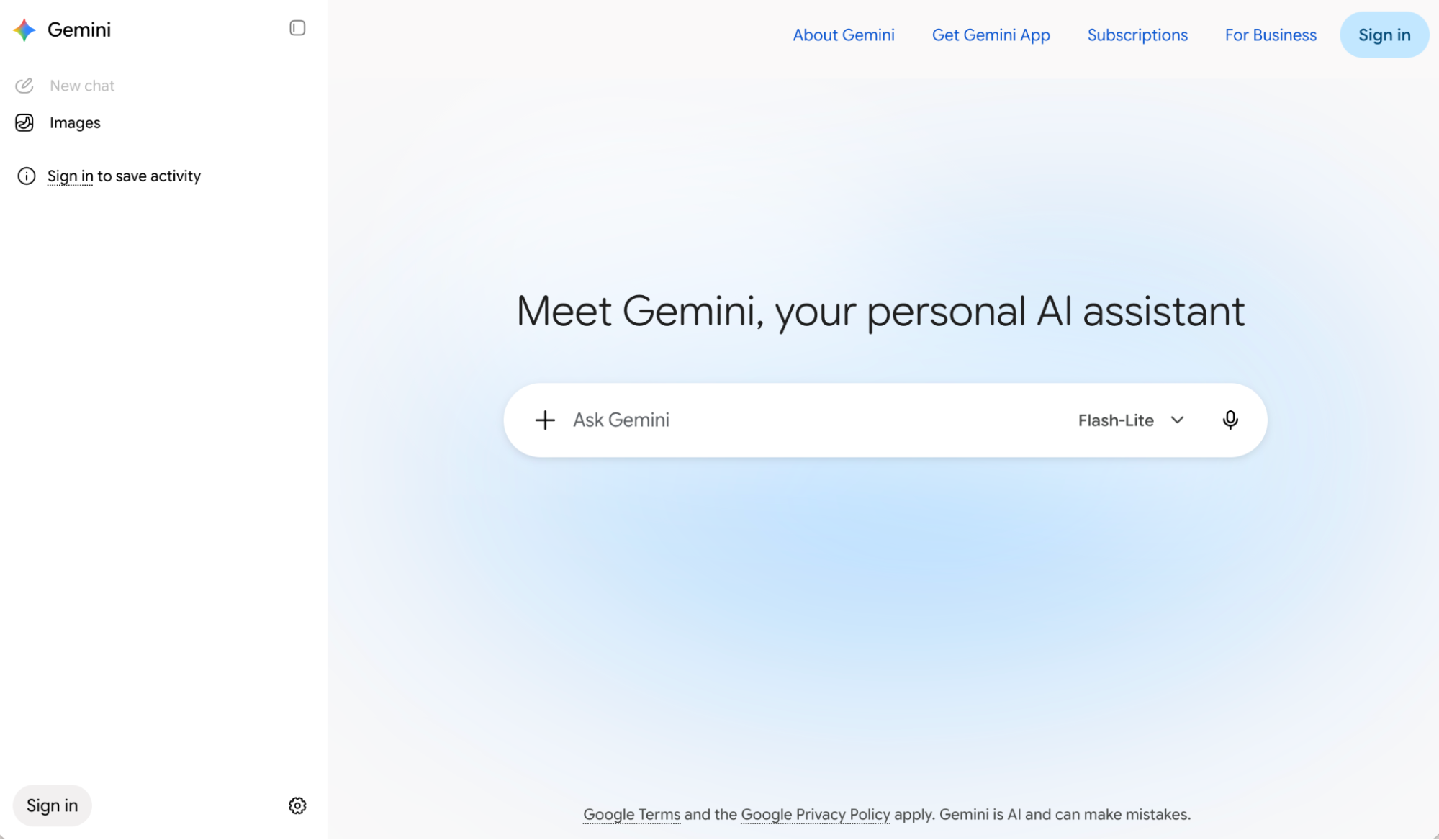
    Gemini sign in page.

    Note: If you’re using a work or school Google account, your workspace administrator may have disabled access to Gemini. So if you can’t access it, that’s probably why. 

    2. Choose your AI model 

    You can switch to a different AI model than Gemini’s default setting. To do this, click the model dropdown in your conversation window, and then select the model you want to use. 
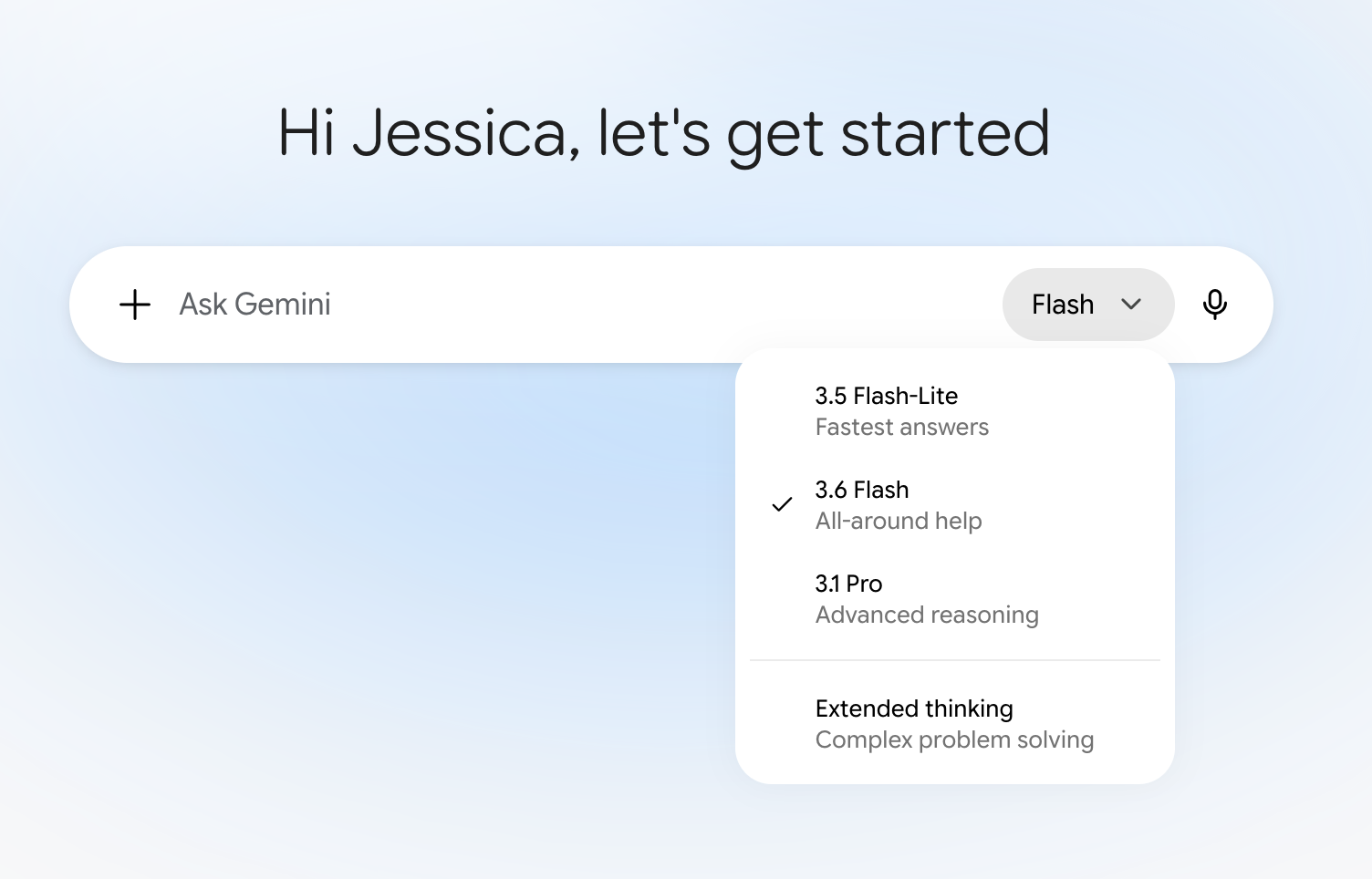
    Expanded view of the model dropdown in Gemini.

    3. Chat with Gemini

    You can prompt Gemini in a few ways (some features may be limited to only the web, desktop app, or mobile app).
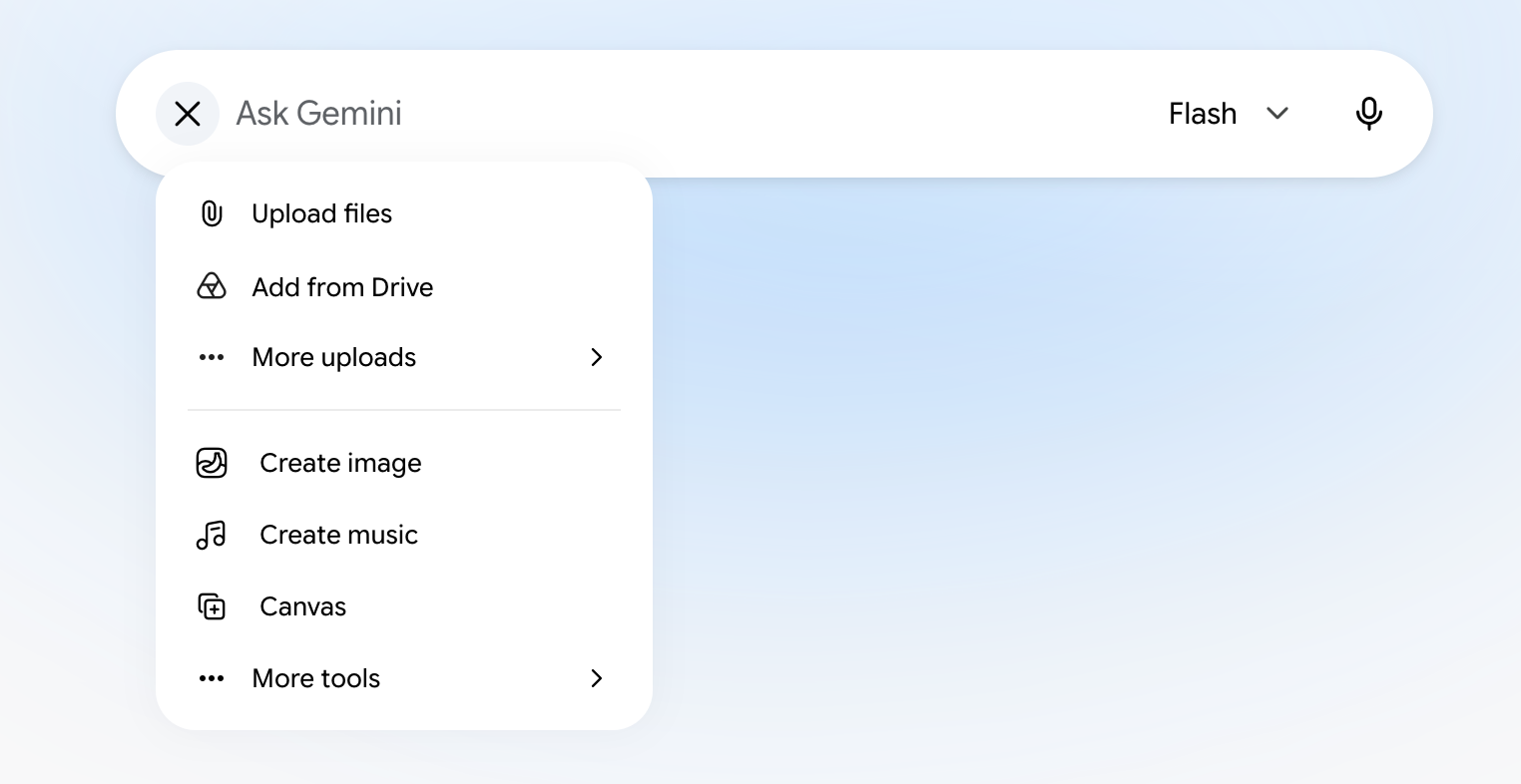
    Expanded view of the plus icon menu in Gemini's prompt box.
    • Type your AI prompt in the text box, and press Enter (or click the up-facing arrow).

    • Use Deep Research in Gemini to get it to comb through hundreds of online sources and files to give you a comprehensive response, complete with cited sources to verify its claims. To do this, click the plus icon (+) > More tools > Deep Research, and then enter your prompt.

    • Create a separate canvas. If you want Gemini to output its response into its own document of sorts, click +, and then select Canvas. That will open up a new canvas, and you can work on the response in detail.

    • Generate or edit an image. Click +, select Create image, and enter your AI art prompt.

    • Generate audio. Click +, select Create music, and then describe the audio track you want Gemini to generate. 

    • Talk to Gemini by pressing the microphone icon to enter your prompt using speech-to-text. If you’re using the mobile app, you can also tap the Gemini Live icon, which looks like three vertical bars, to chat back and forth with Gemini.

    • Upload an image by clicking +, and then selecting how you want to add your image: upload from computer, add from Drive, or import from Google Photos. You can also drag and drop the image from your computer into the message bar. Then enter your accompanying prompt.

    • Discuss something on your screen. If you have the desktop app for macOS installed, you can show Gemini a specific window or a portion of your screen, and ask it to summarize or analyze the contents. You can even show a draft you’re working on, for example, and ask Gemini to help you refine it. To do this, open the window you want Gemini to “view,” press and hold fn, and prompt Gemini. Toggle back to your chat to view Gemini’s response.
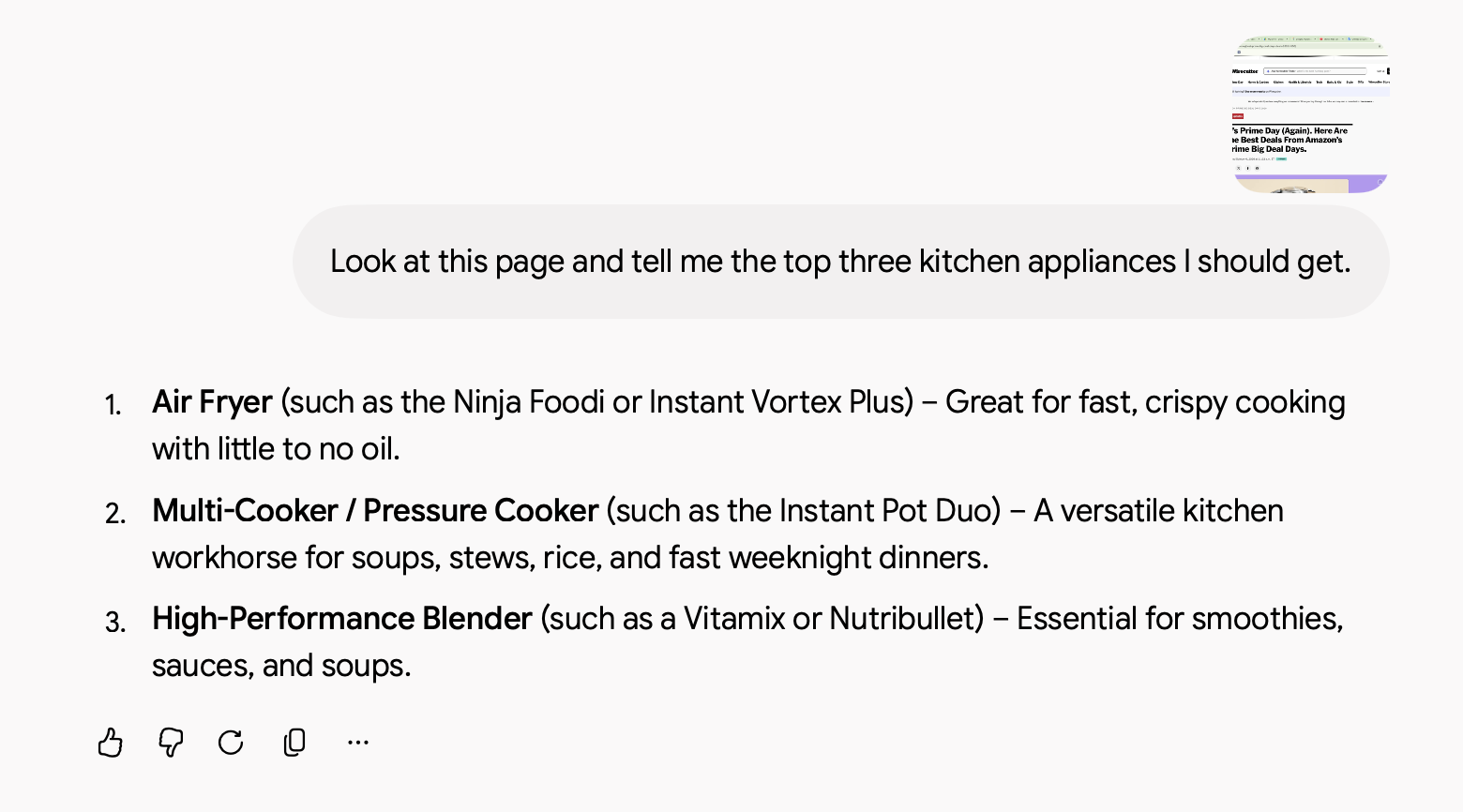
      Portion of a Gemini chat.

    4. Interact with Gemini’s responses

    In a matter of seconds, Gemini will generate a reply in an easy-to-scan format. From here, you have a number of options. 
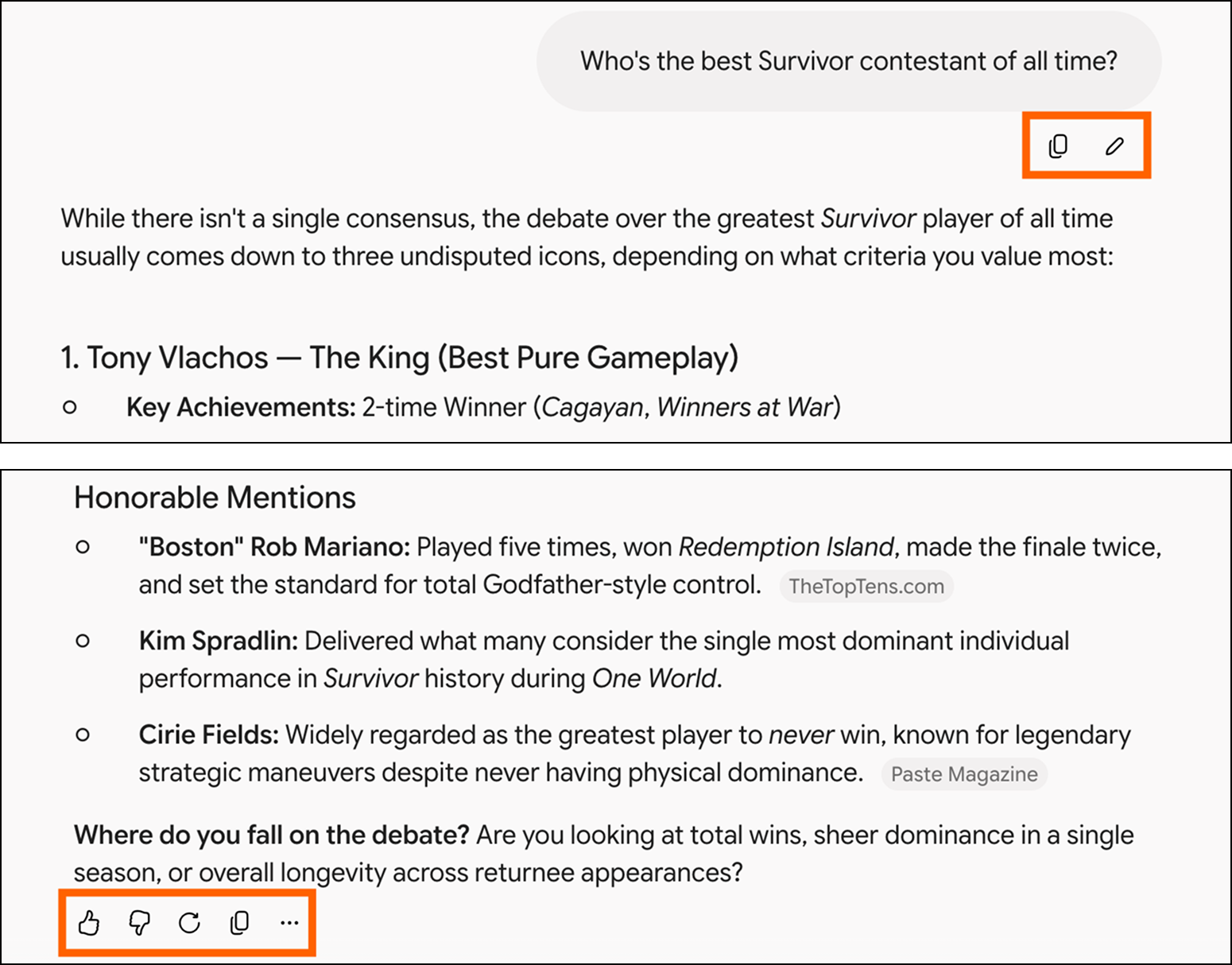
    Gemini conversation with prompt and response actions highlighted.
    1. Edit your original prompt. Hover over the prompt, and click the Edit message icon that appears (it looks like a pencil). Edit your prompt, and then click Submit.

    2. Enter (or say) a new prompt. Ask Gemini to modify its response. Gemini will refer back to whatever you discussed before and then use that to inform its response so you don’t have to repeat yourself.

    3. Review the sources. Hover over any source pill in the answer to learn more about the source used to inform Gemini’s response. Click it if you want to go directly to the source.

    4. Like or dislike the response. Gemini relies on real-world feedback to improve the quality of its responses. If the response was helpful, click the Good response icon, which looks like a thumbs-up. If it was inaccurate or unhelpful, click the Bad response icon, which looks like a thumbs-down.

    5. Get a new response. If the response isn’t quite what you’re looking for, and you want to use the same prompt, click the Redo icon below the most recent response.

    6. Branch a new chat. If you want to take your conversation in a different direction without overwriting your original thread, click More (...) beneath the response, and select Branch in new chat. This will open a new chat tab that picks up from that exact point.

    7. Listen to Gemini’s response. You can also listen to Gemini’s response. Click More (...) beneath the response you want to hear, and select Listen. The same button will change to “Pause.” Click it to pause the audio.

    8. Share the response. Click the kebab menu (⋮) at the top of your conversation , and then select Share conversation to generate a unique URL you can copy and send. That’ll allow others to see your entire chat. If you want to share only a specific response, click the Copy icon beneath the response you want to share, and paste it as you normally would.

    9. Export the response to Google Docs or Gmail. You can also export a given response to Google Docs or Gmail, and tweak it further (or use as is). To do this, click More below a response, and select Export to Docs or Draft in Gmail.

    10. Review different versions of the response. If you asked Gemini to redo any of its responses, you can review every iteration. Click the arrow next to the version number to toggle back and forth.

      Gemini conversation with an expanded view of the share dropdown.

    How to use Gemini in Chrome

    You can also initiate a chat with Gemini directly from the browser bar of any Chrome window.

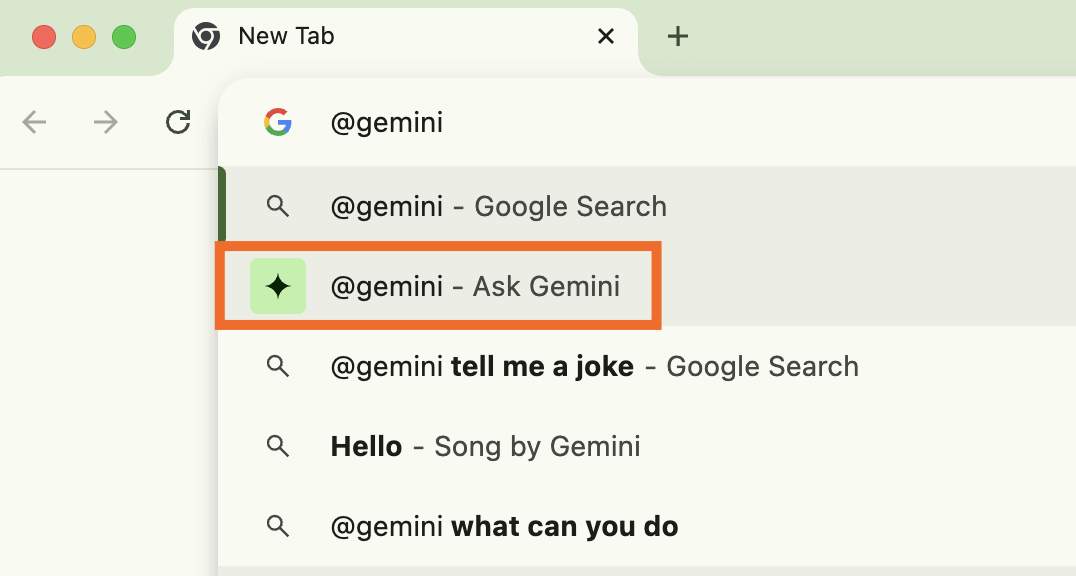
    1. Enter @gemini in the address bar of your Chrome window.

    2. Click @gemini – Ask Gemini.

      Expanded view of search results for @gemini entered in the address bar of a Chrome browser.
    3. Enter your prompt in the address bar, and press Enter.
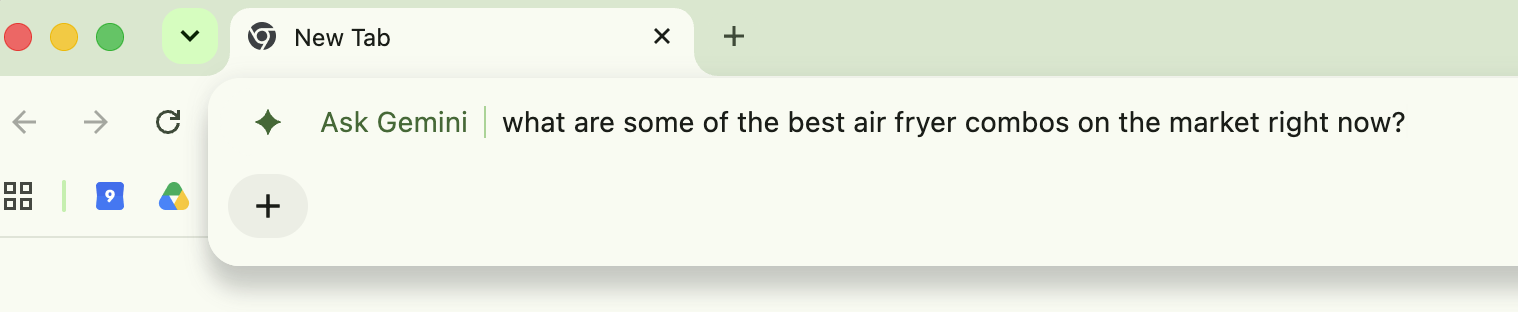
      Google Gemini prompt entered in the address bar of a Chrome browser.
    4. You’ll be redirected to the Gemini homepage. Click Chat with Gemini. (You may be prompted to first sign in.)

    5. Your response will appear in the web app.

    6. Continue to chat with Gemini as usual.
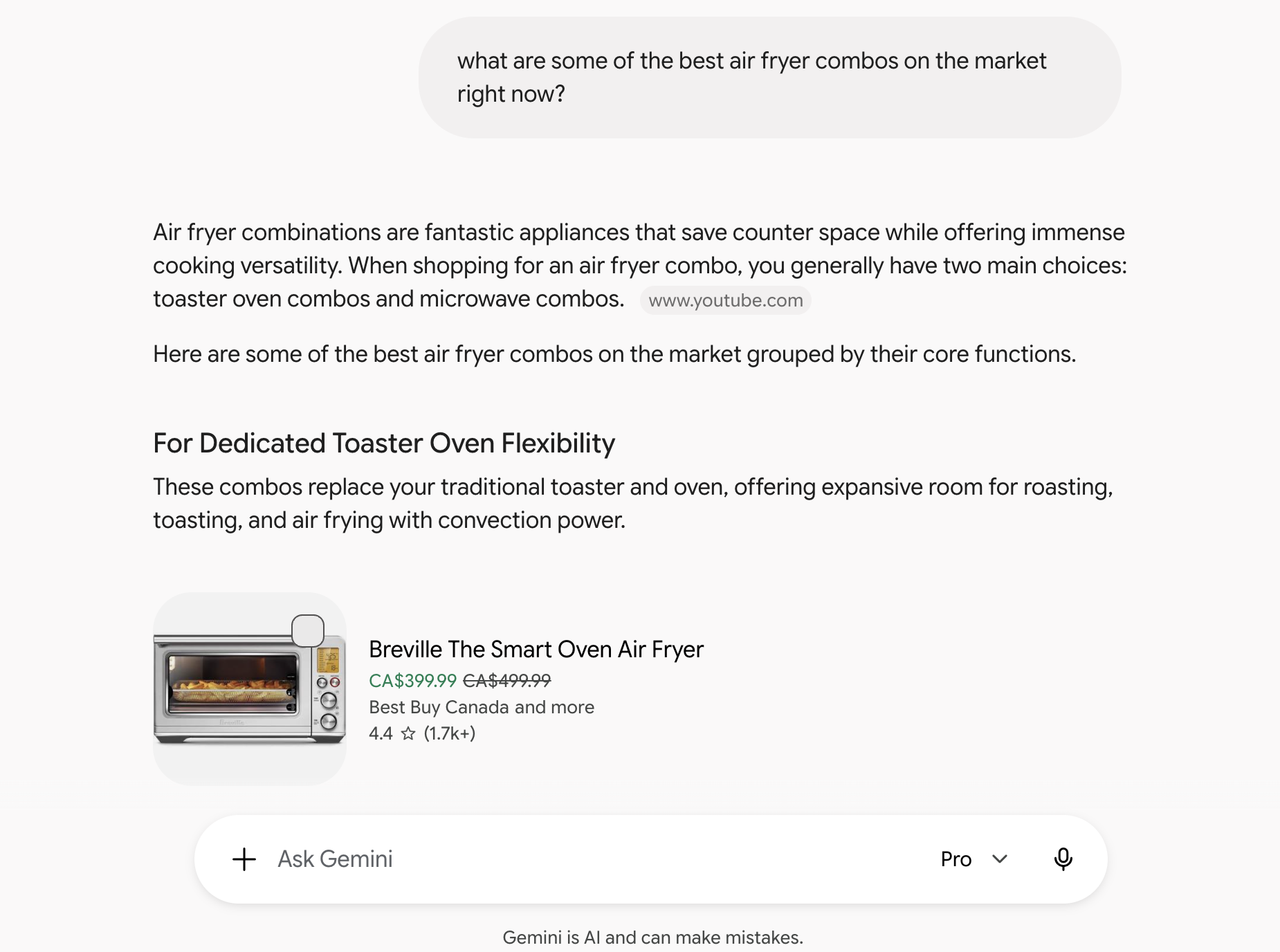
      Conversation with Gemini.

    How to use Gemini Live

    Instead of typing in your prompt, you can have a back-and-forth conversation with Gemini (Google refers to this as Gemini Live). Here’s how Gemini Live works.

    1. Open the Google Gemini mobile app.

    2. Tap the Gemini Live icon, which looks like a star floating above three vertical bars, in the prompt box.
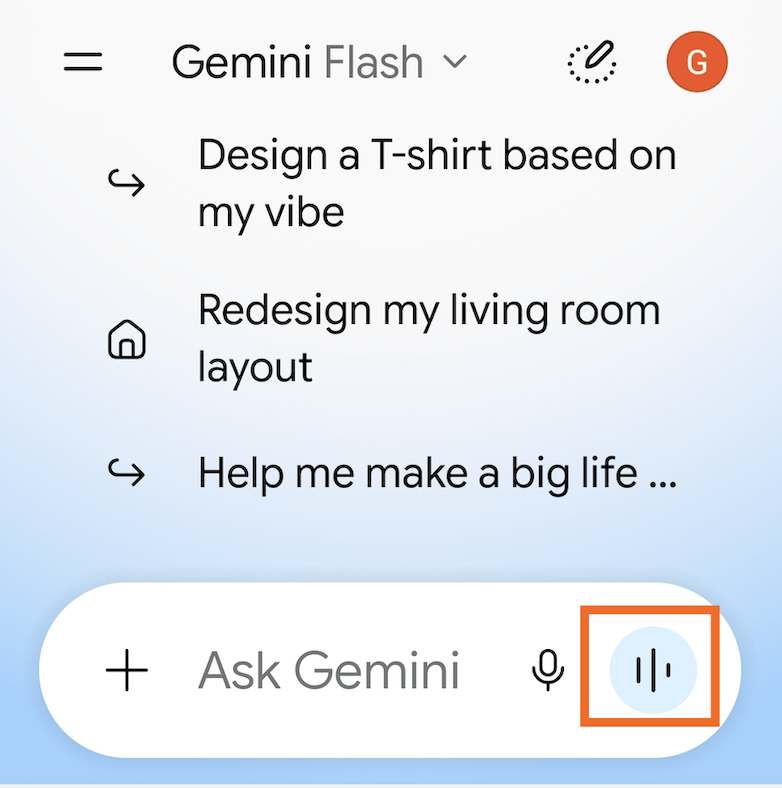
      Gemini Live in the Gemini mobile app for Android.
    3. Say your prompt. 

    4. Once you’ve finished speaking, Gemini will process your request (no need to hit send) and voice its response to you. As long as you can see the blue chat bubble, you can keep chatting back and forth with Gemini.

    5. Tap X at the bottom of your window to end your conversation.

      Portion of the conversation window in the Gemini mobile app with the X next to the prompt bar highlighted.

    Note: This feature is currently available only in the Gemini mobile app. It’s not available on the web app or in the Gemini tab in the Google app.

    How to use Gemini’s non-chat features

    Not every feature in Gemini is directly related to actually chatting with the chatbot. Here’s how to use Gemini’s chat-adjacent features so you can do more than have a philosophical debate about whether The Bachelor is the greatest social experiment invented or just plain old trash.

    How to generate an AI image with Gemini 

    Gemini isn’t limited to only sourcing existing images from the web. It also has the capability to generate AI images, powered by Nano Banana 2 (because, at this point, the more outrageous the model name, the more on brand). Enter your description, and watch as it brings even your silliest ideas—like, say, a dog taking itself out for a trick-or-treating jaunt—to life.

    Gemini chat with an AI-generated cartoon image of a dog dressed as a ghost out trick-or-treating.

    How to generate AI videos with Gemini

    Gemini’s creative abilities go beyond text and images—it can also generate AI videos using the latest Google Veo model. Type in a text prompt describing the scene you want. You can also upload a static image to give Gemini a visual reference. Gemini will then turn it into a short video clip, complete with natural-sounding speech and background audio. 

    Note: You can access Veo 3 models in Gemini, but based on the Zapier team’s experience, it’s easier to use in Flow (Google’s AI filmmaking app). 

    How to transcribe audio to text with Gemini 

    This is a feature I didn’t know I wanted until I tried it: Gemini can transcribe your audio—automatically cutting out “ums” and “ahs”—in Google Docs, Gmail, or virtually anywhere you’d enter text. 

    Before you can use it, be sure to install the macOS desktop app (it’s not available for Windows), and update your permission settings (Gemini needs to access your screen and mic). 

    1. Open the screen you want to add text to, and click where you want your words to go. 

    2. Press and hold fn while dictating what you want Gemini to transcribe. 

    3. Release fn once you’re done transcribing, and watch as Gemini fills the screen with your words. 
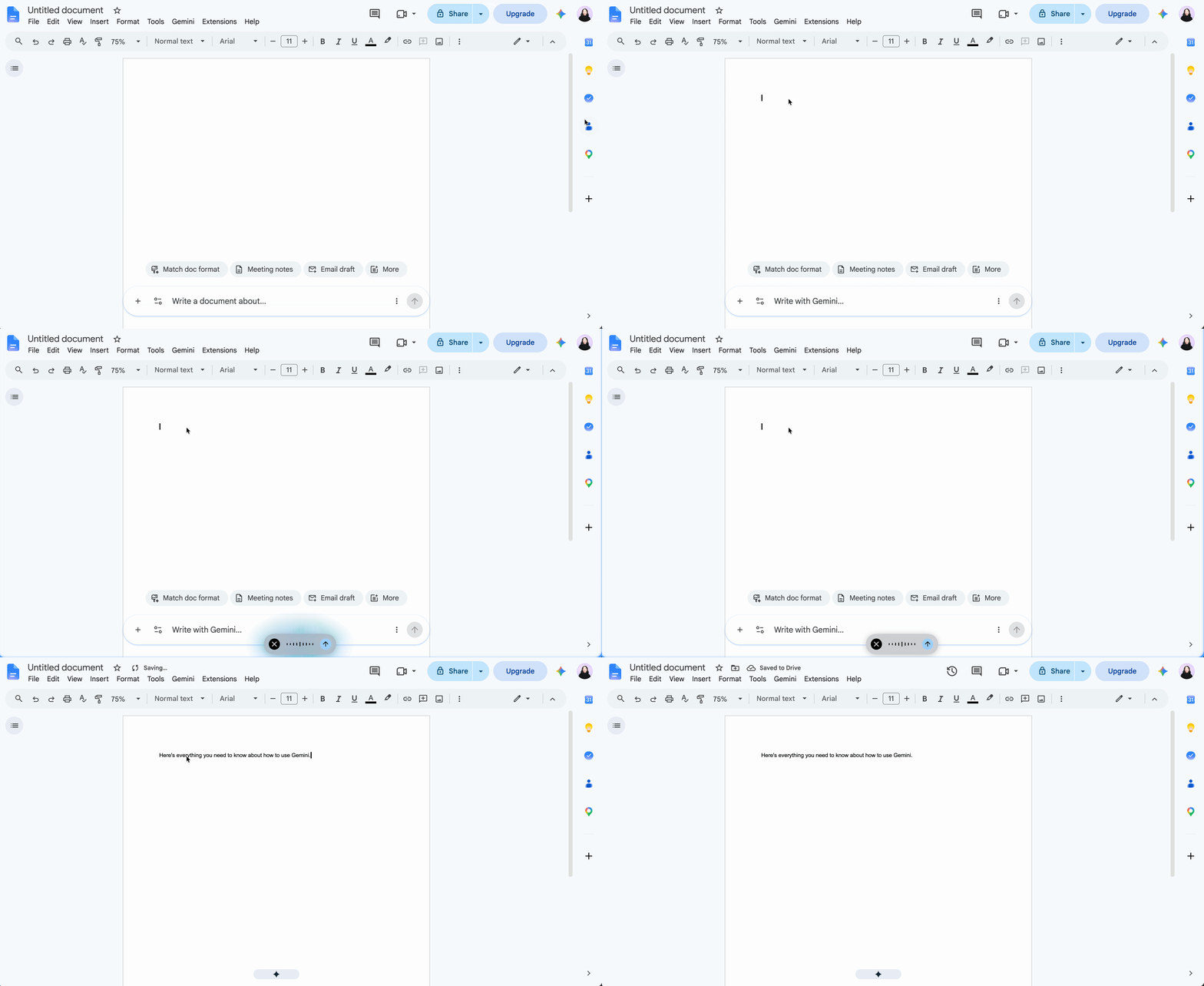
    Demo of Gemini transcribing the user's audio.

    How to use scheduled actions in Gemini 

    Scheduled actions in Gemini is Google’s response to Scheduled Tasks in ChatGPT. The key difference is that ChatGPT’s scheduled tasks can actually take actions—like sending you daily summaries about industry-specific news or checking for cheap flights to a specific location. 

    Gemini’s equivalent was pitched as having similar functionality, but in my experience, it’s limited to only adding tasks to your Google Tasks list and setting reminders in Google Calendar to do something. But if that’s what you’re looking for, here’s how to use scheduled actions in Gemini. 

    In the prompt bar, describe what you want Gemini to do, when, and the frequency (if it’s a repeat task). You can also tell Gemini to edit or delete a scheduled action, and it’ll take care of it for you. 
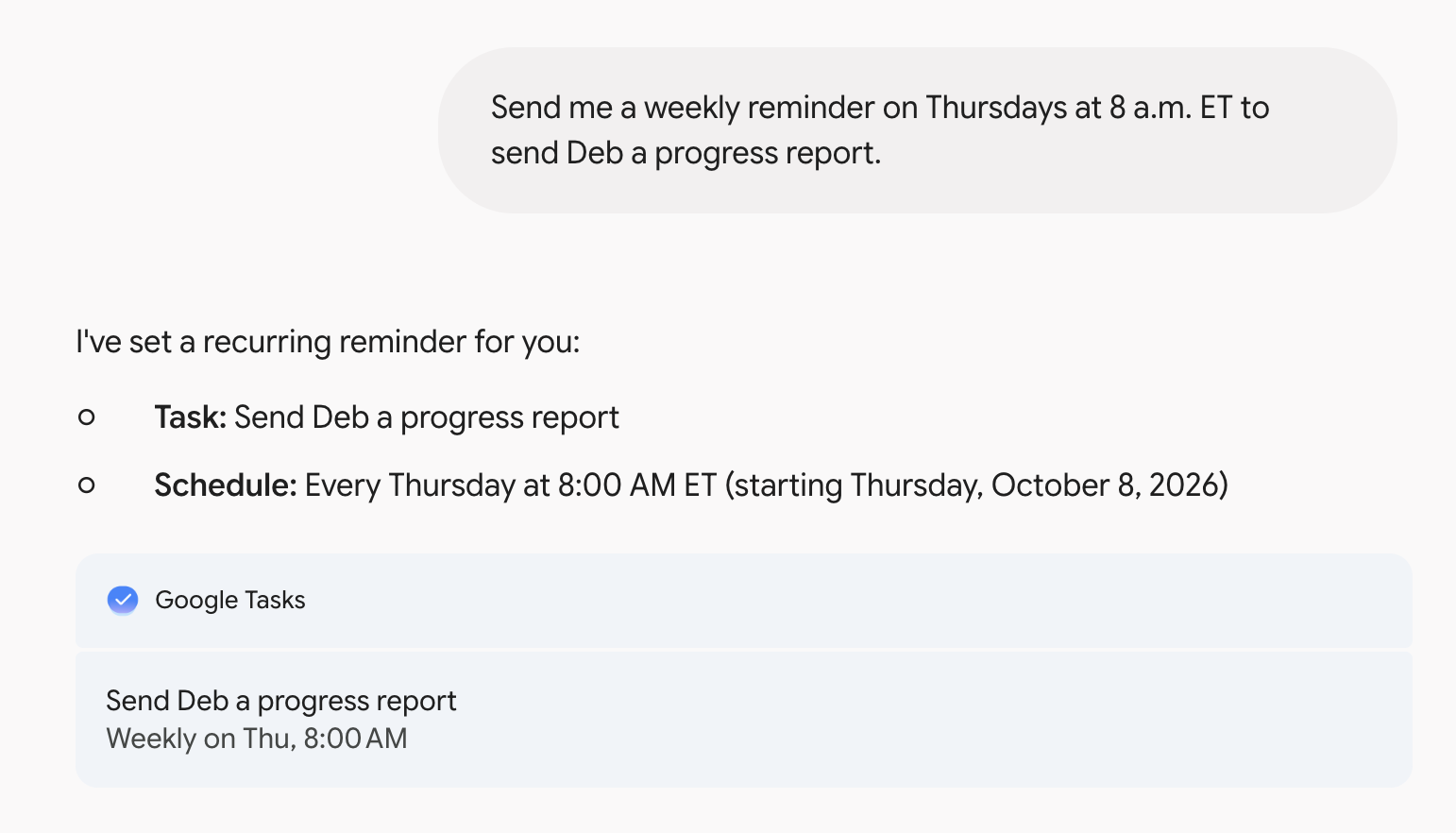
    Creating a scheduled action in Gemini.

    How to retrieve information from other Google apps with Gemini

    With Gemini connected apps, you can ask Gemini to retrieve real-time information from other connected external apps, like Wix and Canva, as well as Google apps like Gmail, Google Drive, and Google Calendar. Just type @[name of the app you want to look in] and then enter your prompt. 
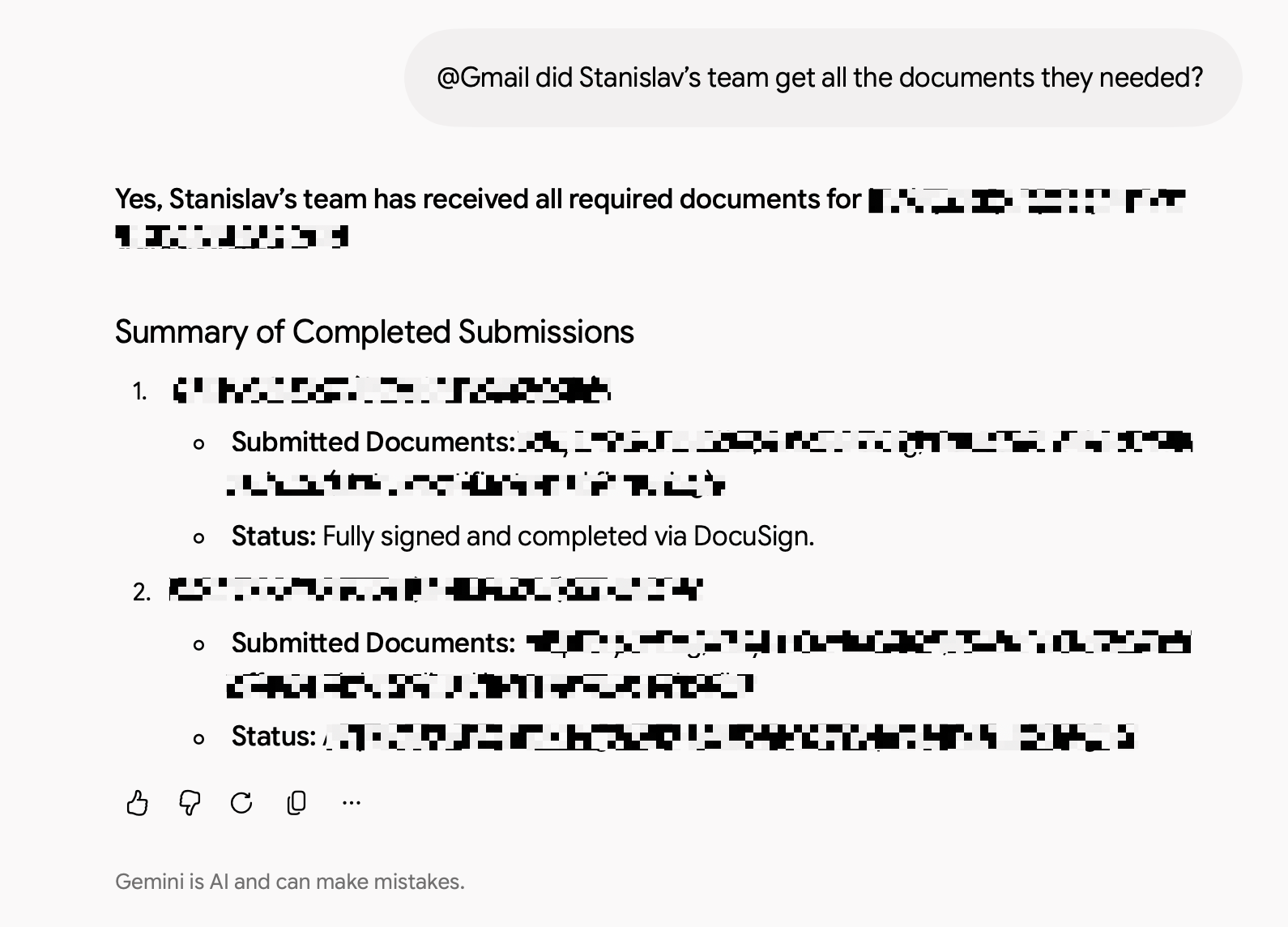
    Conversation with Gemini demonstrating how to retrieve retrieve real-time information from Gmail.

    Note: Gemini won’t use apps to access your personal content in other services without your permission. But if you interact with another Google Service via Gemini, your activity might be saved by that other service.

    For an additional fee (from $19.99/user/month), you can also use Google Gemini directly in your Google apps. Learn more about Gemini for Workspace.

    Automate Gemini with Zapier

    Gemini’s connected apps are a handy way to pull in context from tools like Gmail and Google Drive. But native connectors only go so far. I’m willing to bet many of the tools you rely on won’t be in the catalog, and even when an app’s supported, the connector may be limited in what it can actually do. The Zapier connector for Gemini Enterprise extends the options to 9,000+ apps, so you can access and act on your entire tech stack directly from your chat window.

    Zapier also lets you securely bring Gemini’s capabilities directly into the workflows you already run, allowing you to build sophisticated end-to-end workflows across 9,000+ apps. Whenever a workflow calls for reasoning, content generation, or classification, AI by Zapier lets you drop a Gemini step right into the automation. This is how you blend AI with predictable, rule-based automation: Gemini handles only the parts that need intelligence, and everything else runs exactly the way you set it up. That gives you a level of reliability you can’t get from asking a chatbot to do it all.

    Try Zapier

    Build automations from wherever you work. Describe the outcome you want, and Zapier connects your tools, runs the steps, and stays on the job after you close the chat. Combine AI with reliable, deterministic automation across 9,000+ apps. Get started for free.

    How to use Gemini: FAQ

    I’ve covered a lot of ground in this Gemini guide (maybe even too much ground?), but since Google is constantly evolving its chatbot, you might still have questions. Here are answers to some of the most commonly asked ones.

    Can you use Google Gemini for free? 

    Gemini is free to use. But if you want to use the most powerful model with higher limits to advanced features, you’ll need to upgrade to a paid plan.

    What’s the difference between Gemini and Google Assistant? 

    Both Gemini and Google Assistant are AI chatbots, but they have key differences based on their intended use, features, and underlying technology. 

    • Gemini is an AI chatbot that’s designed to conduct human-like conversations and process more complex queries—for example, you can ask it to draft a summary of a 500-page research paper or describe an image. 

    • Google Assistant is primarily a voice assistant that’s embedded into a wide range of Google services and products, including Google Home and Android devices. Its intended purpose is to do quick, task-based interactions—for example, answer questions about the weather, perform calculations, and control smart home devices. 

    How do I switch back to Google Assistant from Gemini? 

    If you used Gemini to replace Google Assistant as your primary assistant on your Android device, it’s easy to switch back. 

    1. Open your Gemini mobile app. 

    2. Tap your profile picture (top-right corner). 

    3. Tap Switch to Google Assistant.

    4. Tap Google Assistant.

    5. In the popup that appears, tap Switch to confirm you want to replace Gemini with Google Assistant. 

    Can you delete Gemini chats? 

    You can. Here’s how to delete individual Gemini chats from the web app.  

    1. In the side panel, hover over the name of the chat you want to delete. 

    2. Click the More icon, which looks like three dots stacked vertically (⋮).

    3. Click Delete. 

    4. In the confirmation window that appears, click Delete. 

    Can Gemini do temporary chats? 

    Yes—and it’s a helpful feature to use if you want to have a chat with Gemini without the conversation influencing Gemini’s future responses. 

    To use it, click on the Temporary chat icon in the top-right corner of your chat (it looks like a dotted circle with a pencil). Then chat with Gemini as you normally would.
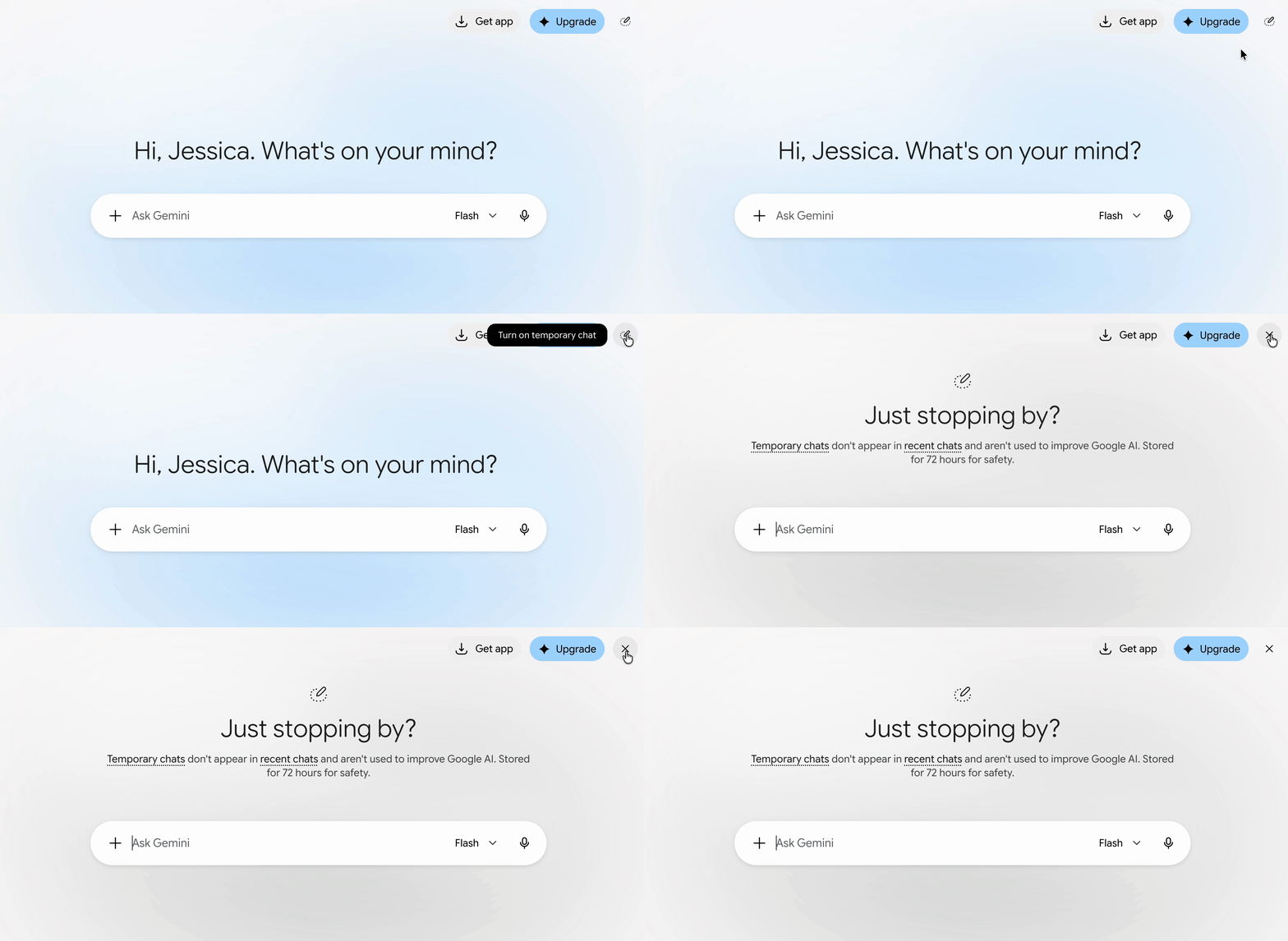
    Demo of how to turn on temporary chats in Gemini.

    The temporary chat icon will automatically turn to an X. Click it to end temporary chats.  

    Related reading:

    This article was originally published in April 2023 by Elena Alston. The most recent update was in October 2026.

  • The AI Risk Your Company Is Overlooking

    The AI Risk Your Company Is Overlooking

    October 6, 2026

    Summary.   

    In this week’s The Insider newsletter, technology editor Tom Stackpole shares a story from MIT’s Christian Catalini, who argues that when execution is cheap due to AI, verification

    The Insider is a weekly, subscriber-only newsletter, where our managing editor curates HBR stories, research, and ideas that senior leaders shouldn’t miss.

  • Research: Sleep Deprivation Is a Leadership Problem

    Research: Sleep Deprivation Is a Leadership Problem

    Harvard Business Review Logo

    moodboard/Getty Images

    Sleep deprivation remains widespread among leaders, and many leaders underestimate how much fatigue affects their performance. A new survey of 1,009 U.S. managers and executives suggests that the

    At 8:40 a.m. on a Friday, a leadership team gathers to make the biggest call of its quarter. The CEO hasn’t had enough sleep all week, but nobody knows that, because she arrived energized, with a coffee in her hand, performing alertness the way many senior leaders learn to do. She’s far from the only one in the room performing alertness, though. Many of the others in the room are hiding their own sleep deprivation—which means the decision they’re all about to make may be shaped as much by the sleep they’ve lost this week as by the analysis in front of them.

  • Getting Your Boss to Buy into Your Strategy (from “Coaching Real Leaders”)

    Getting Your Boss to Buy into Your Strategy (from “Coaching Real Leaders”)

    October 06, 2026

    You have a strategy you believe in. But what happens when your boss doesn’t? Cold Call presents this bonus episode from the podcast Coaching Real Leaders, where host and executive coach Muriel Wilkins works with an ambitious leader whose plan to drive growth is at risk because she hasn’t been able to get the alignment she needs from her boss. They explore what’s behind the resistance and how she can approach the relationship, and the strategy, differently. The conversation illustrates a key challenge at the heart of strategy execution: getting the people who need to support your idea on board.

    Find more from the Coaching Real Leaders podcast here.

  • Optimism Is Now an Essential Leadership Skill

    Optimism Is Now an Essential Leadership Skill

    October 06, 2026

    Optimism isn’t about ignoring problems or pretending everything will work out. It’s about acknowledging challenges while believing that your actions can still make a difference. Psychologist and researcher Michelle Gielan says leaders can cultivate that mindset in themselves and their teams and argues that, when they do, it creates a powerful performance advantage. Drawing on an 11-year dataset of more than 25,000 business professionals, she shares research linking optimism to higher productivity, sales, engagement, and lower burnout. She explains how leaders can use techniques like “power leads” to help teams focus on progress and possibility without losing sight of difficult realities. Gielan wrote the book Resilient Optimism: The Science of Sustaining a Positive Mindset in Tough Times and the HBR article “How Leaders Counter Pessimism in Trying Times.“

  • Gemini automation: How to use the Zapier Gemini integration (Gemini 3.8 Flash, Gemini Enterprise, and more)

    Gemini automation: How to use the Zapier Gemini integration (Gemini 3.8 Flash, Gemini Enterprise, and more)

    Anyone who lives in the Google ecosystem has probably used Gemini for a quick draft or a fast answer. (Or if you’re like me, you’ve been driven to your limit by the Google Docs popups encouraging you to use AI whenever your cursor strays too close to the bottom of the screen.) But a chat window is just the beginning of what Gemini can do. Its real power shows up when you connect it to the rest of your apps and let it do work on your behalf.

    All of Gemini’s models are available in Zapier, so you can add Gemini-powered steps to your existing workflows. And Zapier is also live as a connector inside Gemini Enterprise, which means teams can securely access and take action in 9,000+ apps directly from the Gemini chat window, too.

    Here’s how it works.

    Table of contents:

    Add Gemini’s brain to your existing workflows (AI by Zapier)

    Zapier is built for automating complex workflows, and some of those workflows benefit from AI reasoning along the way. AI by Zapier lets you drop a Gemini step directly into a workflow wherever it’s useful, without a separate Google AI Studio account.

    That means AI only shows up when it’s needed, which helps you save tokens (and avoid unnecessary hallucinations). For example, if you just need to log form responses into a spreadsheet, deterministic automation handles that fine on its own. You shouldn’t spend tokens on a step that doesn’t need a model. But when you’re classifying hundreds of support tickets a day, scanning competitor pages for keyword opportunities, or summarizing a pile of customer reviews, that’s when Gemini is worth bringing in.

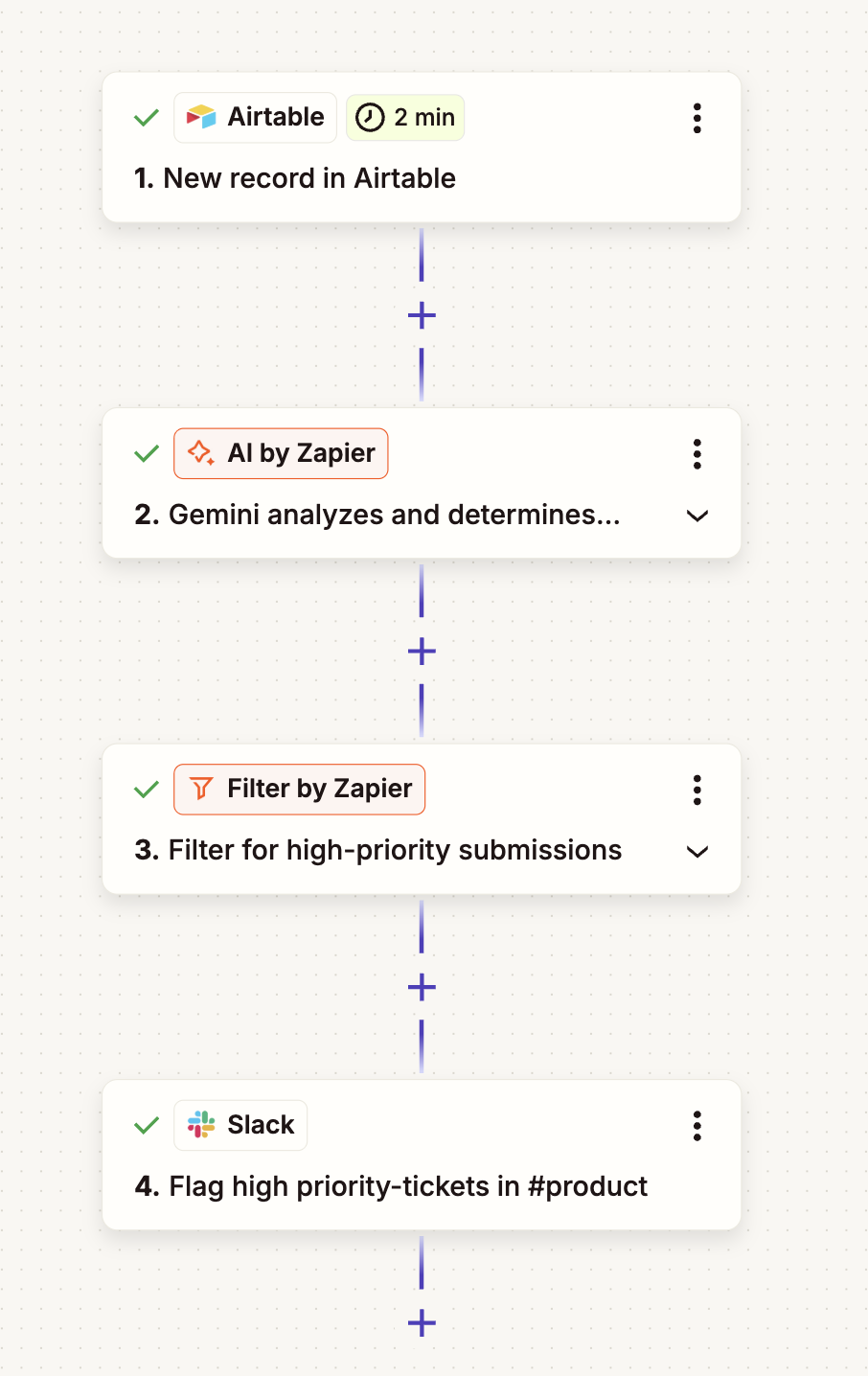
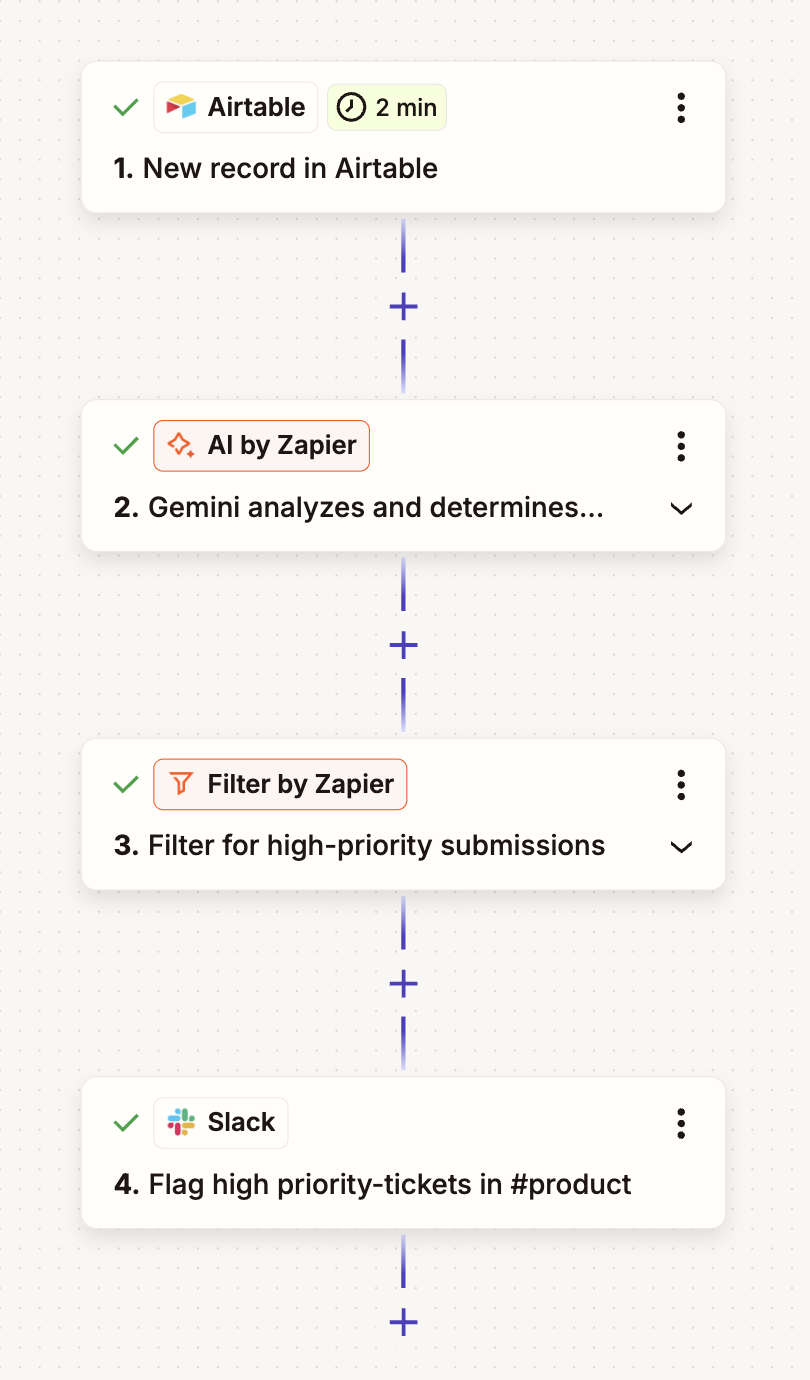
    Say your team collects feedback through a form throughout the week. Instead of someone manually reading the results, including the ones that aren’t valuable, you can build a Zap that triggers on new submissions. It can then send the response to a Gemini model with a prompt like “decide if this response needs attention from the product team,” then send any submissions that were flagged to Slack. Gemini only runs when there’s a new submission to check, and your team gets notified for anything that matters.

    In the Zapier editor, an automated workflow that includes an AI step using Gemini

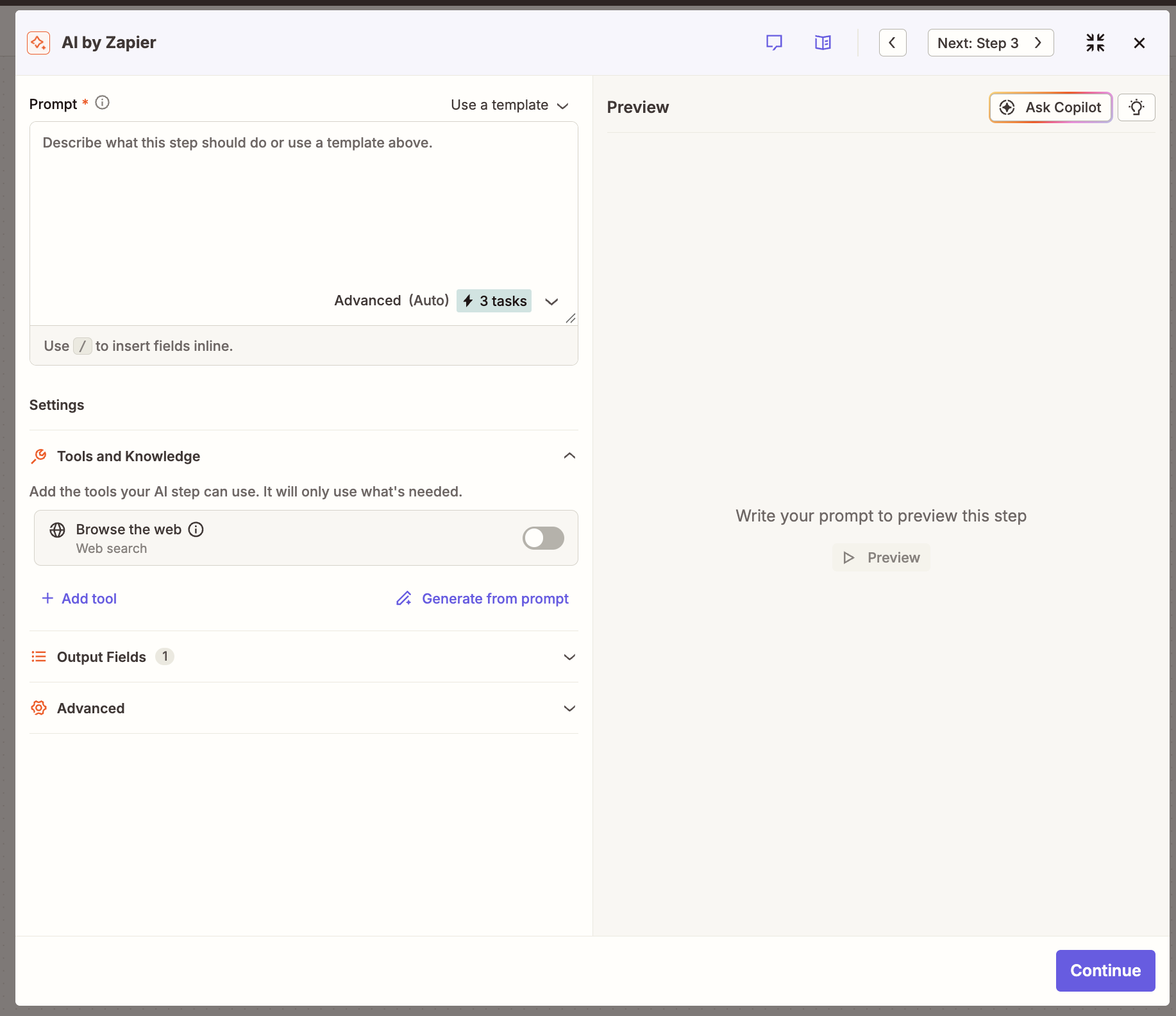
    You stay in control of the step itself: just tune the prompt, attach knowledge sources, turn on agentic tool calling, and test until the output looks right.

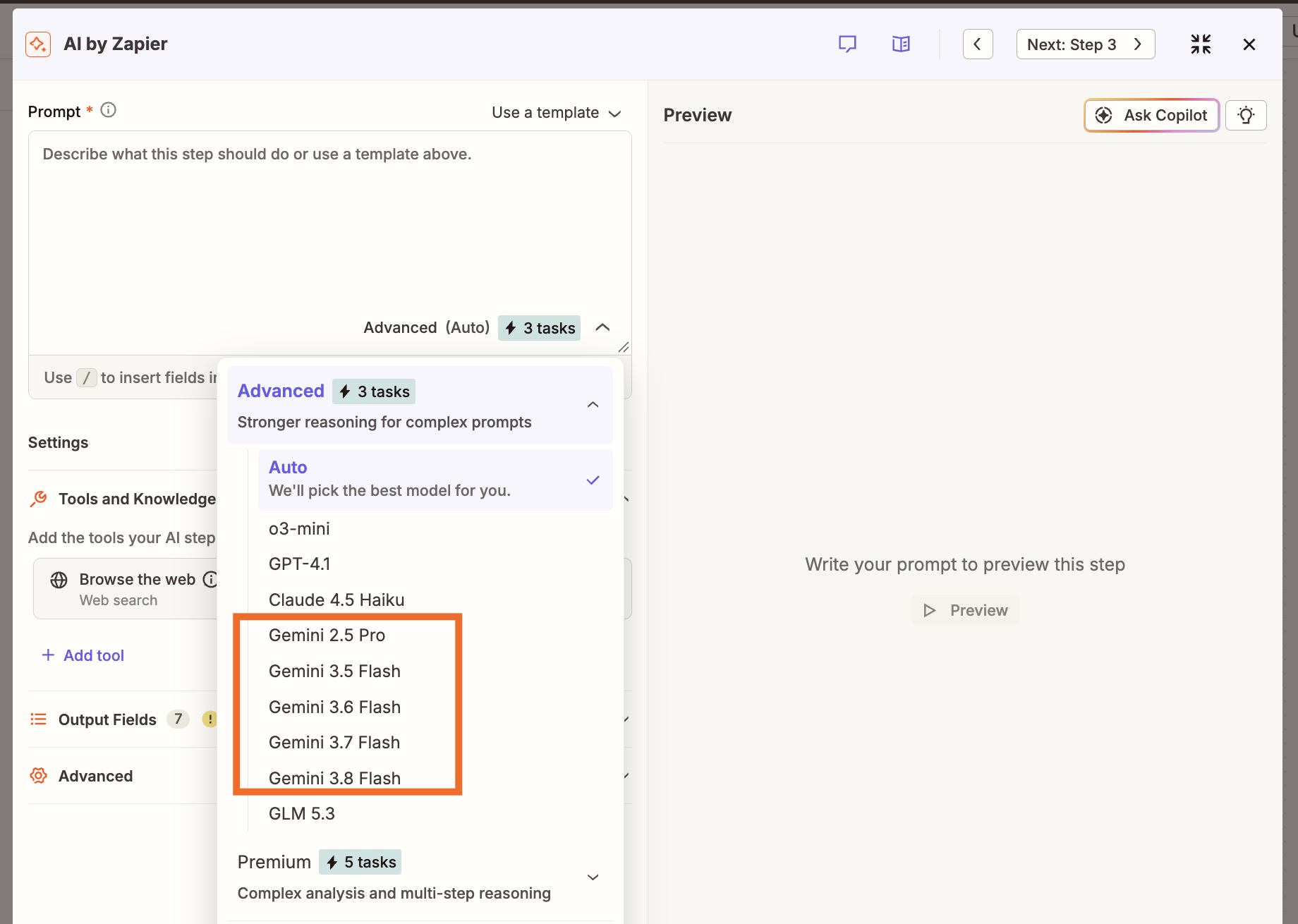
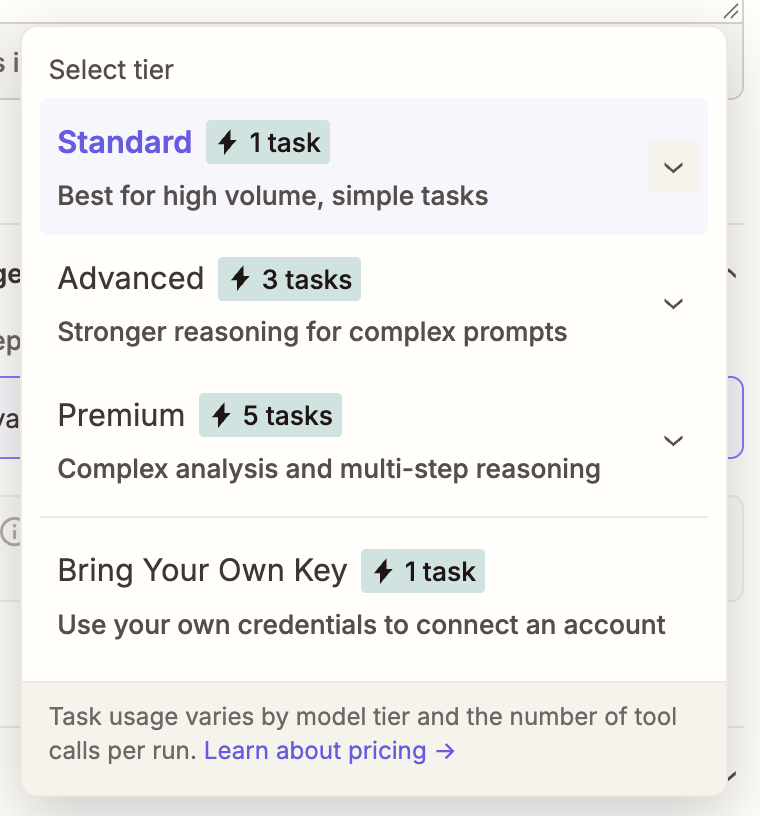
    Pick whichever Gemini model fits the job from a dropdown in the visual workflow editor, and the cost comes out of your Zapier task count instead of a separate Google bill.

    The model picker in an AI by Zapier step, highlighting the available Gemini models

    Here’s the current Gemini lineup in AI by Zapier. New models get added as soon as Google ships them. (You can also bring your own key [BYOK] if you want a Gemini model that isn’t built into AI by Zapier—in that case, you pay Google directly.)

    Model

    AI by Zapier

    Gemini 2.5 Flash

    1 task

    Gemini 2.5 Flash Lite

    1 task

    Gemini 3.5 Flash Lite

    1 task

    Gemini 3.5 Flash

    3 tasks

    Gemini 3.6 Flash

    3 tasks

    Gemini 3.7 Flash

    3 tasks

    Gemini 3.8 Flash

    3 tasks

    Gemini 2.5 Pro

    3 tasks

    Gemini 3.1 Pro

    5 tasks

    If you’re not sure which model to reach for, check AutomationBench, Zapier’s benchmark for how AI models handle real business workflows. It’ll show you how Gemini stacks up against other models for the specific task you’re automating.

    See the leaderboard

    You can also use the dedicated Google AI Studio (Gemini) integration to add a Gemini step with your own Google account. But I recommend using AI by Zapier if you can, since you get prompt testing, knowledge sources, and agentic tool calling built in, and you can swap models later without rebuilding the Zap.

    Gemini automation use cases

    Here’s a look at how teams use AI by Zapier to bring Gemini into their workflows:

    • Triage high-volume requests. Send every new support ticket, inbound lead, or form submission to Gemini for classification and priority scoring, then route the output to the right queue, person, or channel automatically.

    • Summarize meetings and calls. When a new recording lands in Fathom, tl;dv, or Zoom, have Gemini pull out the key takeaways and action items, then post the summary to Slack so no one has to re-watch the call.

    • Analyze images and files. Gemini is trained on more than text. You can send it visual files, like a chart from a sales deck or a screenshot from a bug report, and get back a plain-language summary of what’s in it.

    • Draft and label emails. Route new Gmail messages to Gemini for a draft reply, a summary, or an automatic label, so your inbox sorts itself before you open it.

    • Research and tag content at scale. Pair Gemini with Zapier’s Chrome extension to parse competitor pages or articles as you browse, and let Gemini extract keywords, themes, or sentiment into a running Google Sheet or Table.

    Start building

    Automate workflows directly from Gemini (Zapier MCP)

    Gemini Enterprise is Google’s admin-managed, enterprise edition of Gemini (previously known as Agentspace). If your organization has a Gemini Enterprise license, you can use Zapier’s connector to kick off automations from inside Gemini itself. It gives Gemini governed access to all 9,000+ apps in Zapier’s library, and you decide exactly which apps and actions it can touch.

    Your admin can configure Gemini Enterprise connectors by following these steps:

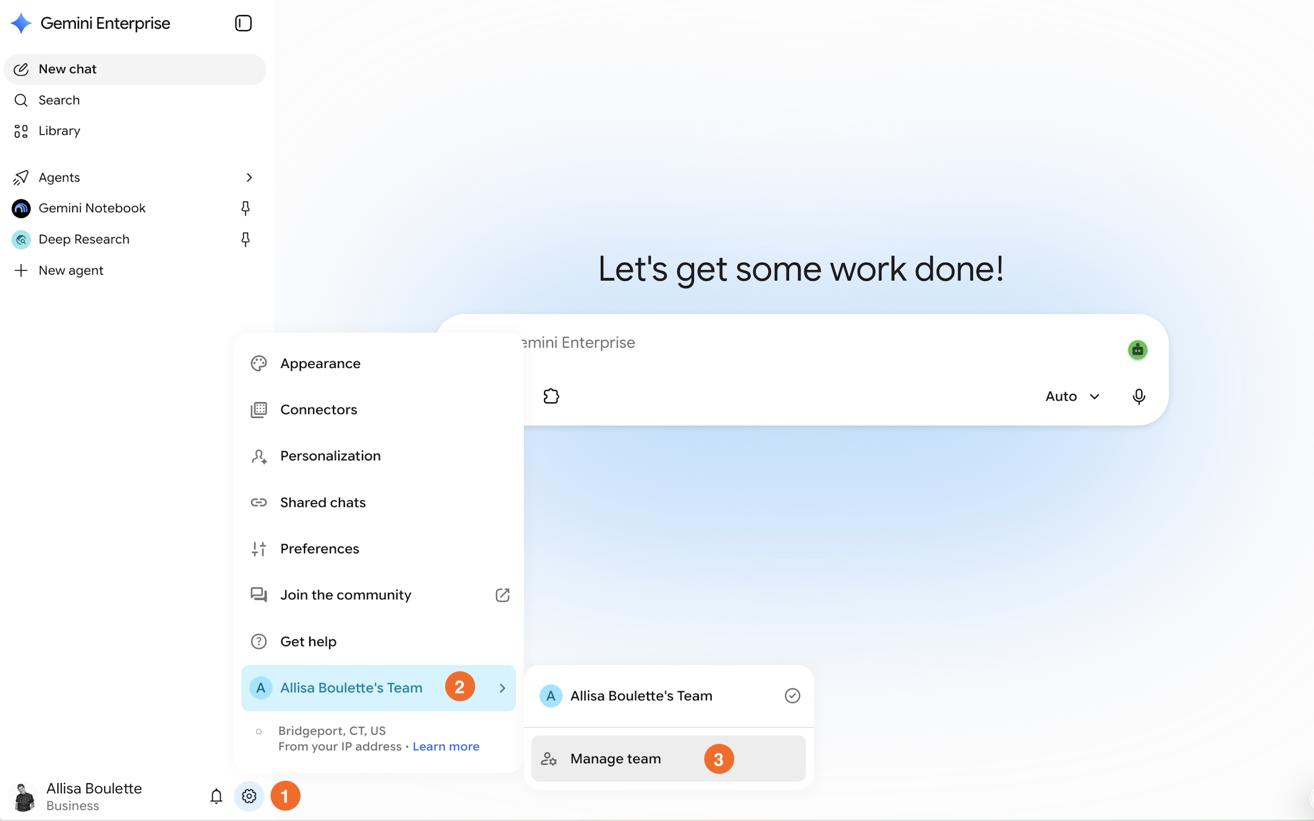
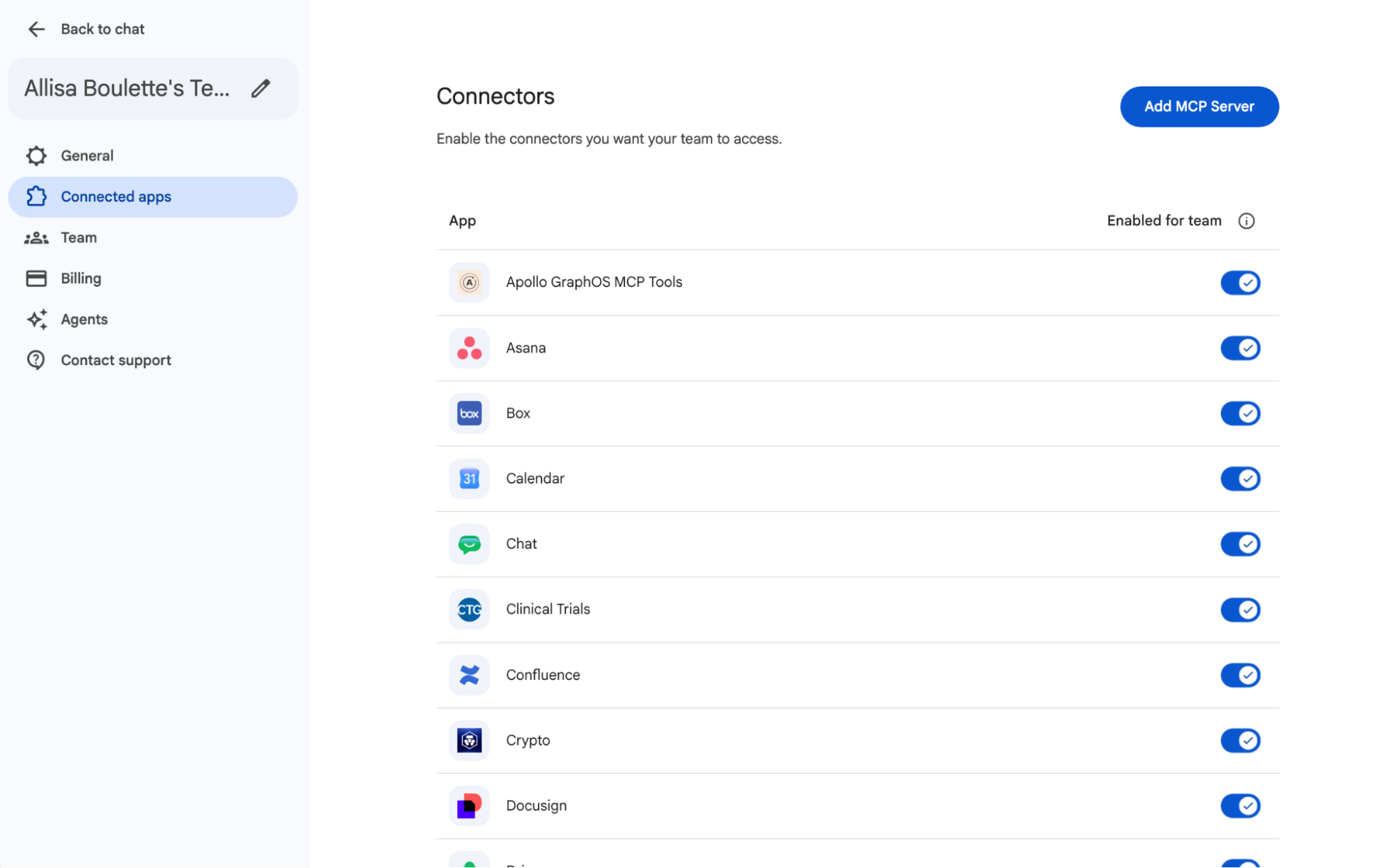
    1. In the Gemini Enterprise app admin console, click Settings & help (cog icon).

    2. Click your team name, then select Manage team. 

      Navigating to Manage team in Gemini Enterprise
    3. Click Connected apps.

    4. Look for Zapier in the connector list and toggle it on. (If it’s not showing up yet, click Add MCP Server instead, and paste in your Zapier MCP URL.)

      The toggles to connect Gemini Connectors
    5. Follow the steps to authenticate through Zapier when prompted.

    Once it’s on, anyone on your team can access Zapier’s app library through the Gemini Enterprise app interface, within whatever permissions your admin has set.

    Here’s what you might ask Gemini to do once Zapier MCP is connected:

    • “Pull my last five HubSpot opportunities, calculate weighted pipeline, and send a summary to Slack.”

    • “Check my Gmail for anything I missed this morning, flag what needs a response, and add follow-ups to my Todoist list.”

    • “Pull the notes from yesterday’s customer call in our CRM and draft a recap email to the account team.”

    None of that requires opening a separate app. It all runs from the Gemini chat window.

    Zapier adds thousands of apps on top of Gemini Enterprise’s 100+ native connectors, all governed from one place. And that governance travels with you: Zapier works the same way across Gemini, Claude, ChatGPT, and any other agent harness that supports MCP, so you and your team can use whichever AI tool works best for each job.

    Try Zapier MCP

    Gemini automation FAQ

    How do I automate Gemini with Zapier?

    If you want AI reasoning inside an existing workflow, use AI by Zapier to add a Gemini step to a Zap. It runs automatically whenever the Zap triggers, and you pay in Zapier tasks instead of a Google bill. If you want to kick off work directly from the Gemini chat window, have your enterprise admin configure the Zapier connector in Gemini Enterprise. Then, just tell Gemini what you want done, like “pull my last five opportunities from HubSpot and send a summary to the team Slack channel.”

    How do I connect Zapier to Gemini Enterprise via MCP?

    Have an admin open the Gemini Enterprise admin console, go to Settings & help > Manage team > Connected apps, and either select Zapier from the connector list or add it manually with Add MCP Server using your Zapier MCP URL. Once an admin turns it on and sets permissions, everyone on the team can use it from the Gemini Enterprise interface.

    Is Zapier MCP available on personal Gemini, or only Gemini Enterprise?

    As of now, Zapier MCP is only live inside Gemini Enterprise, which is the paid, admin-managed edition built for organizations. Personal accounts can still use Gemini inside Zaps.

    Automate Gemini with Zapier

    Whether you want AI reasoning running helpfully in the background or you’d rather direct your tech stack from the Gemini chat window, Zapier gives you a governed way to bring Gemini into the rest of your work.

    Either way, the connection runs through Zapier’s managed authentication, so Gemini never has to ask for an API key, your credentials stay safely governed in one place, and every action follows the same permissions you’d apply anywhere else in your stack.

    Try Zapier

    Related reading:

    This article was originally published in July 2024, and has also had contributions from Elena Alston and Steph Spector. The most recent update was in October 2026.

  • Zapier Agents is now AI by Zapier

    Zapier Agents is now AI by Zapier

    Everything your agent can do on Zapier and where it lives in a Zap

    By Ruchira Kulkarni · October 6, 2026

    The AI by Zapier logo

    Every capability that made Zapier Agents powerful—tool calling, reasoning, autonomous action—now lives inside a single AI step in the Zap editor, using AI by Zapier. Here, I’ll map each Zapier Agents feature to its equivalent in AI by Zapier, so if you’re coming from Zapier Agents, you know exactly where to click.

    What’s changed between Zapier Agents and AI by Zapier

    Zapier Agents consisted of four things: a prompt, a set of tools, a trigger, and permission to act. That bundle worked, but it sat outside the platform, so your agent couldn’t use, for example, Zapier’s triggers, filters, paths, or run history.

    The same four ingredients now live in a step you drop into any Zap, running on the infrastructure that already executes millions of tasks a day and lets you access the rest of the Zapier platform.

    Moving from Zapier Agents to AI by Zapier

    The AI by Zapier interface

    What you built in Agents

    Where it lives now

    Agent instructions

    The prompt field on the AI by Zapier step

    Tools the agent could use

    The tools picker inside the AI by Zapier step—add as many as the job needs

    Agent trigger (schedule, webhook)

    The Zap trigger—any of 9,000+ apps, not just a handful

    Chat / on-demand agent

    A webhook trigger

    One agent calling another

    Sub-Zap by Zapier as the trigger on the child Zap

    Granular Human Intervention

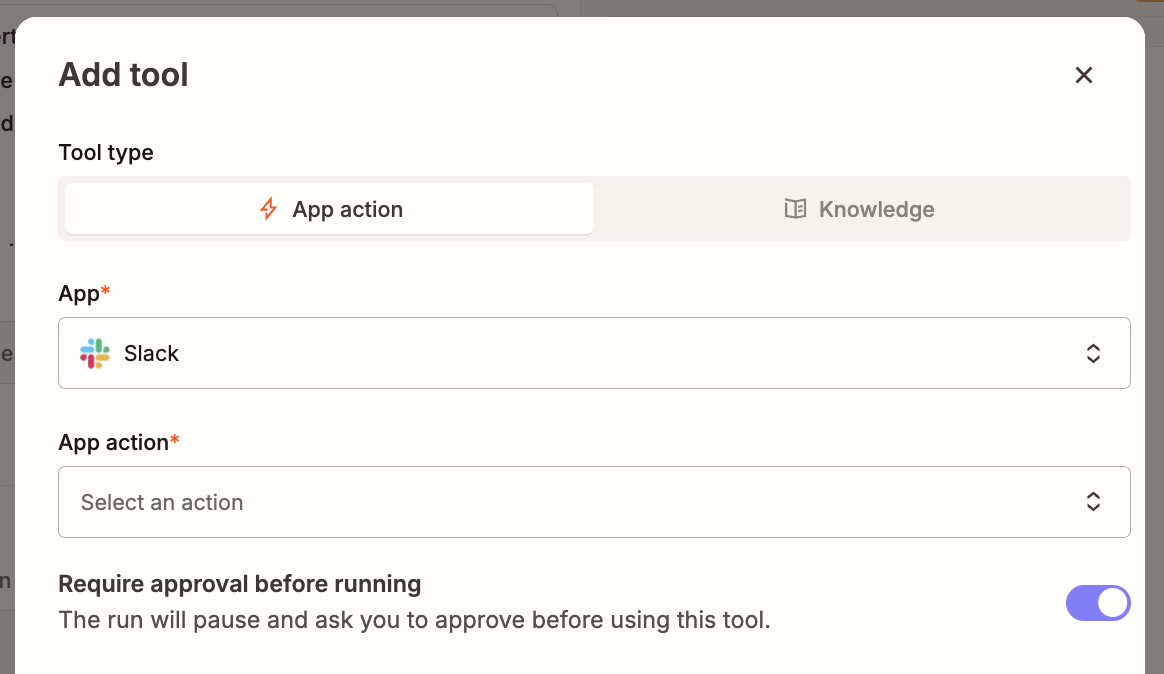
    Require approval before running, set per tool. (New: Agents were all-or-nothing; now you set approval granularity per action)

    Model choice

    Standard, Advanced, and Premium tiers—or name a specific model. (New: Agents didn’t let you pick; now you control cost and capability per step)

    Agent run history

    Zap History, alongside every other automation you run

    Agent cost

    Tasks, on the same task-based pricing as the rest of Zapier; no more guessing what an activity is—we now have a universal task billing system.

    Knowledge sources

    The knowledge sources your AI step can reference while reasoning (not yet supported in AI by Zapier: HubSpot, Asana, Zendesk, Zoom, and Jira)

    5 things you can do with AI by Zapier that you couldn’t do with Zapier Agents

    AI by Zapier gives you all sorts of combinations that were impossible when agents lived on their own island.

    Mix agentic and deterministic steps

    AI by Zapier in a series of steps

    Let the AI decide which record to update, then use a normal Zapier action to send the confirmation email exactly the way it should read every time. That means you get reasoning where it adds value and predictability everywhere else. This allows you to have better control of your workflow and reduce costs over time.

    Read more: How Zapier can help you with valuemaxxing, not tokenmaxxing

    Gate risk per tool, not per agent

    The Require approval before running toggle in AI by Zapier

    Reading data from a spreadsheet doesn’t carry the same weight as messaging a client. With Require approval before running toggles, you control the granularity—letting your agent read data to reason autonomously, while forcing a human check before taking action that can’t be undone.

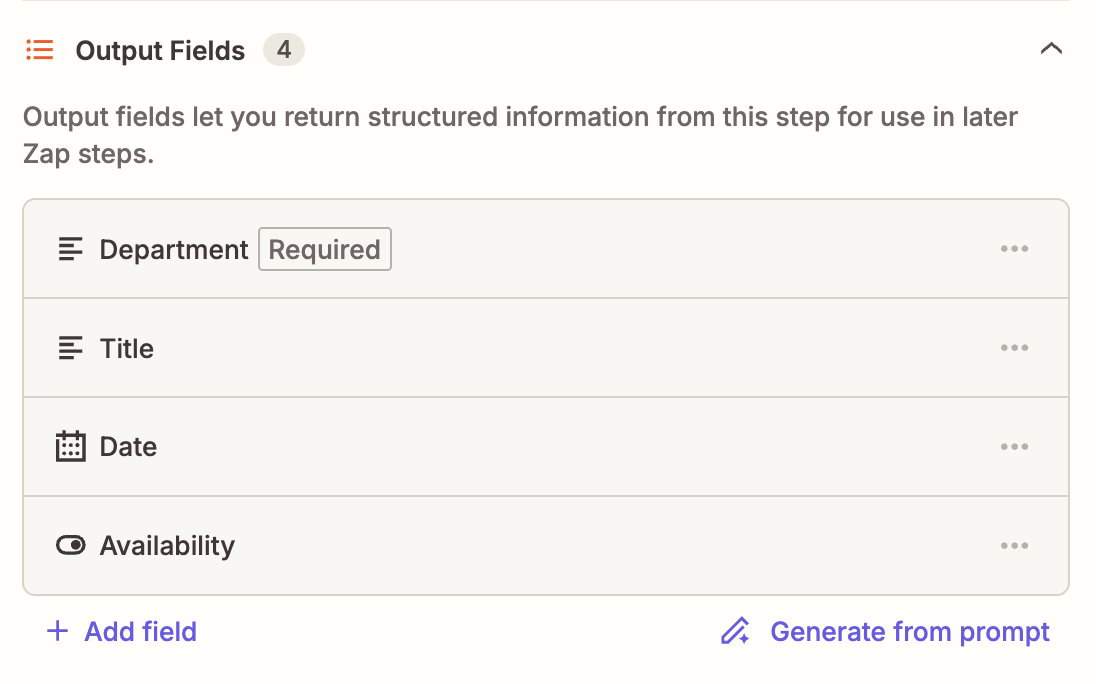
    Get structured output you can actually map

    Mapping output fields in AI by Zapier

    Define the fields you want back—things like a category, a sentiment score, or a subject line—and they arrive as clean, mappable outputs. You won’t need to parse a paragraph of prose in a downstream step.

    Remove the guesswork

    Let AI automatically detect when you might need to add tools for the agent and add them to your step. This removes the guesswork of what’s needed for your agent to operate and takes the work off your plate. You can always manually add or edit yourself if the output isn’t quite right.

    See what happened

    Every run lands in your Zap History with the tools that were called, the inputs and outputs, the model tier used, and the tasks consumed. It’s the same interface you already use for the rest of your Zaps.

    Understand your AI costs before you pay

    The model picker in AI by Zapier, with tasks attached

    With AI by Zapier, AI steps bill as tasks. You can use default models for free, and other model tiers carry different multipliers, so an AI step can cost 1 task, 3 tasks, or 5 tasks. You can see the breakdown per run in your Zap History rather than discovering it on an invoice.

    You can also cap it. Set a limit on tasks per run, and if a single run crosses 75 tasks (this will be adjustable in future), it pauses for a human instead of looping quietly. We know runaway agents were a concern with Zapier Agents, and this is our solution.

    Already using Zapier Agents? Migrate to AI by Zapier

    You don’t have to rebuild your agents from scratch or from memory. The migration is to recreate your agent as an AI by Zapier step: it’s the same goal and same tools, now living inside a Zap where you can wrap deterministic guardrails around it. Most of what you had carries over—and you gain the control and observability the standalone product couldn’t offer.

    A few capabilities are still rolling out. Where something isn’t available yet, there’s usually a clean workaround (for example, you can mimic an on-demand run today by triggering the agent from a webhook).

    If your Zapier Agent is eligible for migration, you’ll see a banner at the top of the agent that will lead you to step-by-step guide into the new product. See this help article to learn more.

    Get productivity tips delivered straight to your inbox

    We’ll email you 1-3 times per week—and never share your information.

    Related articles

    • An abstract image representing Zapier's end-to-end capabilities

    Improve your productivity automatically. Use Zapier to get your apps working together.

    A Zap with the trigger 'When I get a new lead from Facebook,' and the action 'Notify my team in Slack'

  • Research: When Pay Fluctuates, Workers Walk Away

    Research: When Pay Fluctuates, Workers Walk Away

    Harvard Business Review Logo

    HBR Staff; Flavio Coelho/nonnie192/Getty Images

    Today, more than 80% of employers offer some form of variable pay. From performance bonuses to tipped service jobs to demand-based gig work, more and more workers are taking home paychecks that

    According to a recent Payscale report, more than 80% of companies currently use some form of variable pay to compensate their workers. From performance bonuses in sales and commission-based roles to tipped service jobs, demand-based scheduling in retail and construction, and algorithmically-priced gig work, a growing proportion of workers take home paychecks that vary substantially from week to week or month to month. Variable pay is also prevalent among professions often associated with a stable income including public school teachers, police officers, and medical doctors.

  • There’s No Such Thing as an AI-Ready Culture

    There’s No Such Thing as an AI-Ready Culture

    Illustration by Mandy Tsou

    Summary.   

    Organizations today need to simultaneously perform (run the business reliably for today) and transforming (change the business for tomorrow). The challenge is that most organizations are much

    Most companies are transforming for AI faster than their cultures can keep up.

  • What the Honda Super Cub Can Teach Us About Designing for Global Markets

    What the Honda Super Cub Can Teach Us About Designing for Global Markets

    Harvard Business Review Logo

    HBR Staff/Pexels

    Most companies enter emerging markets through one of three flawed strategies: selling premium products to the wealthy few, stripping features to cut costs, or offering micro-sized

    Most companies approach emerging markets with one of three flawed strategies: they try to sell their premium products to the wealthy few and wait for the market to “catch up,” strip features off existing products to lower the price, or micro-size their offerings into single-use portions. All three usually fail because they assume that consumers in poorer markets want the same things as wealthier countries, only cheaper.