
![dropbox-sign-vs.-docusign:-which-should-you-use?-[2026]](https://artificialintelbulletin.com/wp-content/uploads/2026/10/1154-dropbox-sign-vs-docusign-which-should-you-use-2026.jpg)
Sometimes it feels like every time I blink, technology transports me into the future at blistering speeds, and it’s all I can do to keep up. Then someone asks me to sign something on paper and I remember: we’re not quite living in Star Trek yet. I once signed a lease in front of a notary (in triplicate, of course, initialing every page); DHL-ed it to my co-signer in another city to be signed and notarized again; then bundled everything together to submit it. “Kafkaesque” doesn’t begin to describe it.
It’s all the more bewildering when you realize there’s a much better, faster, cheaper way to do it all: eSignature apps. Two of the most recognized solutions are Dropbox Sign (formerly called HelloSign) and Docusign.
You can’t go wrong with either app, but each one is better suited for certain circumstances. To help you decide, I created fresh accounts in each app and tested them to see how their features and workflows compare. Here’s what I discovered in the Dropbox Sign vs. Docusign showdown.
Table of contents:
-
Docusign is a dedicated eSign platform; Dropbox Sign is part of Dropbox
-
Dropbox Sign is more affordable for individuals and small teams
-
Docusign has more integrations, but both apps integrate with Zapier
Dropbox Sign vs. Docusign at a glance
Here’s the gist:
-
If you’re looking for an affordable app to collect signatures on your own or with a team, Dropbox Sign will be right up your alley. It gives you all the features you need to close deals quickly, save time, and sign legally binding documents.
-
Docusign includes standard eSignature functionality, but it also includes advanced features like conditional routing, payments, and built-in identity verification. And on higher-tier plans, you’ll also get AI-powered agreement management and a no-code workflow builder to manage the entire document lifecycle.
|
Dropbox Sign |
Docusign |
|
|---|---|---|
|
Ideal user |
Small businesses looking for a lightweight eSignature app, especially those already using Dropbox for cloud storage |
Teams looking for collaboration, compliance tools, and AI-powered agreement management |
|
Ease of use |
⭐⭐⭐⭐⭐ It’s easy for anyone to quickly send a document out for signature |
⭐⭐⭐⭐ Fairly gentle learning curve, though some steps aren’t intuitive |
|
Feature set |
⭐⭐⭐ Has everything you need for basic signing, but it’s missing important features for teams |
⭐⭐⭐⭐⭐ Offers team features like delegated signing and custody transfer, plus payment collection and AI-powered agreement management; built-in on-demand notary feature |
|
Security |
⭐⭐⭐⭐ Audit trails, tamper-proof documents, and 2FA |
⭐⭐⭐⭐⭐ Biometric checks, ID verification, cryptographic digital signatures, granular security profiles, audit trails, tamper-proof documents |
|
Free plan |
⭐⭐⭐⭐⭐ Send 3 signature requests per month; you can self-sign unlimited documents |
⭐⭐⭐ Send a total of 3 lifetime signature requests; you can self-sign unlimited documents |
|
Pricing |
⭐⭐⭐⭐⭐ All paid plans offer unlimited signature requests; personal plan starts at $15/month, team plans start at $25/user/month |
⭐⭐⭐⭐ Personal plan starts at $10/month, but it limits you to 5 signature requests per month; team plans start at $25/user/month and offer 100 annual signature requests per user |
|
Integrations |
⭐⭐⭐⭐ Integrates with around 20 tools, plus thousands more via Zapier |
⭐⭐⭐⭐⭐ Integrates with 80+ apps, plus thousands more via Zapier |
Dropbox Sign vs. Docusign: What’s the same?
Before we get into the differences, let’s look at what these two digital signature apps have in common. Both apps:
-
Are legally binding and include a real-time audit trail
-
Offer in-person signing options on team plans
-
Have a working mobile app
-
Support dozens of languages
-
Offer bulk send on team plans
-
Include repeatable templates for documents
-
Connect to third-party apps and integrate with Zapier
Docusign is a dedicated eSign platform; Dropbox Sign is part of Dropbox
Let’s start with the basics. Docusign is a standalone, enterprise-grade eSignature platform built to handle the entire document lifecycle—from preparing and sending agreements to tracking, signing, and securely storing them. On its higher-tier plans, Docusign adds automation and AI. Its Intelligent Agreement Management (IAM) plans include a no-code workflow builder and an AI-powered system that pulls key details, like renewal dates, from your signed agreements.
Dropbox Sign is a simpler eSignature tool that’s available on its own or bundled together with your Dropbox storage plan. You can create documents within Dropbox, then jump over to Dropbox Sign to send signature requests and track activity. It’s the lowest-friction eSignature option if you’re already using Dropbox for storage, and it’s focused on fast, user-friendly document-to-signature workflows rather than on having the most advanced features.
Both apps are user-friendly, but Dropbox Sign is a bit more simplified
Compared to most software categories, eSignature apps don’t have much of a learning curve. Even so, there’s something to be said for making the process as foolproof as possible. With Dropbox Sign, there’s never a question about what to do next; with Docusign, the experience is less intuitive.
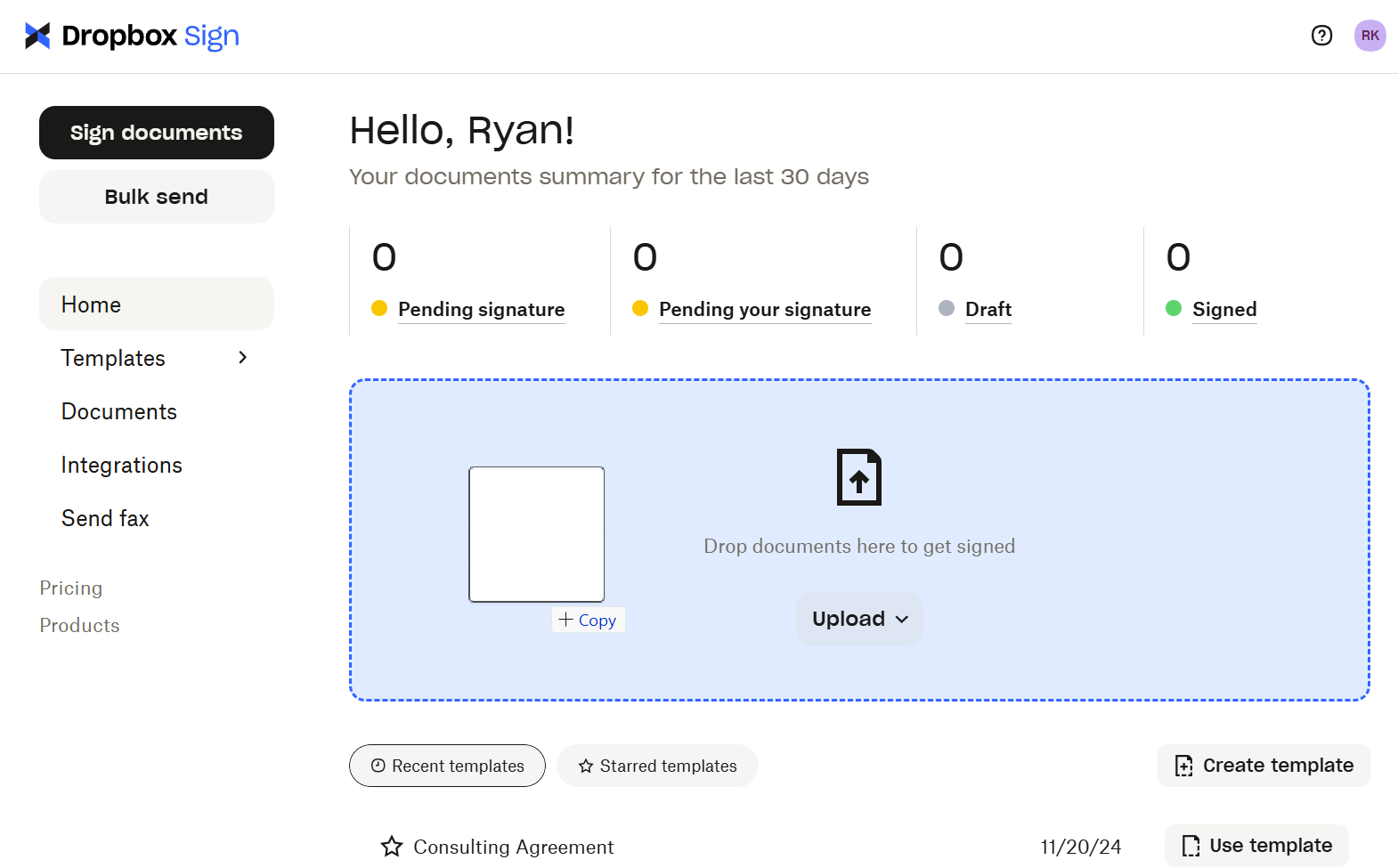
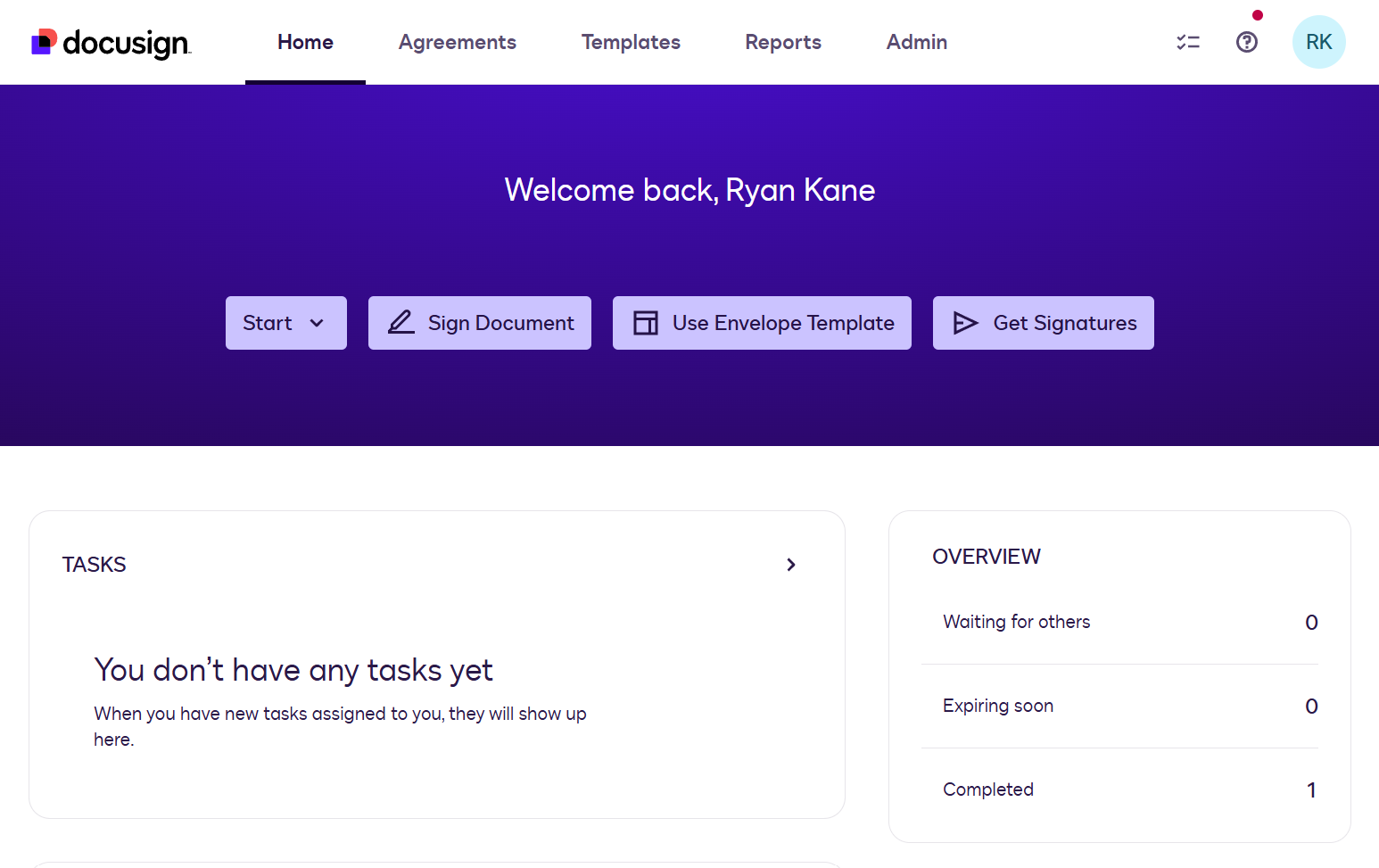
Something I appreciated right away is that Dropbox Sign’s dashboard features a prominent “drag to upload files” box, which is exactly what users arrive at the app ready to do. With Docusign, you’ve got to first choose whether you want to send files for signature or sign them yourself before seeing the option to upload anything. It’s a minor quibble, to be sure, but Dropbox Sign’s process makes for a slightly more intuitive workflow.
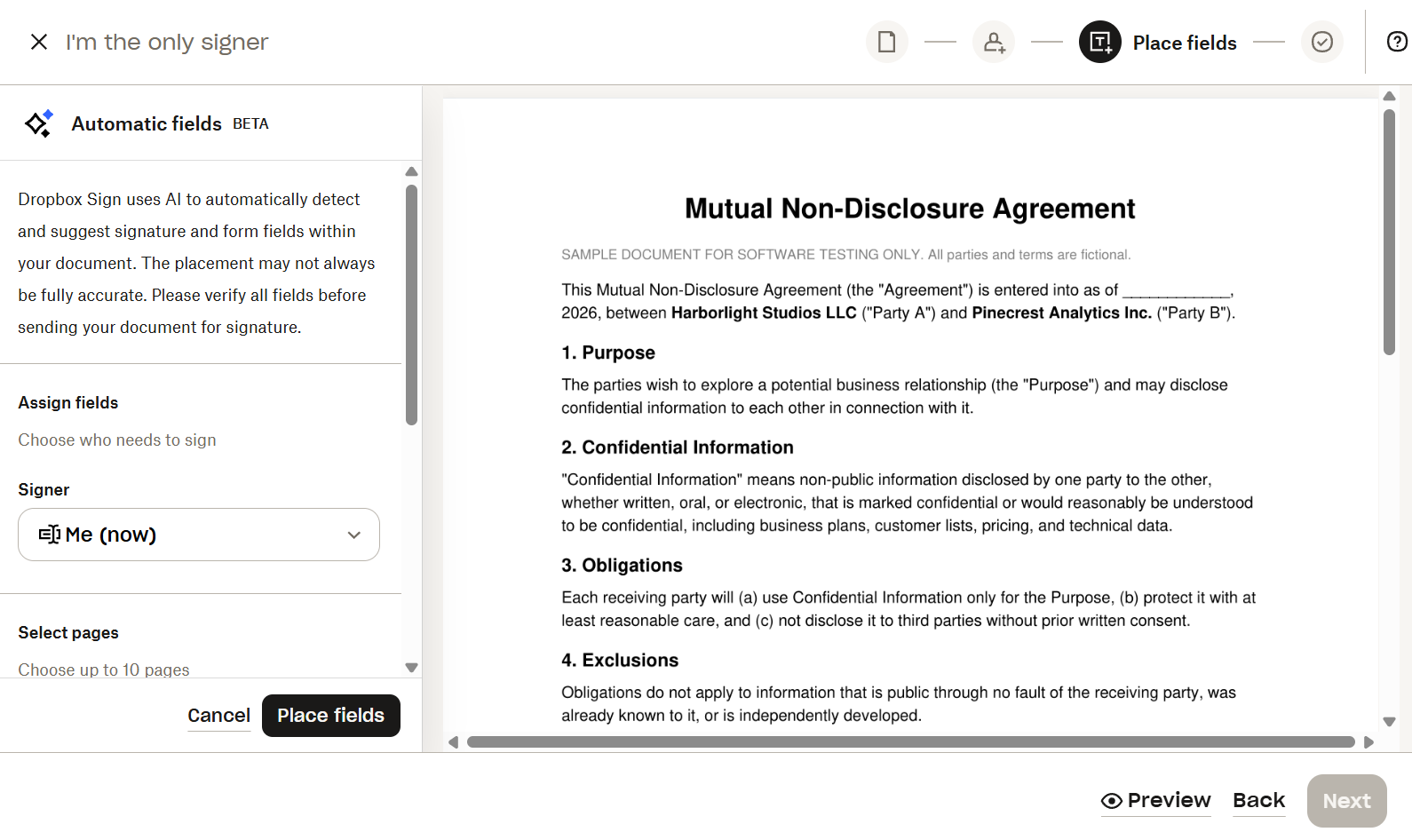
Once you define who needs to sign the document, it’s time to place the fields. Usually, this is a bit monotonous: you’ve got to hunt around for the right field widget, then drag it to the right spot. It’s not a big deal for a one-pager, but it’s a hassle for a 10-page contract with fields on every page.
Dropbox Sign has made this process way easier with AI Auto-place Fields, a beta feature that analyzes your document and automatically embeds signature and form fields in seconds. In my testing, the fields it added were accurate, even across multi-page documents.
Docusign technically has an AI-assisted form placement feature, but there are so many prerequisites that it’s basically invisible to casual users. You need to activate the feature in your admin settings, use an English-language .DOCX file (not a PDF), and work within the Agreement Template Builder (rather than just uploading a document).
Docusign has a handful of minor usability annoyances like this, and to my unending confusion, it also insists on using the word “envelopes” instead of documents. (There are even support tickets on this subject.)
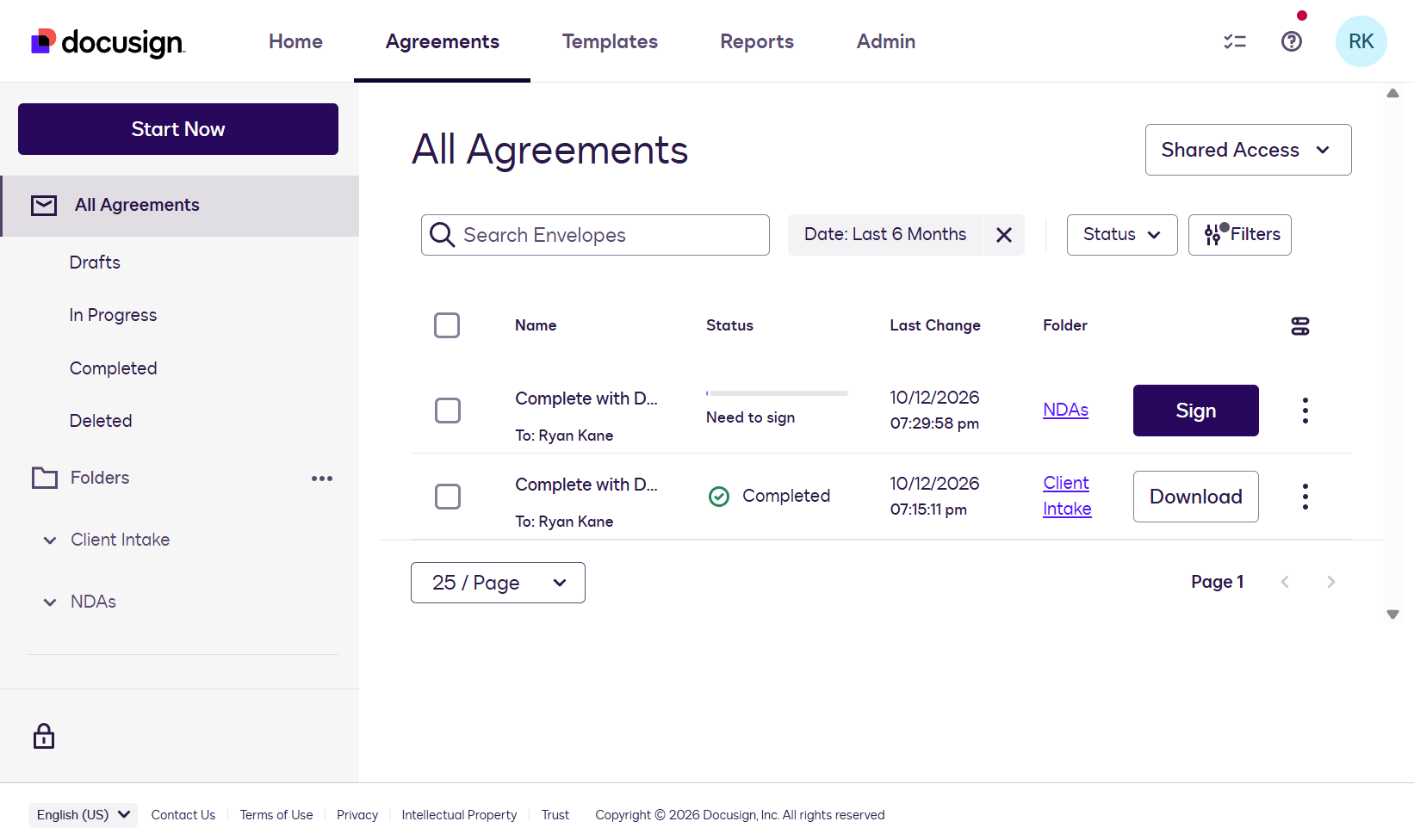
While it’s true that you’re somewhat more likely to get lost using Docusign, the learning curve is still pretty gentle. In some cases, like the Agreements section, Docusign does a stellar job at presenting all the information you need in a single glance. Plus, you can easily organize your documents into different folders, which is something that Dropbox Sign only offers once your agreements land in Dropbox’s separate file storage app.
Dropbox Sign is more affordable for individuals and small teams
Dropbox Sign and Docusign have roughly similar pricing tiers, but Dropbox Sign’s free and entry-level plans are much more usable for individuals and small teams.
Let’s start with what’s possible on the free plan. Both apps give you unlimited self-signing, which is great for personal users who occasionally need to sign a lease agreement or insurance form. Dropbox Sign pulls ahead if you occasionally need to ask other people to sign something. You get three signature requests per month, which is enough for many low-volume business users—like consultants or solopreneurs who rarely onboard new clients—to get by indefinitely. Docusign, on the other hand, gives you three requests total, which means you’ll eventually have to upgrade to a paid plan unless you’re purely a self-signer.
Dropbox Sign also makes it easier for businesses to get by for longer on its entry-level paid plan. Dropbox Sign Essentials, at $15/month (billed annually), gives you unlimited signature requests. Docusign Personal, at $10/month (billed annually), caps you at five per month.
Teams will need to upgrade to a higher tier, and this is another area where Dropbox Sign offers more value. Dropbox Sign Standard costs $25/user/month (billed annually), and includes unlimited signature requests, signer attachments, and bulk sending. Docusign Standard also costs $25/user/month (billed annually), but it limits you to 100 annual signature requests per user. For bulk sending and signer attachments, you’ll need to upgrade to the $40/user/month Docusign Business Pro plan—and even then, you’ll still be limited to 100 annual signature requests.
For bigger teams, Docusign lets you sign up for either of its self-serve team plans with up to 50 users; with Dropbox Sign, you’ll need to reach out to their sales team if you have five or more users. Enterprise users looking for single sign-on, organizational controls, or data residency options will need to reach out for a quote on either platform.
Finally, it’s worth mentioning that Docusign’s Intelligent Agreement Management features are on a totally separate set of plans. You’ll pay $40/user/month (billed annually) for the individual IAM Starter plan, $45/user/month (billed annually) for the small team-focused IAM Standard plan, and $75/user/month (billed annually) for IAM Professional, which is designed for larger teams.
Docusign is better for large teams
Dropbox Sign is great for small teams, but it can be limiting as your business grows. Docusign is fine-tuned for larger businesses out of the box, so if you’re juggling multiple departments and user roles, it’s a safer bet.
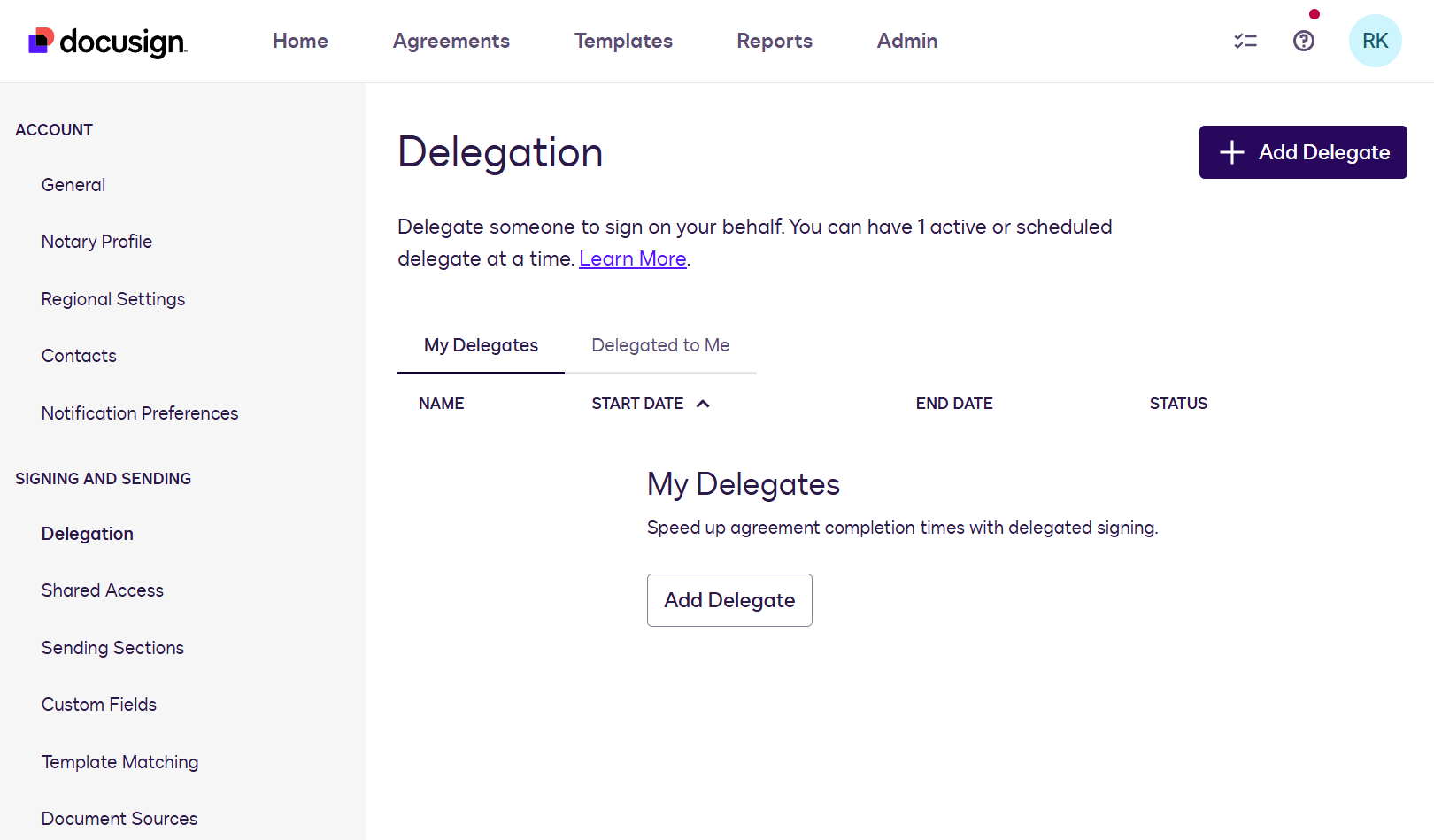
Let’s start with an example: you send a signature request out, only to get the dreaded Out of Office autoreply. With most eSignature apps, including Dropbox Sign, you won’t get a signed document back until the signer returns from vacation (or until you decide it’s so urgent that you have to apologetically Slack them or text them, which isn’t fun for anyone). Docusign has a better way of doing things. With a feature called delegated signing, you can assign a delegate to sign on your behalf whenever you’re unavailable, meaning you can sip margaritas in the pool without being pestered into signing a sales contract from your phone.
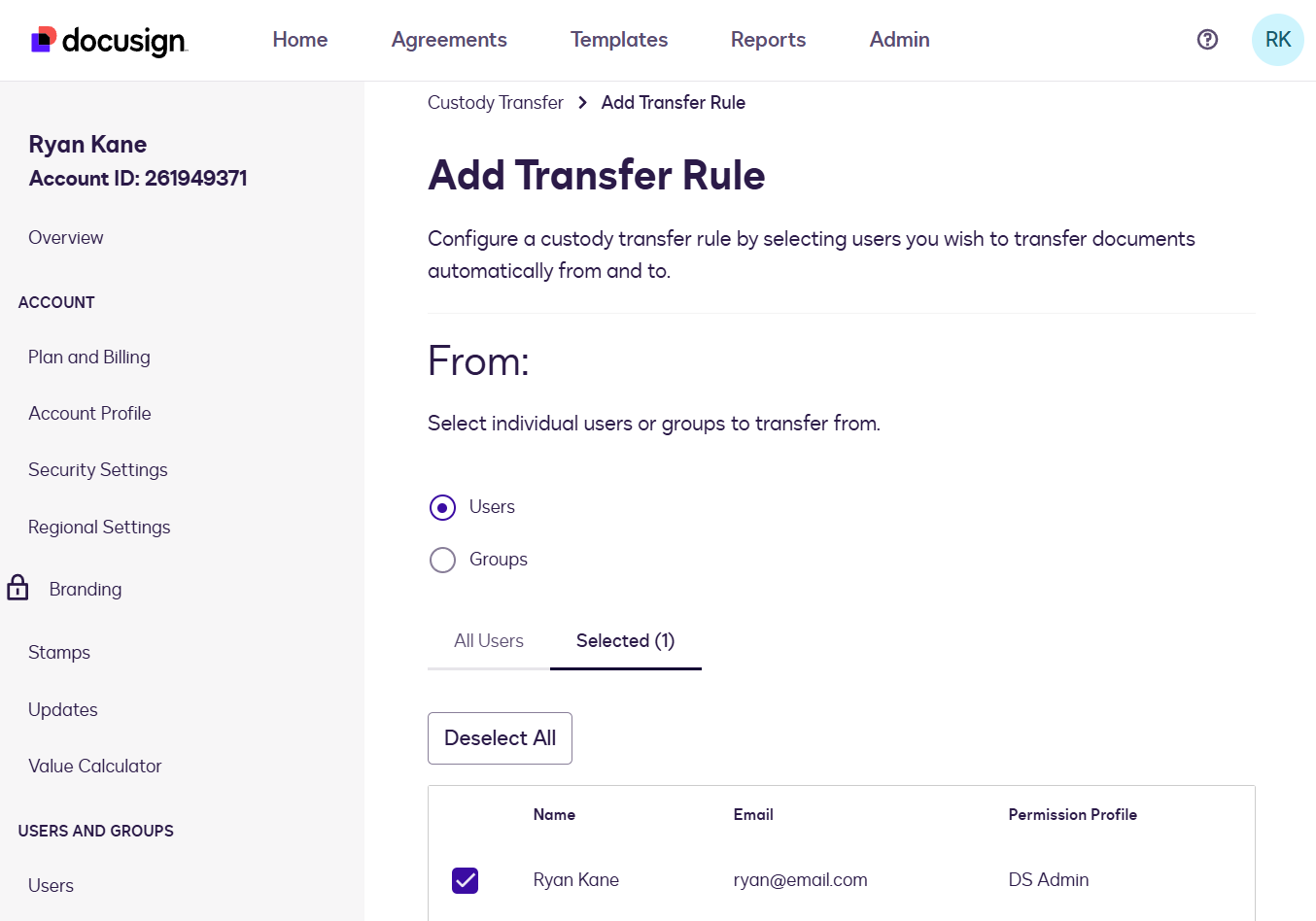
You can also set up custody transfer rules with Docusign, which are a nice perk for small teams but absolutely essential as your business grows. For example, let’s say you have a sales rep with 20 active proposals out for signature and an HR manager with dozens of employee contracts in different stages—and both of them quit. You need a way to manually transfer ownership to someone else on the team, or to design an automated process that shifts custody to a department-level account as soon as your team members send an agreement. Docusign can handle either scenario.
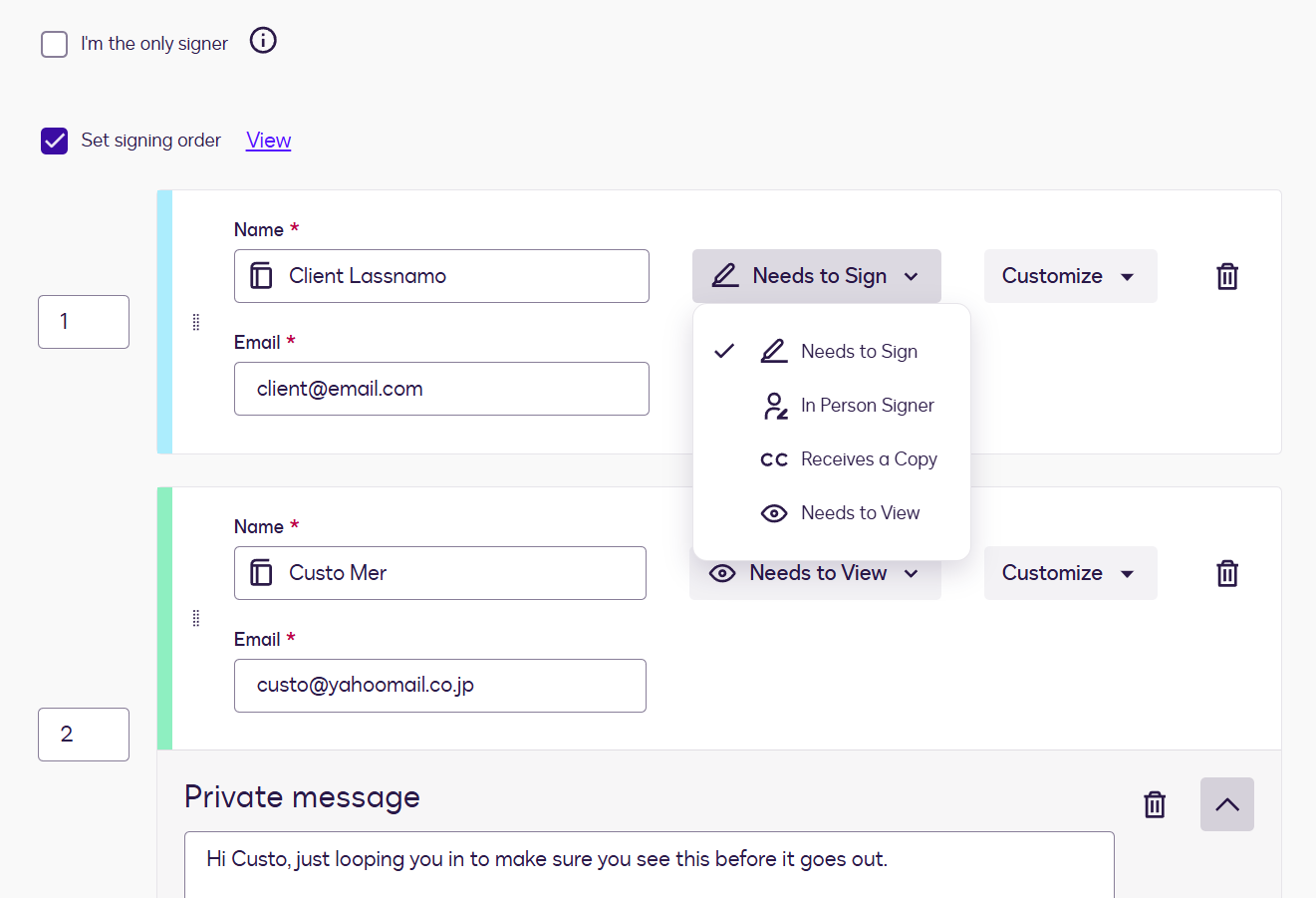
When sending documents with Docusign, you can use collaborative commenting to ask and answer questions within agreements. You can also set the signing order, specify who needs to sign and who just needs to receive a copy, send private messages to each recipient, and use pre-filled doc fields and automated routing to save time. And once your document is signed, you can automate post-agreement actions like archiving documents and exporting data to a CRM.
Docusign also gives you more options to keep your documents secure, especially when managing multiple users. For instance, admins can lock templates to limit changes to messaging, branding, and even recipients. You can also ask signers to verify their identity in multiple ways, like email access codes, ID verification, and knowledge-based authentication.
Docusign offers AI-powered agreement management
You won’t get far on Docusign’s website before encountering the term Intelligent Agreement Management (IAM). So, what is it, and do you need it?
IAM is a set of AI tools that helps automate the agreement process.
This means you get:
-
A centralized tracking dashboard to manage pending requests
-
AI tools that turn web forms into agreements
-
Docusign Agents that review contracts against your legal standards and flag risky language
-
Automatic routing to the right people for internal review and signature
-
Workflows that send documents for signature through specific channels
-
Built-in identity verification
-
A searchable repository of all your signed agreements, with a built-in AI assistant to answer questions
The end goal is to manage the full agreement process within Docusign, rather than running a disconnected process from lots of separate apps. Admins at larger companies can use IAM to build no-code contract workflows, enforce contract standards in a centralized way, and set up conditional routing (like “If the contract value is more than $50,000, route it to a VP for approval”).
If you’re at a company that has a role like Contracts Administrator, you’re very likely to benefit from Docusign and from Intelligent Agreement Management.
Just keep in mind that it operates under a separate pricing structure, with team plans starting at $45/user/month (billed annually) with a minimum of three users.
Dropbox Sign doesn’t have an equivalent to IAM, which limits it at the enterprise and mid-market level. But if you’re buying for yourself or a small team, there’s probably no need to engineer your agreement process so precisely. I wouldn’t really count this as a point against Dropbox Sign unless you’re coordinating tons of agreements across different departments.
Docusign has more integrations, but both apps integrate with Zapier
You can integrate either app with workspace platforms like Google and Microsoft. Beyond that, Docusign offers a wider range of 80+ integrations, compared with around 20 for Dropbox Sign.
Despite the gap in coverage, Dropbox Sign connects to many of the most popular enterprise platforms that involve eSignatures. You can integrate Slack, HubSpot, Salesforce, Microsoft Dynamics, and Greenhouse (for HR) to streamline the agreement workflow across your organization.
Docusign’s wider integration selection makes it a better option if you need to connect to Workday, ServiceNow, Oracle, NetSuite, or Stripe. Identity verification apps are another strength, with coverage for CLEAR, ID.me, and Socure. Docusign also offers a dedicated MCP server that lets you take action from Claude, ChatGPT, and other AI tools, if that’s important to you. (Dropbox Sign piggybacks on Dropbox’s MCP server, but the integration is still in beta and Dropbox Sign appears to be a bit of an afterthought.)
Both Dropbox Sign and Docusign integrate with Zapier, so you can securely connect them to thousands of other apps and orchestrate all your business workflows. For example, you can automatically upload newly signed documents to Google Drive, post a Slack notification the moment a contract is signed, create a record in Salesforce or HubSpot once a deal closes, or kick off an onboarding checklist in Asana as soon as a new hire signs their offer letter. You can even use Dropbox Sign or Docusign from your AI assistant—asking it to send out a signature request, check on the status of a pending doc, or let your team know as soon as a client signs, all without opening either app directly. Learn more about how to automate Docusign and how to automate Dropbox.
Build automations from wherever you work. Describe the outcome you want, and Zapier connects your tools, runs the steps, and stays on the job after you close the chat. Combine AI with reliable, deterministic automation across 9,000+ apps. Get started for free.
Dropbox Sign vs. Docusign: Which should you choose?
Both apps help you sign documents legally without much fuss, so if you’re just looking to solve the pain point of having to sign documents in person, either one will get the job done. If you’re not quite sure which one fits your scenario, here are some final thoughts to keep in mind.
Go with Dropbox Sign if:
-
You want a free plan you can use indefinitely to send a few documents out for signature each month.
-
You have a small team and want unlimited signature requests so you don’t have to worry about hitting a limit.
-
You already store your files in Dropbox and you want the lowest-friction eSignature solution.
Go with Docusign if:
-
You have a larger team and need granular controls on who can do what.
-
You need advanced features like conditional routing, payment collection, and ID verification.
-
You want AI-powered agreement management that handles the full agreement lifecycle, including no-code workflows and AI document analysis.
Related reading:
This article was originally published in September 2022 by Brittney Thompson and has also had contributions from Juliet John. The most recent update was in October 2026.