
![google-forms-vs.-jotform:-which-should-you-use?-[2026]](https://artificialintelbulletin.com/wp-content/uploads/2026/10/5119-google-forms-vs-jotform-which-should-you-use-2026.jpg)
Google Forms and Jotform are two of the biggest online form and survey makers, but they’re pretty different tools.
Google Forms is simple and lightweight and allows you to collect basic responses to most types of questions you might want to ask. It’s fast, free, and almost everyone is familiar with it. Jotform can be used to collect the same sort of information—but it can also do a whole lot more. That doesn’t mean that Jotform is necessarily better for your needs, though. Both apps have their place.
I’ve used (and tested) Jotform and Google Forms for years. For this article, I created a variety of new forms, surveys, and reports to test the latest capabilities of each app. Here’s what I discovered—and how to decide which is right for your business.
Table of contents:
Google Forms vs. Jotform at a glance
If you want a detailed breakdown of how Google Forms and Jotform are different, read on. But this summary will give you a quick overview.
|
Google Forms |
Jotform |
|
|---|---|---|
|
Ease of use |
⭐⭐⭐⭐⭐ Simple and self-explanatory; if you’ve used any Google product, you know how to use Google Forms. |
⭐⭐⭐⭐ While it’s easy to get started, sorting through all the available templates, widgets, and AI features takes time. |
|
Power |
⭐⭐⭐ While it’s a good fit for the majority of forms, including signups and surveys, there’s a lot it can’t do. |
⭐⭐⭐⭐⭐ There’s basically nothing you can’t ask or do with Jotform, whether you’re creating a simple intake form or a complex market research survey. |
|
Data handling |
⭐⭐⭐⭐ With nice built-in reports and an automatic export to Google Sheets, Google Forms makes handling your collected data super easy. |
⭐⭐⭐⭐ It’s not as intuitive as Google Forms, but Jotform allows you to export your data almost anywhere. |
|
AI features |
⭐⭐⭐ Gemini can generate forms and suggest new questions, but it’s only available on higher-tier paid plans (and doesn’t handle conditional logic). |
⭐⭐⭐⭐⭐ Jotform AI is available on every plan and can build complex forms with styling, conditional logic, signatures, and payments. There’s also an excellent AI assistant for edits. |
|
Value for money |
⭐⭐⭐⭐⭐ Completely free, although AI features require a paid plan. |
⭐⭐⭐⭐ With a fairly limited free plan and the basic plan starting at $39/month, Jotform is notably pricier than Google Forms—but it offers far more features to justify the expense. |
Google Forms is simpler
Most online forms don’t need to be complicated. If you’re collecting swag orders, basic feedback, or submissions for the office suggestion box, you don’t need any weird tools or special apps. You just need the ability to ask short and long questions, offer various dropdown menus, checkboxes, and rating scales, allow your responders to attach files and images, record the date and time, and take someone’s email address.
With that handful of basic options, you can create anything from a (barebones) wedding invite to a custom parts order form. And these are the kinds of options that Google Forms brings to the table.
It even has a basic version of conditional logic that sends users to different sections of the form based on their answers. You can also set Google Forms to stop accepting responses automatically, either at a specific date or once the form hits a set number of responses.
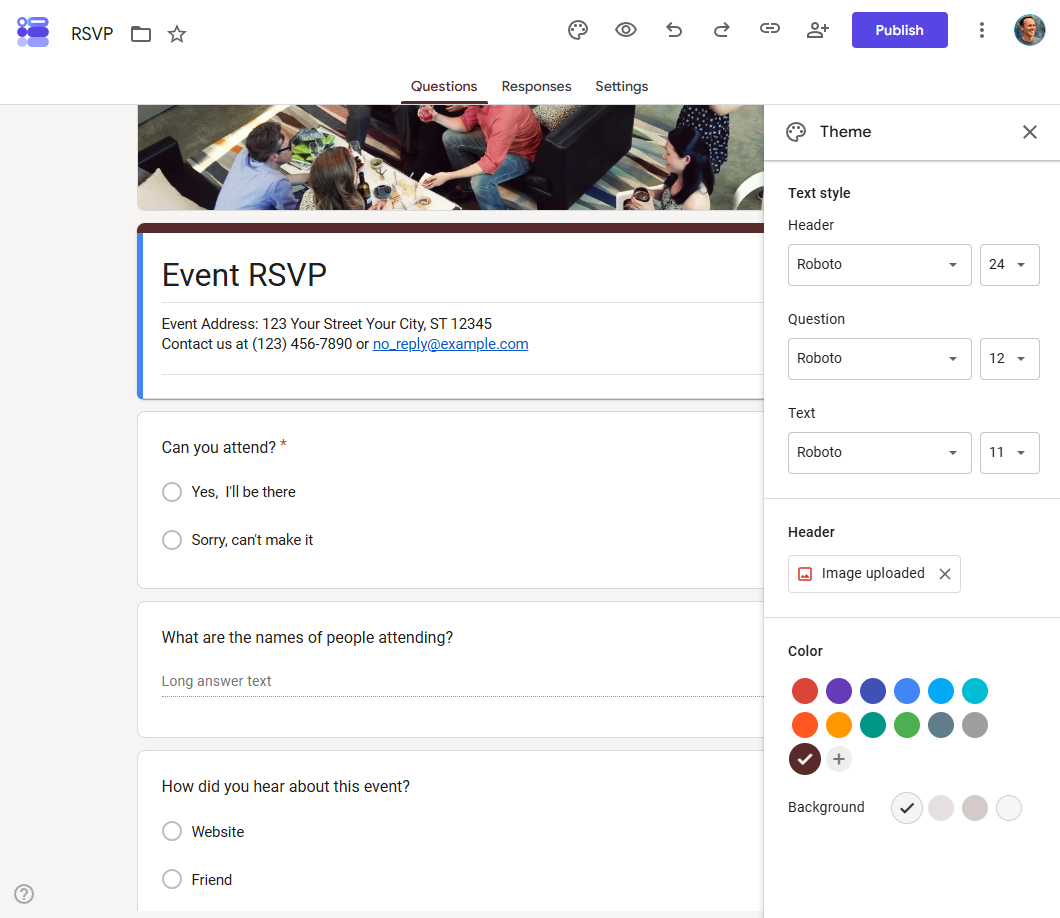
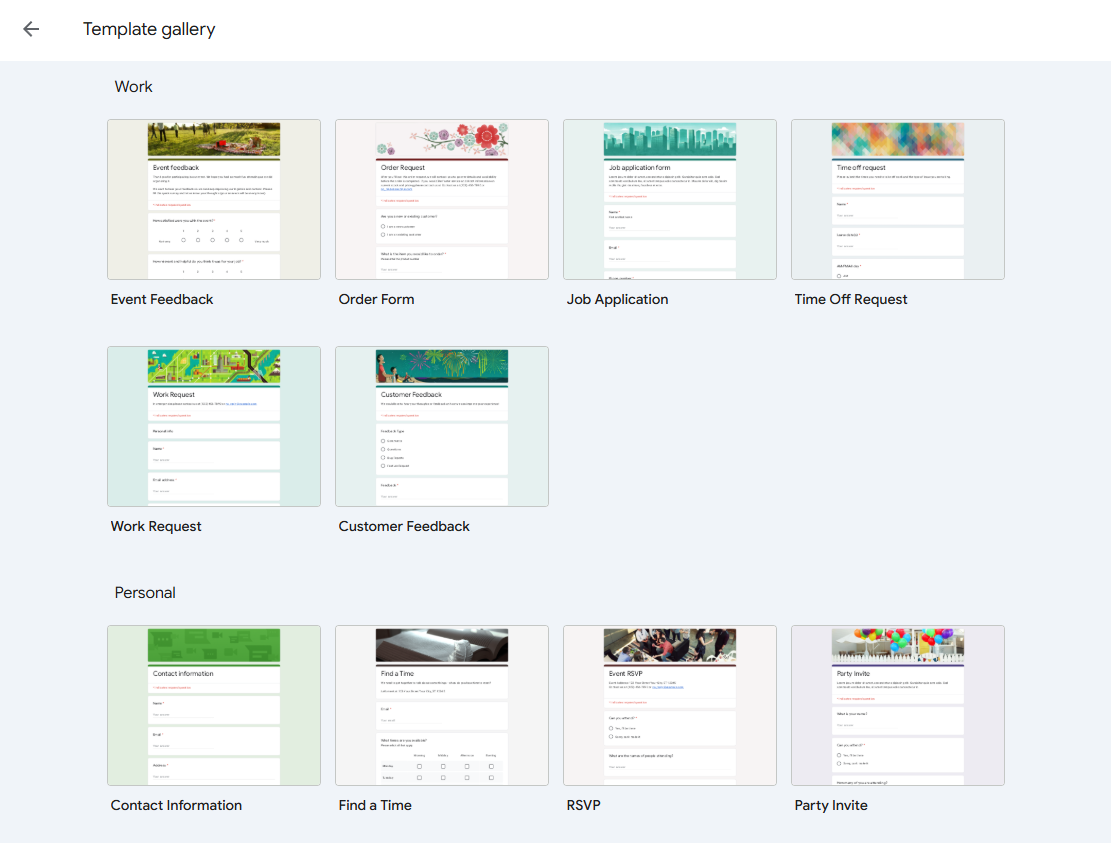
And it’s really easy to use, whether you start with a blank form or one of the 17 different templates. One nice touch is that Google Forms suggests the most appropriate data type to collect based on the question you enter. It’s not always accurate, but it can certainly make it easier for beginners to get responses in the right format.
Of course, this simple approach does have a few downsides. While you can customize Google Forms, they all generally look pretty same-ish (and very purple, if you don’t change the color scheme). If you’ve ever filled one out, you’ll know exactly what I mean. It’s the same look that a lot of Google products—and especially their help documents—have. It’s not bad, but changing the font and background color, and adding a header image still doesn’t really allow your forms to stand out or fully match your brand.
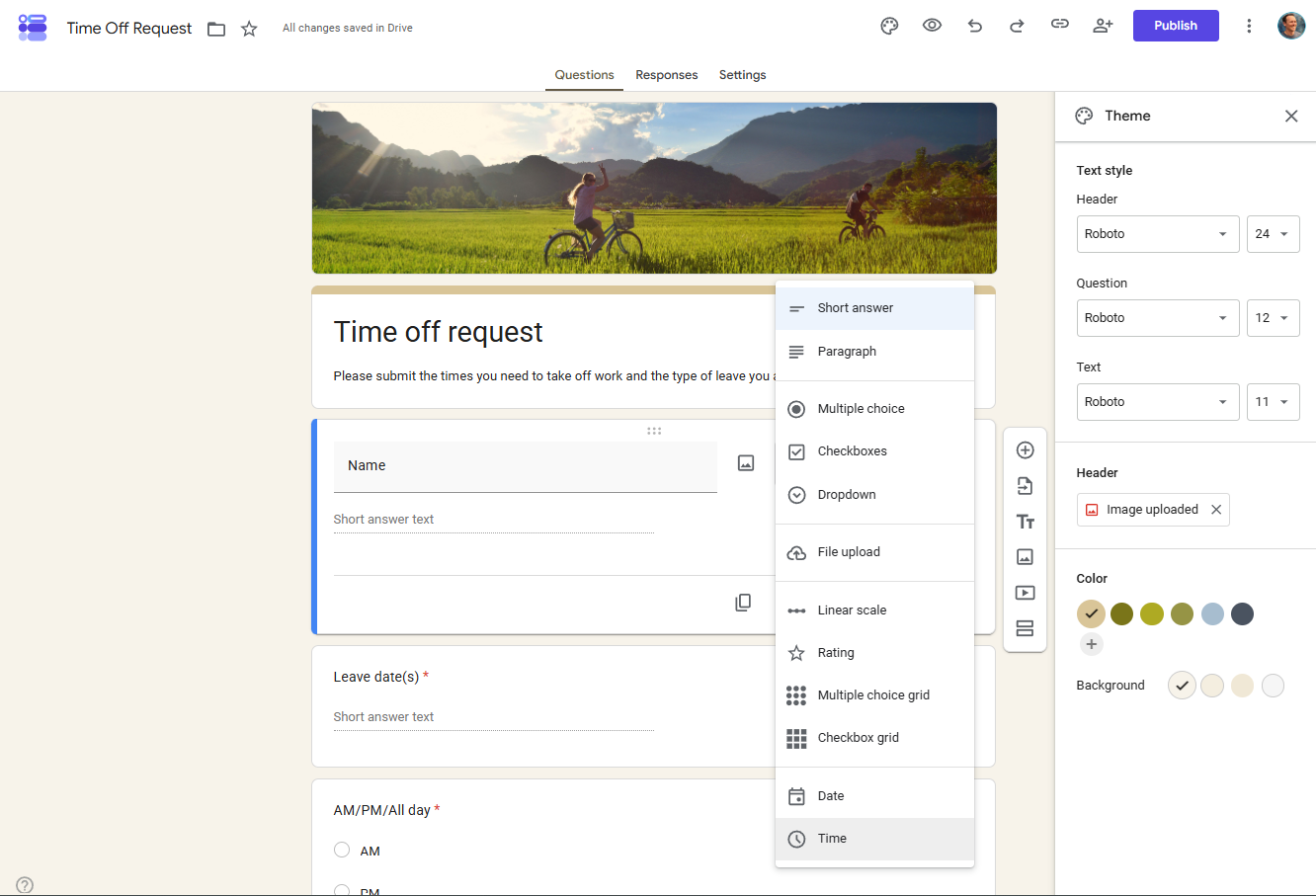
While there are ways to add some more advanced features, either by using Google Apps Script or hoping there’s an add-on that gives you the functionality you need, Google Forms is at its best when it’s at its simplest.
Jotform is more flexible
Jotform has all the same basic options as Google Forms, plus a ton of extra features. You can create a form that uses simple questions and dropdown menus, or one that has a countdown timer, a progress bar, a voice recorder, and a calorie calculator. Do you need all these different options? Probably not. But some of them are incredibly useful.
Take payments. Jotform integrates with Stripe, Apple Pay, Google Pay, Venmo, PayPal, and many other payment processors so that you can create a form that charges people at the end, say for a custom order or an appointment. Although there are ways to add payment support (as well as other options) to Google Forms with Google Workspace Marketplace add-ons, they aren’t built in to the same degree. Not every form needs payments, but if yours does, then Jotform is clearly the better option.
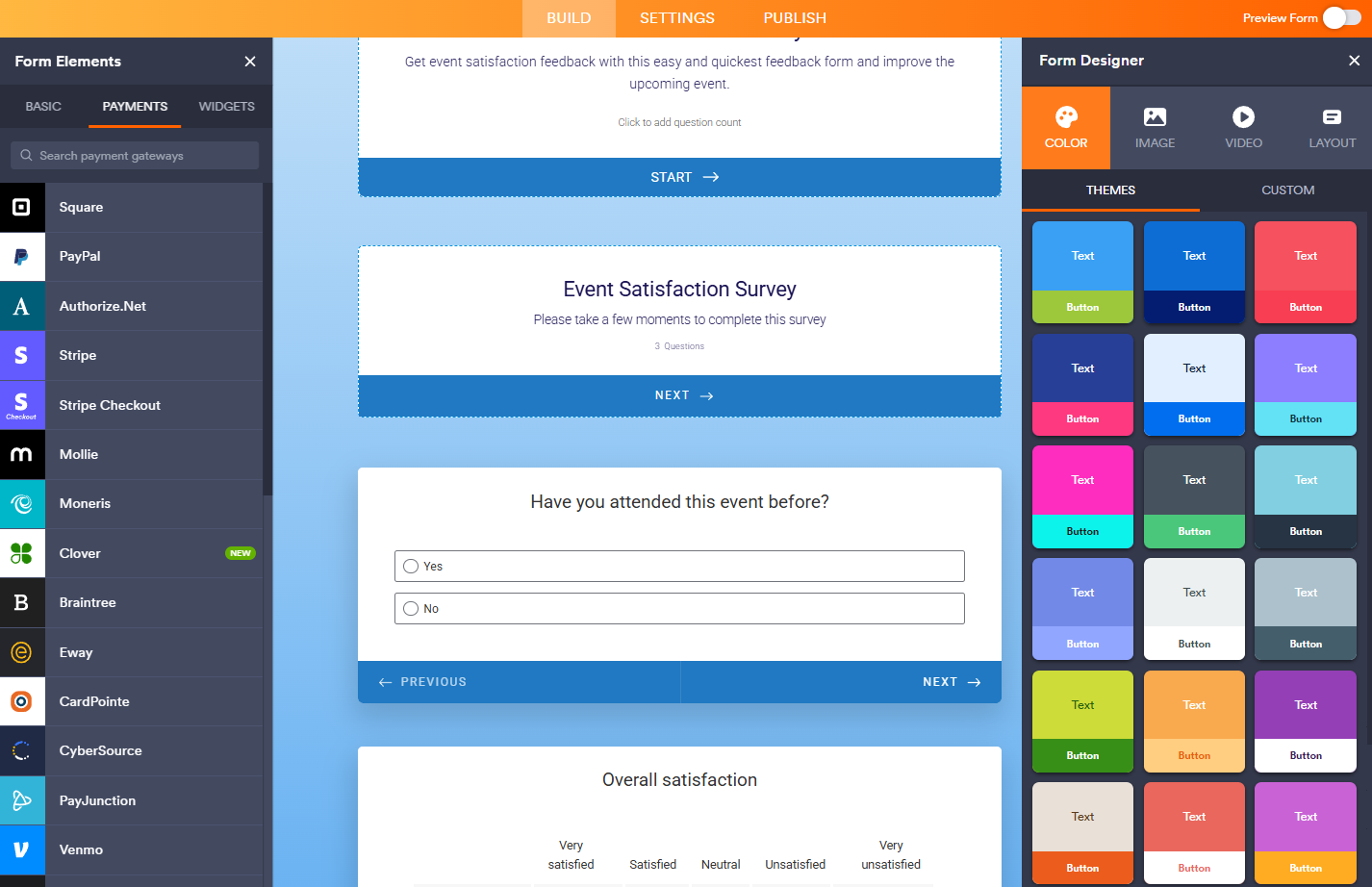
Templates are a similar story. While Google Forms offers 17 different options, Jotform has more than 20,000. There’s a lot of redundancy within Jotform’s template selection (there are 99 bakery order form templates), but it still gives you infinitely more starting points to play around with.
Likewise, you can customize your forms significantly more. If you have the design chops, you can dive into the CSS and make every line look exactly how you want it, or you can use one of the hundreds of different themes. If you want to use conditional logic, you can create incredibly advanced dynamic forms. You can even gather legally signed responses to your forms.
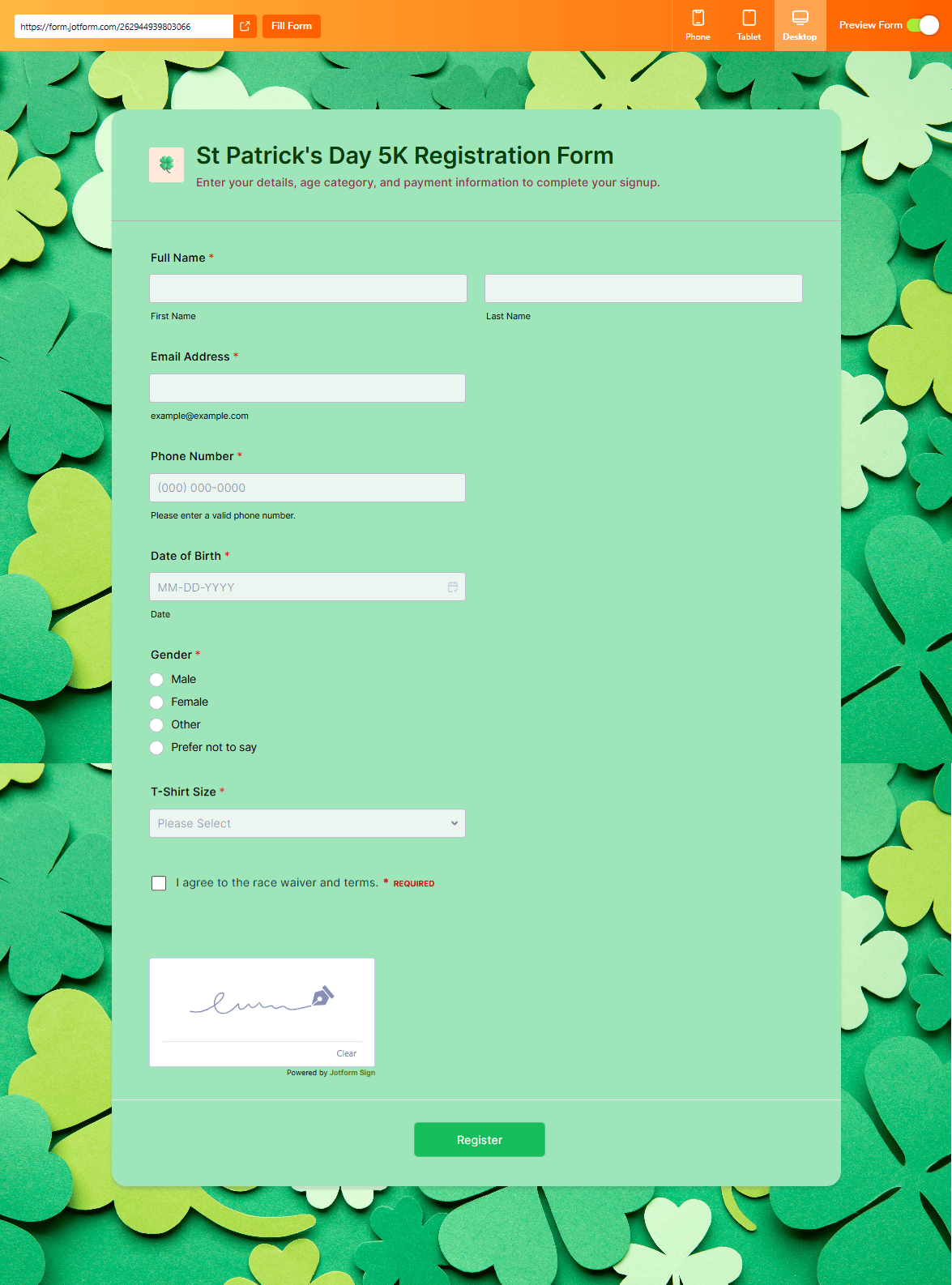
You can also create a wide range of form types, including classic forms and one-question-per-page surveys. And—while these features fall beyond the scope of this discussion—Jotform can also be used to make basic apps and online stores.
For all that, Jotform’s form builder is still easy and intuitive to use. The basic options are all presented up front, and you can dig into the weirder widgets as you need to.
Jotform basically does everything Google Forms does, and then does a thousand times more. Perhaps the most awkward part is figuring out what you can and can’t do with the various extra tools. If you need to block spam submissions but you want a more whimsical option than the standard CAPTCHA, you can embed a Tic-Tac-Toe game instead—but you’d never know about this option unless you scroll through the hundreds of widgets on offer (or happen upon an article that mentions there’s a Tic-Tac-Toe game).
Both handle data really well
How form-building apps handle the data you collect is just as important as how they collect it. The good news is both Google Forms and Jotform do a really great job of making the data you gather easy to work with—and crucially, easy to export to other, more powerful tools.
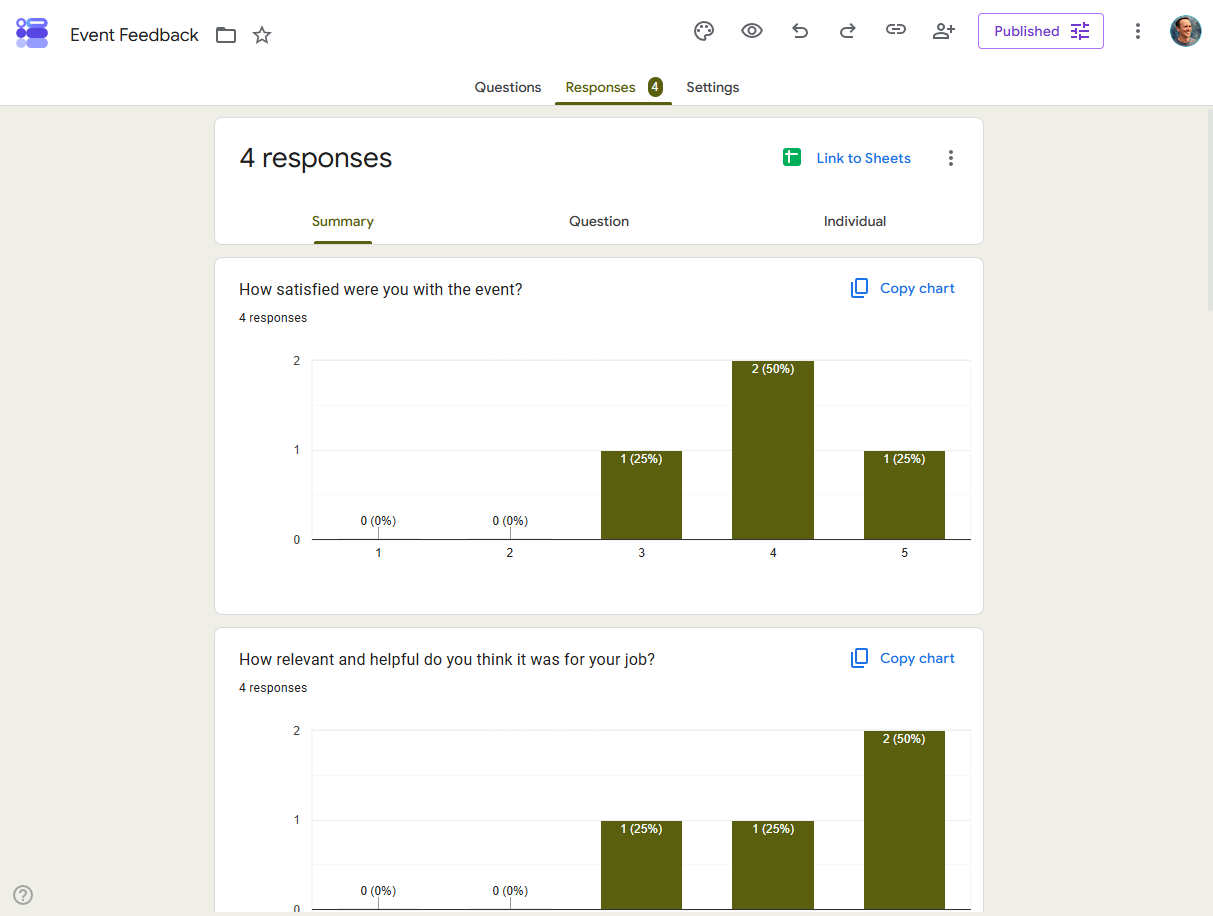
Google Forms is, unsurprisingly, the simpler option. There are three default reports: you can see a summary of all the responses, get a question-by-question breakdown, or see each response individually. If you need more options, you can send all the data to a Google Sheet to perform any calculations you need, or export it somewhere else, like your CRM, so you can put it to use.
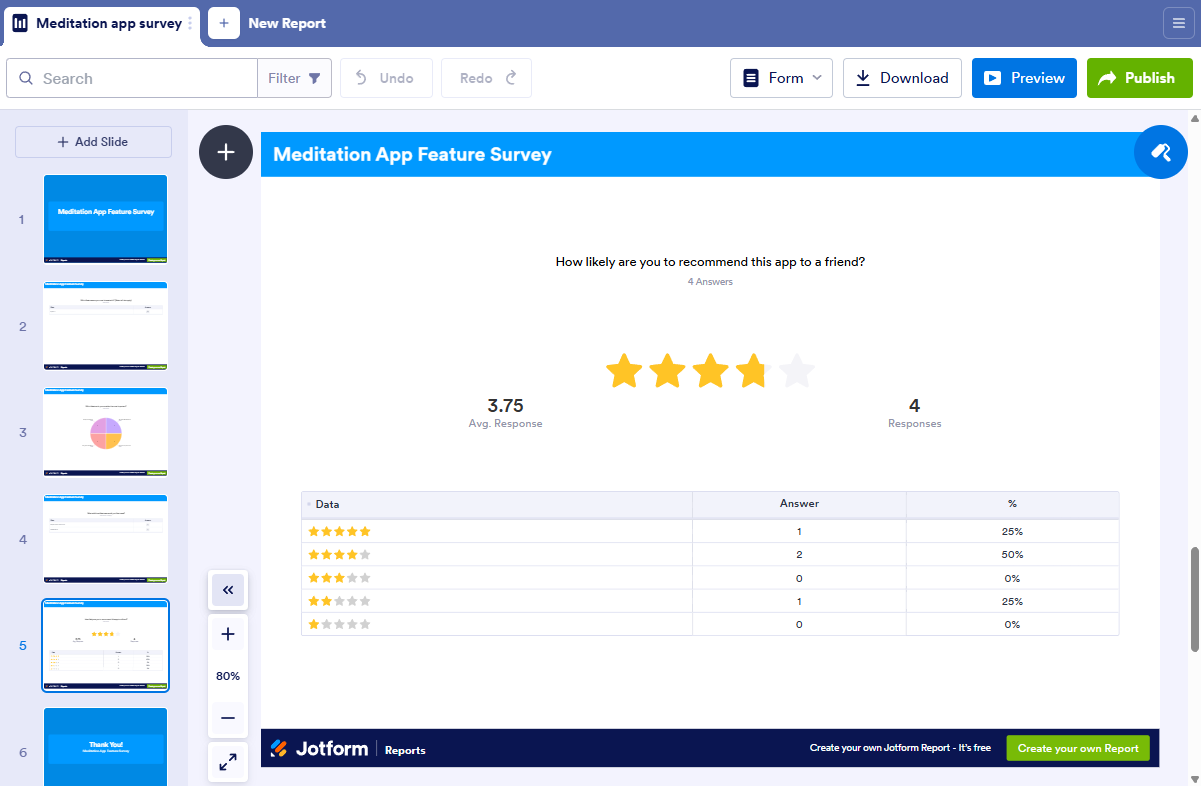
With Jotform, it can be a little less intuitive to see all your data—but you can do more with it if you need to. All the information that Google Forms offers is split over a few different tools in Jotform. The Tables tool lays it out in a spreadsheet, the Inbox has individual responses, Report Builder allows you to create whatever reports you need, and Form Analytics gives you additional data about who’s filling out your form. And, of course, you can download your data, so you can import it into any app you like.
But really, there’s not a lot differentiating the two tools on this front. Both provide you with the data you’ve collected and enable you to do what you need to with it—whether that’s export it to your CRM, analyze it in a stats package, or just keep it safely stored. Even if you use Jotform, there’s a good chance you’re exporting the data to a Google Sheet for analysis.
Jotform’s AI does more, and it’s available on the free plan
Both Google Forms and Jotform have released AI tools to make it faster and easier to create forms. Both work in more or less the same way: you enter a prompt describing what you want, and the AI generates a form that (hopefully) meets your needs.
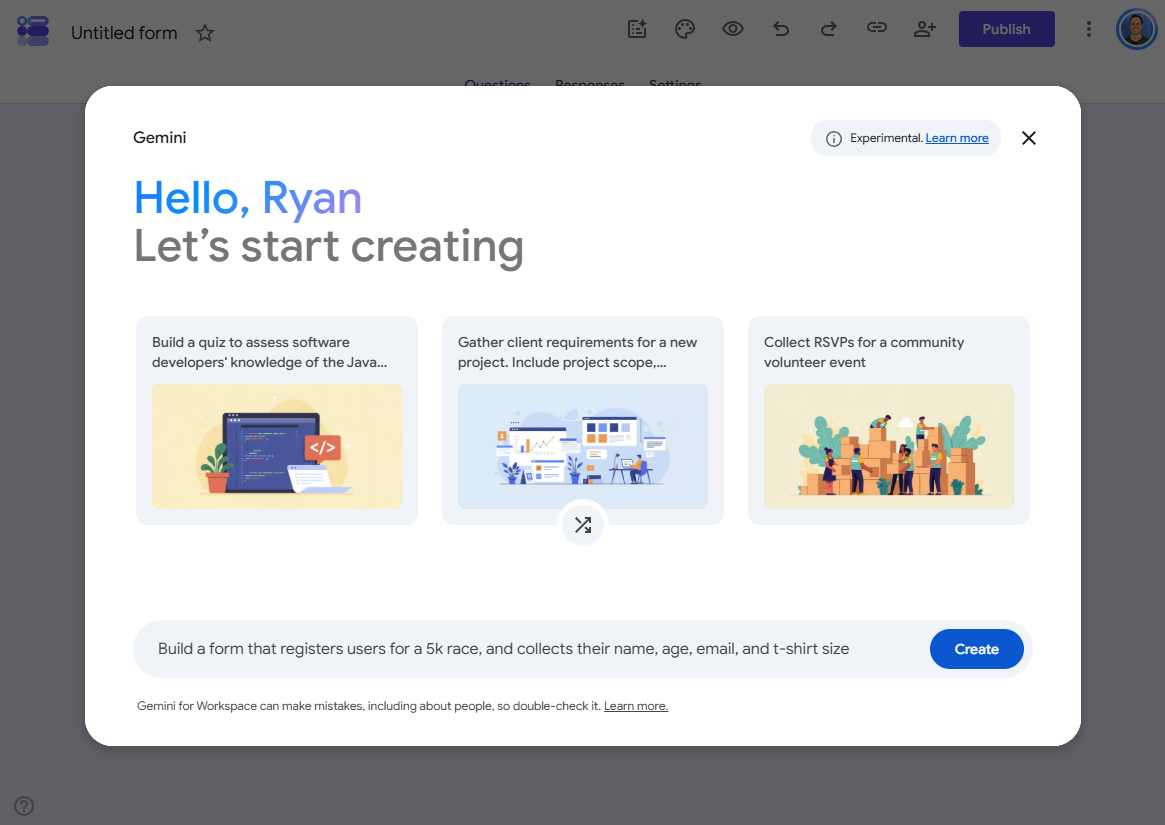
With Google Forms, you need to be on a fairly high-tier paid plan to access AI features (neither my Google AI Plus plan nor my Google Workspace Business Starter plan qualified). I was eventually able to test out Gemini in Google Forms by opting into Workspace Experiments on my personal Google account.
The verdict is… it’s fine. It’s faster than creating forms by hand, and the ability to create forms with AI partly compensates for Google Forms’ meager selection of templates. While I couldn’t get it to handle conditional logic, Google Forms’ “Go to section based on answer” feature is basic enough that it’s not hard to do manually.
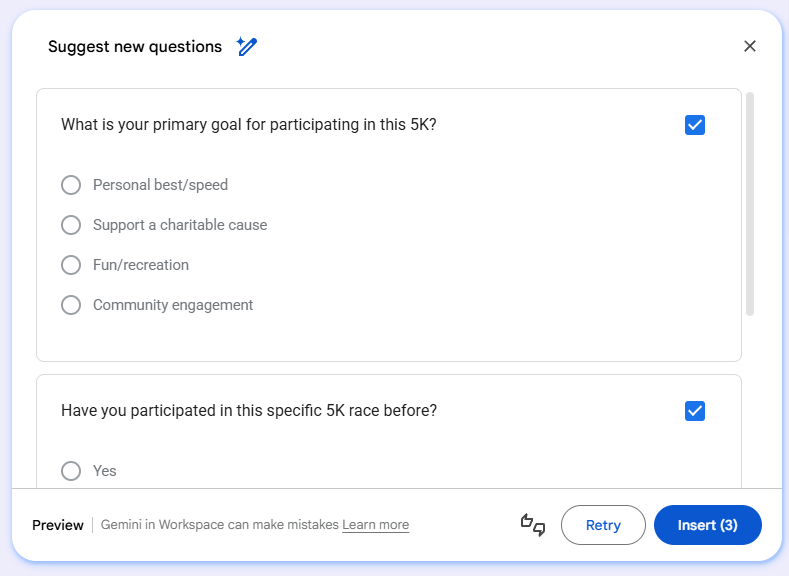
Where things get a little more interesting is the “Suggest new questions” feature, which generates a handful of relevant questions to choose from. You can also prompt Gemini with an idea for a question and have it flesh the question out, though that’s probably overkill unless you’re struggling to think of multiple-choice options.
Jotform’s AI form builder is far easier to access. Even on the free plan, you can create as many AI-generated forms as you want, and you don’t need to do anything extra to set it up.
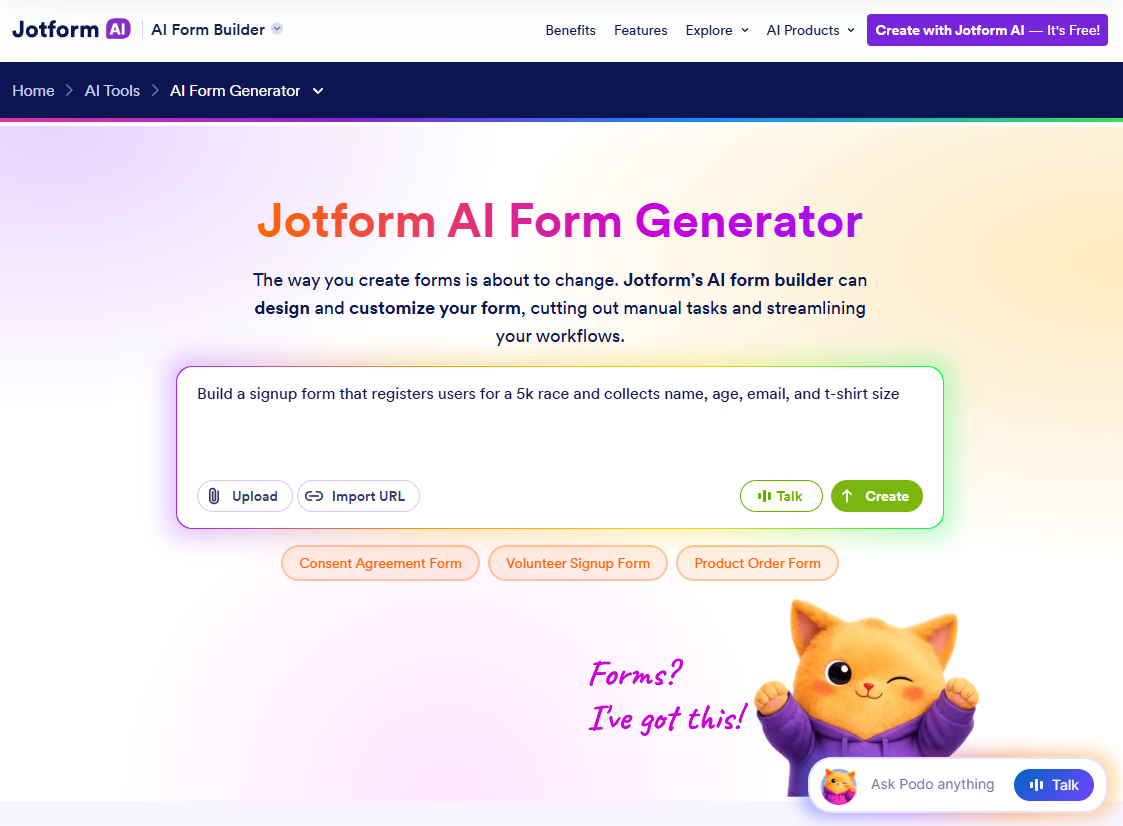
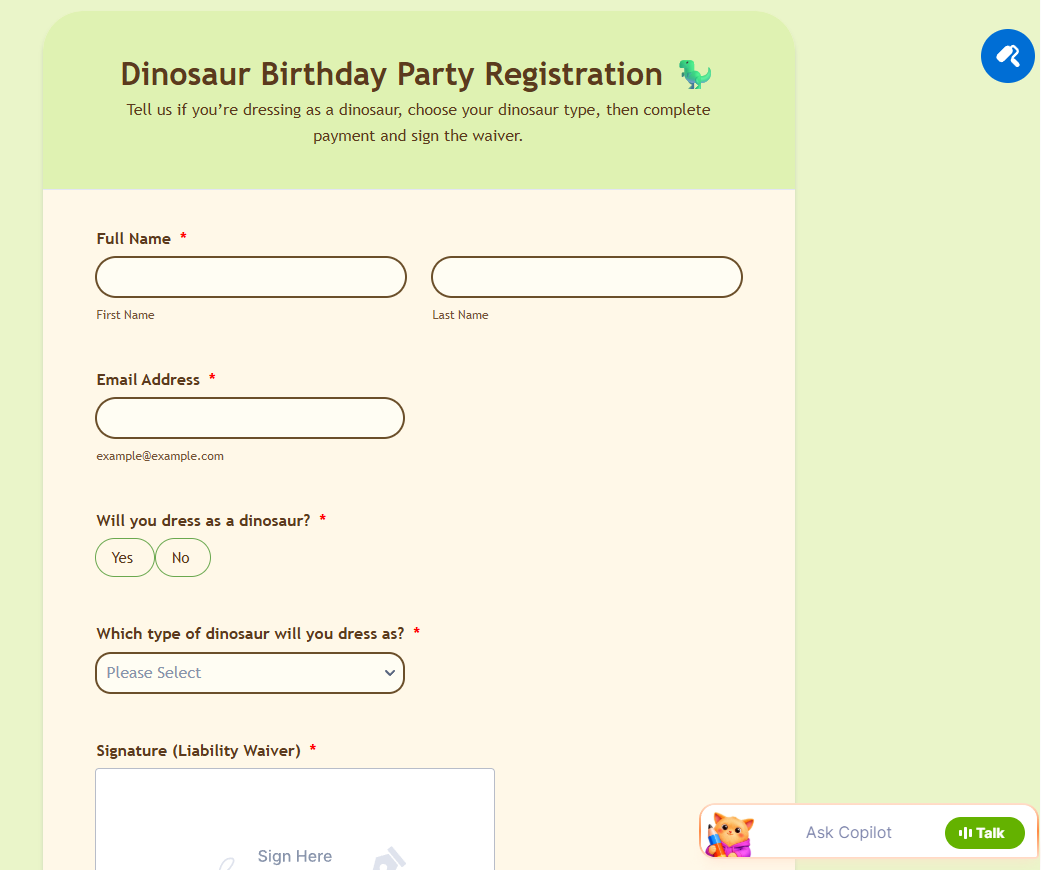
Jotform also gives you more prompt input options than Google Forms. You can upload files, import URLs, and talk rather than type if you’re feeling especially verbose. And Jotform AI is much better if you’re creating complicated forms. In my tests, I was able to add styling, conditional logic, signatures, and payments with a one-shot prompt.
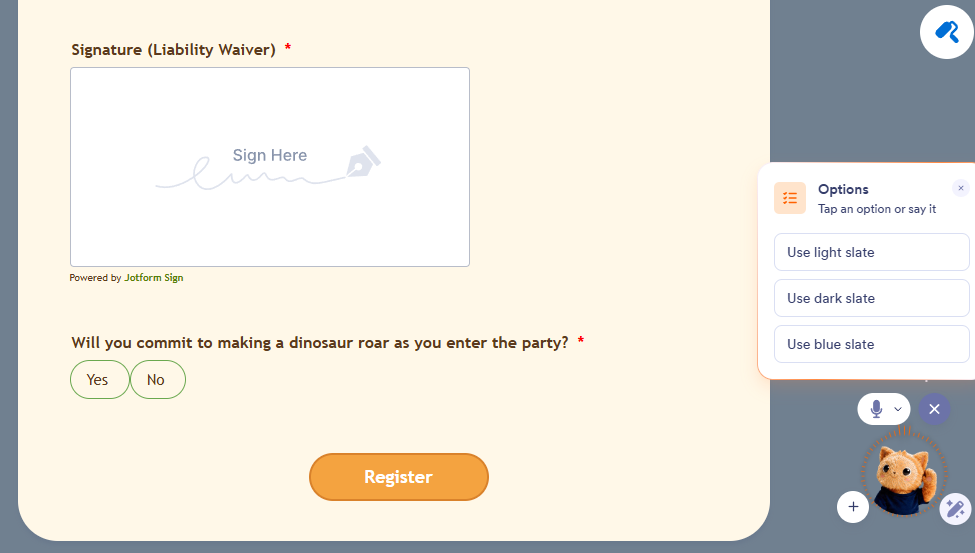
If your form doesn’t quite generate correctly, you can use Jotform’s AI assistant to modify it. I’ll be honest: I didn’t take this particularly seriously at first, partly because most AI assistants are kind of underwhelming, and partly because of the cutesy cat avatar. But Jotform’s AI assistant is really, really good. It’s voice-driven by default (although you can switch it to a text-based chat if you want), and I found it to be surprisingly accurate. And Podo the AI cat is, objectively, very cute.
Price is a big factor (Google Forms is free)
Google Forms is a great form builder, it’s suitable for almost every kind of form you need to build, and it has one huge advantage over Jotform: it’s free. The caveat is that all your collected form data needs to fit into your 15 GB Google account limit, but unless you’re conducting a census, that shouldn’t be an issue. If you’re a business user, Google Forms is included with Google Workspace, where you have even larger storage limits.
Jotform is great. It’s much more powerful than Google Forms, and if you want to collect payments, get forms legally signed, embed deep conditional logic, or make use of any of the other advanced features, then it may be worth the monthly fees. But it’s a big jump in price compared with Google Forms. On its free plan, Jotform limits you to just 100 form submissions per month (though you can collect 10 payments per month and 10 monthly signed documents). Similarly, you’re limited to five total forms and can only store data from 500 submissions. You’re also limited to 100 fields per form and 10,000 monthly views of your forms. Even if you’re just creating simple forms surveying employees, you could very easily bump up against one or more of these limits.
The Bronze plan, at $39/month, expands those limits to 25 forms, 250 fields per form, 1,000 monthly submissions, 10,000 stored submissions, 100,000 monthly form views, and 100 monthly payments and signed documents. If you’re using all the advanced features, it makes sense; if not, the premium over Google Forms might not be worth it.
Both apps integrate with Zapier
Jotform natively integrates with more than 200 apps. Google Forms isn’t quite as connected, but it works seamlessly with the rest of Google’s ecosystem, and you can extend it with add-ons through the Google Workspace Marketplace.
Both apps also integrate with Zapier, which means you can send form responses from Google Forms and Jotform to nearly any app you want—automatically. Zapier also lets you securely access your form data and take action in 9,000+ apps directly from your AI chat window. Learn more about how to automate Google Forms or how to automate Jotform.
Build automations from wherever you work. Describe the outcome you want, and Zapier connects your tools, runs the steps, and stays on the job after you close the chat. Combine AI with reliable, deterministic automation across 9,000+ apps. Get started for free.
Jotform vs. Google Forms: Which should you use?
Google Forms is one of Google’s best tools. It’s simple, powerful, easy to use, and totally free. Unless you want to customize how your form looks, collect payments, or build complex forms with calculations and conditional logic, you should probably start with Google Forms. And if you’re already paying for a higher-tier Google Workspace plan or Google AI Pro, you’ll get built-in Gemini AI features at no extra cost.
Jotform, on the other hand, does everything you could need for any type of form or survey. It can be customized to no end, and Jotform AI can build complex forms with logic and payments from a single prompt—even on the free plan. If you’re prepared to pay for a premium plan, or if you can manage within the confines of the free plan, it’s definitely the better tool. And if you work at a big company where forms and surveys are a big part of your day-to-day, it’s worth investing in.
Related reading:
This article was originally published in November 2022 by Harry Guinness. The most recent update was in October 2026.