

Grok has a very specific edge over other AI models: live access to X, so your agents can keep their finger on the pulse a little more easily. But outside of that, Grok models and agents are still solid alternatives to what OpenAI, Anthropic, and Google have on offer. And if you’re using Grok for work, you’ll want to connect it to the rest of your tech stack. The most secure and easiest way to do that is with Zapier.
There are two main ways to automate Grok with Zapier. You can add Grok to the workflows you already run in Zapier, so it does research, analyzes inputs, or makes images whenever something happens in your other apps. Or you can install Zapier inside Grok Bot or Grok Build and ask your AI assistant to act across 9,000+ apps without leaving the chat.
Here’s how both work.
Build automations from wherever you work. Describe the outcome you want, and Zapier connects your tools, runs the steps, and stays on the job after you close the chat. Combine AI with reliable, deterministic automation across 9,000+ apps. Get started for free.
Table of contents:
Add Grok to your existing workflows (Grok integration)
Zapier is built for workflows that need to run the same way every time, but some of them benefit from reasoning somewhere along the line. Zapier’s Grok integration lets you drop a Grok step into any Zap, right where it’s useful.
You don’t want an AI model running every step—that’s a recipe for token burn. Moving a form submission into your CRM, for example, doesn’t need reasoning, so it’s a job for deterministic automation. Researching the company behind that submission, drafting an outline from a one-line brief, or spotting what’s trending on social media, on the other hand, are the kinds of tasks where Grok shines.
Here’s an example. Say a new lead lands in Salesforce. A Zap picks it up, sends the company name to Grok with a prompt like “Find recent news and industry challenges for this company and summarize them in three sentences,” then writes the summary back to the lead record so your rep sees it before the first call. Grok only runs when there’s a new lead to research, and everything around it behaves the same way each time.
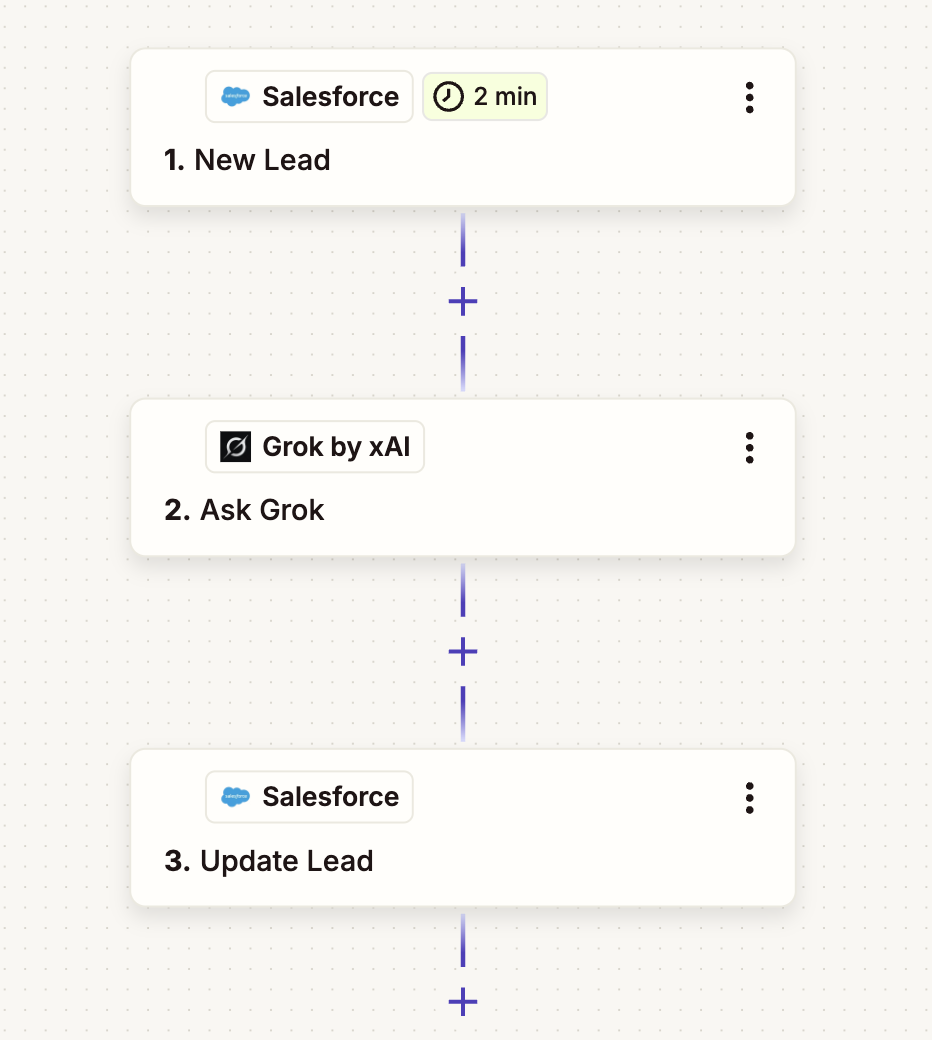
Beyond asking Grok, you can also do things like categorizing text, extracting data, and generating images.
You connect your own SpaceXSI account with an API key, so Grok usage is billed by SpaceXSI on top of the Zapier tasks your Zap uses. If you’d rather use a model that’s built into Zapier, with no separate account or token billing, check out which models are available through AI by Zapier.
Grok automation use cases
Here are a few ways you might bring Grok into your Zapier workflows:
-
Enrich new leads. When a lead is added to your CRM or submitted through a form, have Grok research the company and log recent announcements and industry challenges. Try the Salesforce version.
-
Turn briefs into outlines or first drafts. When a new record lands in Airtable, Asana, or Notion, send the brief to Grok and have the outline land in a Google Doc, a Notion page, or your team’s Slack channel for review.
-
Track trending topics. Schedule a Zap to ask Grok what’s trending on a topic you care about every hour, day, or week, then send the results to Slack, Gmail, or a spreadsheet you can mine for content ideas. Try the daily Slack version.
-
Generate images from a spreadsheet. Write prompts in Trello cards, Airtable records, or Google Sheets rows, and have Grok create the image and attach it right back to where the prompt came from. This can be handy for webinar slides and social posts when a stock photo won’t cut it.
-
Pull data out of images. When a receipt, report screenshot, or chart is uploaded to Google Drive or QuickBooks, have Grok read it and send the key details to Slack or a Google Sheet.
Automate workflows directly from Grok (Zapier MCP)
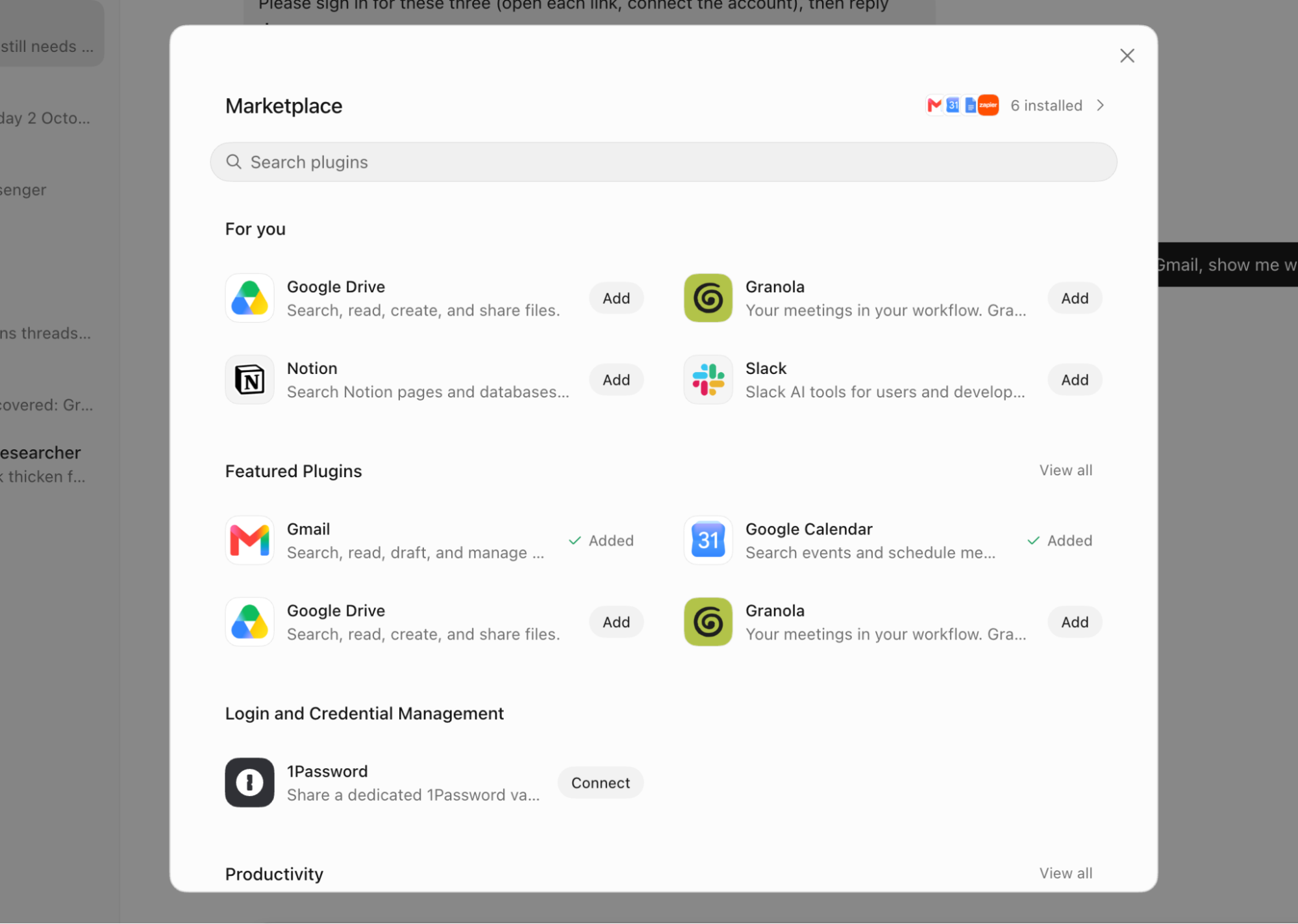
If you want to trigger automations from inside Grok Bot or Grok Build, that’s what Grok’s Zapier connector is for. It gives Grok governed access to 9,000+ apps, and you decide exactly which apps and actions it’s allowed to touch.
Setup happens inside Grok. You don’t need to create anything on Zapier’s side first.
-
Click the Connect apps button at the bottom left.
-
Search for Zapier in the search bar.
-
Click to add the connector, log in to Zapier, and authorize Cursor (Grok Bot).
-
Go into a Bot chat and run
/zapier-setupto discover and connect available actions.
Once connected, you can use all the actions Zapier has available for a given app, along with the Zaps you already have configured. You can ask Grok to do things like:
-
“Find my last five HubSpot deals, calculate weighted pipeline, and post a summary to Slack.”
-
“Check what’s trending on X about our product launch and add the top three themes to my Notion content calendar.”
-
“Every Monday morning, send my open Asana tasks to the team Slack channel.”
The X example is a good one to try first, since Grok’s real-time access to X is its most standout feature. And Zapier gives you an easy way to send that social listening somewhere useful.
Each successful action draws from your existing Zapier task allowance, the same one your Zaps already use, so your Zapier bill stays simple and straightforward. And because Zapier manages the credentials, Grok never has to ask you for an API key or password. It holds a single authorization token, and every app connection stays governed the way it would in any other Zapier workflow.
Grok automation FAQ
How do I connect Zapier to Grok?
Open Grok, click Connect apps, and search for Zapier. Sign in to your Zapier account (or create a free one), and authorize Cursor (Grok Bot). Go into a Bot chat and run /zapier-setup. Grok can then use any action you’ve turned on for the apps already connected to your Zapier account.
What can Grok do with Zapier?
Once connected, Grok can search, read, create, update, and send information across 9,000+ apps through Zapier, including apps it doesn’t natively support, like Shopify, HubSpot, Airtable, and QuickBooks. You choose which actions Grok can run.
Is Zapier free to use inside Grok?
Connecting Zapier to Grok is free. Each successful action uses a small number of tasks from your existing Zapier plan, the same allowance your Zaps already draw from. Depending on your Grok plan, you may need a paid Grok subscription to use connectors.
What’s the difference between using Grok in a Zap and using Zapier MCP in Grok?
The Grok integration lets you add a Grok step inside a workflow you build in the Zap editor, which is useful when AI needs to handle one part of an otherwise predictable process. Zapier MCP, on the other hand, lets Grok kick off actions across your apps directly from a chat, on your command, without you opening the Zap editor at all.
Do I need an API key to automate Grok with Zapier?
For the Grok integration in the Zap editor, yes: you connect your SpaceXSI account with an API key, and SpaceXSI bills you for Grok usage. For Zapier MCP inside Grok, no. You sign in to Zapier from within Grok and authorize the connection.
Automate Grok with Zapier
Whether you want a workflow running reliably in the background or you’d rather ask your Grok Bot agents to handle something mid-conversation, Zapier gives Grok a governed way to reach the rest of your stack.
Either path runs through Zapier’s managed authentication, so your credentials stay in one place, and every action follows the same permissions you’d set for any other part of your workflow.
Related reading:
This article was originally published in July 2025 by Elena Alston. The most recent update was in October 2026.