

By Harry Guinness · October 29, 2026

ChatGPT can do basically anything you ask, but you really don’t have a huge amount of control over its outputs. If you want to do more with OpenAI’s models, you need to dig a little deeper.
If you really want to see what the models can do and exert some control over how they respond, you need to get your hands properly dirty and play around with the API. That way, you can really pull the levers that control what they can create. Here’s how to go about doing it.
How to use the OpenAI playground
While ChatGPT is the easiest way to access OpenAI’s models, OpenAI also offers a playground that gives you hands-on access to the API in a nice web app. Here’s what it looks like.
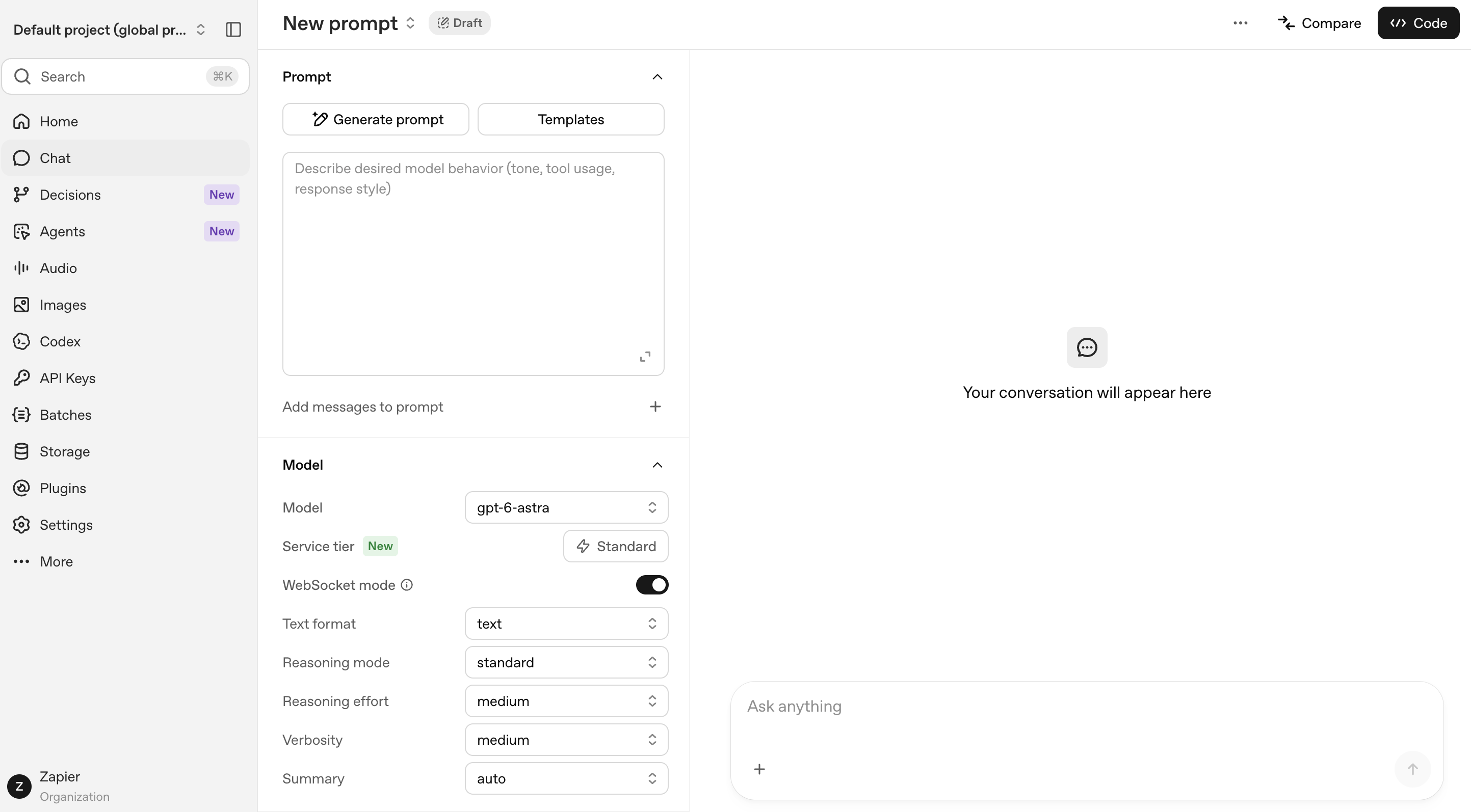
Just sign up for an OpenAI account, and then head over to the OpenAI playground.
Model
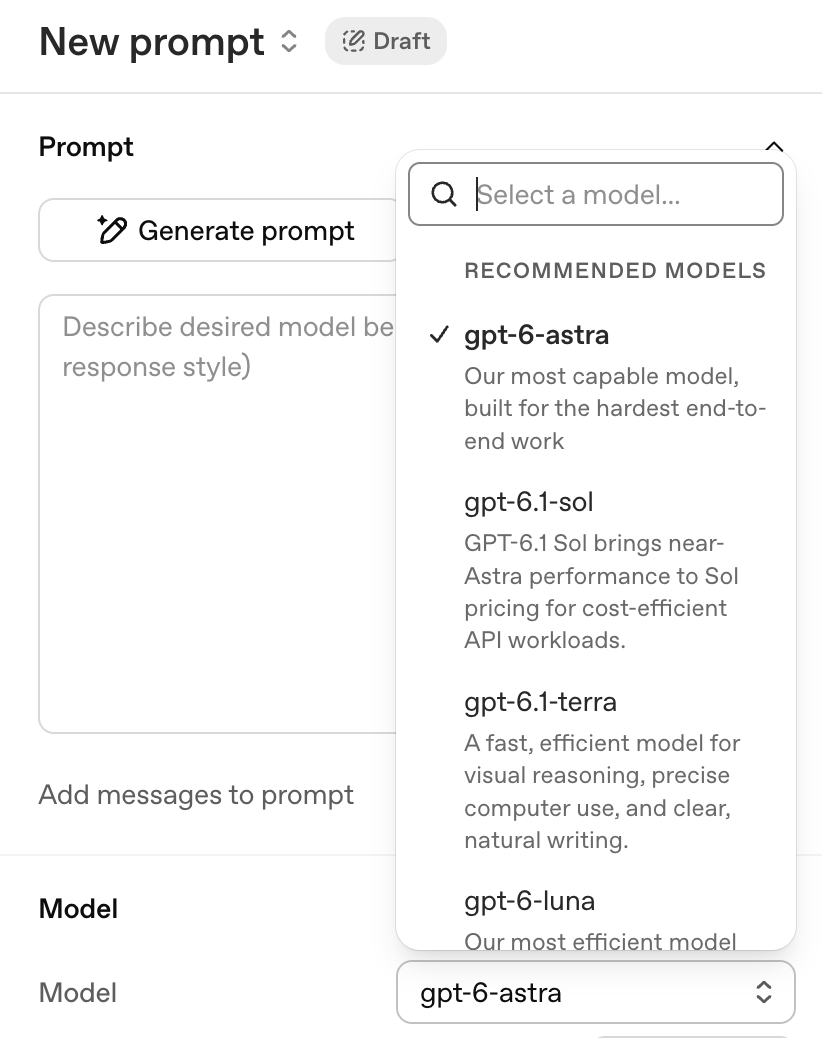
You have a choice of a bunch of different models. This is a great way to see how different models respond to the same prompt, so you can get a sense for which might be best for your tasks.
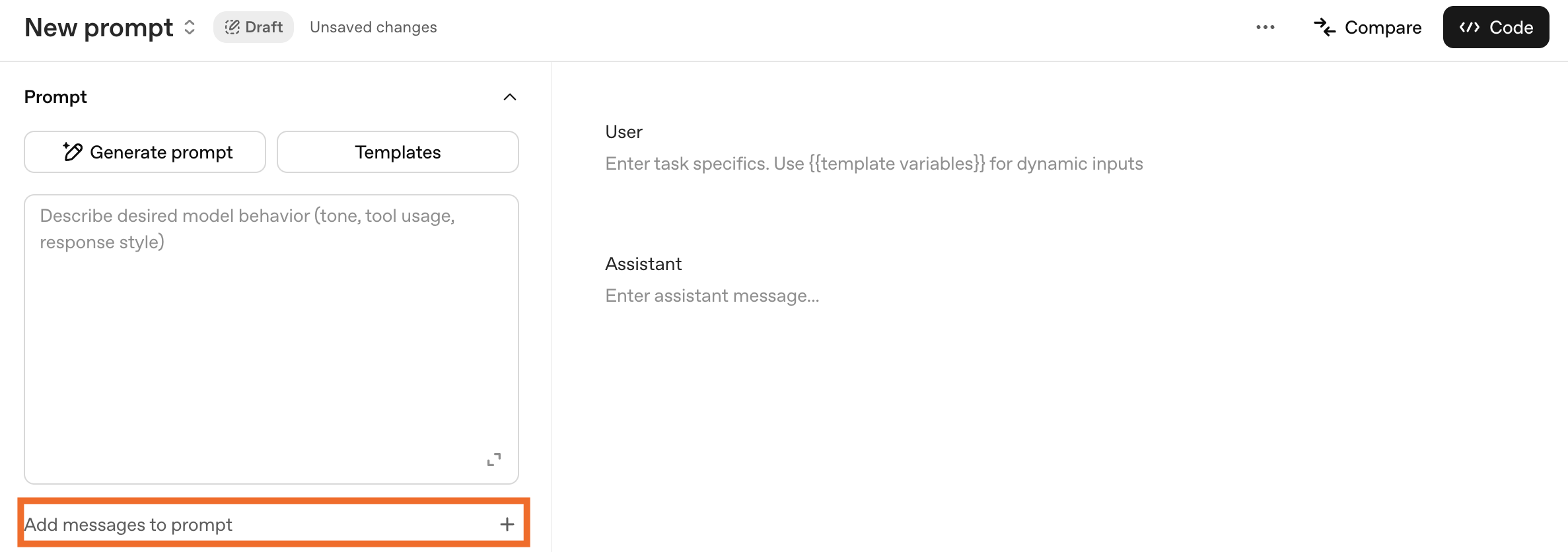
Systems prompt and messages
Similar to custom instructions in ChatGPT, you can add extra context for the playground to consider as it responds—and you can also add specific User and Assistant messages. Tweak the system prompt and see how the answers change.
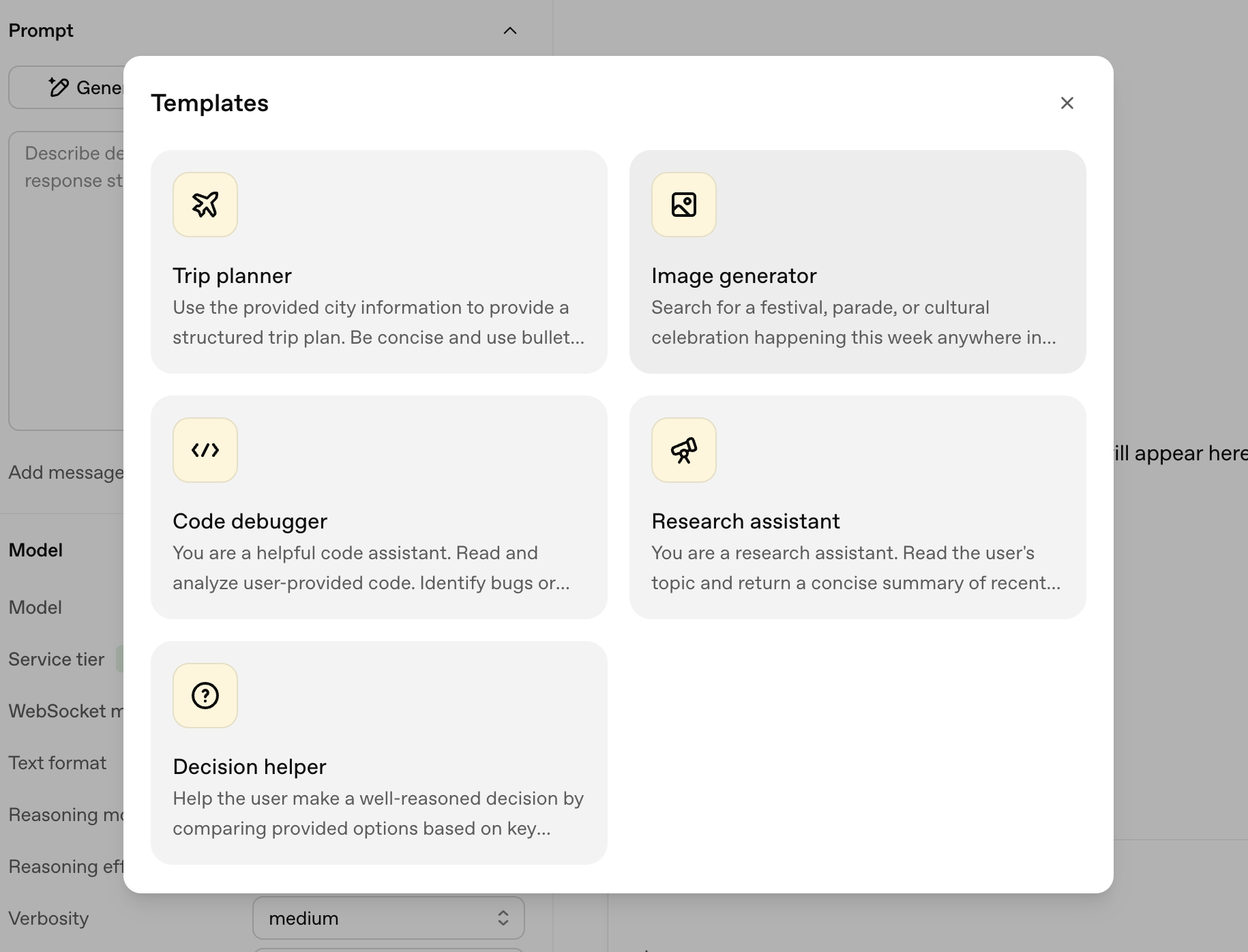
There are even templates to choose from, if you’re just playing around and want to see how it might work for different use cases.
Reasoning effort
Setting the reasoning effort tells OpenAI how much the model should “think” before it responds. See what happens when you ask the same question but set it to low and then high.
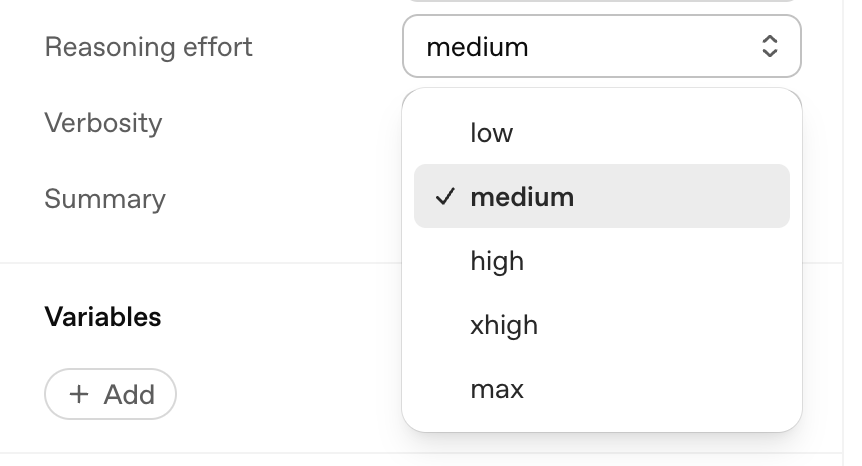
When I asked it “Which weighs more: a pound of feathers or a pound of bricks?” both models got to the same answer, but it took the “Max” reasoning almost 10x the number of tokens to get there.
Verbosity
Verbosity is exactly what you think it is: more words.
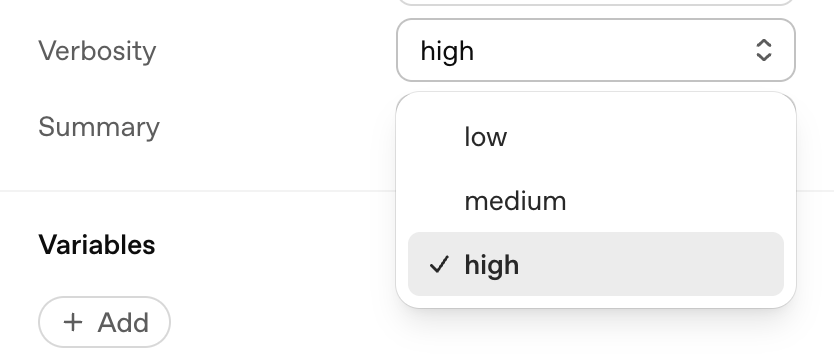
When I asked the playground “How does ChatGPT work?” at low verbosity, it gave me a 146-word answer. At high verbosity, the answer was 343 words.
Remember: sometimes more words means it’s more thorough, but for simple questions, it can just muddy the waters.
Other controls
What I’ve listed is just the tip of the playground iceberg. You can use variables, add MCP servers, enable file search and web search, allow it to generate images, and a whole host of other, more technical things. My suggestion is to click all the buttons and see how it works.
Add OpenAI models to your workflows
Whether you want work to run automatically in the background or on your command from your AI chat window, Zapier helps you bring the power of OpenAI’s models into governed workflows across your tech stack.
No matter which path fits how you work, the connection runs through Zapier’s managed authentication—so ChatGPT never has to ask for an API key, your credentials stay governed in one place, and every action runs through the same permissions you’d apply to any other part of your stack.
Related reading:
This article was originally published in July 2023. The most recent update was in October 2026.
Get productivity tips delivered straight to your inbox
We’ll email you 1-3 times per week—and never share your information.
Related articles








Improve your productivity automatically. Use Zapier to get your apps working together.