Author: admin

  • What the Honda Super Cub Can Teach Us About Designing for Global Markets

    What the Honda Super Cub Can Teach Us About Designing for Global Markets

    Harvard Business Review Logo

    HBR Staff/Pexels

    Most companies enter emerging markets through one of three flawed strategies: selling premium products to the wealthy few, stripping features to cut costs, or offering micro-sized

    Most companies approach emerging markets with one of three flawed strategies: they try to sell their premium products to the wealthy few and wait for the market to “catch up,” strip features off existing products to lower the price, or micro-size their offerings into single-use portions. All three usually fail because they assume that consumers in poorer markets want the same things as wealthier countries, only cheaper.

  • Building advertising for the way people use AI

    OpenAI introduces a new visual ad format in ChatGPT and expands measurement tools, attribution partnerships, and brand suitability for advertisers.

  • People really hate AI, so why can’t they get enough?

    People really hate AI, so why can’t they get enough?

    Over the summer I talked to the CEO of Springboards, a startup building an LLM that’s designed to come up with a wider variety of responses than its mainstream rivals do. At the start of the call, he said something that’s been stuck in my head since: “We often say that we’re a self-loathing AI company. We don’t know if we really like what we’re doing.”

    “I guess that makes me a self-loathing AI journalist,” I replied. It was a joke! I love my job. But I do not love many of the things the technology I write about has become: warped by hype, steered by zealots, inescapable.

    The CEO of Springboards and I are far from alone. Around the world, a love/hate attitude toward AI is very much the vibe right now.

    On the one hand, public feelings are souring fast. According to the Pew Research Center, more adults in the US think AI will have a negative impact on them personally, and on society in general, than expect a positive one. The pessimism is strongest among the young.

    More than half of people worldwide say that AI products and services make them nervous, according to a report from Stanford University. In a Gallup poll in May, 71% of US adults said they would oppose construction of a new AI data center in their area, far more than the 53% who said they would oppose a new nuclear power plant. And in an NBC poll in March, AI was less popular than ICE.

    Yet the number of people using AI is still skyrocketing. ChatGPT hit a billion monthly users in May, according to the market analysis firm Sensor Tower. Google DeepMind’s Gemini is close behind, logging 950 million users in July.

    According to Pew, half of US adults now say they use a chatbot, more than twice the number who said they did in 2023. One in four people say they do so every day. And it’s a global habit: More than a third of adults across all 38 OECD countries (a group of the world’s wealthiest democracies) report having used generative AI tools in the last three months.

    All these surveys paint a picture of two contradictory truths: A lot of people really do not like AI and a lot of people cannot get enough of it. What’s going on?

    It’s possible that these are two distinct groups, but I doubt it. The numbers don’t add up unless the Venn diagram is on its way to being a circle.

    It’s also possible that the more people use AI, the more negative their opinions about it will be. There’s at least a correlation to back this up: The Global North, where adoption is highest, skews pessimistic. In the Global South, where adoption levels are lower, people are more optimistic.

    But here’s what I really think is going on: When people say they hate AI it’s not the technology they dislike but, rather, the relentless drive of the companies behind it to push the tech upon us in as many ways as possible. They’re telling us to brace for the biggest social and economic upheaval in generations. How do they expect people to feel?

    In many ways, we’ve been here before. We saw a similar dynamic play out with social media over the last 20 years. Billions flocked to Facebook and Twitter despite mounting techlash against the companies that ran those services. Ditto for Google search.

    With social media there wasn’t much anyone could do. Quitting a platform meant losing all your content and connections, giving you the choice to suck it up or start over. But with AI there’s still a chance for people to have some sway. There’s certainly more political appetite for regulation this time around. All 50 US states have either passed or proposed laws governing the development and deployment of AI, creating a patchwork of more than 2,100 bills across the country—a tenfold increase in three years. 

    And with a number of top-class open-source alternatives to Google and OpenAI and Anthropic already on the market, there’s also (for now, at least) the potential for more consumer choice and the market pressure that goes with it. 

    I don’t want to be naïve. Trillion-dollar companies are hard to move. But what comes next is not as inevitable as those companies often imply. When I asked the Springboards CEO why his firm was developing a new model if he didn’t really like AI, he told me there was no walking back from LLMs—but you could still make them do something different. 

    Here’s hoping we see a lot more of something different: Clarity about what AI can and cannot do and, crucially, a technology that’s not sold as if it’s about to take over the world.

  • HyperFrames Studio (Desktop)

    The First Video Editor built for Agents

    Discussion
    |
    Link

  • Inbox zero: What it is and how to actually get there

    Inbox zero: What it is and how to actually get there

    Confession time: I’m a chronic email avoider. If you’ve emailed me in the past few months, rest assured that I still haven’t opened it. At some point, I realized I’d rather get slowly buried under an avalanche of Kohl’s marketing emails and Amazon delivery updates than deal with my inbox like an adult.

    But you don’t have to share my fate. After all, email doesn’t stop coming just because you’re tired of dealing with it. And there are probably some important meeting invites (and decent coupons) buried in your email. I may be currently drowning in an inbox cesspool of my own making, but I also specialize in testing and writing about productivity and tech. I’m here to help you benefit from doing as I say, not as I do.

    Here’s everything you need to know about the inbox zero approach, whether it’s worth trying, and the specific tools and tricks that get you toward a manageable inbox.

    Table of contents:

    What is inbox zero?

    Inbox zero is a system for managing email, coined by productivity writer Merlin Mann back in 2006 when Gmail was still new and smartphones barely existed. It’s a simple idea, even if it’s easier said than done: your inbox should be a temporary holding area instead of a permanent home for every message you’ve ever received.

    Mann’s original framework sorts every email into one of five actions:

    • Delete

    • Delegate

    • Respond

    • Defer

    • Do

    You clear your inbox not by ignoring it (who would do that?) but by deciding what each message requires from you and moving it out accordingly.

    For example, a newsletter you signed up for during a webinar six months ago gets deleted right away, along with the Google Docs notification that you already responded to. A report your manager wants reviewed by Friday gets snoozed (deferred) to Thursday morning. A question a teammate could answer better than you gets forwarded along (delegated). And now for the hard part: it’s time to send a response to that client email you’ve been avoiding because you didn’t want to deal with it. Tomorrow-you will thank you.

    The goal is to process messages as they land, rather than letting three weeks of unreads pile up into something that takes a full afternoon to tackle. Some people run this triage process daily, while others treat it as a Friday afternoon reset.

    The concept of “zero” is all about having a process for triaging your email as it comes in so that you have zero decisions left to make about what’s sitting in your inbox. An email you archived after replying still exists; it’s just out of your way.

    Is inbox zero actually good for productivity?

    It depends on who you ask. In 2019, Taylor Lorenz argued in The Atlantic that inbox zero had become impossible for anyone with a full-time job and multiple inboxes, and she proposed “inbox infinity” instead: set an autoresponder, tell people you probably won’t reply, and let the count climb.

    Not everyone has that luxury. The late Zappos CEO Tony Hsieh called email “a never-ending treadmill,” but plenty of jobs don’t allow the treadmill to stop. If you’re in sales, support, or running a small business, an autoresponder that says “I probably won’t see this” is a good way to lose a customer.

    So is keeping your inbox clear good for productivity? That depends on how replaceable your attention is. Rather than chasing a specific number of unread messages, aim for a system you can actually stick to, whether that system ends in zero or just keeps your inbox from monopolizing your day.

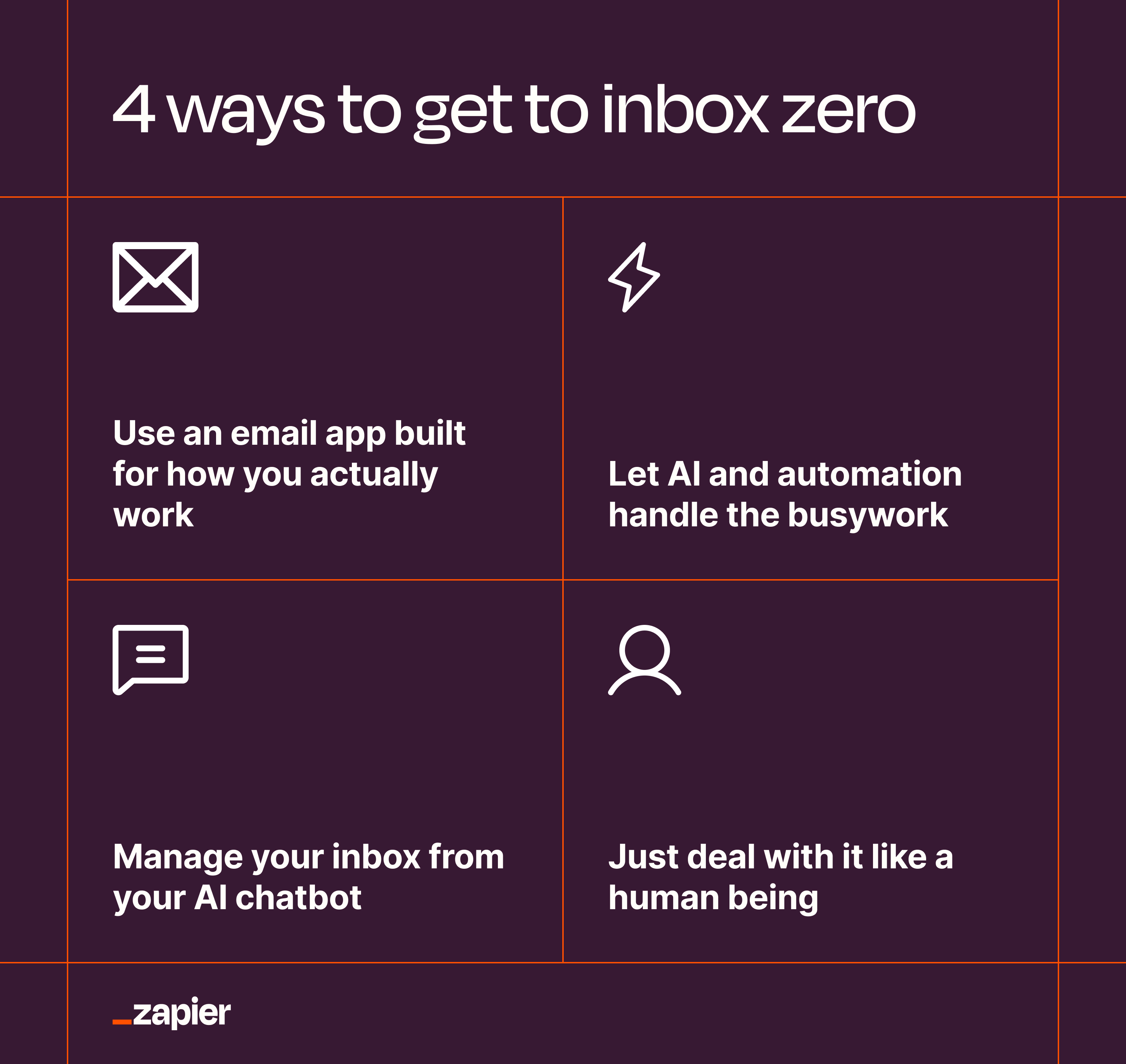
    4 ways to get to inbox zero

    If you’ve decided an empty inbox is worth chasing, here’s how to get there. It mostly comes down to picking smarter tools and learning when to let software make the small decisions you don’t need to be involved in at all.

    Infographic showing the four ways to get to inbox zero

    Use an email app built for how you actually work

    Choosing the right email app is honestly half the battle. If you’re still working from a Gmail browser tab (guilty) or with whatever email app came by default on your phone, you’re doing inbox zero with one hand tied behind your back.

    Take Shortwave, which has some of the more helpful AI I’ve seen in email apps. Ask it to “make a list of all the tasks in the website redesign thread,” and it pulls that list together intelligently instead of summarizing the obvious. Tell it “schedule a meeting with John in 2 days at 6pm,” and the meeting lands on your calendar painlessly.

    Superhuman is another AI-first email app with built-in features that make it easier to never touch your mouse. Everything runs on keyboard shortcuts: hit Enter to reply, Ctrl+J to draft with AI, and semicolon to drop in a saved snippet you’ve already written for the tenth time this month. It has a steeper learning curve than Shortwave, but once the shortcuts become muscle memory, archiving and deleting start to feel more like reflexes than chores.

    Neither app is going to inbox-zero your account by itself. But what they do is remove the friction that makes you avoid opening your email in the first place. The gap between a good email app and a mediocre one is basically the difference between an inbox that manages itself and one that manages you.

    Read more: The best AI email assistants

    Let AI and automation handle the busywork

    A lot of what clutters your inbox doesn’t need a human decision at all—like receipts, shipping notifications, and that newsletter you bookmarked three weeks ago and never opened. These are the kinds of decisions you can hand off entirely.

    Start simple: set up a Gmail filter that catches shipping confirmations and drops them straight into an “Orders” label, skipping your primary inbox altogether. Do the same for the newsletters you’ve stopped reading but haven’t unsubscribed from yet (if you’re like me, there are at least a dozen). That alone clears out a decent chunk of your inbox before you’ve opened the email app.

    For anything that needs actual judgment, Zapier is your friend. You could build a Zap that triggers for every new Gmail message. Then, add AI by Zapier as an agentic step and give it a job: read the email, decide if it needs a real response, then either draft a reply in your drafts folder for review, or archive the message if it’s just noise. You don’t touch any of it until the AI hands you something worth your attention.

    Even if you aren’t comfortable letting AI make executive decisions on what constitutes “noise” vs “vague and weirdly truncated message from your boss, sent from his iPhone, that he’s still definitely expecting you to respond to ASAP,” you can still have AI by Zapier sort your emails into folders and start drafting responses for anything it can. That way, you’re coming to your email with at least half the work done for you.

    Read more: Email automation guide

    Manage your inbox from your AI chatbot

    Instead of switching over to your email app to act on something, you can also get to inbox zero (or something close to it, anyway) straight from the chat window you’re already living in.

    Install Zapier into a tool like ChatGPT, Claude, or Cursor, connect your Gmail account, and you’ve basically deputized your AI assistant to handle your inbox. Ask it to “summarize anything unread from the last 24 hours” before your first meeting, or “find every email in my inbox where someone’s waiting on a yes or no from me.” Tell it to “archive everything from LinkedIn notifications older than a week,” and it just does it for you without you needing to build a Gmail filter from scratch.

    One major upside is that your AI assistant isn’t limited to email. Once it’s connected to your inbox and, say, your calendar or Slack, it can cross-reference all of it. That means it can catch the meeting request buried in an email thread and check it against your calendar in one go, giving you a clearer picture of your day and action items in one fell swoop.

    Try Zapier MCP

    Just deal with it like a human being

    You can use all the flashy tools you want (and as a tech obsessive who works at Zapier, I always recommend using as many fun tools as you can)—but sometimes the fix is simple. Just block off ten minutes each morning, coffee in hand, and run through your inbox with the delete/delegate/respond/defer/do framework. Set an actual timer, and stop when it goes off, even if you’re not done.

    You can even use the Eisenhower matrix if it helps, sorting by what’s urgent versus what’s actually important, and sending the neither-urgent-nor-important stuff straight to the trash or unsubscribing.

    Ten minutes won’t feel like enough on some days (especially Mondays), but that’s fine. Do it again tomorrow. They say the best way to eat an elephant is one bite at a time, and that admittedly disturbing metaphor has never been truer than when applied to a seemingly insurmountable task like taming your inbox.

    Pick a system, then actually use it

    If most of your email doesn’t need your brain, hand it to a few well-placed Gmail filters. If you’re the type who needs one home base for everything, get a smarter email app and let it do the sorting. You’ll probably also need to set aside a few minutes on a regular schedule to apply the delete/delegate/respond/defer/do framework to whatever is left.

    Whatever system you land on, the fastest way to make it stick is to automate the parts that don’t need your judgment in the first place. Connect your inbox to the rest of your tools, and let the busywork handle itself.

    Try Zapier

    Related reading

  • The 11 best Asana alternatives in 2026

    The 11 best Asana alternatives in 2026

    We independently review every app we recommend in our best apps lists. When you click some of the links on this page, we may earn a commission. Learn more.

    Picking a project management app is like wandering through the story of Goldilocks—there are so many options and no perfect fit. It feels like you’ll always be sampling scalding porridge and trying to get comfy in a doll-sized bed.

    Asana is a quality option (so much so that it’s made Zapier’s list of the best free, small business, and enterprise project management apps), but that doesn’t mean it’s guaranteed to work for you. That’s why I rounded up eleven of the best alternatives to Asana, so you can pick the one that’s just right.

    The best Asana alternatives

    • Wrike for growing teams that need more structure than Asana

    • Basecamp for simplified project management

    • Airtable for managing a lot of data

    • Notion for combining docs and lightweight project tracking

    • Paymo for managing multiple clients

    • monday for user-friendly work management

    • ClickUp for a robust free plan

    • Smartsheet for enterprise teams

    • Celoxis for agencies managing client budgets and resources

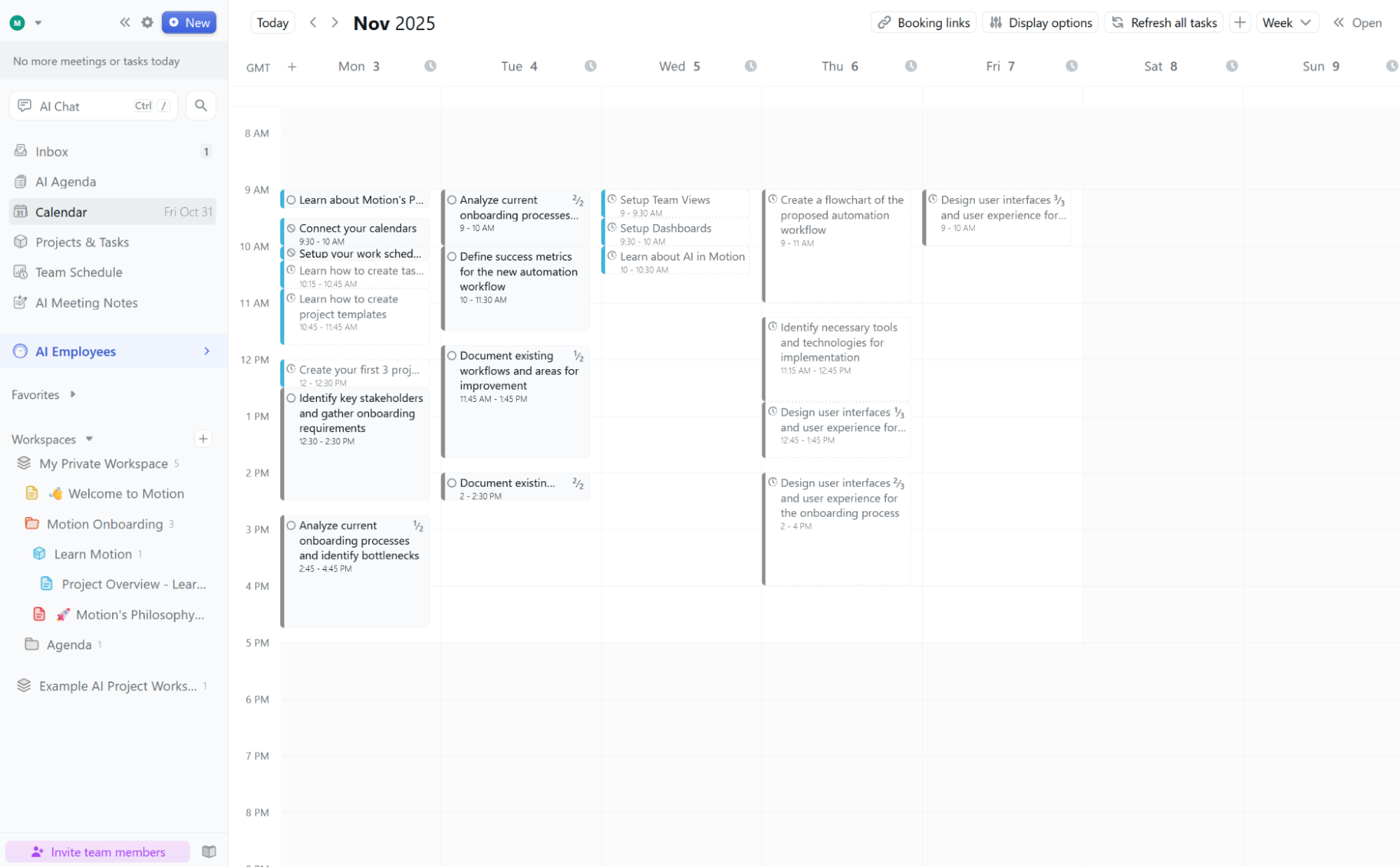
    • Motion for AI-powered calendar scheduling

    • Jira for DevOps teams

    What is Asana?

    Asana is a project management app that manages to be powerful and flexible enough for teams of all sizes—while being intuitive and streamlined enough for beginner users to enjoy out of the box. Here are some of its primary features:

    • “My Tasks” page showing each user’s assigned work

    • Personal dashboard with customizable widgets

    • A variety of views (including lists, Kanban boards, and calendars)

    • Robust reporting 

    • Team workload planning

    • Goal-tracking and portfolio management

    • Team messaging

    • Powerful native integrations (along with an integration with Zapier)

    Why leave Asana?

    Asana is good at what it does: it has a clean interface, flexible views, and solid AI features. So if you’re here, it’s probably not because Asana let you down. It’s more likely one of these:

    • You’ve outgrown (or never needed) the complexity. Asana scales nicely for cross-functional teams juggling dozens of projects. If you’re a five-person team that just needs a shared to-do list, that flexibility can start to feel like clutter you have to manage instead of work you get to skip.

    • The free plan stopped being enough. Asana’s free plan tops out at two users, so almost any team ends up needing a paid seat sooner rather than later.

    • You need something Asana doesn’t do well. Things like client billing and invoicing, deep resource and budget management, or a calendar that actually drives your schedule instead of just displaying it. Asana isn’t built for any of those first, so tools that are built for them will feel like less of a workaround.

    • Your team already lives somewhere else. If everyone’s already deep in Notion for docs or thinks in spreadsheets, adding Asana on top means one more app to check rather than one less thing to worry about.

    No tool is perfect for every situation; sometimes your needs change, or you outgrow it. For instance, I recently decided my vacuuming needs include not having to be physically present while it’s happening. Et voilà, we now have a robot vacuum (and our cordless Dyson is languishing in a closet). If you feel your task management solution needs a similar shake-up, here are some alternatives to try. 

    The best Asana alternatives at a glance

    Best for

    Standout feature

    Pricing

    Wrike

    Growing teams that need more structure

    Table view built for spreadsheet lovers, plus built-in budgeting

    Free plan available; paid plans start at $10/user/month

    Basecamp

    Simple project management

    Prioritizes simplicity and visual project tracking

    Free plan available; paid plans start at $25/month

    Airtable

    Database lovers

    Highly customizable data management

    Free plan available; paid plans start at $20/user/month

    Notion

    Combining docs and lightweight project tracking

    Databases double as a fully customizable project tracker

    Free plan available; paid plans start at $10/user/month

    Paymo

    Managing multiple clients

    Focus on client management and billable hours tracking

    Free plan available; paid plans start at $5.90/user/month

    monday.com

    User-friendly work management

    Collaborative features and customizable views

    Free plan available; paid plans start at $9/user/month

    ClickUp

    Robust free plan

    Extensive customization options and generous free features

    Free plan available; paid plans start at $7/user/month

    Smartsheet

    Enterprise teams

    Spreadsheet-like interface with project management features

    From $9/user/month

    Celoxis

    Agencies managing client budgets and resources

    AI-powered budget and resource risk alerts

    From $10/user/month

    Motion

    AI-powered calendar scheduling

    AI calendar that automatically reshuffles your schedule

    From $29/month

    Jira

    DevOps teams

    Designed for engineers and developers, extensive integrations

    Free plan available; paid plans start at $7.91/user/month

    Best Asana alternative for growing teams that need more structure

    Wrike

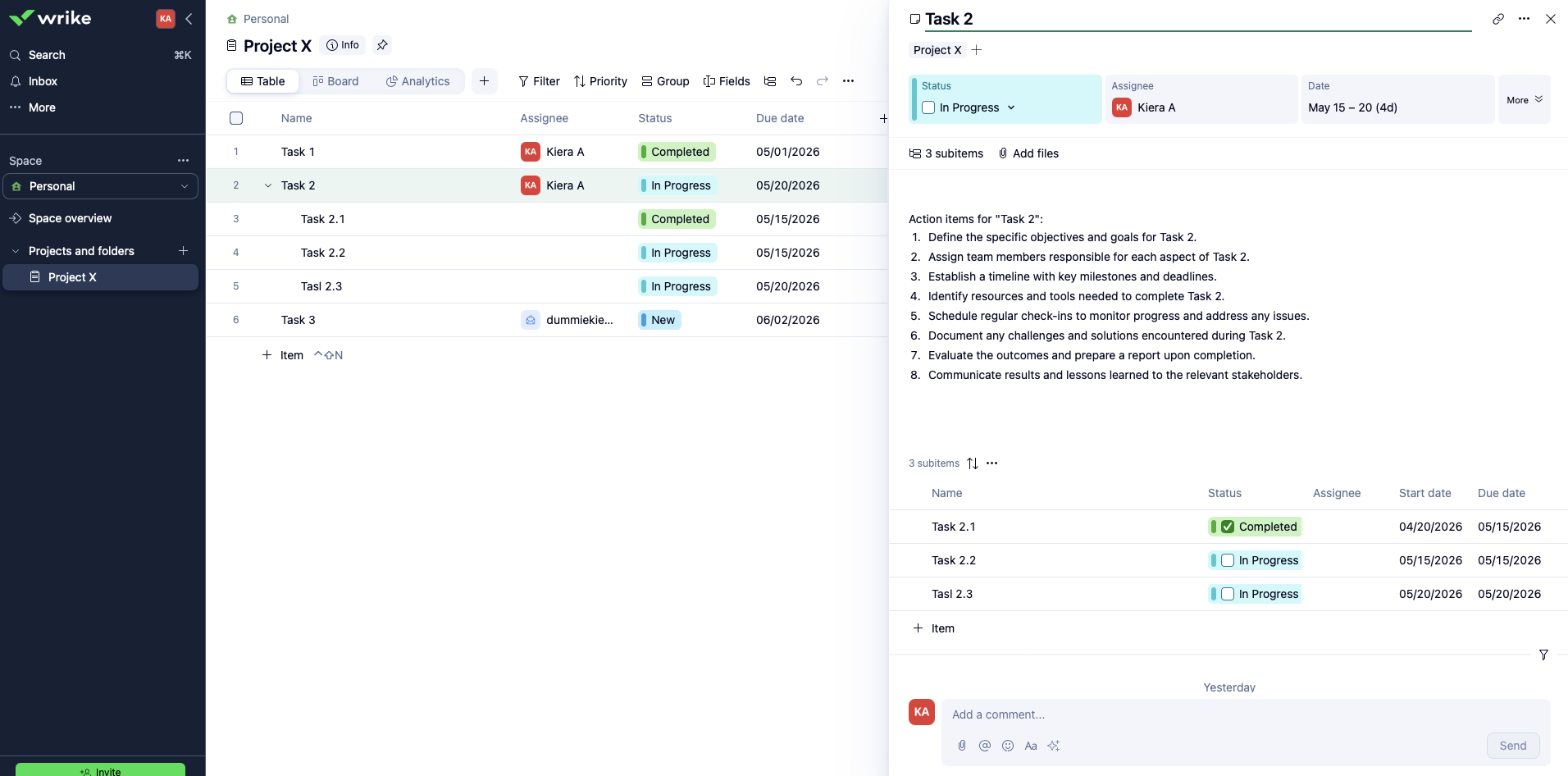
    Wrike, our best Asana alternative for growing teams that need more structure

    Wrike pros:

    • Table view that satisfies actual spreadsheet people

    • Freeform task details work like a mini doc

    • Built-in budgeting and resource management

    Wrike cons:

    • Interface feels more cluttered than Asana’s

    • No built-in team inbox for chat

    Asana is flexible, but Wrike is for users who think in spreadsheets. Where Asana’s task view is a clean list, Wrike’s table view is basically a supercharged table, with custom fields for priority, currency, percentage complete, and whatever else your team actually tracks. For anyone used to working in Google Sheets or Excel, it’ll feel very natural.

    It’s also the rare project management tool with a functional email integration: send a message to a dedicated Wrike address, and it becomes a task, complete with assignee, due date, and priority, without ever opening the app. And because the task detail view works more like its own document than a text box, you can build out a fully fleshed-out brief inside a single task instead of linking out to five other places. It’s also the better fit once a team outgrows Asana’s simplicity—Wrike adds budgeting, resource allocation, and deeper customization that start to matter once you’re coordinating several teams instead of one.

    One thing to keep in mind for new users: Wrike doesn’t onboard as smoothly as Asana. Log in for the first time, and you’ll land in a folder structure of spaces, projects, and settings that takes longer to parse than Asana’s sidebar.

    Wrike connects with Zapier, so you can pull it into broader workflows—automatically creating a Wrike task when a form comes in, or syncing task updates to Slack so nobody’s stuck refreshing a dashboard. Build from wherever you work, and securely run automations between Wrike and the rest of your tech stack. Learn more about how to automate Wrike.

    Automate Wrike

    Wrike pricing: Free plan available for unlimited tasks and users; paid plans start at $10/user/month (billed annually) for the Team plan, which adds Gantt charts, automations, and shareable dashboards for up to 15 users.

    Read more: Wrike vs. Asana

    Best Asana alternative for simple project management

    Basecamp

    Basecamp, our Asana alternative for simple project management

    Basecamp pros:

    • Prioritizes simplicity

    • 70+ integrations, including Zapier

    • Cost-effective for solo and team users alike

    Basecamp cons:

    • Fewer customization options

    • Less flexibility 

    Where Asana shines in its ability to handle complex projects with lots of tasks, Basecamp focuses on the big picture. It has a simple interface—which can be frustrating if you like having multiple ways to customize views and workflows, but works well if you prefer a tool that keeps everyone on the same page. 

    Basecamp offers list, Kanban, and calendar views for projects. You can also attach project-level documents in the Docs & Files section. The tool’s folders, sortable views, and color-coding make it easy to store and find important information across projects.

    While switching between views and filtering for individual tasks is a little more complex than in Asana, Basecamp makes it easy to monitor project progress at a high level. Basecamp’s Hill Charts show you where things really stand without a single status meeting. Each to-do gets plotted on a hill to fit the hiking theme: uphill means your team’s still figuring out the unknowns, while downhill means they know what’s left and are closing in on done. It gives you a quick visual read on whether a project is stuck in the fog or coasting toward the finish line. So if you’re looking for a simple tool that prioritizes basic workflow tracking and big-picture projects for your team, Basecamp might be for you.

    Basecamp offers plenty of integrations with popular apps, and with Basecamp’s Zapier integration, you can connect your project manager to all the other tools you use, too. Build automations from wherever you work, and securely connect your entire tech stack. 

    Automate Basecamp

    Basecamp pricing: Free for one project and 1GB of storage. Paid plans range from $25/month (for up to 20 users) to $299/month for unlimited users.

    Read more: Asana vs. Basecamp

    Best Asana alternative for managing a lot of data

    Airtable

    Airtable, our pick for the best Asana alternative for managing a lot of data

    Airtable pros:

    • Plenty of templates to choose from

    • Extremely customizable

    • Great for data management

    Airtable cons:

    • Steeper learning curve

    • Expensive paid plans

    If you’re looking for a project management app that leans more toward data management, try Airtable. Out of the box, Airtable’s default view looks like a spreadsheet. It offers a few project templates based on your team type (such as marketing or sales), or you can build a “base” from scratch. From there, you can add highly customizable fields (or columns) to each row, so it’s easy to turn Airtable into a robust project management app with due dates, assignees, and attachments. And there are plenty of customizable view options that let you view projects in Kanban, Gantt, calendar, gallery, or timeline format.

    Because Airtable has a database-like structure and so many advanced customization options, it has a steeper learning curve than Asana. But if you’re not opposed to a little grunt work on the front end, the platform is flexible enough to meet almost all of your needs.

    When it comes to AI, Airtable takes more of a data-focused approach. While Asana’s AI features help you generate smart goals and summarize your project’s status, Airtable’s AI does things like sorting through records, finding related data, and extracting important information. Airtable also offers a new AI-powered Omni feature that lets you build internal apps without using a line of code.

    And because Airtable integrates with Zapier, you can securely connect your databases to the rest of your tech stack, turning Airtable into your source of truth. Learn more ways to automate Airtable.

    Automate Airtable

    Airtable pricing: Free for up to 5 users. Paid plans start at $20/user/month for additional views, 50,000 records per base, 20GB of attachments, and more.

    Read more: Airtable vs. Asana

    Best Asana alternative for combining docs and lightweight project tracking

    Notion

    Notion, our pick for the best Asana alternative for combining docs and lightweight project tracking

    Notion pros:

    • Databases double as flexible project trackers

    • Docs, wikis, and tasks live in one workspace

    • Endlessly customizable dashboards

    Notion cons:

    • Project management features feel bolted on, not native

    • Steep setup time to get a system that actually works

    Notion started life as a note-taking app, and it still shows—project management here feels more like something you build than something you’re handed. That’s either the appeal or the dealbreaker, depending on how much you enjoy building dashboards on a Sunday afternoon (I happen to enjoy it more than is probably healthy).

    Once you turn on advanced database features, though, Notion starts doing real project management work: break a database into sub-items, add dependencies between projects, and see everything assigned to you show up on your home page automatically. A single Notion workspace can hold your task tracker, your meeting notes, and your team wiki side by side, which is more than Asana’s ever tried to be. If your team already lives in Notion for docs, adding projects on top means one less app to check.

    The catch is that none of this comes assembled. Asana’s default setup handles most of the thinking for you; Notion hands you a box of database parts and expects you to build the thing yourself. Notion’s own AI can summarize pages, extract keywords, and answer questions grounded in your workspace, which helps once you’ve got content worth grounding it in—but it won’t build your project tracker for you on day one.

    Notion also connects with Zapier, so you can pull it into bigger automated workflows—for example, automatically creating a Notion project brief when a new task lands in another tool, then pinging your team in Slack once it’s ready for review. Learn more about ways to automate Notion.

    Automate Notion

    Notion pricing: Free plan available for individuals; paid plans start at $10/user/month (billed annually) for the Plus plan, which adds unlimited file uploads and a 30-day version history.

    Best Asana alternative for managing multiple clients

    Paymo

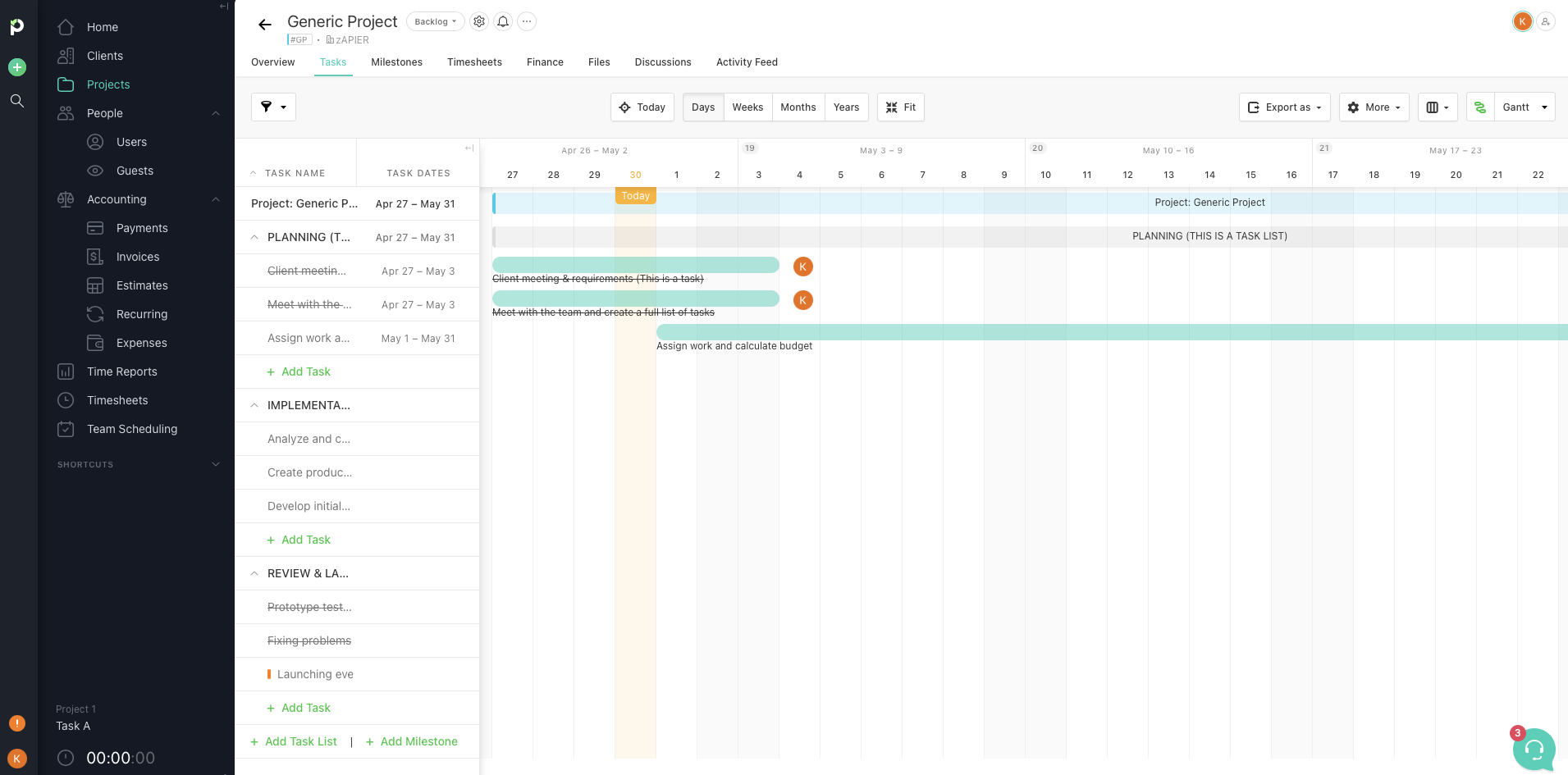
    Paymo, our pick for the best Asana alternative for managing multiple clients

    Paymo pros:

    • User access and role customizability

    • Focus on client management 

    • Generous free plan

    Paymo cons:

    • Limited view customization 

    Asana excels at cross-functional project management, but Paymo is a great choice if you’re a freelancer or small business owner who wants to manage projects, billing, and invoicing across several clients. Each project is set up per client, and you can assign billable rules (like flat fees or hourly rates) to projects if you prefer. As you work on a project, you can use the tool’s built-in timer to keep track of billable hours—and Paymo can create invoices automatically based on that data.

    Paymo’s project management interface isn’t as customizable as Asana’s, but it does offer five ways to view your project’s tasks and subtasks: table, list, Gantt chart, calendar, and Kanban board. And you can sort and filter tasks by client, status, due date, and more. There are also file storage and team communication features that make it easier to collaborate on client projects.

    With Paymo’s Zapier integration, you can connect it to tools like your calendar or accounting software, so you can focus on the work that matters. Build automations from wherever you work and blend AI and automation to keep all your processes running in the background. 

    Automate Paymo

    Paymo pricing: Free plan available. Paid plans start at $5.90/user/month for more clients and projects, additional views, guest access, and more.

    Best Asana alternative for work management

    monday.com

    monday, our pick for the best Asana alternative for user-friendly work management

    monday pros:

    • Plenty of collaborative features

    • Customizable views and field options

    monday cons: 

    • Fewer automations and integrations than Asana

    • Steeper learning curve

    monday.com is billed as a work management platform, which goes beyond projects and lets you manage all of your team’s work in one app. Not only can you plan projects and assign tasks, but you can manage resources, track portfolios, and create business workflows to streamline operations across teams. monday might have a slightly steeper learning curve than Asana, but it’s much more flexible.

    The tool has plenty of collaborative features, including integrated docs that you can create and collaborate on directly within monday. This feature is especially helpful for teams that keep in-depth documentation, style guides, and other resources closely tied to projects. You can even add widgets and project views into docs, making them endlessly dynamic and customizable.

    Because monday is built to help teams of all shapes and sizes get work done, you can customize the platform to your team’s specific needs. If you’re a project manager who doesn’t mind tinkering with every aspect of your tool’s setup, give monday a go.

    monday also integrates with Zapier, which makes it easy to do things like create new tasks from a spreadsheet or calendar and build automations across your entire tech stack. Learn more about automating monday.

    Automate monday

    monday pricing: Free plan available. Paid plans start at $9/user/month for unlimited items and viewers, 5GB file storage, and more.

    Read more: Asana vs. monday

    The best free alternative to Asana

    ClickUp

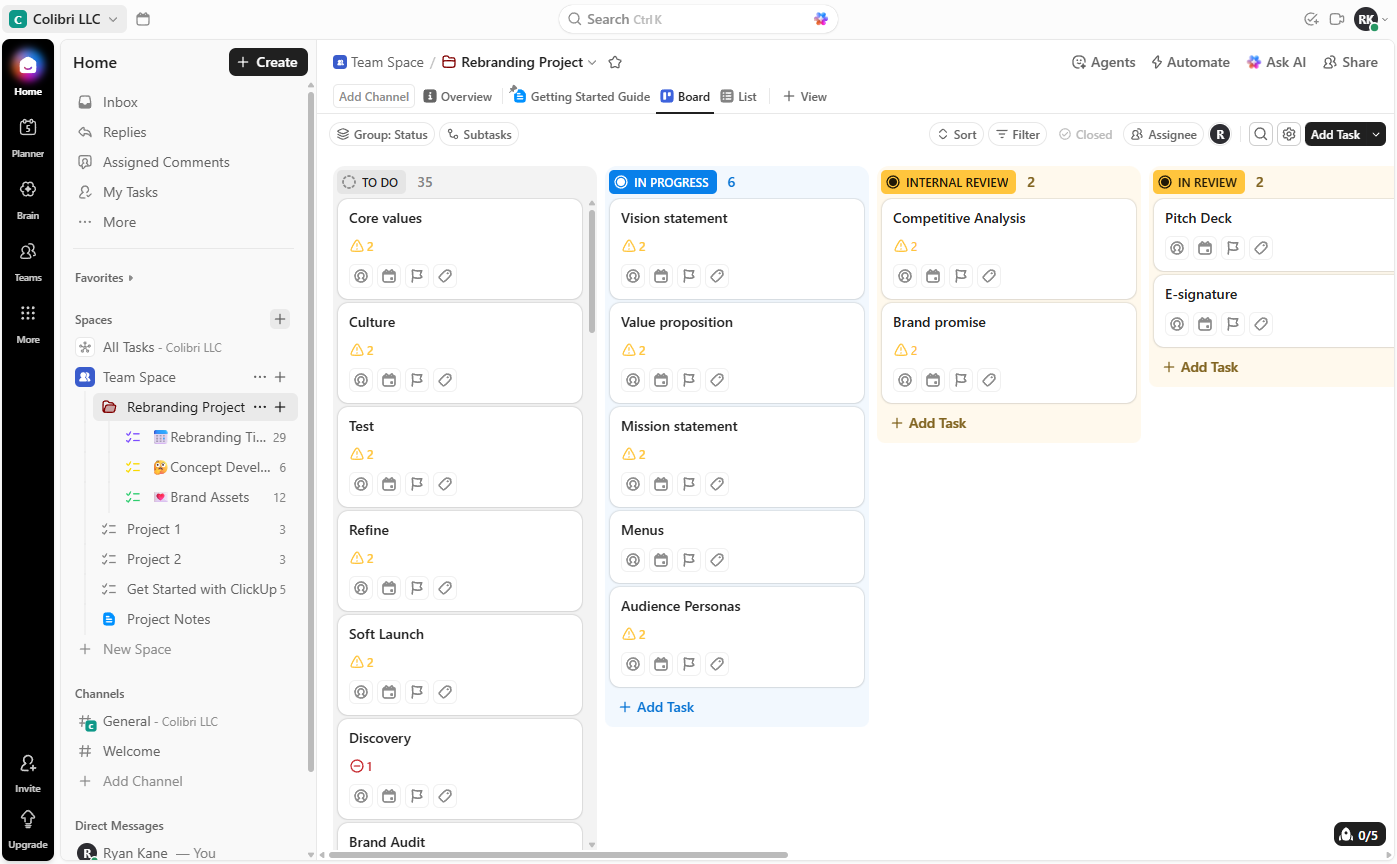
    ClickUp, our pick for the best free Asana alternative

    ClickUp pros:

    • Extremely customizable

    • 24/7 online support and plenty of online resources

    • Customizable automated workflows

    • Generous free plan

    ClickUp cons:

    • The number of features and setup options can be overwhelming

    While we’re discussing work management apps, let’s talk about ClickUp. The tool’s tagline is “one app to replace them all,” and that might only be a slight exaggeration. Like monday, ClickUp lets you customize your own workspace, incorporating docs and wikis, time tracking, collaboration tools, and robust project management features.

    But where ClickUp really shines is how much it offers for free. Asana’s free plan includes only basic features and caps out at two users, so most teams outgrow it before they’ve finished onboarding. But on ClickUp’s free plan, you can create unlimited tasks (with unlimited custom views) and invite unlimited users. Users can create up to 60 custom fields, use 60MB of file storage, and use 100 automation executions per month. And project views range from your standard list, calendar, and Kanban to more exciting options, like mind maps and whiteboards. You can even embed apps and websites within project pages, track time within tasks, and send chat messages and emails without leaving ClickUp.

    When it comes to AI, ClickUp’s Brain² feature offers generative writing features as well as project management-specific tools. You can also use the Connected Search feature to ask questions about work happening across your organization’s entire tech stack (as long as you’ve connected it to ClickUp).

    Everything within ClickUp is customizable, from project hierarchies to task fields to dashboards. This makes the onboarding and setup process a bit more involved than a tool like Asana—but if you want granular control over your project management tool, you’ll probably be satisfied with the flexibility ClickUp offers.

    For even more customizability, you can use ClickUp’s Zapier integrations to connect the tool with your favorite apps. Learn more about how to automate ClickUp.

    Automate ClickUp

    ClickUp pricing: Robust free plan. Paid plans start at $7/user/month for unlimited storage, integrations, custom fields, and more.

    Read more: ClickUp vs. Asana

    Best Asana alternative for enterprise teams

    Smartsheet

    Smartsheet, our pick for the best Asana alternative for enterprise teams

    Smartsheet pros:

    • Plenty of project management templates

    • Reporting and insights features

    • AI formula creation and chart tools

    • The most spreadsheet-like software for project management 

    Smartsheet cons:

    • Pivot tables only available in a premium add-on

    • Less aesthetically pleasing and streamlined interface compared to Asana

    Some bigger teams need more data management features than Asana offers—which is where Smartsheet comes in. The app combines the power of a spreadsheet with the flexibility of a project management tool. 

    The foundational element of Smartsheet is (unsurprisingly) the sheet. But once you input information and tasks into a spreadsheet, you can view them as a calendar, Gantt chart, grid, or cards. Further organize your data with smart columns and hierarchies, or use formulas and conditional formatting like you would with a Google Sheet.

    Smartsheet is great for enterprise teams that want the versatility of Excel or Google Sheets alongside additional collaboration, visualization, and automation features. But that mix comes with a steep learning curve and a less aesthetically pleasing interface than other popular project management tools. While you can start using Asana without much frustration right away, Smartsheet takes some trial and error.

    Smartsheet isn’t for everyone, but it’s a great option for teams that need robust data management features. If you’re a project manager for an enterprise team, you might prefer the spreadsheet-like interface and robust reporting features Smartsheet offers.

    The platform has native integrations with popular apps like Slack, Jira, and Google Workspace, and its Zapier integration also lets you connect Smartsheet to the rest of your tech stack. Here are a few ways to automate Smartsheet.

    Automate Smartsheet

    Smartsheet pricing: No free plan available. Paid plans start at $9/user/month for 10 paid users, unlimited sheets and viewers, and conversational AI features.

    Read more: Smartsheet vs. Asana

    Best Asana alternative for agencies managing client budgets and resources

    Celoxis

    Celoxis, our pick for the best Asana alternative for agencies managing client budgets and resources

    Celoxis pros:

    • Deep resource and financial management tools

    • Customizable, secure client portals

    • AI assistant flags budget and schedule risk early

    Celoxis cons:

    • Steeper learning curve than Asana

    • Overkill for very small teams

    Asana is great at keeping tasks moving, but it was never built to keep you from overspending while you’re knocking things off your task list. Celoxis pairs interactive Gantt charts and critical path analysis with integrated financials, so project health and project spend live in the same dashboard.

    Celoxis really separates itself from Asana on the client-facing side. Portals are customizable enough to show a client exactly what they need to see (like progress, invoices, and approvals) while hiding the internal mess behind the scenes. And approval workflows create a paper trail, which comes in handy with clients who develop selective memory about what they signed off on.

    Celoxis’s AI assistant, Lex, flags potential budget blowouts and schedule slips before they happen and recommends who to staff based on skills and current workload. That’s a lot more than Asana offers, but it also has a much steeper learning curve.

    Celoxis integrates with Zapier, so you can connect it to the rest of your tech stack—automatically creating a Celoxis task when a new deal closes in your CRM, or notifying your team in Slack when a project’s budget crosses a threshold. Explore Celoxis’s Zapier integrations for more ideas.

    Automate Celoxis

    Celoxis pricing: No free plan; paid plans start at $10/standard user/month (billed annually) for the Core plan, scaling up to Business at $45/user/month for full resource and financial management features. Enterprise pricing is custom.

    Read more: The best PPM software tools

    Best Asana alternative for AI-powered calendar scheduling

    Motion

    Motion, our pick for the best Asana alternative for AI-powered calendar scheduling

    Motion pros:

    • Calendar, tasks, and meeting scheduling in one view

    • AI reshuffles your day when priorities shift

    • Email-to-task capture

    Motion cons:

    • Pricey for what you get

    • Board and Gantt views aren’t as mature as competitors

    Asana will tell you what needs to get done. Motion goes a step further and tells you when, by turning your actual calendar into the project management interface. Add a task, and Motion slots it into your day based on priority, existing meetings, and how much time you’ve got left before the deadline.

    That sounds like it could turn into digital micromanagement, and to be fair, it kind of does—but in a way that’s mostly welcome. If a meeting gets added or a priority shifts, Motion reshuffles the rest of your day around it. Set a block as high-priority focus time, though, and it leaves that alone, so you’re not losing deep work hours to a calendar that’s a little too eager to help.

    The AI side keeps watching after the schedule’s set: it tracks team capacity against active work, predicts when a project will actually finish, and flags it if things start sliding off track, so you’re not stuck manually checking in with everyone. The AI Projects feature will even generate a full project plan (tasks, assignments, due dates) from a prompt, which is a faster start than Asana’s template library gives you. The tradeoff is that if you want deep Kanban or Gantt customization, Motion isn’t there yet—this is a calendar-first tool wearing a project manager’s hat, not the reverse.

    Motion connects with Zapier, so you can build workflows around it—for example, automatically creating a Motion task when something lands in Slack or your inbox, so nothing has to be manually re-typed into your schedule. Learn how to automate Motion.

    Automate Motion

    Motion pricing: No free plan; the AI Workplace plan starts at $29/month (billed annually) for 1 user, including 7,500 AI credits.

    Read more: The best AI project management tools

    Best Asana alternative for DevOps teams

    Jira

    Jira, our pick for the best Asana alternative for DevOps teams

    Jira pros:

    • Designed for engineers and developers

    • 3,000+ native integrations

    • Great for issue tracking

    Jira cons:

    • Limited free plan

    Unlike Asana, Jira was built specifically for teams that use Scrum and Agile workflows. When you sign up, you’ll answer a few questions about your preferred methodologies, project types, and deadlines. Then, Jira will suggest a project template and methodology to fit your team’s needs.

    If you prefer Scrum workflows, you can add epics to the Roadmap page, then create new issues in your backlog and assign them to sprints. You can also customize each Scrum board (the project’s homepage) with column headers and custom statuses.

    While Asana’s AI features are all about helping you streamline your project management workflows, Jira’s AI (Rovo AI) uses predictive insights to improve resource allocation and automate sprint planning.

    And because Jira integrates with dev tools like GitLab, GitHub, and Jenkins, it’s easy to update and track your backlog. Jira offers more advanced features and integrations than Asana, making it a serious contender for DevOps teams. You can also take advantage of Jira’s Zapier integrations to create new issues in Jira from tools like Slack or Jotform. Check out more ways to automate Jira.

    Automate Jira

    Jira pricing: Free for up to 10 users. Paid plans start at $7.91/user/month for up to 100,000 site users, user roles and permissions, and more.

    Read more: Asana vs. Jira

    What’s the best Asana alternative?

    Project management looks different for every person and every team—so it makes sense that the tool you choose will be for similarly unique reasons. The best way to choose an Asana alternative is to decide what isn’t working for you with Asana, and then test out a few of these tools to see which of them fits your needs best.

    If you want even more options to explore, here are a few other apps that have stood out to Zapier’s app testers:

    • Avaza, nTask, Nifty, and Any.do are all great options for small businesses or solopreneurs.

    • Zoho Projects prioritizes security, which makes it another great choice for enterprise teams.

    • Hive‘s advanced AI features (like building a project from a prompt) make it easy to add AI to project management workflows.

    Asana alternatives FAQ

    Is there anything better than Asana?

    Yes, my dog. But if we’re only talking about project management apps, it depends on what you’re looking for. If you want more structure and budgeting for bigger teams, Wrike edges it out. If you live in spreadsheets, so does Airtable. If you want your calendar to actually run your day, nothing on this list touches Motion. Asana’s strength is being a strong generalist, and these alternatives win by being specialists.

    What are the top 5 project management tools?

    Start by taking a look at Zapier’s lists of the best free project management software and the best project management software for small businesses. The tools that come up most across the industry—and on this list—are Asana, monday.com, ClickUp, Wrike, and Smartsheet. Each leans a different direction. Asana wins for flexibility, monday for user-friendly work management, ClickUp for an unusually generous free plan, Wrike for structure and budgeting, and Smartsheet for spreadsheet-native enterprise teams.

    Is there a Microsoft equivalent to Asana?

    The closest options in the Microsoft ecosystem are Microsoft Planner and Microsoft Project. Planner is the more direct Asana comparison: it’s a lightweight, Kanban-style task tool that’s included with many Microsoft 365 plans, which makes it an easy default if your company already runs on Microsoft. Microsoft Project is the heavier-duty option, built more for formal project scheduling and resource management than everyday task tracking. Neither matches Asana’s polish out of the box, but the built-in-to-365 pricing is hard to beat if you’re already paying for it.

    Does Google have anything like Asana?

    Not really as a single dedicated product; Google’s approach is more piecemeal. Google Tasks covers basic (I’m talking very basic) to-do lists, and teams often stitch together project tracking using Google Sheets, Google Calendar, and Google Docs instead of a purpose-built tool. It works for simple, low-stakes projects, but you’re building your own project manager out of separate parts rather than using one that already exists, like Asana or one of the alternatives on this list.

    Related reading:

    This article was originally published in May 2024. The most recent update was in October 2026.

  • EmTech Future 2026: When AI Meets Everything

    Only available to MIT Technology Review subscribers.

    Yossi Matias, Vice President & Head of Google Research, explores how AI is beginning to reshape biology, infrastructure, manufacturing, and science, and why its greatest impact may come when it intersects with other fields. 

    Step inside the newsroom with our MIT Technology Review editors for sharp analysis and unpublished insights from the team that researches and reports on emerging tech daily. 

    There’s much more to discover 

    These are just two sessions from EmTech Future 2026.

    Across three days, EmTech Future explored some of the most important questions shaping technology right now: how AI is impacting industries, where quantum is heading, what new energy systems could make possible, how robotics are evolving, and what challenges and opportunities arise when these technologies start to converge.  

    Hear the ideas, insights, and perspectives you missed at EmTech Future 2026. 

    The full program is now available on demand, giving you access to all the conversations and sessions from the event, including: 

    • Quantum in context Hartmut Neven, founder and lead at Google Quantum AI, explores how quantum is advancing alongside other frontiers and why its significance may lie not only in what it can do on its own, but in how it begins to interact with the systems around it. 
    • Energy Systems for the Future Evelyn Wang, VP for energy & climate at MIT, explores how energy, computing, infrastructure, and climate technologies are increasingly interconnected, and what these converging systems could mean for the future of industry and society. 
    • Rethinking our relationship with AI –Cory Doctorow, bestselling author and award-winning writer, explores how AI is changing the way we work and think. 

    As an MIT Technology Review subscriber, you’ll get a 20% discount, meaning you can access the full EmTech Future 2026 program for just $596. 

  • The best video editing software in 2026

    The best video editing software in 2026

    The best tool for video editing depends on a lot of factors: your technical ability and desire to learn, your budget, and the complexity of what you’re hoping to accomplish. There’s no one-size-fits-all video editor, but that’s ok—the field is flooded with good options, regardless of your platform of choice or level of expertise.

    In fact, some of the best video editing software is completely free, even if you’re looking for more advanced features. And premium editors range from industry-standard editing suites used to produce blockbusters to “prosumer” tools at reasonable prices that justify their existence by saving you time and effort.

    I’ve used all sorts of video editing apps over the past two decades—for throwing together personal passion projects, turning in assignments, and even producing video reviews of products with footage and audio that I produced myself. To update this article this time around, I found more than 90 video editors to put through their paces. Based on my experiences with the apps, these are my picks for the best video editing software across Windows, Mac, and the web.

    The best video editing software

    What makes the best video editing software?

    How we evaluate and test apps

    Our best apps roundups are written by humans who’ve spent much of their careers using, testing, and writing about software. Unless explicitly stated, we spend dozens of hours researching and testing apps, using each app as it’s intended to be used and evaluating it against the criteria we set for the category. We’re never paid for placement in our articles from any app or for links to any site—we value the trust readers put in us to offer authentic evaluations of the categories and apps we review. For more details on our process, read the full rundown of how we select apps to feature on the Zapier blog.

    At the very least, a video editor needs to be compatible with your source material and allow you to make basic edits like trimming and combining clips in a timeline. Some video editors will even perform these basic edits for you, allowing you to adjust things after the fact. More advanced features let you perform more advanced edits, like multi-camera editing, chroma keying (green screen), and intelligent background removal. I laid out the following criteria to make sure I was selecting the best video editing software for a wide range of users:

    • Basic editing. Every video editor needs a simple, easy-to-use interface for composing a simple edit on a timeline and shifting things around. This includes easy ingesting of content, the ability to quickly access tools like splice or turn off snapping, and ideally the ability to customize the interface and use keyboard shortcuts to speed up your workflow.

    • Advanced editing. While not all editing jobs need advanced tools, certain projects require features like chroma keying, object tracking, video stabilization and lens correction, multi-camera editing for quickly switching between perspectives, and color adjustment. More video editors are embracing AI with features like text-based editing, background removal, and generative tools. I kept my eye out for and played around with these advanced features as I was testing each video editor.

    • Efficiency. Video editing can be a resource-intensive task, so performance matters. Being able to adjust preview quality or easily create proxy files for fast editing is important, but so is optimization. Many web-based editors now let you start editing as soon as you’ve dropped your footage into the window, rather than waiting for the upload to complete. Similarly, I was looking for a range of options when it comes to exporting. And easy integration with other platforms was a huge plus.

    • Tutorials and assistance. The more advanced a video editor becomes, the more you’ll need to tinker and learn. Good help content and video tutorials are important, but so is a healthy community producing YouTube videos, forum posts, and blog articles to help you learn quickly by doing. There’s also something to be said for intuitive design, which can negate the need to ever go hunting for help.

    • Extras. It’s not unusual to find integrations with stock video and music tools, additional downloadable templates and graphics, or other extra features that enhance the editing experience. This includes audio mastering and motion graphic interfaces, video converters, one-click operations for cleaning up video and audio, and tools for organizing footage. When available, I tested these extras to see if they added value to the app.

    I tested each video editor using a selection of HEVC 4K HDR clips of varying length and subject matter. I performed basic edits with each app and put the more advanced features through their paces. Finally, I exported projects in a variety of formats and to a number of different platforms—you don’t want to get all the way through an incredible edit just to find out you can’t export how you need to.

    What about AI video editors?

    While AI tools and video editors were once two very different things, the lines have blurred considerably over the last few years. Many of these features are making their way into established video editing suites, while a separate category of AI video tools has also emerged. These include generative AI tools that create assets from prompts, agentic editors that promise to edit on your behalf, and machine-learning features that have seen a rebrand to take advantage of the current trend.

    While many of the editors I looked at now feature AI tools—some in name only as part of a concerted marketing push—they aren’t the main focus of this roundup. AI is inescapable, but you should take a look at Zapier’s list of the best AI video generators if you’re specifically looking for that kind of platform.

    The best video editing software at a glance

    Best for

    Standout feature

    Pricing

    Adobe Premiere

    A professional suite of video editing tools

    Everything you could possibly need in a video editor

    $22.99/month

    DaVinci Resolve

    A free, cross-platform option

    Cut or Edit: two different workflows for editing

    Generous free option available; $295 for Studio edition 

    Final Cut Pro

    Apple users who want a pro-level editor

    Unbeatable performance on Apple hardware

    $299.99 or $12.99/month as part of the Apple Creator Studio subscription

    Clipchamp

    Web-based edits from anywhere

    Convenient web-based editing plus a ton of integrations and other features

    Free plan available; Microsoft 365 subscription required for $9.99/month to remove watermark and export above 1080p

    Adobe Premiere Elements

    Enthusiasts looking to balance features and price

    Three different editing modes for quick, guided, and advanced video editing

    Free trial available; $149.99 for 3 years

    Kapwing Video Editor

    Editing full projects in your browser

    Browser-based editing that feels responsive and fast like desktop software

    $16/month per editor

    Flixier

    Video editors who want generative AI tools at their fingertips

    Access to a broad range of image, video, and audio generative models

    $19/month for 1080p exports and 2,000 credits to spend; $39/month for 4K exports and 10,000 credits

    Kdenlive

    A free, open-source option

    A straightforward video editor for all desktop users

    Free on Widows, Mac, and Linux

    Best professional video editing software for cross-platform video editing

    Adobe Premiere (Windows, Mac)

    Adobe Premiere Pro, our pick for the best professional video editor for cross-platform video editing

    Premiere pros:

    • One of the most powerful video editors on the market

    • Includes AI-powered tools like color match, audio enhancement, and text-based editing

    • Integrates with Adobe’s other apps

    Premiere cons:

    • Expensive and requires a monthly payment

    • A complex tool to master

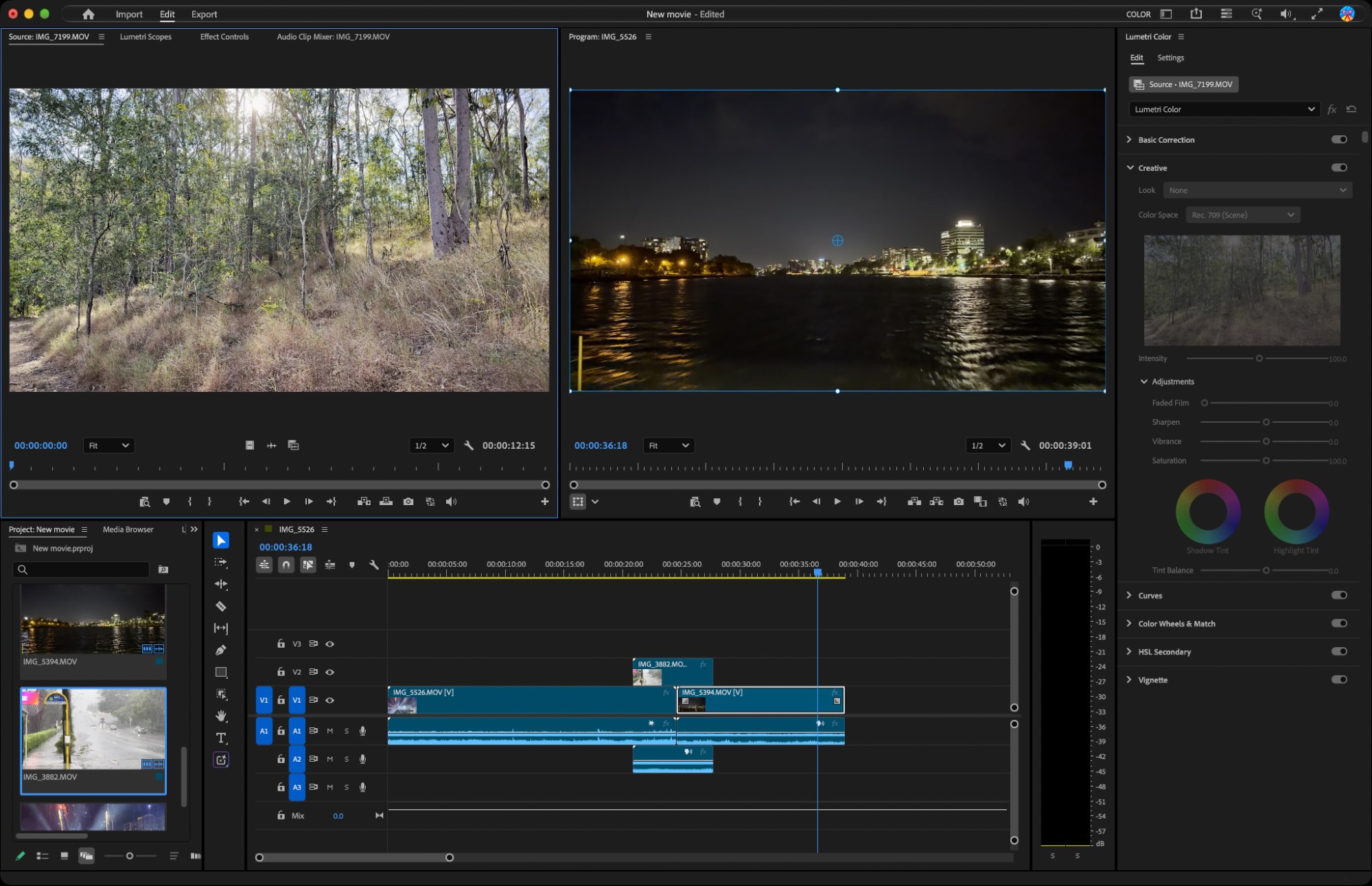
    Adobe Premiere is an industry-standard video editing tool from a company that specializes in creative applications like Photoshop and After Effects. It’s a highly versatile tool that includes everything for crafting basic edits to more advanced tasks like color grading, chroma keying, and object-tracking.

    The basic editing tools are fairly straightforward, and Premiere manages to maintain a clean and uncluttered interface. This makes learning to perform simple edits relatively easy, and Adobe includes a useful in-app tutorial that walks you through the process when you first install it.

    Having said that, many of the more complex functions do require some digging. For example, you can apply object tracking to your clips automatically or manually. Going the automatic route lets Premiere analyze and generate keyframes that you can tidy up later. To do this, you’ll need to learn how to create a new sequence from a clip and draw a mask. Other forms of tracking involve customizing the interface to show the tools you’ll need to use. (If you don’t know what any of this means, you almost definitely don’t need Premiere.)

    The good news: Premiere’s popularity means that there’s plenty of help at hand. Adobe includes training materials and an exhaustive manual, or you can learn as you go by searching for videos and articles whenever you run into trouble. Adobe is also leaning into AI-powered features like automatic tagging of incoming audio files. But Adobe isn’t only pushing new AI features, and Premiere continues to evolve with features like Color Mode, a rethinking of color grading that’s currently in beta but fully usable.

    Premiere is powerful and exhaustive, but that’s reflected in the price and subscription model. If you don’t need everything that Adobe provides, you’ll be better off opting for something cheaper instead.

    Adobe Premiere price: $22.99/month (billed monthly for an annual plan) or $34.49/month (billed monthly); 7-day free trial available.

    If you use Adobe Creative Cloud Libraries, you can automate your video production workflows by connecting Adobe to Zapier. Automatically upload files to Adobe Creative Cloud Libraries, send notifications when assets are ready, and create tasks based on new elements.

    Best free video editing software across platforms

    DaVinci Resolve (Windows, Mac)

    DaVinci Resolve, our pick for the best free video editing software across platforms

    DaVinci Resolve pros:

    • A professional-level video editing app with a generous free tier

    • A complete set of editing, color grading, audio mastering, and visual effects tools

    • An upgrade path for those who need more features

    DaVinci Resolve cons:

    • The app has its own way of doing things that may require some adjustment

    • Some aspects of the app are particularly complex

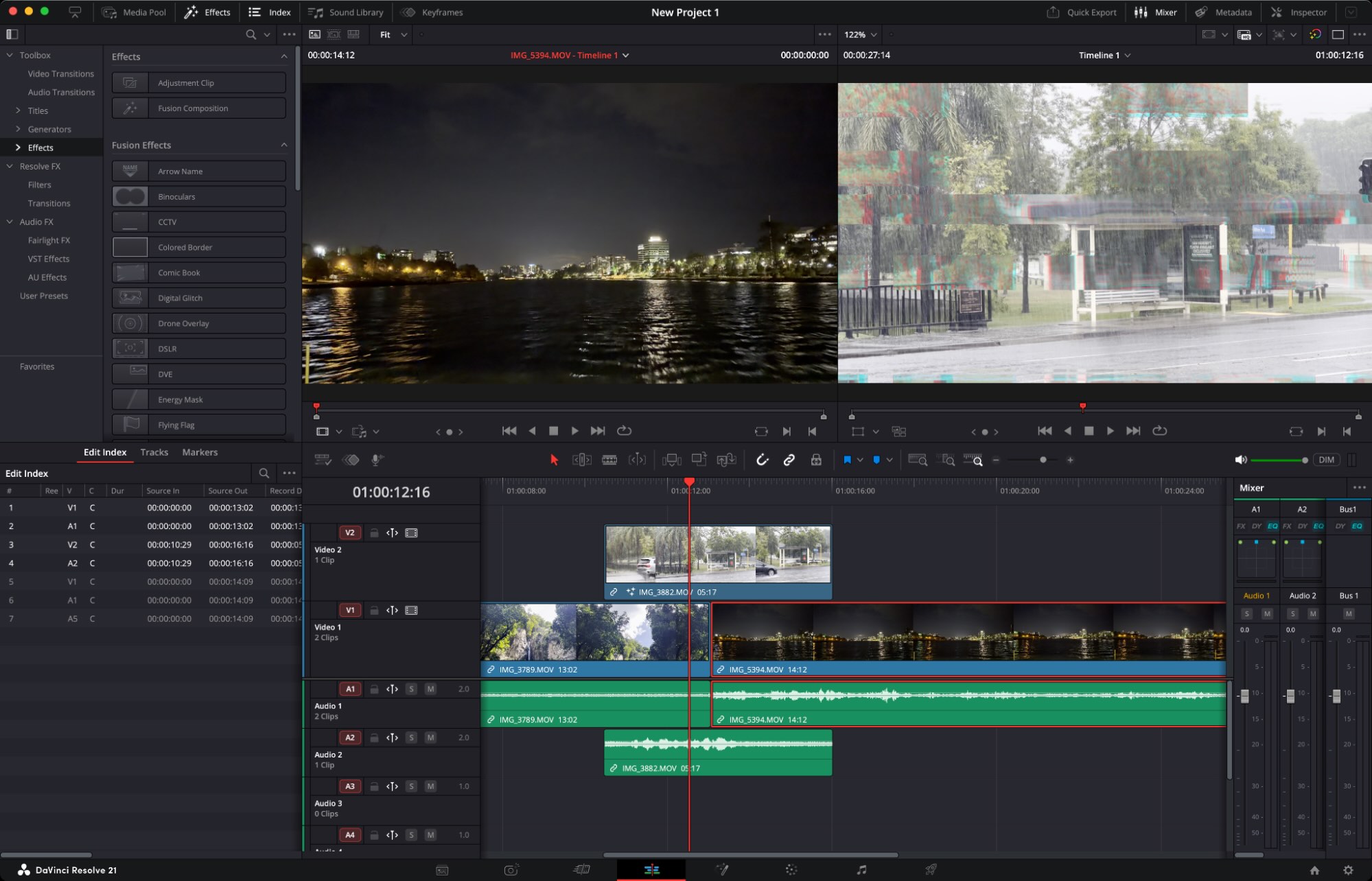
    DaVinci Resolve might just be the best deal in video editing. The base version is completely free to use and includes a staggering number of professional-level features. Not only is DaVinci Resolve a world-class video editor, but it also includes dedicated workspaces for color grading, audio mastering, visual effects, and motion graphics.

    These various workspaces are separated into tabs that run along the bottom of the screen. This allows you to dip into some of the more advanced features, like creating motion graphics in the Fusion interface, or to ignore them completely until you’re comfortable with the basics. It’s also a great way to work on several things at once and get everything done within a single application. This now includes a Photo interface, which allows you to process images with the editor’s built-in effects and AI tools.

    One thing that can trip up new users is that DaVinci Resolve includes two editing workflows: Cut and Edit. They’re both suitable for adding clips to a timeline and completing an edit, but Cut is primarily focused on speed and user-friendliness (it includes all the basic tools you need to trim and make basic adjustments), while Edit is there if you need the wider range of tools commonly associated with a more standard editing experience.

    Since DaVinci Resolve has exploded in popularity due to its attractive price tag, there are a huge number of resources available to walk you through some of the more complex features. You’ll need these to learn how to use chroma key, sync audio and video tracks, and make the most of the editor’s impressive multi-camera editing workflows.

    Blackmagic Design, the company behind DaVinci Resolve, continues to push the editor forward. New features for version 21 include the ability for Claude and ChatGPT to control the editor, enhanced search for finding media, and improved direct capture from supported cameras. Just keep in mind that you’ll need the Studio version to take advantage of the more advanced features, including AI tools like text-based editing.

    The free version of DaVinci Resolve is able to edit and output 8-bit video at Ultra HD (3840×2160) resolution with a frame rate of up to 60 frames per second. Beyond that, you’ll need to upgrade to the $295 Studio version, which includes full HDR support, a huge number of effects, and AI-driven features, like transcriptions, auto subtitling, and text-based editing.

    DaVinci Resolve price: Free for the standard version; $295 for DaVinci Resolve Studio (often included with Blackmagic Design hardware purchases).

    Best Mac video editing software

    Final Cut Pro (Mac, iPad)

    Final Cut Pro, our pick for the best Mac video editing software

    Final Cut Pro pros:

    • Highly optimized for Apple hardware

    • Powerful yet minimalist interface emphasizes content

    Final Cut Pro cons:

    • Expensive (and visual effects and video encoding are separate purchases)

    • Limited to Mac

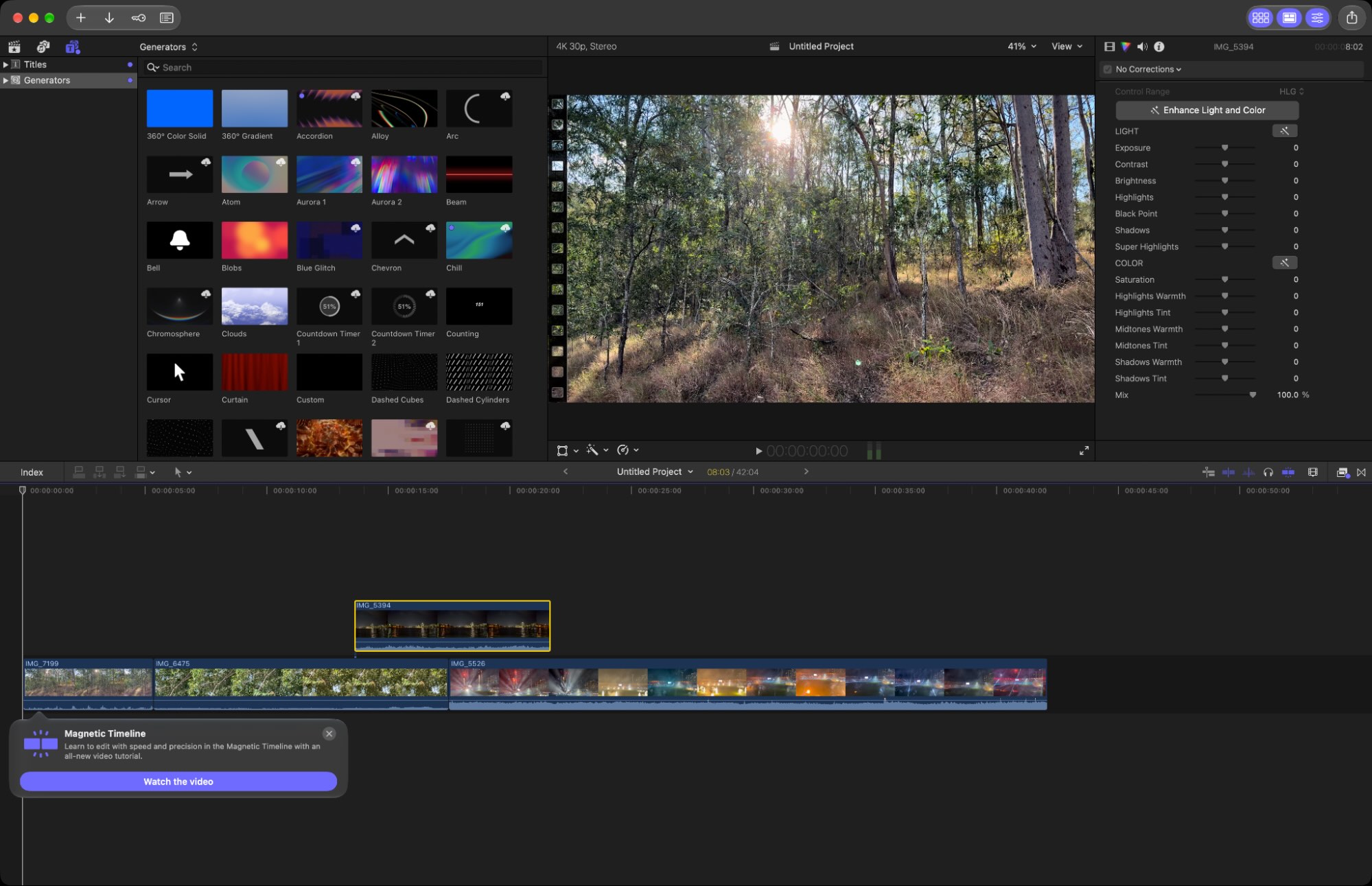
    Final Cut Pro is only available to Mac users (barring the cheaper and less productive iPad version, which I’m not discussing here). This limits its appeal somewhat, but if you use a Mac and you’re looking for a professional video editor with a price tag to match, it should probably be the first editor you consider.

    Unlike Adobe’s meager week-long trial, Apple gives you a full 90 days to decide whether or not Final Cut Pro is worth the $299 price tag. One thing that’s bound to impact your decision is just how well Apple’s high-end video editor runs on the latest Mac models. Final Cut Pro is highly optimized for Apple hardware, and some features won’t work on older Intel-based Macs.

    The result is a video editor that outperformed pretty much everything else on this list, a benefit that Apple can take advantage of on account of its tightly controlled hardware and software ecosystem. Rolling your mouse over footage lets you smoothly and easily preview a clip before deciding to add it to your timeline. And if you’re a prolific iPhone videographer, you’ll love the way the app integrates with your iCloud Photo Library to boot.

    Notably, Final Cut Pro now includes seamless support for the Final Cut Camera app on iPhone, which unlocks more advanced features like wireless multicam syncing, recording in ProRes and Apple Log on supported devices, and the ability to control exposure in a way that the built-in Camera app can’t match. The app also includes the full gamut of professional features, from chroma keying to object detection, with HDR support and a range of tools for creating graphics and titles. Apple has also expanded the AI features with new auto-captions and subtitles (accessible by right-clicking a clip), improved automasking for better subject detection, and deeper integration with other Apple apps like Pixelmator Pro.

    On top of Final Cut Pro, you can get more professional results with add-on apps like Motion and Compressor. These $49.99 upgrades function as standalone apps but integrate into the Final Cut Pro workflow for even more options when it comes to titles, graphics, and content delivery.

    Final Cut Pro price: $299 outright, which includes new updates; 90-day free trial available.

    Best online video editor

    Clipchamp (Chromium-based browsers, Windows 11)

    Clipchamp, our pick for the best online video editor

    Clipchamp pros:

    • A web-based video editor that you can access anywhere

    • Simple interface with speedy performance

    • Includes bonus content, templates, and stock footage

    Clipchamp cons:

    • Requires a fast internet connection for best results

    • Free tier is limited to 1080p export

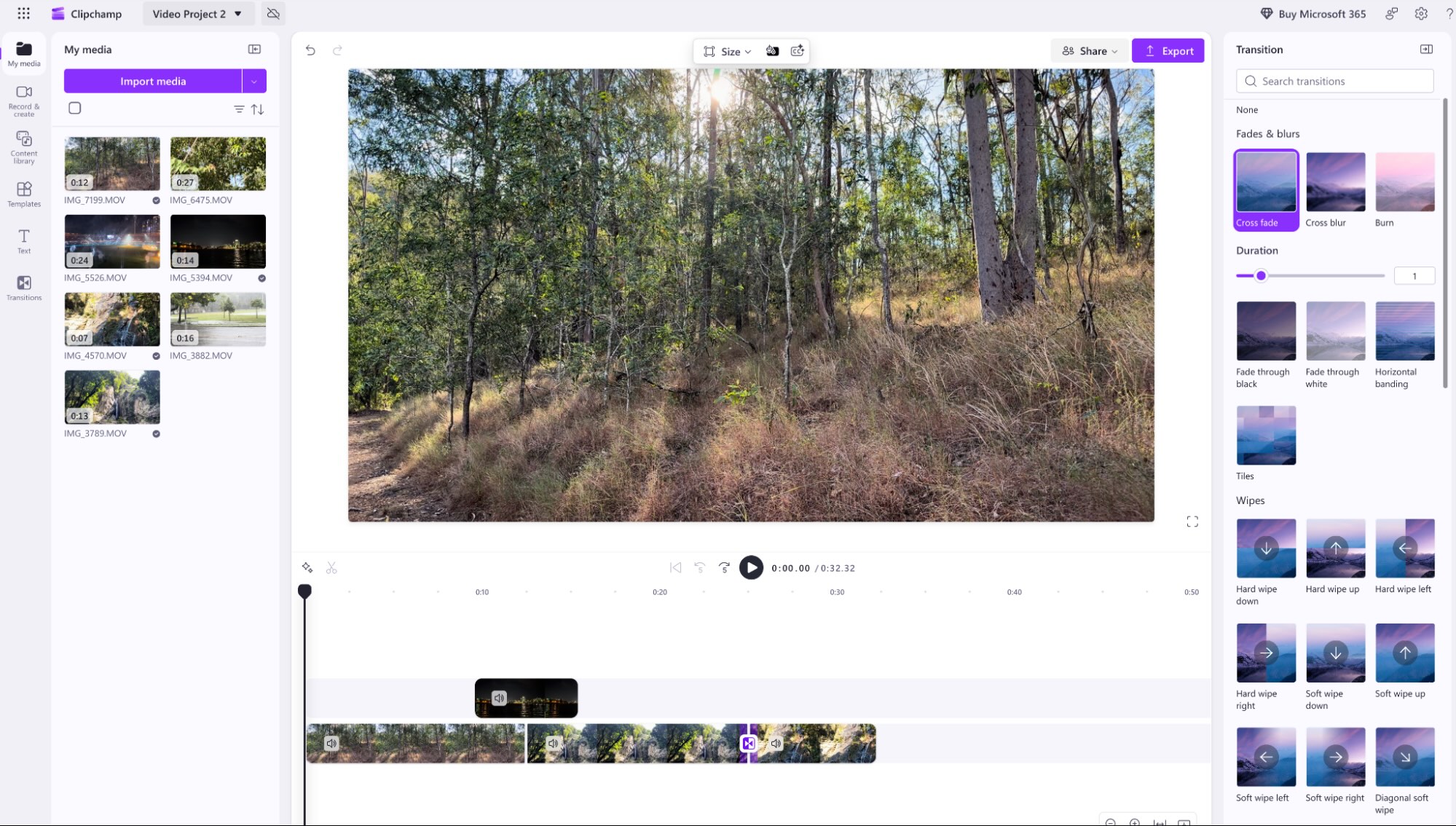
    Clipchamp, owned by Microsoft, is a web-based video editor that runs in a browser on just about any platform. It’s also available as a standalone offline progressive web app (PWA) for Windows 11. If you’re not installing it locally, you’ll need to access it using a Chromium-based browser like Google Chrome or Microsoft Edge.

    The best video editors are usually desktop apps, but Clipchamp is an impressive exception. You’ll need a fast internet connection to make the most of it, but the editor performs well in supported browsers (Safari didn’t work during testing, but Chromium browsers and Firefox did the trick). Uploading and processing media takes longer than it would on a local video editor, but once Clipchamp has cached your footage, the editor is very usable.

    At the heart of Clipchamp is an approachable user interface that uses a familiar drag-and-drop timeline. You can add transitions, titles, and even stock media using the categories to the left of the screen, or make changes to media in the timeline by selecting it and using the various toggles to the right of the editor interface.

    Use templates to quickly design content for platforms like Instagram and TikTok, and export your creation to YouTube, TikTok, or cloud storage providers like Google Drive. There’s a lot of content available for free, plus you can use an AI video composer to take control of your edit.

    Clipchamp price: Free tier available, with exports up to 1080p and no watermarks; $11.99/month to remove limits and access more content.

    Best video editor for fast edits on desktop and mobile

    Adobe Premiere Elements (Windows, Mac)

    Adobe Premiere Elements, our pick for the best video editor for fast edits on desktop and mobile

    Adobe Premiere Elements pros:

    • Adobe video editing at a much cheaper price point

    • Three editing modes to choose from: quick, guided, and advanced

    • Share directly to platforms like YouTube and Instagram

    Adobe Premiere Elements cons:

    • Steep upfront cost (even if $50/year is reasonable)

    • Lacks the advanced features you’ll find in its pro-level namesake

    Adobe Premiere Elements takes the Adobe video editing formula and repackages it into a user-friendly package that’s not to be underestimated. You’re not getting the full suite of advanced video editing tools you’d find in Adobe’s flagship, but you’re also only paying $50 per year for the privilege. While Premiere Elements was, until recently, a product you could buy outright, the 2027 edition is locked behind a single price for three years of access.

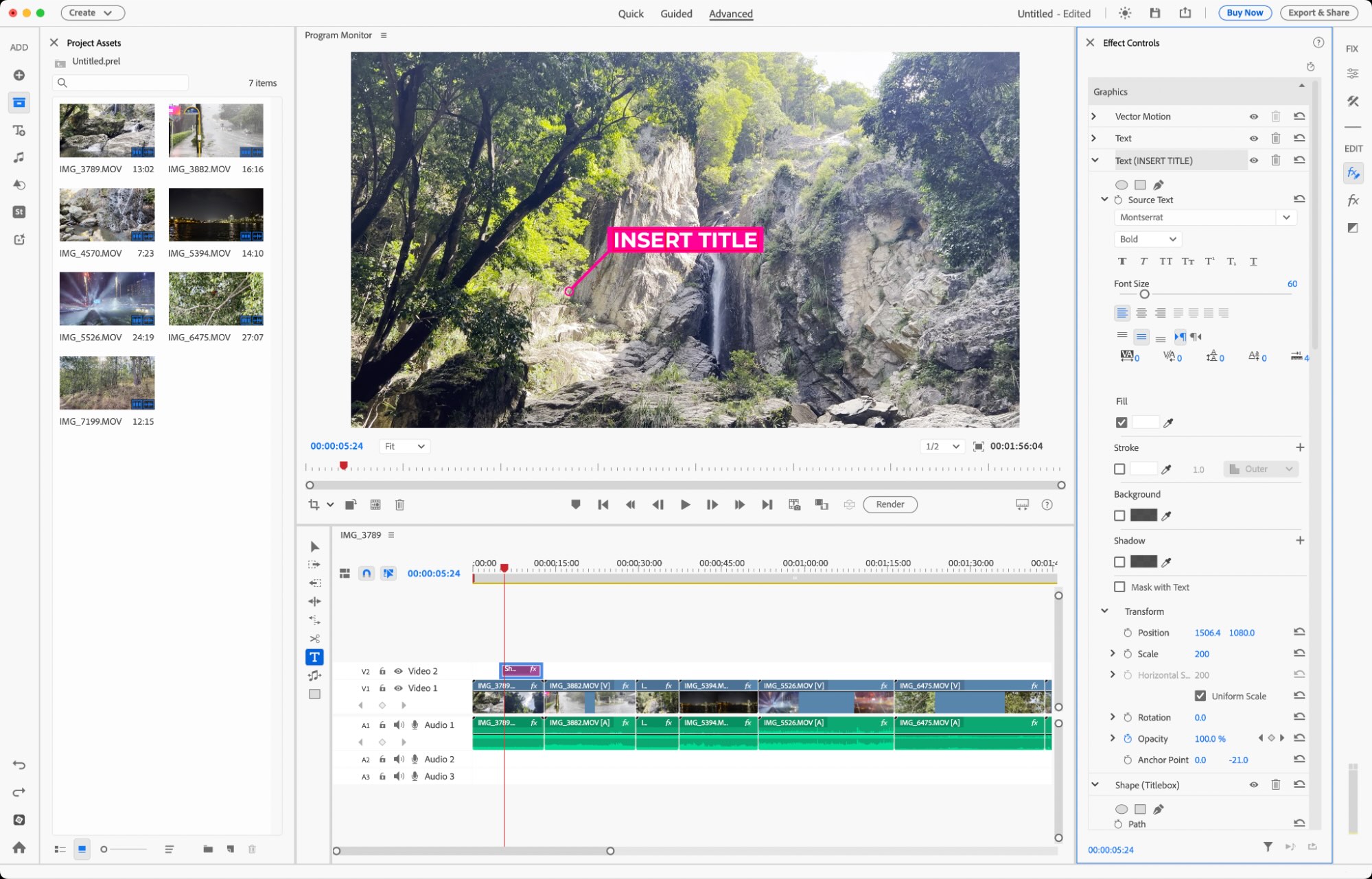
    Elements, as the name may suggest, retains the bare essentials that anyone looking for a video editor of this caliber would expect. There’s a proper timeline view for performing “Advanced” edits, in addition to a “Quick” editing mode that cuts clips together quickly as you add them. There’s also a “Guided” option that sources tutorials to help you learn the ropes.

    The simplified UI puts everything in plain view. You can add media and assets using the menu on the left. This includes your own files, assets like title cards and shapes, text, graphics, and audio. The app also integrates generative AI for images and title art, with support for Adobe’s Firefly model plus a select few OpenAI models (which require credits). Adobe Stock is also integrated, though you’ll need to pay extra for that, too.

    On the right side of the timeline view and preview window, you’ll find adjustments that allow you to correct clips, add effects, and drop transitions onto the timeline. Elements is capable enough to give you access to tools like keyframes, while holding back on more complex workflows like multi-camera editing. 

    One limitation I noticed on export was a lack of support for creating HEVC files, which, in my mind, shouldn’t be limited to Adobe’s top-flight video editor. That said, there are options for tailoring your video’s quality, plus the ability to connect platforms like YouTube, Instagram, and LinkedIn directly for immediate export. If you opt for Premiere Elements, you’ll get updates as they arrive for as long as your subscription is valid.

    Adobe Premiere Elements price: Free trial available for a week, after which you’ll need to pay $149.99 for a license that lasts three years. You also get Adobe Photoshop Elements as part of the package.

    Best video editor for a full-featured web-based editor

    Kapwing Video Editor (Web)

    Kapwing, our pick for the best video editor for a full-featured web-based editor

    Kapwing Video Editor pros:

    • A web-based editor that feels like a desktop app

    • Collaborative video editing

    • Some useful AI tools thrown in for good measure

    Kapwing Video Editor cons:

    • Software as a service means monthly subscription lock-in

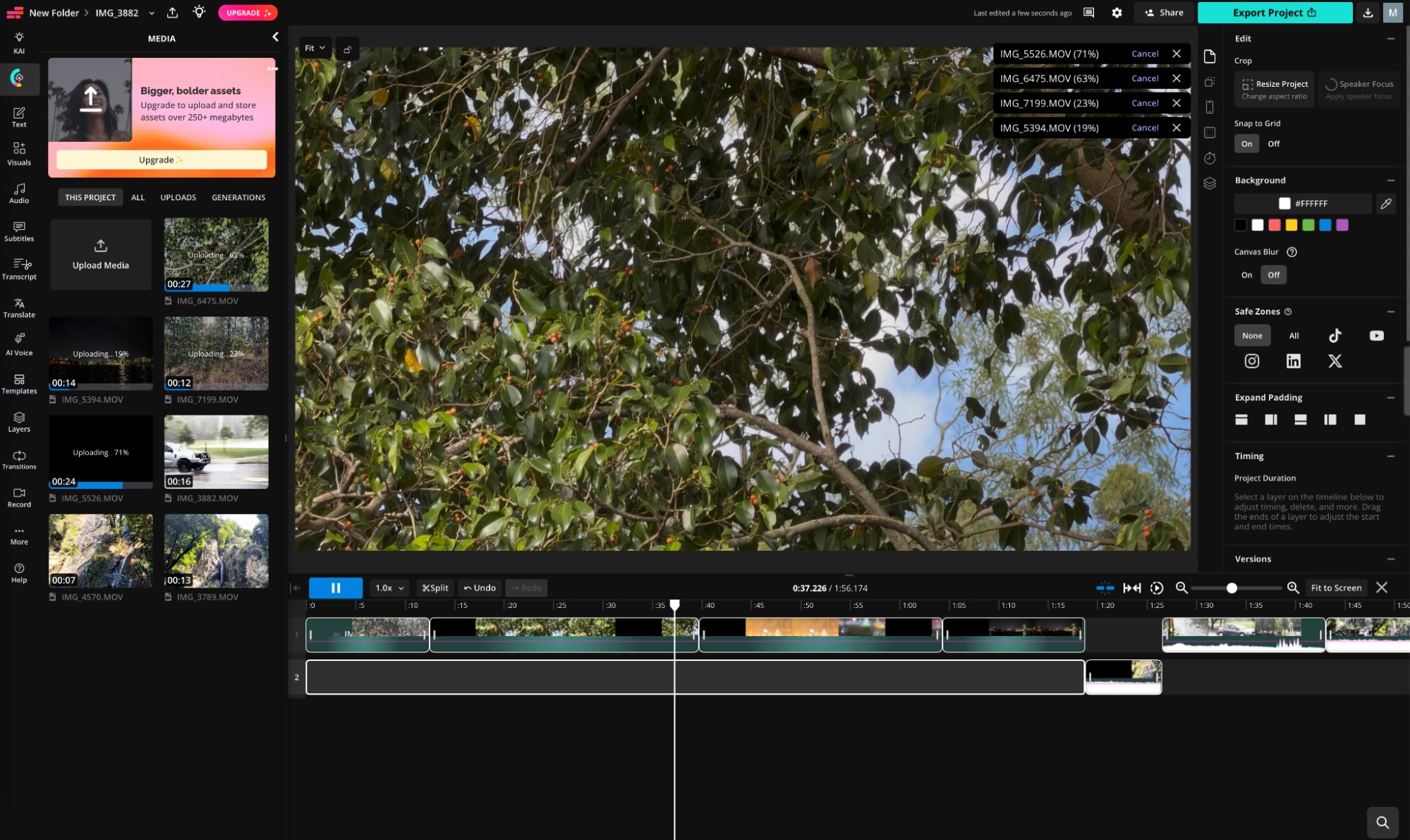
    Kapwing is a web-based video editor that lives entirely within your browser. If you’ve used these sorts of video editors in the past, you might have some preconceived notions about performance, responsiveness, and overall capability. Kapwing quickly put my own concerns to bed, which is impressive considering that many of its rivals still feel limited by the constraints of a browser.

    This browser-based editor feels like a desktop app, and it shares a largely identical UI with desktop offerings like Premiere Elements. Everything feels snappy, and you don’t even need to wait for your footage to upload before you can start cutting it together. After ingesting, you can drop your videos onto the timeline and get started right away.

    The UI is what I’ve come to expect from an all-rounder. Though Kapwing talks a big game about its AI features, none of this stuff feels like it’s thrust upon you when you’re using the editor. There’s an AI assistant that can help you select things or find tools, but you’re also free to select media, and add text, graphics, audio, and other elements as you would in any other editor.

    One AI feature you might appreciate is the transcription-based editing, where you can trim clips and audio down by editing text. There are AI-generated voices, an auto-translator, auto-dubbing for publishing in different languages, and a voice cloner. Anything you generate with the built-in tools can be found in a Generations bin in the media menu later on. These tools feel optional and they cost credits, with the number of credits you have available dependent on which tier you’re paying for.

    Kapwing feels like a video editor that’s ready for the modern attention economy. Social media is a focus, thanks to features like “safe zones” for trimming your project’s canvas to size for TikTok, Instagram, and other platforms. Just remember that, like any web-based tool, it comes as a service. There’s a free tier that’s more than enough for evaluation, but limits like 720p resolution and a watermark will have you reaching for the subscribe button if you like what you see.

    Kapwing Video Editor price: Plans starting at $16/month on an annual plan, or $24/month for a monthly subscription. Free trial available with no time limit.

    Best video editor for an AI-centric workflow

    Flixier (Web)

    Flixier, our pick for the best video editor for an AI-centric workflow

    Flixier pros:

    • A smorgasbord of AI models right there in the editor

    • Responsive web interface

    • Still a “real” editor underneath

    Flixier cons:

    • Expensive subscription-based model that makes use of credits

    • Limited export options, depending on your plan

    Not everyone values a video editor that’s closely entwined with generative AI features. If you’re nodding along in agreement, you can basically stop reading now. Flixier isn’t for you; you’re better off sticking with Kapwing if the browser is where you want to edit video. But if you’re looking for a video editor that makes it easy to tap into some of the most advanced generative AI models on the planet as you edit, Flixier might be it.

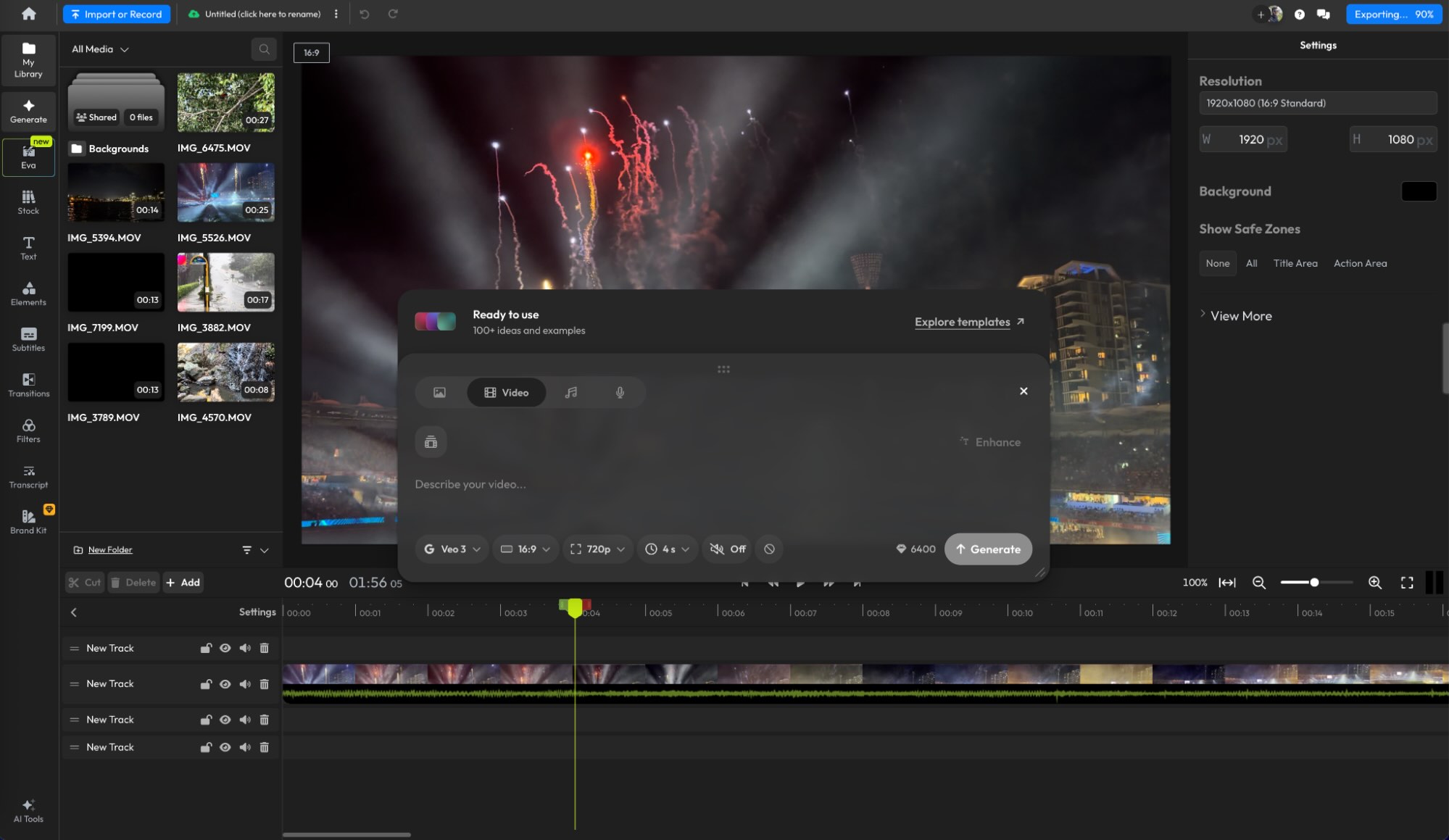
    I really didn’t expect much from Flixier, and truth be told, I’m not really an AI guy in my creative work. But if I put my impartial hat on for a moment, I didn’t come across a tool that integrates this technology in the same way that Flixier does during my testing. The editor puts a massive number of models right there under the Generate button, with no need for you to connect an account or set up another subscription.

    This goes for images, videos, music, and speech. Select a category, select your model, come up with a prompt, and hit Generate. As you’d expect, there’s a credit-based cost associated with these operations. You can tweak your instructions to help, whether that means generating shorter video clips, lower resolutions, or using cheaper models. It’s a playground, albeit one that you’ll end up paying to use.

    While the deeply-integrated AI tools are clearly the main draw here, Flixier also offers a solid video editing experience. Like Kapwing, you can start editing right away without waiting for your footage to upload. The timeline feels snappy, and there were no awkward stutters between clips. The interface is unremarkable in a good way.

    The resolution of your export will be limited by which tier you’re paying for, with the cheapest plan capping out at 1080p. That might feel a little limiting for the money you’re paying compared to rivals like Kapwing.

    Flixier price: Starting at $9/month per editor when billed annually, or $19/month per editor when paying monthly. For 4K exports, this increases to $18/month and $39/month respectively.

    Best free and open-source multi-platform video editor

    Kdenlive (Windows, Mac, Linux)

    Kdenlive, our pick for the best free and open-source multiplatform video editor

    Kdenlive pros:

    • A simple and capable video editor at a price that can’t be argued with

    • Works on all three major desktop operating systems

    • Surprisingly advanced in places

    Kdenlive cons:

    • Spartan interface and barebones feel won’t be to everyone’s tastes

    After trying as many as I could get my hands on, Kdenlive is my favorite open-source video editor. It costs nothing to use, receives frequent updates, and has a passionate community that relies on it. While it lacks the eye candy of paid alternatives, it makes up for it in raw ability.

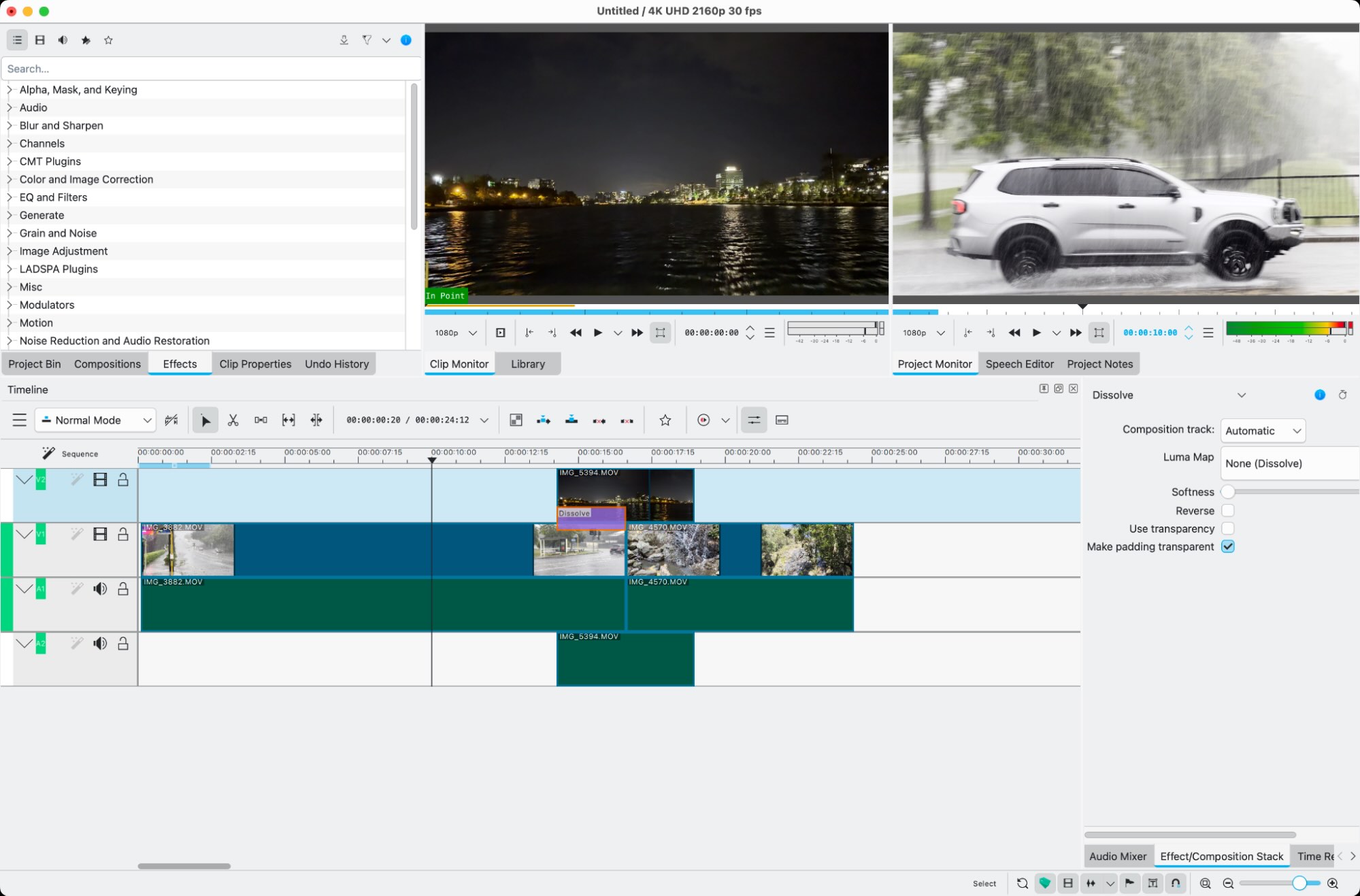
    There’s a timeline view you can use to layer video and audio, with three different ways to add media to suit your preferred video editing style. The timeline itself has slip and ripple tools for those who know how to use them, features that are absent on many other editors on this list. And like with Premiere Pro, you can house multiple sequences within a project file.

    There’s also no shortage of additional effects and transitions to use in your project. Standouts include the “Object Segmentation” background removal tool, support for chromakeying, audio effects, and all manner of color and image correction tools. There’s a lot to dig into here if you’re willing to take the time to look around and learn how it all works.

    There’s also a powerful export tool for rendering your project using a variety of profiles (including HEVC, which not even Adobe Premiere Elements includes), with the option of creating your own. There’s no direct upload to platforms like YouTube here, but what you pay in convenience, you get back in raw utility.

    Kdenlive price: Free

    What’s the best video editing software?

    There’s still no single perfect approach to video editing. Your budget will heavily influence your available choices, which is why DaVinci Resolve still stands out as the pack leader. If you’re willing to put some time into learning how to use it, the payoff will be worth it for all but the most demanding of tasks. If the free price tag is compelling to you, Kdenlive is absolutely worth considering if you don’t need such a complex tool.

    If money is no object, Adobe Premiere and Final Cut Pro are great choices too. These are industry-standard video editing suites, and there’s very little they can’t do as long as you’re willing to learn the ropes. Apple users will be particularly pleased with Final Cut’s highly-optimized performance, while Premiere’s editing workflow is like riding a bike (you’ll never forget how it works).

    If the idea of web-based editing appeals to you, Kapwing is a surprisingly capable editor if you’re happy to shoulder the cost; or, if your productions heavily lean on AI, Flixier makes more sense. ClipChamp exists in a league of its own, offering a compelling free plan and cheap, fast edits with a Microsoft 365 subscription.

    Related reading:

    This article was originally published in November 2023. The most recent update was in October 2026.

  • Jarq

    Translate, shorten, fix or rewrite any text near your cursor

    Discussion
    |
    Link

  • Objective blindness in agentic systems: a taxonomy of behavioral signatures

    Objective blindness in agentic systems: a taxonomy of behavioral signatures

    Client Challenge